User Manual
Purchase Module
© 2026 — All Rights Reserved
This document is a user guide for users of the HashMicro application that belongs to PT. HashMicro Solusi Indonesia.
© Copyright PT. HashMicro Solusi Indonesia. Copyright is protected by applicable law.
It is strictly prohibited to copy, reproduce, publish the contents of this book, in whole or in part, by any means, electronic or mechanical, including but not limited to photocopying or computer data storage systems. It is strictly forbidden to disclose the information in this document to third parties without prior written approval from the Management of PT. HashMicro Solusi Indonesia.
If there is any questions regarding the contents of this document, please contact directly:
PT. HashMicro Solusi Indonesia
Jl. Balikpapan Raya. 9 Unit A - C,
South Petojo, Gambir,
Central Jakarta City, DKI Jakarta 10160
Phone : +6287-888-0000-15
Email : hello@hashmicro.com
0 Basic Configuration & System Access
Before any Purchase activity can be performed, the user must be authenticated against the HMX server. Each successful login establishes a session bound to the user account, the active company, and the active branch. Logging out terminates the current session and returns the user to the login screen.
1.1 Logging In
Authentication is required to access the Purchase module and any of its data. Use the credentials issued by your system administrator. If your password has been forgotten, click Forgot & Reset Password? on the login form to start the recovery flow.
Field Reference
The login form on the database-specific page exposes only two fields:
| Field Name | Data Type | Mandatory | Description & Function |
|---|---|---|---|
| Username | Text | YES | The login identifier of the user. Either the user's login name or the e-mail address registered on the User master, depending on the server configuration. |
| Password | Password | YES | Secret credential associated with the username. Case-sensitive. Use the Forgot & Reset Password? link on the login form when the password is not known. |
Procedure
To log in to the Purchase module, follow these steps:
Open a web browser and navigate to the HMX login page provided by your system administrator. The page shows an empty Username and Password form.

Figure 0.1.1 Login form with Username and Password fields. Enter your Username in the first field and your Password in the second field. Both fields are mandatory. Passwords are masked as you type.

Figure 0.1.2 Login form after the user enters credentials. Common pitfall: The username and password are case-sensitive. If you receive an authentication error, verify Caps Lock is off and that no leading or trailing whitespace was pasted into either field.
Click the Login button below the password field. On success, the system loads the default landing screen for the user and the top navigation bar shows the active company, active branch, and the user avatar at the far right.
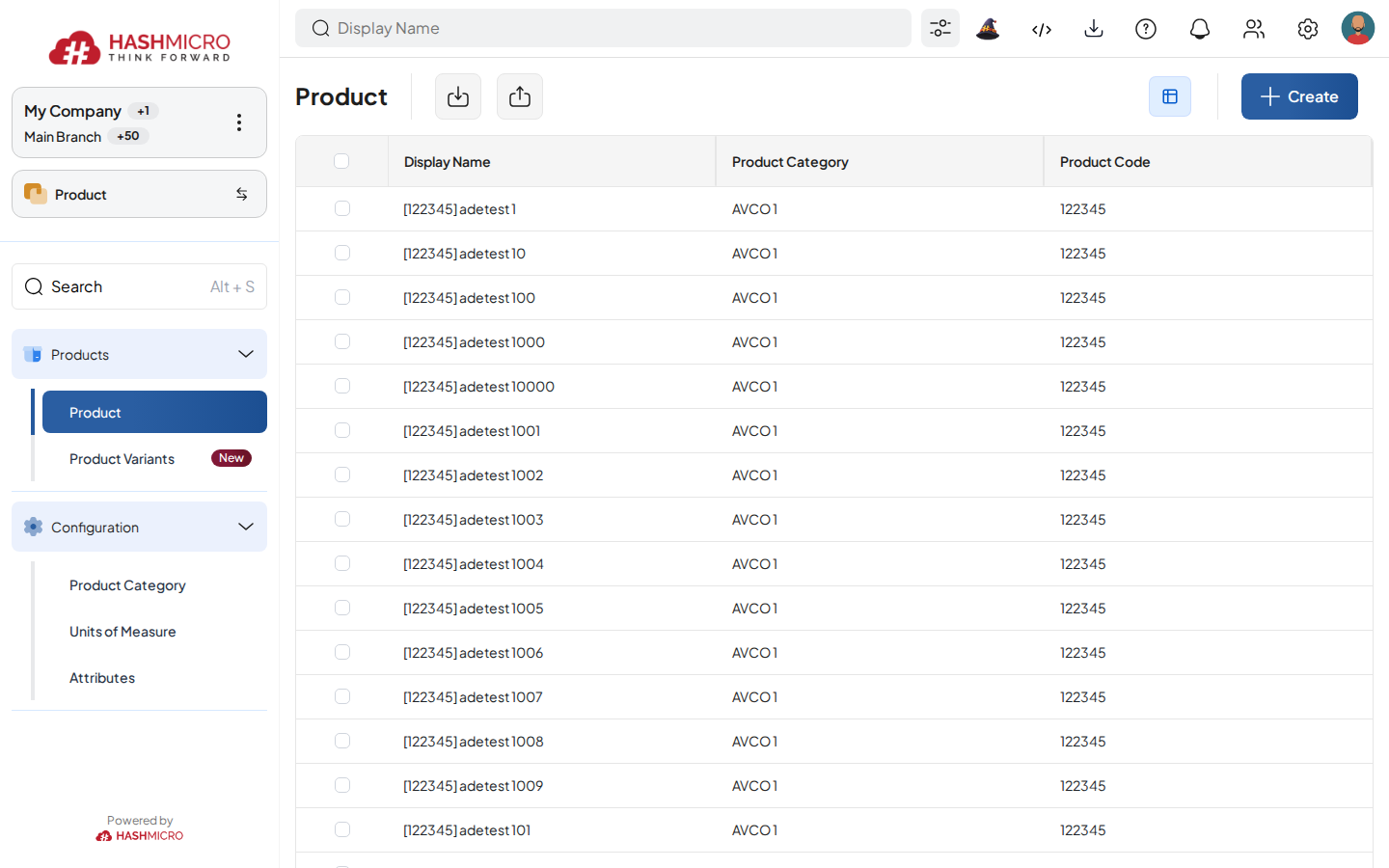
Figure 0.1.3 HMX landing screen after successful login. Note: HMX limits a single user account to a maximum of three concurrent sessions. If this limit is reached, a Maximum Sessions Reached dialog appears asking whether to replace the oldest session. Click Replace & Continue to proceed; the oldest session will be terminated.
1.2 Logging Out
Logging out terminates the current session and clears the session cookie from the browser. Any unsaved form changes will be lost — save or discard pending work before logging out.
Procedure
To log out of the Purchase module, follow these steps:
Hover the cursor over the user avatar at the far right of the top navigation bar. A dropdown panel opens showing the current Username, Current DB, and a Log Out action.
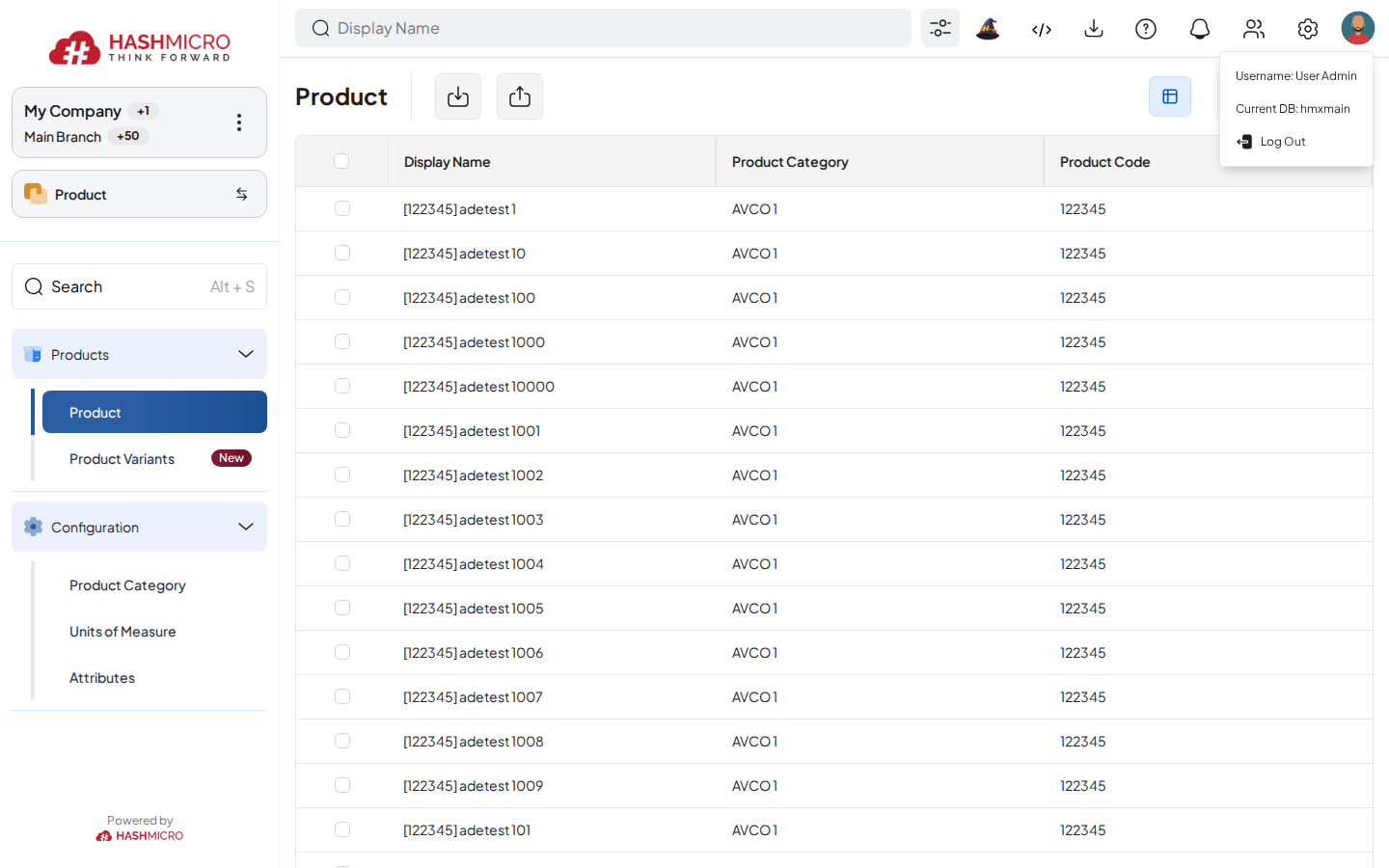
Figure 0.2.1 User profile dropdown with the Log Out action. Click Log Out. The session is terminated server-side and the browser is redirected to the login page for the same database. To log in again, repeat the procedure in section 1.1.

Figure 0.2.2 Logout returns the user to the login screen.
User Flow
flowchart TD
  subgraph P1[Phase 1 Procurement Setup]
    A[Vendor Master] --> B[Product and Purchase UoM]
    B --> C[Taxes Payment Terms and Approval Matrix]
  end
  subgraph P2[Phase 2 Request and Sourcing]
    D[Purchase Request] --> E{Need RFQ or Comparison}
    E -- RFQ Needed --> F[Request for Quotation]
    E -- Direct Purchase --> G[Purchase Order Draft]
    F --> H[Vendor Quotation Review]
    H --> G
  end
  subgraph P3[Phase 3 Approval and Fulfillment]
    G --> I{PO Approved}
    I -- Rejected --> J[Revise Vendor Price or Lines]
    J --> G
    I -- Approved --> K[Confirm Purchase Order]
    K --> L[Receiving Notes or Goods Receipt]
    L --> M{Received Complete}
    M -- Partial --> N[Backorder or Follow Up]
    N --> L
    M -- Complete --> O[Vendor Bill]
  end
  subgraph P4[Phase 4 Finance and Control]
    O --> P[Payment and Reconciliation]
    P --> Q[Vendor Performance and Purchase Reports]
  end
  C --> D
  Q -. issue or variance .-> J
  classDef decision fill:#fff7ed,stroke:#b45309,color:#0f172a
  class E,I,M decision
Purchase starts from setup and reusable master data, then moves into request, sourcing, order, receiving, billing, and review.
| Field Name | Data Type | Mandatory | Description & Function |
|---|---|---|---|
| Master Configuration | Settings and rules | YES | Defines sequencing, approval, receiving, billing, order types, templates, and award strategy. |
| Master Data | Reusable records | YES | Maintains vendors, legal documents, pricelists, teams, products, and warehouses. |
| Transaction | Operational documents | YES | Processes PR, RFQ, PO, Direct Purchase, Blanket Order, Tender, receiving, billing, and subcontracting links. |
| Reporting | Review and traceability | Optional | Reviews comparison, progress, document links, audit, billing, and supplier performance. |
Purchase
The Purchase module is organized into Master Configuration, Master Data, Transaction, and Reporting. The child chapters expose the specific menus and workflows so users can navigate like the Sales and Manufacturing manuals.
| Field Name | Data Type | Mandatory | Description & Function |
|---|---|---|---|
| Master Configuration | Setup area | YES | Purchase Settings, Order Type, Order Template, Award Strategy, approval, sequences, and mail templates. |
| Master Data | Reference data | YES | Vendors, categories, legal documents, pricelists, amendments, teams, products, and warehouses. |
| Transaction | Daily work | YES | PR, RFQ, PO, Blanket Order, Tender, Receiving Notes, Billing, and subcontracting integration. |
| Reporting | Review output | Optional | RFQ comparison, document tracking, receiving progress, billing review, tender audit, vendor performance, and Purchase Intelligence. |
1 Master Configuration
Master Configuration is where admins set the rules that buyers will feel later in daily Purchase work. Review these settings before teams start creating PR, RFQ, PO, tender, or vendor documents.
| Field Name | Data Type | Mandatory | Description & Function |
|---|---|---|---|
| Purchase Settings | Parameter | YES | Controls vendor numbering, credit-limit warnings or blocks, PO revision rules, expiry days, receiving flow, and bill validation. |
| Order Type | Master setup | YES | Groups Purchase documents by company and allowed product category so users pick the right buying flow. |
| Order Template | Reusable setup | Optional | Stores repeatable vendor, order type, and product line defaults so buyers do not retype common purchases. |
| Award Strategy Config | Tender setup | Optional | Defines how tender quantities are split across ranked vendors and how much capacity one vendor can receive. |
1.1 Purchase Settings
Overview
Use Purchase Settings to set the baseline rules for vendor codes, credit-limit control, PO revision, document expiry, receiving, and bill validation. Treat this page as the first checkpoint before Purchase transactions go live.
Prerequisites
- You can open the Purchase configuration menus.
- Confirm the company policy for approvals, numbering, receiving, billing, and integrations before changing the settings.
- After changing a setting, test it with a sample Purchase document before rolling it out to users.
Step-by-Step Instructions
Open Purchase > Settings & Rules > Purchase Settings before users start creating live purchase documents.
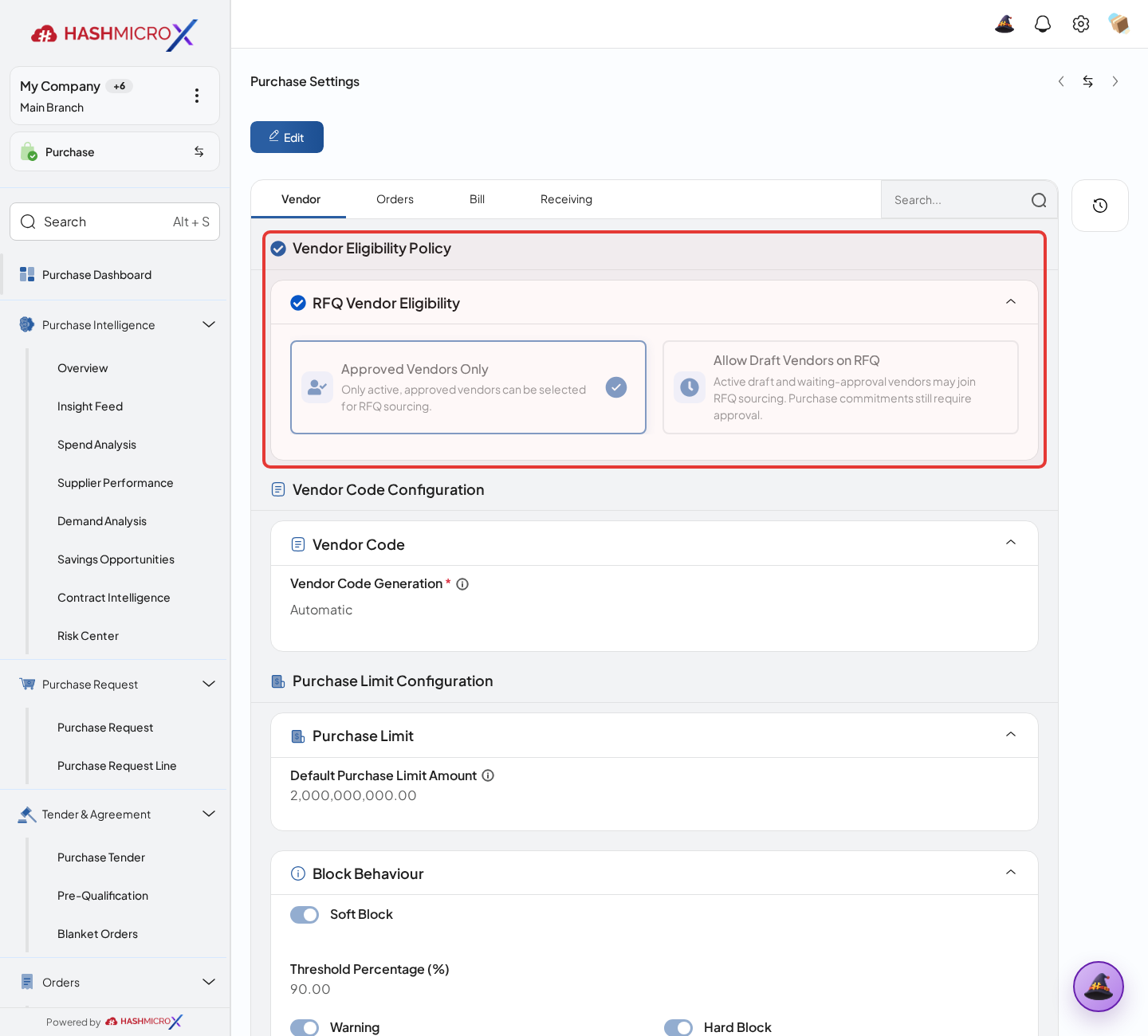
Figure 1.1.1 — HMX Main: Purchase Settings general view with Vendor Eligibility Policy framed in red Review the vendor sequence mode, then decide whether Vendor Code should be generated by the system or entered manually by users.
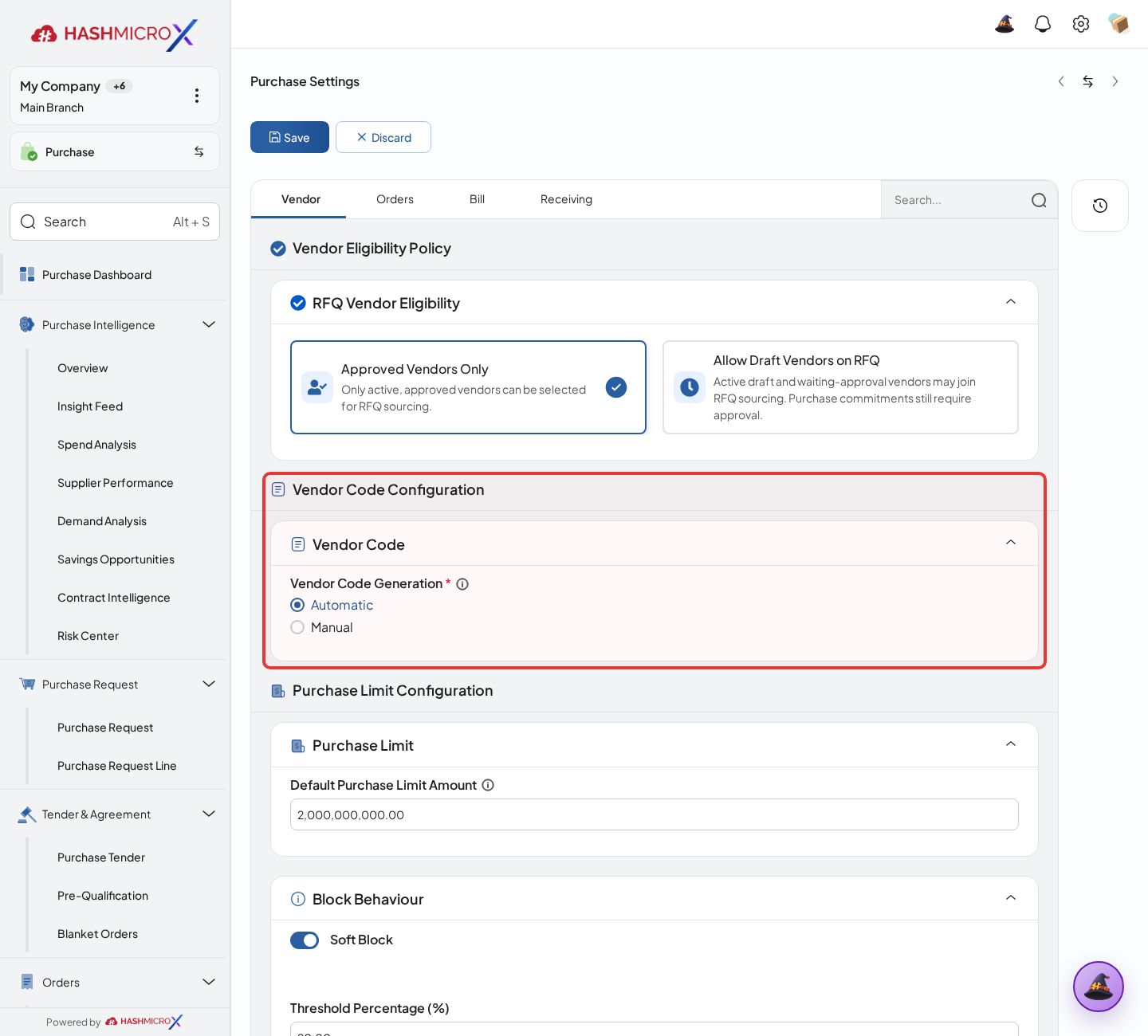
Figure 1.1.2 — HMX Main: Vendor Code Configuration (Generation: Automatic) framed in red Set the credit-limit rule so buyers either receive a warning or are blocked when a vendor exceeds the approved limit.
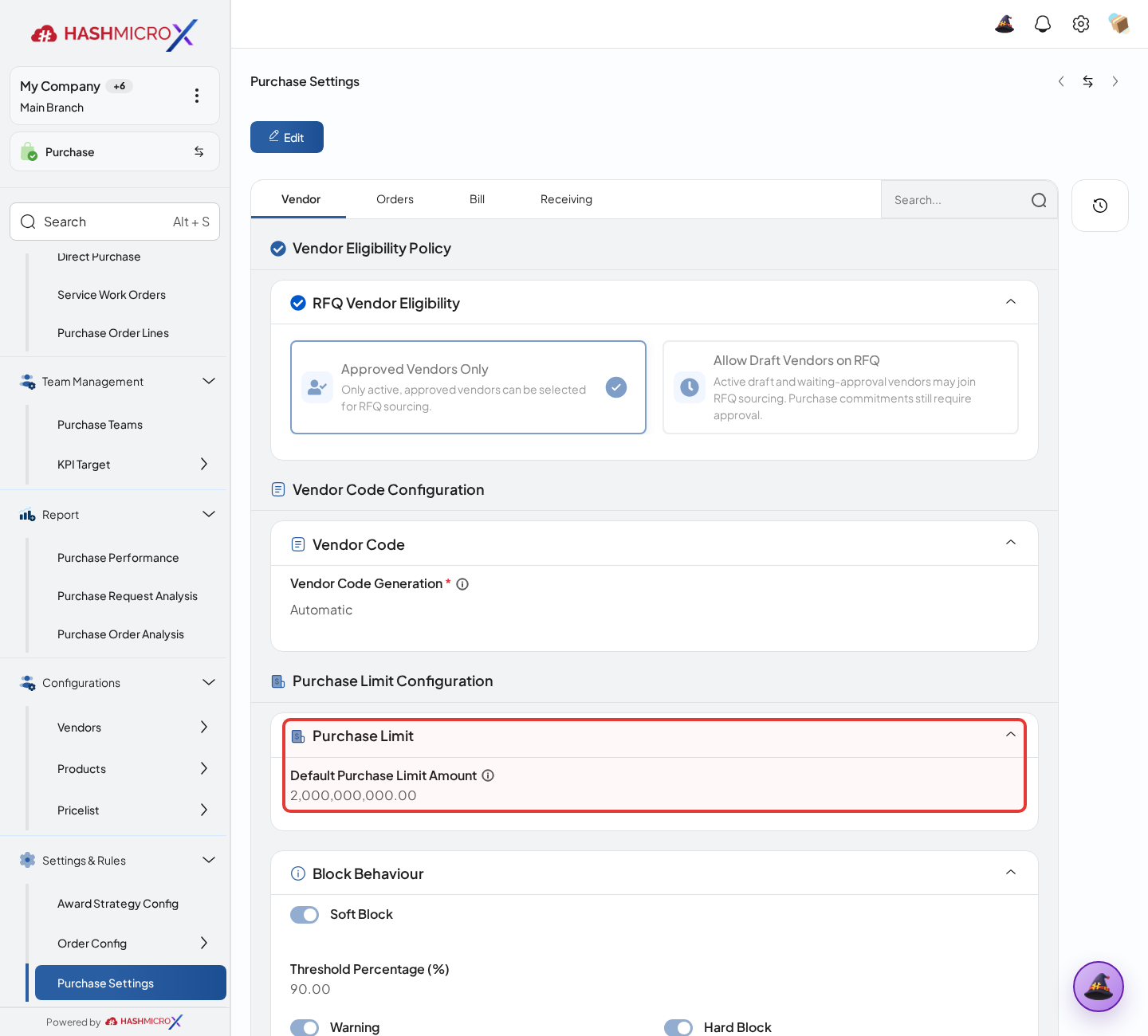
Figure 1.1.3 — HMX Main: Purchase Limit Configuration (Default Purchase Limit Amount) framed in red Turn Purchase Order revision on only when the company allows controlled changes after a PO has been issued.
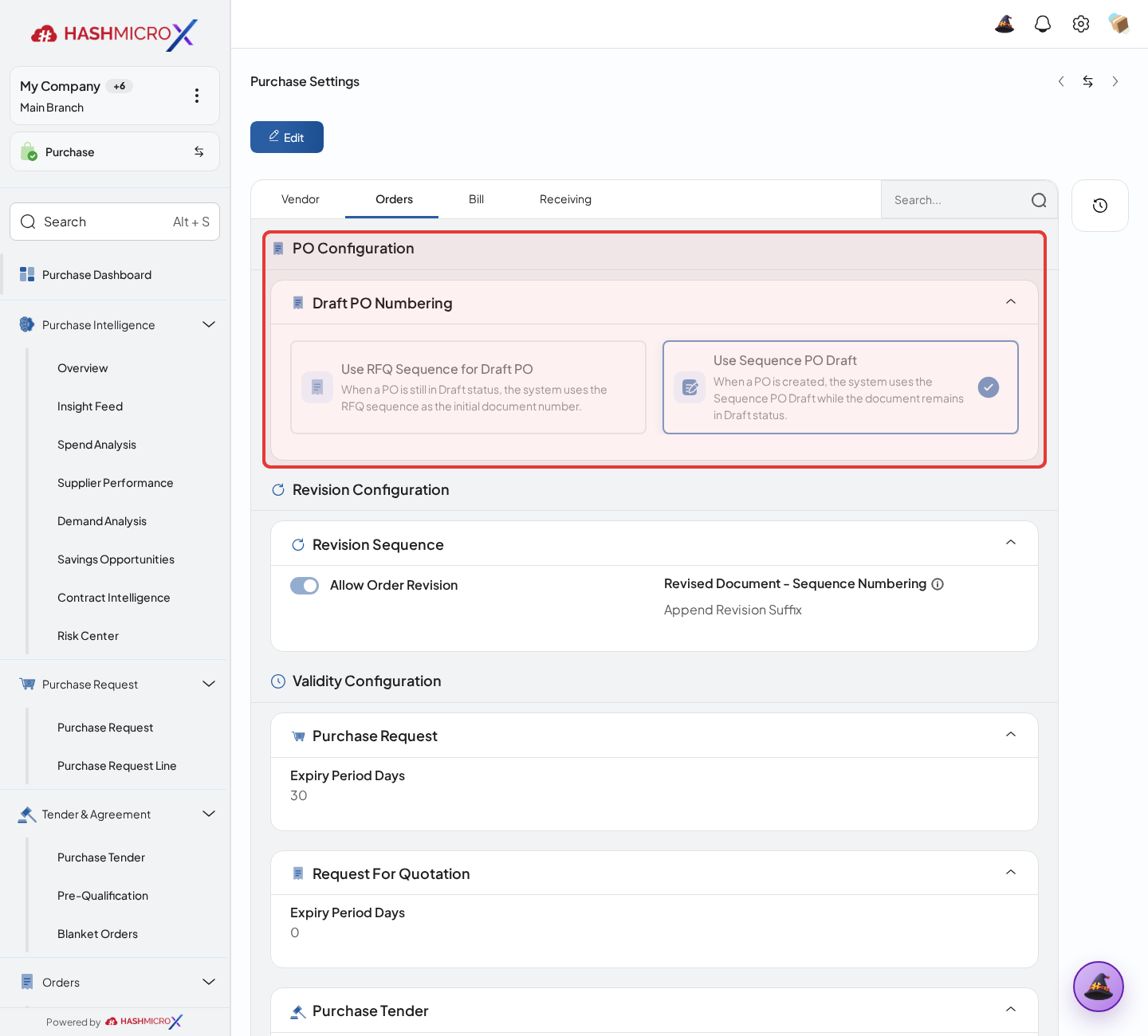
Figure 1.1.4 — HMX Main: Orders tab configuration rules framed in red Configure Draft PO Numbering and Revised Document – Sequence Numbering when the company requires its own draft numbering or a separate sequence for revised documents.
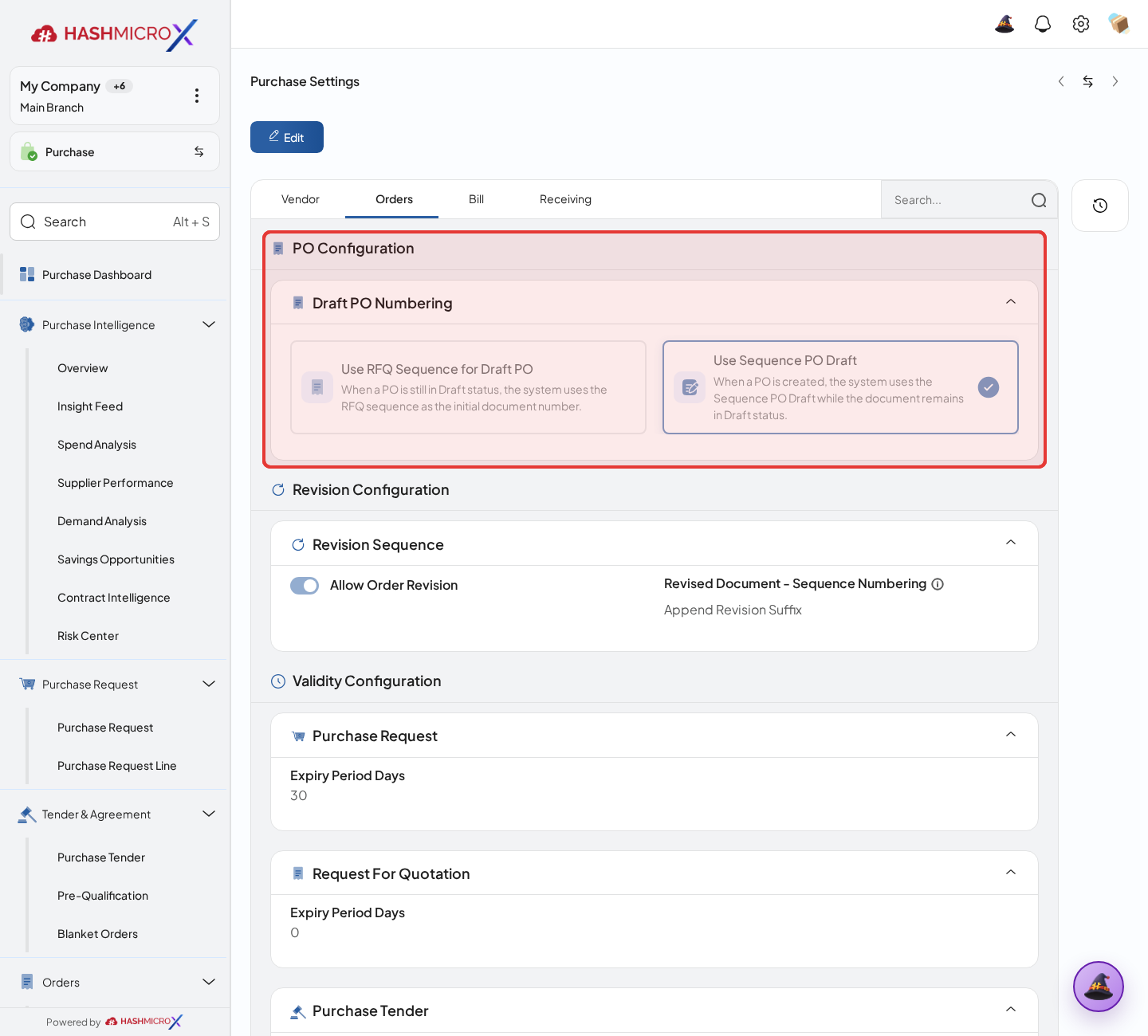
Figure 1.1.5 — HMX Main: Orders tab document sequence and numbering policy framed in red Set the document expiry periods on the Orders tab: Purchase Request Expiry Period Days, RFQ Expiry Period Days, and Purchase Tender Expiry Period Days. Documents that pass the configured number of days can expire automatically, so set the period based on the team’s follow-up policy.
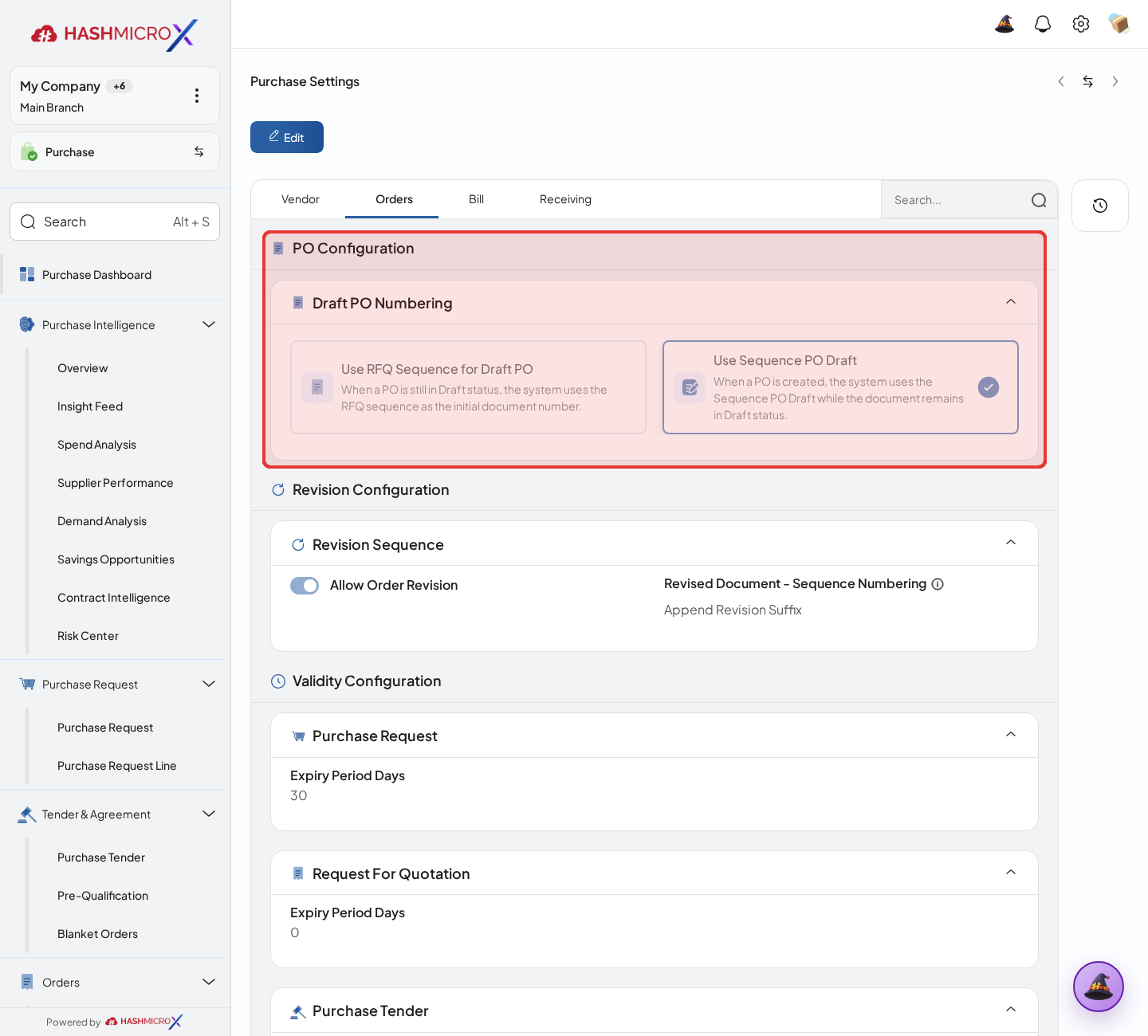
Figure 1.1.6 — HMX Main: Orders tab purchase document validity and expiry settings framed in red Choose how receiving should be validated so Purchase Orders and Receiving Notes follow the company’s operational rules.
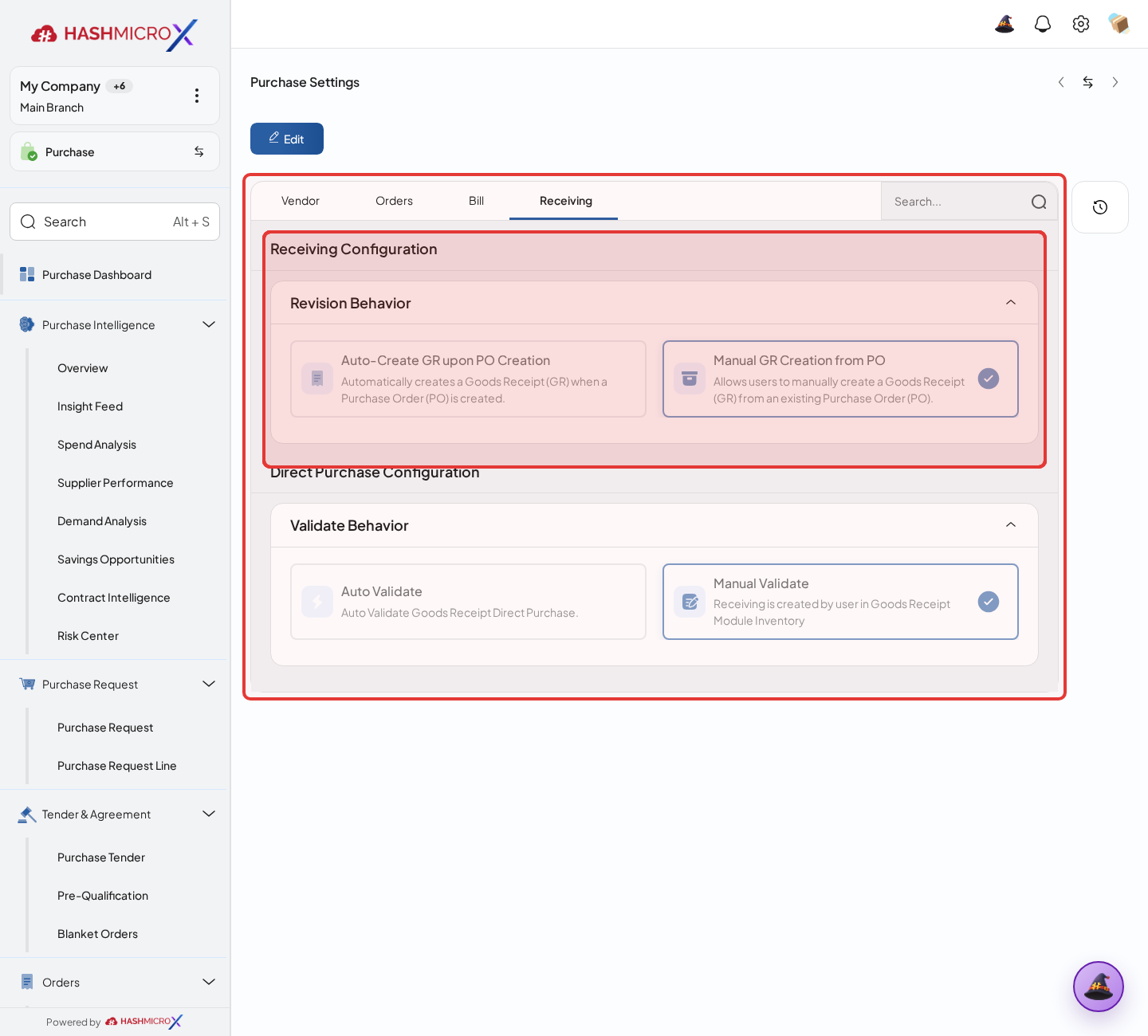
Figure 1.1.7 — HMX Main: Receiving tab validation rules framed in red Purchase Settings are stored per company. Switch the active company in the top-left menu before editing, because values saved for one company do not apply to another.
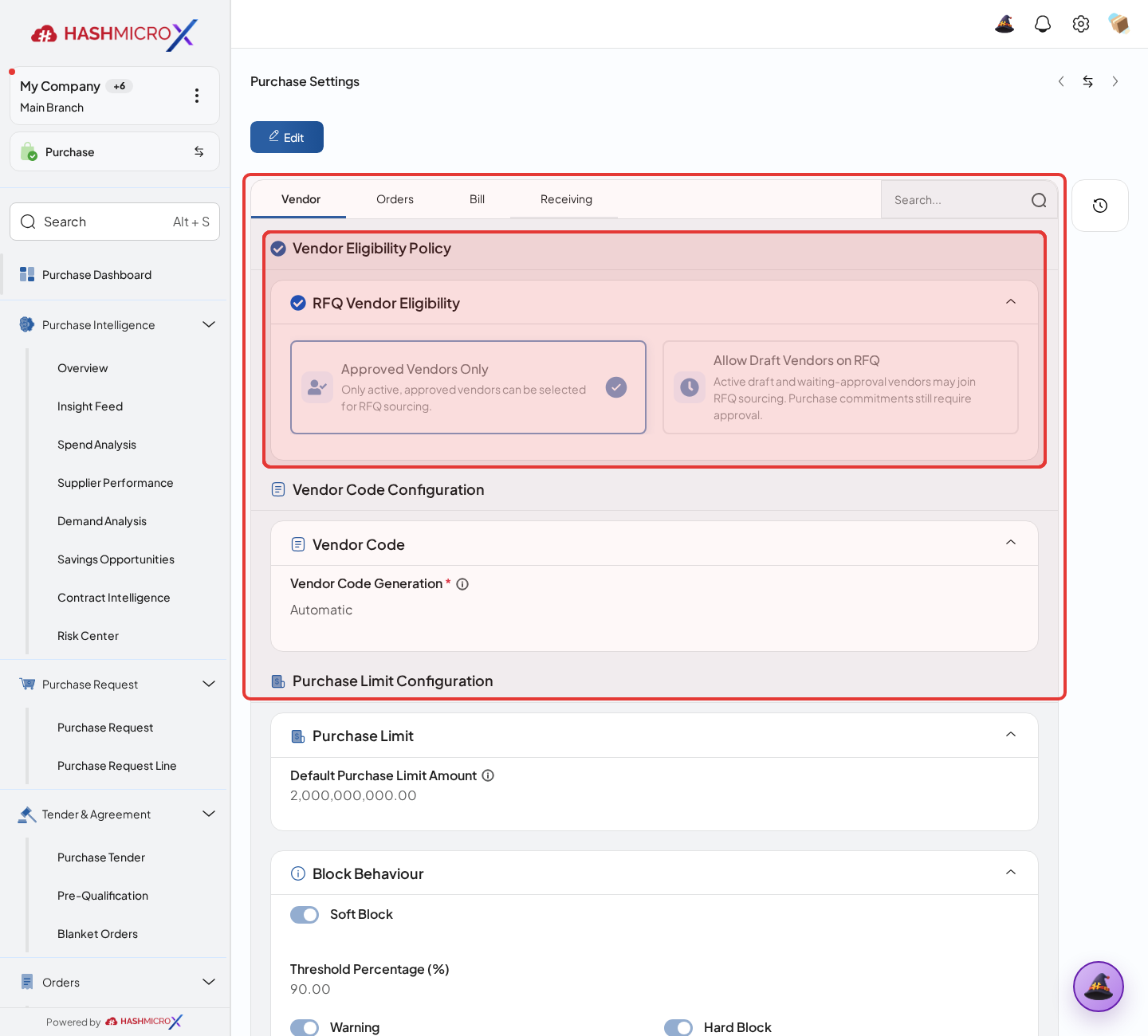
Figure 1.1.8 — HMX Main: Active company switcher (My Company / Main Branch) framed in red On the Bill tab, set the three-way matching behaviour: 3-Way Matching Mode, Unit Price Tolerance, and Quantity Tolerance control how far a bill may deviate from the purchase order and the receipt before it is blocked.
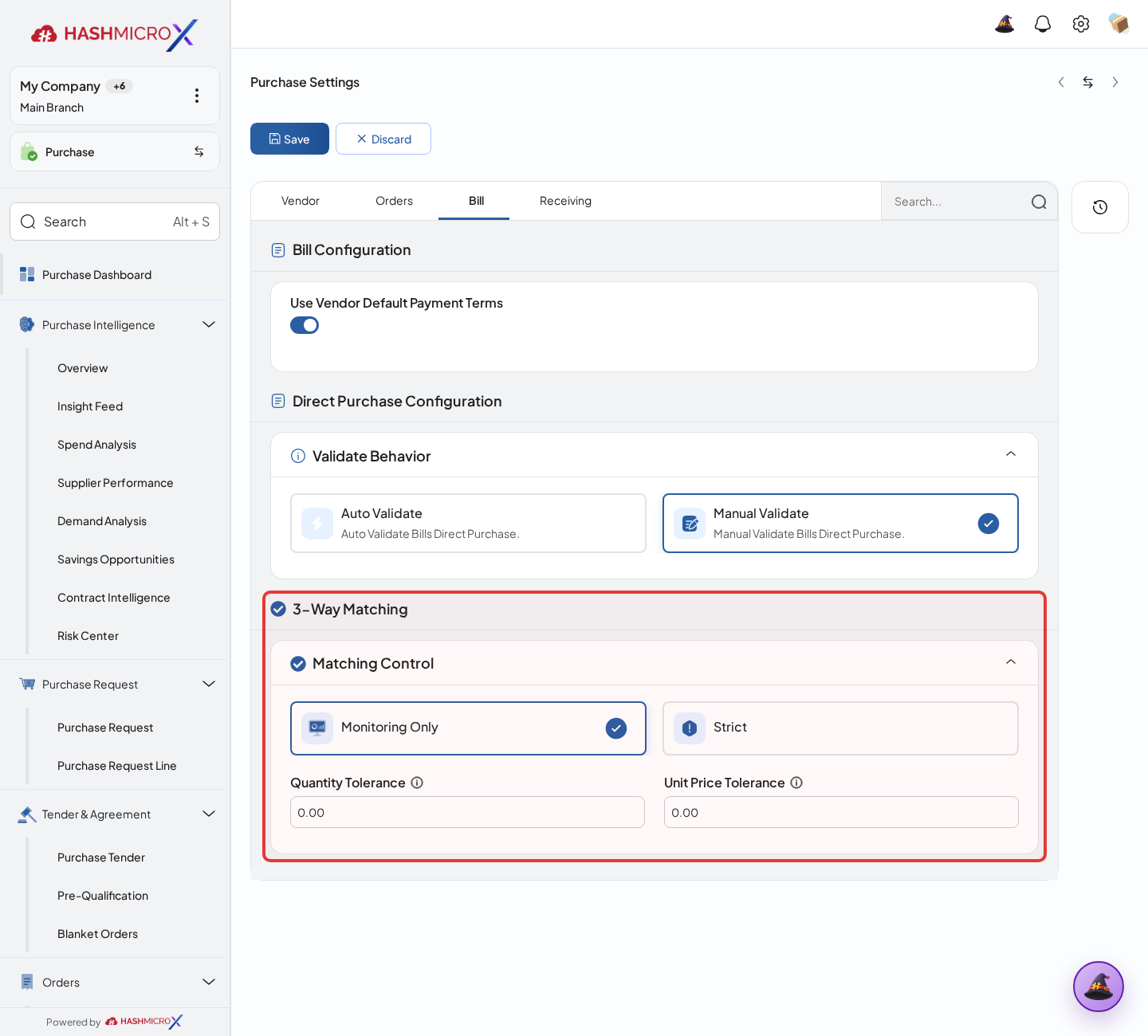
Figure 1.1.9 — HMX Main: Bill tab 3-Way Matching card (Matching Control, Quantity & Unit Price Tolerance) framed in red
Status and Result Guide
| Status / Result | What it means | Trigger | What to do |
|---|---|---|---|
| Saved | The setup is saved and can be used by related Purchase workflows. | User clicks Save after changing the setup. | Open a related Purchase document and confirm the rule works as expected. |
| Inactive / Disabled | The setup is hidden from normal transaction use. | User disables the option or archives the setup. | Enable it again only when the business process needs it. |
Field Reference
| Field | Required | Description | Example or note |
|---|---|---|---|
| Vendor Sequence Mode | Yes | Controls automatic or manual vendor code handling. | Data type: Selection. |
| Default Purchase Credit Limit | No | Credit ceiling applied when no individual vendor limit is set. | Data type: Number. |
| Warning Block Limit / Warning Block Threshold Percentage | No | Value at which the user is warned before the soft block level. | Data type: Number / Percentage. |
| Soft Block Limit / Soft Block Threshold Percentage | No | Value at which purchasing continues but raises a blocking warning. | Data type: Number / Percentage. |
| Hard Block Limit / Hard Block Threshold Percentage | No | Value at which purchasing for the vendor is stopped completely. | Data type: Number / Percentage. |
| Threshold ordering | No | Warning must stay lower than Soft Block, and Soft Block lower than Hard Block, otherwise the intermediate level never triggers. | Data type: Rule. |
| Allow Order Revision | No | Enables revised Purchase Orders and revision numbering. | Data type: Boolean. |
| Purchase Receiving Behavior | Yes | Controls automatic or manual Receiving Note generation. | Data type: Selection. |
| Validate Bill Behavior | Yes | Controls bill validation behavior in Purchase flow. | Data type: Selection. |
| Validate Receiving Behavior | No | Controls how strictly receipts are validated against purchase orders. | Data type: Selection. |
| Purchase Request Expiry Period Days | No | Days after which an open purchase request expires automatically. | Data type: Integer. |
| RFQ Expiry Period Days | No | Days after which an unanswered RFQ expires automatically. | Data type: Integer. |
| Purchase Tender Expiry Period Days | No | Days after which an open tender expires automatically. | Data type: Integer. |
| Draft PO Numbering | No | Numbering pattern applied while a purchase order is still in draft. | Data type: Char. |
| Revised Document – Sequence Numbering | No | Sequence used when a purchase document is revised. | Data type: Selection. |
| 3-Way Matching Mode | No | Matching strictness between bill, purchase order, and receipt. | Data type: Selection. |
| Unit Price Tolerance | No | Allowed percentage deviation on unit price during matching. | Data type: Percentage. |
| Quantity Tolerance | No | Allowed percentage deviation on quantity during matching. | Data type: Percentage. |
| Product Vendor Pricelist Filter | No | Filter applied when picking vendor pricelists for products. | Data type: Selection. |
| Company | Yes | Company the settings apply to. Settings are stored per company. | Data type: Reference. |
| Branch | No | Branch scope when the configuration is branch-specific. | Data type: Reference. |
Common Scenarios
| Scenario | When to Use | Key Steps | Expected Result |
|---|---|---|---|
| Configure Purchase Settings | Use during implementation or when purchasing policy changes. | Open Purchase > Configuration > Purchase Settings, update the setup, save, then test with a sample Purchase document. | The configured behavior is available for users. |
| Review setup impact | Use before changing rules that affect approval, sequence, receiving, billing, or supplier control. | Confirm affected Purchase workflows and communicate the change before saving. | Users avoid unexpected purchasing behavior. |
Troubleshooting
| Issue | Possible Cause | How to fix it |
|---|---|---|
| The menu, button, or action is not visible. | The user role, document status, configuration, approval rule, or related module does not allow the action. | Check user access, document status, Purchase settings, approval setup, and required linked records before retrying. |
| The record cannot be saved, confirmed, approved, sent, received, billed, or closed. | A required field, vendor, product line, quantity, price, warehouse, tax, approval, or source document is missing or invalid. | Review highlighted fields and line tables, complete the missing values, save, then run the workflow action again. |
| The expected linked document is not created. | The source document is not in the required status, the configuration blocks automatic creation, or the related integration is disabled. | Confirm the source document status and configuration, then use the manual Create, Convert, Receiving, Bill, or Release action when available. |
1.2 Order Type
Overview
Use Order Type to guide users into the right purchasing flow. It can limit which companies and product categories may use a specific type.
Prerequisites
- You can open the Purchase configuration menus.
- Confirm the company policy for approvals, numbering, receiving, billing, and integrations before changing the settings.
- After changing a setting, test it with a sample Purchase document before rolling it out to users.
Step-by-Step Instructions
Open Purchase > Settings & Rules > Order Config > Order Type, then create or edit the type that users will choose on PR, RFQ, or PO documents.
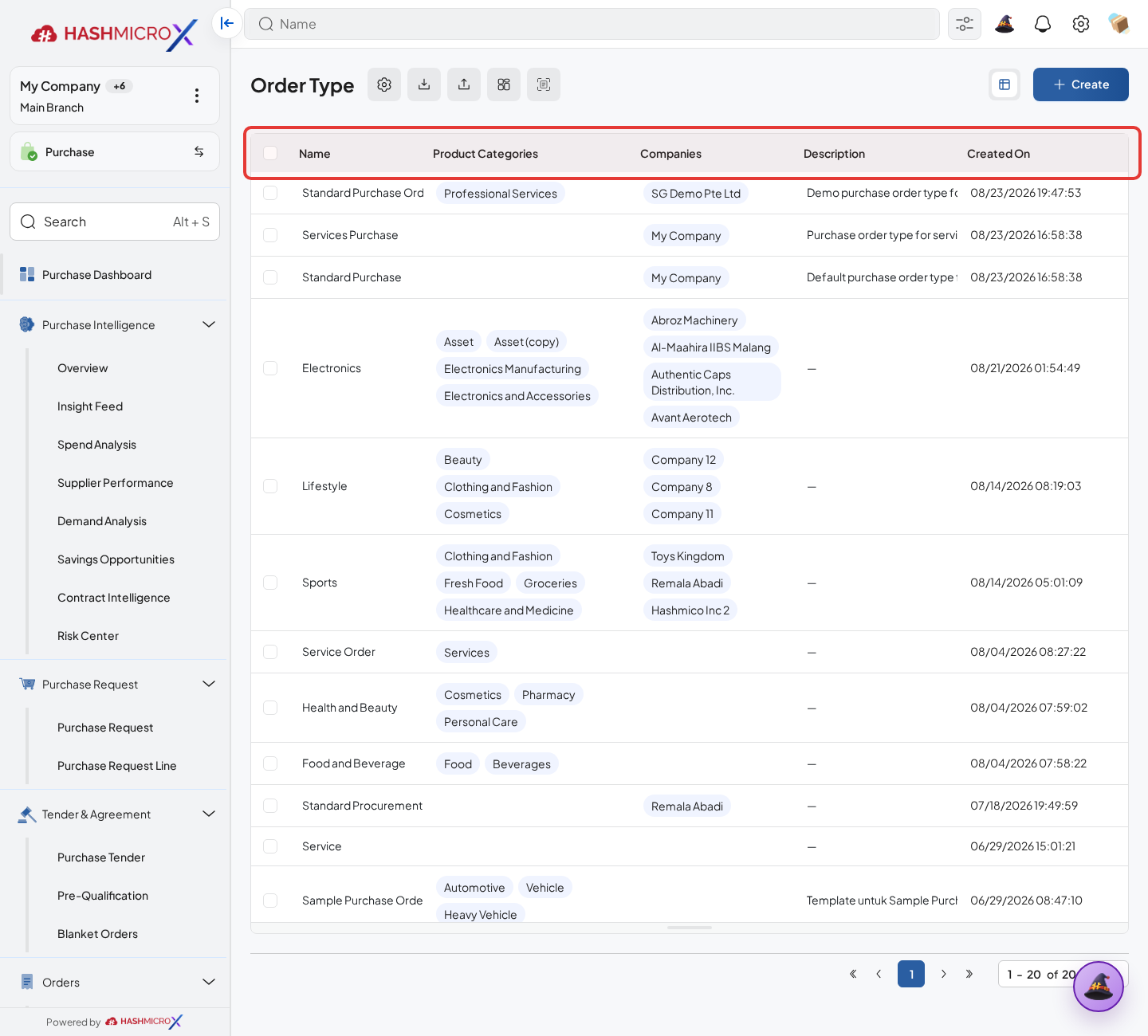
Figure 1.2.1 — HMX Main: Order Types overview table framed in red Enter a clear Order Type name that buyers can recognize quickly when preparing PR, RFQ, or PO documents.
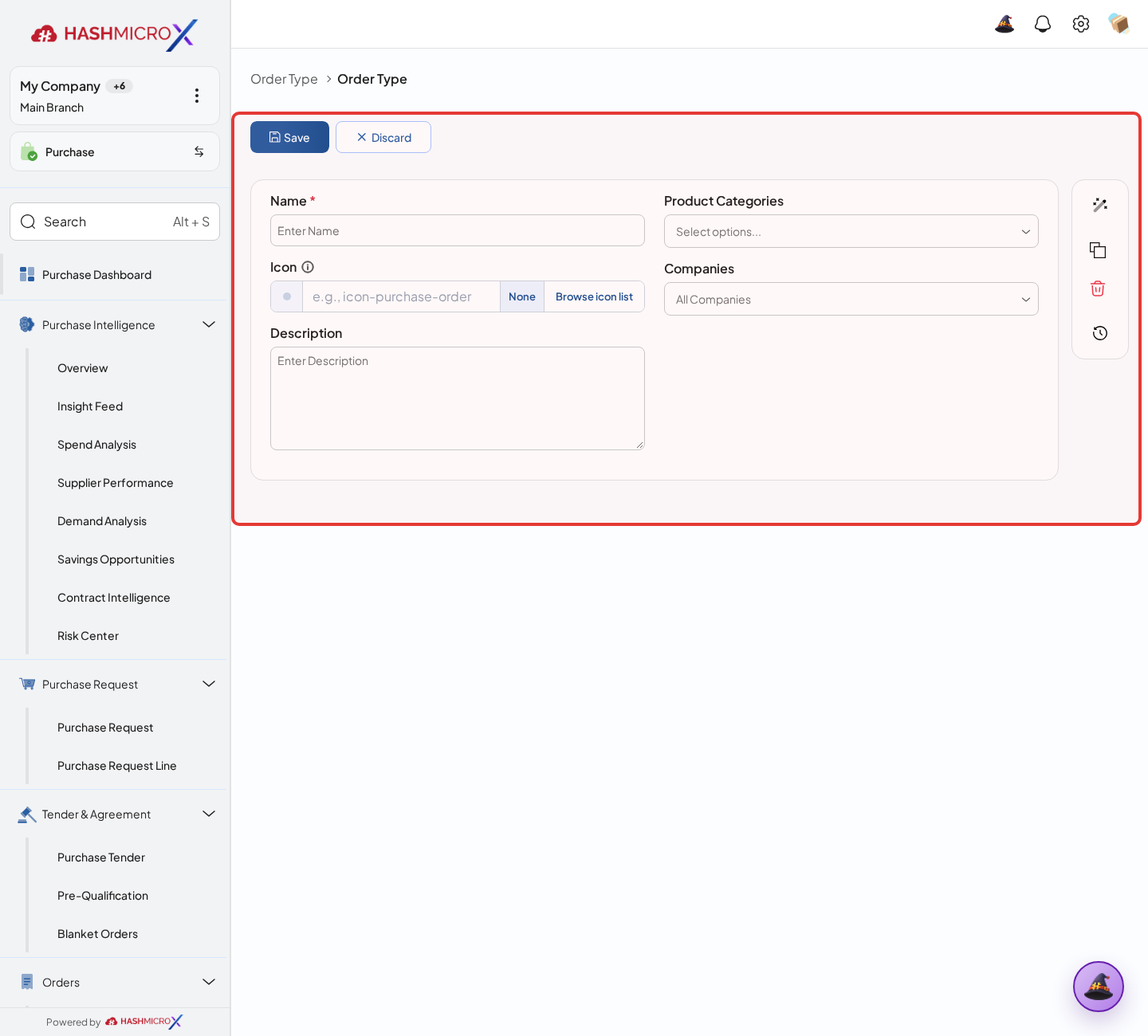
Figure 1.2.2 — HMX Main: Order Type creation form and header fields framed in red Select the companies that are allowed to use this Order Type.
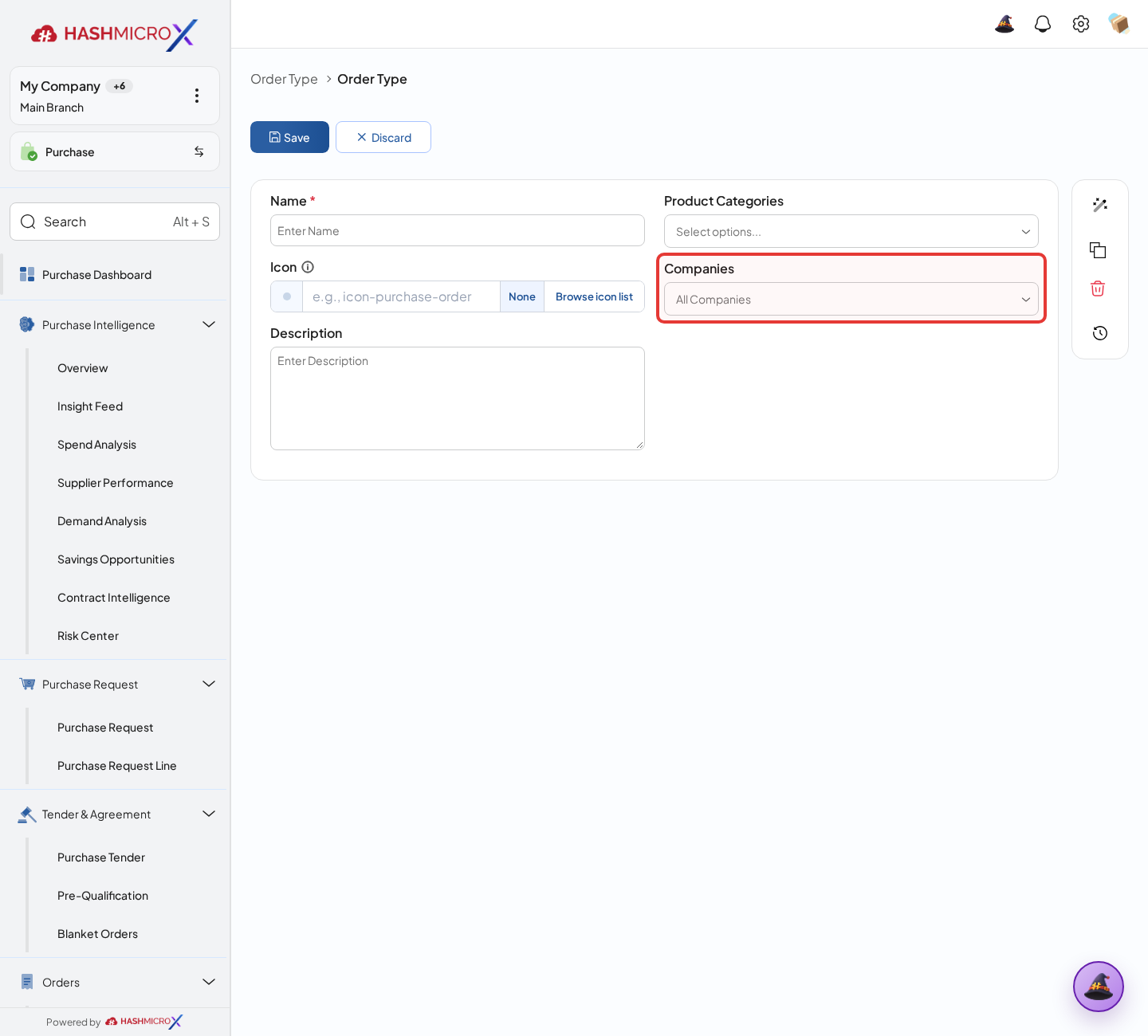
Figure 1.2.3 — HMX Main: Order Type Companies field configuration framed in red If this Order Type is only for certain items, add the allowed Product Categories. This helps prevent buyers from using the type for unrelated goods or services.
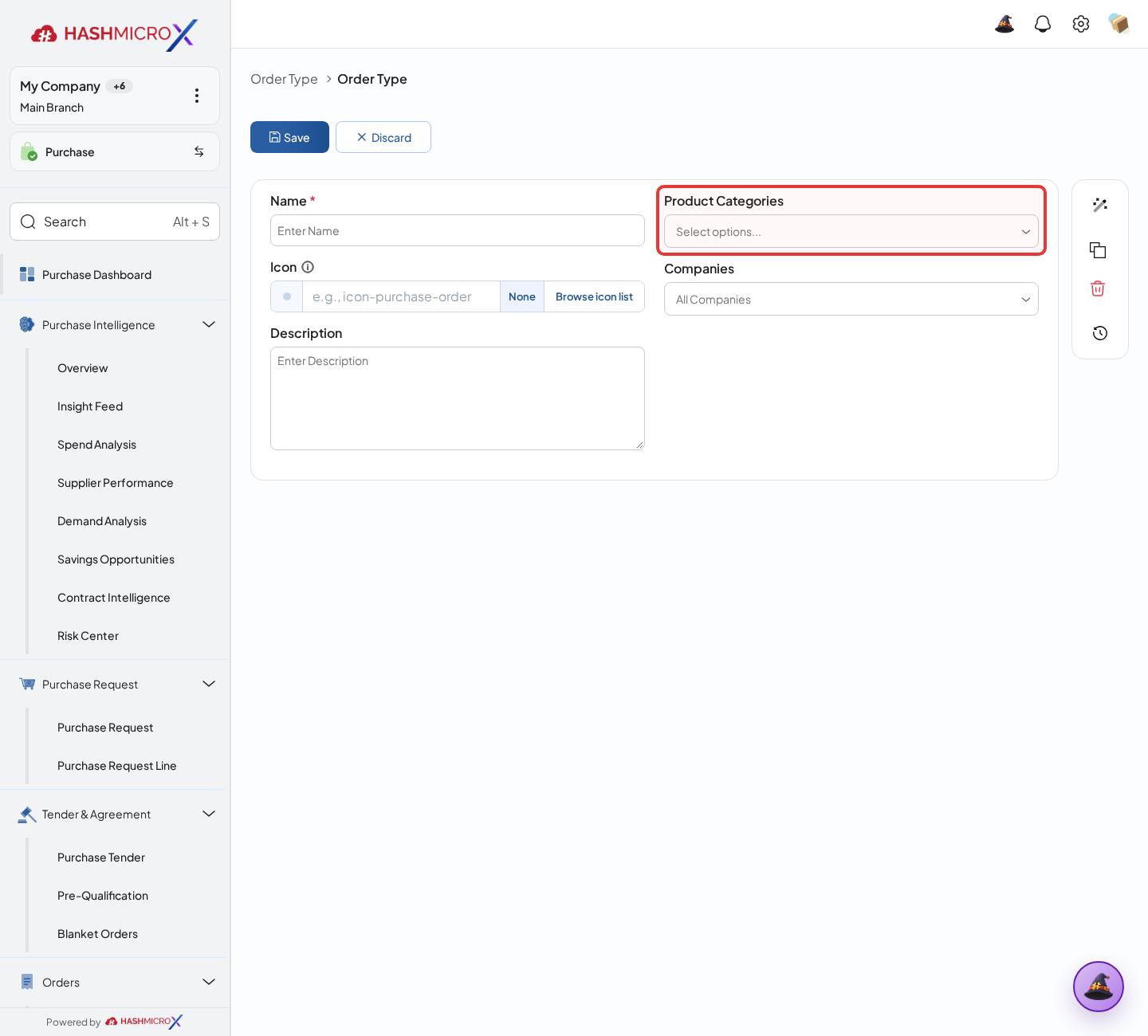
Figure 1.2.4 — HMX Main: Order Type Product Categories multi-select field framed in red Keep Active enabled, save the record, then open a sample purchase document to confirm the Order Type appears where users need it.
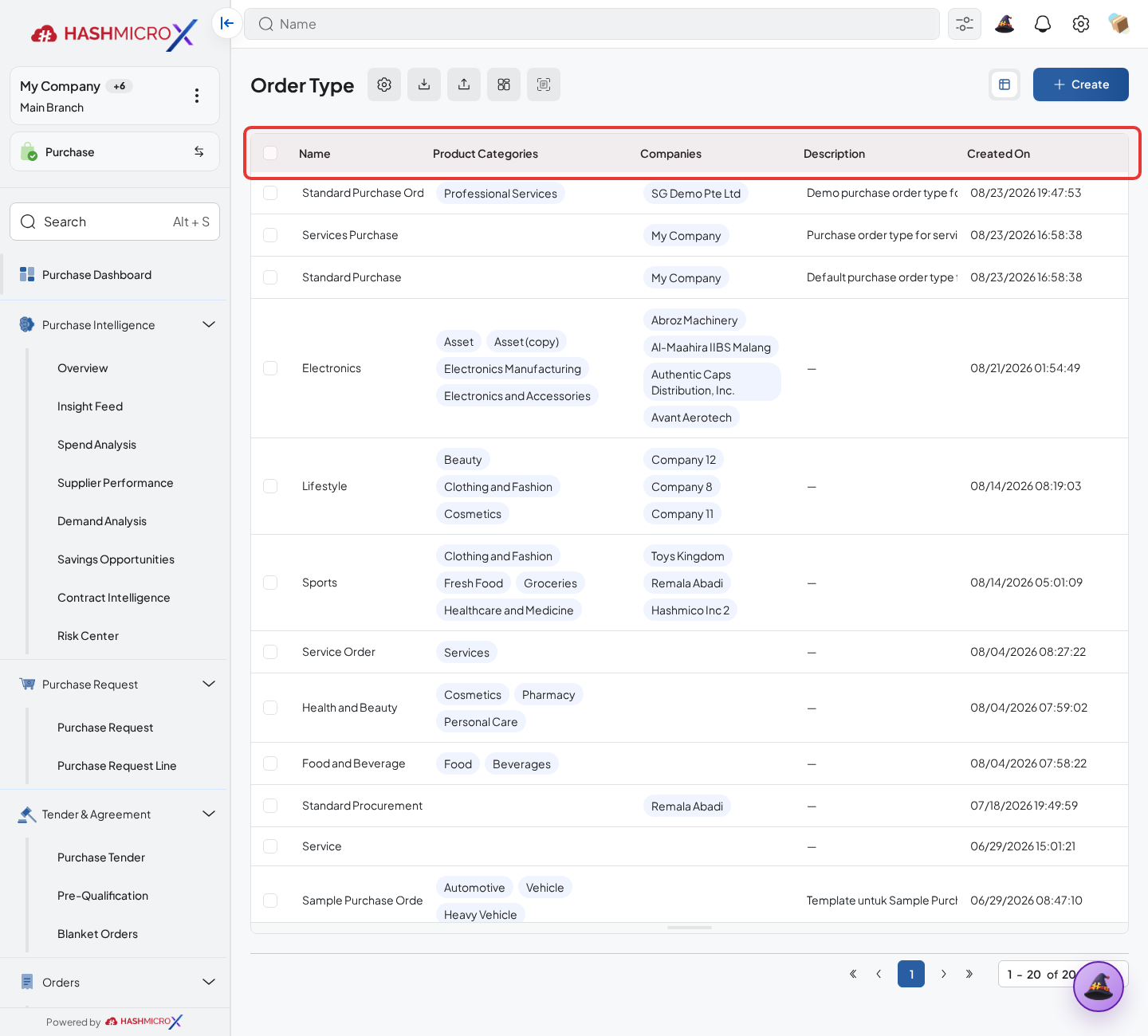
Figure 1.2.5 — HMX Main: Order Type control panel action bar and list controls framed in red
Status and Result Guide
| Status / Result | What it means | Trigger | What to do |
|---|---|---|---|
| Saved | The setup is saved and can be used by related Purchase workflows. | User clicks Save after changing the setup. | Open a related Purchase document and confirm the rule works as expected. |
| Inactive / Disabled | The setup is hidden from normal transaction use. | User disables the option or archives the setup. | Enable it again only when the business process needs it. |
Field Reference
| Field | Required | Description | Example or note |
|---|---|---|---|
| Name | Yes | Order type label shown on Purchase documents. | Data type: Text. |
| Companies | Yes | Companies allowed to use the order type. | Data type: Many2many. |
| Product Categories | No | Product categories supported by this type. | Data type: Many2many. |
| Active | Yes | Archived types are hidden from normal use. | Data type: Boolean. |
| Prefix Sequence | No | Prefix used when generating the document number for this type. | Data type: Char. |
| Sequences | No | Tab holding one sequence line per company using this order type. | Data type: One2many. |
Common Scenarios
| Scenario | When to Use | Key Steps | Expected Result |
|---|---|---|---|
| Configure Order Type | Use during implementation or when purchasing policy changes. | Open Purchase > Configuration > Order > Order Type, update the setup, save, then test with a sample Purchase document. | The configured behavior is available for users. |
| Review setup impact | Use before changing rules that affect approval, sequence, receiving, billing, or supplier control. | Confirm affected Purchase workflows and communicate the change before saving. | Users avoid unexpected purchasing behavior. |
Troubleshooting
| Issue | Possible Cause | How to fix it |
|---|---|---|
| The menu, button, or action is not visible. | The user role, document status, configuration, approval rule, or related module does not allow the action. | Check user access, document status, Purchase settings, approval setup, and required linked records before retrying. |
| The record cannot be saved, confirmed, approved, sent, received, billed, or closed. | A required field, vendor, product line, quantity, price, warehouse, tax, approval, or source document is missing or invalid. | Review highlighted fields and line tables, complete the missing values, save, then run the workflow action again. |
| The expected linked document is not created. | The source document is not in the required status, the configuration blocks automatic creation, or the related integration is disabled. | Confirm the source document status and configuration, then use the manual Create, Convert, Receiving, Bill, or Release action when available. |
1.3 Order Template
Overview
Use Order Template for repeated purchases. The template can prefill the vendor, order type, and product lines so buyers start from a ready structure instead of a blank document.
Prerequisites
- You can open the Purchase configuration menus.
- Confirm the company policy for approvals, numbering, receiving, billing, and integrations before changing the settings.
- After changing a setting, test it with a sample Purchase document before rolling it out to users.
Step-by-Step Instructions
Open Purchase > Settings & Rules > Order Config > Order Templates, then create a template for purchases that repeat often.
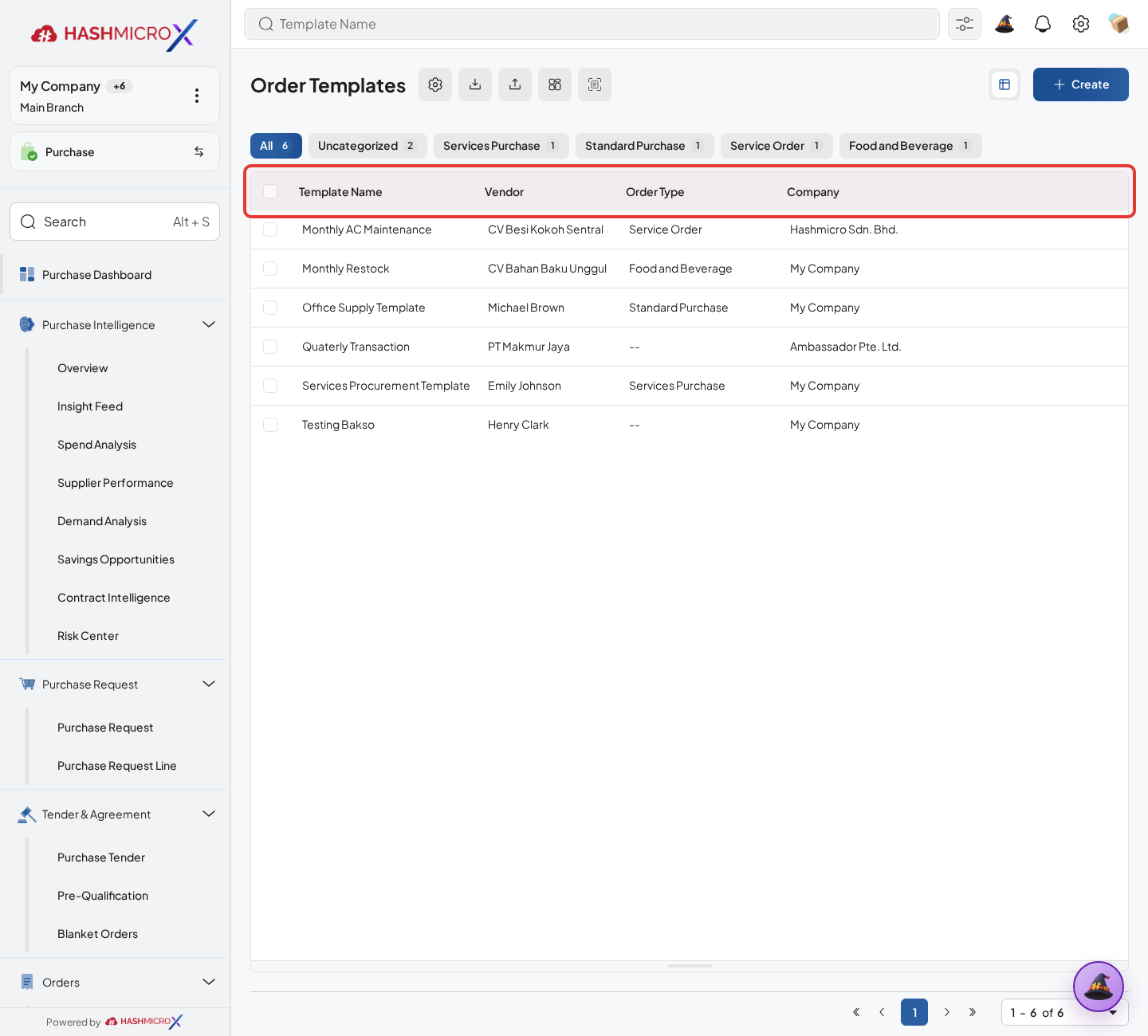
Figure 1.3.1 — HMX Main: Order Templates master list table framed in red Select a vendor when the template belongs to one supplier, then choose the Order Type that matches the buying flow.
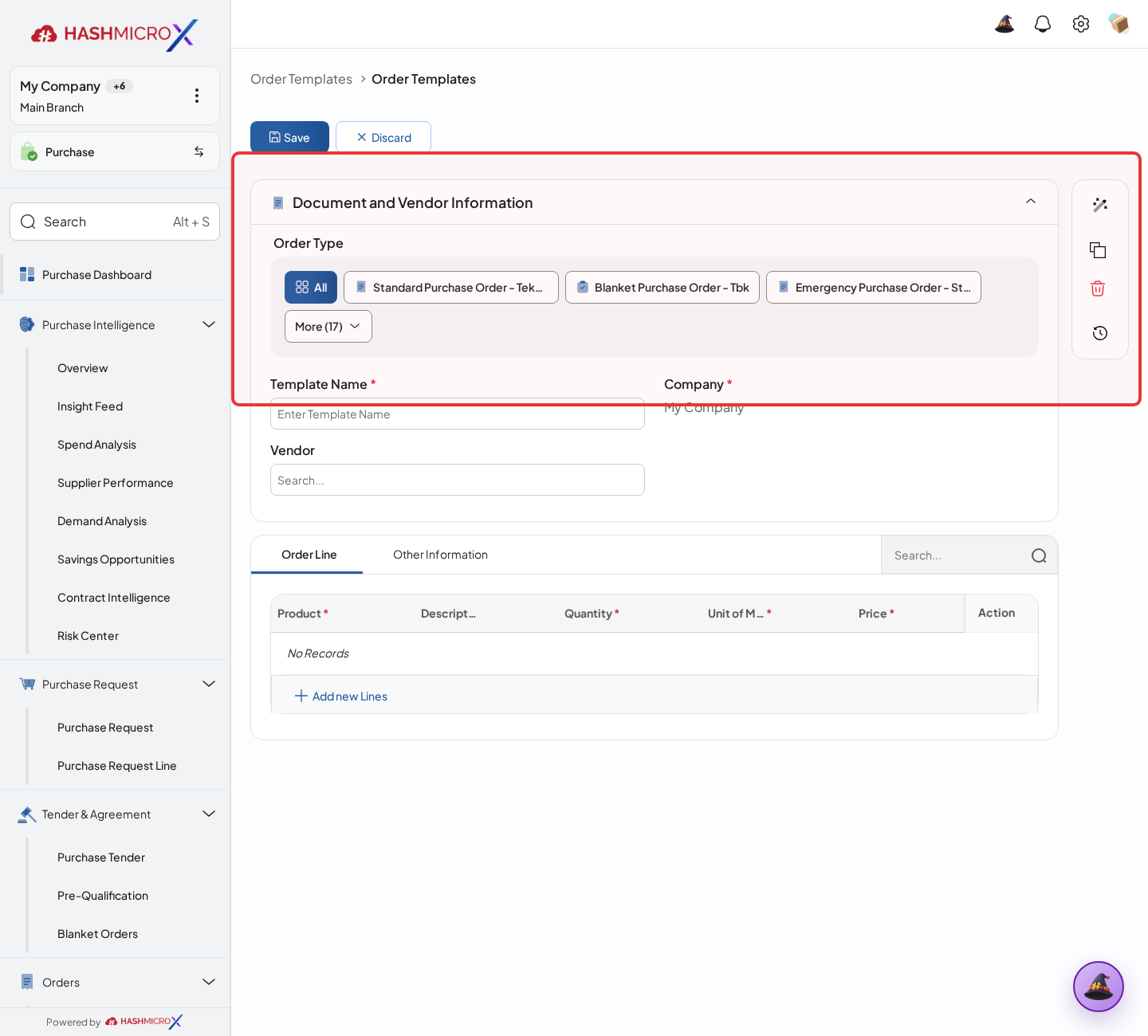
Figure 1.3.2 — HMX Main: Order Template header section (Vendor and Order Type) framed in red Click Add a Line to add reusable items. Fill Product, Quantity, UoM, and Unit Price so buyers can see exactly what will be copied into a PR, RFQ, or PO.
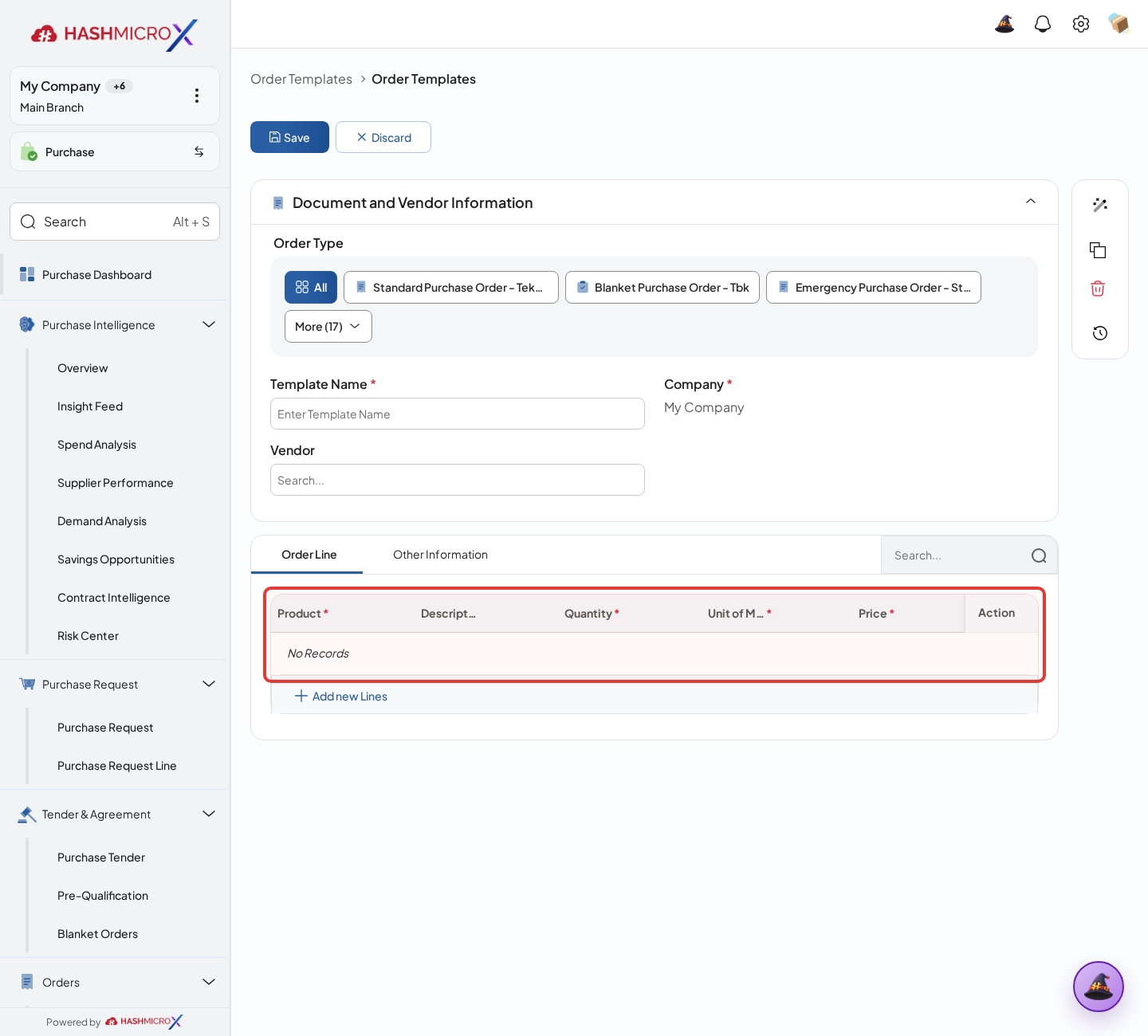
Figure 1.3.3 — HMX Main: Order Template item lines configuration table framed in red Review each line before using the template. Buyers can keep the default values or adjust them when the purchase document is created.
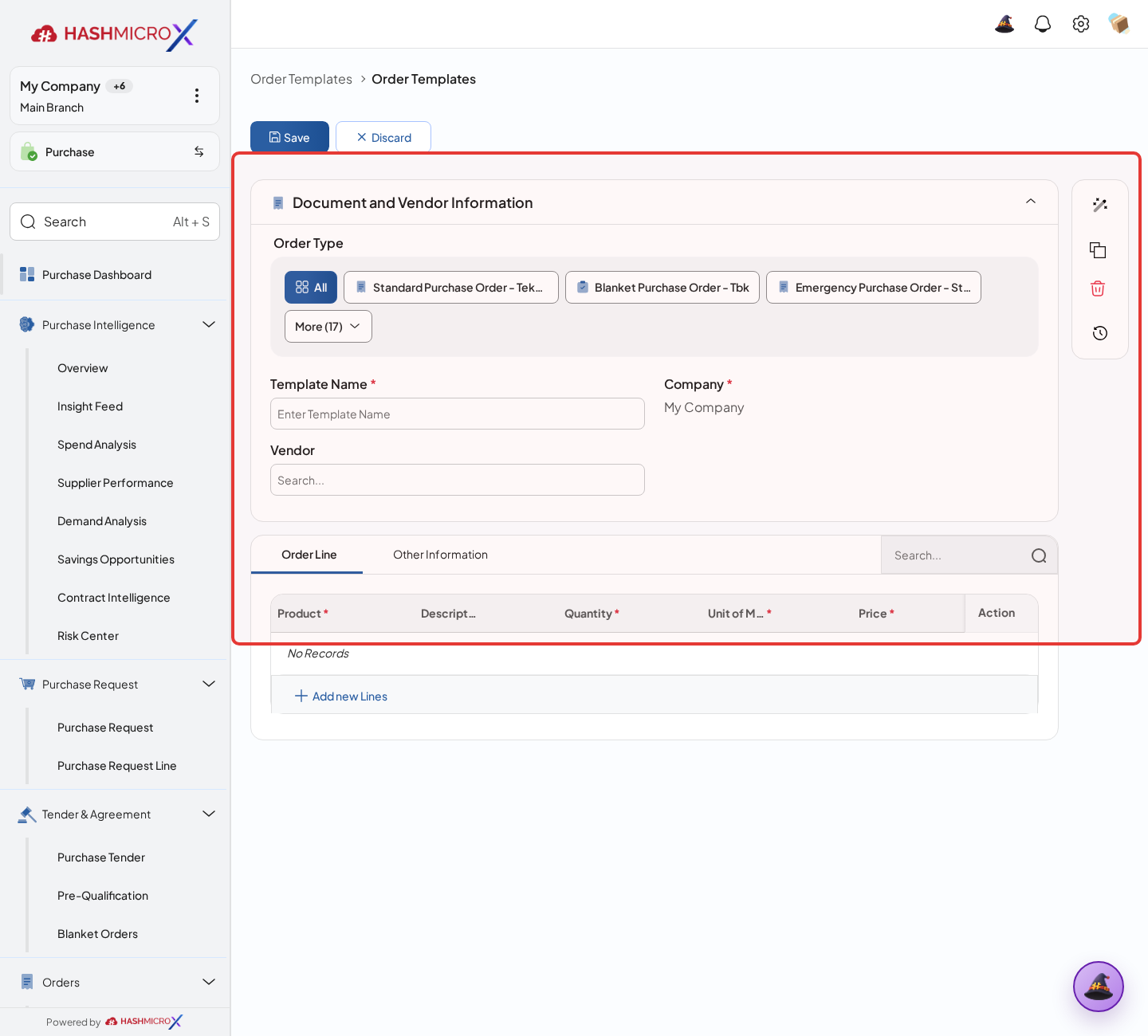
Figure 1.3.4 — HMX Main: Order Template complete form review sheet framed in red Save the template, then apply it the next time the team creates a matching Purchase Request, RFQ, or PO.
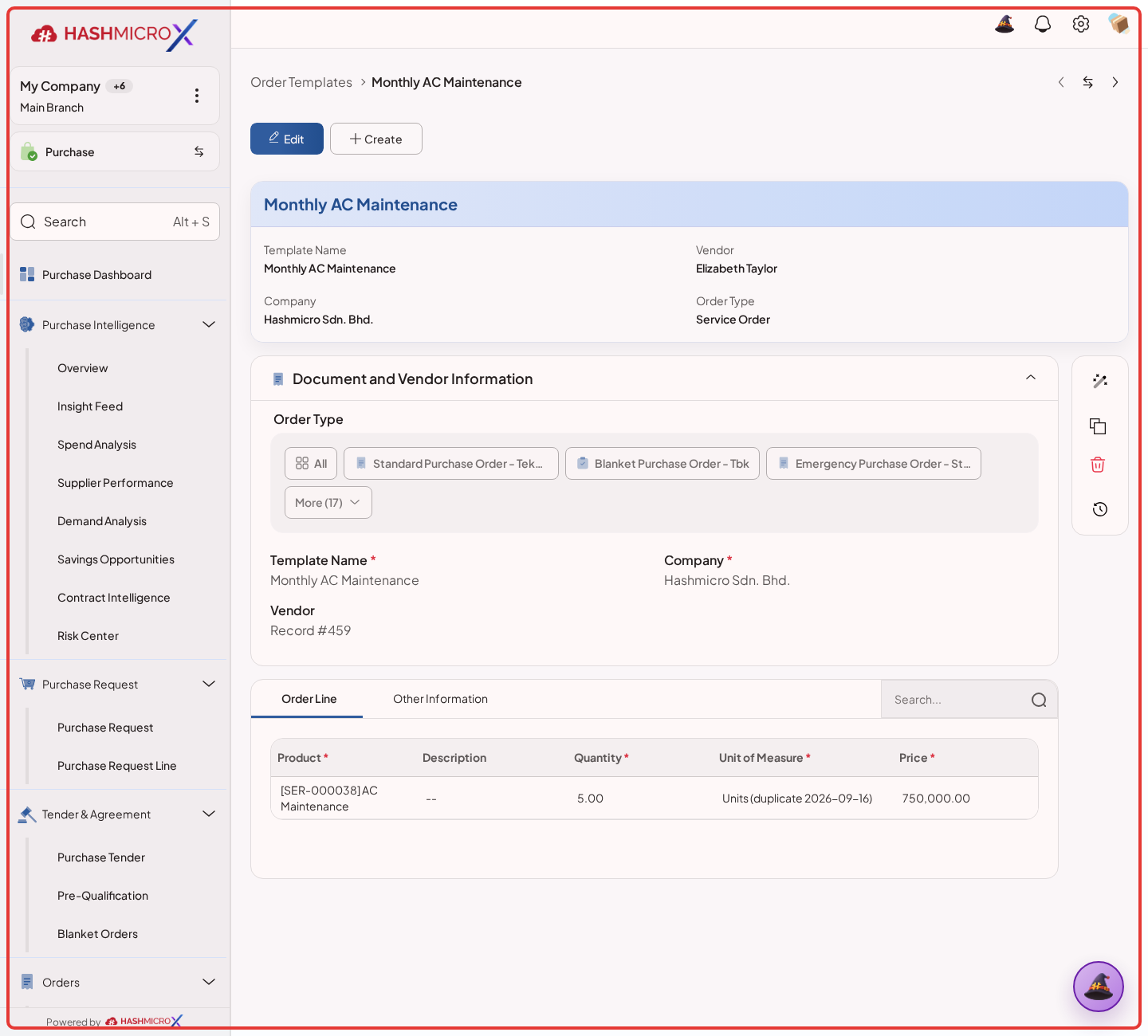
Figure 1.3.5 — HMX Main: Saved Order Template record view framed in red
Status and Result Guide
| Status / Result | What it means | Trigger | What to do |
|---|---|---|---|
| Saved | The setup is saved and can be used by related Purchase workflows. | User clicks Save after changing the setup. | Open a related Purchase document and confirm the rule works as expected. |
| Inactive / Disabled | The setup is hidden from normal transaction use. | User disables the option or archives the setup. | Enable it again only when the business process needs it. |
Field Reference
| Field | Required | Description | Example or note |
|---|---|---|---|
| Vendor | No | Default vendor for the reusable purchase template. | Data type: Reference. |
| Order Type | Yes | Purchase order type linked to the template. | Data type: Reference. |
| Product | Yes | Product included in the template line. | Data type: Reference. |
| Quantity / UoM / Price | Yes | Default line values copied into a purchase document. | Data type: Number / Reference. |
| Allowed Product Categories | No | Product categories the template may draw its lines from. | Data type: Many2many. |
| Branch | No | Branch the template is restricted to. | Data type: Reference. |
Common Scenarios
| Scenario | When to Use | Key Steps | Expected Result |
|---|---|---|---|
| Configure Order Template | Use during implementation or when purchasing policy changes. | Open Purchase > Configuration > Order > Order Template, update the setup, save, then test with a sample Purchase document. | The configured behavior is available for users. |
| Review setup impact | Use before changing rules that affect approval, sequence, receiving, billing, or supplier control. | Confirm affected Purchase workflows and communicate the change before saving. | Users avoid unexpected purchasing behavior. |
Troubleshooting
| Issue | Possible Cause | How to fix it |
|---|---|---|
| The menu, button, or action is not visible. | The user role, document status, configuration, approval rule, or related module does not allow the action. | Check user access, document status, Purchase settings, approval setup, and required linked records before retrying. |
| The record cannot be saved, confirmed, approved, sent, received, billed, or closed. | A required field, vendor, product line, quantity, price, warehouse, tax, approval, or source document is missing or invalid. | Review highlighted fields and line tables, complete the missing values, save, then run the workflow action again. |
| The expected linked document is not created. | The source document is not in the required status, the configuration blocks automatic creation, or the related integration is disabled. | Confirm the source document status and configuration, then use the manual Create, Convert, Receiving, Bill, or Release action when available. |
1.4 Award Strategy Config
Overview
Use Award Strategy Config when tender awards need a clear split between ranked suppliers. The setup helps the team decide how much quantity each winning vendor should receive.
Prerequisites
- You can open the Purchase configuration menus.
- Confirm the company policy for approvals, numbering, receiving, billing, and integrations before changing the settings.
- After changing a setting, test it with a sample Purchase document before rolling it out to users.
Step-by-Step Instructions
Open Purchase > Settings & Rules > Award Strategy Config to review the award rule used by tender decisions.
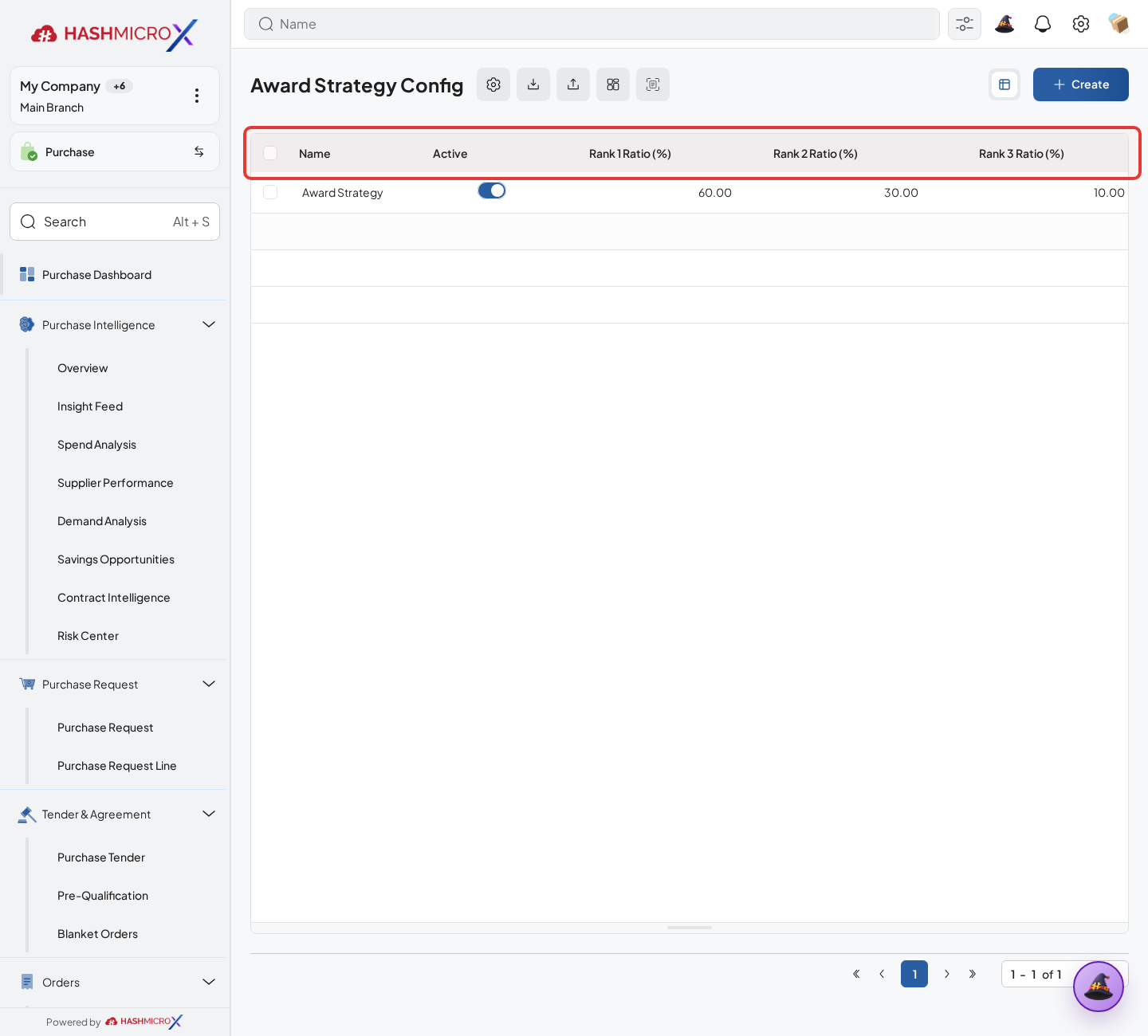
Figure 1.4.1 — HMX Main: Award Strategy Configuration list table framed in red Create a new strategy or open the active one used by the tender award process.
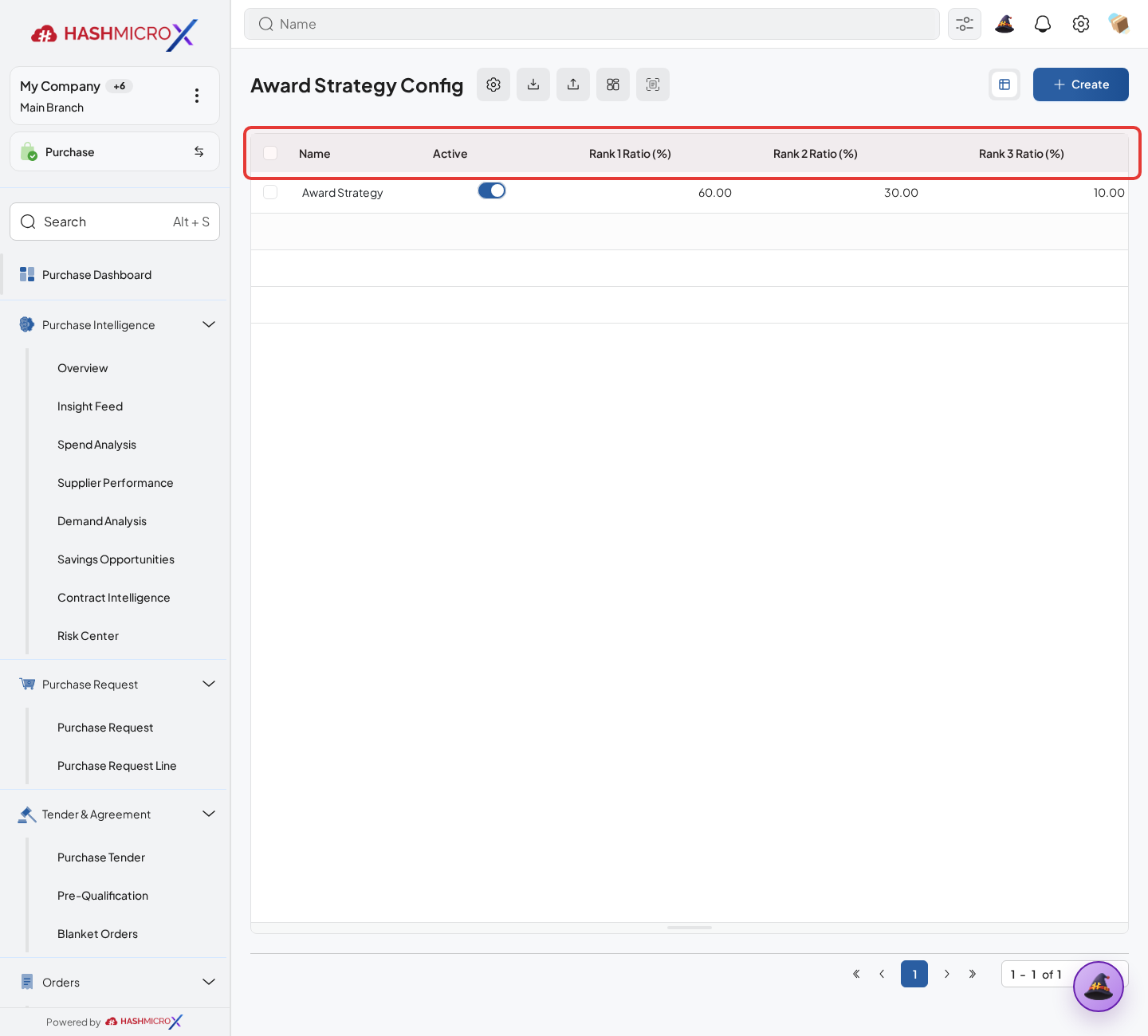
Figure 1.4.2 — HMX Main: Award Strategy search and action controls framed in red Set the split rank ratio to tell the award process how much quantity should go to each ranked vendor.
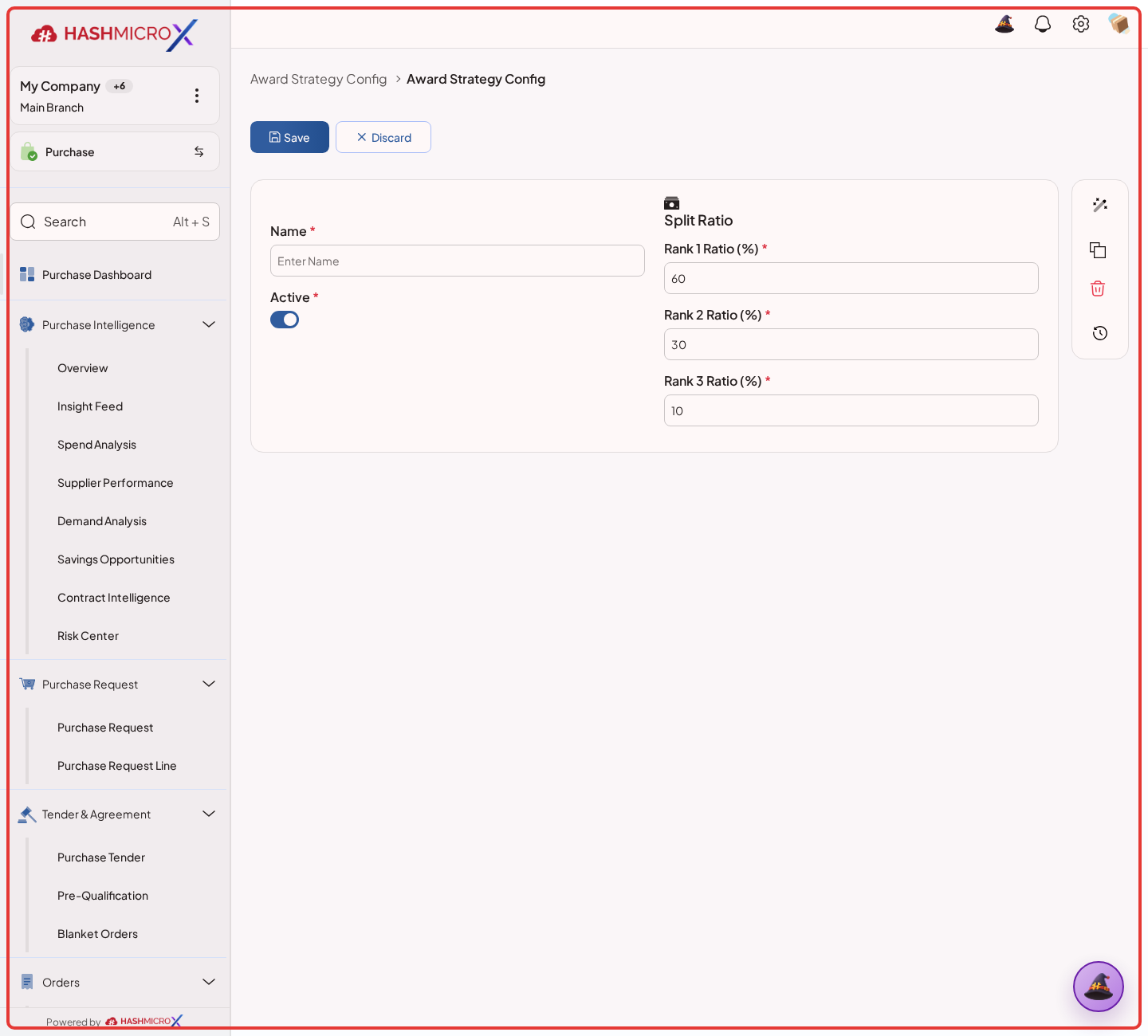
Figure 1.4.3 — HMX Main: Award Strategy configuration create form framed in red Review the capacity fill limit so one vendor does not receive more quantity than the business allows.
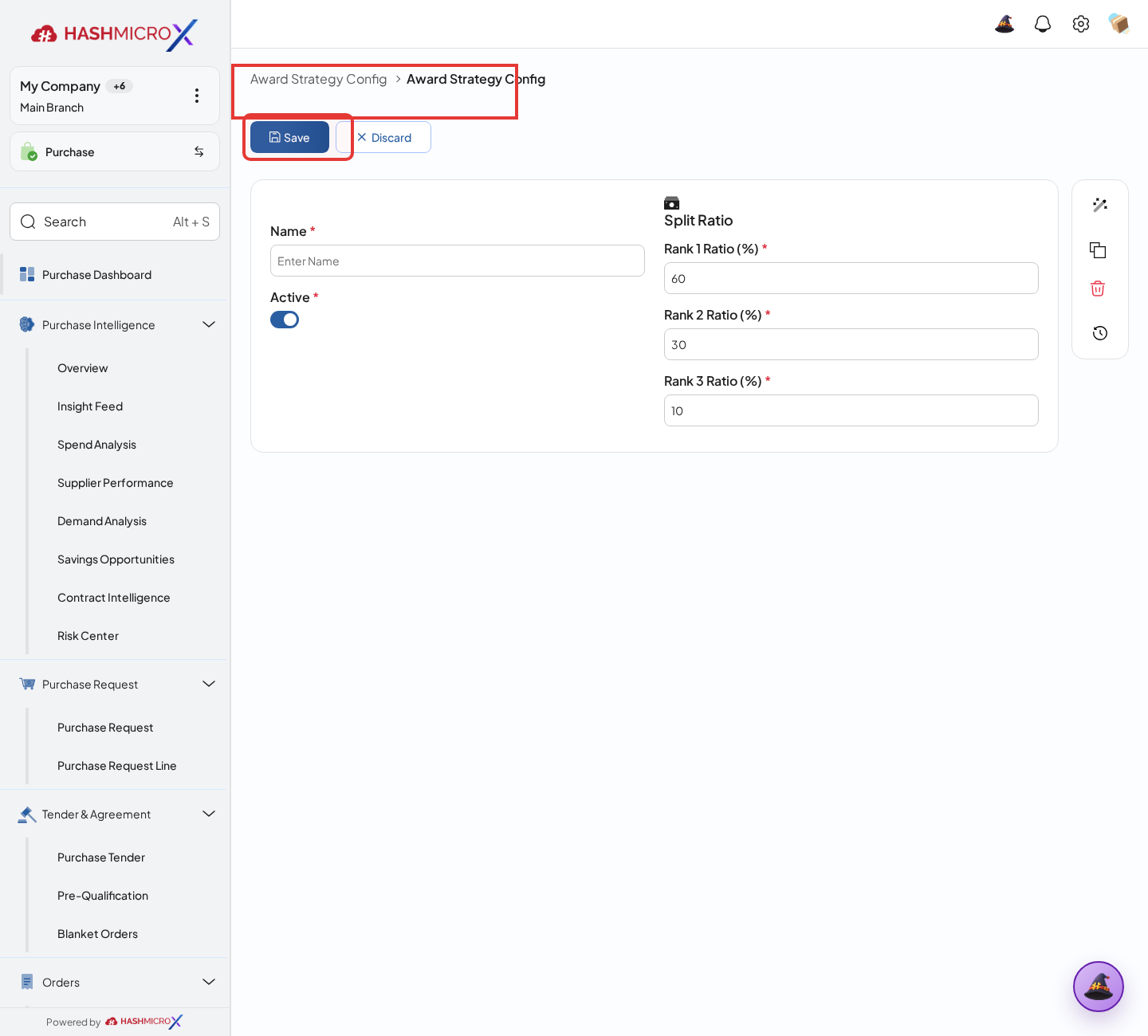
Figure 1.4.4 — HMX Main: Award Strategy action header and Save button framed in red Save the strategy, then use it as a reference during tender award review before the decision is approved.
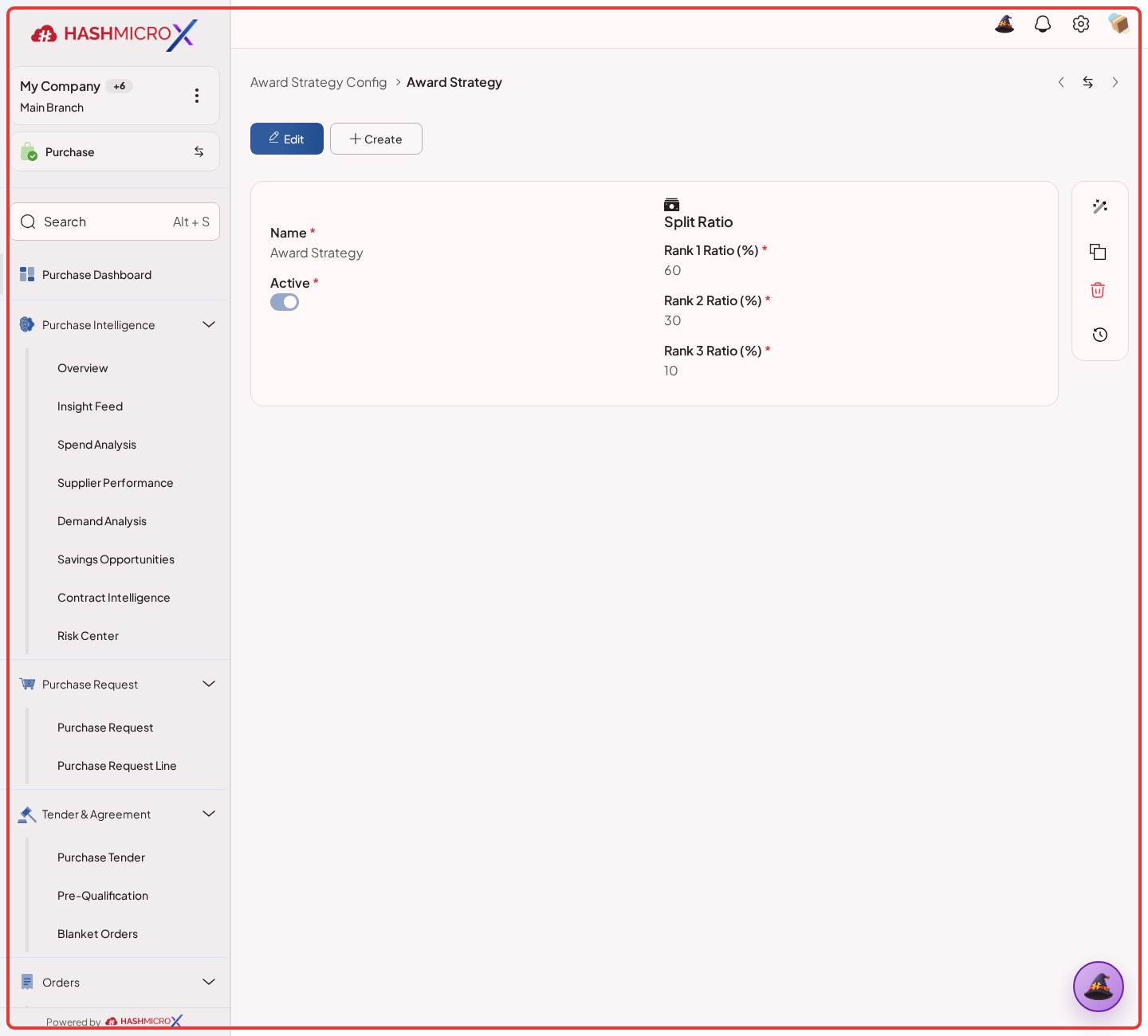
Figure 1.4.5 — HMX Main: Active Award Strategy record configuration framed in red
Status and Result Guide
| Status / Result | What it means | Trigger | What to do |
|---|---|---|---|
| Saved | The setup is saved and can be used by related Purchase workflows. | User clicks Save after changing the setup. | Open a related Purchase document and confirm the rule works as expected. |
| Inactive / Disabled | The setup is hidden from normal transaction use. | User disables the option or archives the setup. | Enable it again only when the business process needs it. |
Field Reference
| Field | Required | Description | Example or note |
|---|---|---|---|
| Rank 1 Ratio (%) | No | Share of the awarded quantity given to the first-ranked supplier. | Data type: Percentage. |
| Rank 2 Ratio (%) | No | Share of the awarded quantity given to the second-ranked supplier. | Data type: Percentage. |
| Rank 3 Ratio (%) | No | Share of the awarded quantity given to the third-ranked supplier. | Data type: Percentage. |
| Capacity Fill Limit | No | Limits how much vendor capacity can be allocated. | Data type: Percentage. |
| Active | Yes | Only active strategy configurations should be used by Tender. | Data type: Boolean. |
| Company | Yes | Company the strategy applies to. | Data type: Reference. |
| Branch | No | Branch scope when the strategy is branch-specific. | Data type: Reference. |
Common Scenarios
| Scenario | When to Use | Key Steps | Expected Result |
|---|---|---|---|
| Configure Award Strategy Config | Use during implementation or when purchasing policy changes. | Open Purchase > Tender > Purchase Tender, update the setup, save, then test with a sample Purchase document. | The configured behavior is available for users. |
| Review setup impact | Use before changing rules that affect approval, sequence, receiving, billing, or supplier control. | Confirm affected Purchase workflows and communicate the change before saving. | Users avoid unexpected purchasing behavior. |
Troubleshooting
| Issue | Possible Cause | How to fix it |
|---|---|---|
| The menu, button, or action is not visible. | The user role, document status, configuration, approval rule, or related module does not allow the action. | Check user access, document status, Purchase settings, approval setup, and required linked records before retrying. |
| The record cannot be saved, confirmed, approved, sent, received, billed, or closed. | A required field, vendor, product line, quantity, price, warehouse, tax, approval, or source document is missing or invalid. | Review highlighted fields and line tables, complete the missing values, save, then run the workflow action again. |
| The expected linked document is not created. | The source document is not in the required status, the configuration blocks automatic creation, or the related integration is disabled. | Confirm the source document status and configuration, then use the manual Create, Convert, Receiving, Bill, or Release action when available. |
1.5 Approval, Sequence & Mail Templates
Overview
This section explains the governance setup behind Purchase approvals, document numbering, RFQ emails, scheduled automation, and Blanket Order approval. Administrators usually prepare these settings before buyers and requesters create Purchase Request, RFQ, Direct Purchase, Blanket Order, Vendor Pricelist, KPI Target, or related documents.
Some rules are already active in the system even though they are not shown as editable fields on the Purchase setup screen. Because of that, this manual separates three things: what users can check in the UI, what is already active in runtime, and what should not be configured manually from a screen that is not available.
Prerequisites
| Prerequisite | Why It Matters |
|---|---|
| Administrator or authorized Purchase configuration access | These settings control governance, so not every buyer or requester will see them. |
| Relevant Purchase document types are available | Approval and numbering can behave differently for Purchase Request, RFQ, Direct Purchase, Purchase Order, Blanket Order, Vendor Pricelist, and KPI Target. |
| Approval Matrix and rules are configured | A document enters approval only when an active workflow and matching approval rule are available. |
| Mail templates and communication channels are configured | RFQ emails and reminders need valid recipients, templates, attachments, and activities. |
| Scheduled jobs are reviewed by technical or administrator users | Some automation, such as blanket order transition or expired pricelist checks, runs from backend schedules and is not operated directly from the Purchase document screen. |
Step-by-Step Instructions
- Review the Purchase approval governance reference and confirm which Purchase documents are controlled by approval workflows. Use this as the starting point before documenting or testing any specific approval path.
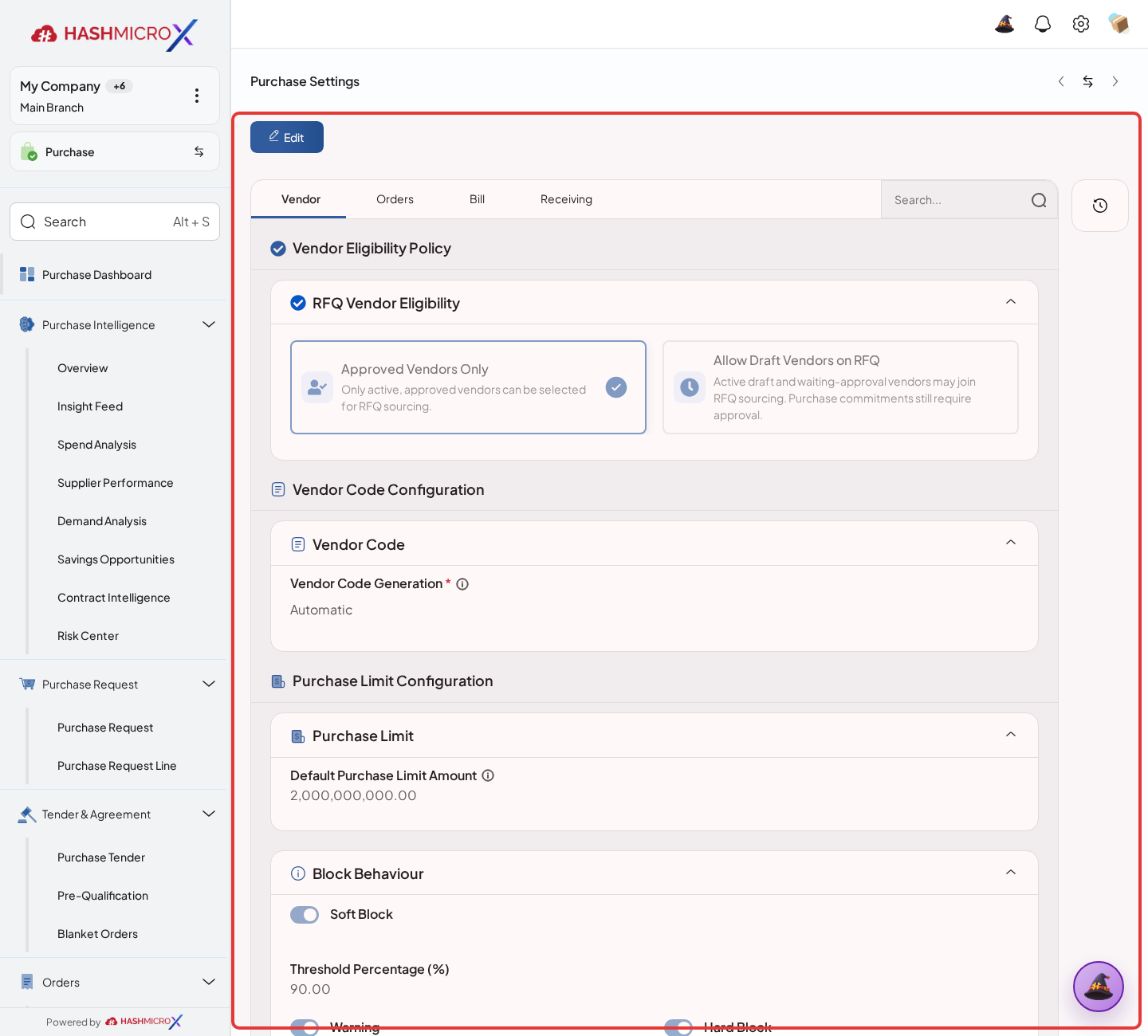
Figure 1.5.1 — HMX Main: Purchase Settings general approval governance reference framed in red - Open a Purchase document that requires approval, then verify that the expected approval action and status are available. In the verified UI, operational approval can be checked from documents such as Purchase Request, Vendor, Vendor Pricelist, KPI Target, or related Purchase records that show Submit for Approval, Waiting for Approval, Approve, Reject, or Approval History.
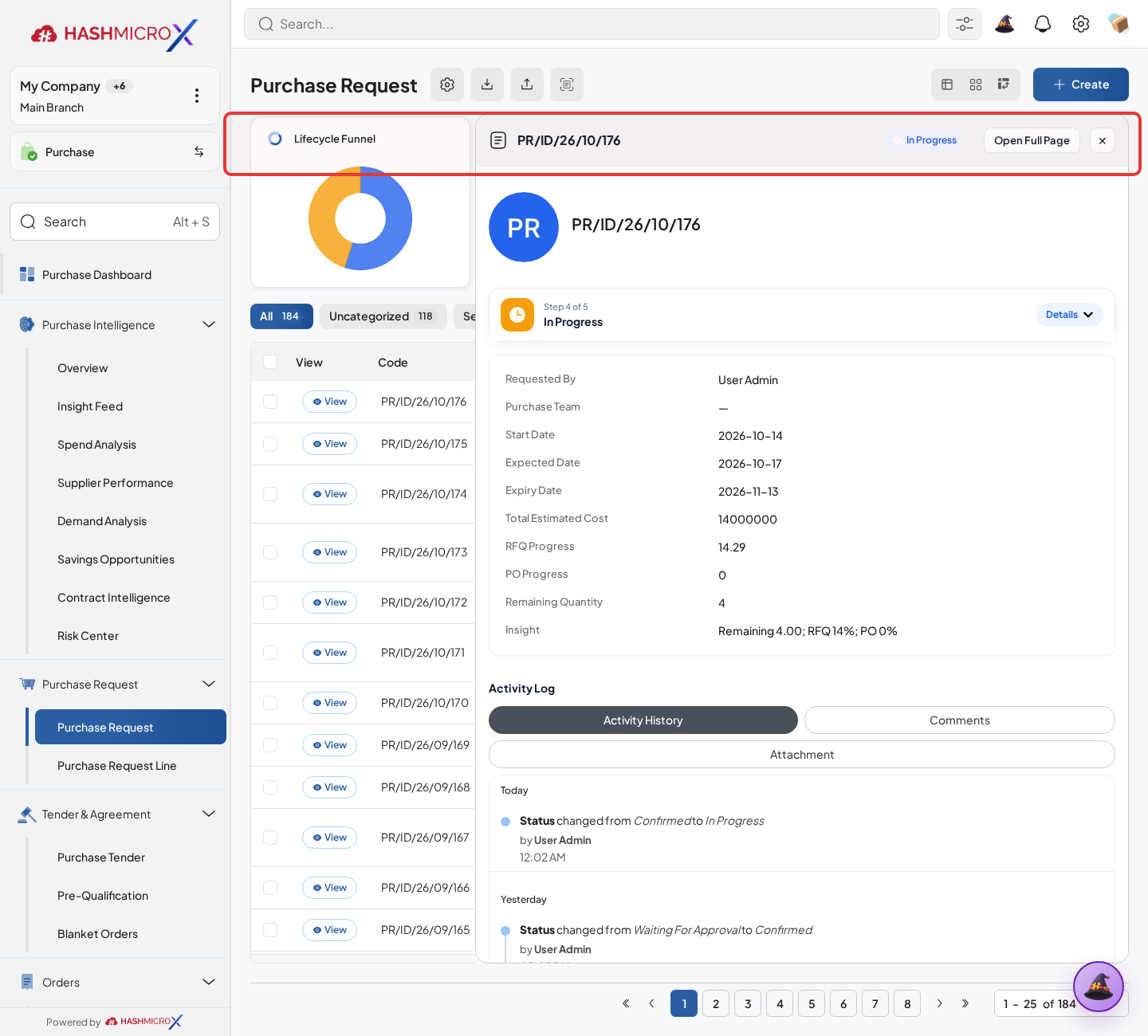
Figure 1.5.2 — HMX Main: Purchase Request approval submission action bar framed in red - After submission, confirm that the document status changes to Waiting for Approval and that approver actions are available only to authorized users. This confirms that the approval rule is not only present in configuration, but also affects the document workflow at runtime.
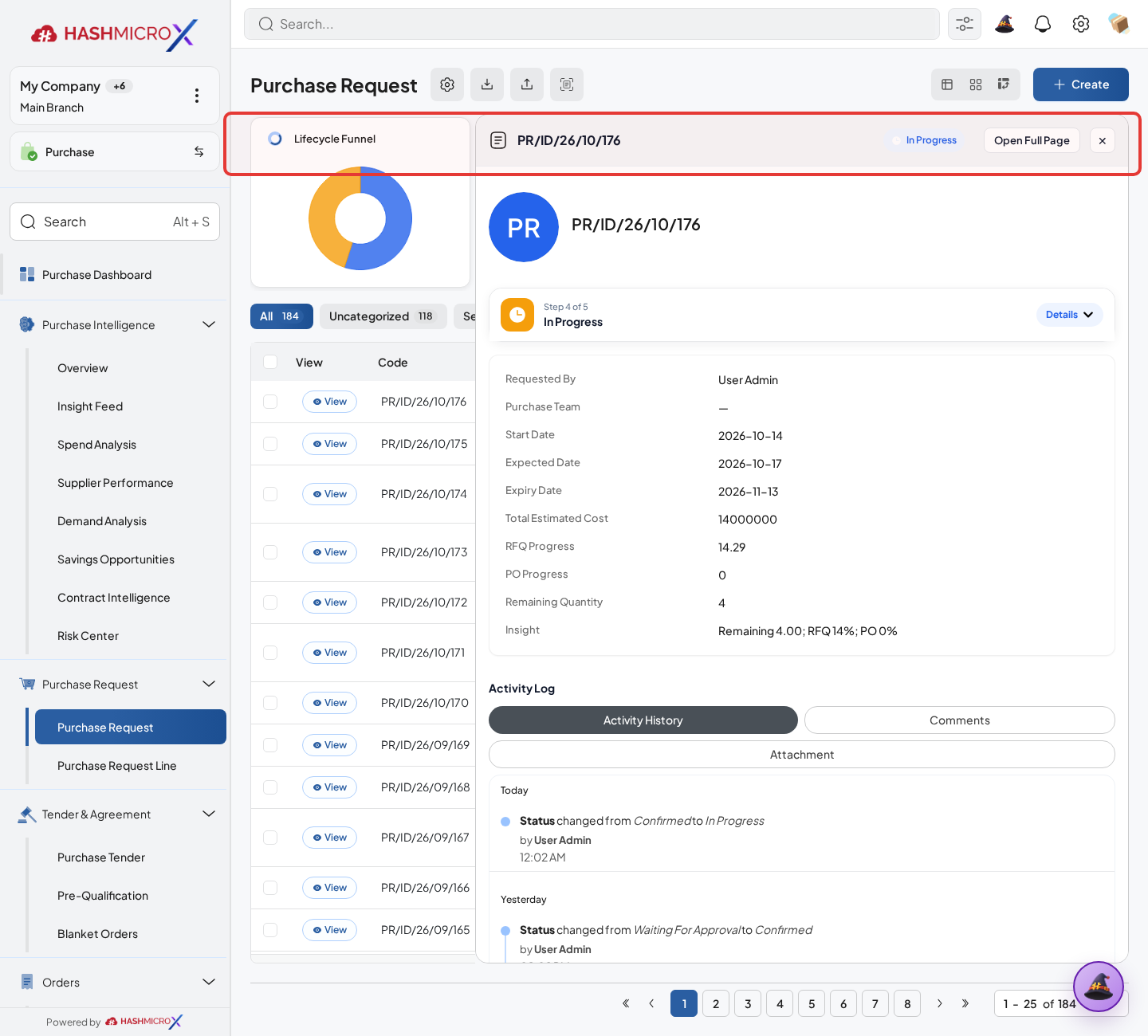
Figure 1.5.3 — HMX Main: Purchase Request statusbar workflow state framed in red - Review Order Type sequence behavior from the Order Type configuration. The visible Sequence tab supports the document numbering previews exposed in the UI. Direct Purchase sequence exists in source and is used by backend sequence logic, but the verified Order Type UI does not expose a separate Direct Purchase Sequence field or preview, so users should not be instructed to configure it manually from this screen.
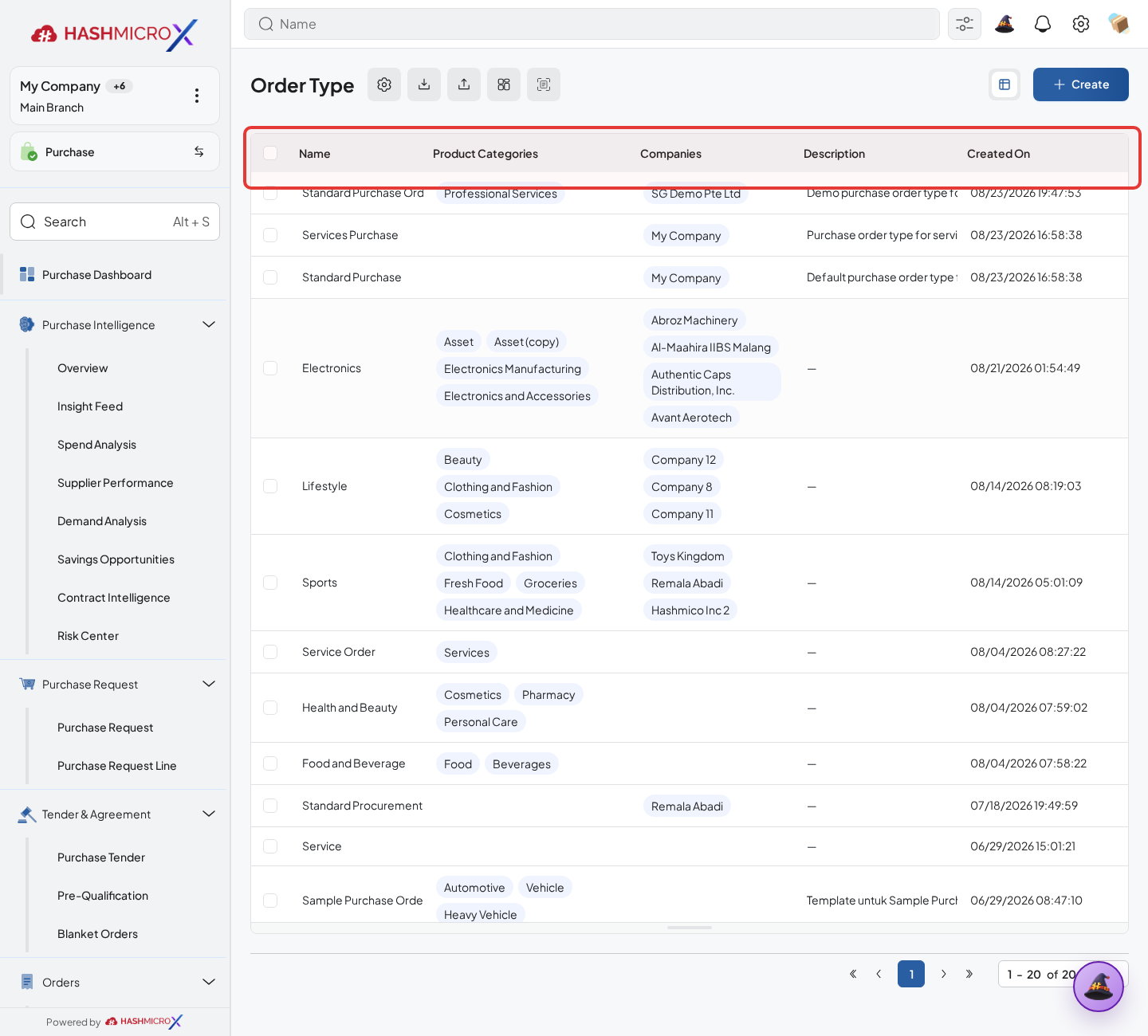
Figure 1.5.4 — HMX Main: Order Types document sequence and prefix configuration table framed in red - Review RFQ communication from the RFQ record. Use the communication history, attachments, and available send actions to verify that vendor communication follows the configured RFQ mail template and that the user can trace messages sent from the document.
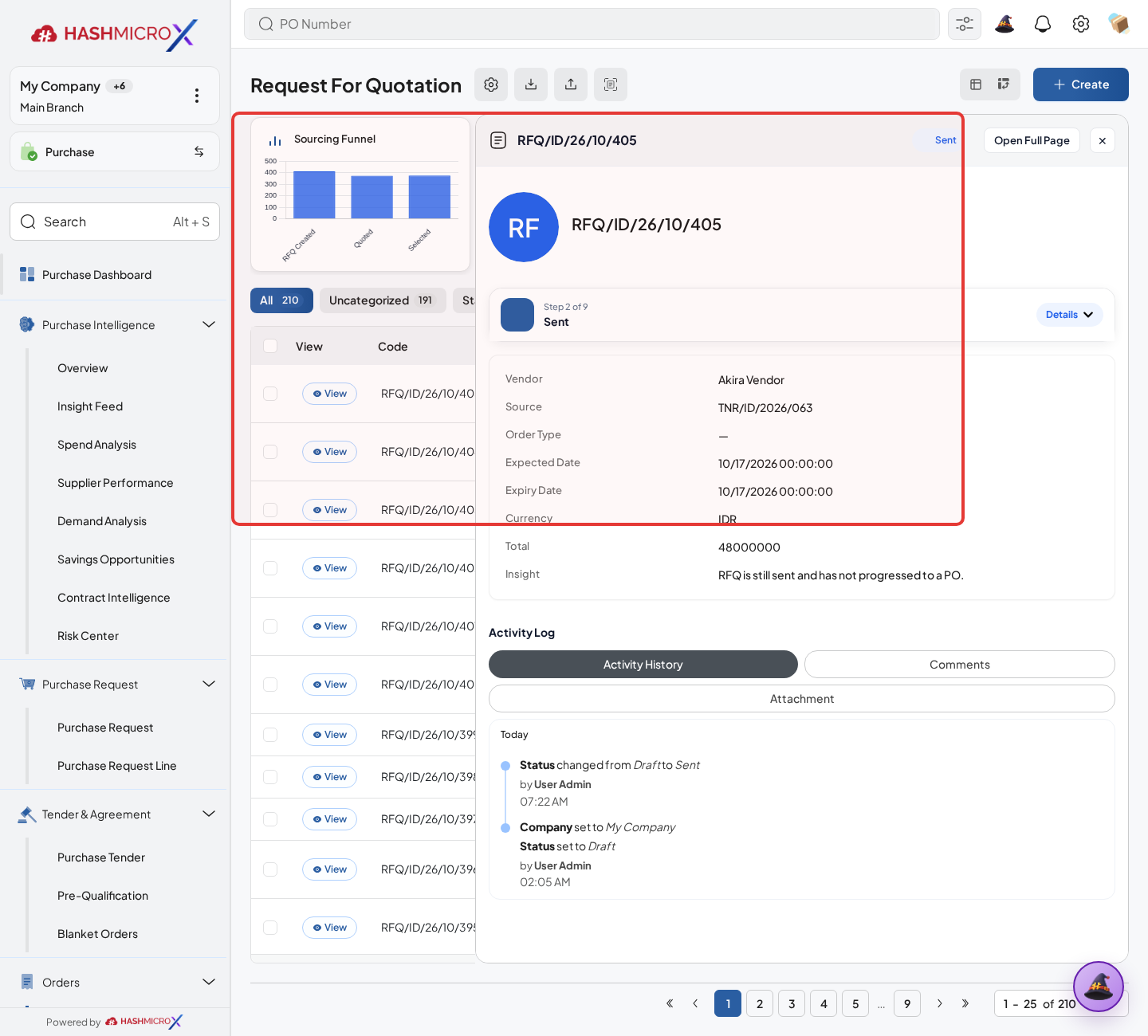
Figure 1.5.5 — HMX Main: RFQ mail communication and chatter template history framed in red - Review scheduled automation through the records affected by the automation. Source and Master Demo runtime show Blanket Order automatic status transition and expired pricelist checks as enabled, while some other automation, such as Vendor Performance Scoring and Peppol Purchase Order Status refresh, may be disabled in the verified runtime. Operational users should validate the outcome on related records instead of changing backend schedules from the Purchase document screen.
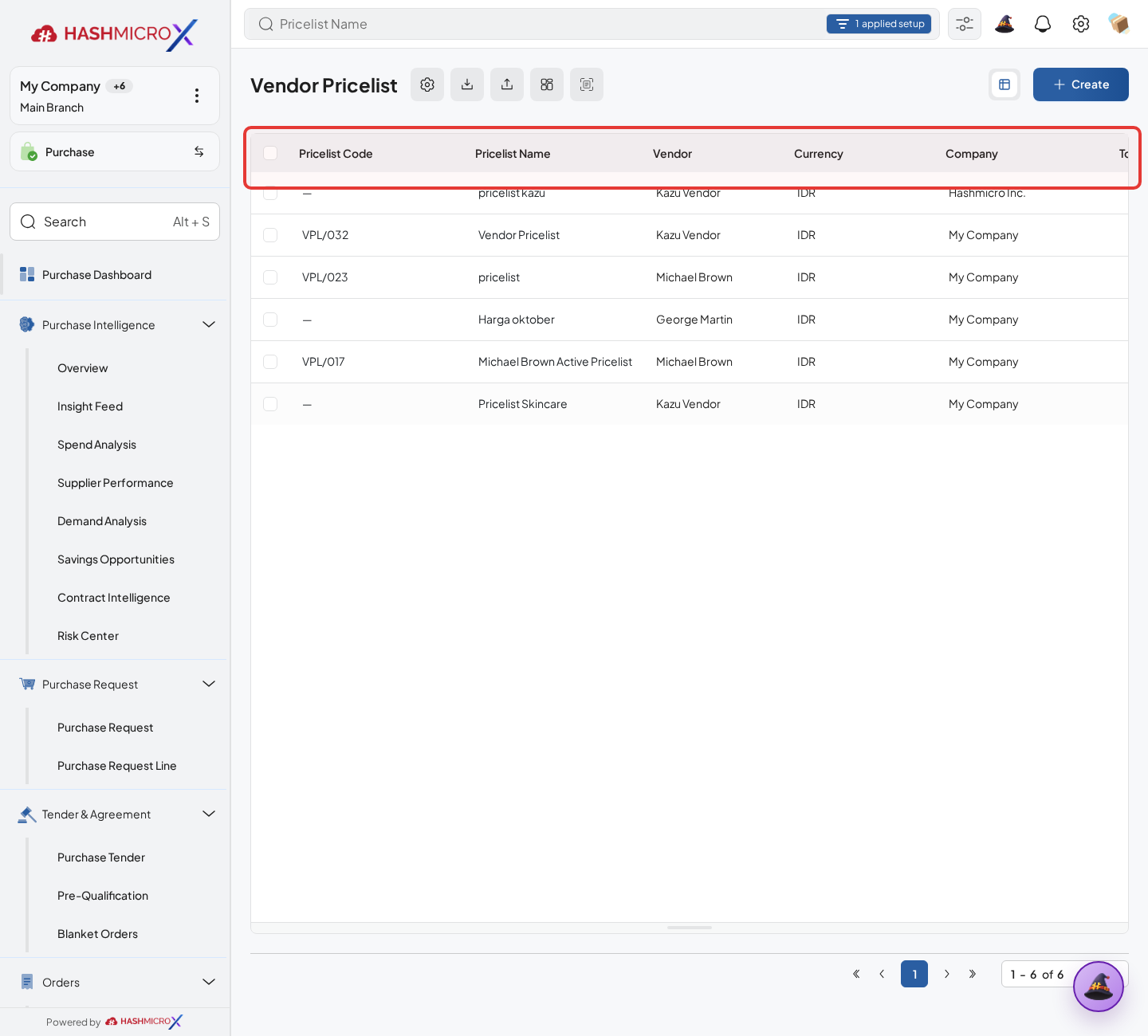
Figure 1.5.6 — HMX Main: Vendor Pricelist approval and validity status list framed in red - Verify Blanket Order approval separately when Blanket Order is used. Source configuration includes Blanket Order approval workflow and approval rule, and Master Demo runtime verification shows the Purchase Blanket Order workflow and Approval Blanket Order rule as active. Users should still follow the visible document actions in the Blanket Order screen and should not change approval state directly from backend configuration.
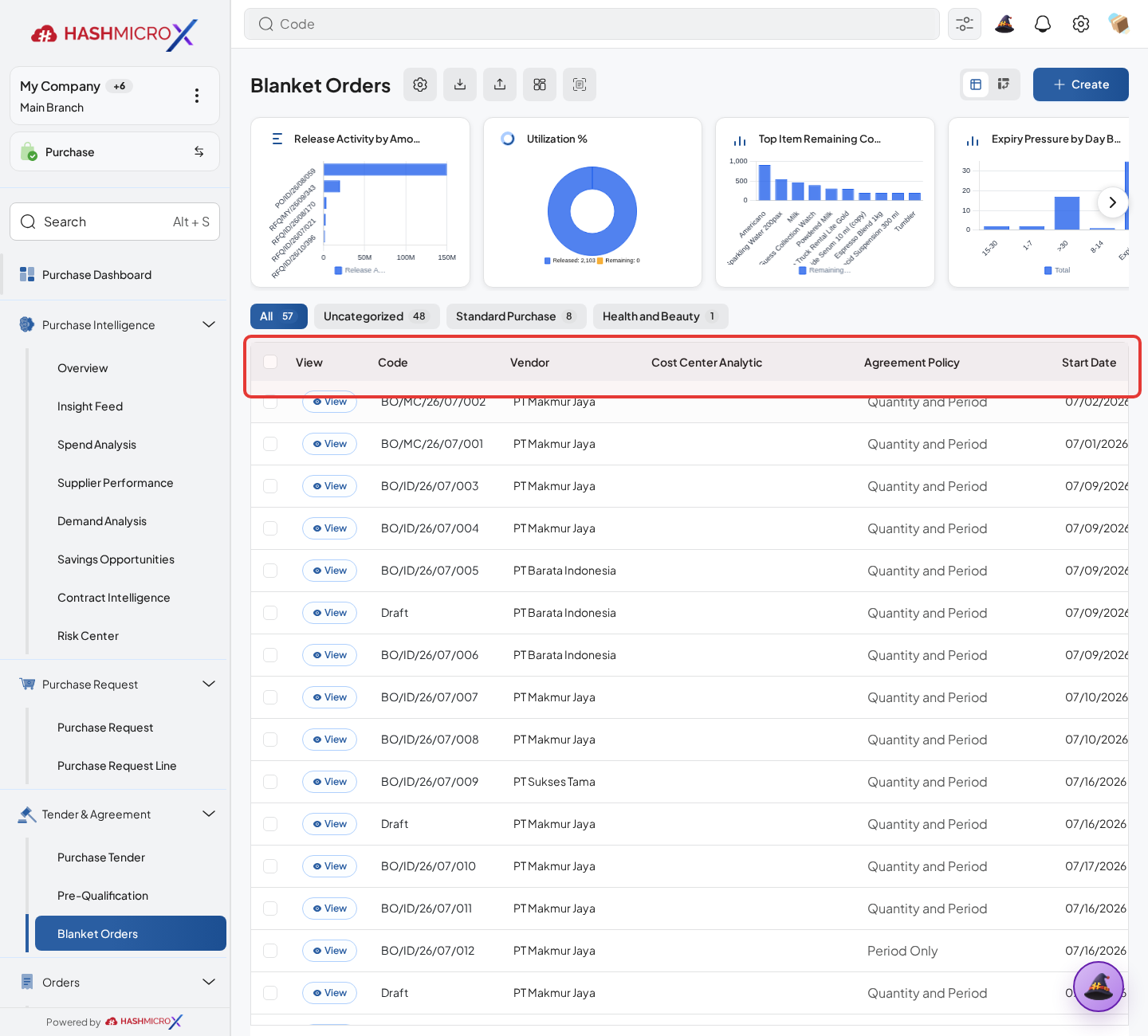
Figure 1.5.7 — HMX Main: Blanket Orders agreement verification list table framed in red - Review the Approval History after an approval action is completed or rejected. Approval History is the traceability layer that confirms who acted, when the action happened, and whether the record is ready for the next Purchase process.
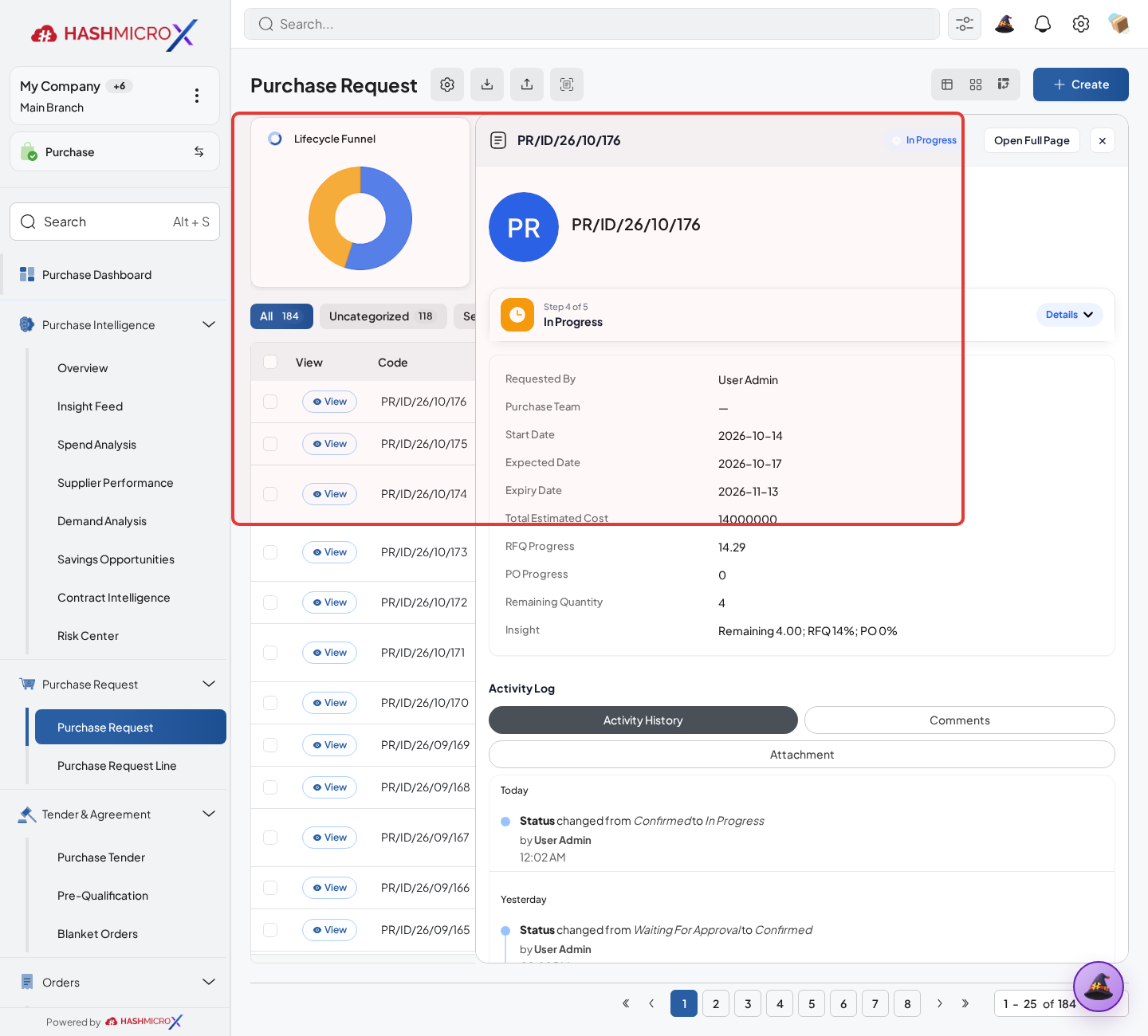
Figure 1.5.8 — HMX Main: Document chatter approval history audit trail framed in red
Status or Result
| Status / Result | What it means | What to do |
|---|---|---|
| Approval action visible | The document is covered by an active approval workflow and the current user can trigger or process the approval step. | Review the record, click the visible approval action, and check the resulting status. |
| Waiting for Approval | The document has been submitted and is waiting for an authorized approver decision. | Approver reviews document values, attachments, chatter, and Approval History before approving or rejecting. |
| Approved / Confirmed | The approval step is complete and the document can continue to the next Purchase process if other requirements are met. | Continue downstream processing, such as RFQ, PO, Blanket Order execution, receiving, billing, or related follow-up. |
| Rejected | The approval request has been declined. | Review rejection reason, correct the record if allowed, and resubmit only when the issue has been resolved. |
| Sequence generated | The record received a configured document number from the applicable sequence. | Verify the generated number and continue processing. Do not manually edit sequence numbers unless the business policy allows it. |
| Mail communication recorded | RFQ or Purchase communication is sent or logged through the document communication history. | Review recipients, message content, attachments, and chatter history before follow-up. |
| Automation processed | A backend scheduled job updates related Purchase data, such as blanket agreement status or expired pricelist validity. | Validate the record status or validity after the scheduled job runs. Escalate to an administrator if the expected update does not appear. |
Field Reference
| Field / Configuration | Visibility | Description | Documentation Guidance |
|---|---|---|---|
| Approval Workflow | Configuration / runtime | Defines the approval path used by Purchase documents. | Document only workflows verified in source, visible UI, or runtime behavior. |
| Approval Rule | Configuration / runtime | Determines which workflow applies to a document and when approval is required. | Explain the document conditions and approver behavior without changing business configuration. |
| Approval History | Document UI | Shows approval traceability, actions, dates, and responsible users when available. | Use it as the evidence screen for completed or pending approval decisions. |
| Document Sequence | Order Type UI and backend | Controls numbering for Purchase documents. Visible sequence previews are shown in Order Type configuration. | Document the visible sequence fields only. Direct Purchase sequence is used by backend logic but is not exposed as a separate UI field in the verified Order Type screen. |
| Direct Purchase Sequence | Source / backend logic | Backend logic contains Direct Purchase sequence support and uses it when Direct Purchase sequence generation is executed. | Do not add a user step to configure it from Order Type UI unless the field becomes visible in the product screen. |
| RFQ Mail Template | Document communication / mail configuration | Controls the message format used for RFQ communication with vendors. | Guide users to verify communication from the RFQ record and mail history, not by assuming direct template editing access for all roles. |
| Blanket Order Approval | Source, runtime, and document UI | Purchase Blanket Order approval workflow and Approval Blanket Order rule are available and active in the verified Master Demo runtime. | Document the Blanket Order approval flow as active, with the condition that users follow visible actions on the Blanket Order document. |
| Scheduled Automation | Backend schedule / record outcome | Runs background updates such as blanket order status transition or expired pricelist checks. | Document expected outcomes on records and mark disabled jobs as inactive when runtime verification shows them disabled. |
Important Notes
- Do not instruct users to configure fields that are available in source but not visible in the verified UI.
- Direct Purchase Sequence is a backend-supported sequence path, but it is not a visible editable field in the verified Order Type sequence tab.
- Blanket Order approval is documented as active because source configuration and Master Demo runtime both verify active Purchase Blanket Order approval configuration.
- Scheduled jobs should be described by verified runtime status and the business record they affect, not as manual steps on operational Purchase forms.
- Every screenshot in this section must reflect an actual Purchase screen or verified related record. Do not replace missing runtime access with mock screenshots.
2 Master Data
Master Data contains the reusable records that users select while creating Purchase transactions. In the verified Purchase flow, this area covers vendor eligibility, vendor categories, legal document requirements, vendor pricelists and amendments, purchase team routing, product references, and destination warehouse selection.
| Field Name | Data Type | Mandatory | Description & Function |
|---|---|---|---|
| Vendor | Master data with workflow | YES | Stores supplier identity, vendor code, category, legal document lines, approval status, blacklist information, and purchase credit limit. |
| Vendor Category & Legal Document | Master setup | YES | Defines supplier grouping and applicable legal documents. Blocking required documents can prevent vendor submission or confirmation. |
| Vendor Pricelist | Master data with approval | Optional | Maintains supplier-specific pricing by product, UoM, currency, branch, validity dates, item rows, and quantity tiers. |
| Purchase Team | Routing master | Optional | Groups team lead, members, primary buyers, and routing parameters used by Purchase Request and Purchase Order assignment. |
| Products & Destination Warehouse | Reference data | YES | Products provide item references and purchase history, while Destination Warehouse is required on inventory-integrated Purchase Request flows. |
These records work together. Vendor categories can affect legal-document rules and purchase-team routing; vendor pricelists depend on confirmed vendors and product lines; Destination Warehouse must be filled on inventory-related request lines so receiving progress can be tracked correctly.
2.1 Vendors
Overview
Use Vendors to keep supplier details ready for purchasing: identity, purchase eligibility, category, legal documents, blacklist status, approval history, and credit limit. Before a vendor can be used in Purchase documents, make sure the record is active and in the correct approval status.
Prerequisites
- You can open Purchase > Vendor > Vendors.
- Vendor numbering, default credit limit, approval workflow, company scope, vendor categories, and legal-document rules are already configured.
- Prepare the required legal documents before submitting or confirming the vendor.
Step-by-Step Instructions
Open Purchase > Vendor > Vendors, then create a new vendor or open an existing vendor.
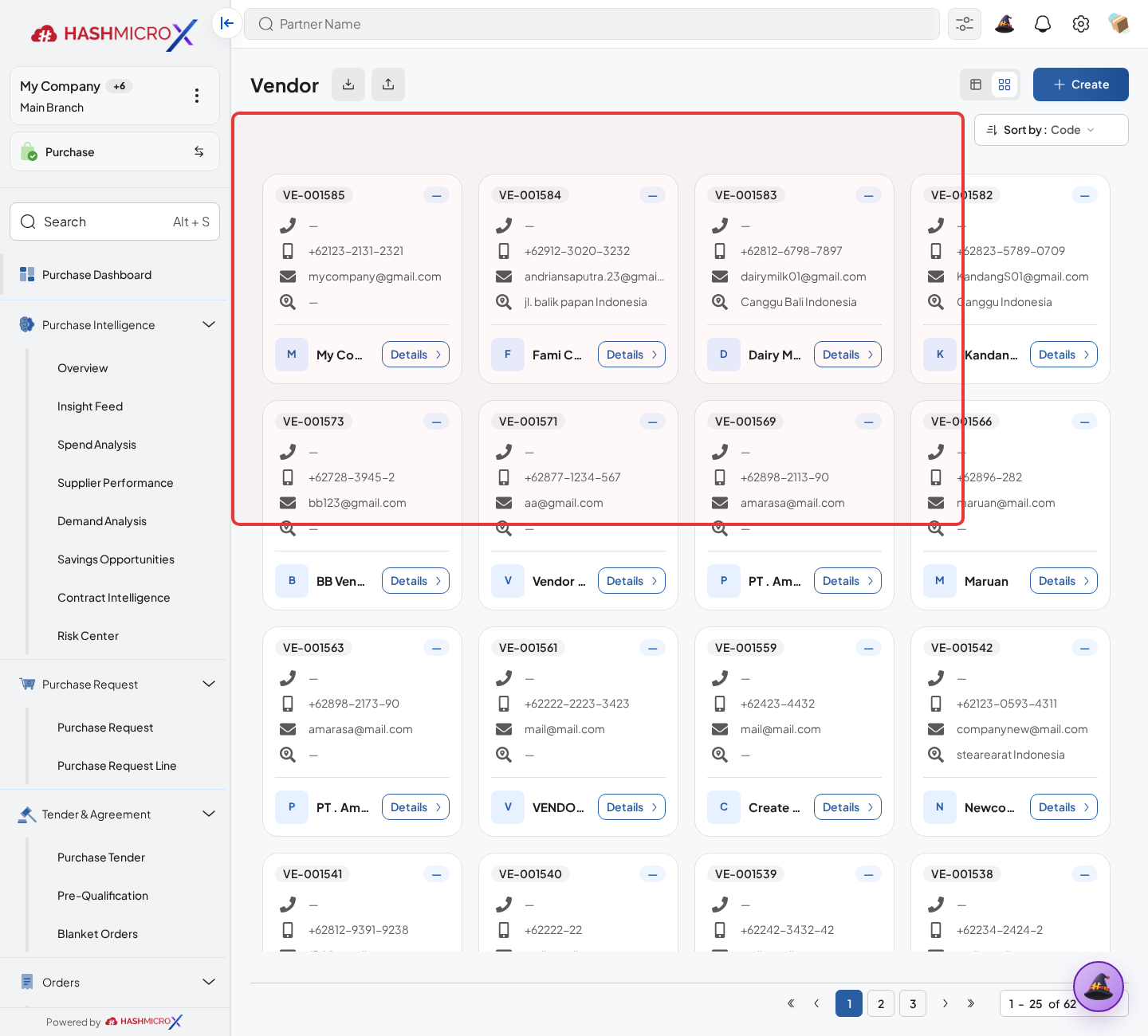
Figure 2.1.1 — HMX Main: Vendors master directory kanban and create action framed in red Complete the supplier identity and contact information, then make sure the Vendor partner type is active. If vendor sequence is manual, fill Vendor Code; if sequence is automatic, the code is generated by the system.
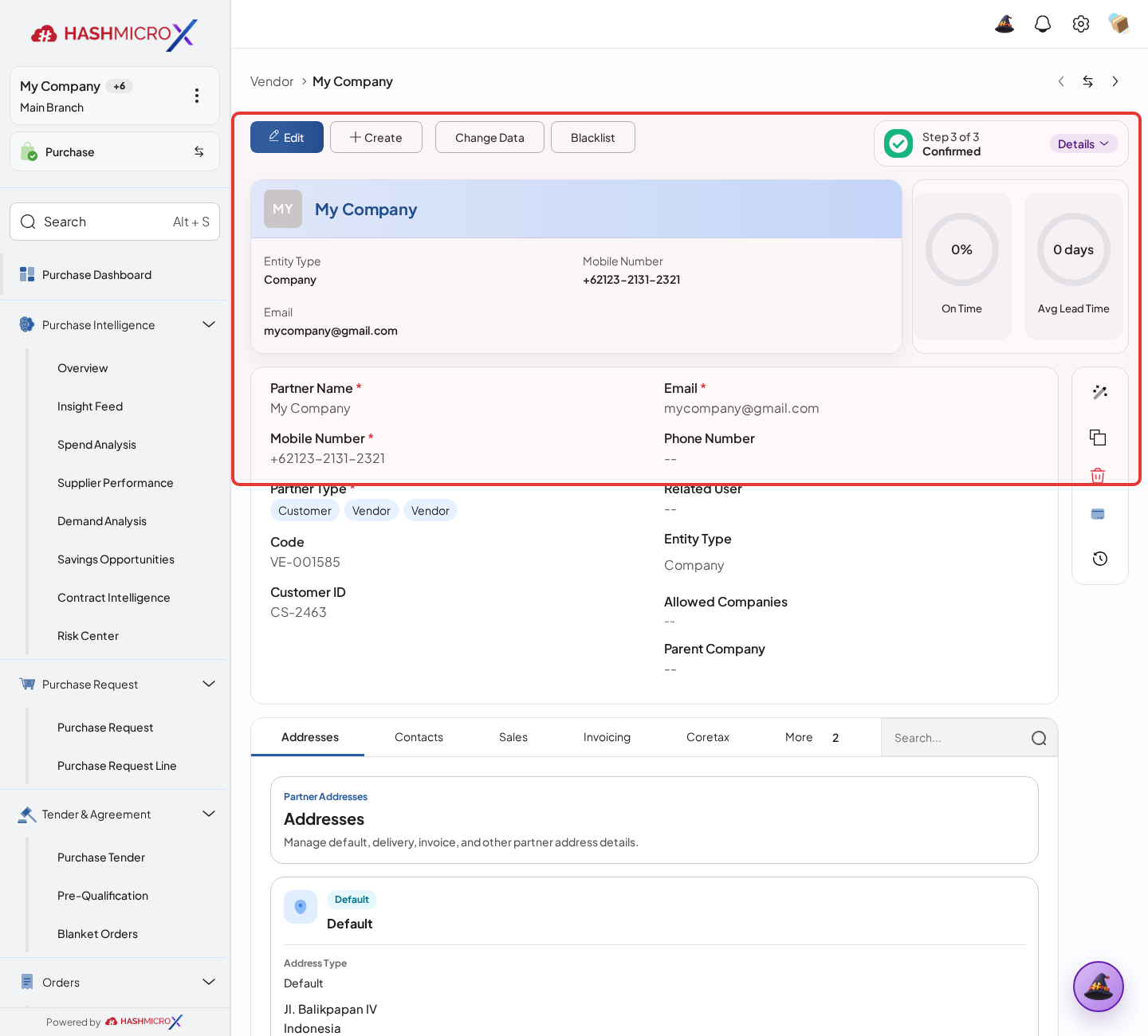
Figure 2.1.2 — HMX Main: Vendor identity, contact details, and generated Vendor Code framed in red On the Purchase tab, assign Vendor Categories, check Purchase Limit, Purchase Limit Used, and Purchase Limit Available, then complete any Legal Documents shown by the system.
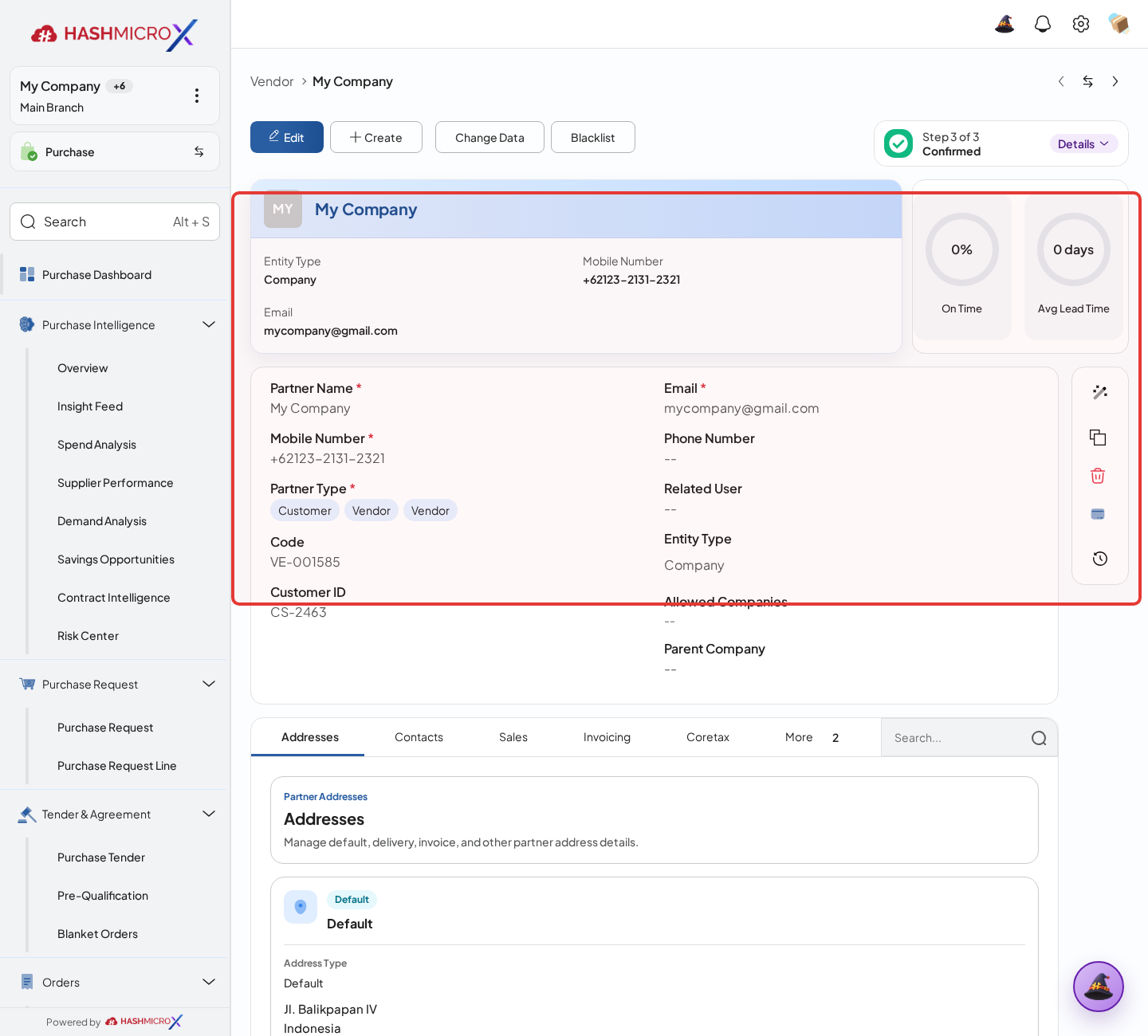
Figure 2.1.3 — HMX Main: Vendor Purchase tab showing category assignments and credit limit framed in red Click Submit for Approval after you review the vendor identity, purchase category, credit limit, and required supporting information.
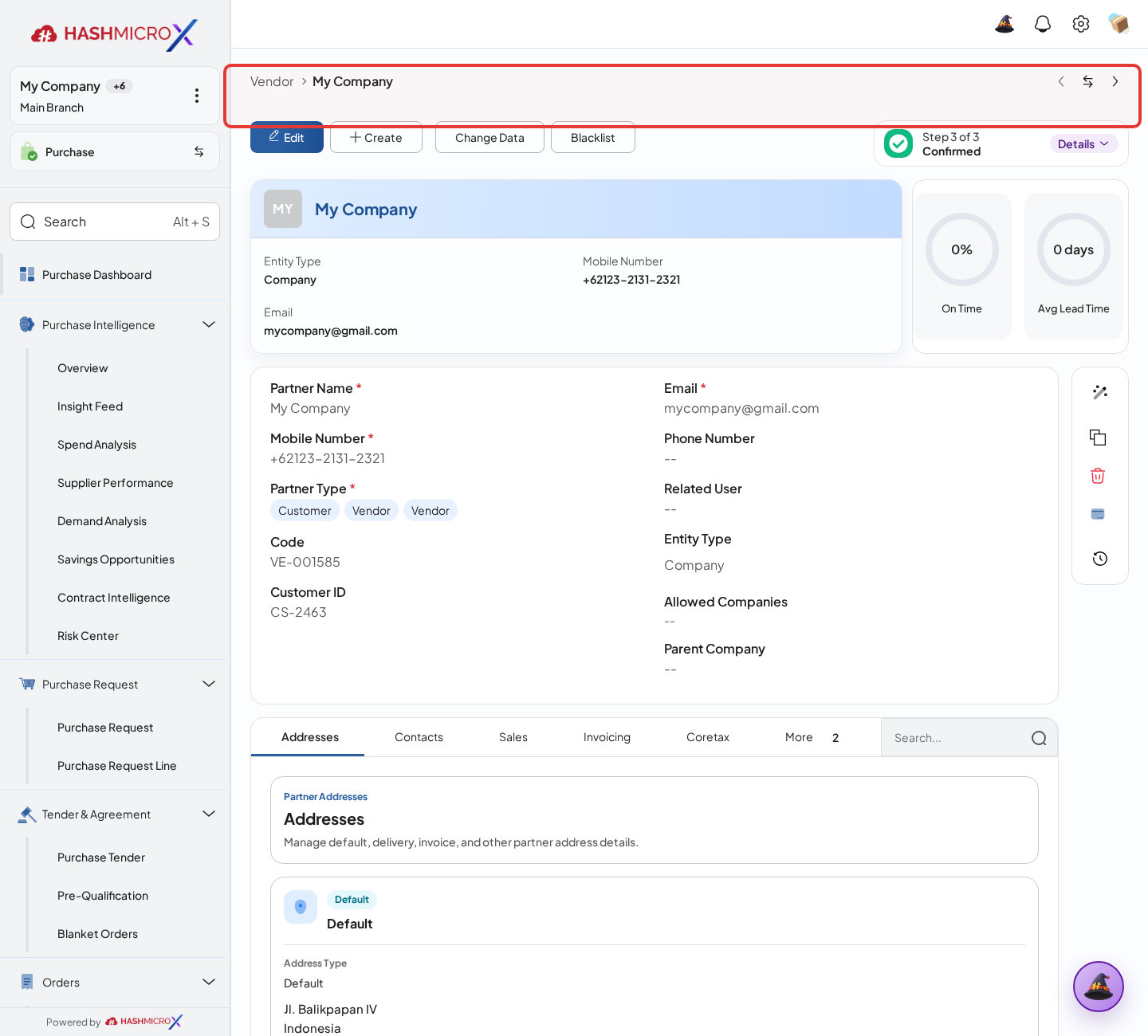
Figure 2.1.4 — HMX Main: Vendor statusbar indicating submitted and approval state framed in red Use Change Data only for confirmed vendors when the update needs approval or controlled tracking. Use Blacklist or Unblacklist when vendor eligibility changes.
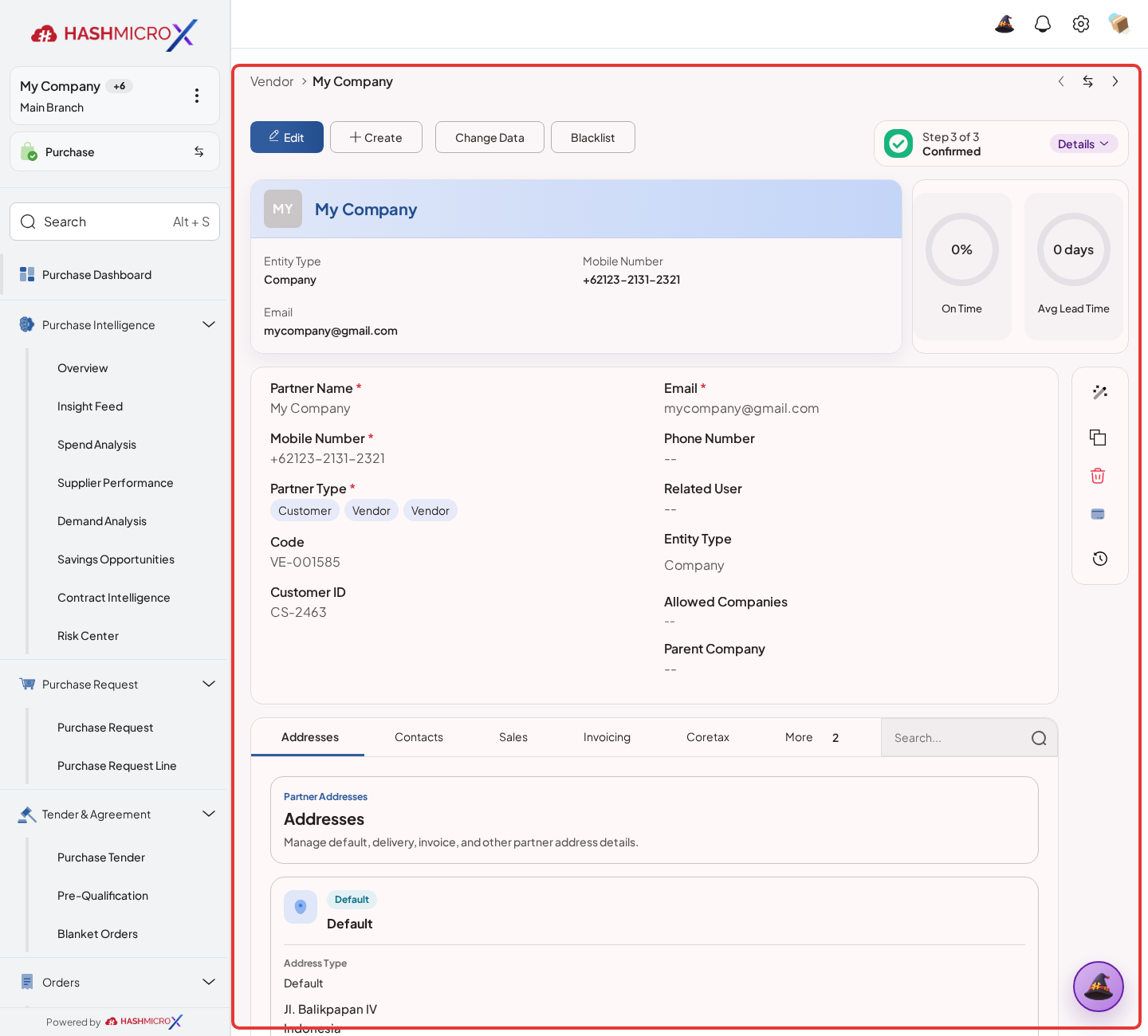
Figure 2.1.5 — HMX Main: Vendor action toolbar for data change and blacklist controls framed in red
Status and Result Guide
| Status / Result | What it means | Trigger | What to do |
|---|---|---|---|
| Draft | Vendor is being prepared or changed. | New vendor creation or Change Data from a confirmed vendor. | Complete required identity, category, purchase limit, and legal document information. |
| Waiting Approval | Vendor is submitted to approval workflow. | User sends the vendor for approval after required blocking documents are complete. | Wait for approval or revise rejected data. |
| Confirmed | Vendor is eligible for purchasing commitments when active and in company scope. | Approval or direct confirmation succeeds. | Use the vendor in RFQ, PO, pricelist, and related procurement records. |
| Blacklisted | Vendor is restricted from normal purchasing use. | User clicks Blacklist on a confirmed vendor. | Review blacklist reason and unblacklist only after business approval. |
| Rejected | Vendor approval was rejected. | Approver rejects the vendor or change request. | Correct the vendor data and resubmit if still needed. |
Field Reference
| Field | Required | Description | Example or note |
|---|---|---|---|
| Vendor Code | Conditional | Supplier identifier. It is required when vendor sequence is manual and readonly or generated when sequence is automatic or vendor is confirmed. | Data type: Text / sequence. |
| Vendor Categories | No | Groups vendors and can affect legal document applicability and purchase team routing. | Many2many. Category company must match one of the vendor companies when scoped. |
| Status | Yes | Vendor lifecycle status used for eligibility and approval. | Draft, Waiting Approval, Confirmed, Blacklisted, Rejected. |
| Purchase Limit | No | Vendor purchase credit limit. Default can come from Purchase Settings. | Amount. |
| Purchase Limit Used / Available | No | Computed credit usage and remaining limit from related RFQ and Purchase Orders. | Read-only computed fields. |
| Legal Documents | Conditional | Required, additional, or optional document lines generated from legal document setup. | Required blocking documents must have an uploaded file before vendor submission or confirmation. |
| Blacklist Information | No | Reason, date, and user for blacklisted vendors. | Visible when vendor status is Blacklisted. |
| Similar Vendor | No | Smart button appears when similar email, phone, mobile, or bank account is detected. | UI label is currently spelled Similiar Vendor in product source. |
Common Scenarios
| Scenario | When to Use | Key Steps | Expected Result |
|---|---|---|---|
| Create a vendor | Use before a supplier can be selected in purchasing documents. | Open Purchase > Vendor > Vendors, create the vendor, complete identity, categories, legal documents, and save. | Vendor is saved in Draft or enters approval depending on workflow. |
| Submit vendor with legal documents | Use when blocking legal documents are configured. | Upload required legal document files, then submit or confirm the vendor. | System allows submission only when blocking documents are complete. |
| Change confirmed vendor data | Use when a confirmed vendor name or key data needs controlled revision. | Click Change Data on an active confirmed vendor, update pending values, then send for approval. | Confirmed vendor name is updated only after approval. |
| Blacklist vendor | Use when the supplier should be prevented from normal purchasing use. | Open the confirmed vendor and click Blacklist. | Vendor status changes to Blacklisted and blacklist details are retained. |
Troubleshooting
| Issue | Possible Cause | How to fix it |
|---|---|---|
| Vendor cannot be submitted or confirmed. | A blocking required legal document is missing its uploaded file. | Open Legal Documents and upload files for every required blocking document. |
| Vendor cannot be selected for purchasing commitment. | The vendor is inactive, not confirmed, outside company scope, or blacklisted. | Check vendor status, active flag, company scope, and approval history. |
| Vendor category cannot be assigned. | The selected category is scoped to a company that does not match the vendor company. | Select a matching category or update category company scope first. |
2.2 Vendor Category & Legal Document
Overview
Use Vendor Category to group suppliers by company scope. The category can be reused on vendor forms, legal-document rules, and purchase-team routing. Use Legal Document to define what documents vendors must provide, whether missing files should block the process, and which vendors or categories the rule applies to.
Prerequisites
- You can open the Purchase vendor configuration menus.
- Confirm the company scope and supplier grouping rule before creating categories.
- Confirm which legal documents are required, optional, or blocking before vendor onboarding starts.
Step-by-Step Instructions
Open Purchase > Configuration > Vendor > Vendor Category to create or update a supplier group.
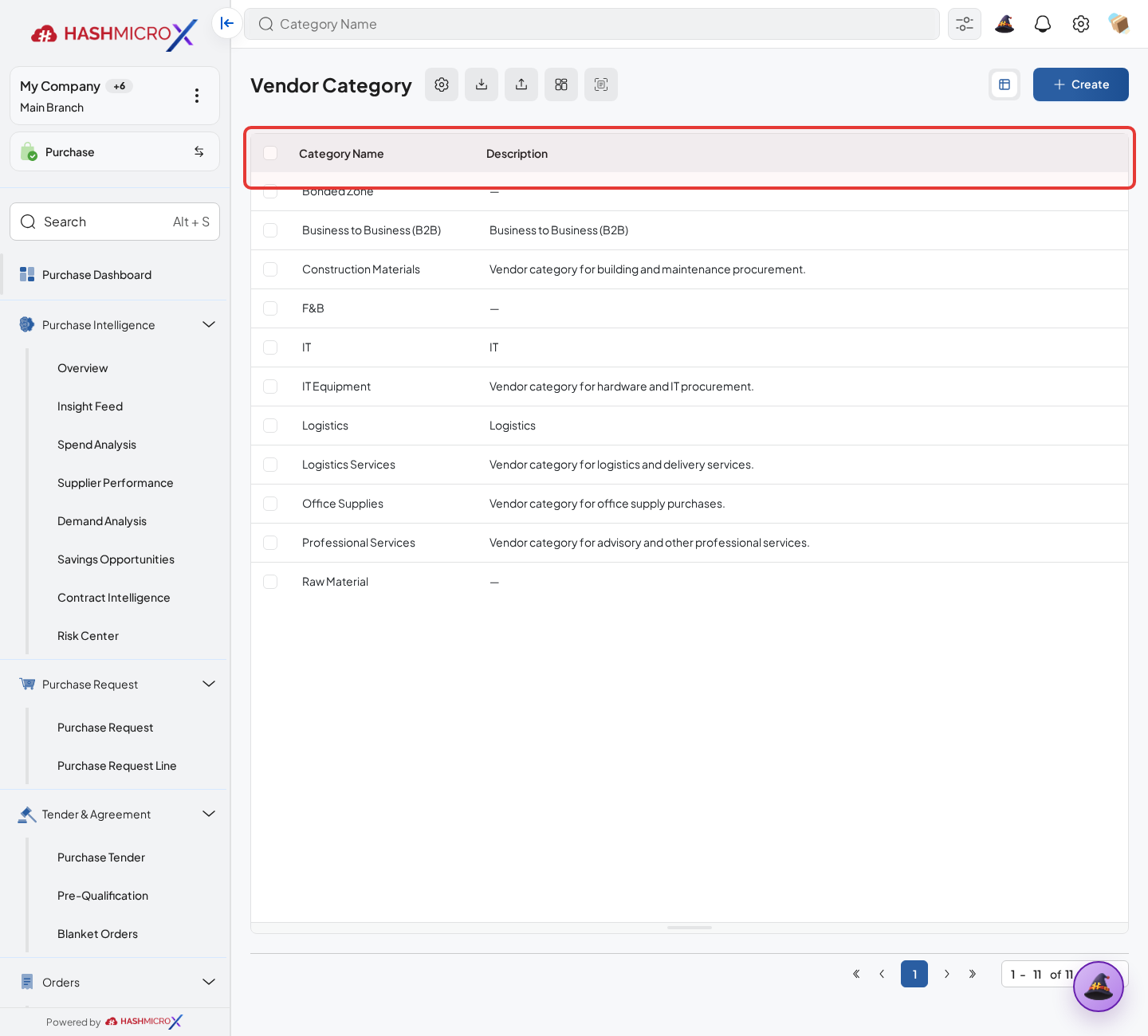
Figure 2.2.1 — HMX Main: Vendor Category configuration list table framed in red Fill Category Name, optional Companies, and Description so users understand when the category should be selected. Use the Vendors tab as a review list for vendors already assigned to this category.
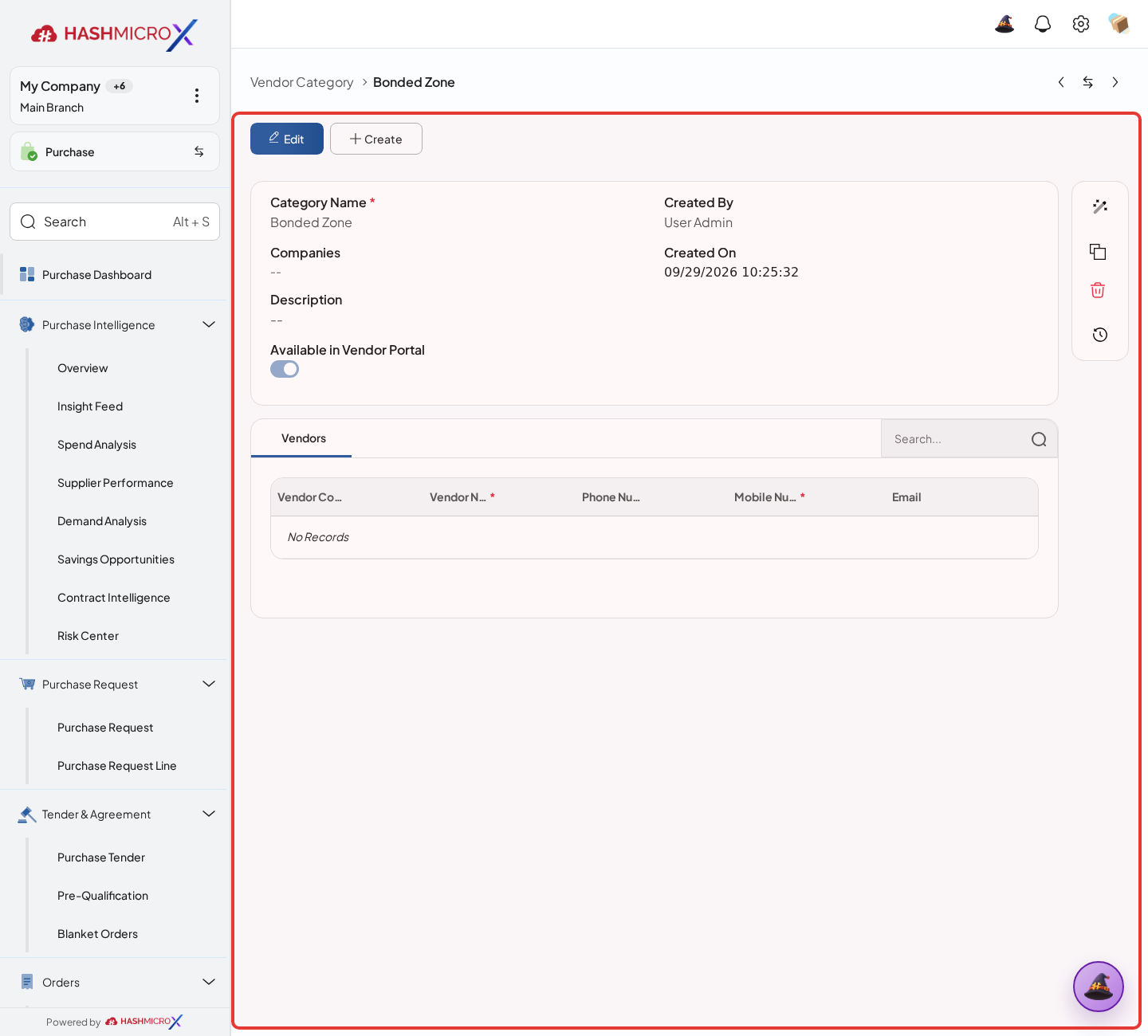
Figure 2.2.2 — HMX Main: Vendor Category form sheet and assigned vendors tab framed in red Open Purchase > Configuration > Vendor > Legal Document to define vendor documents that are required, additional, or optional.
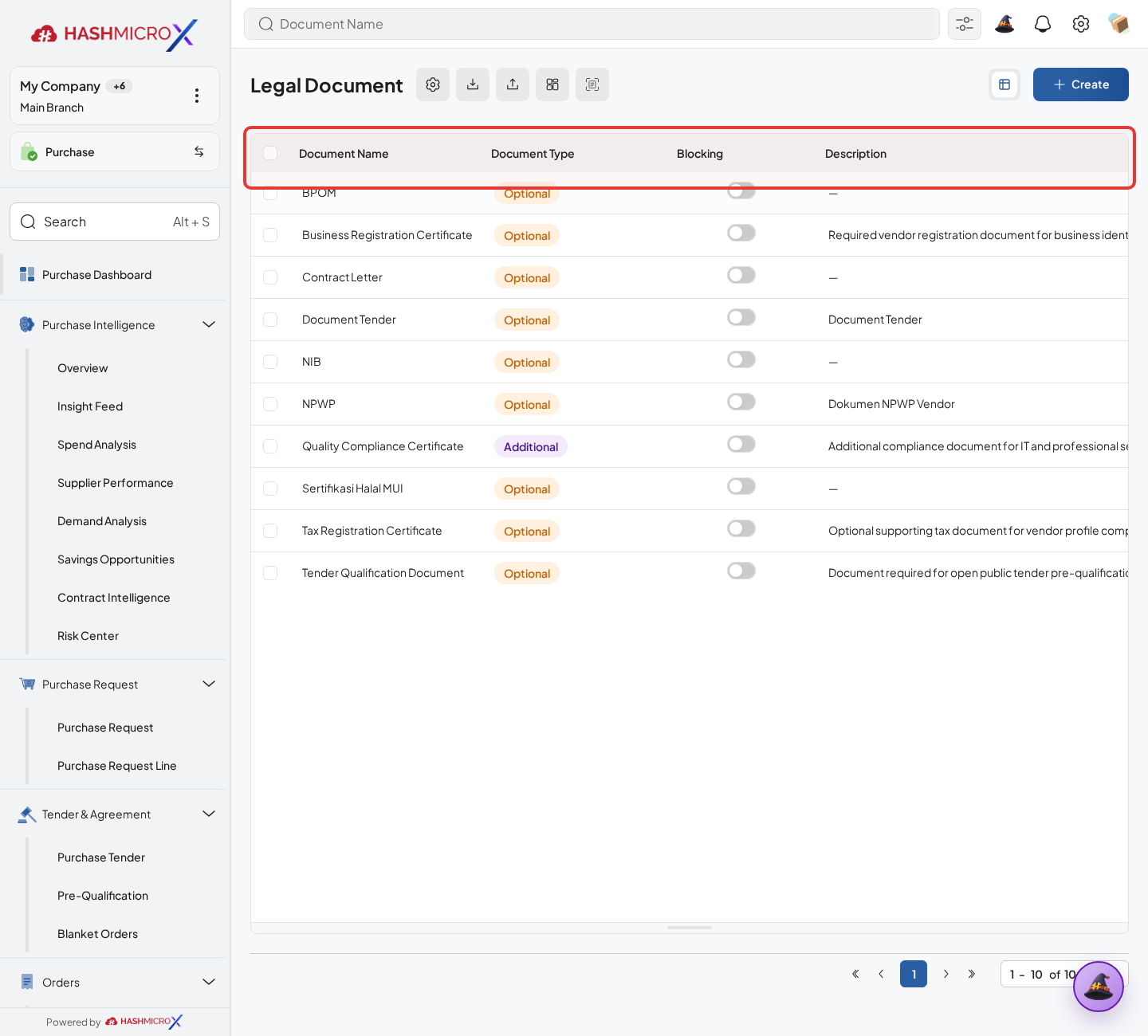
Figure 2.2.3 — HMX Main: Vendor Legal Document master list table framed in red Select Document Usage, Document Type, Blocking, applicability, and any reference attachments. Applicability fields appear when the document is additional and only applies to selected vendors or categories.
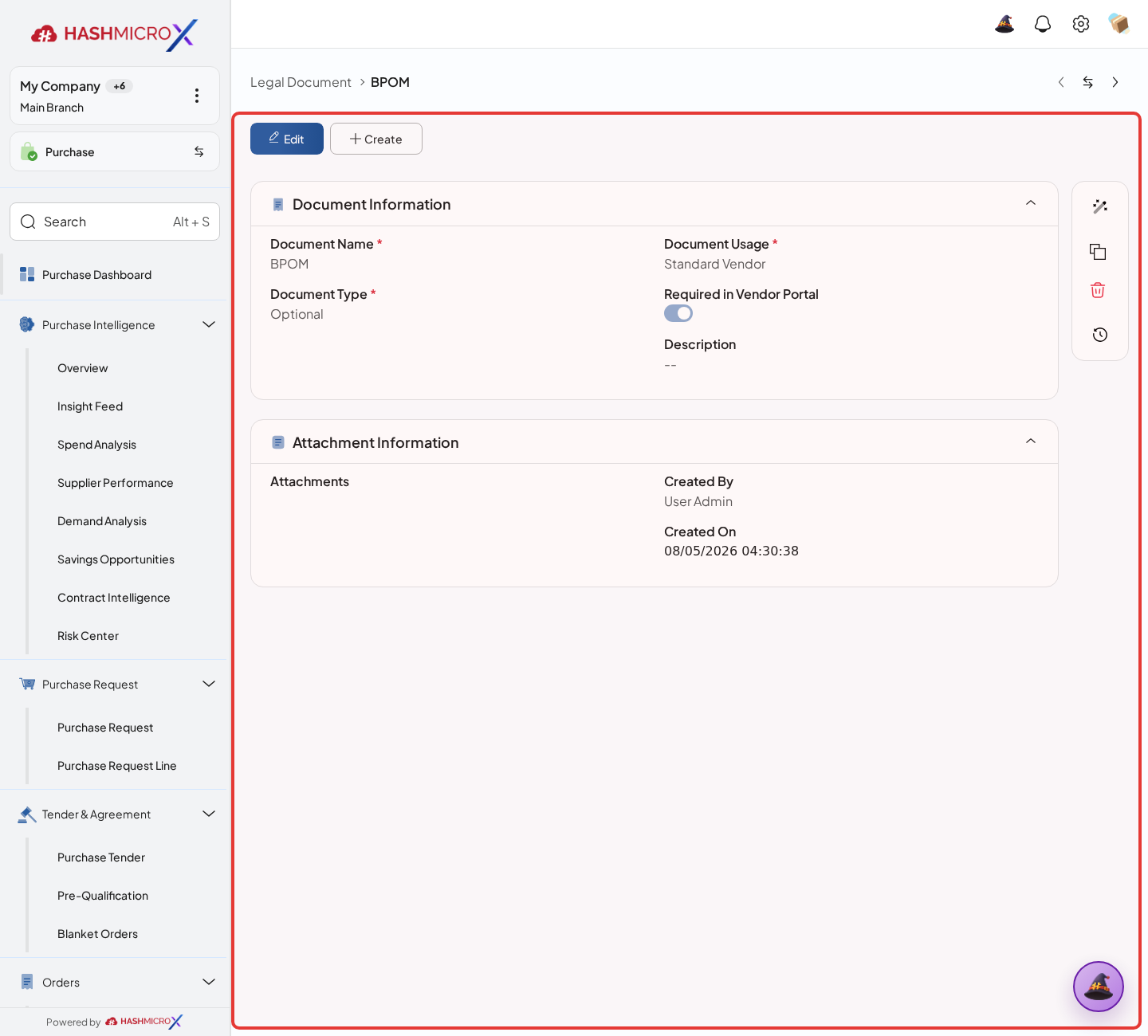
Figure 2.2.4 — HMX Main: Legal Document usage type, blocking rules, and attachment settings framed in red Save the legal document, then open an applicable vendor to confirm the document line or warning appears correctly.
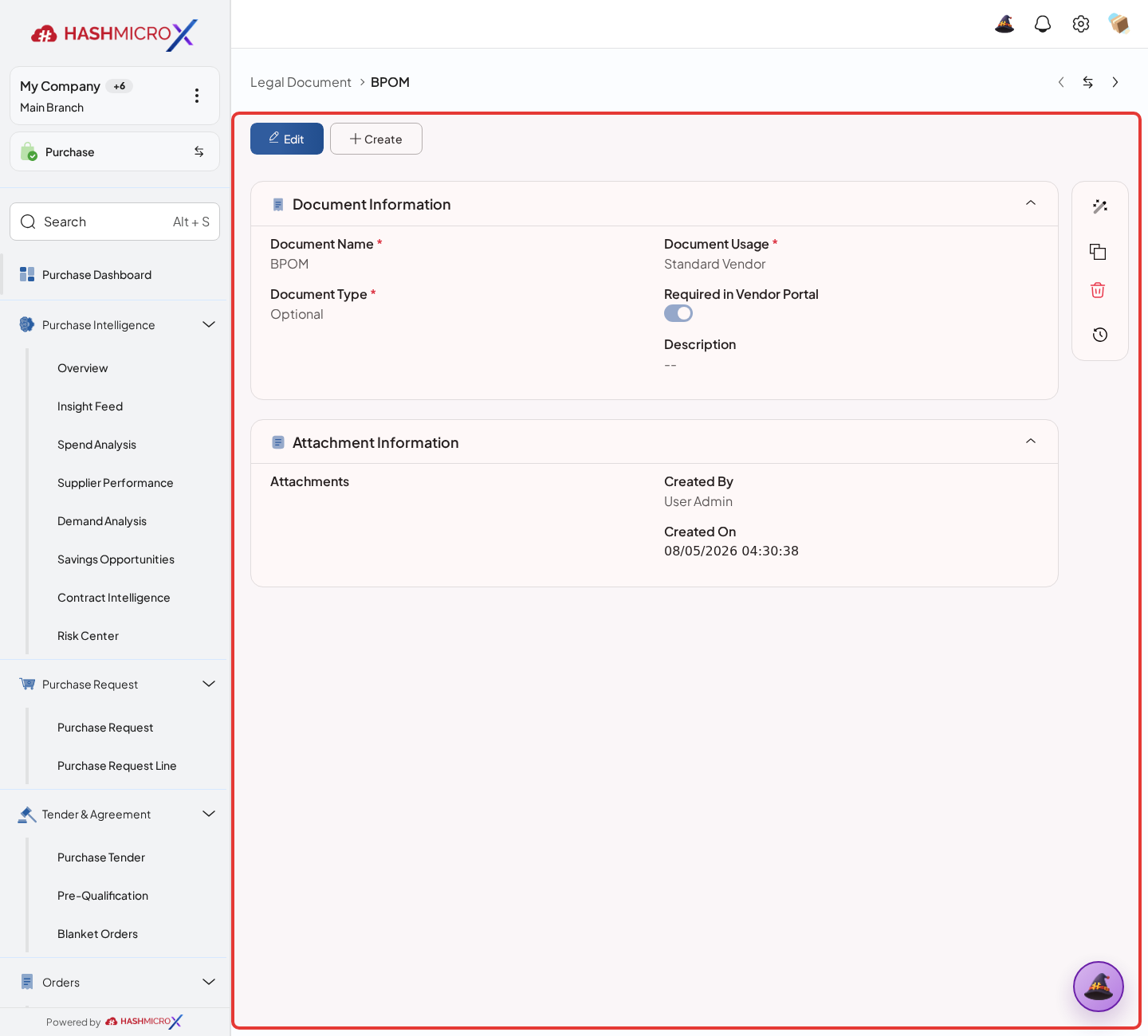
Figure 2.2.5 — HMX Main: Vendor legal document requirement lines and compliance status framed in red
Status and Result Guide
| Status / Result | What it means | Trigger | What to do |
|---|---|---|---|
| Category saved | The category can be selected on vendors and used for team routing. | User saves a Vendor Category. | Assign it only to vendors that match the category company scope. |
| Legal Document saved | The document rule becomes available based on its usage, type, and applicability. | User saves a Legal Document. | Review affected vendors and upload the required files. |
| Blocking required document | Missing files can block vendor submission or confirmation. | Document Type is Required or Additional and Blocking is enabled. | Upload the document on the vendor record before submitting or confirming it. |
| Optional document | Document is shown as a reminder but is not blocking. | Document Type is Optional. | Upload when available. |
Field Reference
| Field | Required | Description | Example or note |
|---|---|---|---|
| Category Name | Yes | Reusable supplier grouping label. | Name must be unique for non-demo records. |
| Companies | No | Company scope for the category. | Vendor and category company scopes must overlap when both are set. |
| Vendors | No | Read-only list of vendors assigned to the category. | Shows Vendor Code, Vendor Name, phone, mobile, and email. |
| Document Usage | Yes | Defines where the document is used. | Standard Vendor, Tender Document, Additional Vendor. |
| Document Type | Yes | Requirement classification. | Required, Additional, Optional. |
| Blocking | Conditional | Marks whether missing required or additional document upload blocks vendor submission or confirmation. | Hidden for Optional document type. |
| Apply To | Conditional | Controls additional document applicability. | Vendor Category, Specific Vendor, or Both. |
| Attachments | No | Reference attachments for legal document setup. | PDF files are accepted by the UI. |
Common Scenarios
| Scenario | When to Use | Key Steps | Expected Result |
|---|---|---|---|
| Create vendor category | Use when vendors need reusable grouping. | Open Vendor Category, fill name, optional companies, and description, then save. | Category can be selected on vendor records. |
| Create required legal document | Use when vendor onboarding must collect a standard document. | Open Legal Document, set usage to Standard Vendor, type to Required, configure Blocking, then save. | Applicable vendors receive required document lines and warnings until files are uploaded. |
| Create category-specific additional document | Use when only certain vendor categories need extra documentation. | Set Document Type to Additional, Apply To to Vendor Category or Both, then select categories. | Only matching vendors receive the additional requirement. |
Troubleshooting
| Issue | Possible Cause | How to fix it |
|---|---|---|
| Category cannot be deleted. | Vendors are still assigned to the category. | Unassign vendors first. |
| Vendor shows missing required document warning. | A blocking legal document applies to the vendor but has no uploaded file. | Upload the file on the vendor legal document line. |
| Additional applicability fields are not visible. | Document Type is not Additional. | Change Document Type to Additional if vendor or category specific applicability is required. |
2.3 Vendor Pricelist
Overview
Use Vendor Pricelist to keep supplier-specific prices ready for buying: vendor, company, branch, currency, validity dates, product item, UoM, supplier item details, unit price, lead time, MOQ enforcement, and quantity tiers. The form can be edited while it is Draft. After submission, approval and status control decide when the pricelist becomes active.
Prerequisites
- The vendor is confirmed and active.
- Product variants and UoM lines are already available before you add pricelist items.
- Review currency, company, branch, and approval workflow before submitting the pricelist.
Step-by-Step Instructions
Open Purchase > Pricelist > Vendor Pricelist, then create a new pricelist or open an existing one.
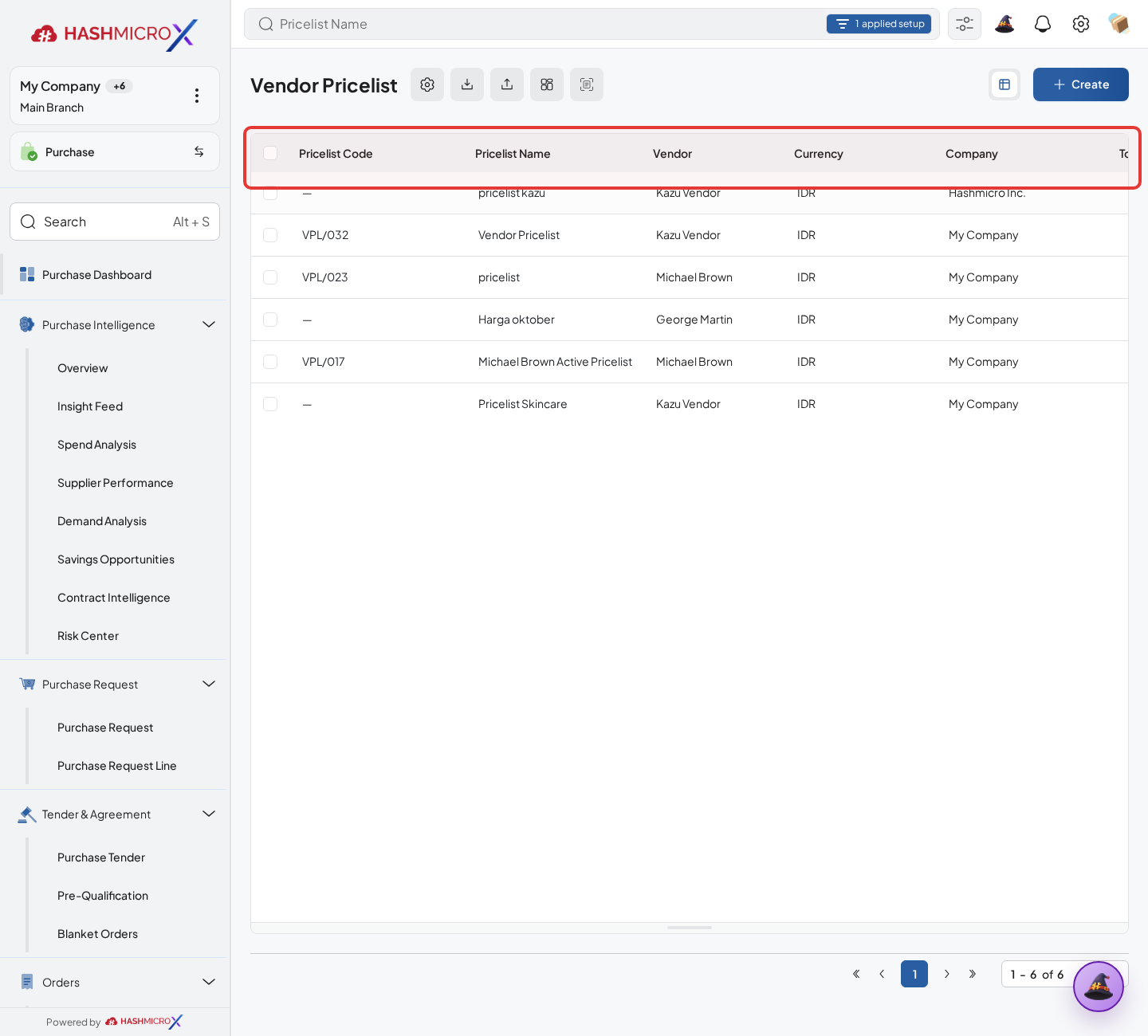
Figure 2.3.1 — HMX Main: Vendor Pricelist directory list and create button framed in red Fill Pricelist Name, Vendor, Currency, Company, Branch, Effective Date, and Expiry Date when the price has a validity period. Vendor Code follows the selected vendor.
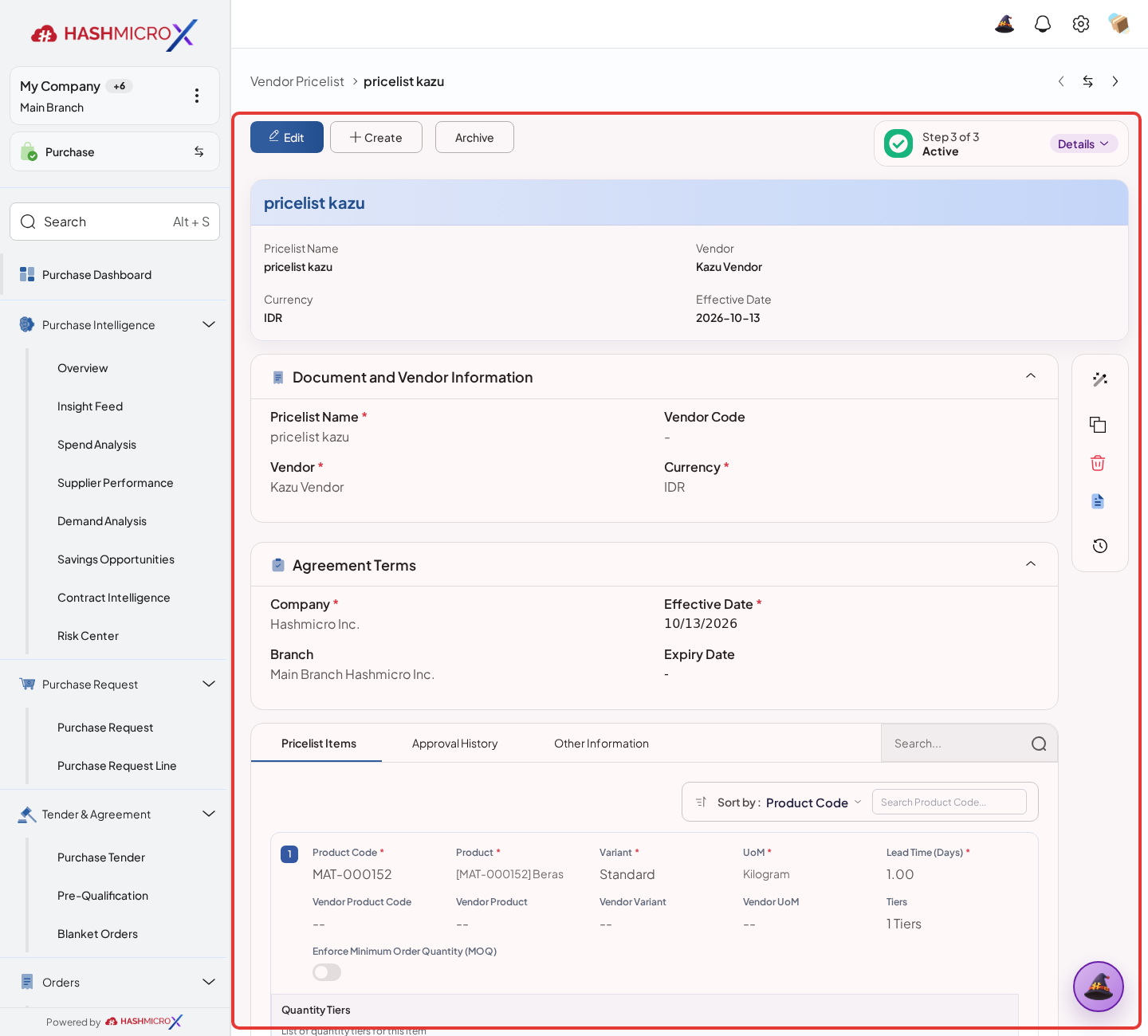
Figure 2.3.2 — HMX Main: Vendor Pricelist header parameters and date validity period framed in red In Pricelist Items, add Product, Variant, UoM, Lead Time, supplier item details, and MOQ enforcement when the vendor has minimum-order rules.
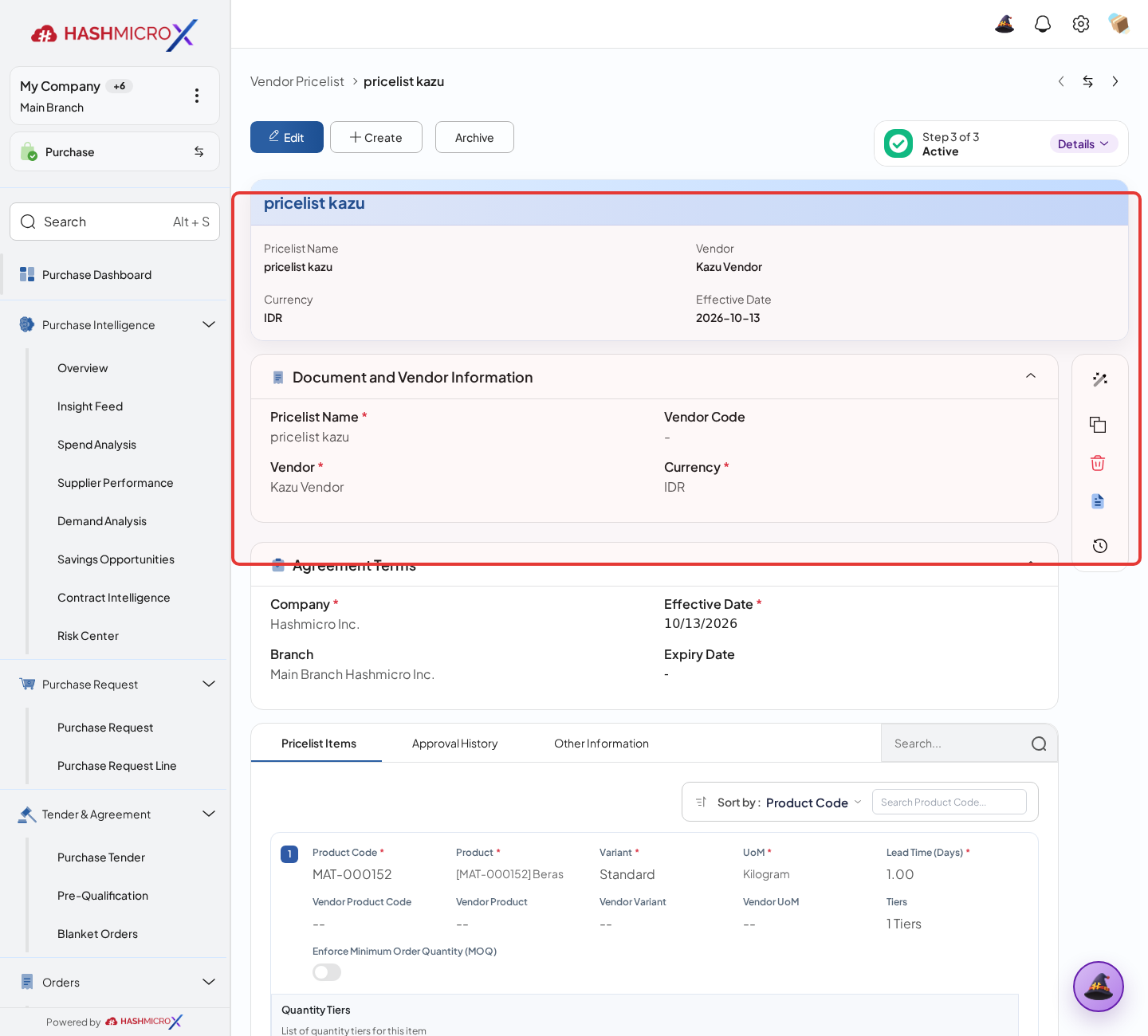
Figure 2.3.3 — HMX Main: Pricelist items line showing product code, MOQ, and quantity tiers framed in red Enable Enforce Minimum Order Quantity (MOQ) when orders below the MOQ must be blocked. Add Quantity Tiers when the price or bonus changes by ordered quantity. A tier can include Min Qty, Max Qty, Discount, Discount From Tier, Tier Price, Free Product, Free Qty, and Free UoM.
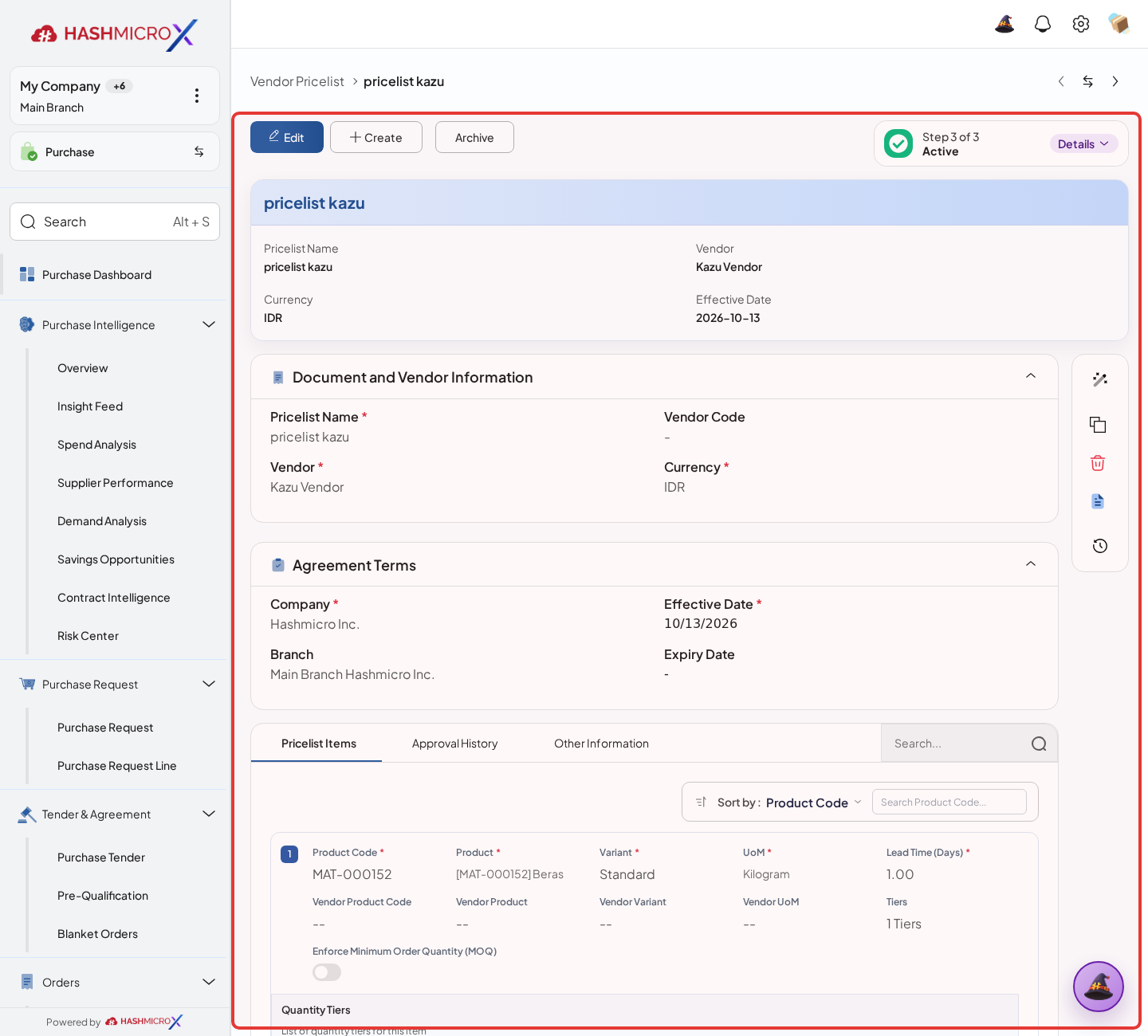
Figure 2.3.4 — HMX Main: Pricelist notebook showing tiered pricing and discount thresholds framed in red Save the pricelist, then move it through approval until the status becomes Active. Use Archive or Unarchive when the pricelist should be hidden or made available again.
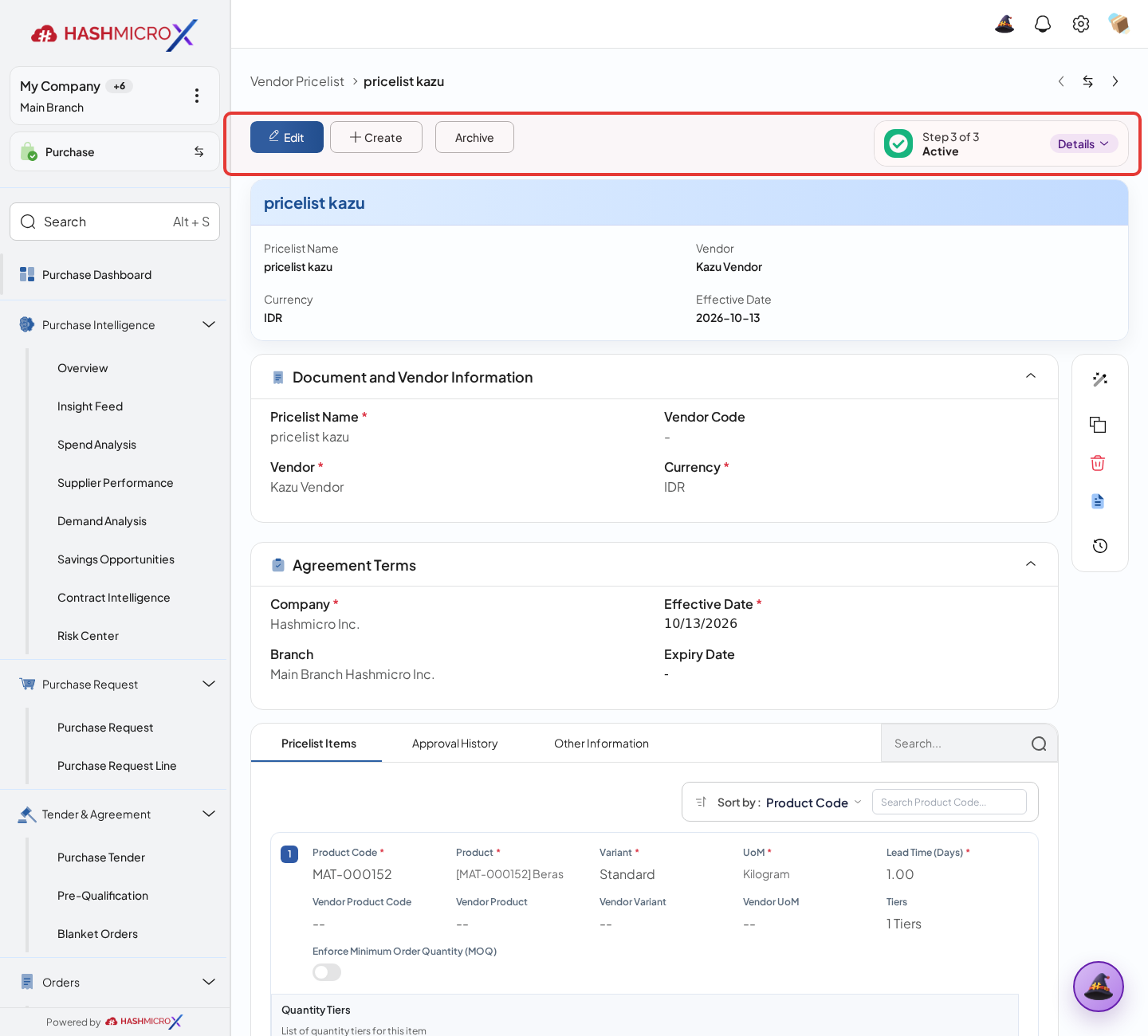
Figure 2.3.5 — HMX Main: Pricelist statusbar workflow state and deactivation actions framed in red
Status and Result Guide
| Status / Result | What it means | Trigger | What to do |
|---|---|---|---|
| Draft | Pricelist can be edited. | New pricelist or unarchived inactive pricelist. | Complete header and item/tier pricing. |
| Waiting for Approval | Pricelist waits for approval workflow. | User submits the draft pricelist. | Wait for approval. |
| Active | Pricelist is approved and usable for purchasing price reference. | Approval is completed. | Use for RFQ/PO pricing reference. |
| Expired | Pricelist is no longer valid by expiry date. | Expiry date is earlier than today or cron recomputes expiration. | Create new pricing or amendment if required. |
| Inactive | Pricelist is archived and not active. | User clicks Archive. | Unarchive only when pricing should return to Draft review. |
| Rejected | Pricelist approval was rejected. | Approver rejects the pricelist. | Review and revise if needed. |
Field Reference
| Field | Required | Description | Example or note |
|---|---|---|---|
| Pricelist Name / Code | Name yes; Code system | Business name and generated sequence code. | Code is read-only after creation. |
| Vendor | Yes | Confirmed supplier for this pricelist. | Domain requires vendor status Confirmed. |
| Currency | Yes | Currency used for unit and tier price. | Defaults from company currency. |
| Company / Branch | Yes | Organization scope for the pricelist. | Defaults from current company and branch. |
| Effective Date / Expiry Date | Effective yes; Expiry no | Validity period for the pricelist. | Backdated dates are blocked for non-demo records; expiry cannot be earlier than effective date. |
| Product / Variant / UoM | Yes | Product rule used for supplier price matching. | UoM domain follows product UoM reference. |
| Unit Price / Lead Time | Yes | Base price and delivery lead time for the item. | Lead Time defaults to 1 day in model. |
| Enforce MOQ | No | Warns on RFQ lines below first tier minimum quantity and blocks PO confirmation. | Use only when supplier MOQ must be enforced. |
| Quantity Tiers | No | Tiered pricing and incentive rows. | Includes Min Qty, Max Qty, Discount, Tier Price, Free Product, Free Qty, and Free UoM. |
| Amendment Histories | No | Smart button opens related amendment records. | UI label is currently spelled Amandment Histories in product source. |
Common Scenarios
| Scenario | When to Use | Key Steps | Expected Result |
|---|---|---|---|
| Create vendor pricelist | Use when a supplier provides agreed product pricing. | Open Vendor Pricelist, fill header, add item/tier rows, save, and submit through approval. | Approved pricelist becomes Active. |
| Add tier pricing | Use when supplier price depends on order quantity. | Add tier rows under the pricelist item with min/max quantity and tier price or discount. | Buyers can review quantity-based supplier pricing. |
| Archive pricelist | Use when pricing should no longer be active. | Open the pricelist and click Archive when available. | Pricelist becomes Inactive. |
Troubleshooting
| Issue | Possible Cause | How to fix it |
|---|---|---|
| Vendor cannot be selected. | Vendor is not confirmed or not a vendor record. | Confirm the vendor first. |
| Pricelist cannot be saved with dates. | Effective date or expiry date is earlier than today, or expiry is before effective date. | Use current or future valid dates. |
| Request Amendment button is not visible. | No tracked changes are pending on an active pricelist item or tier. | Edit a tracked active-pricelist item or tier first. |
2.4 Pricelist Amendments
Overview
Use Pricelist Amendments when an active Vendor Pricelist needs a controlled change. Users do not create amendment records directly from the amendment list. Make the tracked change on an active pricelist item or tier, then submit it through the Request Amendment wizard.
Prerequisites
- An active Vendor Pricelist already exists.
- A user has changed tracked item or tier values, so the pricelist is marked as updated.
- There is no other submitted amendment still waiting for the same pricelist.
Step-by-Step Instructions
Open the active Vendor Pricelist that needs a price, lead time, product, UoM, supplier item, or tier update.
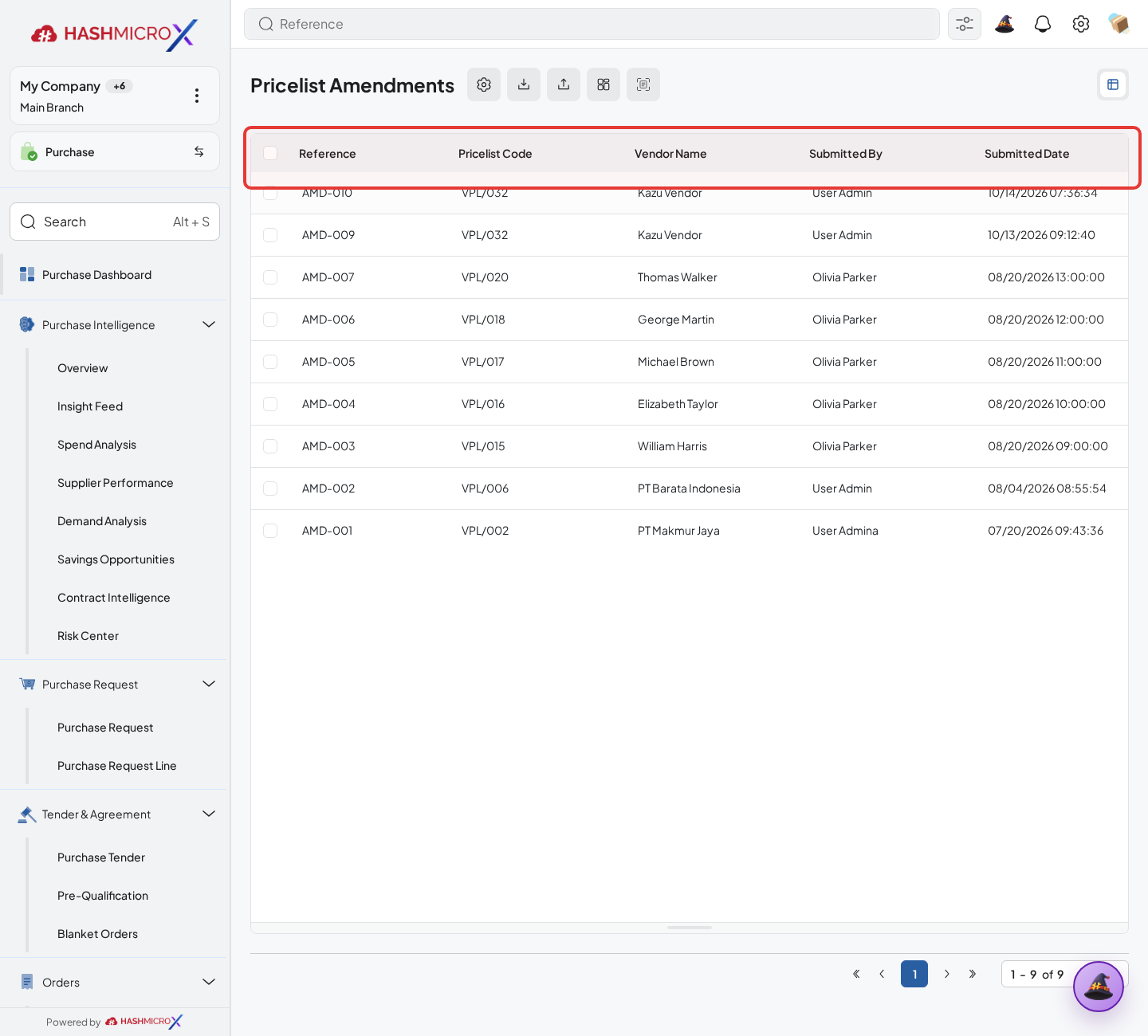
Figure 2.4.1 — HMX Main: Active Vendor Pricelist selected for price amendment framed in red Edit the tracked pricelist item or tier field. The system keeps the proposed value separately and marks the item or tier as updated.
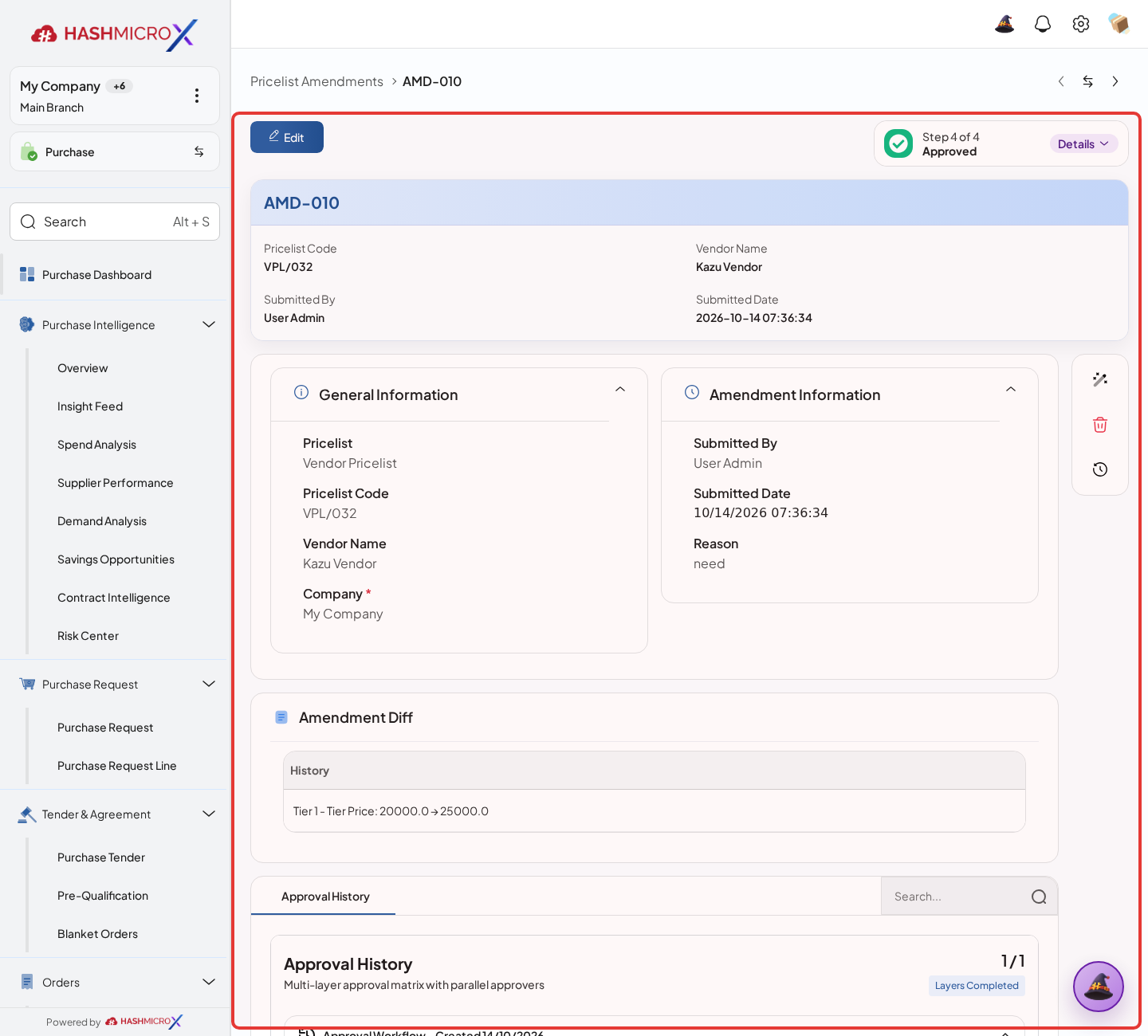
Figure 2.4.2 — HMX Main: Tracked pricelist items showing proposed amendment values framed in red Click Request Amendment, review the old and proposed values in the wizard, enter a reason when needed, then submit the request.
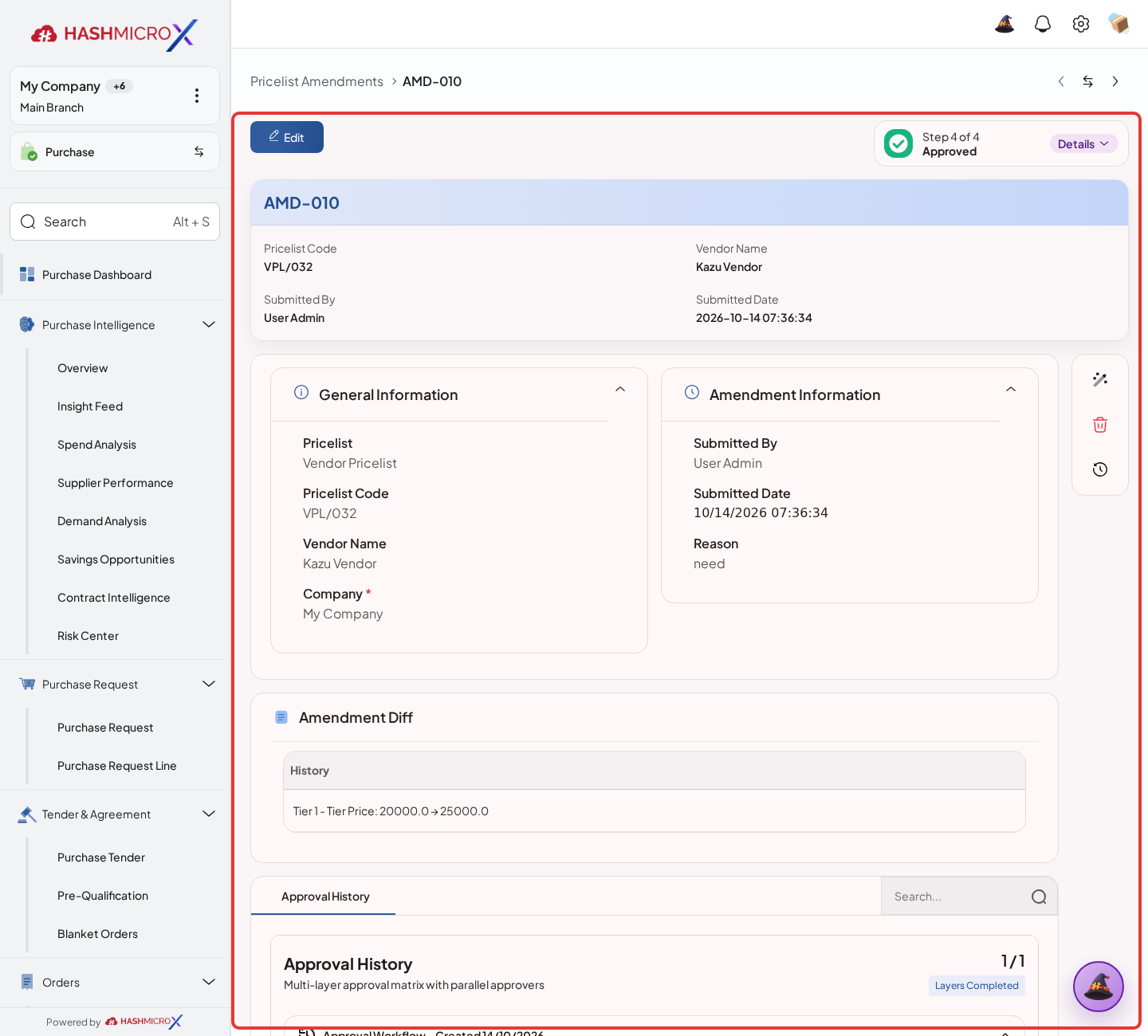
Figure 2.4.3 — HMX Main: Amendment request details comparing current vs proposed rates framed in red Open Purchase > Pricelist > Pricelist Amendments or the Amendment Histories smart button to review history.
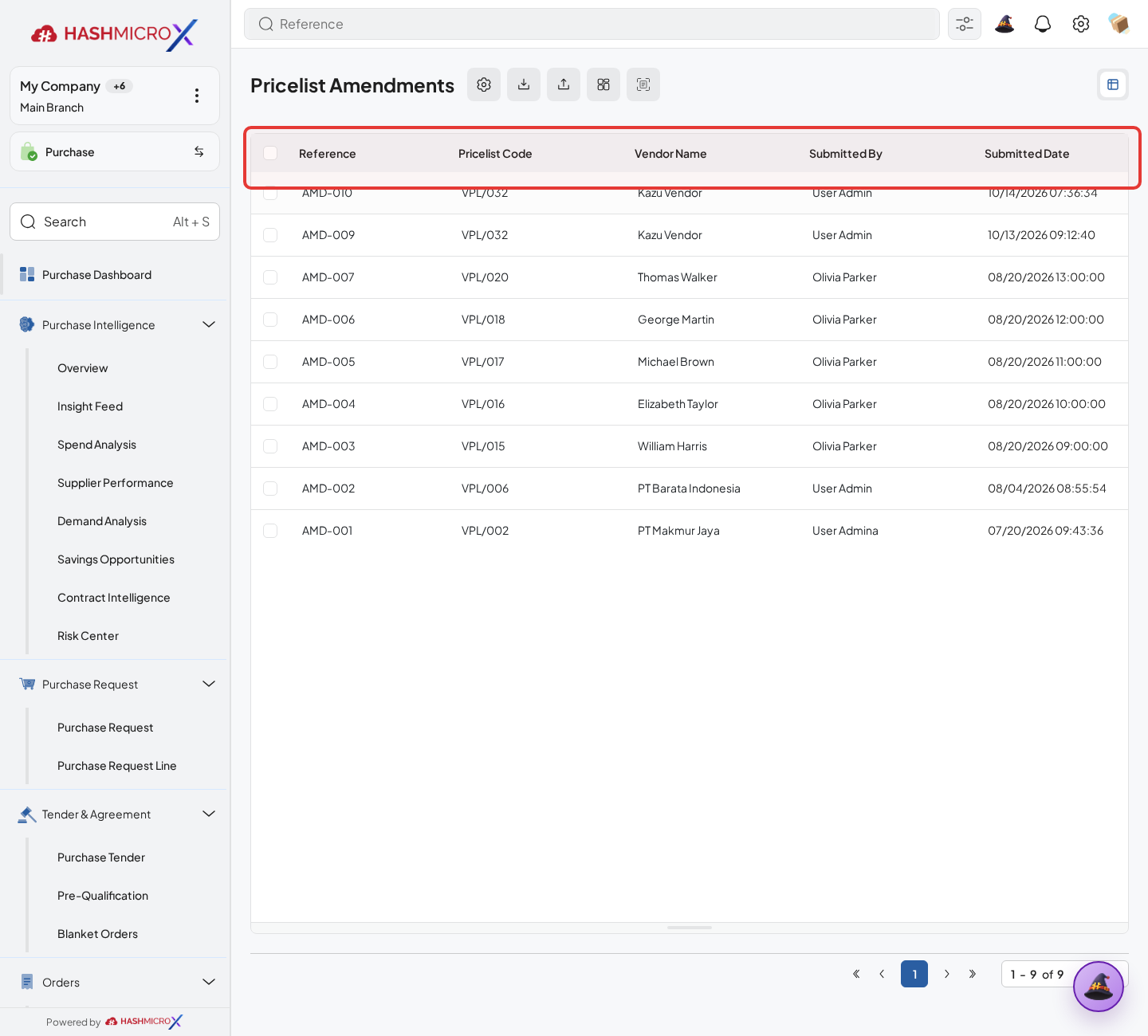
Figure 2.4.4 — HMX Main: Pricelist Amendments log and amendment history smart button framed in red After approval, the new values are applied to the pricelist. If rejected, the proposed values are cleared and the active pricelist stays unchanged.
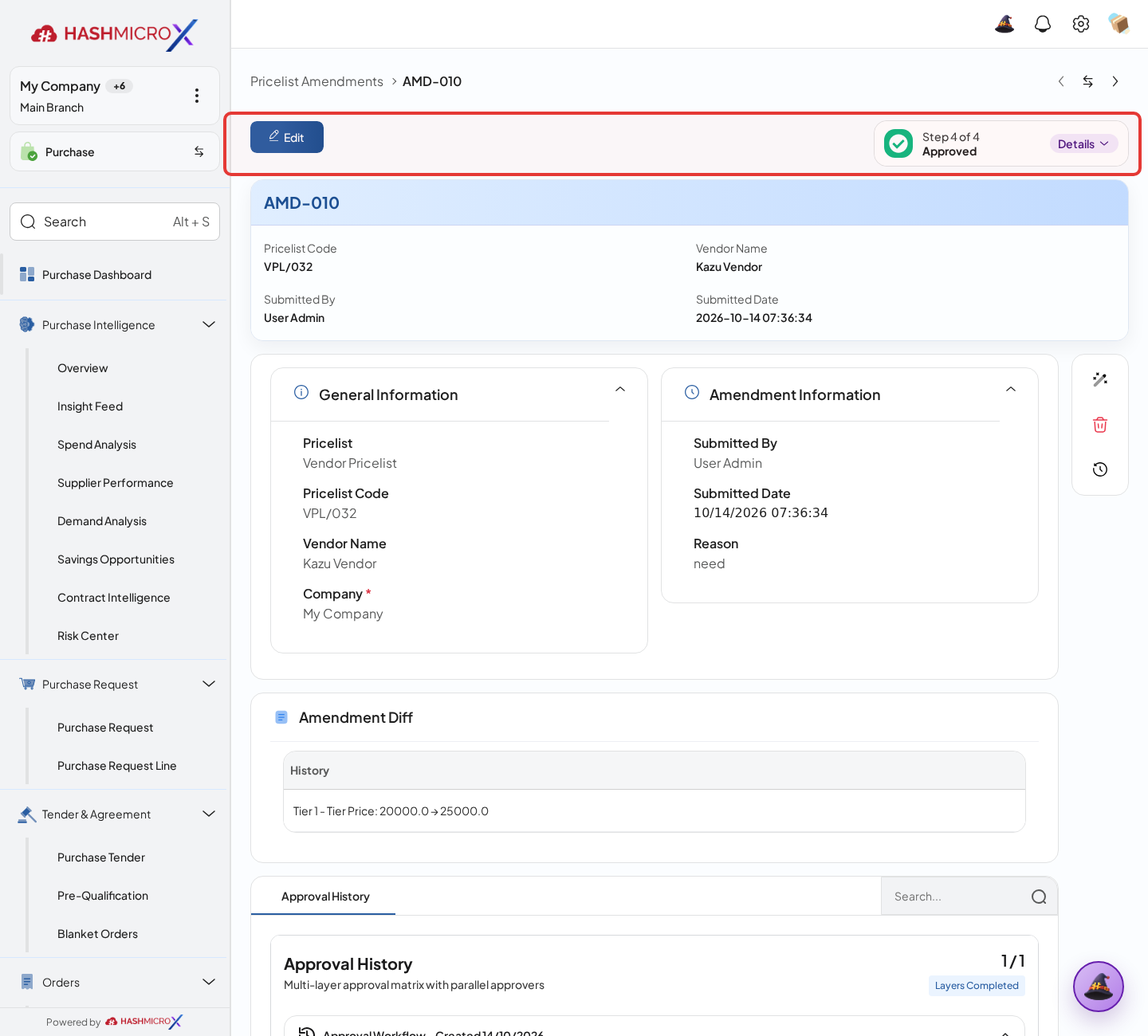
Figure 2.4.5 — HMX Main: Amendment approval status result and final state framed in red
Status and Result Guide
| Status / Result | What it means | Trigger | What to do |
|---|---|---|---|
| Submitted | Amendment was submitted from the wizard. | User submits Request Amendment. | Review lines and send or approve according to workflow. |
| Waiting For Approval | Approval workflow is in progress. | Workflow moves submitted amendment to approval. | Approver approves or rejects. |
| Approved | Proposed values have been accepted and applied. | Approval action succeeds. | Check the vendor pricelist item or tier values. |
| Rejected | Proposed values are not accepted. | Approver rejects or direct reject action runs. | Review original values before proposing again. |
Field Reference
| Field | Required | Description | Example or note |
|---|---|---|---|
| Reference | System | Amendment reference generated from sequence. | Read-only in amendment form. |
| Pricelist / Pricelist Code | Yes | Vendor Pricelist being amended. | Filled from active pricelist context. |
| Vendor Name | System | Supplier from the pricelist. | Stored as text for amendment history. |
| Submitted By / Submitted Date | System | User and timestamp of the request. | Filled by Request Amendment wizard. |
| Reason | No | Business explanation for the proposed change. | Wizard field: Reason for Amendment. |
| Amendment Diff | Yes | Read-only list of changed fields with old and new values. | Shows item-level and tier-level changes. |
| Status | Yes | Workflow status of the amendment. | Draft, Submitted, Waiting For Approval, Approved, Rejected. |
Common Scenarios
| Scenario | When to Use | Key Steps | Expected Result |
|---|---|---|---|
| Submit price amendment | Use when supplier changes price, lead time, or tier terms. | Edit tracked fields, click Request Amendment, review diff lines, and submit. | Amendment record is created in Submitted status. |
| Review amendment history | Use when audit trail is needed. | Open Pricelist Amendments list or Amendment Histories from the pricelist. | User sees reference, vendor, reason, status, and diff lines. |
| Approve or reject amendment | Use during price control review. | Open amendment, review diff and approval history, then approve or reject. | Approved changes are applied; rejected changes are reset. |
Troubleshooting
| Issue | Possible Cause | How to fix it |
|---|---|---|
| Cannot submit a new amendment. | A submitted amendment already exists for the pricelist. | Approve or reject the pending amendment before creating another request. |
| No amendment lines appear in the wizard. | No tracked active-pricelist item or tier values were changed. | Edit a tracked field first. |
| Amendment list cannot create a record. | The list view disables direct creation. | Create amendments from Vendor Pricelist Request Amendment. |
2.5 Purchase Teams
Overview
Use Purchase Teams to group procurement users, assign the team lead and members, set routing rules, and monitor the team’s purchasing work. Purchase Team is used by Purchase Request, Purchase Order, Tender, reporting, KPI targets, and own-document access rules. It does not replace the user’s general access rights.
Prerequisites
- Users are in the Purchase / Team group and have the right company or branch scope.
- The team lead and members are confirmed before setup.
- Confirm the routing basis first: Product Category, Order Type, or Vendor Category.
Step-by-Step Instructions
Open Purchase > Team Management > Purchase Teams, then create or edit the team.
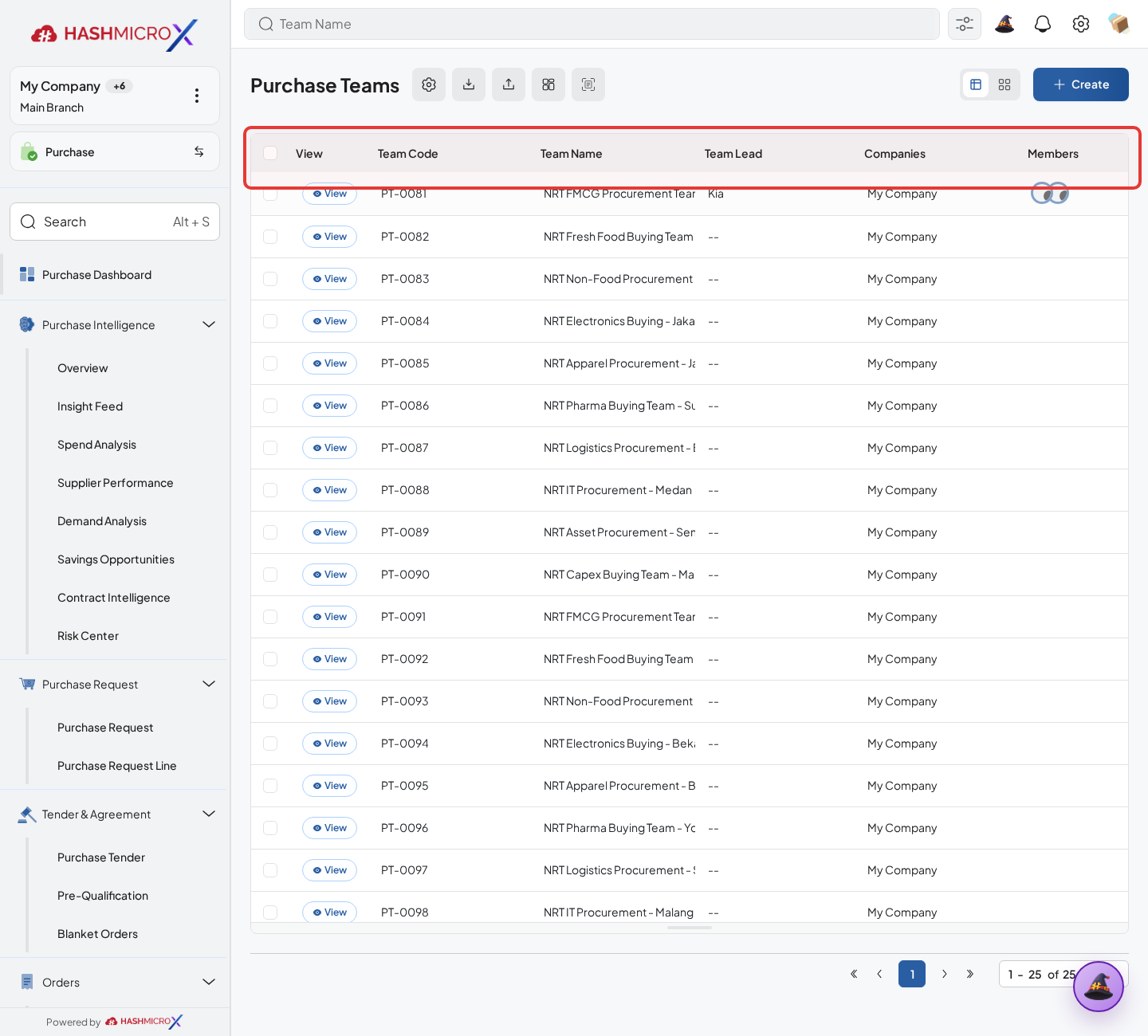
Figure 2.5.1 — HMX Main: Purchase Teams configuration list table framed in red Fill Team Name, Company, Branch, Parameter, and Team Lead so the system knows which documents the team should handle. The team lead is automatically included as a member when selected.
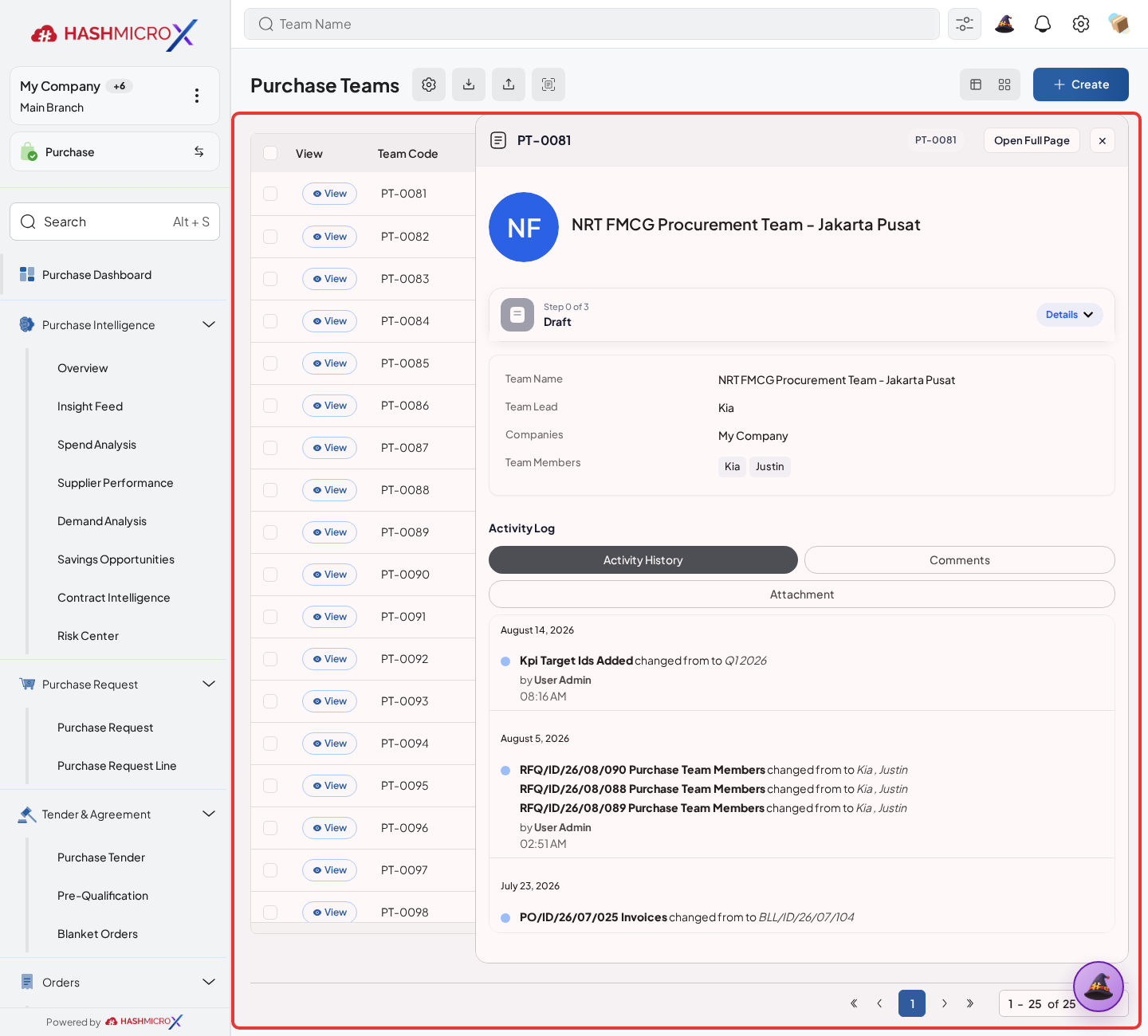
Figure 2.5.2 — HMX Main: Purchase Team name, company, and team leader assignment framed in red Select routing values based on the chosen Parameter: Product Categories, Order Types, or Vendor Categories.
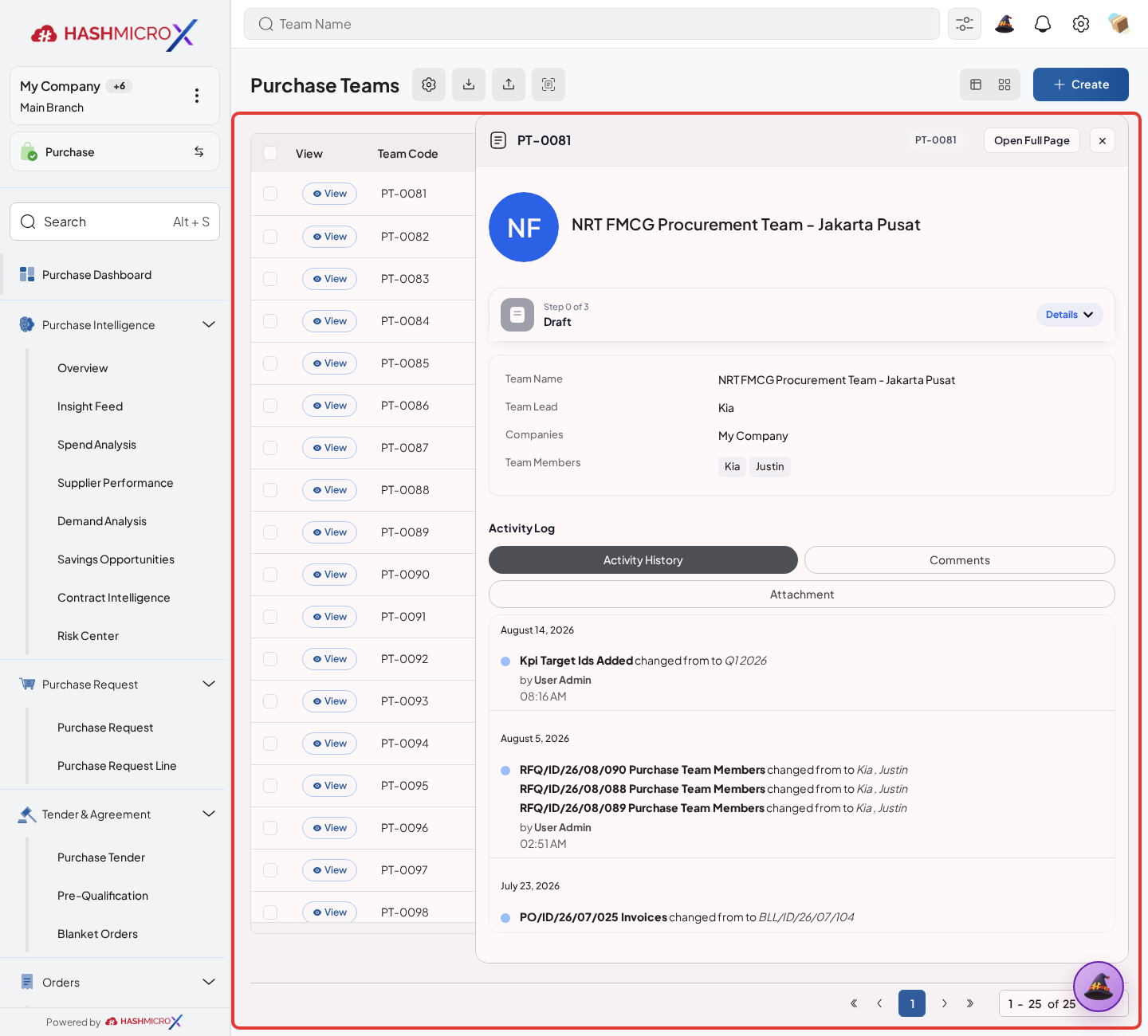
Figure 2.5.3 — HMX Main: Purchase Team routing criteria and threshold rules framed in red Add team members. Member assignments are synchronized automatically, and primary buyers should have the right categories assigned.
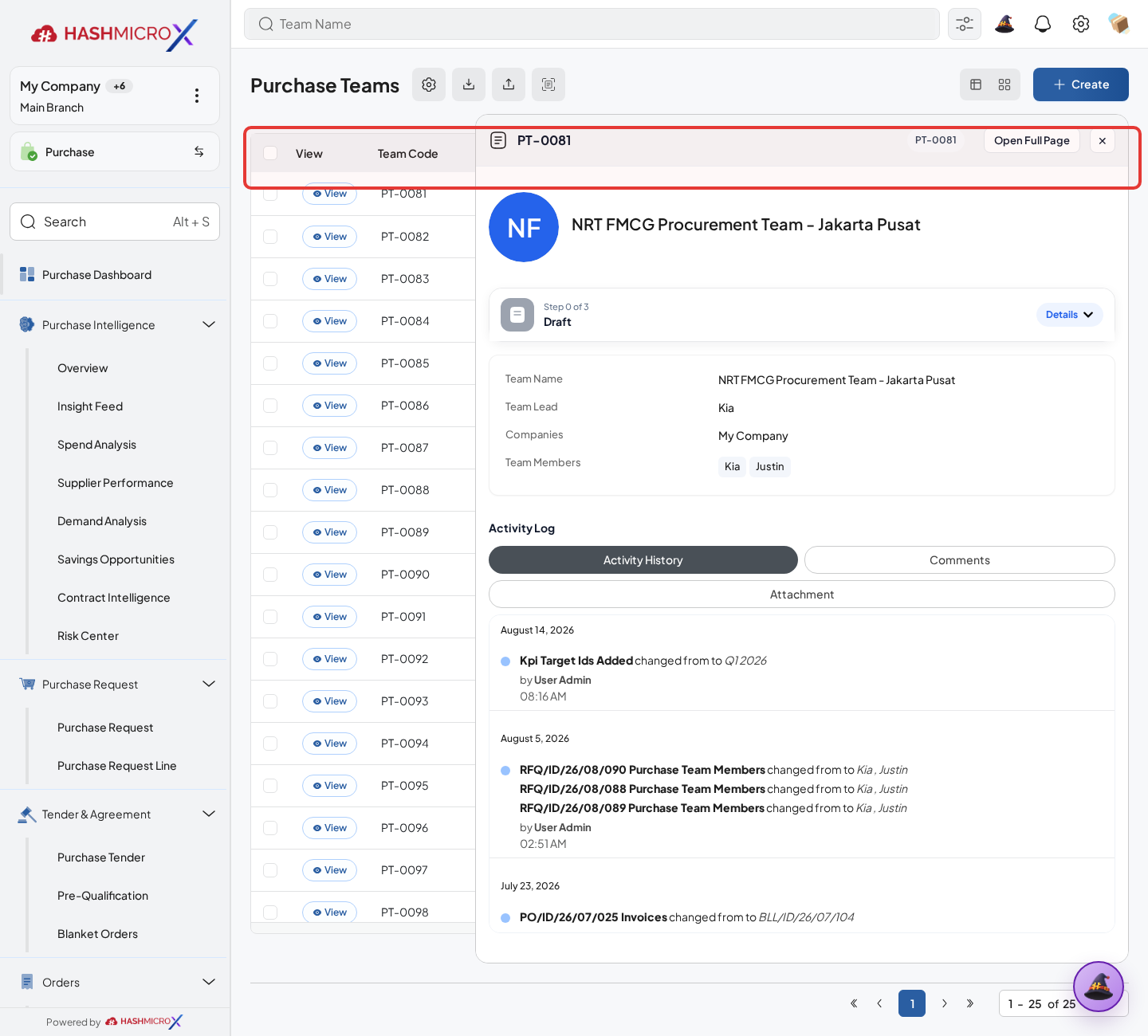
Figure 2.5.4 — HMX Main: Purchase Team assigned buyer and member lines framed in red Review the dashboard tiles and related tabs to see Direct Purchase, RFQ, and Purchase Orders linked to the team.
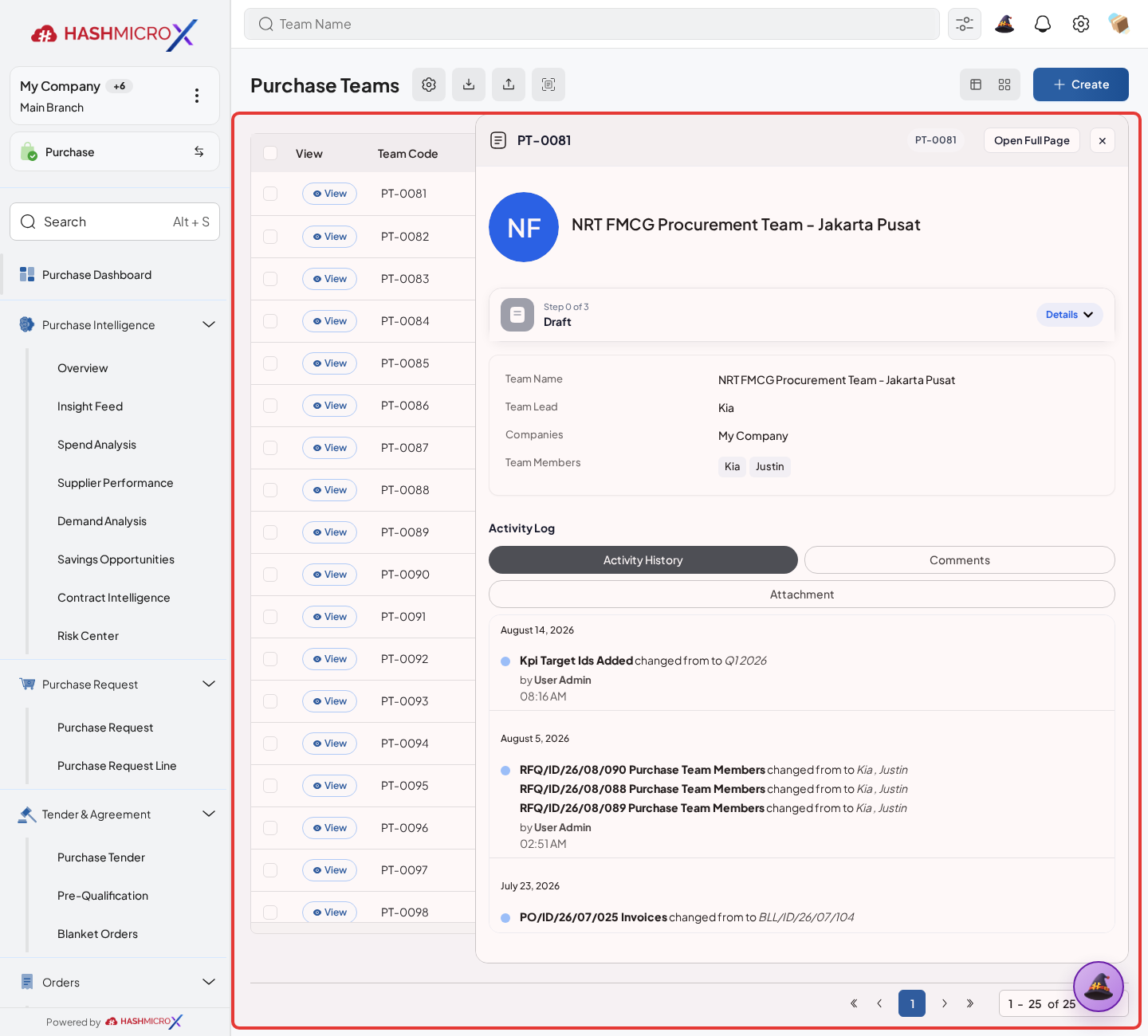
Figure 2.5.5 — HMX Main: Purchase Team performance tiles and linked documents framed in red Test the routing with a sample PR or PO before relying on it for live work. The system can route unassigned records to an active team when the routing values match.
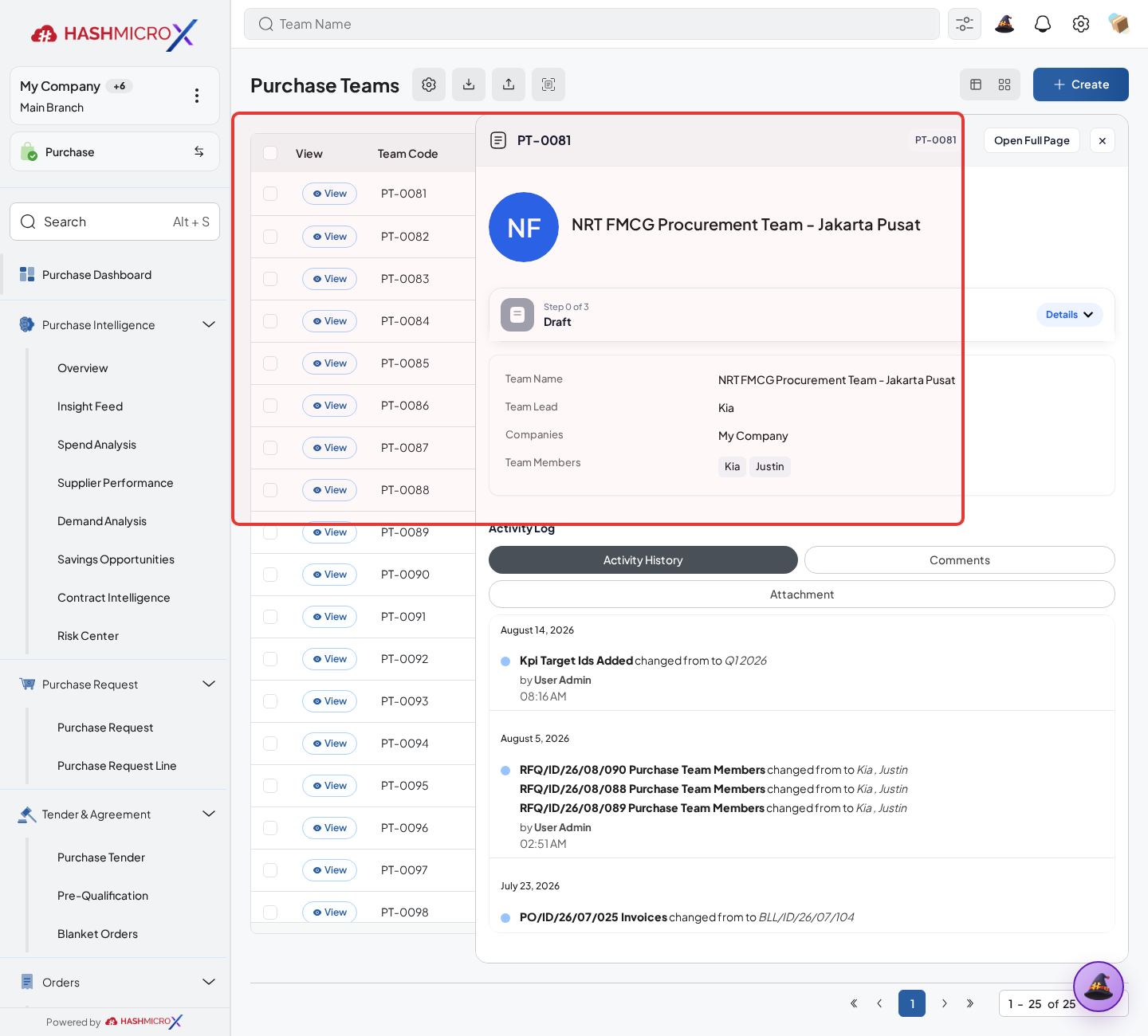
Figure 2.5.6 — HMX Main: Purchase document header confirming routed team assignment framed in red
Status and Result Guide
| Status / Result | What it means | Trigger | What to do |
|---|---|---|---|
| Active | Team is available for routing, dashboards, and document assignment. | Team is created or unarchived. | Use the team on PR, PO, Tender, KPI, and reporting records. |
| Inactive | Team is archived and should not be used for new routing. | User clicks Archive. | Unarchive only when the team should be used again. |
| Auto-routed | System assigns an unassigned PR or PO to a matching active team. | Auto-route logic finds a match by product category, order type, or vendor category. | Review assigned team and PIC before continuing workflow. |
| Own-document visibility | Members can be part of purchase document access rules. | Own Document rule checks request owner or purchase team membership. | Do not treat team setup as a replacement for access group configuration. |
Field Reference
| Field | Required | Description | Example or note |
|---|---|---|---|
| Team Code | System | Auto-generated code for the team. | Generated from purchase team sequence. |
| Team Name | Yes | Name of the purchase team. | Must be unique per company. |
| Company / Branch | Yes | Organization scope of the team. | Defaults from current company and branch. |
| Team Lead | Yes | Main owner of the team. | Must be a team member. |
| Members | Yes | Users assigned to the team. | At least one member is required after creation. |
| Parameter | Yes | Routing basis for the team. | Product Category, Order Type, or Vendor Category. |
| Product Categories / Order Types / Vendor Categories | Conditional | Routing values shown according to selected Parameter. | Only matching field group is visible. |
| Dashboard Tiles | No | Computed team metrics for Direct Purchase, RFQ, PO, and Spend. | Read-only dashboard previews. |
Common Scenarios
| Scenario | When to Use | Key Steps | Expected Result |
|---|---|---|---|
| Create purchase team | Use when procurement work must be grouped by team. | Create team, choose lead, add members, select routing parameter and values, then save. | Team becomes active and selectable. |
| Configure routing by vendor category | Use when suppliers are owned by different buyer teams. | Set Parameter to Vendor Category and select matching vendor categories. | PR/PO records with matching vendor categories can be routed to the team. |
| Archive a team | Use when a team should no longer receive purchasing work. | Open team and click Archive. | Team becomes inactive without deleting historical links. |
Troubleshooting
| Issue | Possible Cause | How to fix it |
|---|---|---|
| Team cannot be saved. | Team lead is missing, team lead is not a member, member list is empty, or duplicate name exists in the company. | Add a valid team lead and members, then use a unique team name. |
| Primary buyer validation fails. | Primary buyer has no assigned category. | Add category assignment for the primary buyer before saving. |
| Auto-routing does not assign a team. | No active team matches the PR/PO product category, order type, or vendor category. | Review selected Parameter and routing values. |
2.6 Products & Destination Warehouse
Overview
Products and Destination Warehouse are different records, but users often work with them together in procurement. Product master data tells users what item is requested or purchased and can show purchase history. Destination Warehouse tells the system where purchased inventory should be received, especially in Purchase Request and Tender flows that are connected to Inventory.
Prerequisites
- Products, variants, product categories, and UoM records are ready before users create purchase lines.
- Warehouses are configured with the correct company and branch scope before users select them on Purchase Requests or Tenders.
- Inventory integration is installed when Destination Warehouse is required in the flow.
Step-by-Step Instructions
Open Purchase > Products > Products to review or maintain products used by procurement.
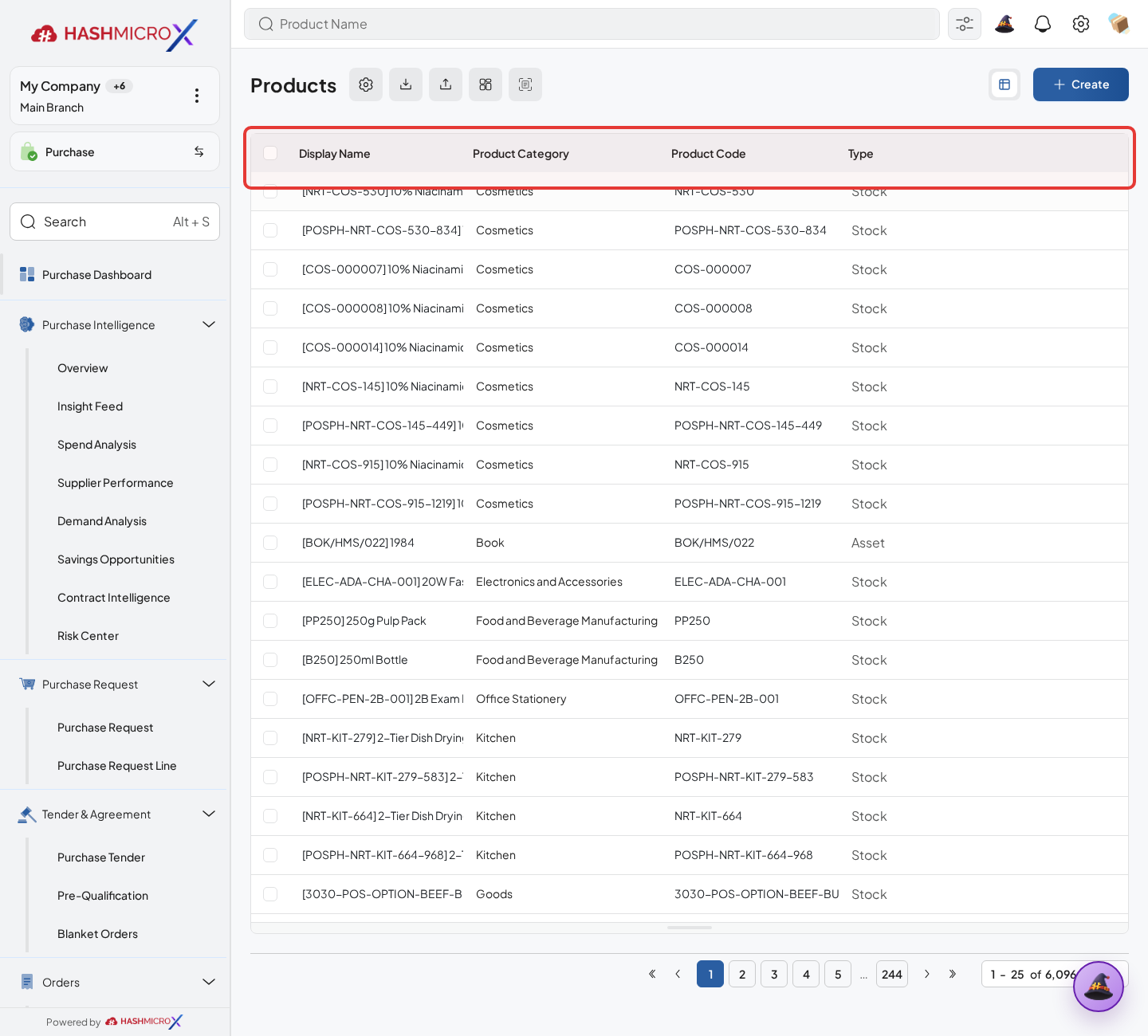
Figure 2.6.1 — HMX Main: Products master directory list table framed in red Confirm product, variant, category, UoM, and purchase details before selecting the item on PR, RFQ, PO, or Tender lines.
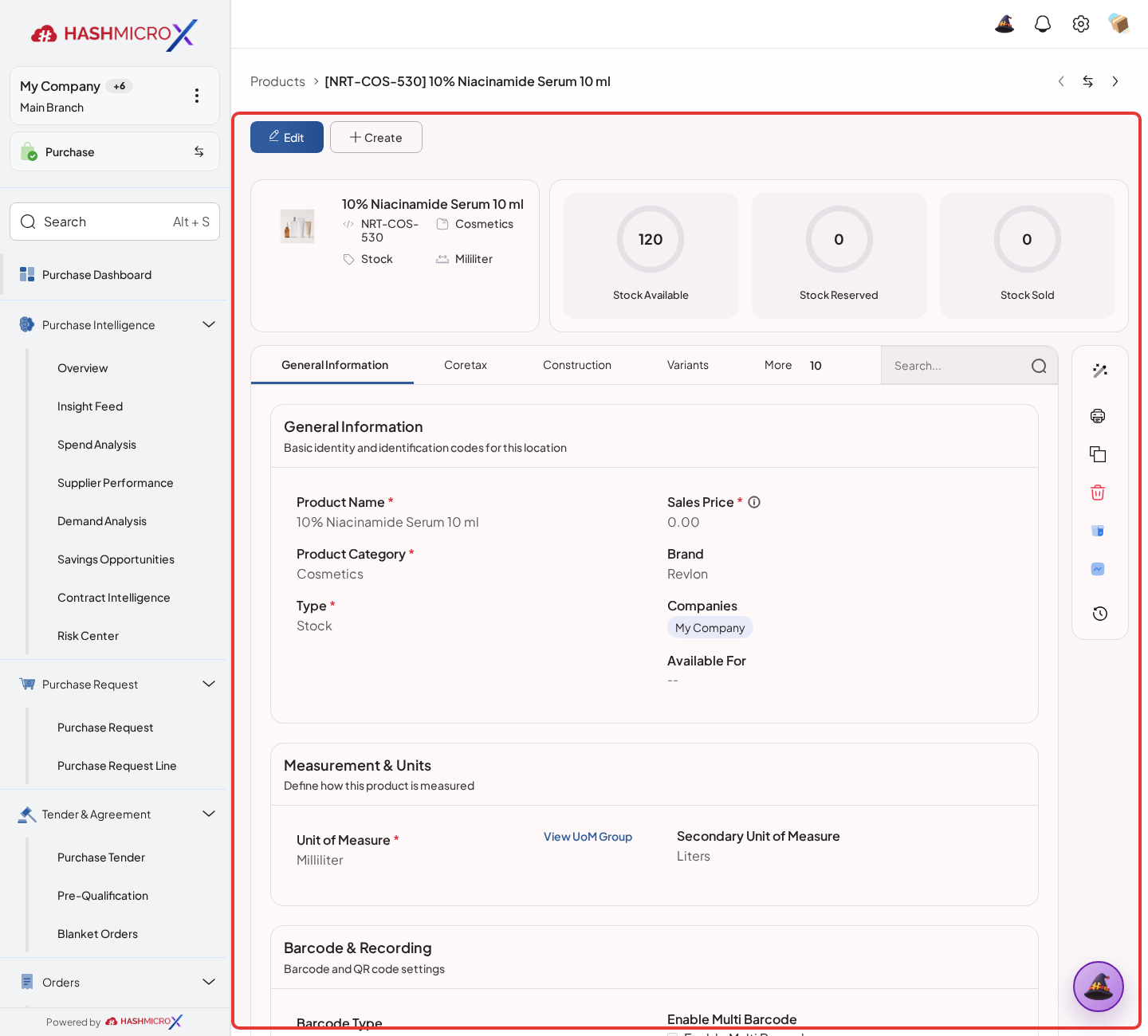
Figure 2.6.2 — HMX Main: Product purchase tab, category, and UOM specifications framed in red On inventory-integrated Purchase Request Lines, set or review Destination Warehouse so the receiving team knows where the goods should arrive. The receiving location follows the selected warehouse and the downstream receiving setup when the receiving document shows a Location field.
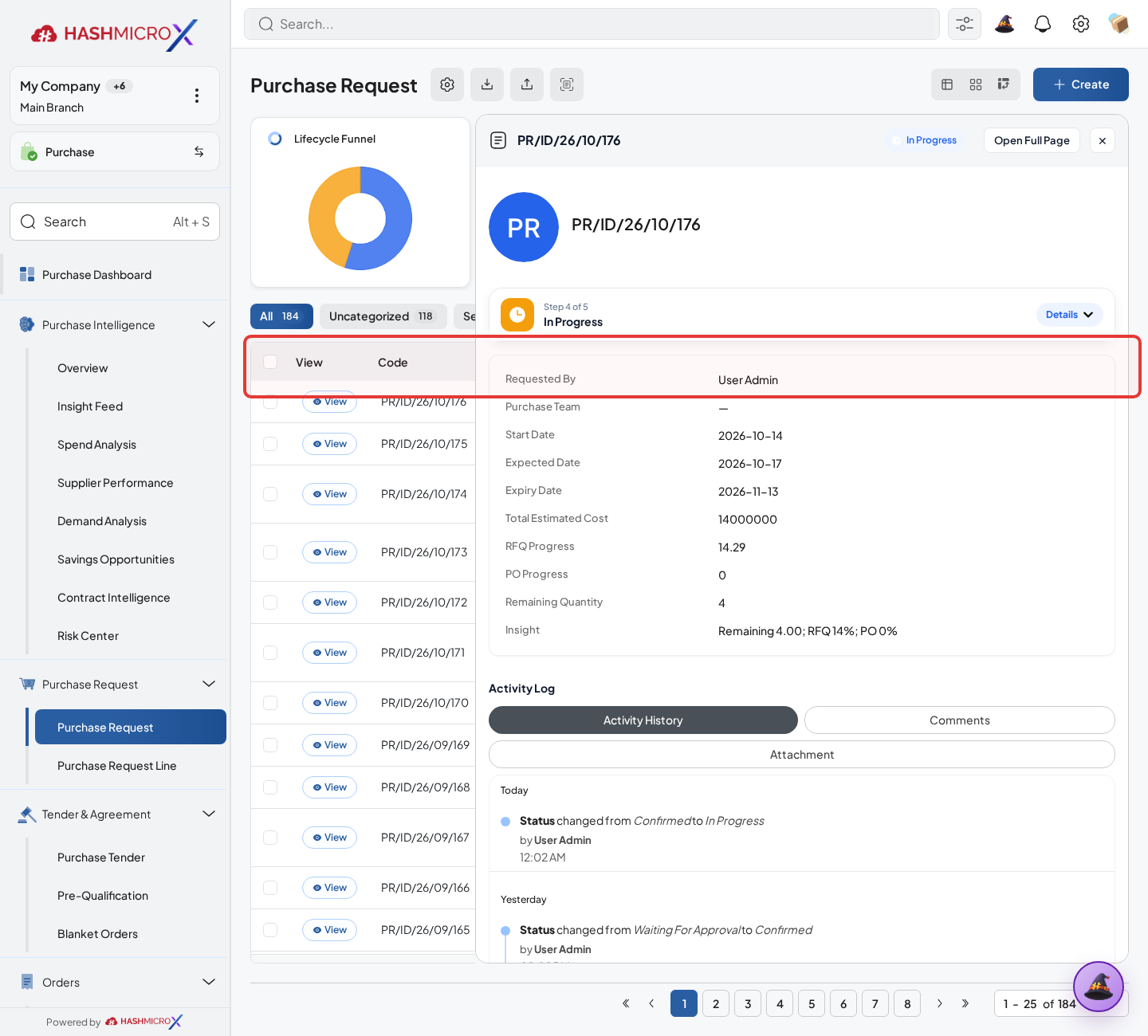
Figure 2.6.3 — HMX Main: Purchase Request items line highlighting Destination Warehouse framed in red When a Purchase Request line already has a Destination Warehouse and the header is still empty, the system can synchronize the value to the header for downstream use.
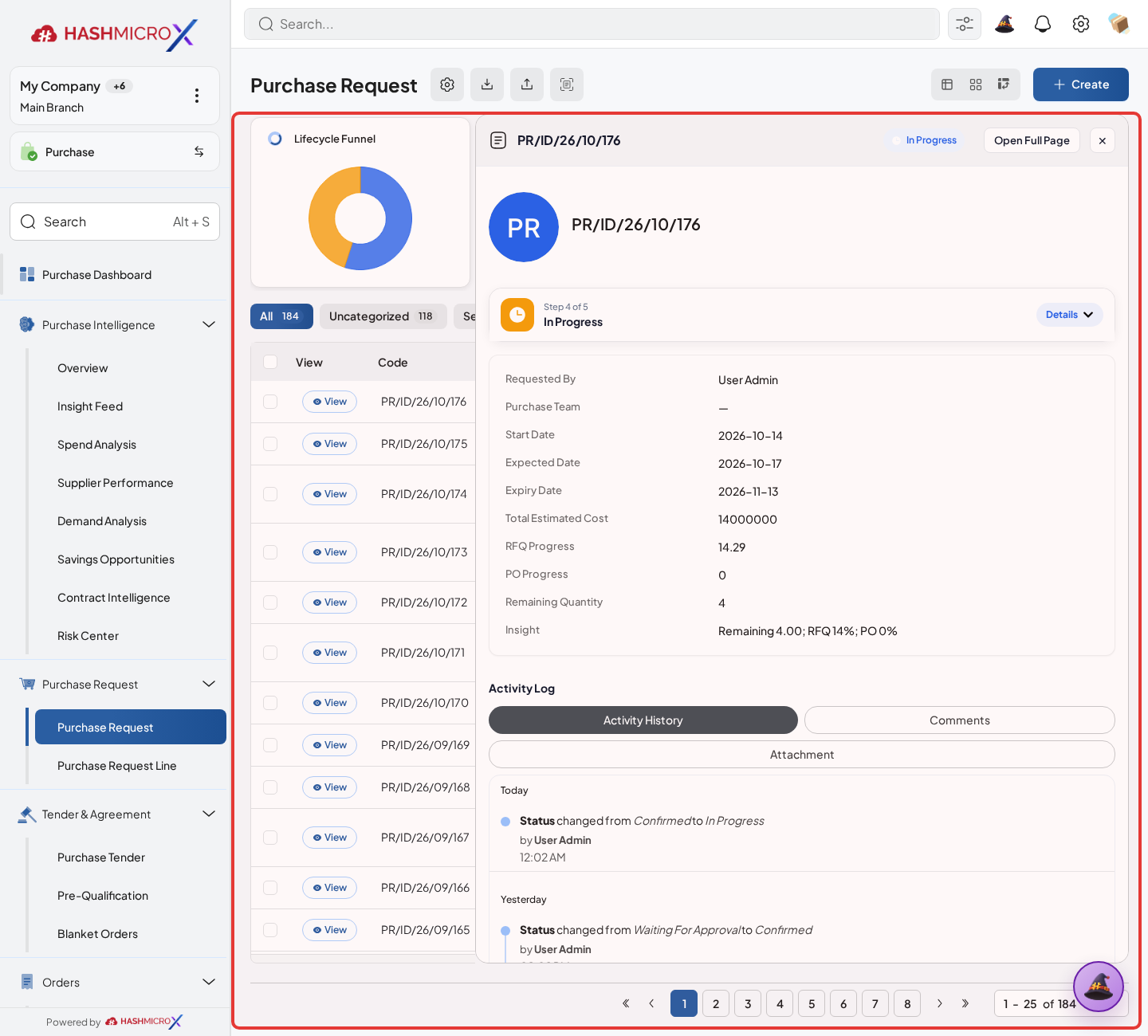
Figure 2.6.4 — HMX Main: Purchase Request header warehouse and delivery location framed in red On Tender, fill Destination Warehouse on the header. If one tender uses multiple receiving warehouses, fill Destination Warehouse on each tender line as well.
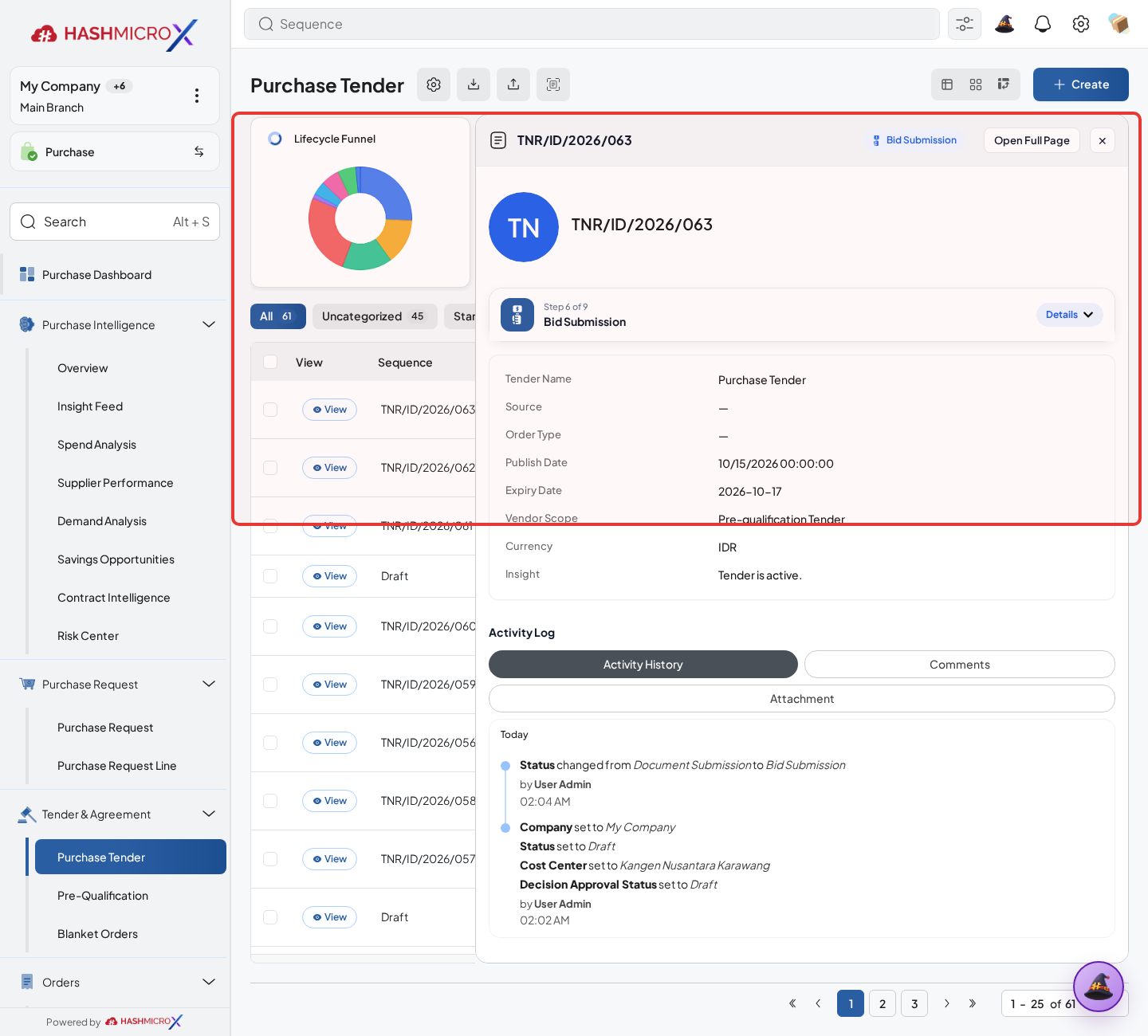
Figure 2.6.5 — HMX Main: Purchase Tender header and lines warehouse verification framed in red Verify downstream RFQ, PO, and receiving records use the intended warehouse before confirmation or receiving.
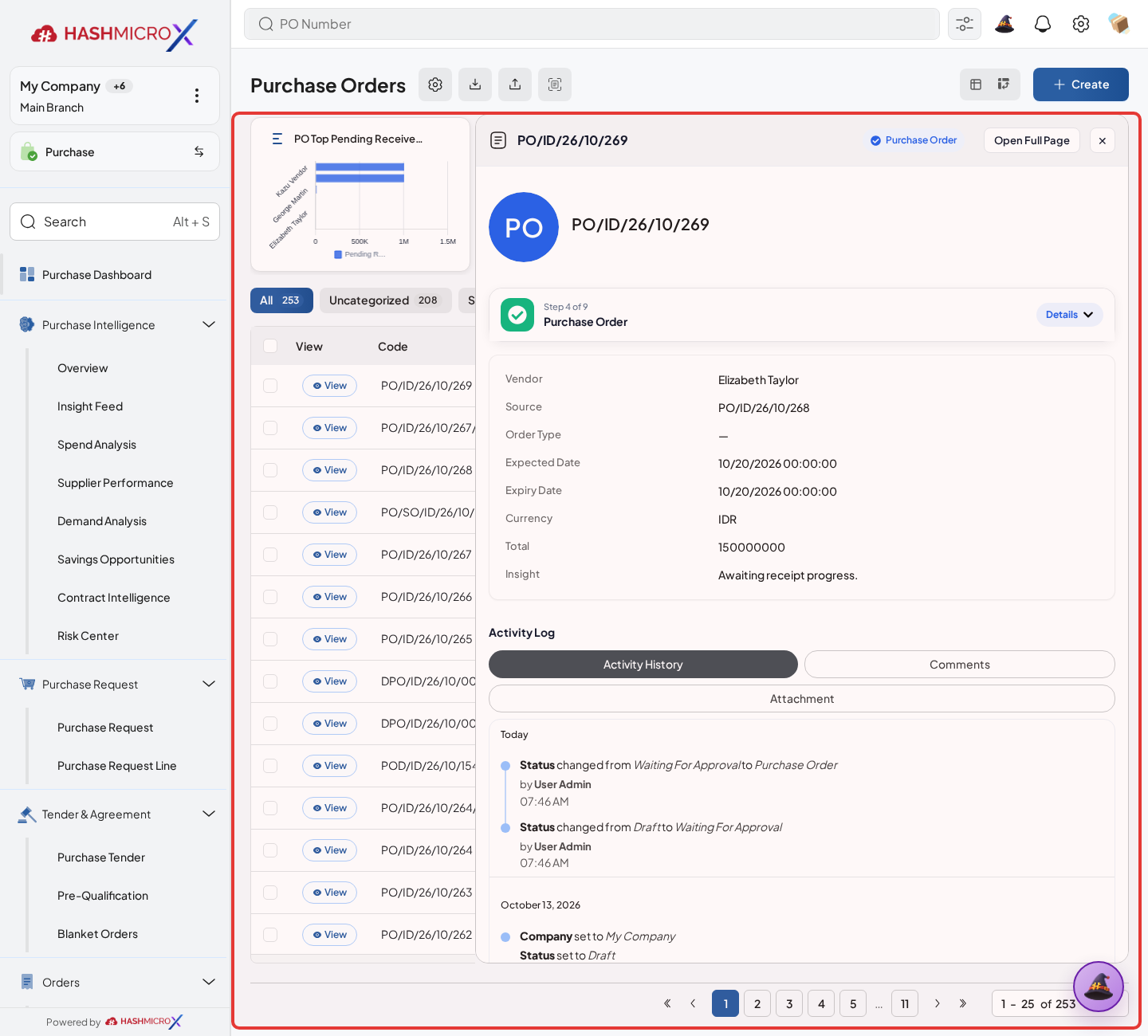
Figure 2.6.6 — HMX Main: Purchase Order header delivery destination warehouse framed in red
Status and Result Guide
| Status / Result | What it means | Trigger | What to do |
|---|---|---|---|
| Product available | Product can be selected on purchase lines. | Product and variant master data exist and are visible to the user. | Select the product and correct UoM. |
| Purchase history available | Product shows computed last purchase price, vendor, date, and history where records exist. | Closed, purchase order, or revised purchase lines exist for the product variant. | Use as reference, not as a replacement for current vendor pricelist review. |
| Destination Warehouse required | Purchase Request header and lines require destination warehouse in inventory integration. | User creates or saves inventory-integrated PR records. | Select a warehouse matching company and branch. |
| Multiple destination tender | Tender lines may carry different destination warehouses. | Multiple Destination Warehouse is enabled on Tender. | Fill destination warehouse per line before proceeding. |
Field Reference
| Field | Required | Description | Example or note |
|---|---|---|---|
| Product | Yes | Item or service requested or purchased. | Selected from product variant/product master data. |
| Product Category | Conditional | Groups products and may influence purchase team routing through order type categories. | Used indirectly by Purchase Team routing. |
| UoM | Yes on price and transaction lines | Unit of measure used for purchasing quantity and price. | Vendor Pricelist UoM follows product UoM reference. |
| Purchase History | No | Computed related purchase order lines for product variants. | Read-only reference. |
| Last Purchase Price / Vendor / Date | No | Computed from latest valid purchase order line. | Uses purchase order, closed, or revised statuses. |
| Destination Warehouse | Conditional / required in inventory PR | Warehouse expected to receive purchased goods. | PR domain: company and branch; Tender header can sync to lines. |
| Received Qty | No | Read-only received progress on Purchase Request lines after downstream receiving. | Hidden while PR is Draft or Waiting Approval. |
| Multiple Destination Warehouse | No | Tender option that makes line-level destination warehouse required when enabled. | Use for multi-warehouse tender allocation. |
Common Scenarios
| Scenario | When to Use | Key Steps | Expected Result |
|---|---|---|---|
| Prepare product for purchase | Use before creating PR, RFQ, PO, or Tender lines. | Review product, variant, category, and UoM, then confirm vendor pricelist if pricing is controlled. | Product can be selected with correct UoM and price reference. |
| Create inventory purchase request | Use when purchased goods must be received into a warehouse. | Select Destination Warehouse on PR header and lines, then proceed with approval and downstream conversion. | Receiving progress can be tracked against the intended warehouse. |
| Create multi-destination tender | Use when tender lines should receive goods into different warehouses. | Enable Multiple Destination Warehouse and fill line-level destination warehouses. | Generated RFQ/PO lines carry the selected warehouse where supported. |
Troubleshooting
| Issue | Possible Cause | How to fix it |
|---|---|---|
| Purchase Request cannot be saved. | Destination Warehouse is missing on the header or line. | Select a destination warehouse that matches the PR company and branch. |
| Tender line validation fails. | Multiple Destination Warehouse is enabled but a line has no destination warehouse. | Fill destination warehouse on every tender line. |
| Warehouse dropdown has no expected option. | Warehouse company or branch does not match the document scope. | Check selected company, branch, and warehouse setup. |
3 Transaction
Transaction contains the daily purchasing documents used for request intake, sourcing, agreement, tender, order confirmation, receiving, billing, and manufacturing procurement links.
| Field Name | Data Type | Mandatory | Description & Function |
|---|---|---|---|
| Purchase Request | Document | Optional | Starts procurement from internal demand. |
| RFQ / PO | Document | YES | Collects quotation and confirms purchase commitment. |
| Blanket Order | Agreement | Optional | Controls repeated procurement under agreed terms. |
| Tender | Document | Optional | Runs competitive sourcing and award decision. |
| Receiving / Billing | Integration | Optional | Connects PO to Receiving Notes and vendor bills. |
3.1 Purchase Request
Create Purchase Request when an internal department needs goods or services before buyer processing.
| Field Name | Data Type | Mandatory | Description & Function |
|---|---|---|---|
| Requested By | Reference | YES | User who raises the need. |
| Purchase Team | Reference | Optional | Team responsible for processing. |
| Destination Warehouse | Reference | YES | Warehouse expected to receive the products. |
| Expected Date | Date | YES | Expected need or receipt date. |
| Product Lines | One2many | YES | Requested products and quantities. |
Create the PR with Company, Branch, Destination Warehouse, and Expected Date, then click Add a Line for each requested product and fill Product, Quantity, UoM, Required Date, and usage notes so approval can evaluate the request correctly.
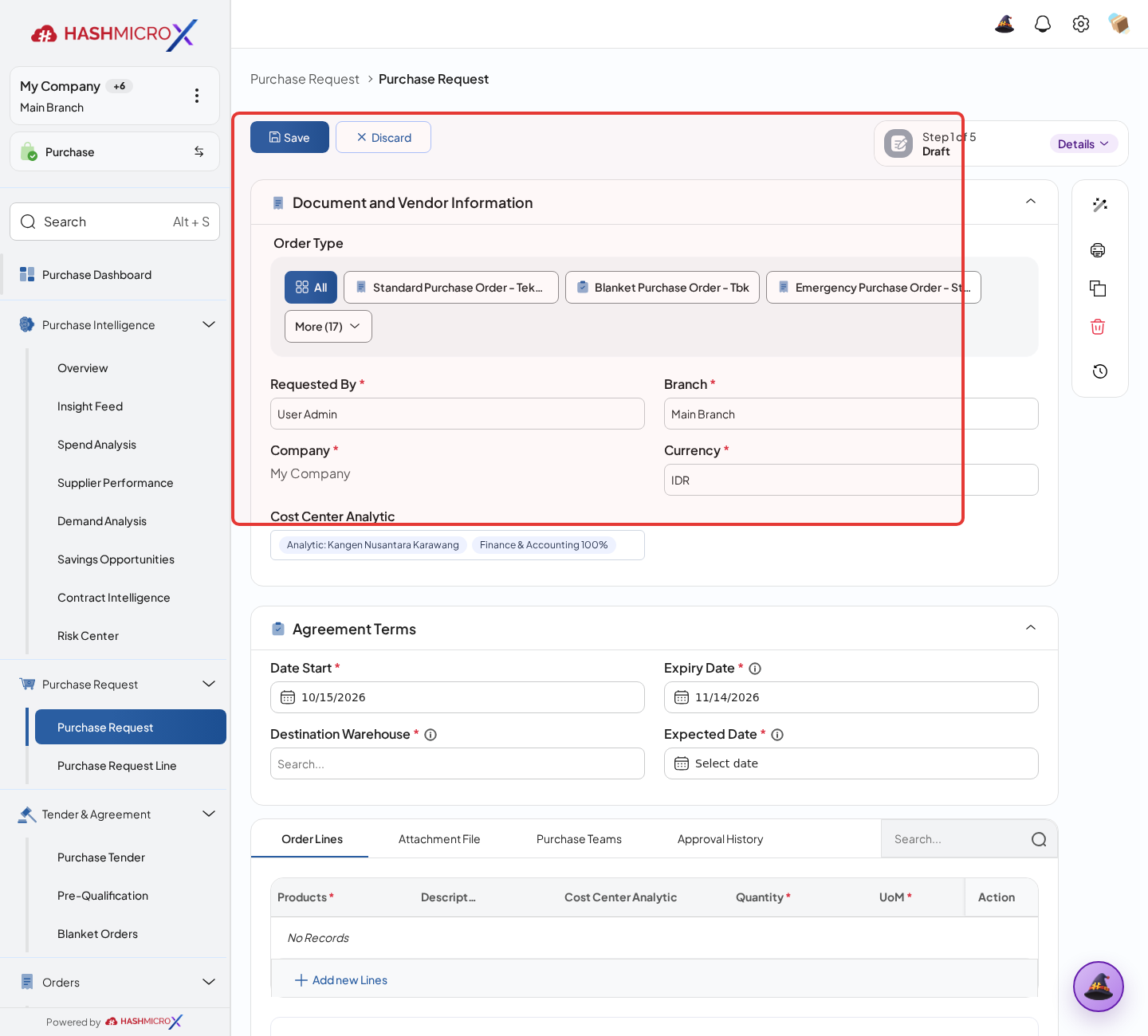
Figure 3.1.1 — HMX Main: Create Purchase Request parameters and warehouse selection framed in red Submit or confirm according to approval policy.
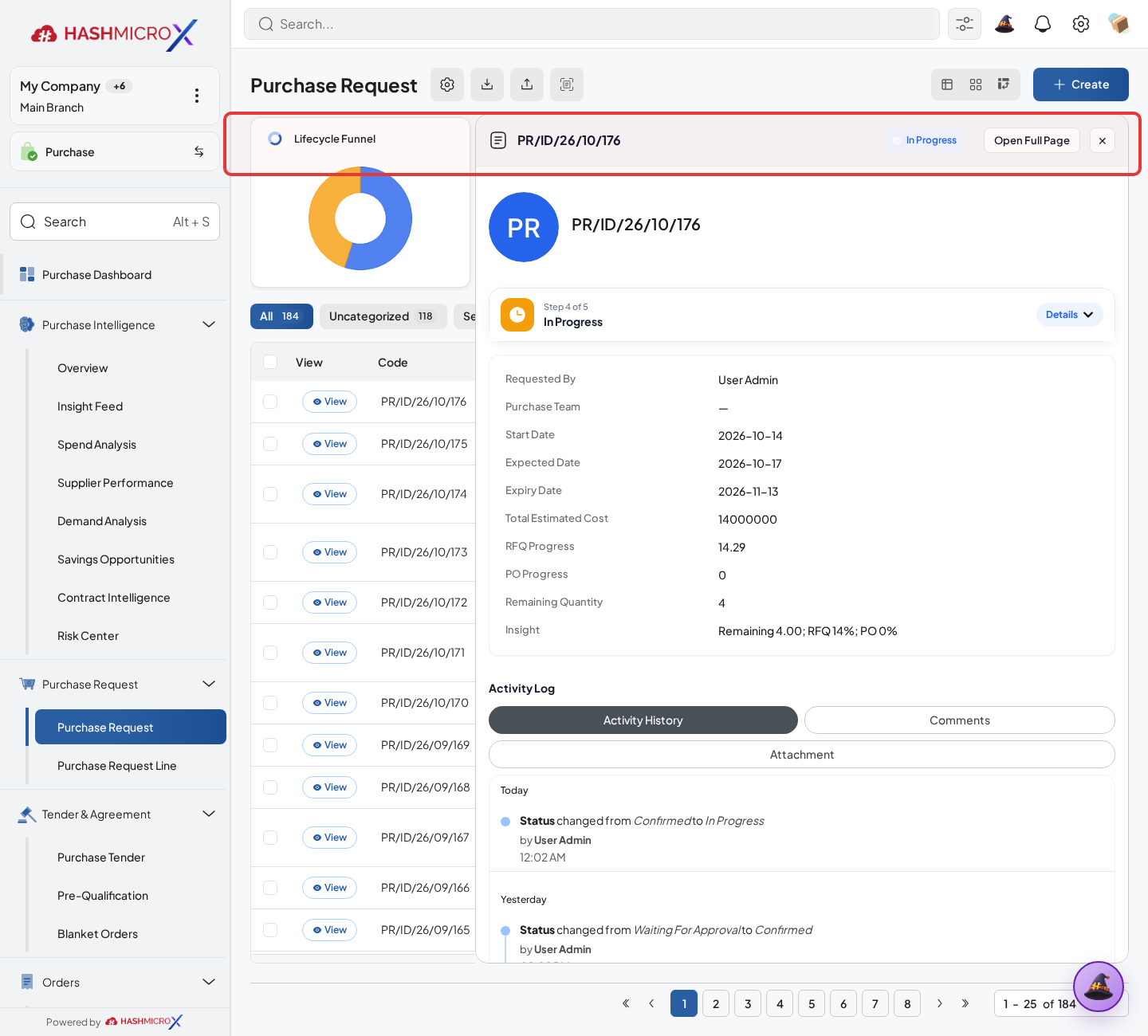
Figure 3.1.2 — HMX Main: Submit Purchase Request for approval framed in red Use Convert RFQ or Convert Blanket Order for approved lines.
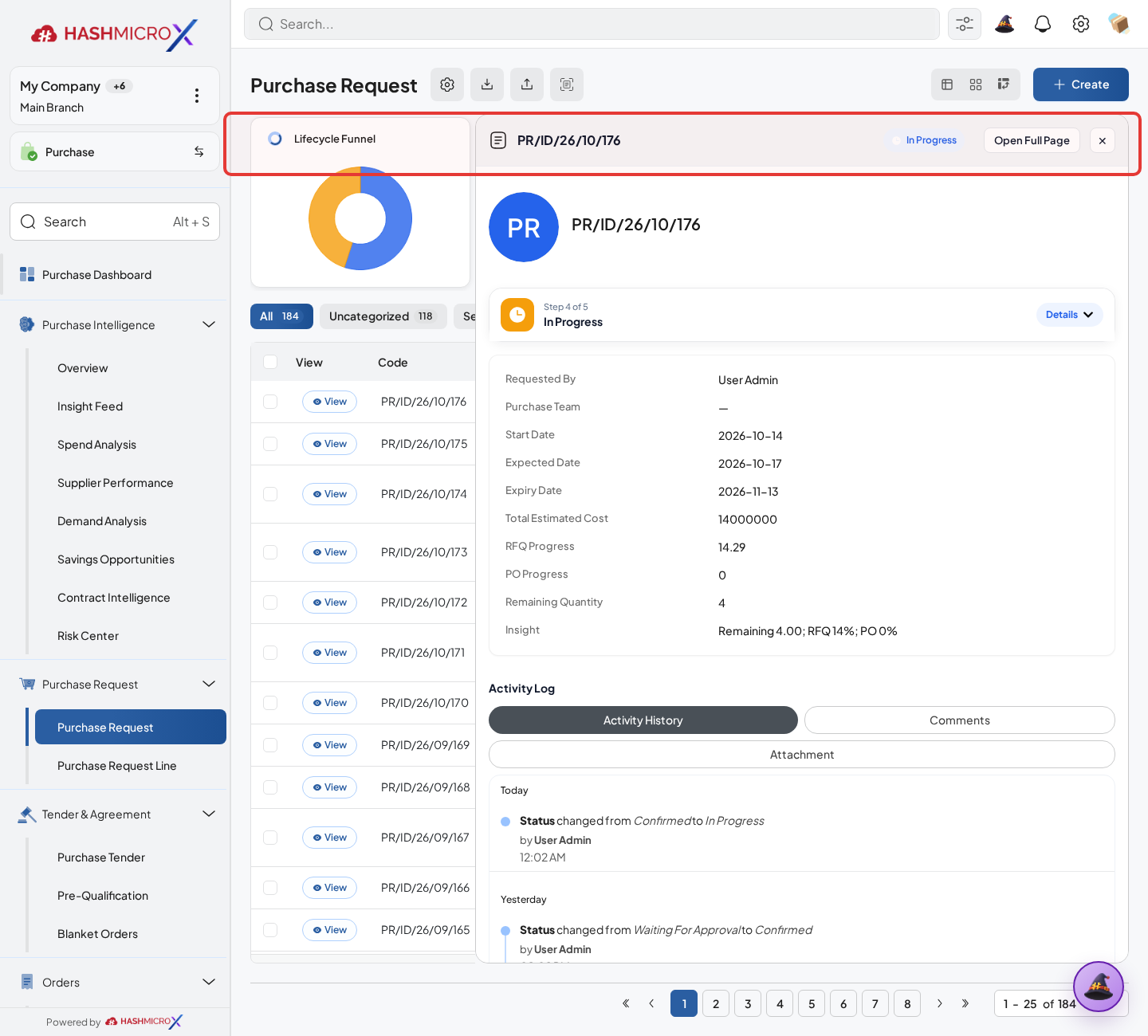
Figure 3.1.3 — HMX Main: Convert approved PR to RFQ or Blanket Order framed in red
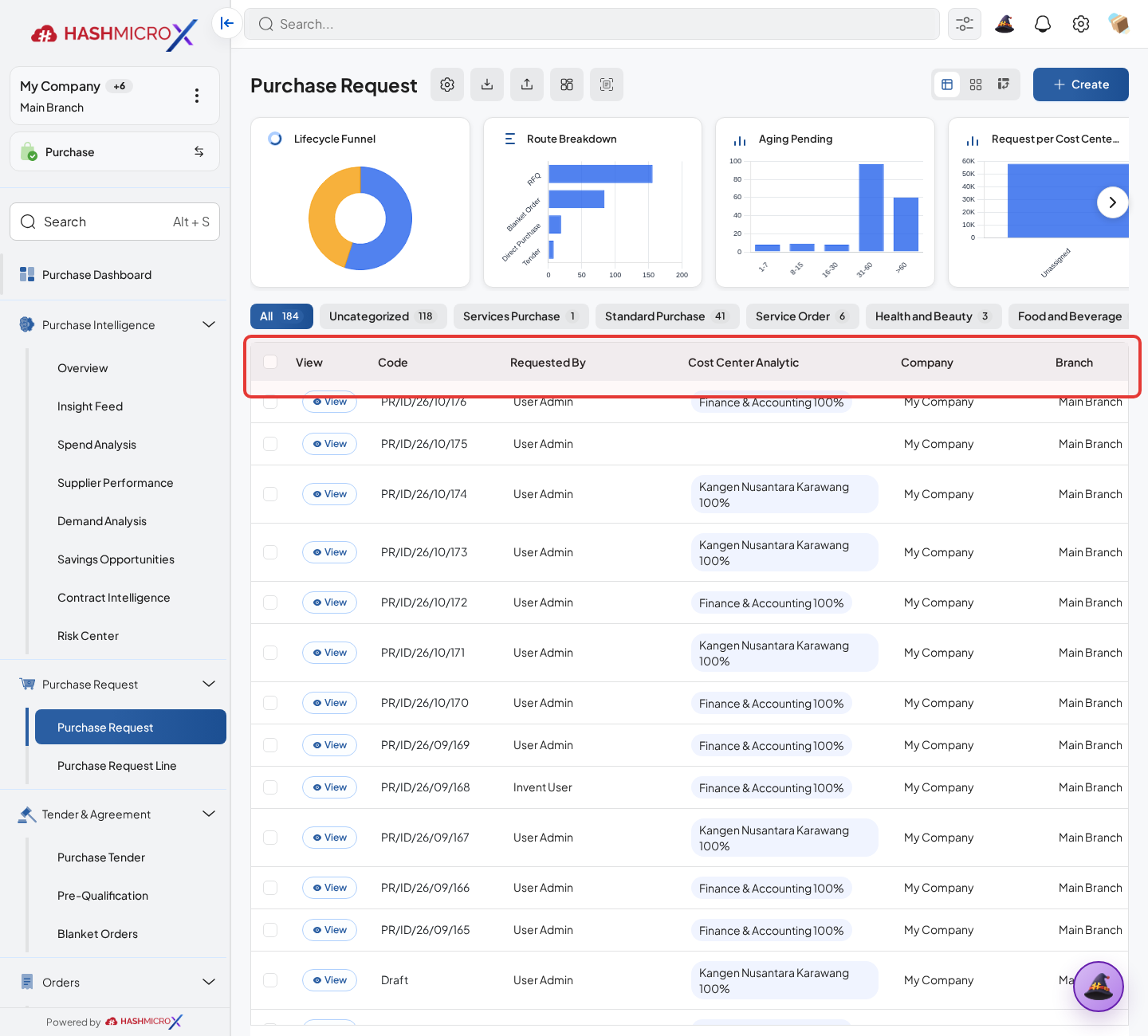
3.1.1 Create Purchase Request
Overview
Create Purchase Request when an internal department needs goods or services before sourcing starts.
Prerequisites
- Vendor, product, purchase team, company, currency, and destination warehouse data are available when required.
- The user has access to create, confirm, approve, send, revise, close, or cancel the related Purchase document.
- Approval, RFQ, blanket, receiving, and billing settings are configured before the workflow is used.
Step-by-Step Instructions
- Open Purchase > Purchase > Purchase Request. Open Purchase Request and click Create.
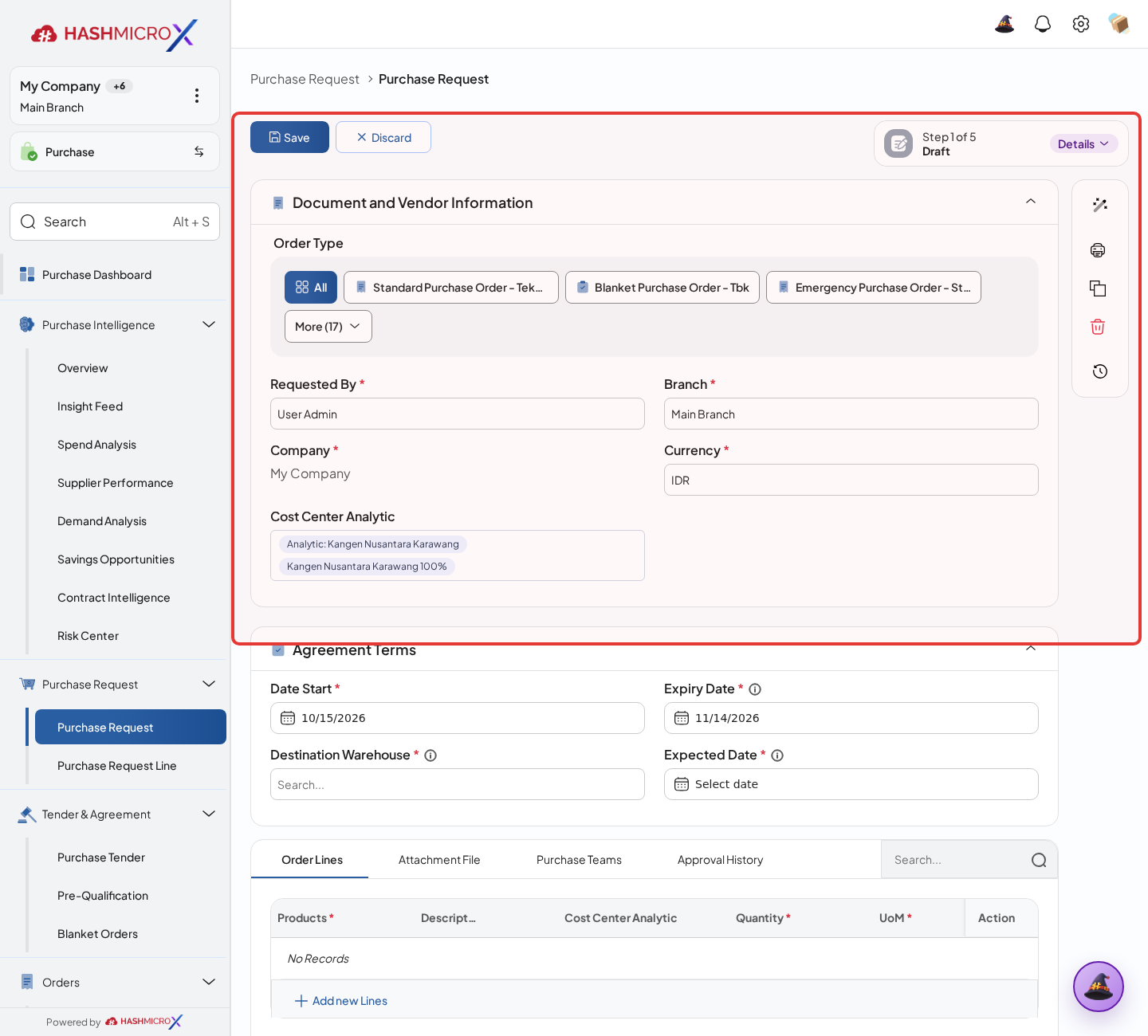
Figure 3.1.1.1 — HMX Main: Purchase Request creation form sheet framed in red - Fill requester, company, request date, required date, and department context.
Figure 3.1.1.2 — HMX Main: Purchase Request requester, dates, and department header fields framed in red - Click Add a Line, then fill Product, Quantity, UoM, Destination Warehouse, Required Date, and Notes. These fields explain what is requested, where it is needed, and why the buyer should process it.
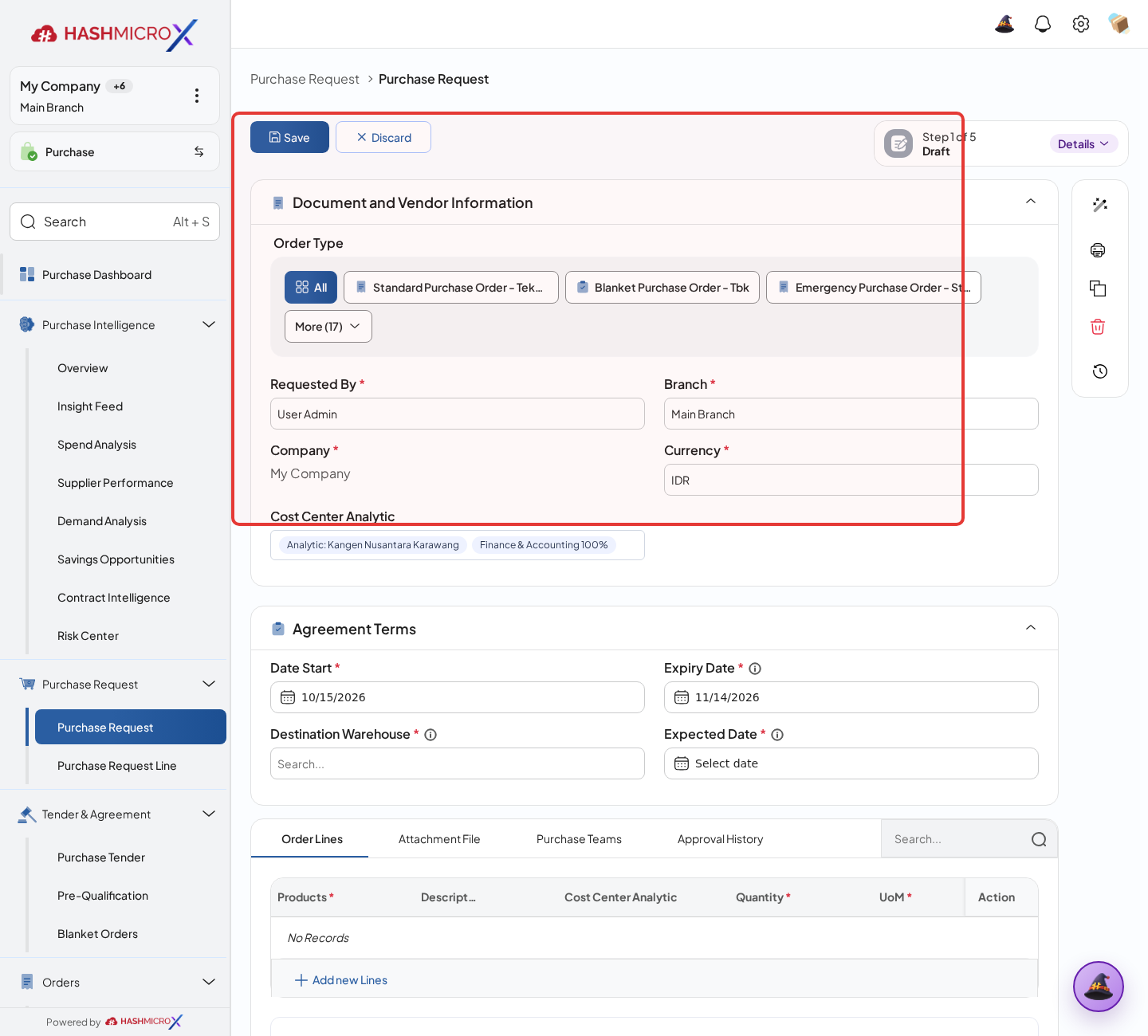
Figure 3.1.1.3 — HMX Main: Purchase Request product line and destination warehouse entry framed in red - Save the document and review line completeness before submission.
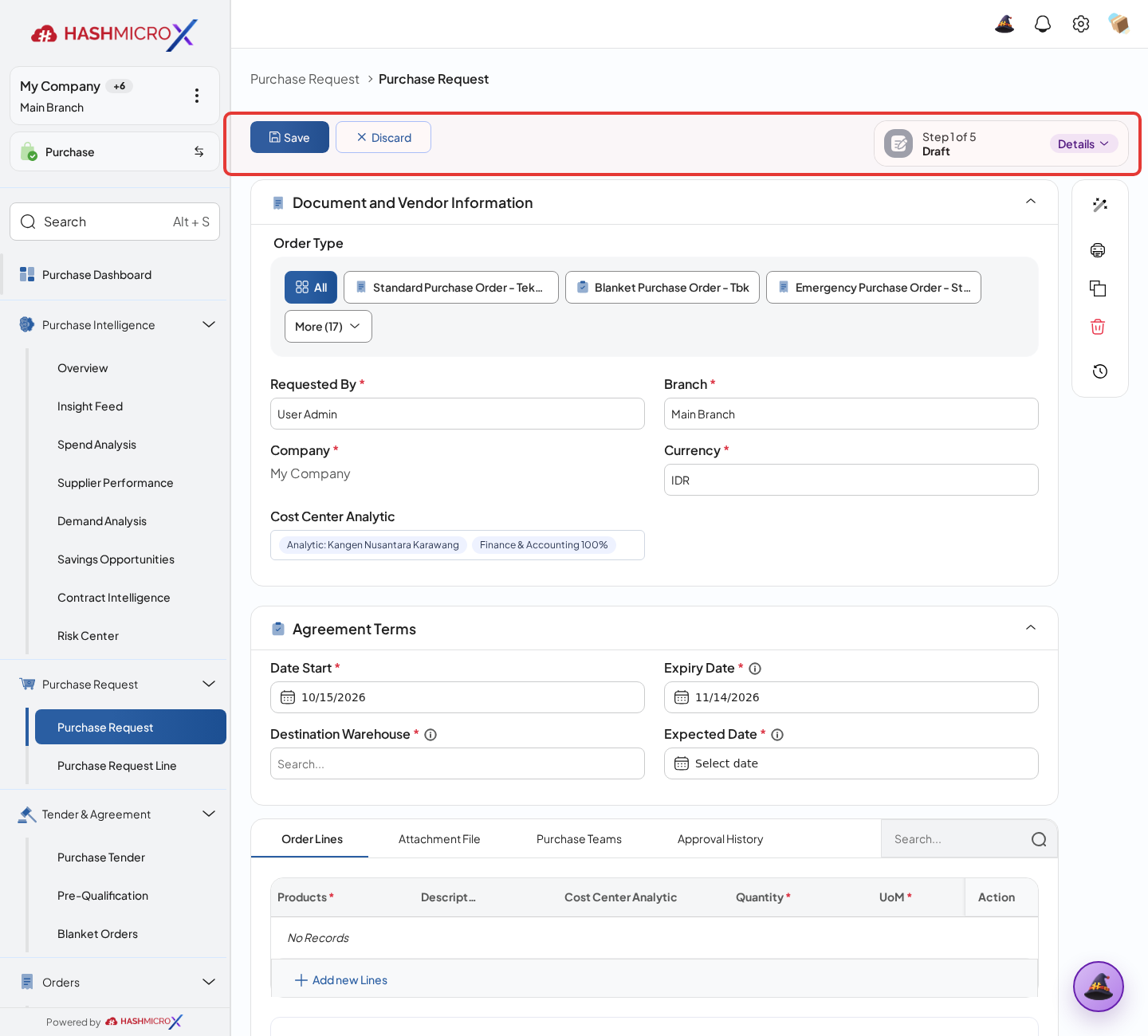
Figure 3.1.1.4 — HMX Main: Purchase Request Save document action button framed in red
Status and Result Guide
| Status / Result | What it means | Trigger | What to do |
|---|---|---|---|
| Draft | The document is being prepared and can still be edited. | User creates the record or resets it before confirmation. | Complete required fields and click the next workflow action. |
| Confirmed / Sent / In Progress | The document has entered the active purchasing workflow. | User clicks Confirm, Send RFQ, Submit, or a related processing action. | Monitor supplier response, approval, receiving, billing, or next action. |
| Approved / Done / Closed | The workflow result is accepted or completed. | Approver accepts the document, PO is confirmed, receipt/bill is processed, or document is closed. | Review linked documents and continue downstream processing. |
| Cancelled / Rejected | The workflow is stopped or not accepted. | User clicks Cancel/Reject or approval fails. | Review reason, correct the record if allowed, or create a replacement document. |
Field Reference
| Field | Required | Description | Example or note |
|---|---|---|---|
| Requester | Yes | Employee or user creating the procurement request. | Data type: Reference. |
| Required Date | Yes | Expected date when the item is needed. | Data type: Date. |
| Product Lines | Yes | Requested products, quantities, UoM, warehouse, and notes. | Data type: One2many. |
| Request Notes | No | Business reason or instruction for buyer and approver. | Data type: Text. |
Common Scenarios
| Scenario | When to Use | Key Steps | Expected Result |
|---|---|---|---|
| Process Create Purchase Request | Use when a purchasing document needs sourcing, approval, supplier confirmation, receiving, or billing. | Open Purchase > Purchase > Purchase Request, create or open the document, complete required fields and lines, then use the verified workflow action. | The Purchase document moves to the next status and linked records become available when configured. |
| Correct Create Purchase Request before completion | Use when document details are incomplete or incorrect before approval, confirmation, receipt, or billing. | Open the document, update editable fields and lines, save, then rerun the required action. | The corrected document continues through the Purchase workflow without duplicate records. |
Troubleshooting
| Issue | Possible Cause | How to fix it |
|---|---|---|
| The menu, button, or action is not visible. | The user role, document status, configuration, approval rule, or related module does not allow the action. | Check user access, document status, Purchase settings, approval setup, and required linked records before retrying. |
| The record cannot be saved, confirmed, approved, sent, received, billed, or closed. | A required field, vendor, product line, quantity, price, warehouse, tax, approval, or source document is missing or invalid. | Review highlighted fields and line tables, complete the missing values, save, then run the workflow action again. |
| The expected linked document is not created. | The source document is not in the required status, the configuration blocks automatic creation, or the related integration is disabled. | Confirm the source document status and configuration, then use the manual Create, Convert, Receiving, Bill, or Release action when available. |
3.1.2 Submit & Approve Request
Overview
Submit Purchase Request for approval so the buying team can process only validated demand.
Prerequisites
- Vendor, product, purchase team, company, currency, and destination warehouse data are available when required.
- The user has access to create, confirm, approve, send, revise, close, or cancel the related Purchase document.
- Approval, RFQ, blanket, receiving, and billing settings are configured before the workflow is used.
Step-by-Step Instructions
- Open a draft Purchase Request.
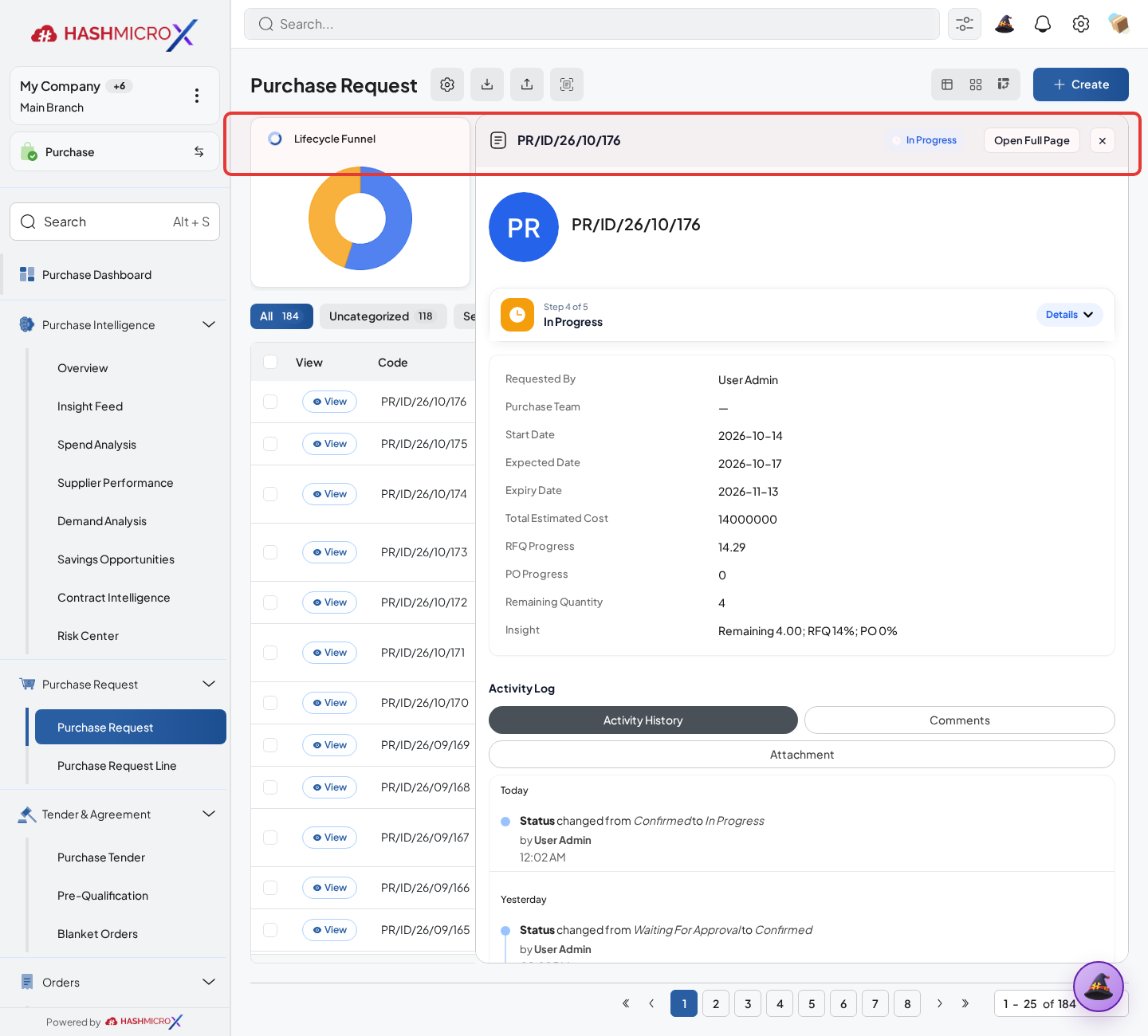
Figure 3.1.2.1 — HMX Main: Purchase Request approval submission action bar framed in red - Open the request lines and check Product, Quantity, UoM, Destination, Required Date, and Business Reason on each line before submission.
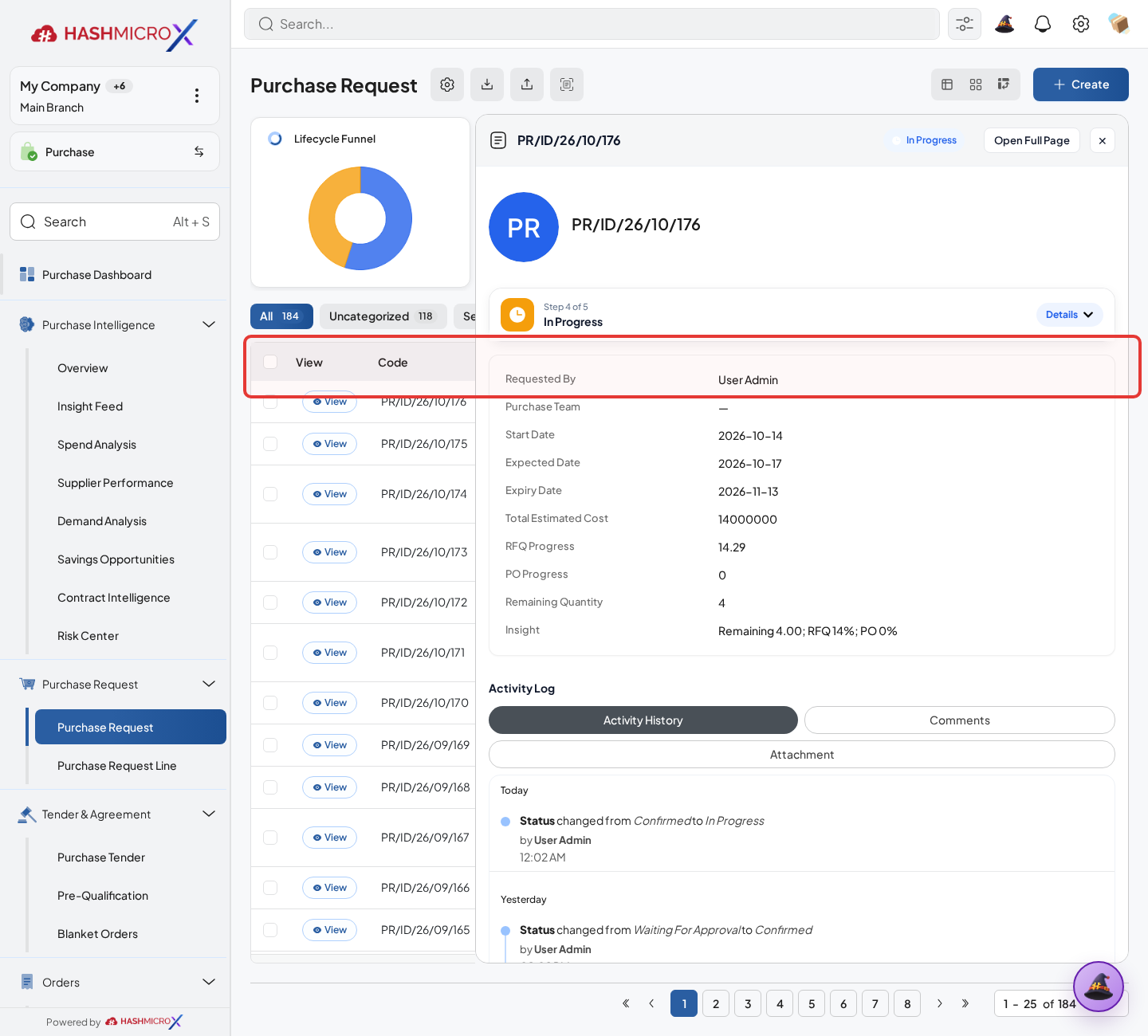
Figure 3.1.2.2 — HMX Main: Purchase Request line items and quantities review framed in red - Click Submit or Confirm according to available action.
Figure 3.1.2.3 — HMX Main: Purchase Request Submit for Approval action button framed in red - Approver reviews the request and approves or returns it for correction.
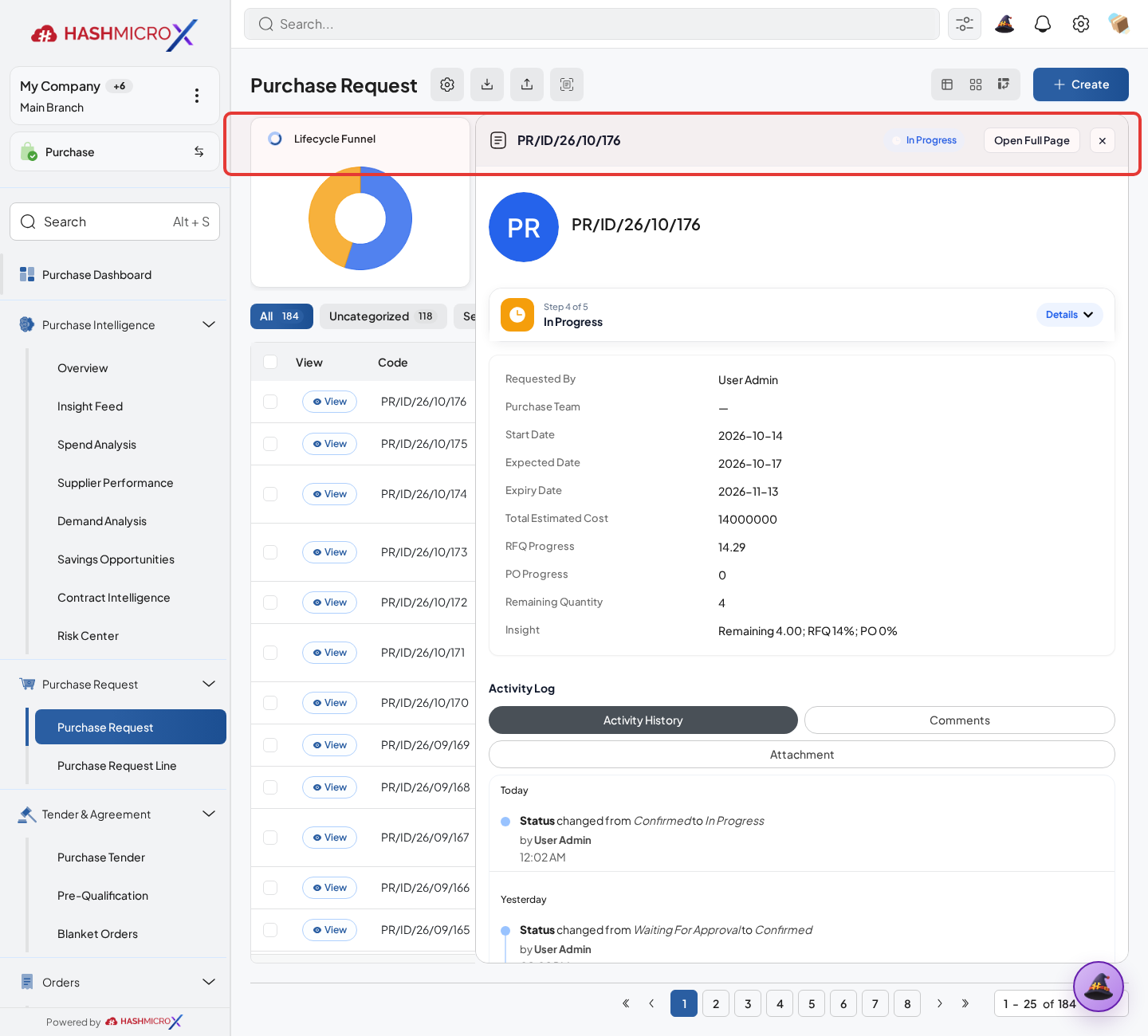
Figure 3.1.2.4 — HMX Main: Purchase Request Approve and Reject governance action controls framed in red - After approval, monitor remaining quantity and generated document links.
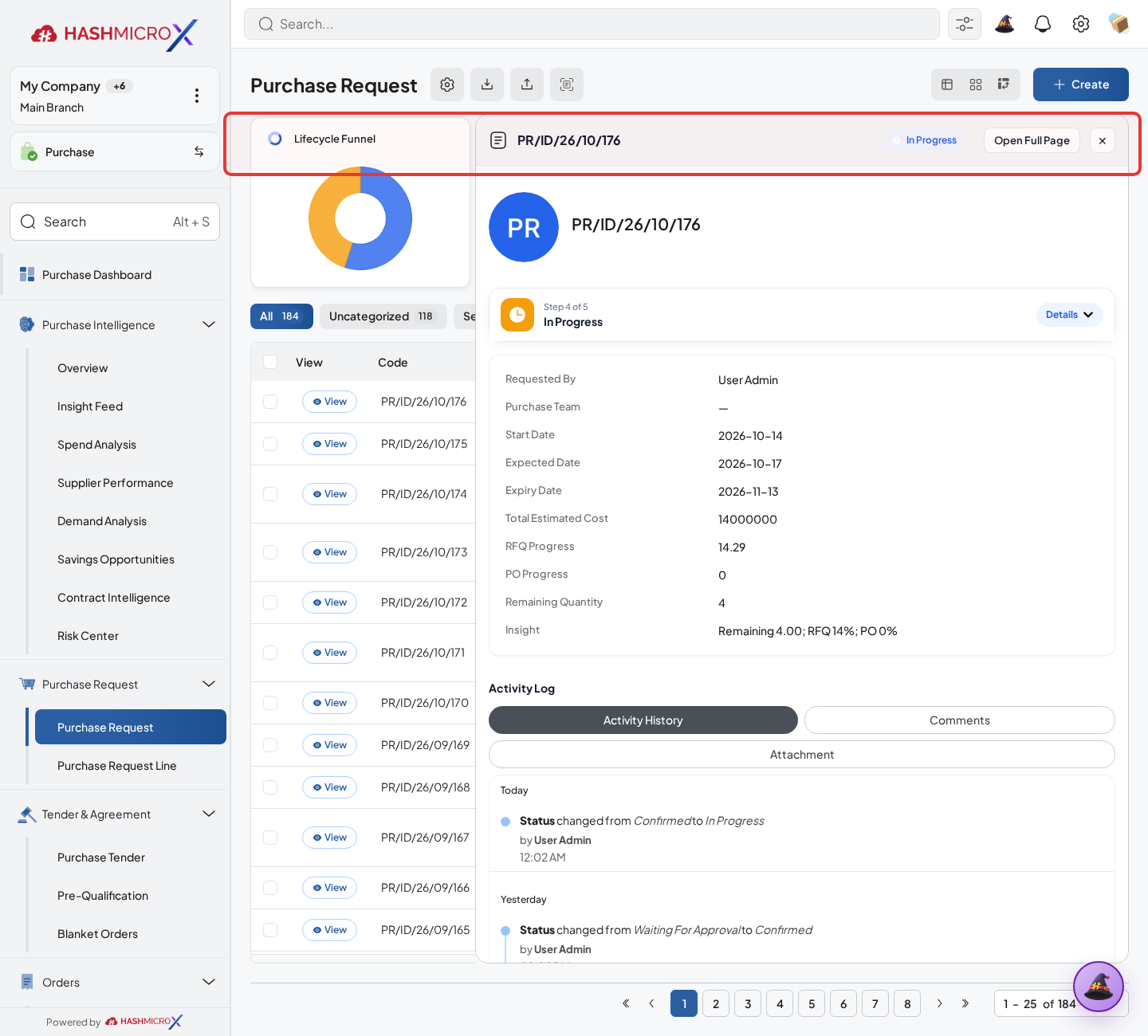
Figure 3.1.2.5 — HMX Main: Purchase Request Approved statusbar badge and linked documents framed in red
Status and Result Guide
| Status / Result | What it means | Trigger | What to do |
|---|---|---|---|
| Draft | The document is being prepared and can still be edited. | User creates the record or resets it before confirmation. | Complete required fields and click the next workflow action. |
| Confirmed / Sent / In Progress | The document has entered the active purchasing workflow. | User clicks Confirm, Send RFQ, Submit, or a related processing action. | Monitor supplier response, approval, receiving, billing, or next action. |
| Approved / Done / Closed | The workflow result is accepted or completed. | Approver accepts the document, PO is confirmed, receipt/bill is processed, or document is closed. | Review linked documents and continue downstream processing. |
| Cancelled / Rejected | The workflow is stopped or not accepted. | User clicks Cancel/Reject or approval fails. | Review reason, correct the record if allowed, or create a replacement document. |
Field Reference
| Field | Required | Description | Example or note |
|---|---|---|---|
| Submit / Confirm | Yes | Moves the request out of draft into review. | Data type: Action. |
| Approve | No | Approves request when approval rules apply. | Data type: Action. |
| State | Yes | Shows draft, submitted, approved, closed, or similar lifecycle state. | Data type: Status. |
| Remaining Quantity | No | Open quantity not yet converted to sourcing document. | Data type: Number. |
Common Scenarios
| Scenario | When to Use | Key Steps | Expected Result |
|---|---|---|---|
| Process Submit & Approve Request | Use when a purchasing document needs sourcing, approval, supplier confirmation, receiving, or billing. | Open Purchase, create or open the document, complete required fields and lines, then use the verified workflow action. | The Purchase document moves to the next status and linked records become available when configured. |
| Correct Submit & Approve Request before completion | Use when document details are incomplete or incorrect before approval, confirmation, receipt, or billing. | Open the document, update editable fields and lines, save, then rerun the required action. | The corrected document continues through the Purchase workflow without duplicate records. |
Troubleshooting
| Issue | Possible Cause | How to fix it |
|---|---|---|
| The menu, button, or action is not visible. | The user role, document status, configuration, approval rule, or related module does not allow the action. | Check user access, document status, Purchase settings, approval setup, and required linked records before retrying. |
| The record cannot be saved, confirmed, approved, sent, received, billed, or closed. | A required field, vendor, product line, quantity, price, warehouse, tax, approval, or source document is missing or invalid. | Review highlighted fields and line tables, complete the missing values, save, then run the workflow action again. |
| The expected linked document is not created. | The source document is not in the required status, the configuration blocks automatic creation, or the related integration is disabled. | Confirm the source document status and configuration, then use the manual Create, Convert, Receiving, Bill, or Release action when available. |
3.1.3 Convert to RFQ or Blanket Order
Overview
Convert approved Purchase Request lines into sourcing documents based on buying strategy.
Prerequisites
- Vendor, product, purchase team, company, currency, and destination warehouse data are available when required.
- The user has access to create, confirm, approve, send, revise, close, or cancel the related Purchase document.
- Approval, RFQ, blanket, receiving, and billing settings are configured before the workflow is used.
Step-by-Step Instructions
- Open Purchase > Purchase > Request for Quotation. Open an approved Purchase Request.
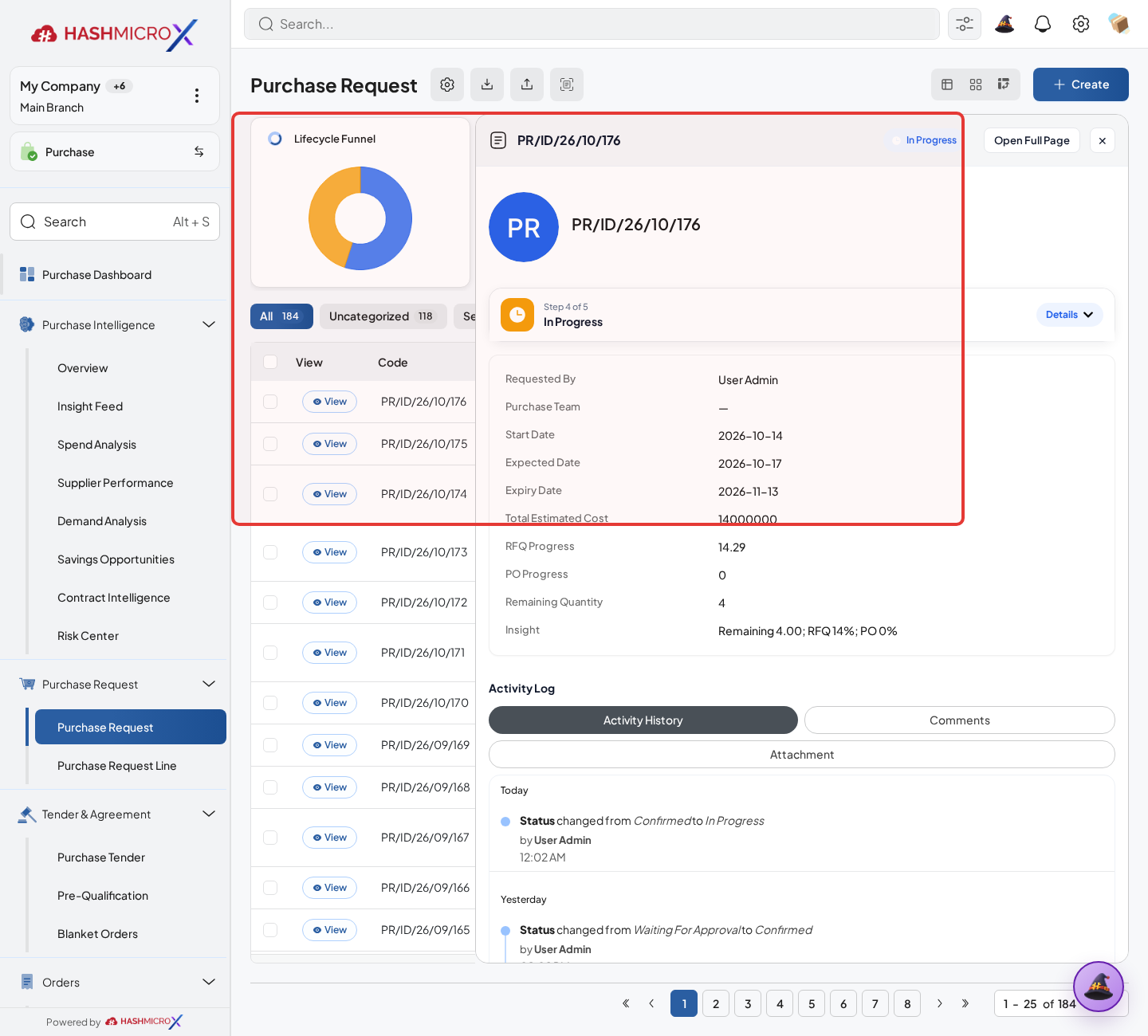
Figure 3.1.3.1 — HMX Main: Purchase Request action buttons for RFQ and Blanket Order conversion framed in red - Select eligible request lines with open quantity, then review Product, Remaining Quantity, UoM, Destination Warehouse, Vendor/RFQ option, and conversion target.
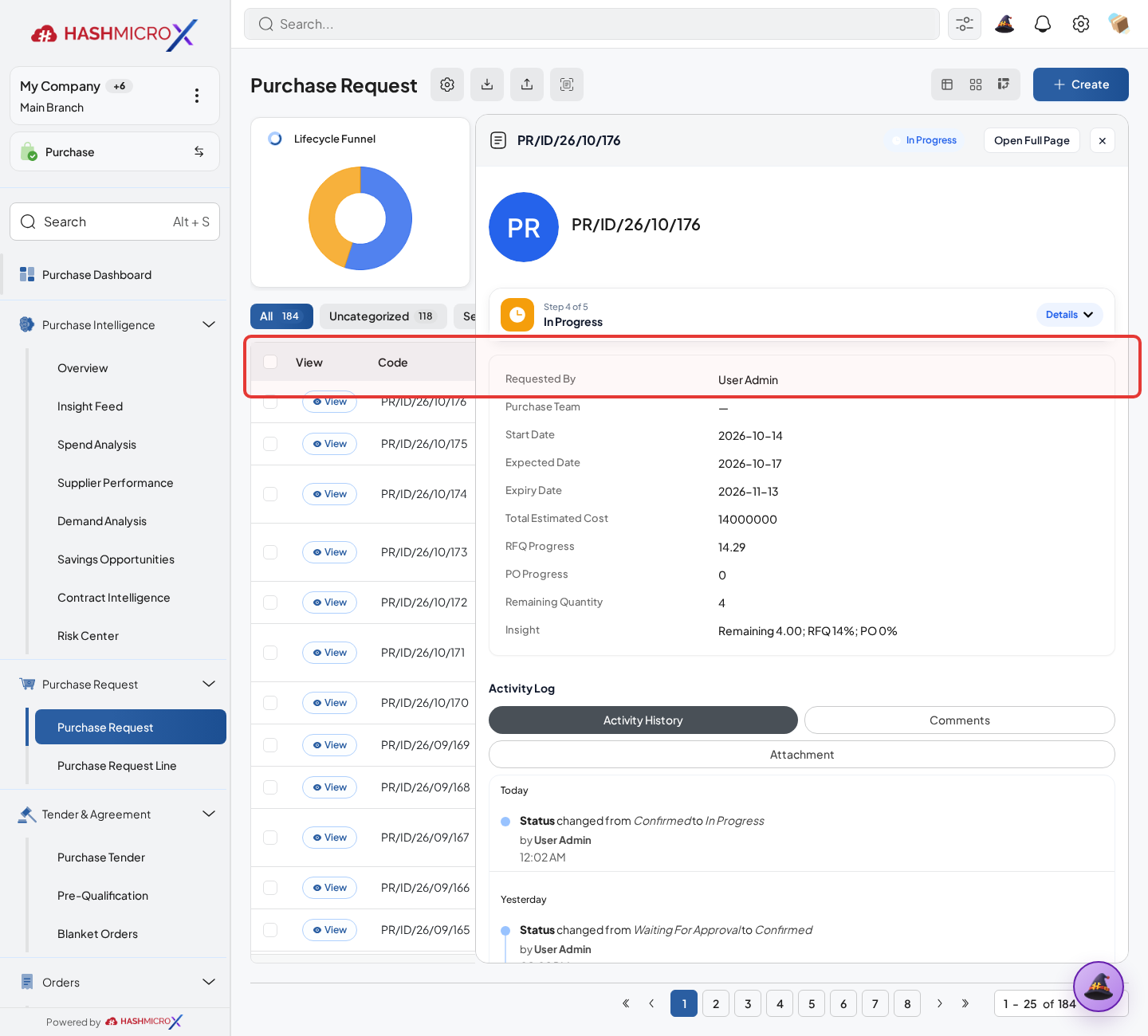
Figure 3.1.3.2 — HMX Main: Purchase Request open lines selection for downstream procurement framed in red - Choose RFQ for one-time supplier quotation or Blanket Order for repeated planned procurement.
Figure 3.1.3.3 — HMX Main: Convert to RFQ and Convert to Blanket Order action buttons framed in red - Run the conversion action and confirm the generated document.
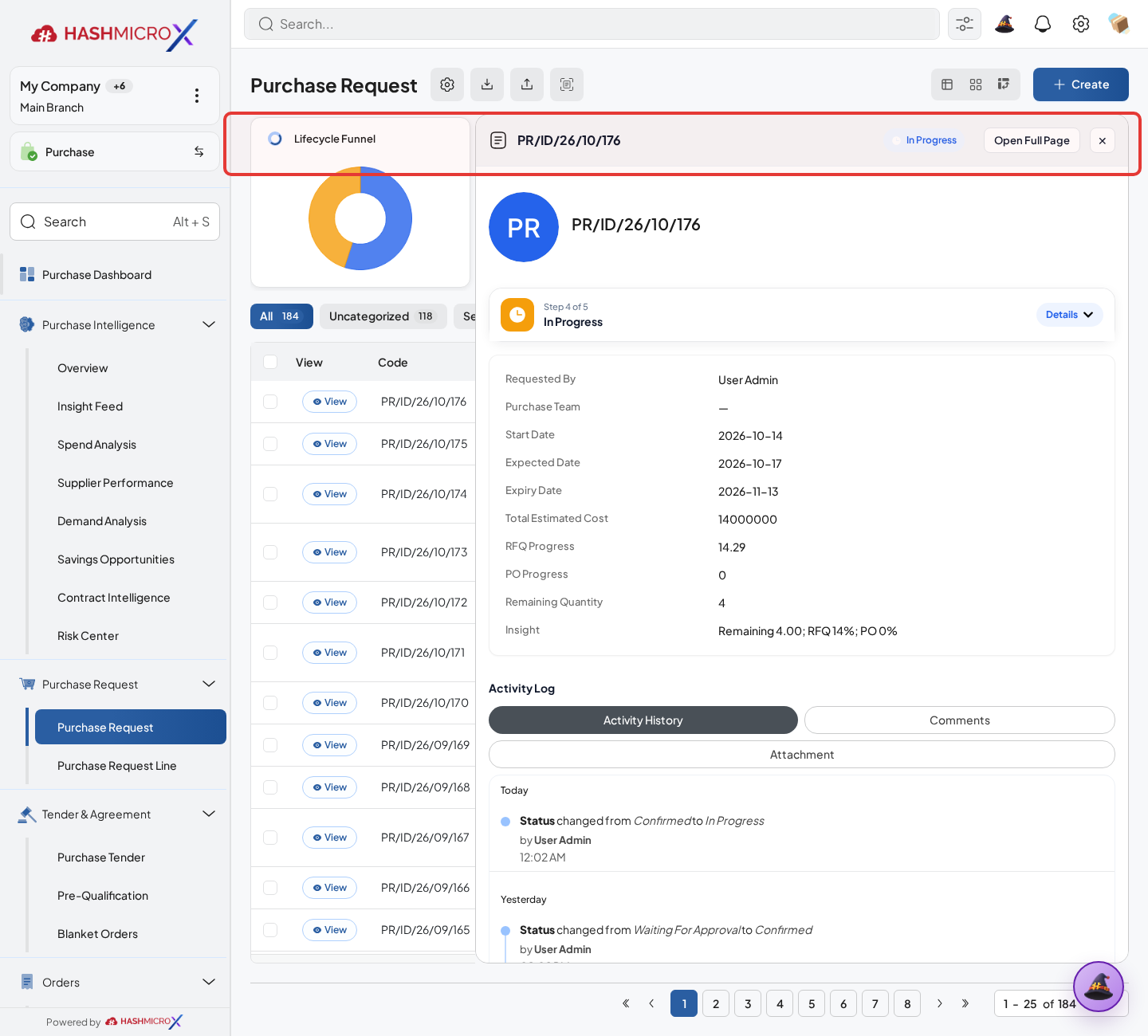
Figure 3.1.3.4 — HMX Main: Purchase Request document conversion confirmation action framed in red - Open the smart button to continue buyer processing.
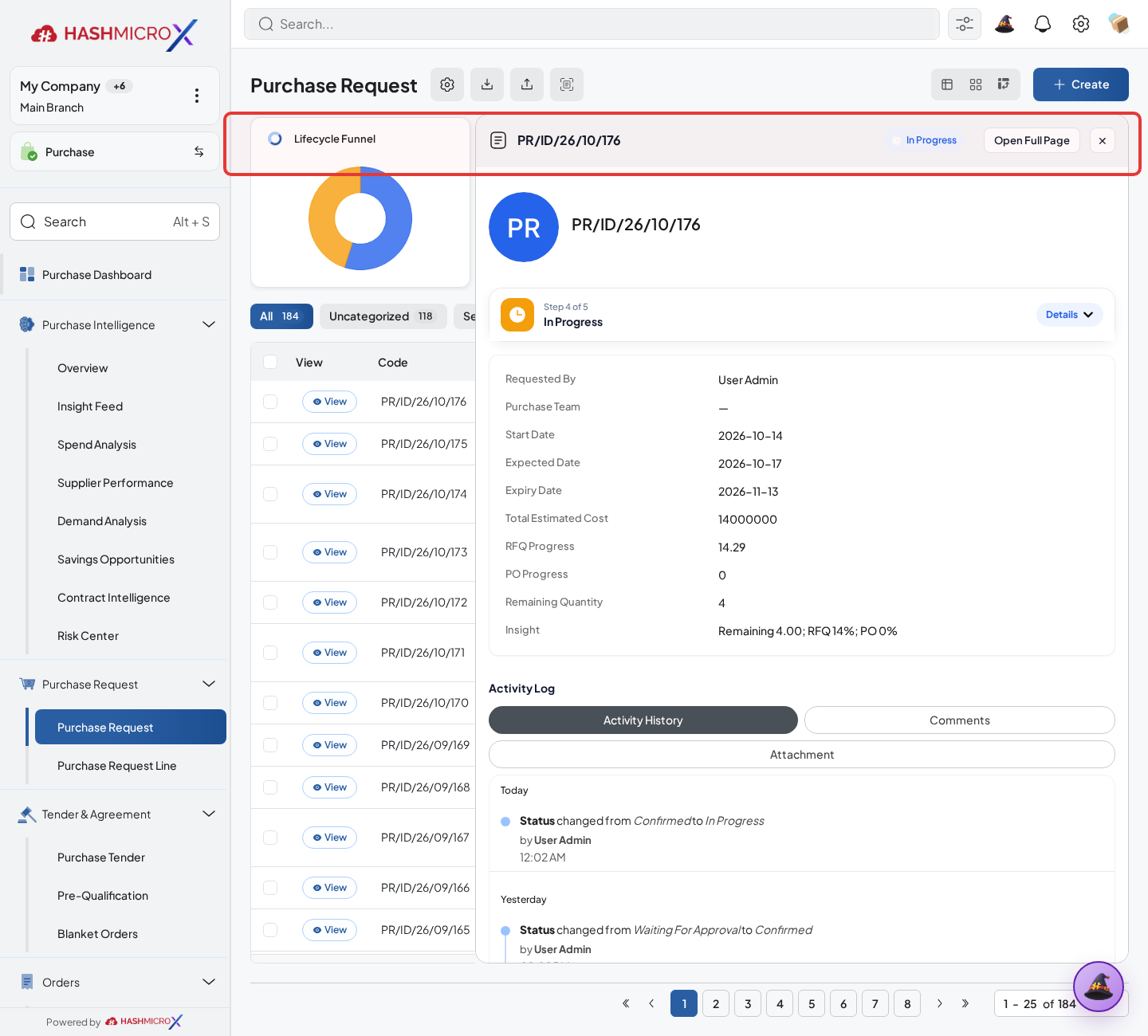
Figure 3.1.3.5 — HMX Main: Generated RFQs and Blanket Orders smart button linkage framed in red
Status and Result Guide
| Status / Result | What it means | Trigger | What to do |
|---|---|---|---|
| Draft | The document is being prepared and can still be edited. | User creates the record or resets it before confirmation. | Complete required fields and click the next workflow action. |
| Confirmed / Sent / In Progress | The document has entered the active purchasing workflow. | User clicks Confirm, Send RFQ, Submit, or a related processing action. | Monitor supplier response, approval, receiving, billing, or next action. |
| Approved / Done / Closed | The workflow result is accepted or completed. | Approver accepts the document, PO is confirmed, receipt/bill is processed, or document is closed. | Review linked documents and continue downstream processing. |
| Cancelled / Rejected | The workflow is stopped or not accepted. | User clicks Cancel/Reject or approval fails. | Review reason, correct the record if allowed, or create a replacement document. |
Field Reference
| Field | Required | Description | Example or note |
|---|---|---|---|
| Create RFQ | No | Creates supplier quotation request from selected PR lines. | Data type: Action. |
| Create Blanket Order | No | Creates purchase agreement from selected PR lines. | Data type: Action. |
| Generated Document | No | Opens RFQ or Blanket Order linked to the request. | Data type: Smart Button. |
| Closed Line | No | Marks request line as no longer open for conversion. | Data type: Boolean. |
Common Scenarios
| Scenario | When to Use | Key Steps | Expected Result |
|---|---|---|---|
| Process Convert to RFQ or Blanket Order | Use when a purchasing document needs sourcing, approval, supplier confirmation, receiving, or billing. | Open Purchase > Purchase > Request for Quotation, create or open the document, complete required fields and lines, then use the verified workflow action. | The Purchase document moves to the next status and linked records become available when configured. |
| Correct Convert to RFQ or Blanket Order before completion | Use when document details are incomplete or incorrect before approval, confirmation, receipt, or billing. | Open the document, update editable fields and lines, save, then rerun the required action. | The corrected document continues through the Purchase workflow without duplicate records. |
Troubleshooting
| Issue | Possible Cause | How to fix it |
|---|---|---|
| The menu, button, or action is not visible. | The user role, document status, configuration, approval rule, or related module does not allow the action. | Check user access, document status, Purchase settings, approval setup, and required linked records before retrying. |
| The record cannot be saved, confirmed, approved, sent, received, billed, or closed. | A required field, vendor, product line, quantity, price, warehouse, tax, approval, or source document is missing or invalid. | Review highlighted fields and line tables, complete the missing values, save, then run the workflow action again. |
| The expected linked document is not created. | The source document is not in the required status, the configuration blocks automatic creation, or the related integration is disabled. | Confirm the source document status and configuration, then use the manual Create, Convert, Receiving, Bill, or Release action when available. |
3.2 Purchase Request Line
Overview
Purchase Request Line tracks quantity movement from request to RFQ, PO, receiving, and close.
Prerequisites
- Vendor, product, purchase team, company, currency, and destination warehouse data are available when required.
- The user has access to create, confirm, approve, send, revise, close, or cancel the related Purchase document.
- Approval, RFQ, blanket, receiving, and billing settings are configured before the workflow is used.
Step-by-Step Instructions
Open Purchase > Purchase > Purchase Request. Open a Purchase Request and review the request lines before conversion.
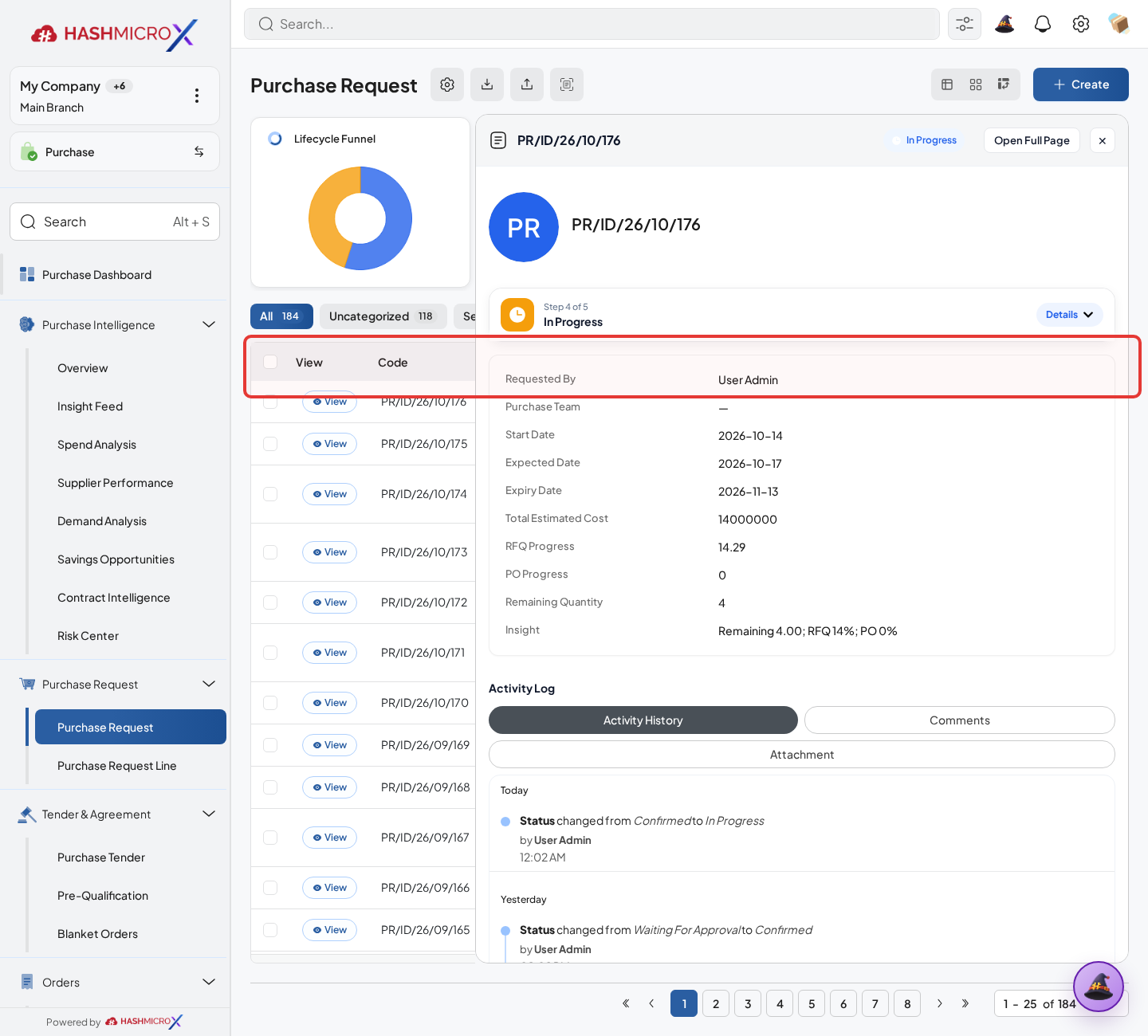
Figure 3.2.1 — HMX Main: Purchase Request line items and required quantities table framed in red Review each PR line: Product, Quantity, UoM, Requested Date, Source Requirement, and Approved Quantity show what the requester needs and what can still be converted downstream.
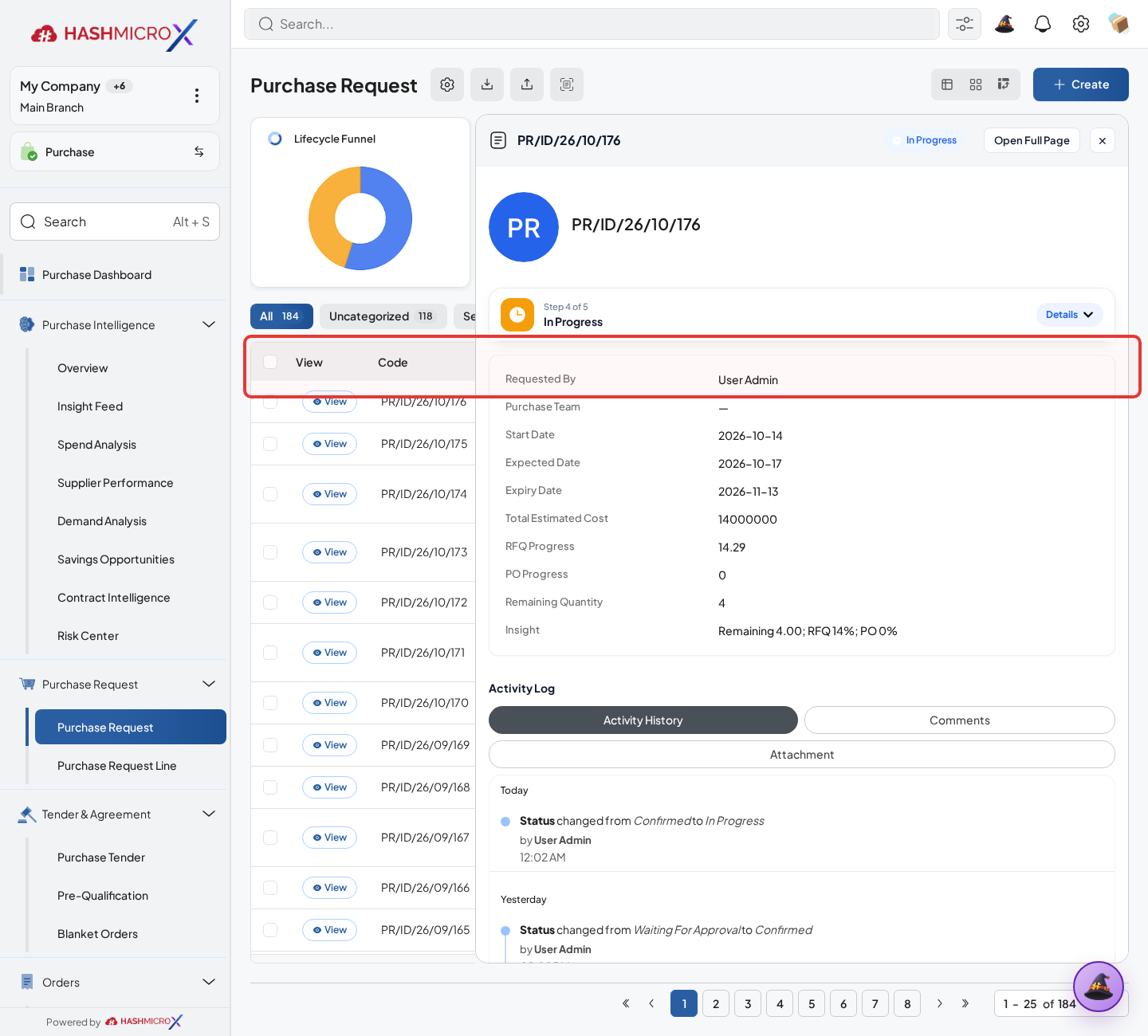
Figure 3.2.1.2 — HMX Main: Purchase Request line specifications and required delivery date framed in red Compare RFQ Qty, PO Qty, Received Qty, and Remaining Qty to see what has already moved downstream.
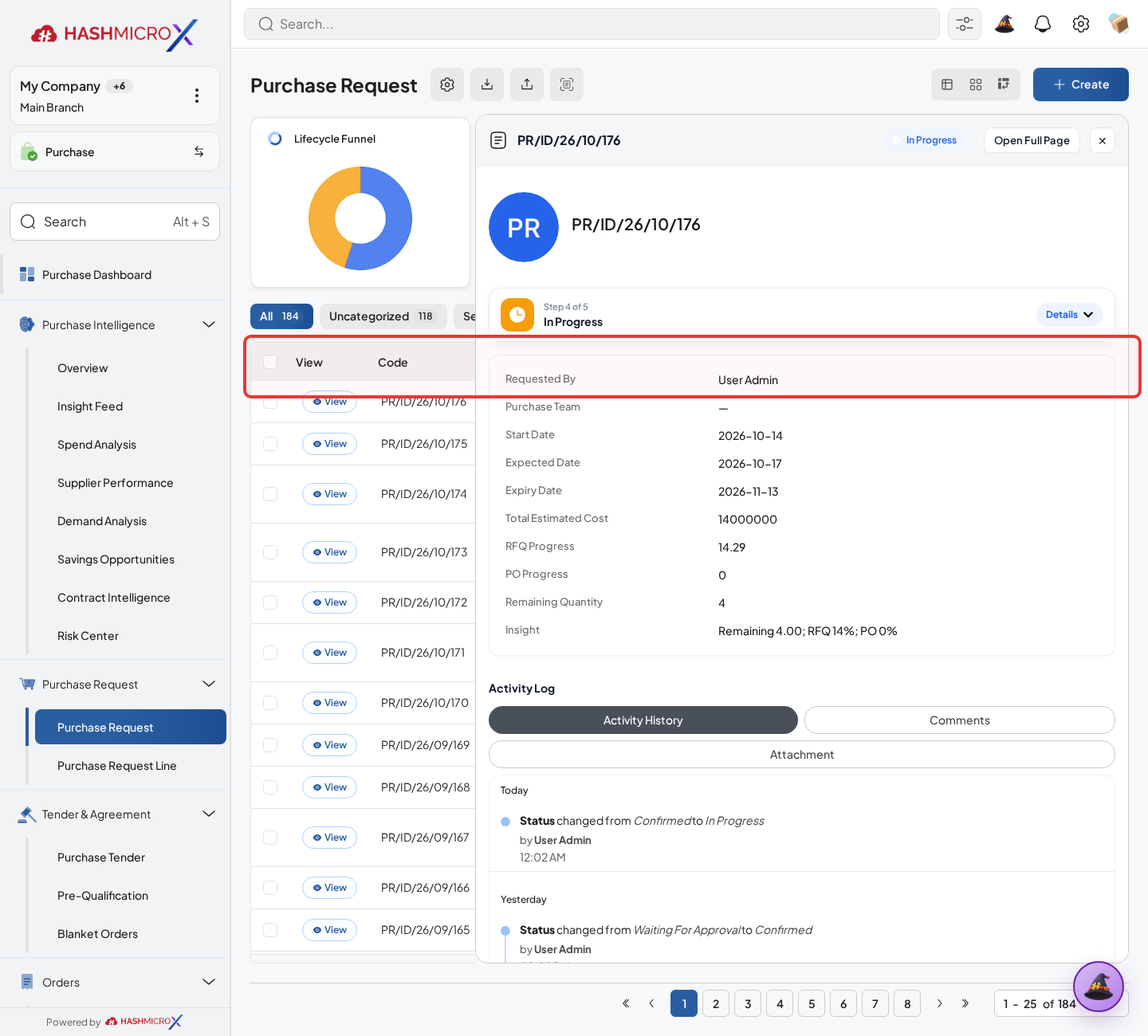
Figure 3.2.1.3 — HMX Main: Purchase Request line lifecycle quantities tracking table framed in red Adjust only fields still editable in the current state and avoid changing closed or fully converted lines.
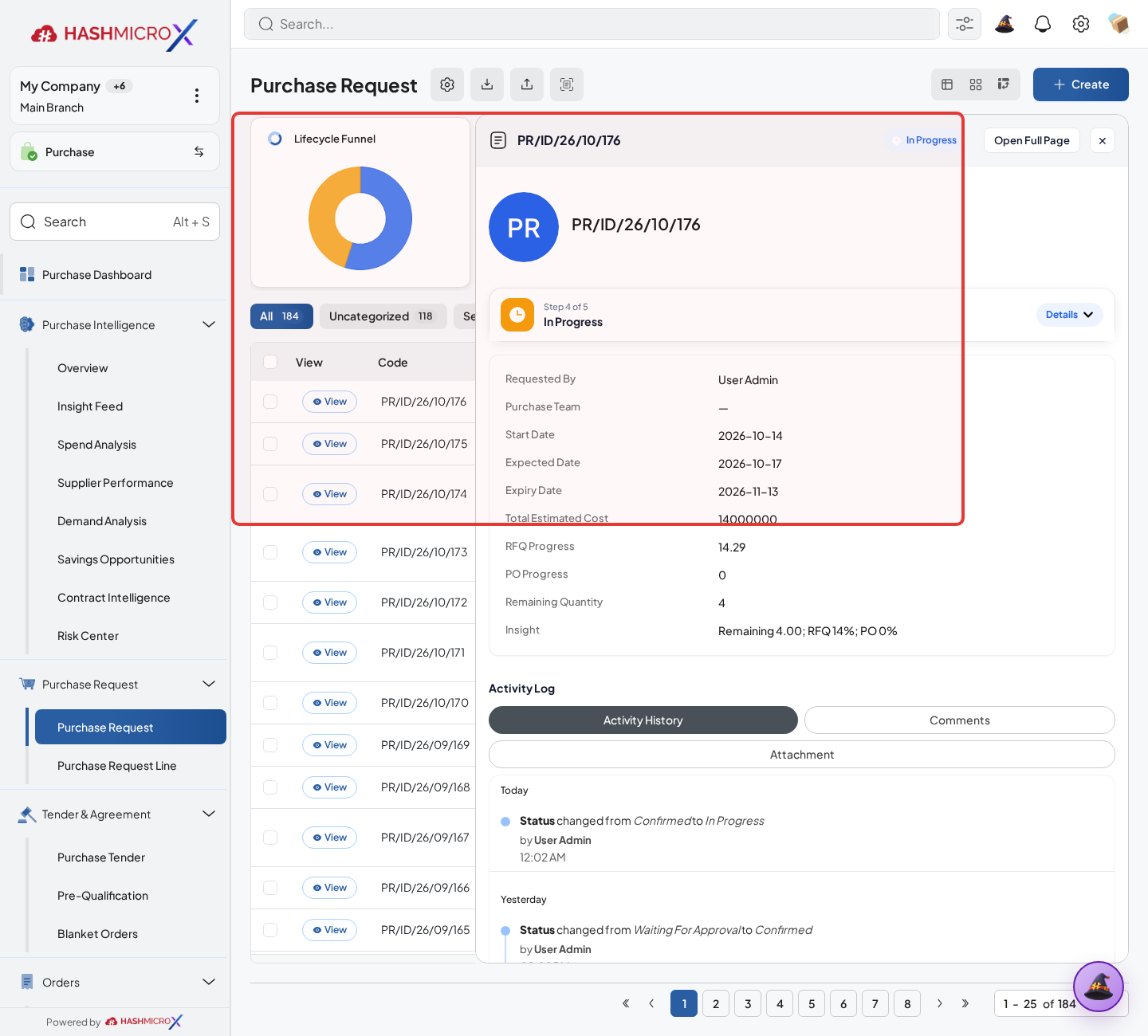
Figure 3.2.1.4 — HMX Main: Purchase Request line field editability state framed in red Use remaining quantity to decide whether another RFQ, PO, or close action is still needed.
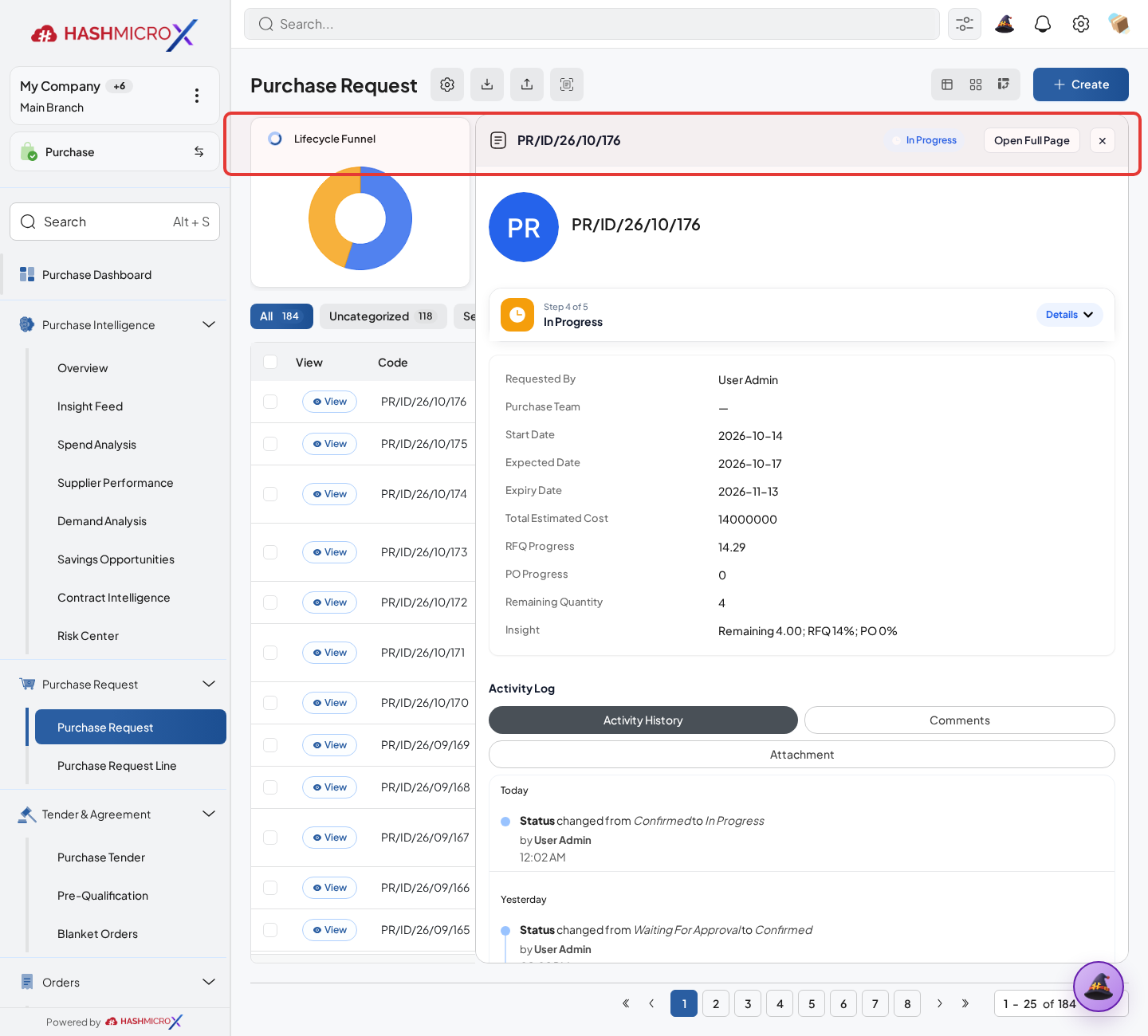
Figure 3.2.1.5 — HMX Main: Purchase Request line remaining open quantity audit framed in red
Status and Result Guide
| Status / Result | What it means | Trigger | What to do |
|---|---|---|---|
| Draft | The document is being prepared and can still be edited. | User creates the record or resets it before confirmation. | Complete required fields and click the next workflow action. |
| Confirmed / Sent / In Progress | The document has entered the active purchasing workflow. | User clicks Confirm, Send RFQ, Submit, or a related processing action. | Monitor supplier response, approval, receiving, billing, or next action. |
| Approved / Done / Closed | The workflow result is accepted or completed. | Approver accepts the document, PO is confirmed, receipt/bill is processed, or document is closed. | Review linked documents and continue downstream processing. |
| Cancelled / Rejected | The workflow is stopped or not accepted. | User clicks Cancel/Reject or approval fails. | Review reason, correct the record if allowed, or create a replacement document. |
Field Reference
| Field | Required | Description | Example or note |
|---|---|---|---|
| Quantity | Yes | Requested product quantity. | Data type: Number. |
| Approved Qty | No | Quantity approved for conversion. | Data type: Number. |
| RFQ Qty / PO Qty | Conditional | Downstream quantity already converted. | Data type: Number. |
| Received Qty | Conditional | Quantity already received from linked documents. | Data type: Number. |
| Remaining Qty | Conditional | Quantity still open for downstream action. | Data type: Number. |
Common Scenarios
| Scenario | When to Use | Key Steps | Expected Result |
|---|---|---|---|
| Process Purchase Request Line | Use when a purchasing document needs sourcing, approval, supplier confirmation, receiving, or billing. | Open Purchase > Purchase > Purchase Request, create or open the document, complete required fields and lines, then use the verified workflow action. | The Purchase document moves to the next status and linked records become available when configured. |
| Correct Purchase Request Line before completion | Use when document details are incomplete or incorrect before approval, confirmation, receipt, or billing. | Open the document, update editable fields and lines, save, then rerun the required action. | The corrected document continues through the Purchase workflow without duplicate records. |
Troubleshooting
| Issue | Possible Cause | How to fix it |
|---|---|---|
| The menu, button, or action is not visible. | The user role, document status, configuration, approval rule, or related module does not allow the action. | Check user access, document status, Purchase settings, approval setup, and required linked records before retrying. |
| The record cannot be saved, confirmed, approved, sent, received, billed, or closed. | A required field, vendor, product line, quantity, price, warehouse, tax, approval, or source document is missing or invalid. | Review highlighted fields and line tables, complete the missing values, save, then run the workflow action again. |
| The expected linked document is not created. | The source document is not in the required status, the configuration blocks automatic creation, or the related integration is disabled. | Confirm the source document status and configuration, then use the manual Create, Convert, Receiving, Bill, or Release action when available. |
3.3 Direct Purchase
Overview
Use Direct Purchase when policy allows immediate buying without the full PR/RFQ cycle.
Prerequisites
- Vendor, product, purchase team, company, currency, and destination warehouse data are available when required.
- The user has access to create, confirm, approve, send, revise, close, or cancel the related Purchase document.
- Approval, RFQ, blanket, receiving, and billing settings are configured before the workflow is used.
Step-by-Step Instructions
Open Purchase > Direct Purchase and create a new direct purchase document.
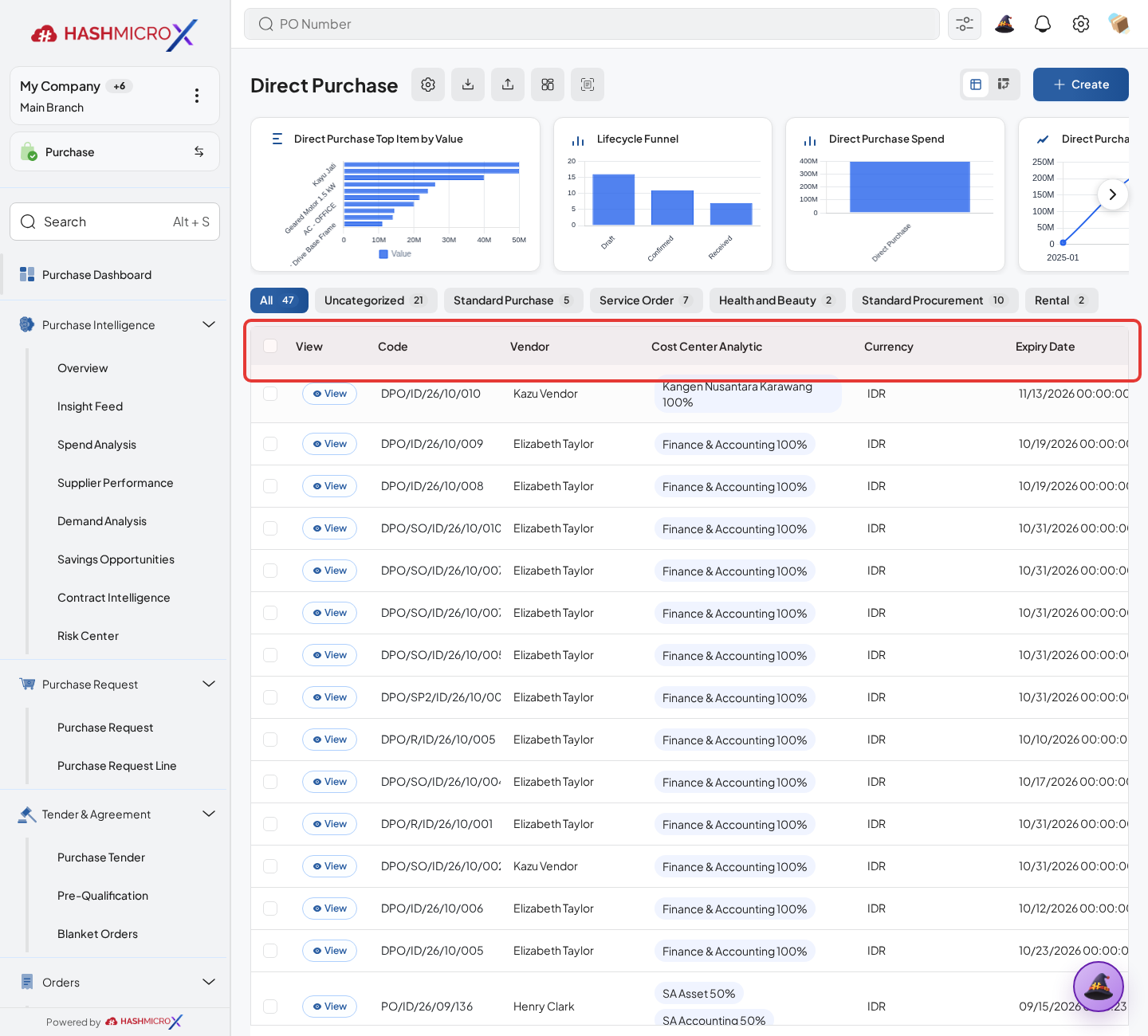
Figure 3.3.1 — HMX Main: Direct Purchase order list table framed in red Select vendor, order type, currency, payment term, and destination warehouse.
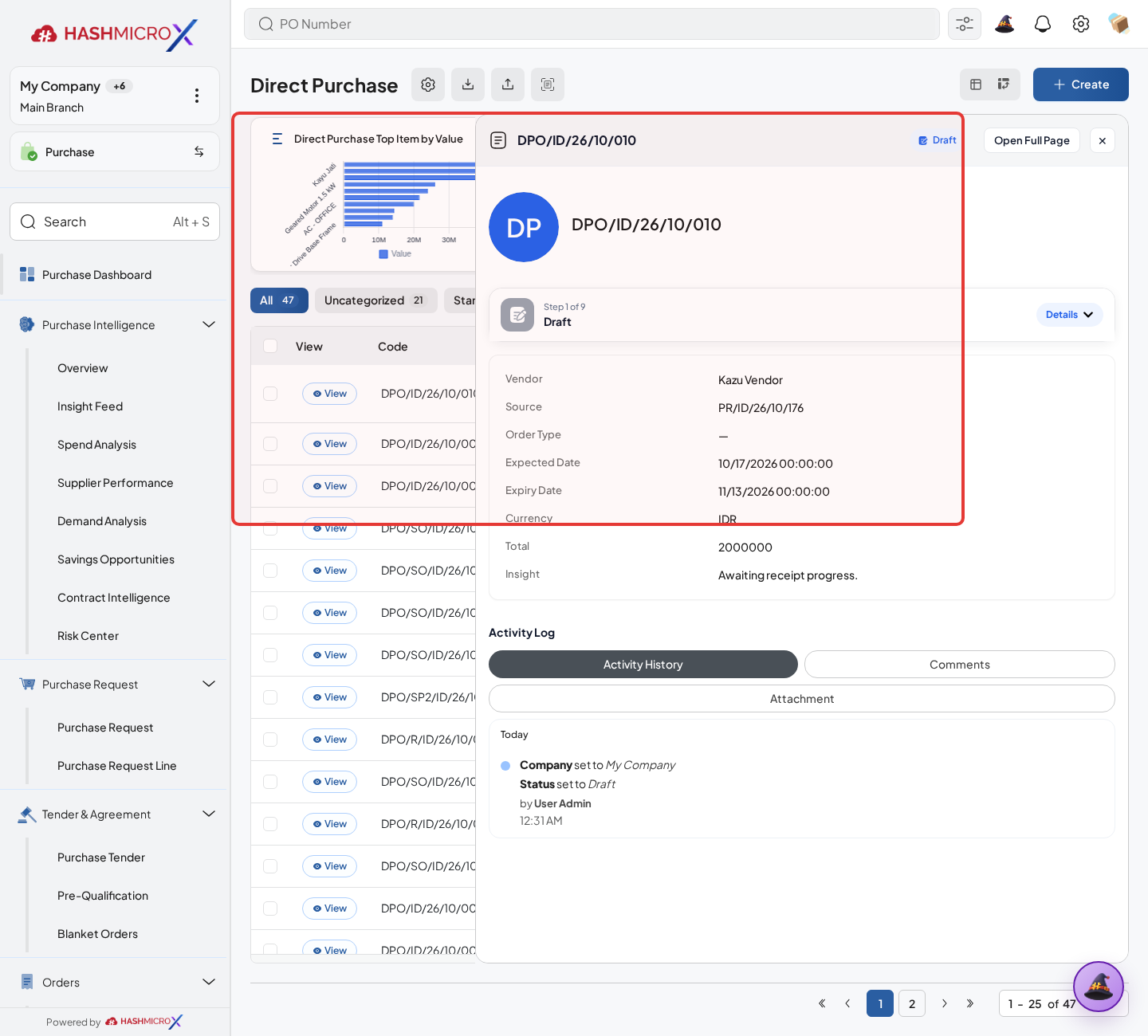
Figure 3.3.1.2 — HMX Main: Direct Purchase vendor, payment terms, and destination warehouse header framed in red Click Add a Line for each item being purchased directly. On every line, fill Product, UoM, Quantity, Unit Price, Tax, Discount, Destination Warehouse, and Planned Date because these fields drive the total, stock receipt, and vendor bill basis.
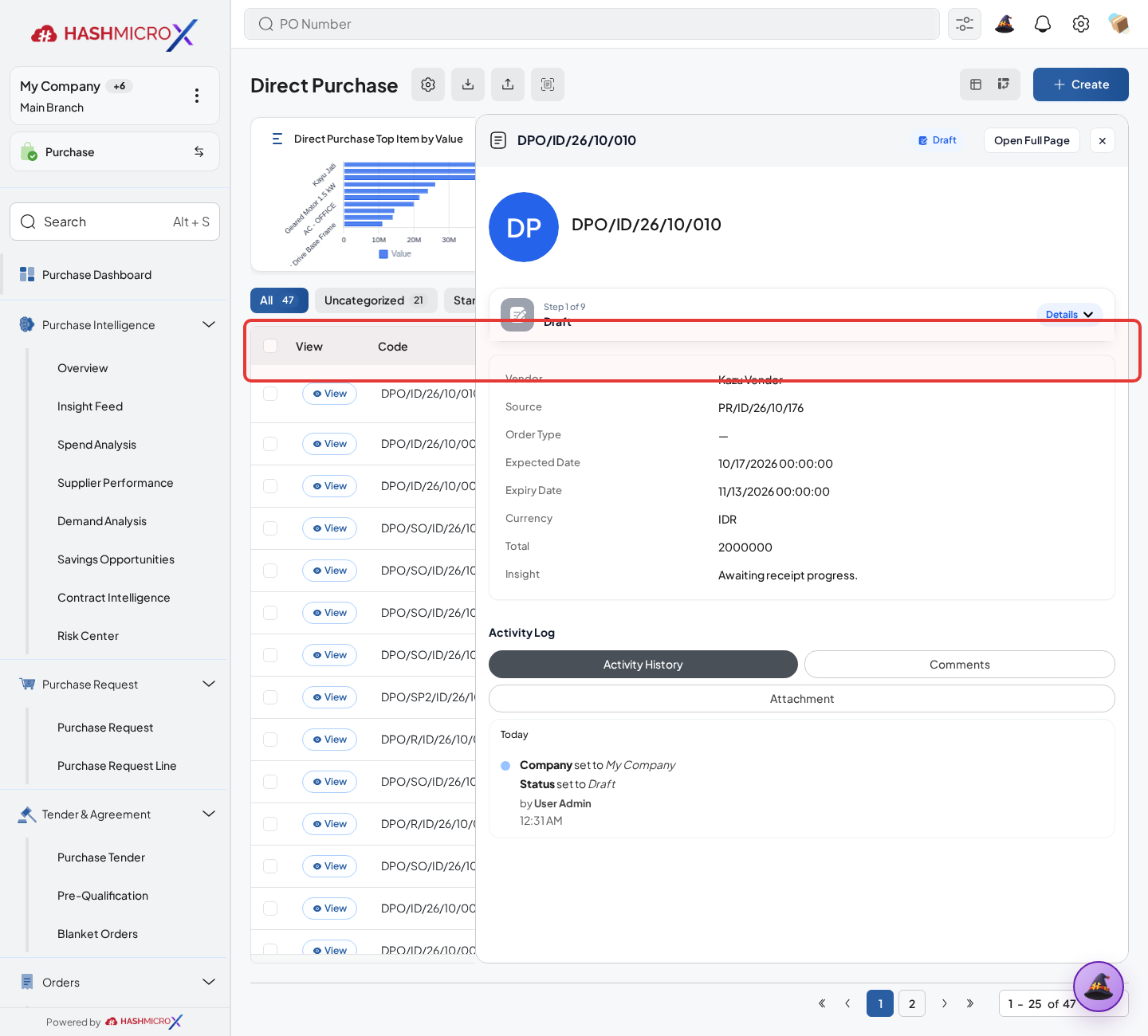
Figure 3.3.1.3 — HMX Main: Direct Purchase product lines, quantities, and pricing table framed in red Review subtotal, tax, total, bill behavior, and approval requirements before confirming.
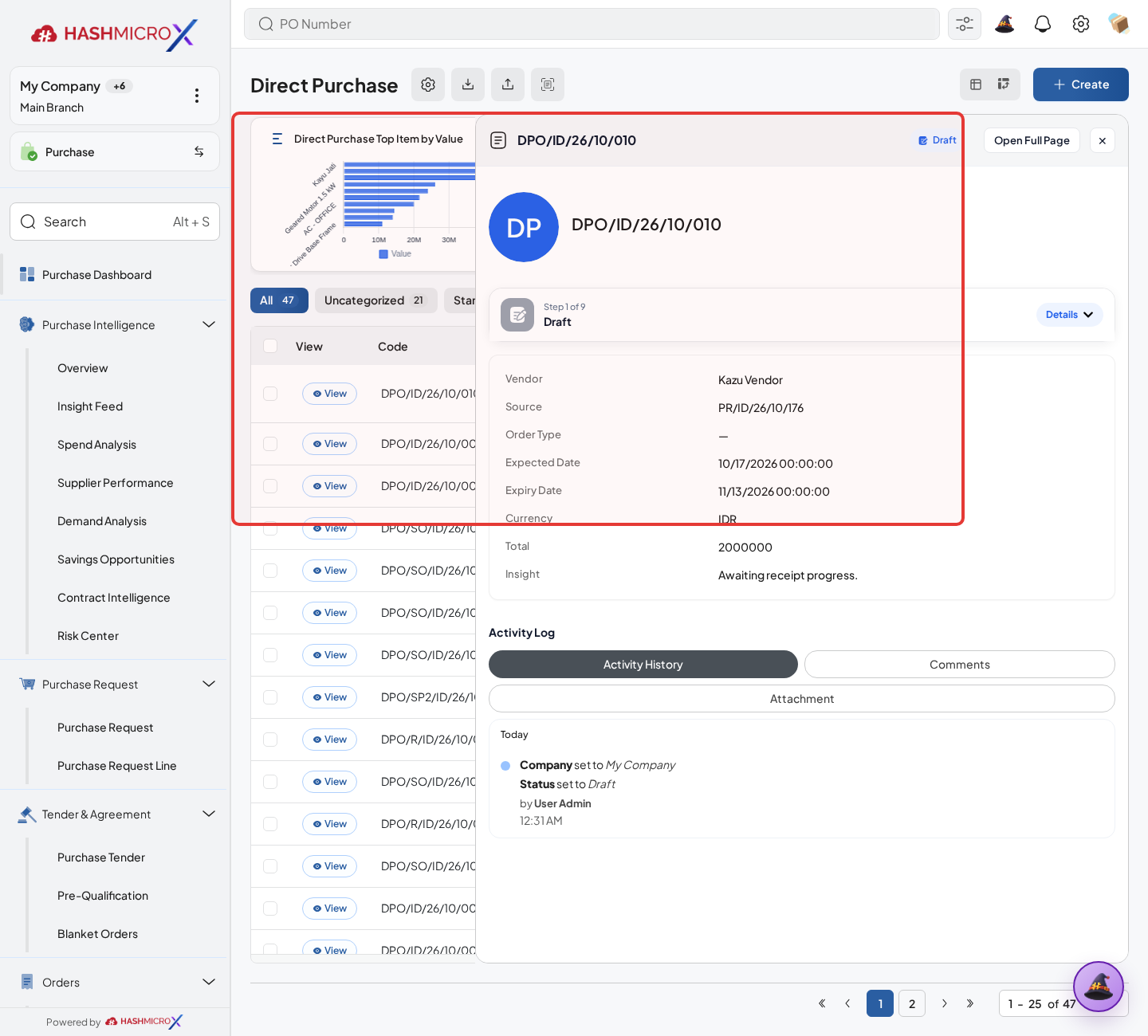
Figure 3.3.1.4 — HMX Main: Direct Purchase taxes and order total breakdown framed in red Confirm the direct purchase, then continue to receiving or vendor bill actions when required.
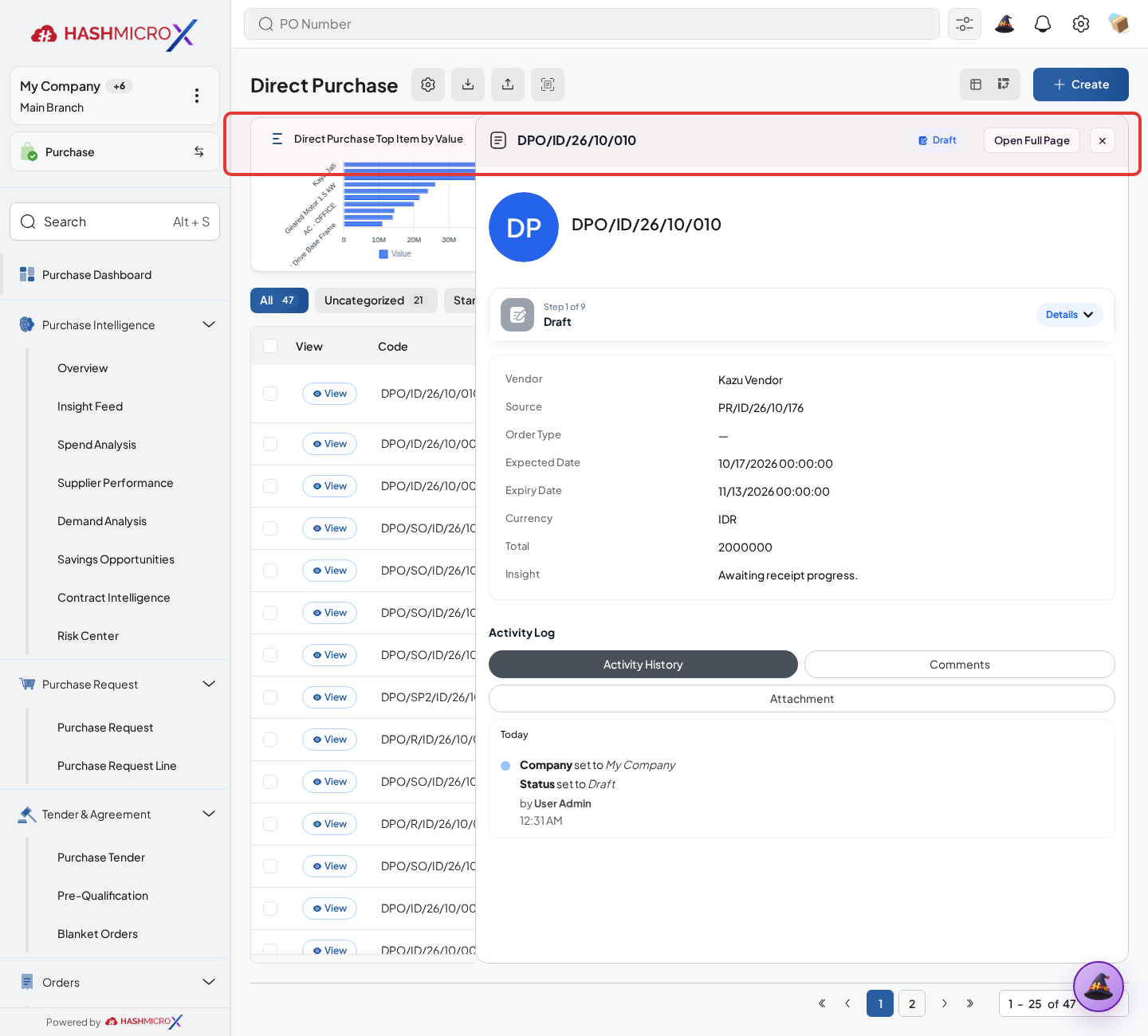
Figure 3.3.1.5 — HMX Main: Confirm Direct Purchase action button framed in red
Status and Result Guide
| Status / Result | What it means | Trigger | What to do |
|---|---|---|---|
| Draft | The document is being prepared and can still be edited. | User creates the record or resets it before confirmation. | Complete required fields and click the next workflow action. |
| Confirmed / Sent / In Progress | The document has entered the active purchasing workflow. | User clicks Confirm, Send RFQ, Submit, or a related processing action. | Monitor supplier response, approval, receiving, billing, or next action. |
| Approved / Done / Closed | The workflow result is accepted or completed. | Approver accepts the document, PO is confirmed, receipt/bill is processed, or document is closed. | Review linked documents and continue downstream processing. |
| Cancelled / Rejected | The workflow is stopped or not accepted. | User clicks Cancel/Reject or approval fails. | Review reason, correct the record if allowed, or create a replacement document. |
Field Reference
| Field | Required | Description | Example or note |
|---|---|---|---|
| Vendor | Yes | Supplier selected for direct buying. | Data type: Reference. |
| Order Type | Yes | Direct purchase classification. | Data type: Reference. |
| Product Lines | Yes | Products, quantity, price, tax, discount, warehouse, and date. | Data type: One2many. |
| Bill Behavior | No | May create draft or validated bill based on settings. | Data type: Selection. |
Common Scenarios
| Scenario | When to Use | Key Steps | Expected Result |
|---|---|---|---|
| Process Direct Purchase | Use when a purchasing document needs sourcing, approval, supplier confirmation, receiving, or billing. | Open Purchase > Purchase > Direct Purchase, create or open the document, complete required fields and lines, then use the verified workflow action. | The Purchase document moves to the next status and linked records become available when configured. |
| Correct Direct Purchase before completion | Use when document details are incomplete or incorrect before approval, confirmation, receipt, or billing. | Open the document, update editable fields and lines, save, then rerun the required action. | The corrected document continues through the Purchase workflow without duplicate records. |
Troubleshooting
| Issue | Possible Cause | How to fix it |
|---|---|---|
| The menu, button, or action is not visible. | The user role, document status, configuration, approval rule, or related module does not allow the action. | Check user access, document status, Purchase settings, approval setup, and required linked records before retrying. |
| The record cannot be saved, confirmed, approved, sent, received, billed, or closed. | A required field, vendor, product line, quantity, price, warehouse, tax, approval, or source document is missing or invalid. | Review highlighted fields and line tables, complete the missing values, save, then run the workflow action again. |
| The expected linked document is not created. | The source document is not in the required status, the configuration blocks automatic creation, or the related integration is disabled. | Confirm the source document status and configuration, then use the manual Create, Convert, Receiving, Bill, or Release action when available. |
3.4 Request for Quotation
Use Request for Quotation (RFQ) to collect and compare supplier quotation before confirming Purchase Order.
| Field Name | Data Type | Mandatory | Description & Function |
|---|---|---|---|
| Vendor | Reference | YES | Supplier receiving the RFQ. |
| Quotation Expiry Date | Date | Optional | RFQ validity deadline. |
| Purchase Team | Reference | Optional | Assigned sourcing team. |
| Send Email | Action | Optional | Sends RFQ email template to supplier. |
| Compare RFQ | Action | Optional | Compares vendors and shared product lines. |
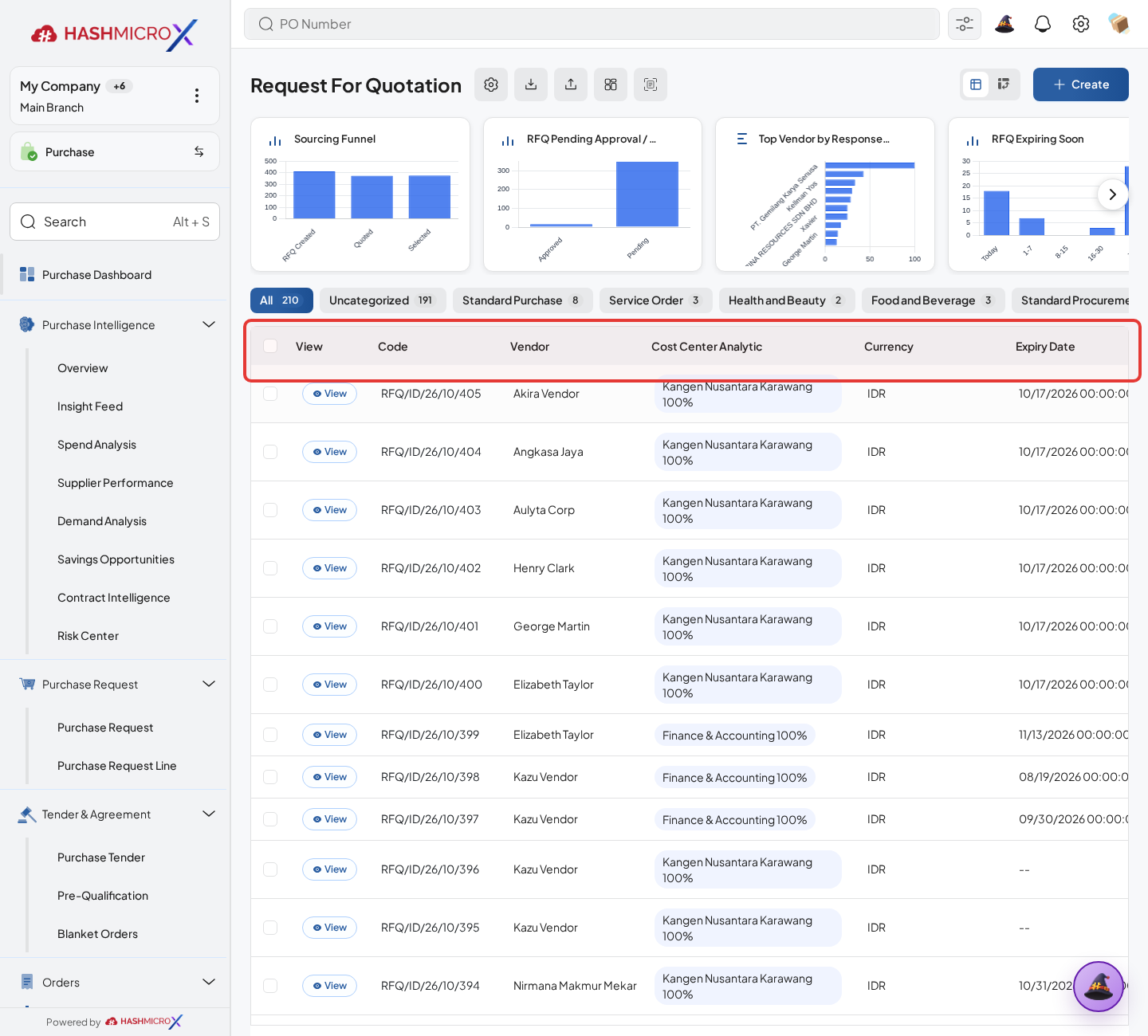
3.4.1 Send RFQ
Overview
Send RFQ to supplier so price, delivery date, and terms can be negotiated before order confirmation.
Prerequisites
- Vendor, product, purchase team, company, currency, and destination warehouse data are available when required.
- The user has access to create, confirm, approve, send, revise, close, or cancel the related Purchase document.
- Approval, RFQ, blanket, receiving, and billing settings are configured before the workflow is used.
Step-by-Step Instructions
- Open Purchase > Purchase > Request for Quotation. Open RFQ draft generated from PR, Blanket Order, Tender, or direct buyer entry.
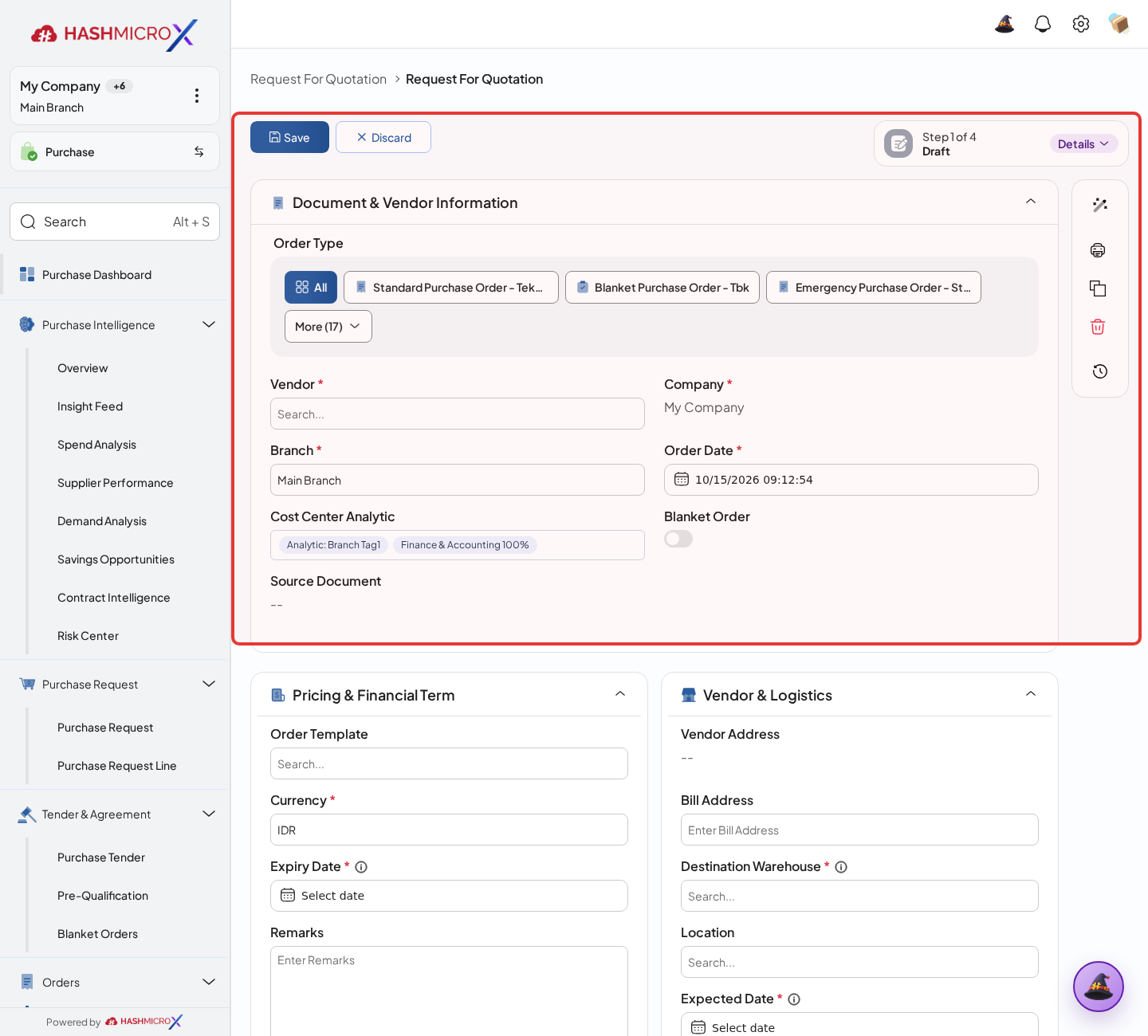
Figure 3.4.1.1 — HMX Main: Send RFQ action button and mail communication header framed in red - Check vendor, purchase team, currency, and expected date, then review each RFQ line for Product, Quantity, UoM, Unit Price, Tax, Discount, and Planned Date.
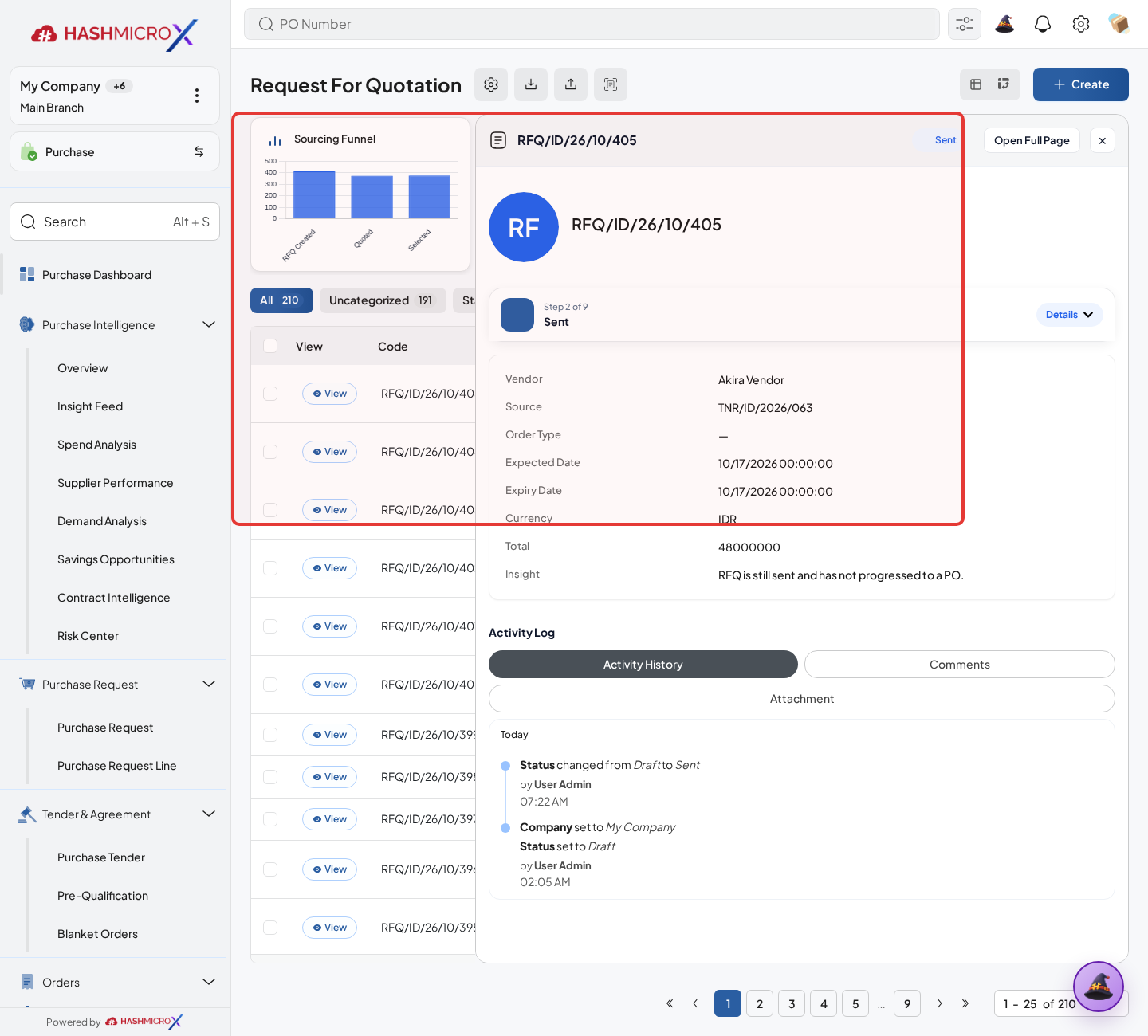
Figure 3.4.1.2 — HMX Main: Request for Quotation vendor parameters and deadline header framed in red - Click Send Email or Send RFQ according to available action.
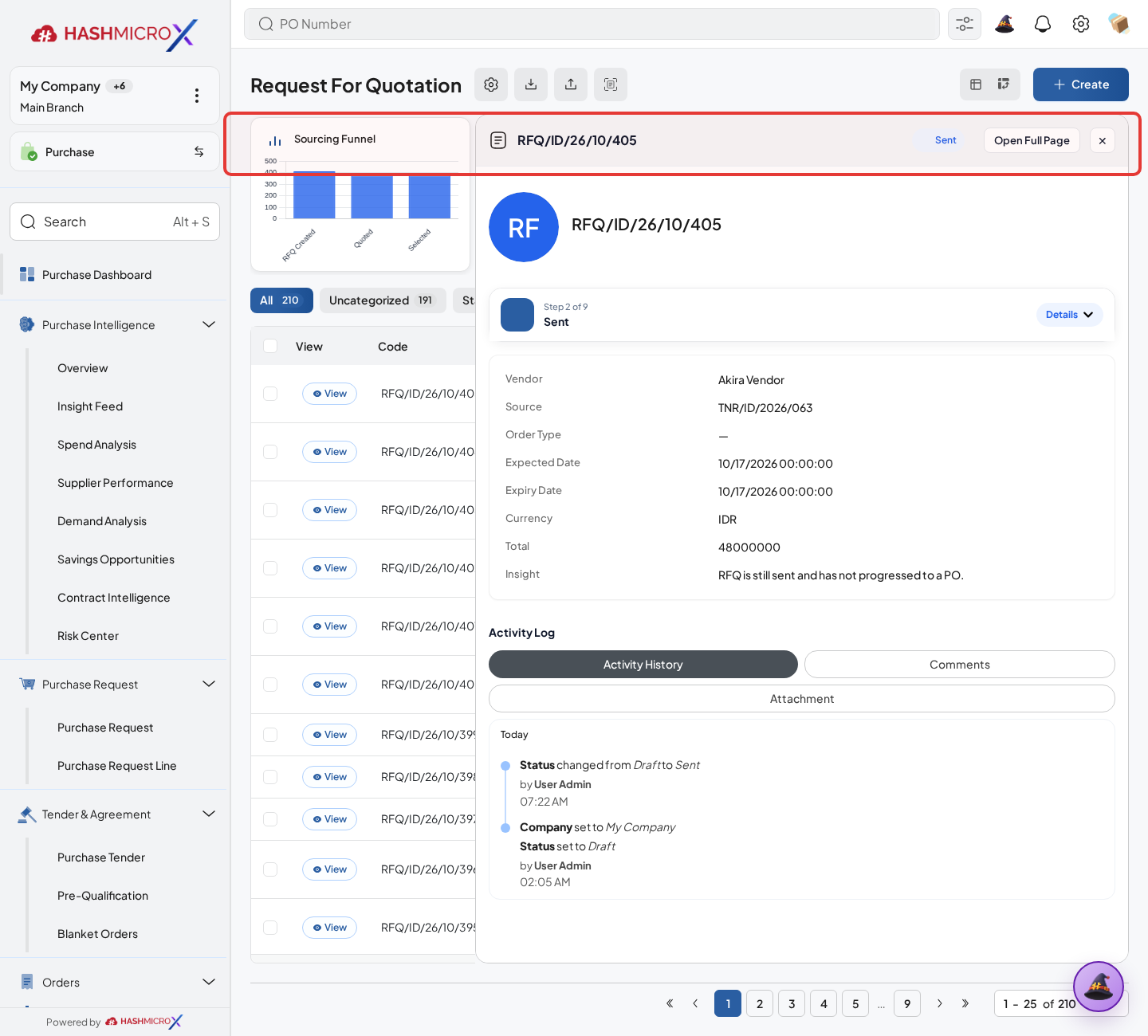
Figure 3.4.1.3 — HMX Main: Send by Email action button on RFQ framed in red - Review the email template and send it to the supplier.
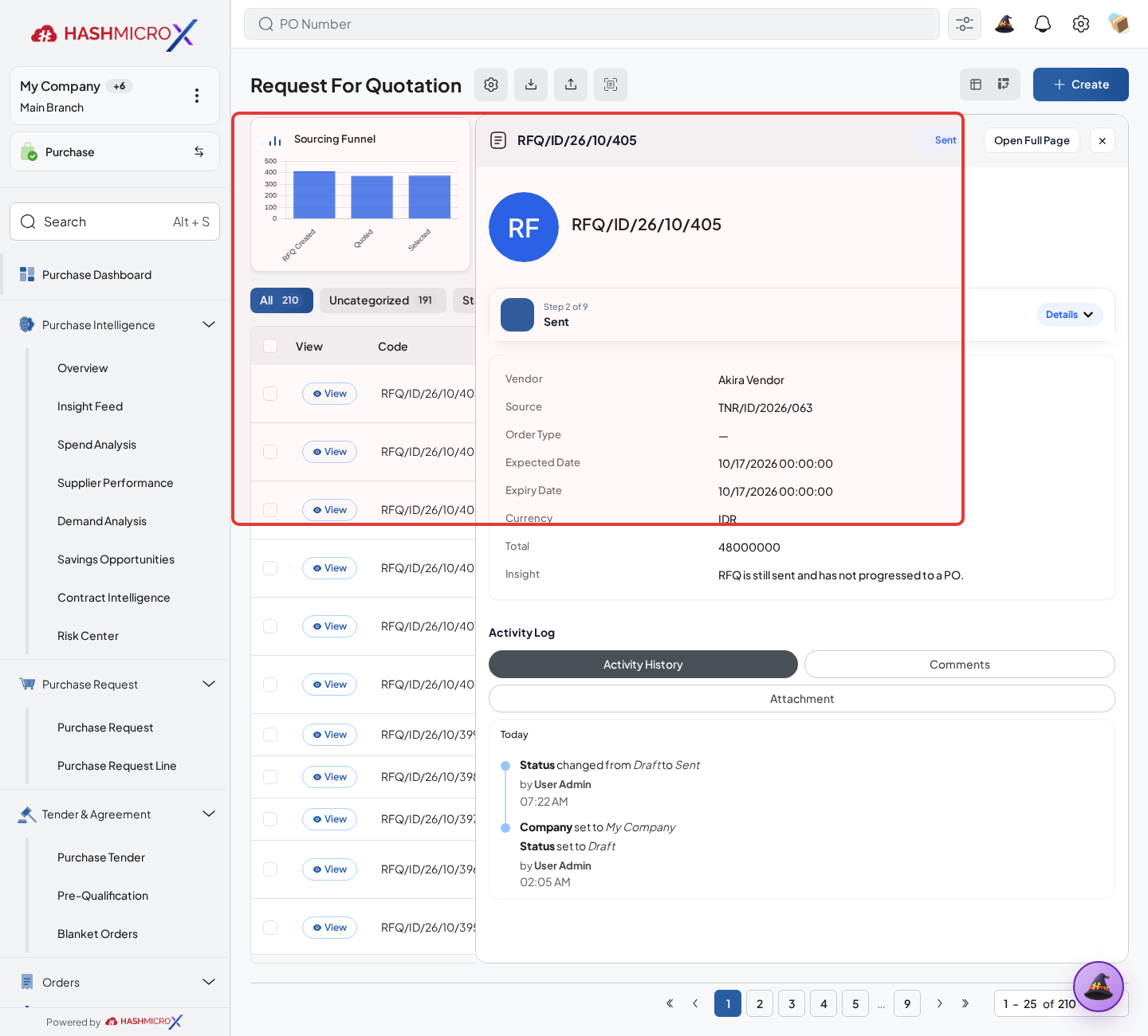
Figure 3.4.1.4 — HMX Main: RFQ mail communication template and chatter history framed in red - Track quotation status and supplier response before conversion.
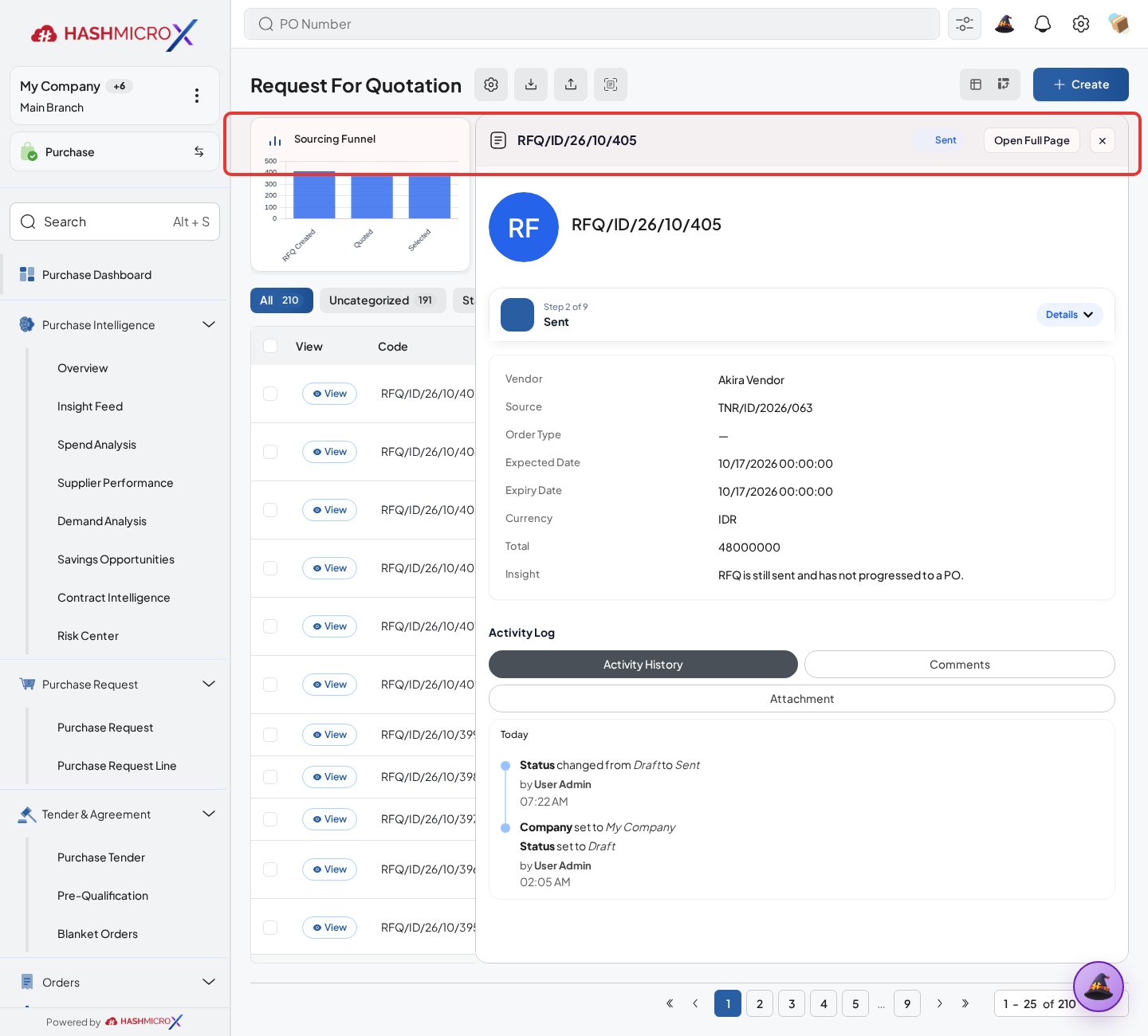
Figure 3.4.1.5 — HMX Main: RFQ Sent statusbar workflow state tracking framed in red
Status and Result Guide
| Status / Result | What it means | Trigger | What to do |
|---|---|---|---|
| Draft | The document is being prepared and can still be edited. | User creates the record or resets it before confirmation. | Complete required fields and click the next workflow action. |
| Confirmed / Sent / In Progress | The document has entered the active purchasing workflow. | User clicks Confirm, Send RFQ, Submit, or a related processing action. | Monitor supplier response, approval, receiving, billing, or next action. |
| Approved / Done / Closed | The workflow result is accepted or completed. | Approver accepts the document, PO is confirmed, receipt/bill is processed, or document is closed. | Review linked documents and continue downstream processing. |
| Cancelled / Rejected | The workflow is stopped or not accepted. | User clicks Cancel/Reject or approval fails. | Review reason, correct the record if allowed, or create a replacement document. |
Field Reference
| Field | Required | Description | Example or note |
|---|---|---|---|
| Vendor | Yes | Supplier receiving the quotation request. | Data type: Reference. |
| Expected Date | No | Requested delivery date for quotation lines. | Data type: Date. |
| Send Email | No | Sends RFQ template to supplier. | Data type: Action. |
| RFQ State | Yes | Shows draft, sent, purchase order, or cancelled lifecycle. | Data type: Status. |
Common Scenarios
| Scenario | When to Use | Key Steps | Expected Result |
|---|---|---|---|
| Process Send RFQ | Use when a purchasing document needs sourcing, approval, supplier confirmation, receiving, or billing. | Open Purchase > Purchase > Request for Quotation, create or open the document, complete required fields and lines, then use the verified workflow action. | The Purchase document moves to the next status and linked records become available when configured. |
| Correct Send RFQ before completion | Use when document details are incomplete or incorrect before approval, confirmation, receipt, or billing. | Open the document, update editable fields and lines, save, then rerun the required action. | The corrected document continues through the Purchase workflow without duplicate records. |
Troubleshooting
| Issue | Possible Cause | How to fix it |
|---|---|---|
| The menu, button, or action is not visible. | The user role, document status, configuration, approval rule, or related module does not allow the action. | Check user access, document status, Purchase settings, approval setup, and required linked records before retrying. |
| The record cannot be saved, confirmed, approved, sent, received, billed, or closed. | A required field, vendor, product line, quantity, price, warehouse, tax, approval, or source document is missing or invalid. | Review highlighted fields and line tables, complete the missing values, save, then run the workflow action again. |
| The expected linked document is not created. | The source document is not in the required status, the configuration blocks automatic creation, or the related integration is disabled. | Confirm the source document status and configuration, then use the manual Create, Convert, Receiving, Bill, or Release action when available. |
3.4.2 Compare RFQ
Overview
Compare supplier quotation alternatives before selecting the most suitable vendor.
Prerequisites
- Vendor, product, purchase team, company, currency, and destination warehouse data are available when required.
- The user has access to create, confirm, approve, send, revise, close, or cancel the related Purchase document.
- Approval, RFQ, blanket, receiving, and billing settings are configured before the workflow is used.
Step-by-Step Instructions
- Open Purchase > Purchase > Request for Quotation. Open RFQ Comparison from RFQ action or Reporting.
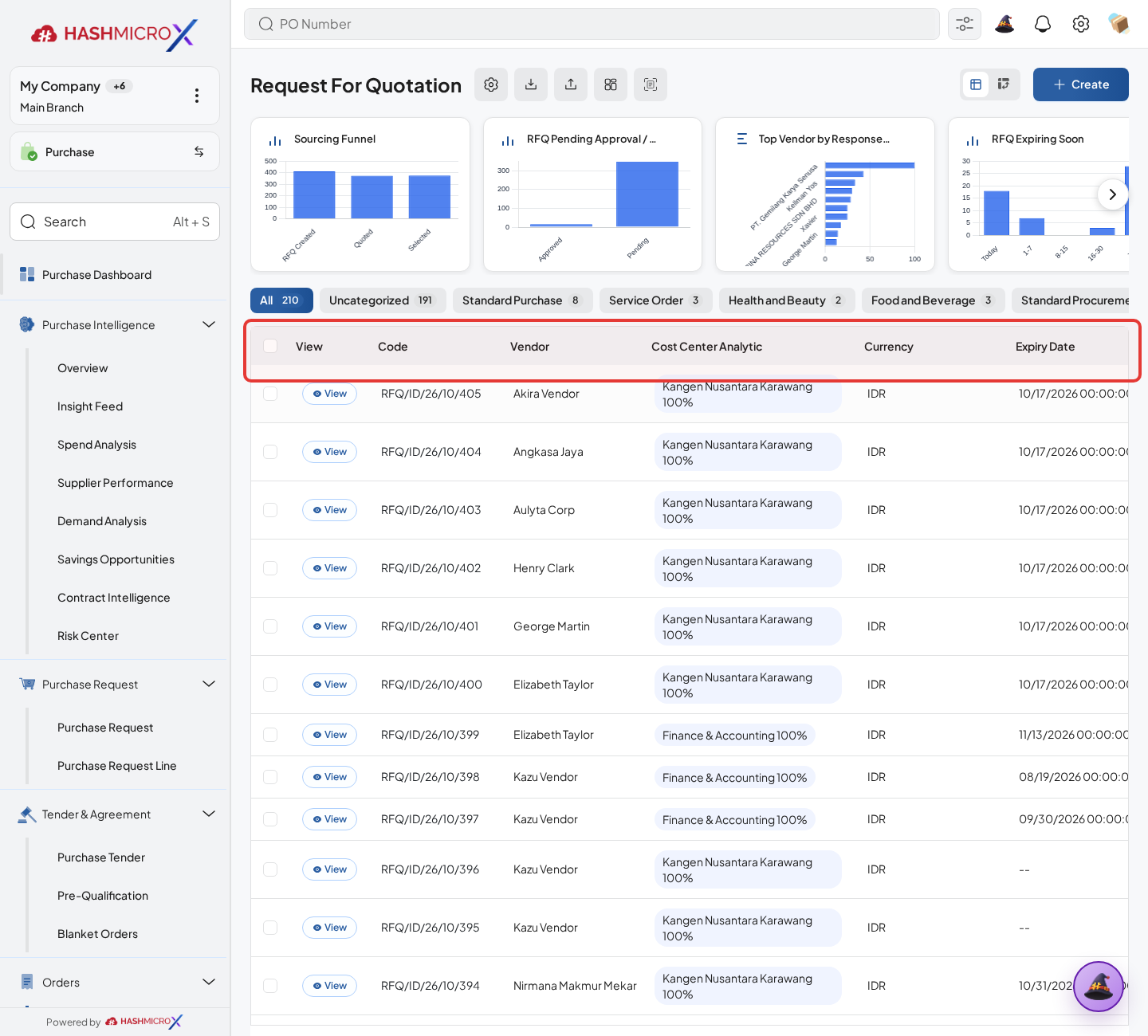
Figure 3.4.2.1 — HMX Main: RFQ comparison controls and active quotes overview framed in red - Select RFQs that share comparable products.
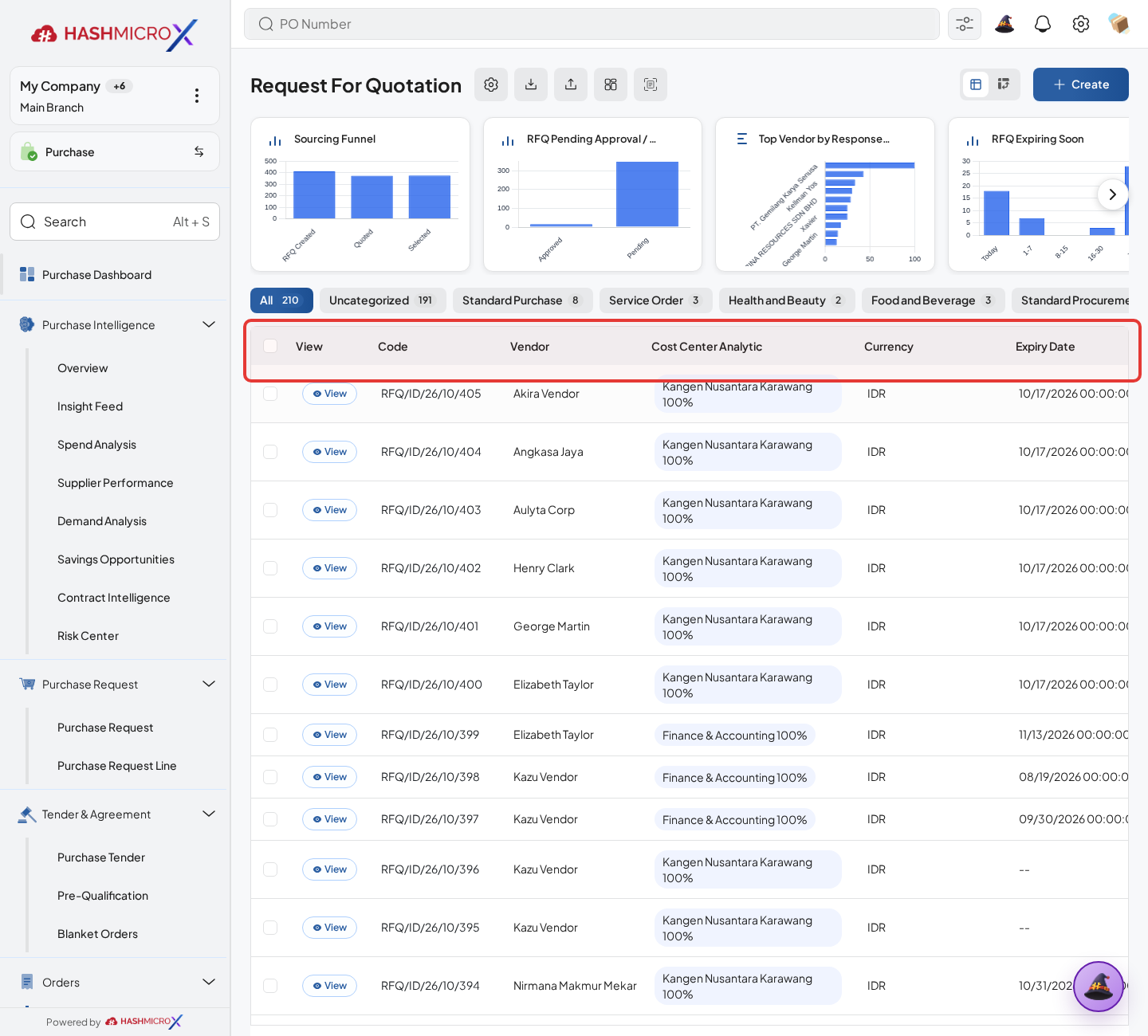
Figure 3.4.2.2 — HMX Main: Multiple RFQ selection for comparative analysis framed in red - Review each comparable RFQ line for Product, Vendor, Price, Expected Date, Payment Term, Lead Time, and supplier history. These values decide the preferred offer.
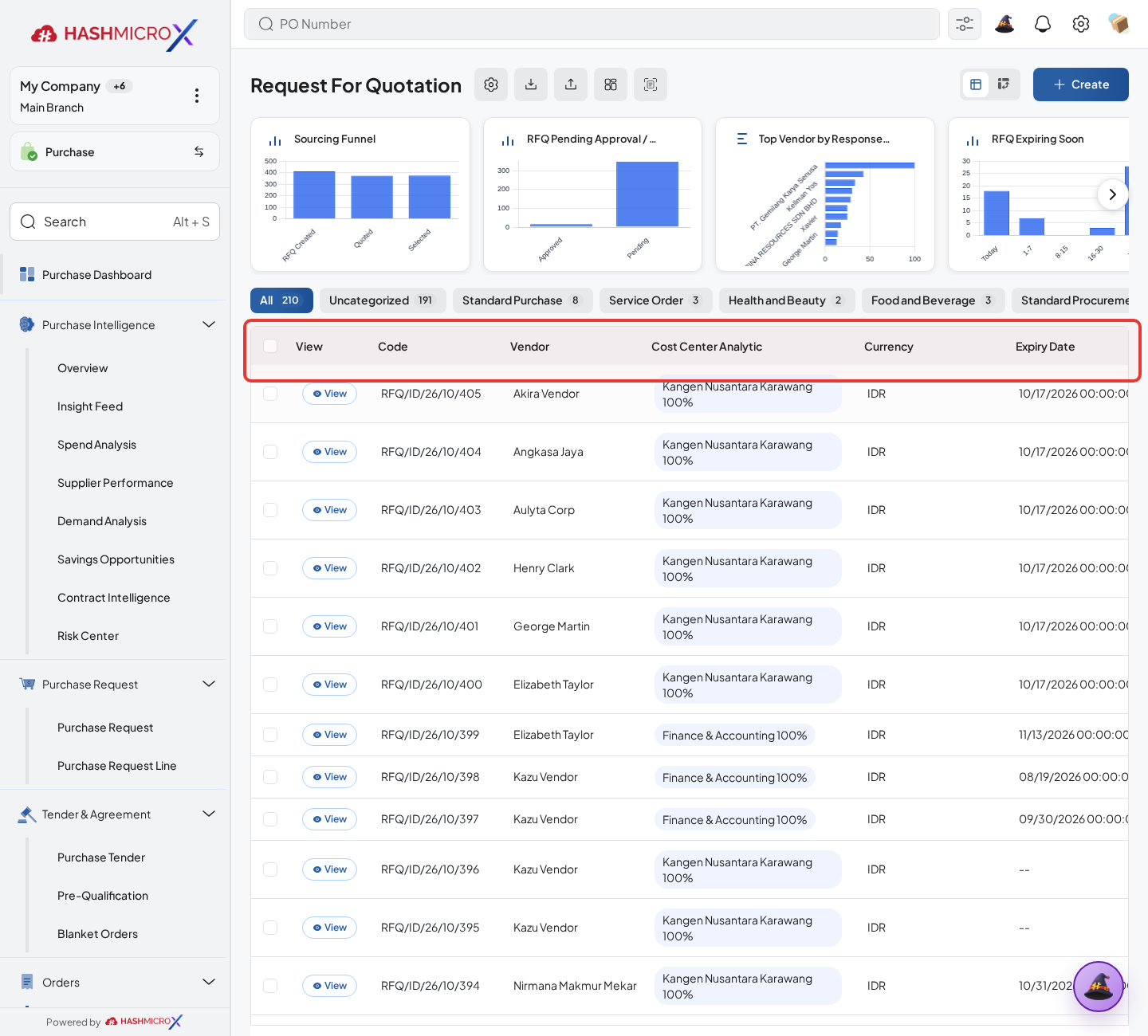
Figure 3.4.2.3 — HMX Main: RFQ comparison matrix comparing vendor pricing and delivery dates framed in red - Highlight preferred offer and record buying decision.
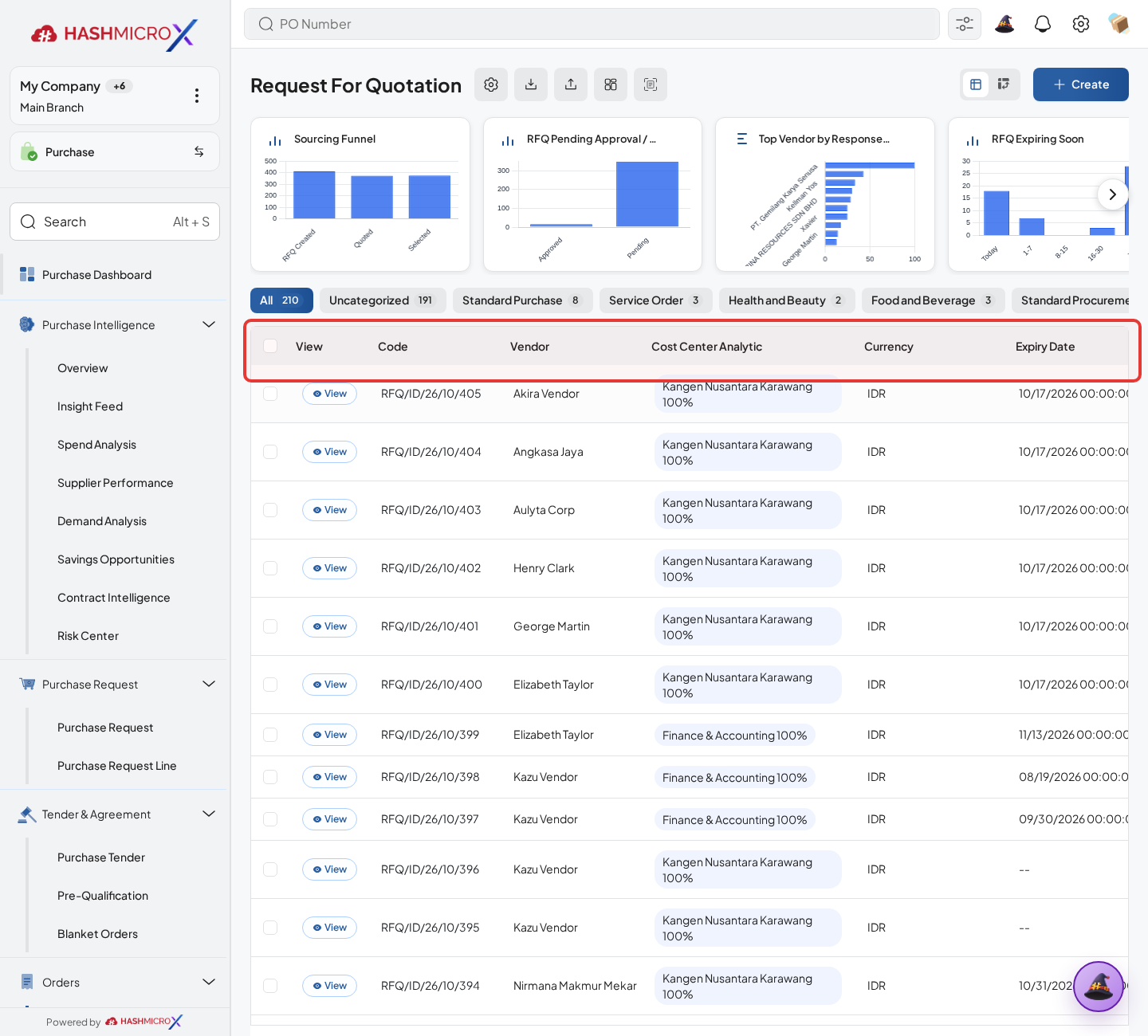
Figure 3.4.2.4 — HMX Main: Winning quotation selection and price evaluation framed in red - Return to the selected RFQ for conversion.
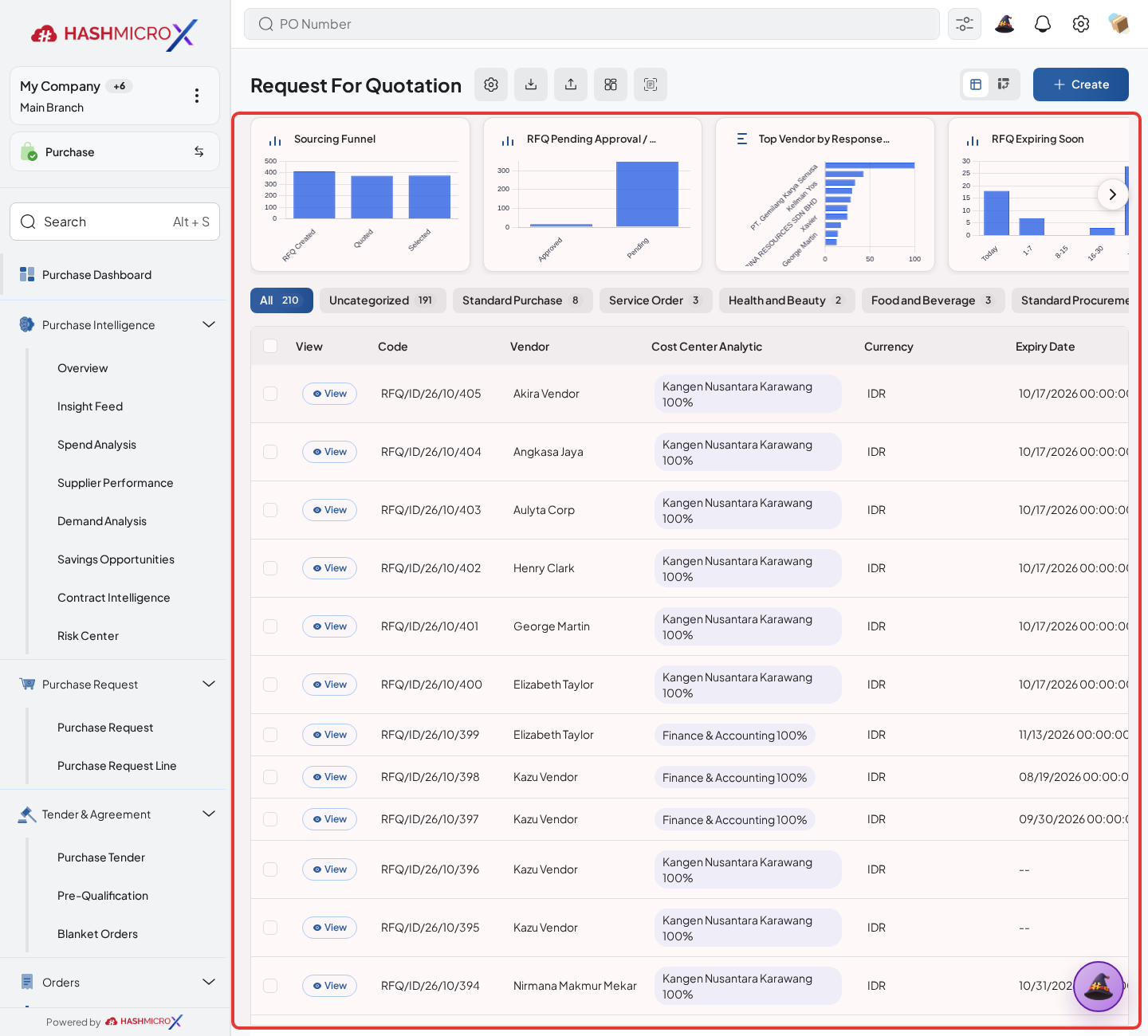
Figure 3.4.2.5 — HMX Main: Selected RFQ readiness for purchase order conversion framed in red
Status and Result Guide
| Status / Result | What it means | Trigger | What to do |
|---|---|---|---|
| Draft | The document is being prepared and can still be edited. | User creates the record or resets it before confirmation. | Complete required fields and click the next workflow action. |
| Confirmed / Sent / In Progress | The document has entered the active purchasing workflow. | User clicks Confirm, Send RFQ, Submit, or a related processing action. | Monitor supplier response, approval, receiving, billing, or next action. |
| Approved / Done / Closed | The workflow result is accepted or completed. | Approver accepts the document, PO is confirmed, receipt/bill is processed, or document is closed. | Review linked documents and continue downstream processing. |
| Cancelled / Rejected | The workflow is stopped or not accepted. | User clicks Cancel/Reject or approval fails. | Review reason, correct the record if allowed, or create a replacement document. |
Field Reference
| Field | Required | Description | Example or note |
|---|---|---|---|
| Shared Products | Yes | Products included in the compared RFQs. | Data type: Computed Data. |
| Unit Price | Yes | Supplier quoted price per product. | Data type: Amount. |
| Expected Date | No | Supplier delivery commitment. | Data type: Date. |
| Payment Terms | No | Commercial payment term used for comparison. | Data type: Reference. |
Common Scenarios
| Scenario | When to Use | Key Steps | Expected Result |
|---|---|---|---|
| Process Compare RFQ | Use when a purchasing document needs sourcing, approval, supplier confirmation, receiving, or billing. | Open Purchase > Purchase > Request for Quotation, create or open the document, complete required fields and lines, then use the verified workflow action. | The Purchase document moves to the next status and linked records become available when configured. |
| Correct Compare RFQ before completion | Use when document details are incomplete or incorrect before approval, confirmation, receipt, or billing. | Open the document, update editable fields and lines, save, then rerun the required action. | The corrected document continues through the Purchase workflow without duplicate records. |
Troubleshooting
| Issue | Possible Cause | How to fix it |
|---|---|---|
| The menu, button, or action is not visible. | The user role, document status, configuration, approval rule, or related module does not allow the action. | Check user access, document status, Purchase settings, approval setup, and required linked records before retrying. |
| The record cannot be saved, confirmed, approved, sent, received, billed, or closed. | A required field, vendor, product line, quantity, price, warehouse, tax, approval, or source document is missing or invalid. | Review highlighted fields and line tables, complete the missing values, save, then run the workflow action again. |
| The expected linked document is not created. | The source document is not in the required status, the configuration blocks automatic creation, or the related integration is disabled. | Confirm the source document status and configuration, then use the manual Create, Convert, Receiving, Bill, or Release action when available. |
3.4.3 Convert RFQ to Purchase Order
Overview
Convert selected RFQ into Purchase Order after vendor, price, and quantity are accepted.
Prerequisites
- Vendor, product, purchase team, company, currency, and destination warehouse data are available when required.
- The user has access to create, confirm, approve, send, revise, close, or cancel the related Purchase document.
- Approval, RFQ, blanket, receiving, and billing settings are configured before the workflow is used.
Step-by-Step Instructions
- Open Purchase > Purchase > Request for Quotation. Open the winning RFQ.
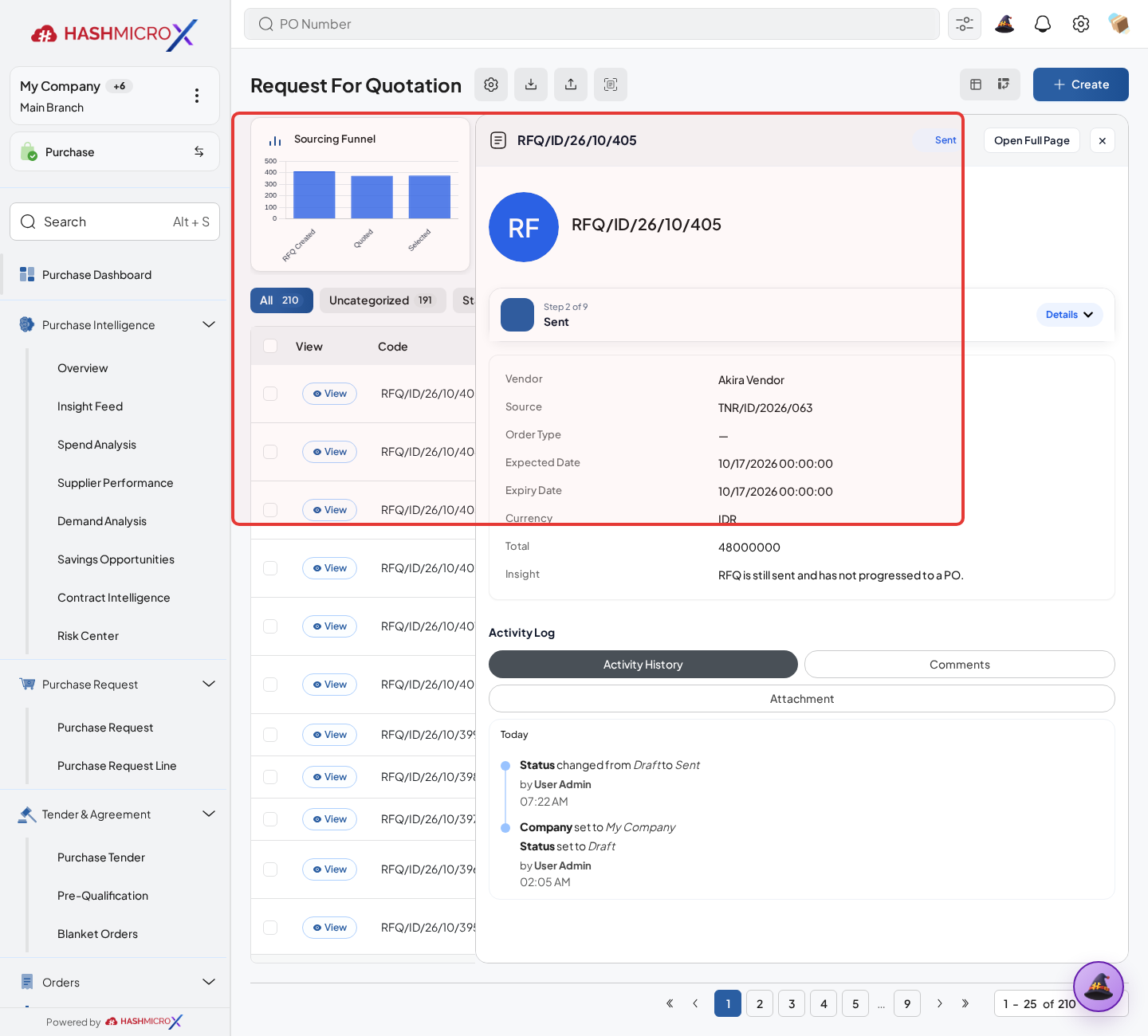
Figure 3.4.3.1 — HMX Main: Convert RFQ to Purchase Order action button framed in red - Confirm vendor, order type, and warehouse, then review each order line for Product, Quantity, UoM, Unit Price, Taxes, Discount, Destination Warehouse, and Planned Date.
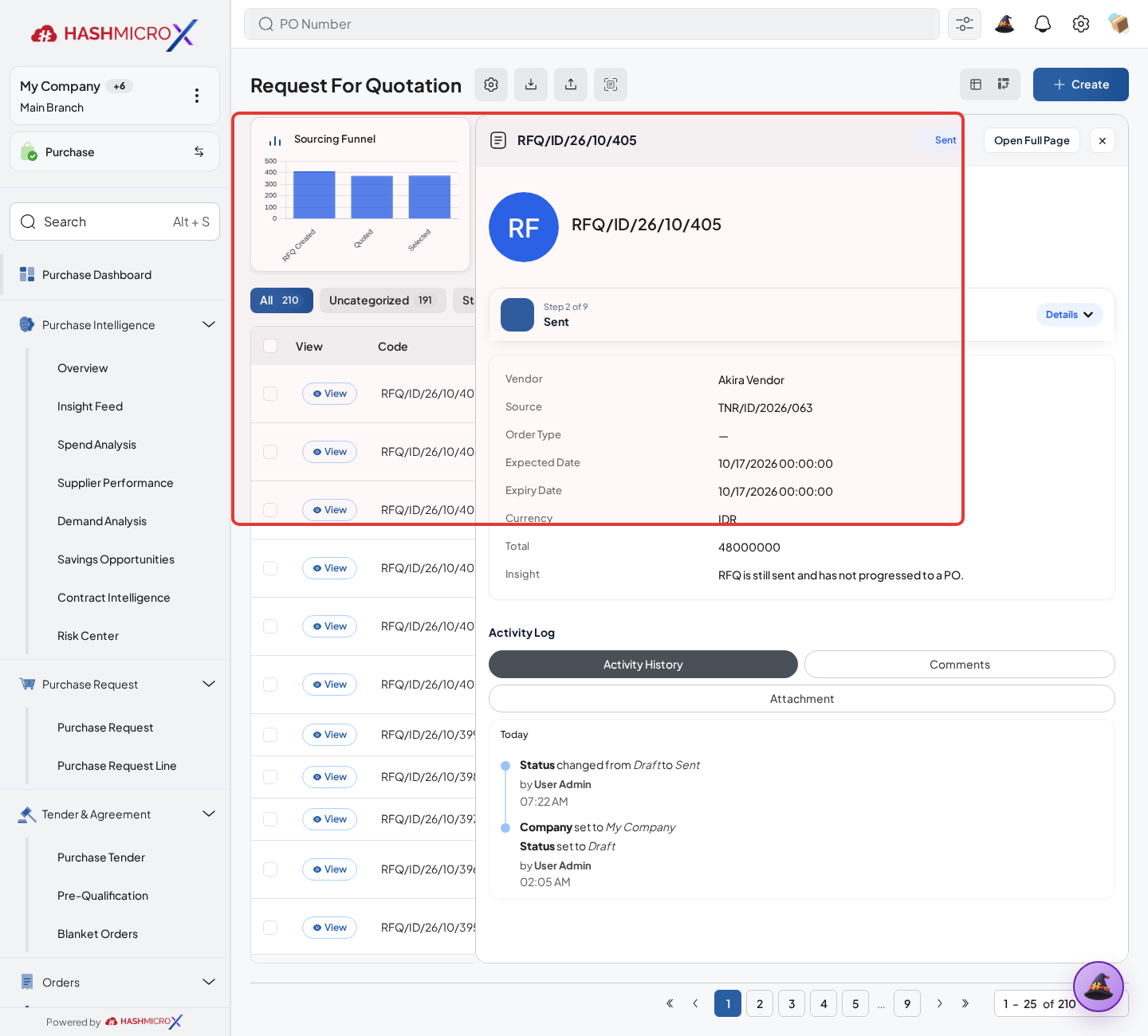
Figure 3.4.3.2 — HMX Main: Winning RFQ terms, product lines, and agreed rates validation framed in red - Click Confirm Order or Purchase Order action.
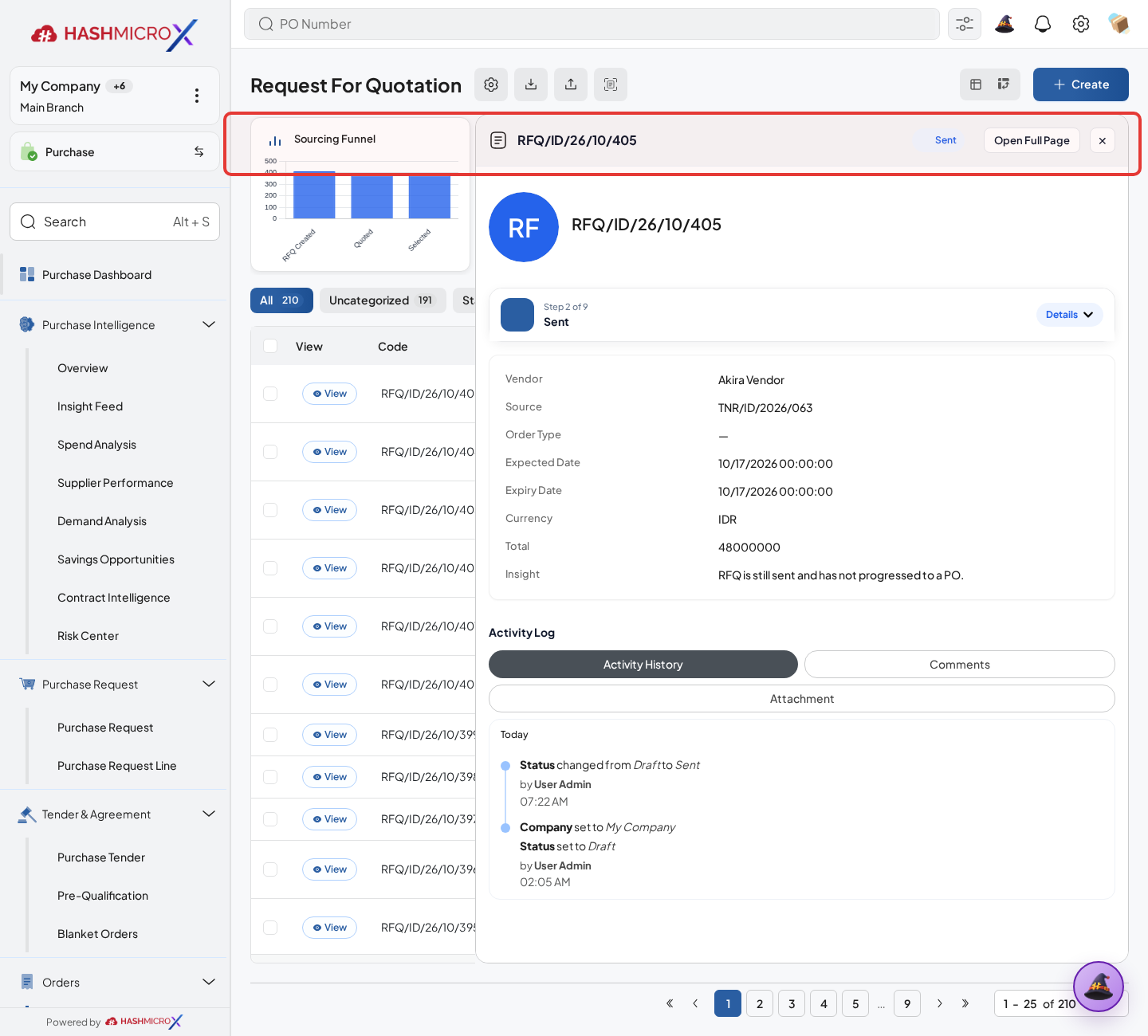
Figure 3.4.3.3 — HMX Main: Confirm Order action button to convert RFQ to PO framed in red - Review the generated Purchase Order state and smart buttons.
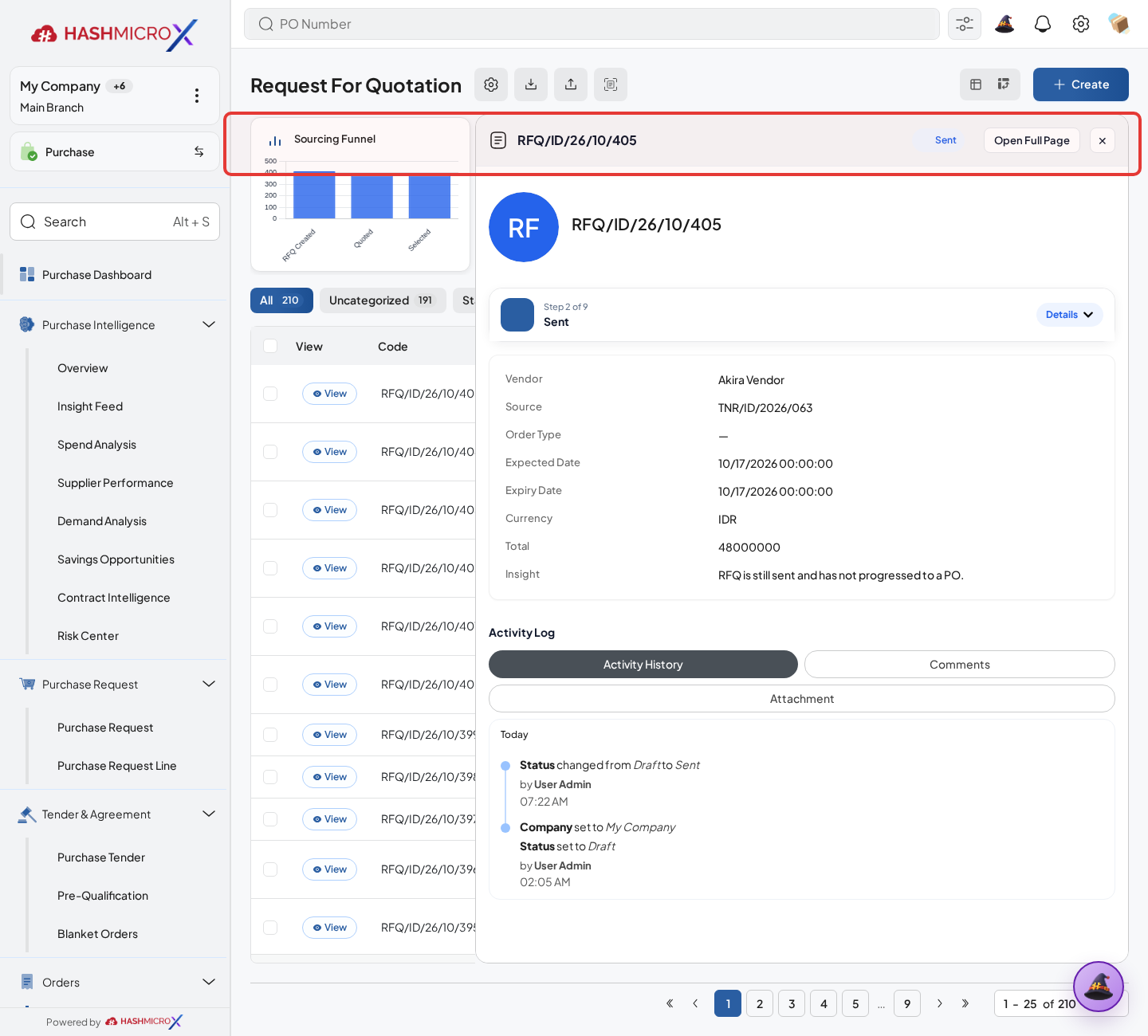
Figure 3.4.3.4 — HMX Main: Generated Purchase Order reference number and confirmed state framed in red - Continue to receiving or billing based on product and policy.
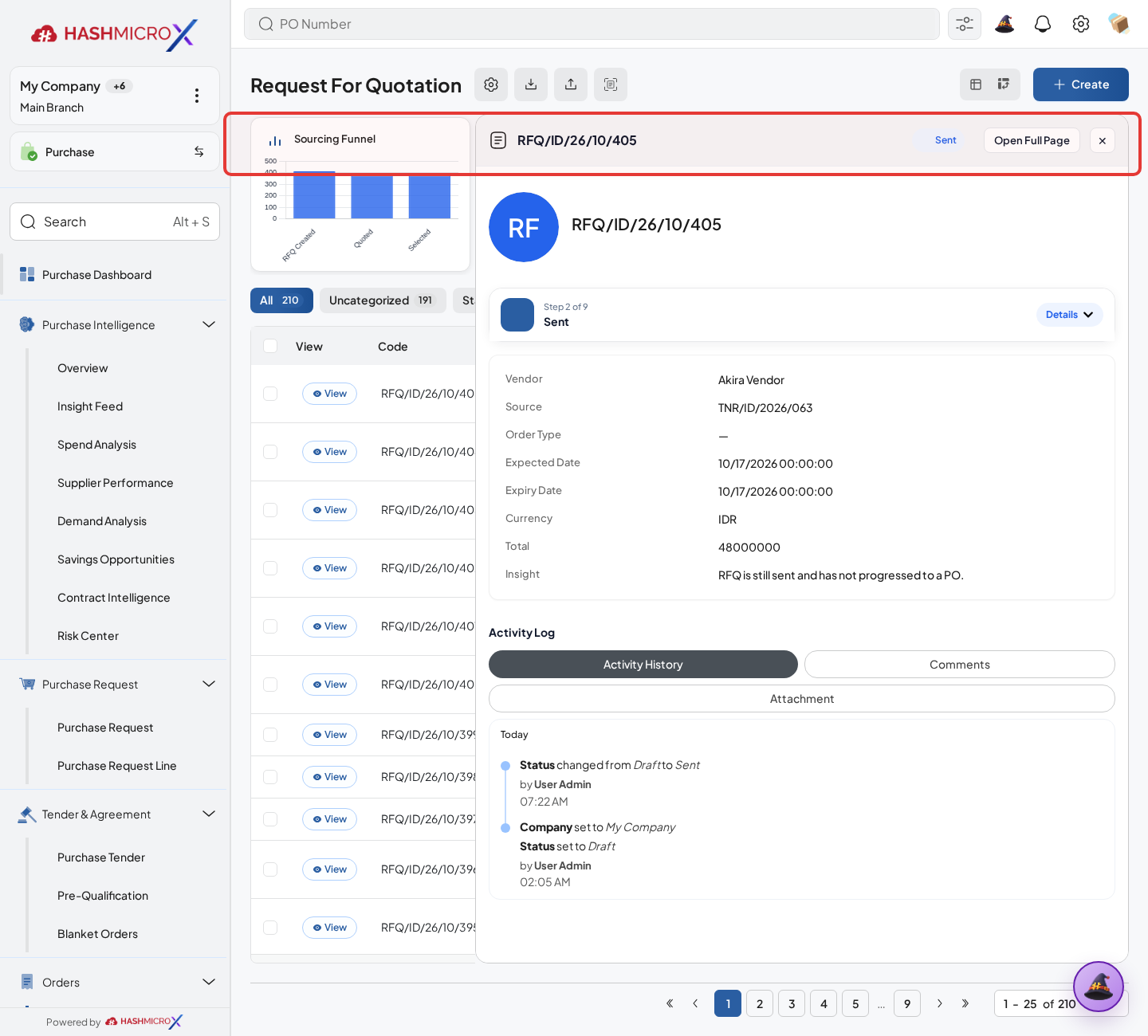
Figure 3.4.3.5 — HMX Main: Purchase Order smart buttons for downstream receiving and billing framed in red
Status and Result Guide
| Status / Result | What it means | Trigger | What to do |
|---|---|---|---|
| Draft | The document is being prepared and can still be edited. | User creates the record or resets it before confirmation. | Complete required fields and click the next workflow action. |
| Confirmed / Sent / In Progress | The document has entered the active purchasing workflow. | User clicks Confirm, Send RFQ, Submit, or a related processing action. | Monitor supplier response, approval, receiving, billing, or next action. |
| Approved / Done / Closed | The workflow result is accepted or completed. | Approver accepts the document, PO is confirmed, receipt/bill is processed, or document is closed. | Review linked documents and continue downstream processing. |
| Cancelled / Rejected | The workflow is stopped or not accepted. | User clicks Cancel/Reject or approval fails. | Review reason, correct the record if allowed, or create a replacement document. |
Field Reference
| Field | Required | Description | Example or note |
|---|---|---|---|
| Confirm Order | Yes | Converts RFQ into Purchase Order commitment. | Data type: Action. |
| Order Type | No | Classifies the resulting purchase document. | Data type: Reference. |
| Purchase Order | Yes | Generated confirmed order from RFQ. | Data type: Document Link. |
| Receiving / Billing | No | Downstream documents opened from the PO. | Data type: Smart Button. |
Common Scenarios
| Scenario | When to Use | Key Steps | Expected Result |
|---|---|---|---|
| Process Convert RFQ to Purchase Order | Use when a purchasing document needs sourcing, approval, supplier confirmation, receiving, or billing. | Open Purchase > Purchase > Request for Quotation, create or open the document, complete required fields and lines, then use the verified workflow action. | The Purchase document moves to the next status and linked records become available when configured. |
| Correct Convert RFQ to Purchase Order before completion | Use when document details are incomplete or incorrect before approval, confirmation, receipt, or billing. | Open the document, update editable fields and lines, save, then rerun the required action. | The corrected document continues through the Purchase workflow without duplicate records. |
Troubleshooting
| Issue | Possible Cause | How to fix it |
|---|---|---|
| The menu, button, or action is not visible. | The user role, document status, configuration, approval rule, or related module does not allow the action. | Check user access, document status, Purchase settings, approval setup, and required linked records before retrying. |
| The record cannot be saved, confirmed, approved, sent, received, billed, or closed. | A required field, vendor, product line, quantity, price, warehouse, tax, approval, or source document is missing or invalid. | Review highlighted fields and line tables, complete the missing values, save, then run the workflow action again. |
| The expected linked document is not created. | The source document is not in the required status, the configuration blocks automatic creation, or the related integration is disabled. | Confirm the source document status and configuration, then use the manual Create, Convert, Receiving, Bill, or Release action when available. |
3.5 Purchase Order
Use Purchase Order for confirmed purchase commitment to a vendor.
| Field Name | Data Type | Mandatory | Description & Function |
|---|---|---|---|
| Vendor | Reference | YES | Supplier selected for the order. |
| Order Date / Expected Date | Date | YES | Commercial and delivery dates. |
| Warehouse / Location | Reference | Optional | Receiving destination for stockable items. |
| Create Bill | Action | Optional | Creates vendor bill when the PO is ready. |
| Revise / Close / Cancel | Action | Optional | Controls document changes and lifecycle end state. |
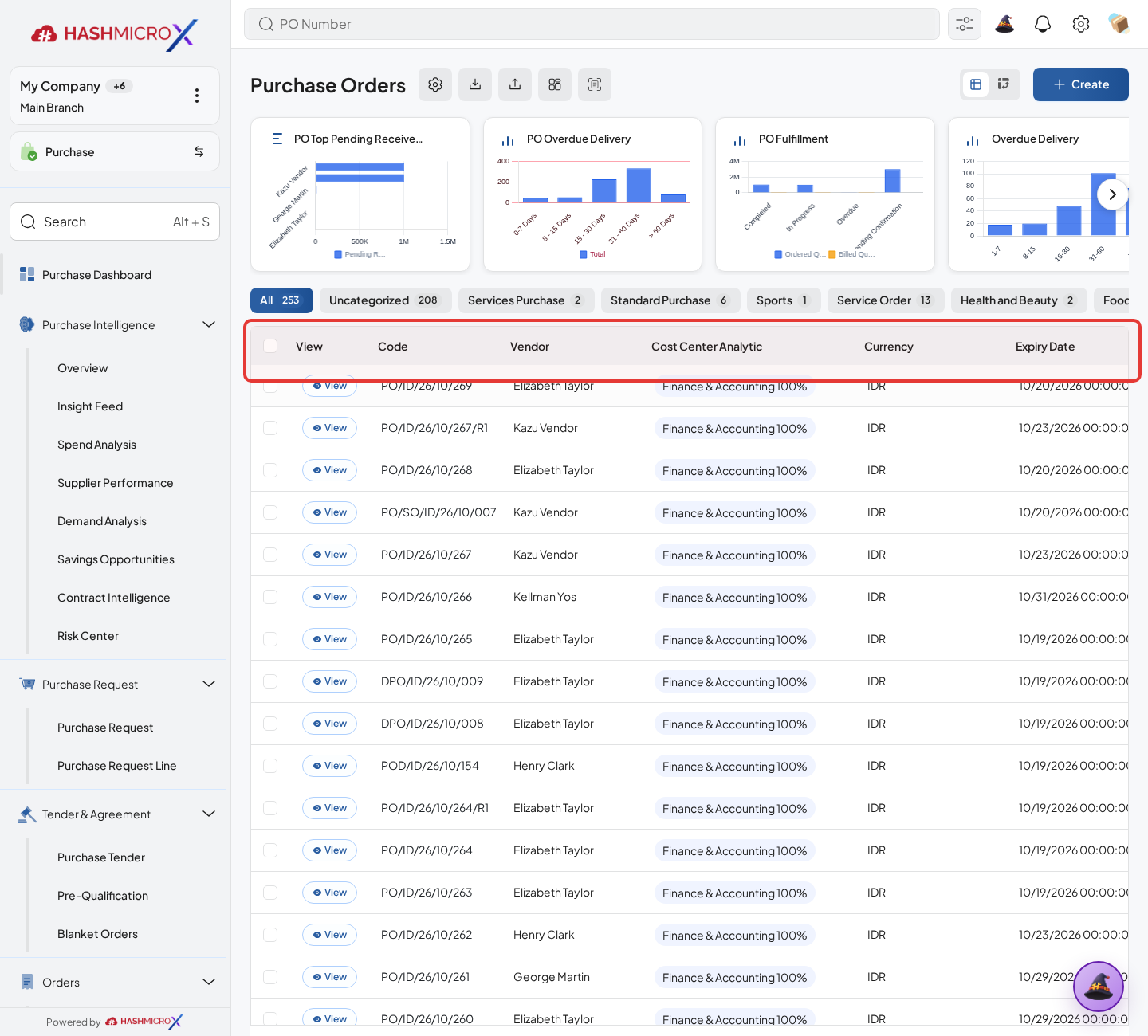
3.5.1 Confirm Purchase Order
Overview
Confirm Purchase Order when supplier, commercial terms, and product lines are final.
Prerequisites
- Vendor, product, purchase team, company, currency, and destination warehouse data are available when required.
- The user has access to create, confirm, approve, send, revise, close, or cancel the related Purchase document.
- Approval, RFQ, blanket, receiving, and billing settings are configured before the workflow is used.
Step-by-Step Instructions
- Open Purchase > Purchase > Purchase Order. Open a draft RFQ or Purchase Order.
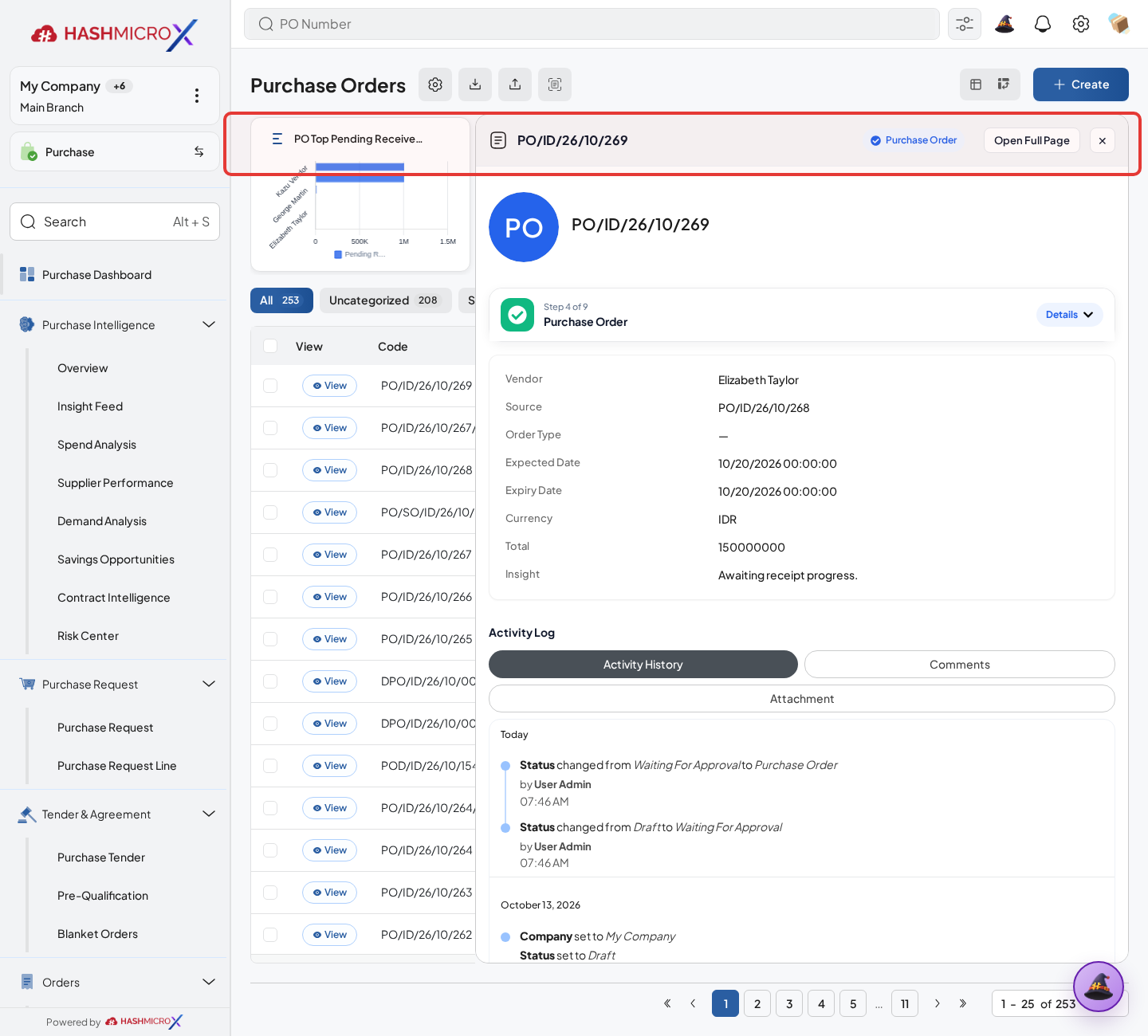
Figure 3.5.1.1 — HMX Main: Confirm Purchase Order action button and workflow statusbar framed in red - Validate vendor, company, currency, warehouse, and expected date, then review every purchase line for Product, Quantity, UoM, Unit Price, Taxes, Discount, Destination Warehouse, and Planned Date.
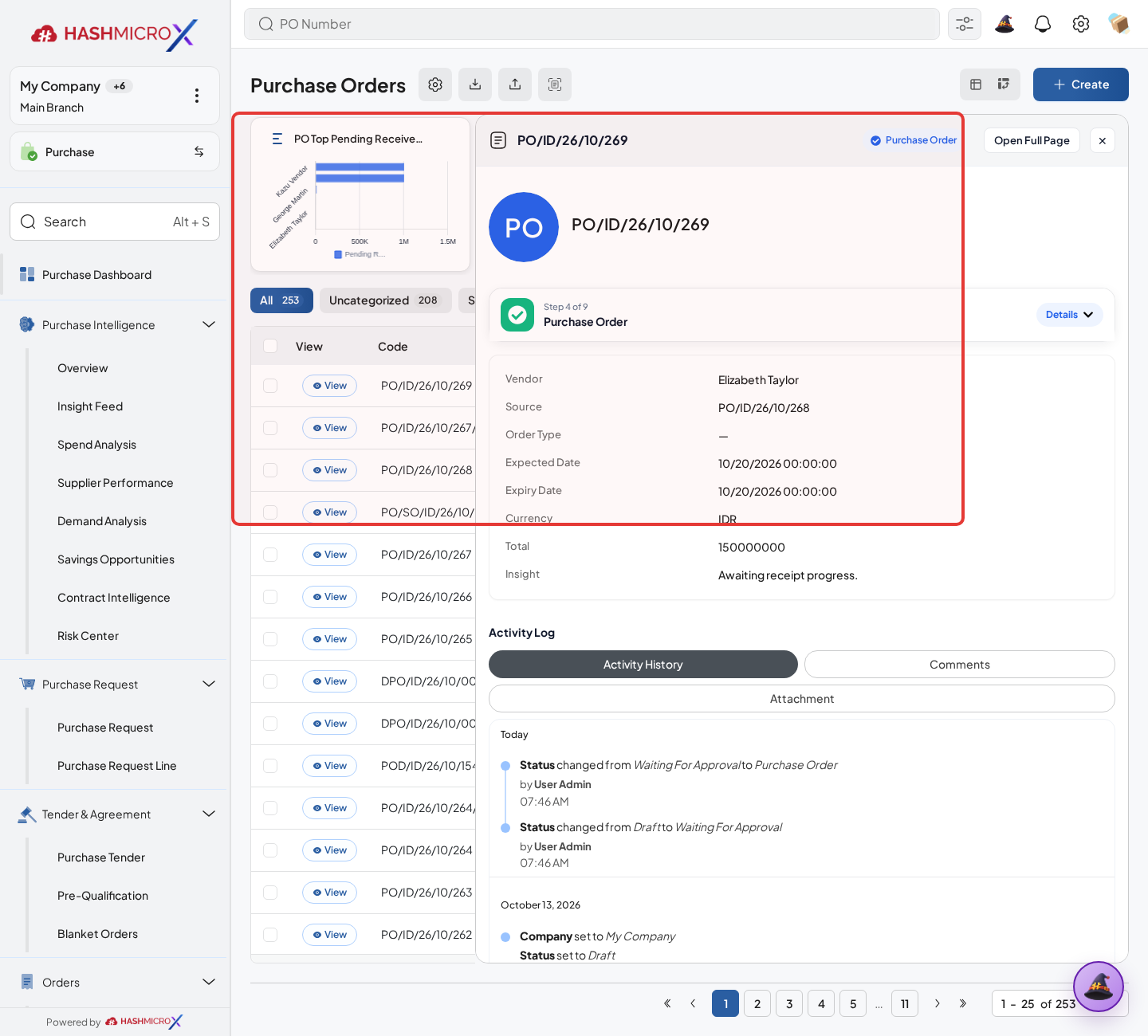
Figure 3.5.1.2 — HMX Main: Purchase Order header parameters and order lines validation framed in red - Check taxes, analytic or destination information if used.
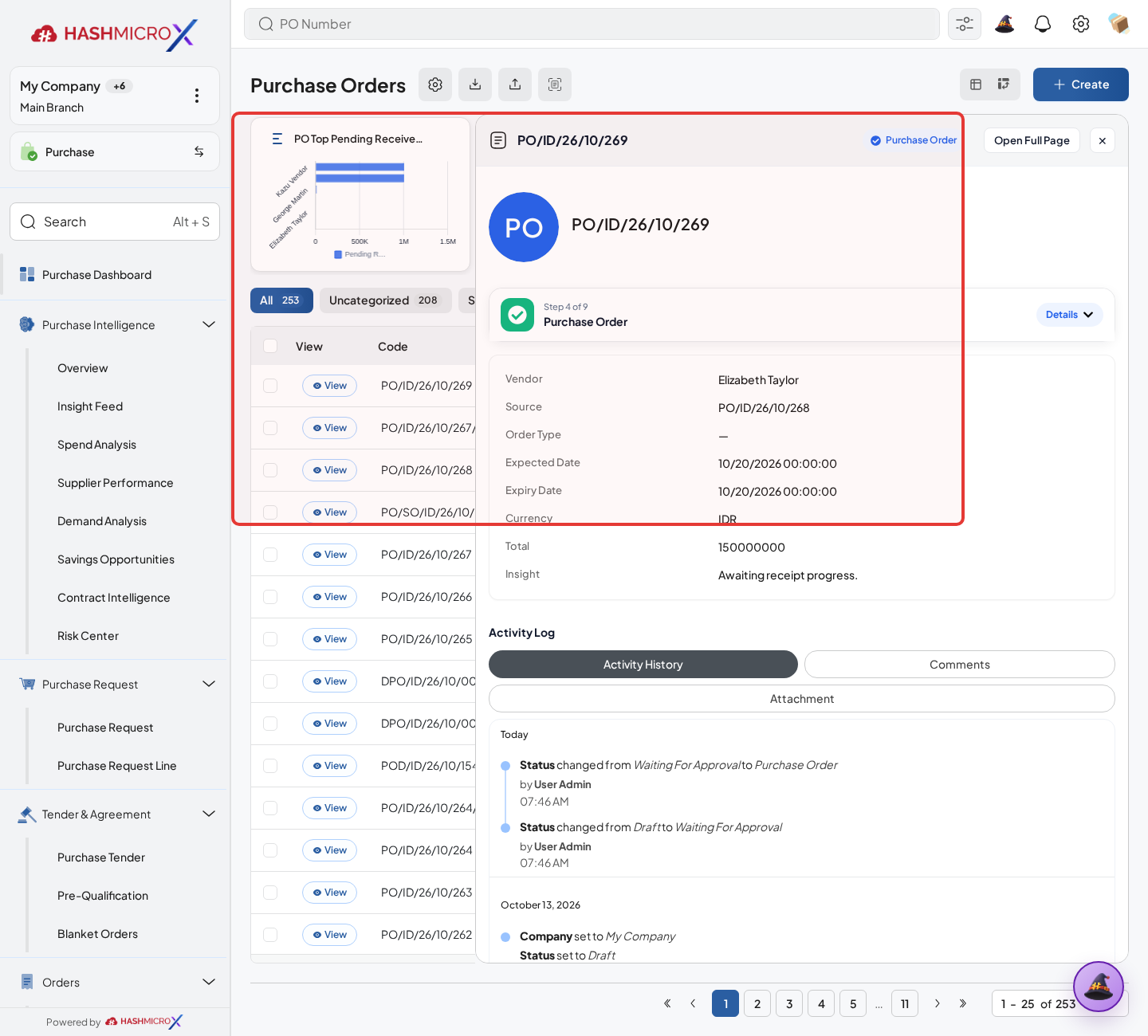
Figure 3.5.1.3 — HMX Main: Purchase Order tax calculation and total breakdown framed in red - Click Confirm Order.
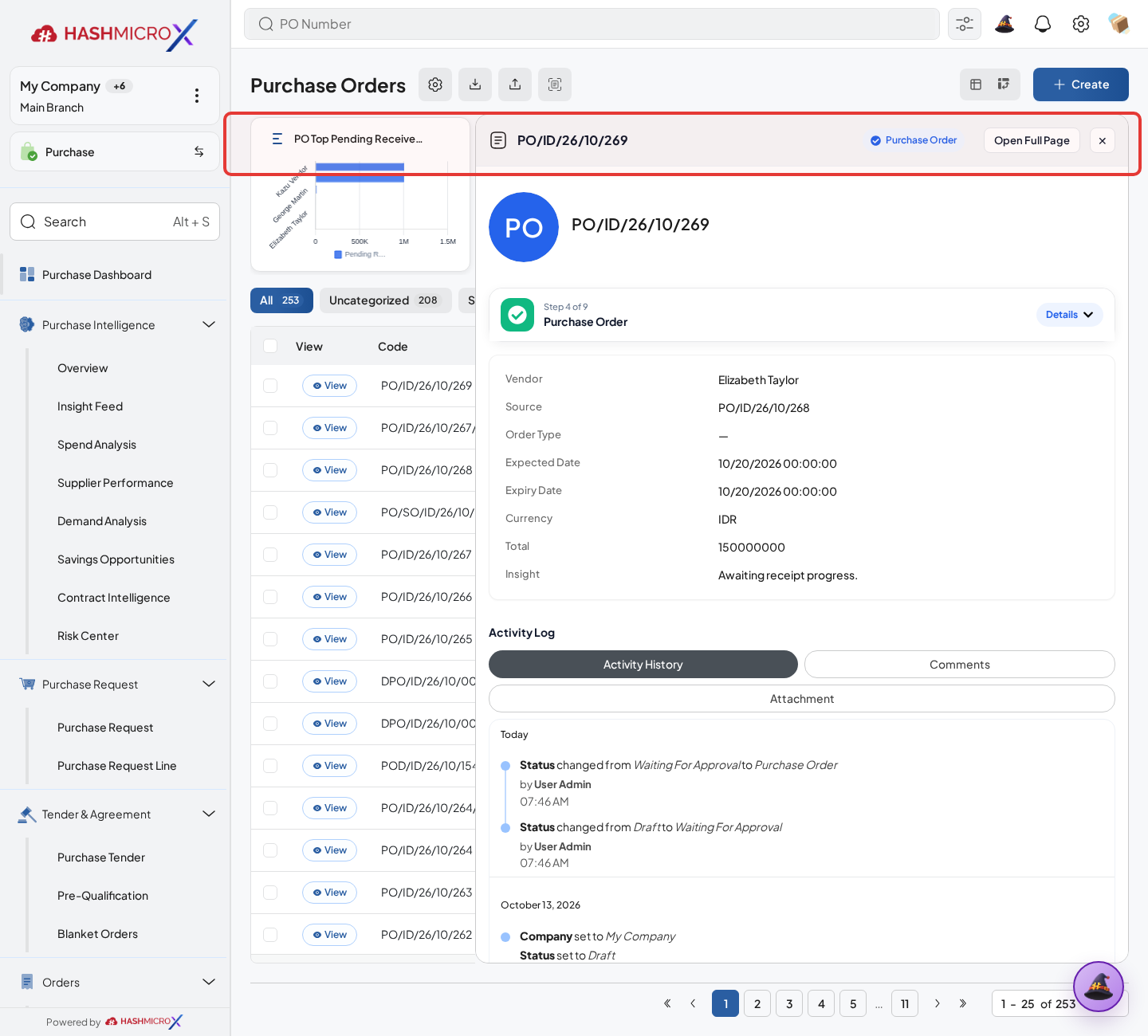
Figure 3.5.1.4 — HMX Main: Confirm Order action button in top control bar framed in red - Review status, smart buttons, and generated receiving or billing links.
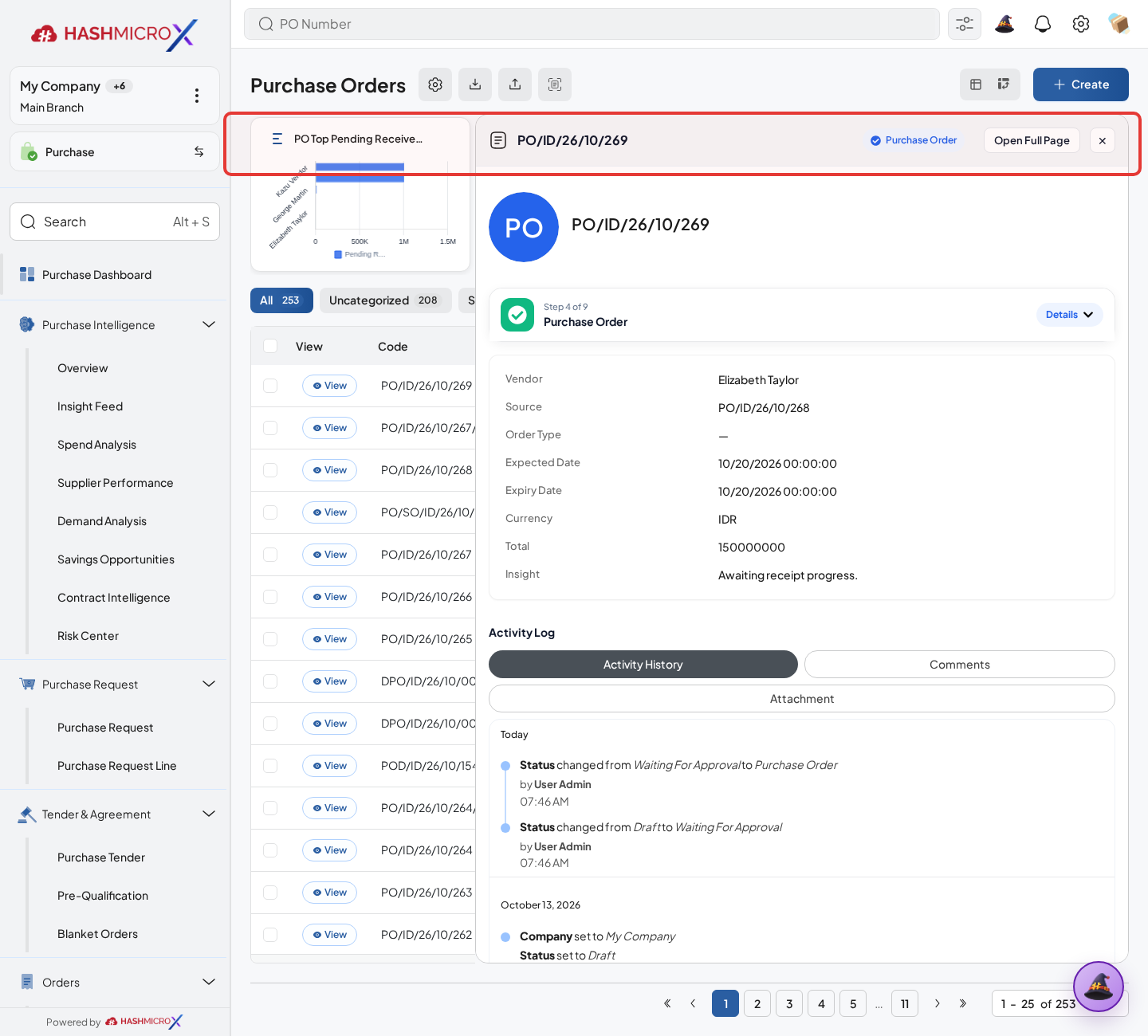
Figure 3.5.1.5 — HMX Main: Purchase Order confirmed statusbar and generated smart buttons framed in red
Status and Result Guide
| Status / Result | What it means | Trigger | What to do |
|---|---|---|---|
| Draft | The document is being prepared and can still be edited. | User creates the record or resets it before confirmation. | Complete required fields and click the next workflow action. |
| Confirmed / Sent / In Progress | The document has entered the active purchasing workflow. | User clicks Confirm, Send RFQ, Submit, or a related processing action. | Monitor supplier response, approval, receiving, billing, or next action. |
| Approved / Done / Closed | The workflow result is accepted or completed. | Approver accepts the document, PO is confirmed, receipt/bill is processed, or document is closed. | Review linked documents and continue downstream processing. |
| Cancelled / Rejected | The workflow is stopped or not accepted. | User clicks Cancel/Reject or approval fails. | Review reason, correct the record if allowed, or create a replacement document. |
Field Reference
| Field | Required | Description | Example or note |
|---|---|---|---|
| Confirm Order | Yes | Commits the order to supplier. | Data type: Action. |
| Vendor | Yes | Supplier selected for the order. | Data type: Reference. |
| Warehouse | No | Destination for receiving stockable goods. | Data type: Reference. |
| Order Lines | Yes | Products, quantities, prices, taxes, and expected dates. | Data type: One2many. |
Common Scenarios
| Scenario | When to Use | Key Steps | Expected Result |
|---|---|---|---|
| Process Confirm Purchase Order | Use when a purchasing document needs sourcing, approval, supplier confirmation, receiving, or billing. | Open Purchase > Purchase > Purchase Order, create or open the document, complete required fields and lines, then use the verified workflow action. | The Purchase document moves to the next status and linked records become available when configured. |
| Correct Confirm Purchase Order before completion | Use when document details are incomplete or incorrect before approval, confirmation, receipt, or billing. | Open the document, update editable fields and lines, save, then rerun the required action. | The corrected document continues through the Purchase workflow without duplicate records. |
Troubleshooting
| Issue | Possible Cause | How to fix it |
|---|---|---|
| The menu, button, or action is not visible. | The user role, document status, configuration, approval rule, or related module does not allow the action. | Check user access, document status, Purchase settings, approval setup, and required linked records before retrying. |
| The record cannot be saved, confirmed, approved, sent, received, billed, or closed. | A required field, vendor, product line, quantity, price, warehouse, tax, approval, or source document is missing or invalid. | Review highlighted fields and line tables, complete the missing values, save, then run the workflow action again. |
| The expected linked document is not created. | The source document is not in the required status, the configuration blocks automatic creation, or the related integration is disabled. | Confirm the source document status and configuration, then use the manual Create, Convert, Receiving, Bill, or Release action when available. |
3.5.2 Create Goods Receipt (Receiving Note)
Overview
Create Goods Receipt (Receiving Note) from confirmed PO when goods need inbound receipt validation.
Prerequisites
- Vendor, product, purchase team, company, currency, and destination warehouse data are available when required.
- The user has access to create, confirm, approve, send, revise, close, or cancel the related Purchase document.
- Approval, RFQ, blanket, receiving, and billing settings are configured before the workflow is used.
Step-by-Step Instructions
- Open Purchase > Purchase > Purchase Order. Open a confirmed Purchase Order.
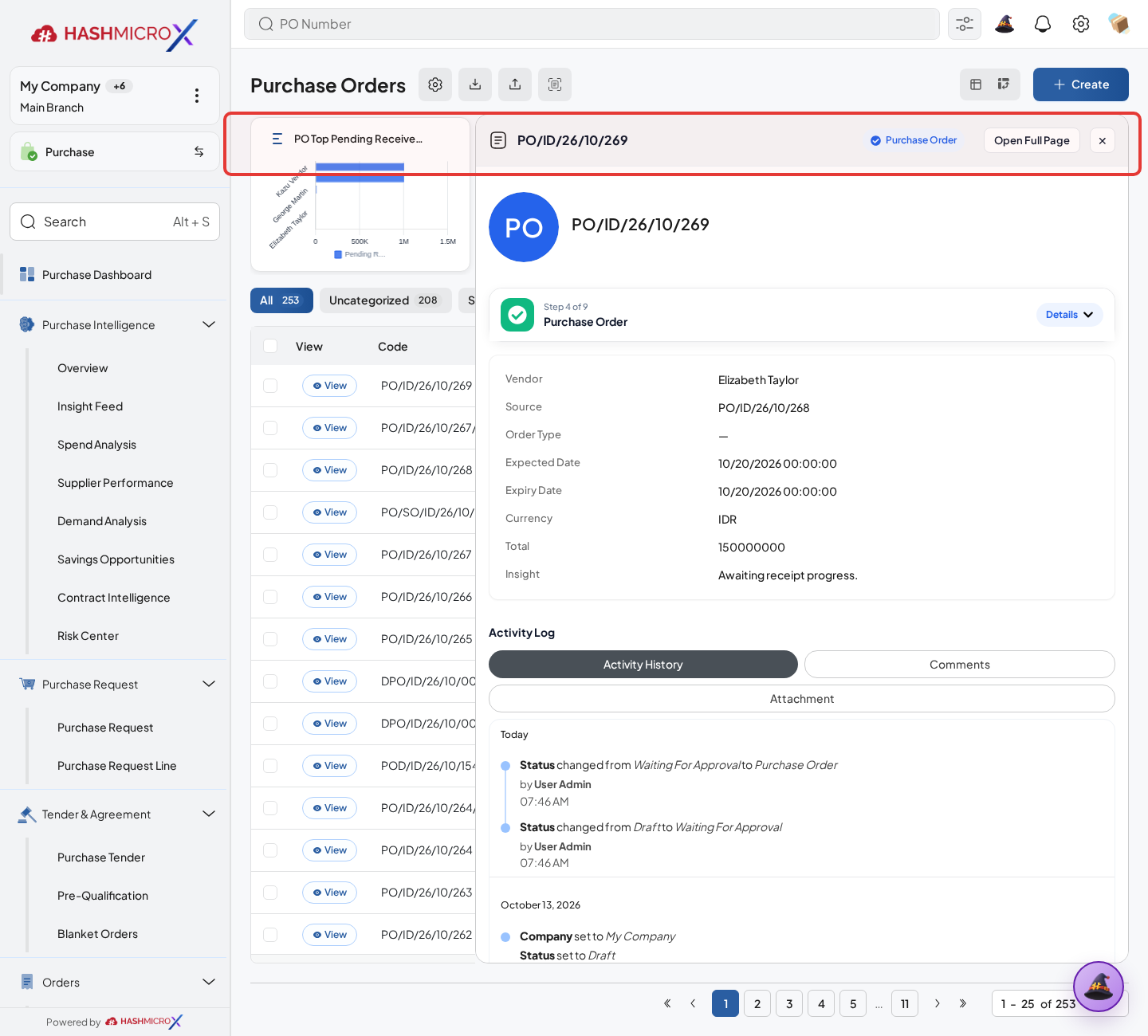
Figure 3.5.2.1 — HMX Main: Goods Receipt smart button and Create GR action bar framed in red - Click Create RN or open Goods Receipt smart button.
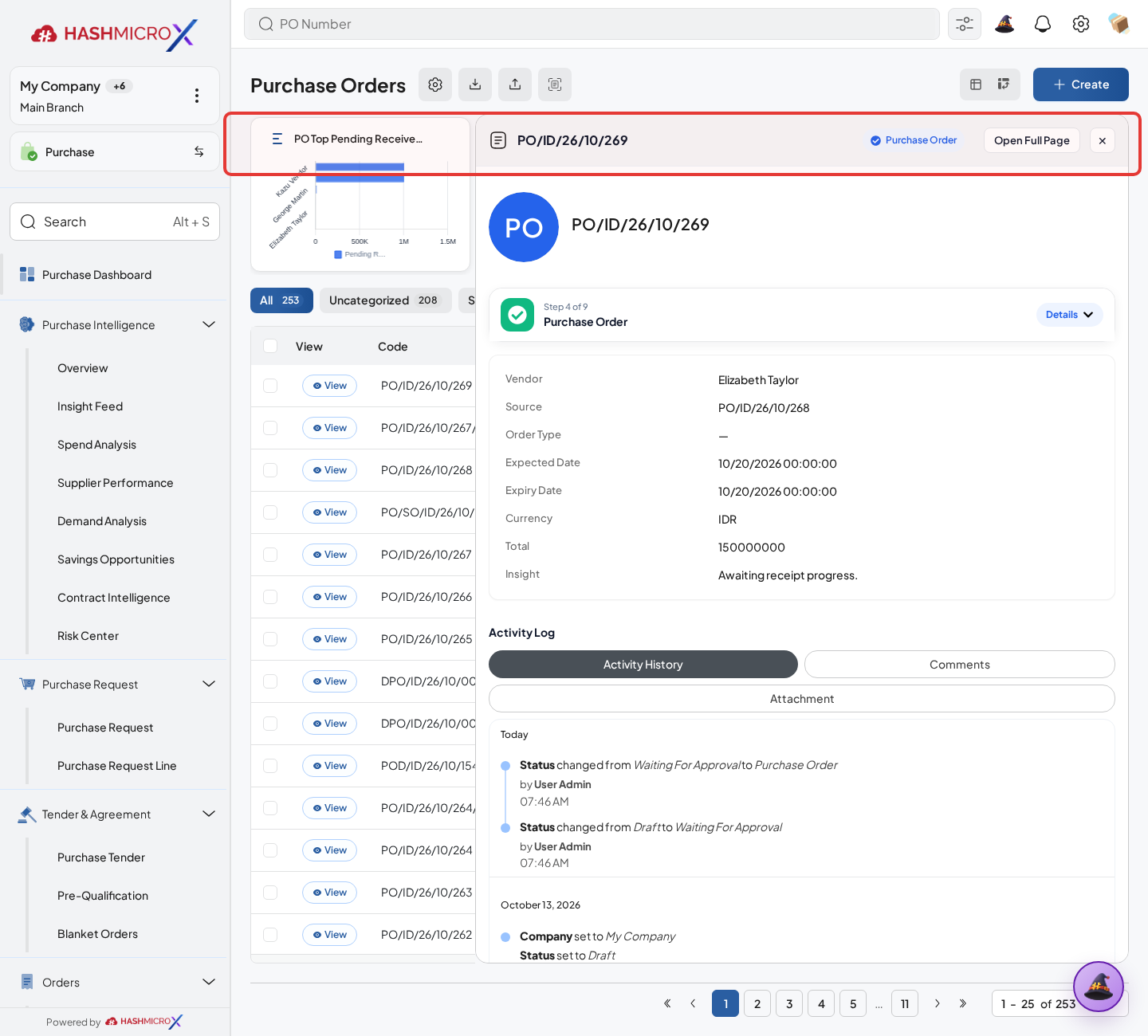
Figure 3.5.2.2 — HMX Main: Goods Receipt smart button action framed in red - Review product, ordered quantity, received quantity, remaining quantity, and destination.
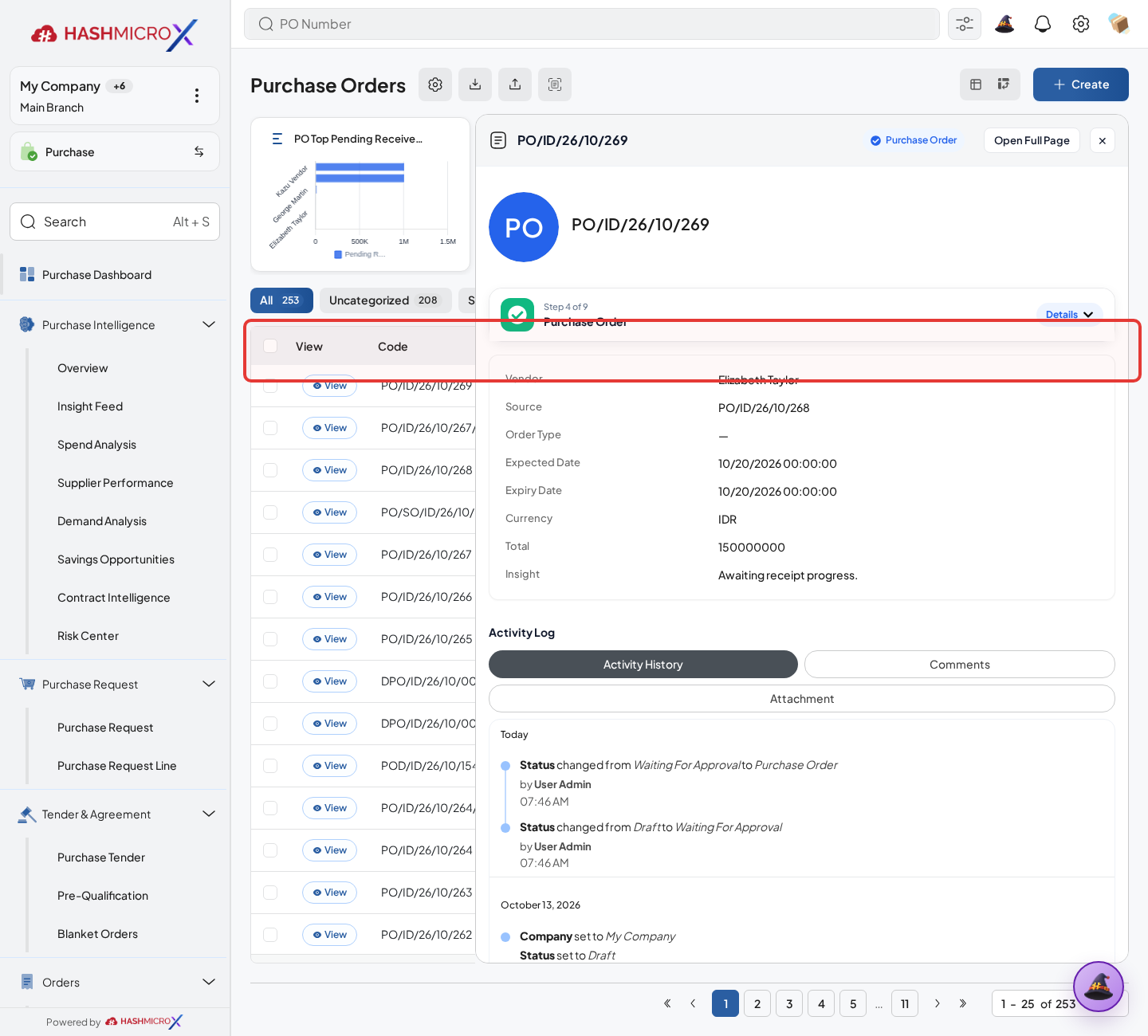
Figure 3.5.2.3 — HMX Main: Goods Receipt product lines and destination warehouse verification framed in red - Save or validate the receiving document according to warehouse flow.
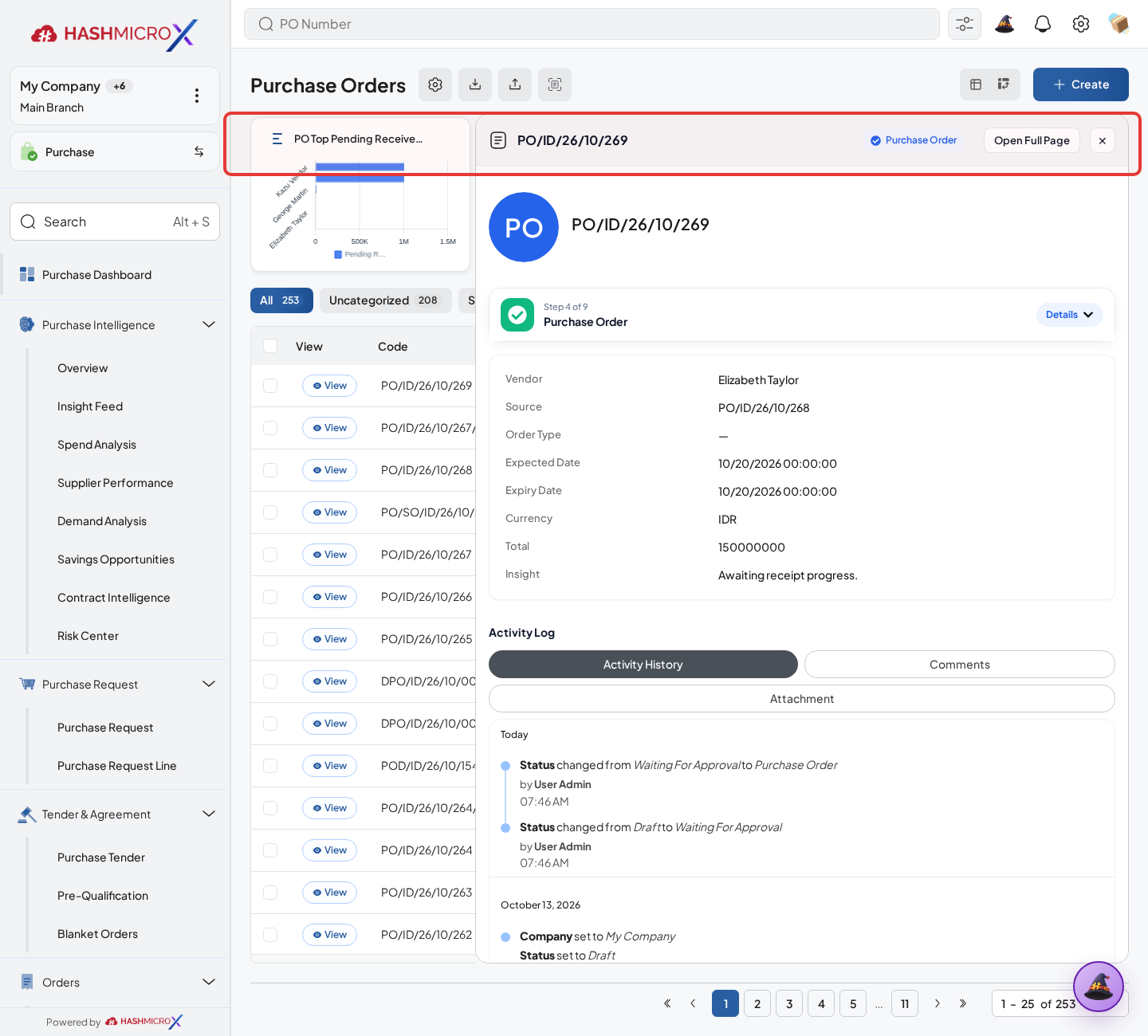
Figure 3.5.2.4 — HMX Main: Goods Receipt validation action controls framed in red - Return to PO and confirm received quantity updates.
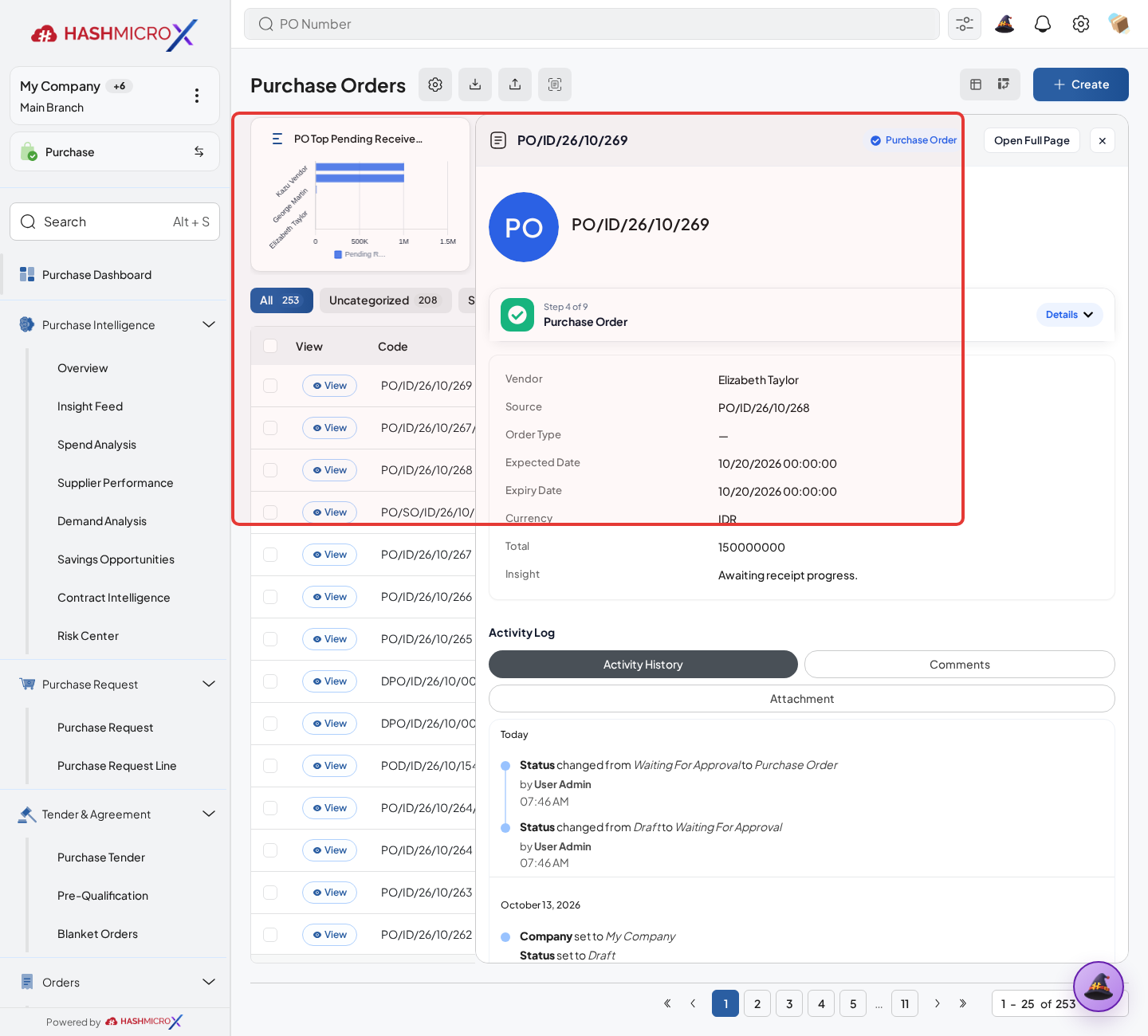
Figure 3.5.2.5 — HMX Main: Purchase Order lines Qty Received update audit framed in red
Status and Result Guide
| Status / Result | What it means | Trigger | What to do |
|---|---|---|---|
| Draft | The document is being prepared and can still be edited. | User creates the record or resets it before confirmation. | Complete required fields and click the next workflow action. |
| Confirmed / Sent / In Progress | The document has entered the active purchasing workflow. | User clicks Confirm, Send RFQ, Submit, or a related processing action. | Monitor supplier response, approval, receiving, billing, or next action. |
| Approved / Done / Closed | The workflow result is accepted or completed. | Approver accepts the document, PO is confirmed, receipt/bill is processed, or document is closed. | Review linked documents and continue downstream processing. |
| Cancelled / Rejected | The workflow is stopped or not accepted. | User clicks Cancel/Reject or approval fails. | Review reason, correct the record if allowed, or create a replacement document. |
Field Reference
| Field | Required | Description | Example or note |
|---|---|---|---|
| Create RN | No | Creates receiving note from remaining PO quantities. | Data type: Action. |
| Receiving Notes | No | Opens linked inbound receipt documents. | Data type: Smart Button. |
| Qty Received | No | Quantity already received. | Data type: Number. |
| Qty Remaining | No | Quantity still pending receiving. | Data type: Number. |
Common Scenarios
| Scenario | When to Use | Key Steps | Expected Result |
|---|---|---|---|
| Process Create Goods Receipt (Receiving Note) | Use when a purchasing document needs sourcing, approval, supplier confirmation, receiving, or billing. | Open Purchase > Purchase > Purchase Order, create or open the document, complete required fields and lines, then use the verified workflow action. | The Purchase document moves to the next status and linked records become available when configured. |
| Correct Create Goods Receipt (Receiving Note) before completion | Use when document details are incomplete or incorrect before approval, confirmation, receipt, or billing. | Open the document, update editable fields and lines, save, then rerun the required action. | The corrected document continues through the Purchase workflow without duplicate records. |
Troubleshooting
| Issue | Possible Cause | How to fix it |
|---|---|---|
| The menu, button, or action is not visible. | The user role, document status, configuration, approval rule, or related module does not allow the action. | Check user access, document status, Purchase settings, approval setup, and required linked records before retrying. |
| The record cannot be saved, confirmed, approved, sent, received, billed, or closed. | A required field, vendor, product line, quantity, price, warehouse, tax, approval, or source document is missing or invalid. | Review highlighted fields and line tables, complete the missing values, save, then run the workflow action again. |
| The expected linked document is not created. | The source document is not in the required status, the configuration blocks automatic creation, or the related integration is disabled. | Confirm the source document status and configuration, then use the manual Create, Convert, Receiving, Bill, or Release action when available. |
3.5.3 Create Vendor Bill
Overview
Create vendor bill from PO after billing policy allows invoice creation.
Prerequisites
- Vendor, product, purchase team, company, currency, and destination warehouse data are available when required.
- The user has access to create, confirm, approve, send, revise, close, or cancel the related Purchase document.
- Approval, RFQ, blanket, receiving, and billing settings are configured before the workflow is used.
Step-by-Step Instructions
- Open Purchase > Purchase > Purchase Order. Open confirmed PO after receipt or commercial milestone.
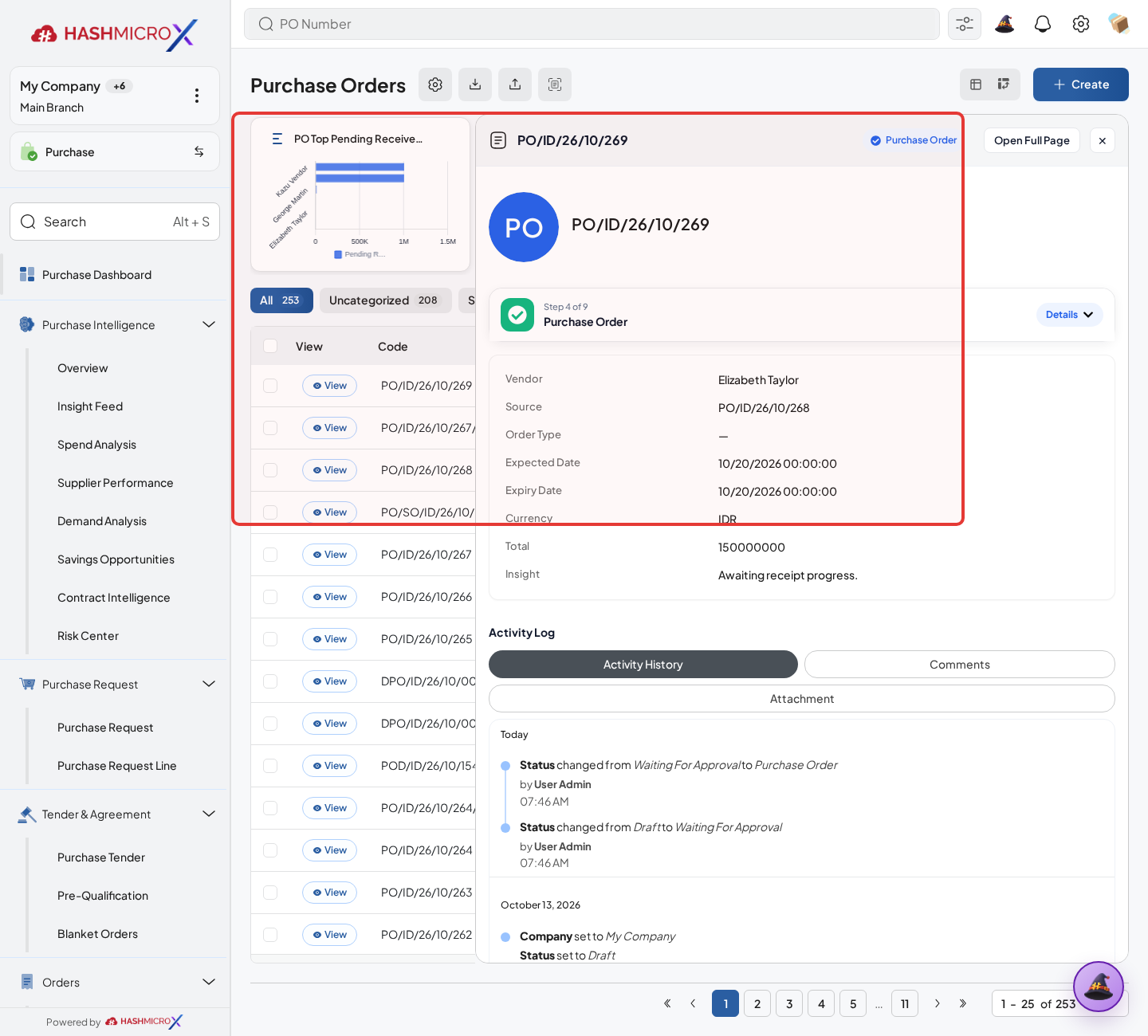
Figure 3.5.3.1 — HMX Main: Purchase Order Create Bill action button framed in red - Click Create Bill or Billing action.
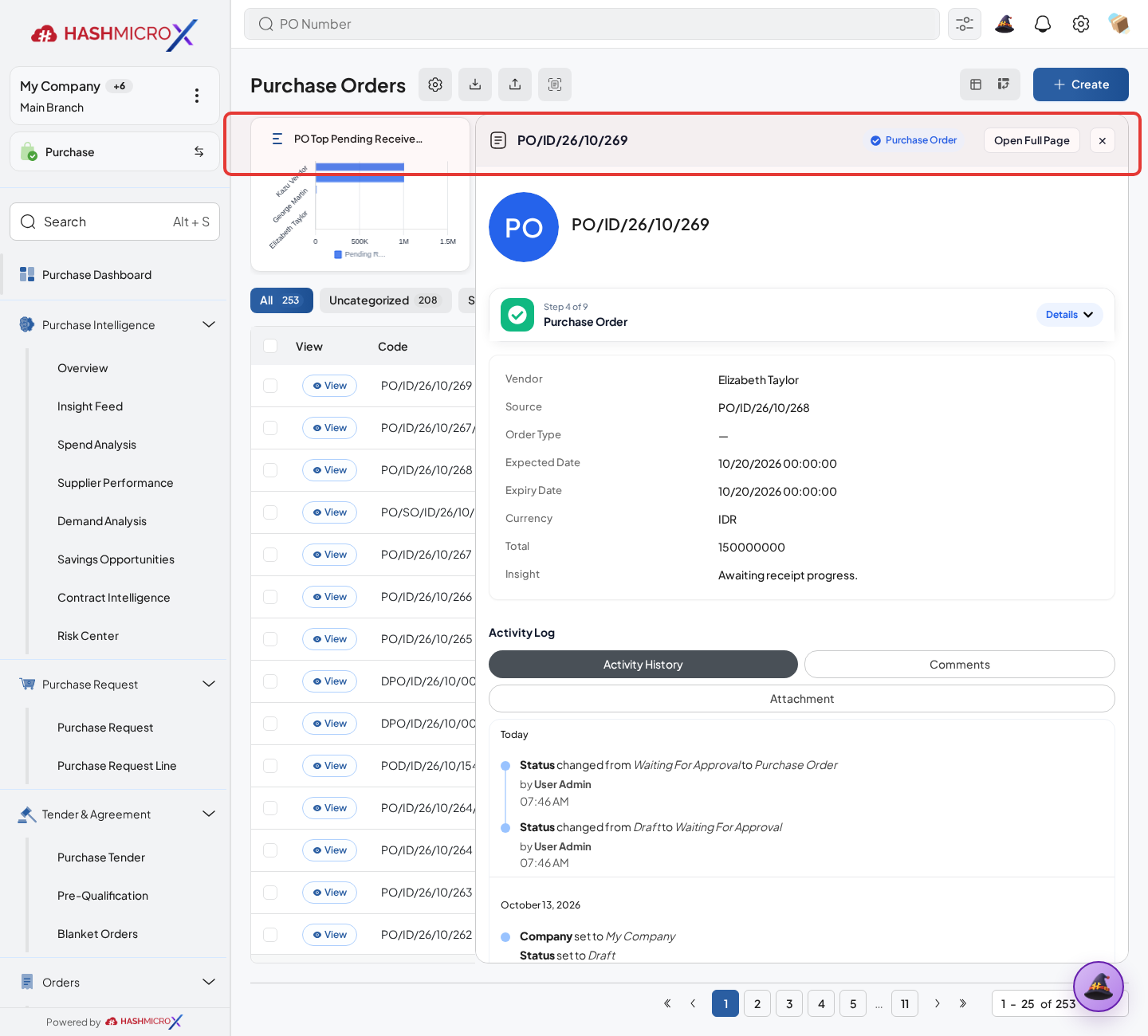
Figure 3.5.3.2 — HMX Main: Create Bill action button on Purchase Order framed in red - Check vendor, bill date, products, taxes, account, and amount.
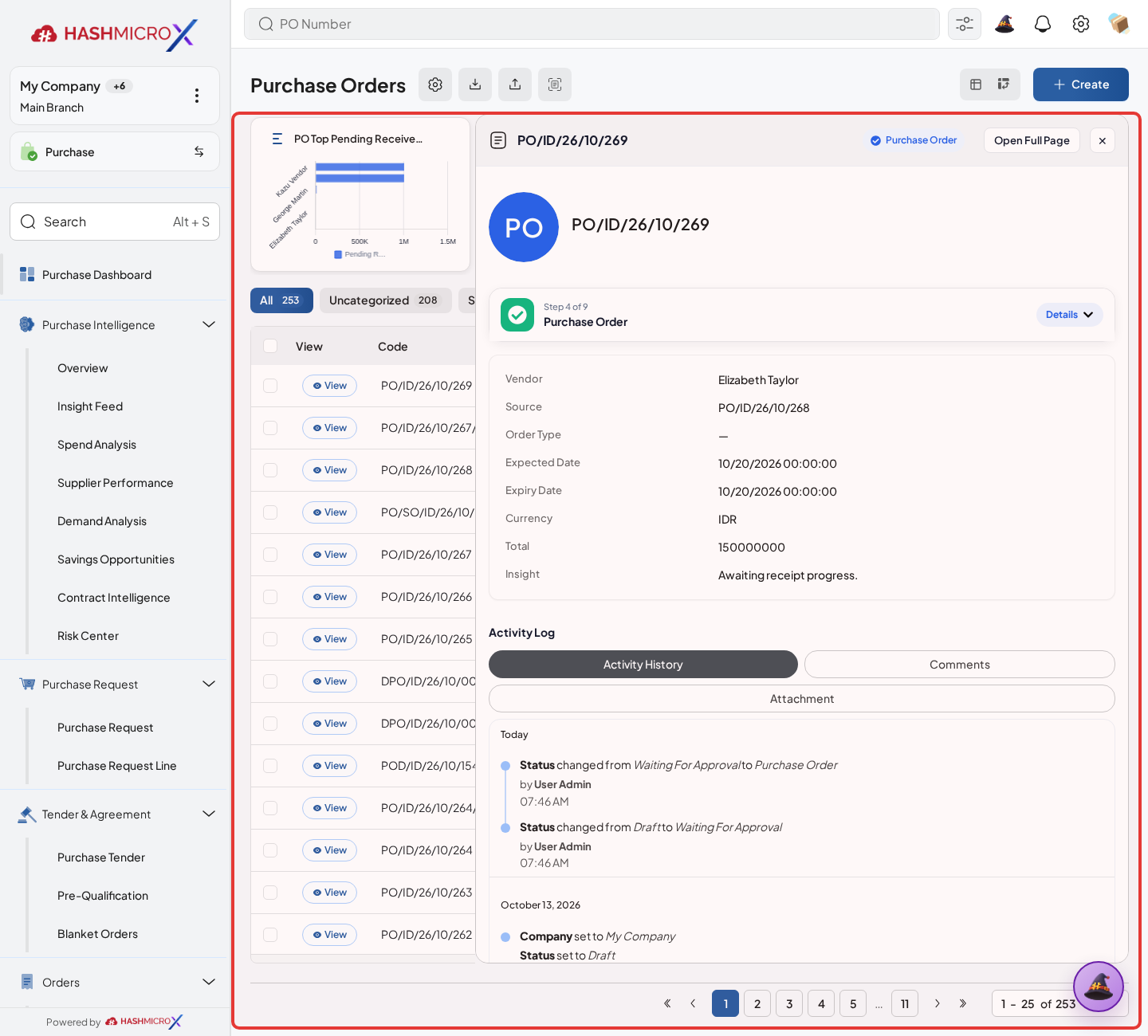
Figure 3.5.3.3 — HMX Main: Draft Vendor Bill invoice lines, accounts, and taxes framed in red - Save bill as draft or validate based on company policy.
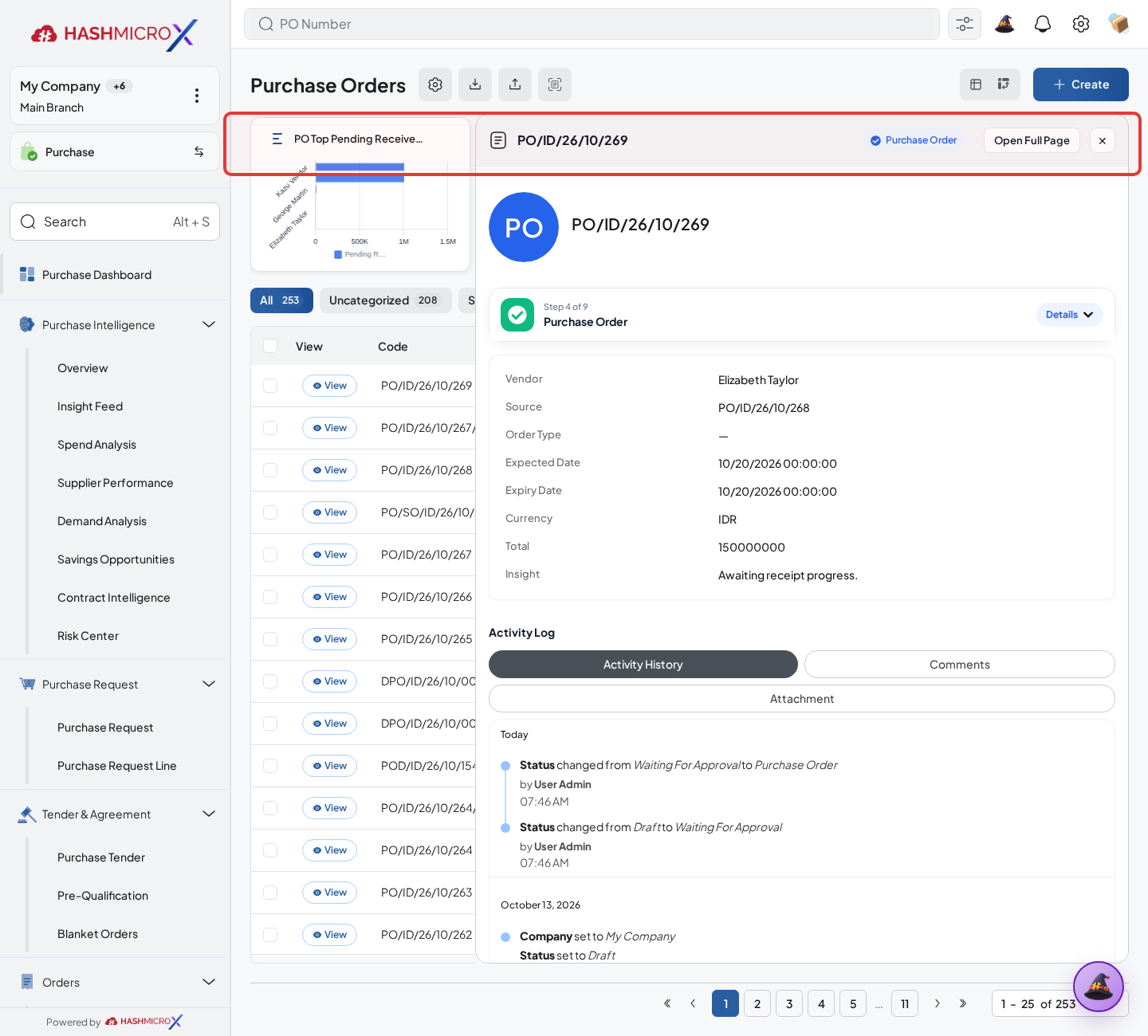
Figure 3.5.3.4 — HMX Main: Post / Confirm Vendor Bill action button framed in red - Return to PO to verify Bills smart button and invoice count.
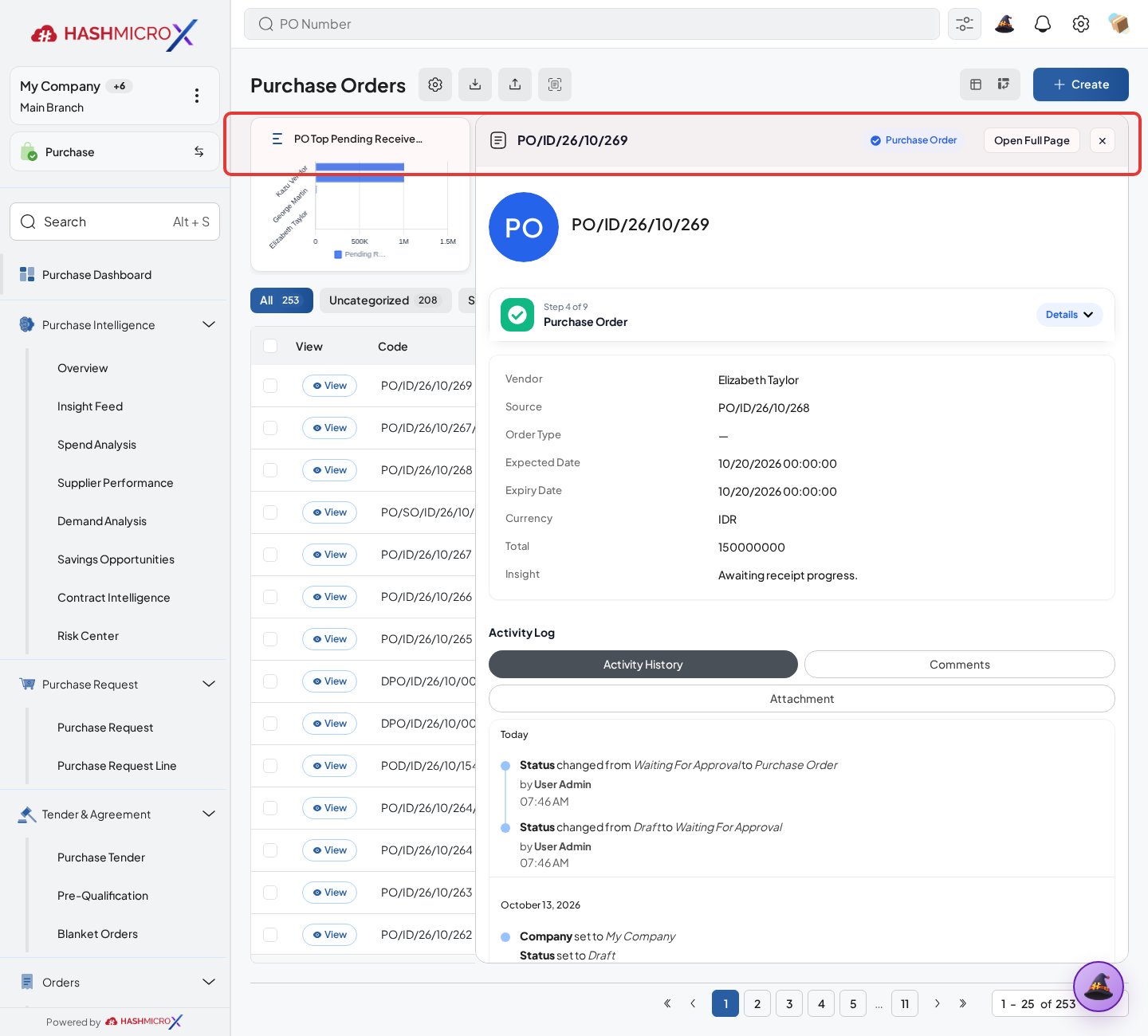
Figure 3.5.3.5 — HMX Main: Purchase Order Bills smart button linkage count framed in red
Status and Result Guide
| Status / Result | What it means | Trigger | What to do |
|---|---|---|---|
| Draft | The document is being prepared and can still be edited. | User creates the record or resets it before confirmation. | Complete required fields and click the next workflow action. |
| Confirmed / Sent / In Progress | The document has entered the active purchasing workflow. | User clicks Confirm, Send RFQ, Submit, or a related processing action. | Monitor supplier response, approval, receiving, billing, or next action. |
| Approved / Done / Closed | The workflow result is accepted or completed. | Approver accepts the document, PO is confirmed, receipt/bill is processed, or document is closed. | Review linked documents and continue downstream processing. |
| Cancelled / Rejected | The workflow is stopped or not accepted. | User clicks Cancel/Reject or approval fails. | Review reason, correct the record if allowed, or create a replacement document. |
Field Reference
| Field | Required | Description | Example or note |
|---|---|---|---|
| Create Bill | No | Creates vendor bill from PO. | Data type: Action. |
| Bill Date | No | Accounting date used on vendor bill. | Data type: Date. |
| Invoice Lines | Yes | Products, quantities, taxes, and prices copied to bill. | Data type: One2many. |
| Bills | No | Opens vendor bills linked to the PO. | Data type: Smart Button. |
Common Scenarios
| Scenario | When to Use | Key Steps | Expected Result |
|---|---|---|---|
| Process Create Vendor Bill | Use when a purchasing document needs sourcing, approval, supplier confirmation, receiving, or billing. | Open Purchase > Purchase > Purchase Order, create or open the document, complete required fields and lines, then use the verified workflow action. | The Purchase document moves to the next status and linked records become available when configured. |
| Correct Create Vendor Bill before completion | Use when document details are incomplete or incorrect before approval, confirmation, receipt, or billing. | Open the document, update editable fields and lines, save, then rerun the required action. | The corrected document continues through the Purchase workflow without duplicate records. |
Troubleshooting
| Issue | Possible Cause | How to fix it |
|---|---|---|
| The menu, button, or action is not visible. | The user role, document status, configuration, approval rule, or related module does not allow the action. | Check user access, document status, Purchase settings, approval setup, and required linked records before retrying. |
| The record cannot be saved, confirmed, approved, sent, received, billed, or closed. | A required field, vendor, product line, quantity, price, warehouse, tax, approval, or source document is missing or invalid. | Review highlighted fields and line tables, complete the missing values, save, then run the workflow action again. |
| The expected linked document is not created. | The source document is not in the required status, the configuration blocks automatic creation, or the related integration is disabled. | Confirm the source document status and configuration, then use the manual Create, Convert, Receiving, Bill, or Release action when available. |
3.5.4 Revise Close or Cancel
Overview
Control PO lifecycle after confirmation when commercial data changes or the order must be ended.
Prerequisites
- Vendor, product, purchase team, company, currency, and destination warehouse data are available when required.
- The user has access to create, confirm, approve, send, revise, close, or cancel the related Purchase document.
- Approval, RFQ, blanket, receiving, and billing settings are configured before the workflow is used.
Step-by-Step Instructions
- Open the Purchase Order.
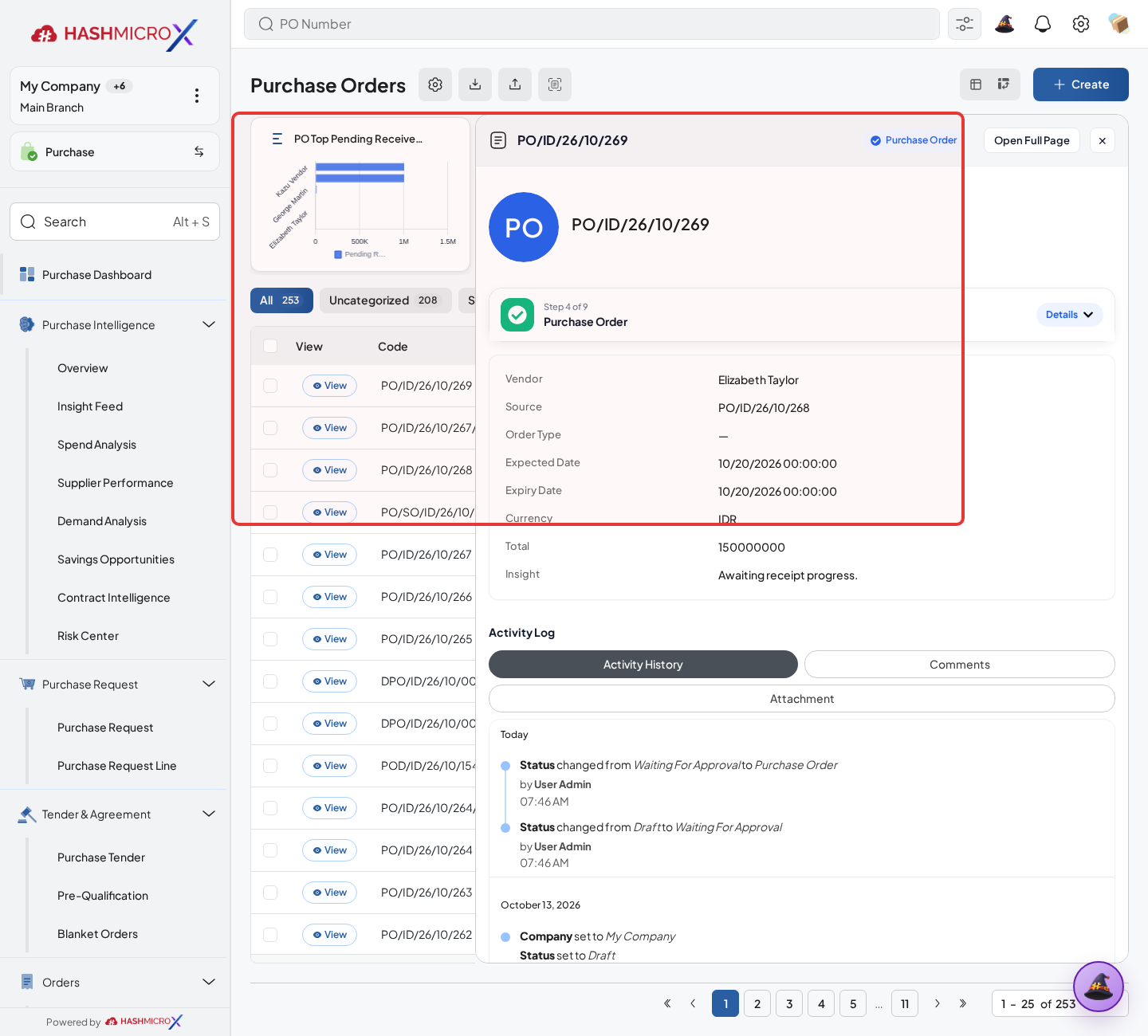
Figure 3.5.4.1 — HMX Main: Purchase Order Revise, Close, and Cancel action controls framed in red - Use Revise when revision policy allows controlled document update.
Figure 3.5.4.2 — HMX Main: Purchase Order Revise action control button framed in red - Use Close when procurement is finished and no further action is expected.
Figure 3.5.4.3 — HMX Main: Purchase Order Close / Lock action control button framed in red - Use Cancel only when the transaction must be voided according to business approval.
Figure 3.5.4.4 — HMX Main: Purchase Order Cancel order action control button framed in red - Check linked receiving and billing documents before closing or cancelling.
Figure 3.5.4.5 — HMX Main: Purchase Order lifecycle chatter audit trail framed in red
Status and Result Guide
| Status / Result | What it means | Trigger | What to do |
|---|---|---|---|
| Draft | The document is being prepared and can still be edited. | User creates the record or resets it before confirmation. | Complete required fields and click the next workflow action. |
| Confirmed / Sent / In Progress | The document has entered the active purchasing workflow. | User clicks Confirm, Send RFQ, Submit, or a related processing action. | Monitor supplier response, approval, receiving, billing, or next action. |
| Approved / Done / Closed | The workflow result is accepted or completed. | Approver accepts the document, PO is confirmed, receipt/bill is processed, or document is closed. | Review linked documents and continue downstream processing. |
| Cancelled / Rejected | The workflow is stopped or not accepted. | User clicks Cancel/Reject or approval fails. | Review reason, correct the record if allowed, or create a replacement document. |
Field Reference
| Field | Required | Description | Example or note |
|---|---|---|---|
| Revise | No | Creates controlled update or revision sequence. | Data type: Action. |
| Close | No | Ends an order that is complete or no longer active. | Data type: Action. |
| Cancel | No | Voids the purchase document where allowed. | Data type: Action. |
| Revision Number | No | Tracks revised document sequence when enabled. | Data type: Text. |
Common Scenarios
| Scenario | When to Use | Key Steps | Expected Result |
|---|---|---|---|
| Process Revise Close or Cancel | Use when a purchasing document needs sourcing, approval, supplier confirmation, receiving, or billing. | Open Purchase, create or open the document, complete required fields and lines, then use the verified workflow action. | The Purchase document moves to the next status and linked records become available when configured. |
| Correct Revise Close or Cancel before completion | Use when document details are incomplete or incorrect before approval, confirmation, receipt, or billing. | Open the document, update editable fields and lines, save, then rerun the required action. | The corrected document continues through the Purchase workflow without duplicate records. |
Troubleshooting
| Issue | Possible Cause | How to fix it |
|---|---|---|
| The menu, button, or action is not visible. | The user role, document status, configuration, approval rule, or related module does not allow the action. | Check user access, document status, Purchase settings, approval setup, and required linked records before retrying. |
| The record cannot be saved, confirmed, approved, sent, received, billed, or closed. | A required field, vendor, product line, quantity, price, warehouse, tax, approval, or source document is missing or invalid. | Review highlighted fields and line tables, complete the missing values, save, then run the workflow action again. |
| The expected linked document is not created. | The source document is not in the required status, the configuration blocks automatic creation, or the related integration is disabled. | Confirm the source document status and configuration, then use the manual Create, Convert, Receiving, Bill, or Release action when available. |
3.6 Blanket Order
Use Blanket Order for repeated or planned procurement under agreed vendor terms before individual RFQs or POs are created.
| Field Name | Data Type | Mandatory | Description & Function |
|---|---|---|---|
| Vendor | Reference | YES | Supplier covered by the agreement. |
| Start / End Date | Date | YES | Agreement validity period. |
| Pricelist | Reference | Optional | Supplier price source. |
| Quantity / Remaining Qty | Number | YES | Agreement quantity and remaining open quantity. |
| Create RFQ | Action | Optional | Creates RFQ from agreement lines. |
3.6.1 Create Blanket Agreement
Overview
Create Blanket Order for repeated procurement under agreed vendor terms and validity period.
Prerequisites
- Vendor, product, purchase team, company, currency, and destination warehouse data are available when required.
- The user has access to create, confirm, approve, send, revise, close, or cancel the related Purchase document.
- Approval, RFQ, blanket, receiving, and billing settings are configured before the workflow is used.
Step-by-Step Instructions
- Open Purchase > Agreement > Blanket Order. Open Blanket Order and click Create.
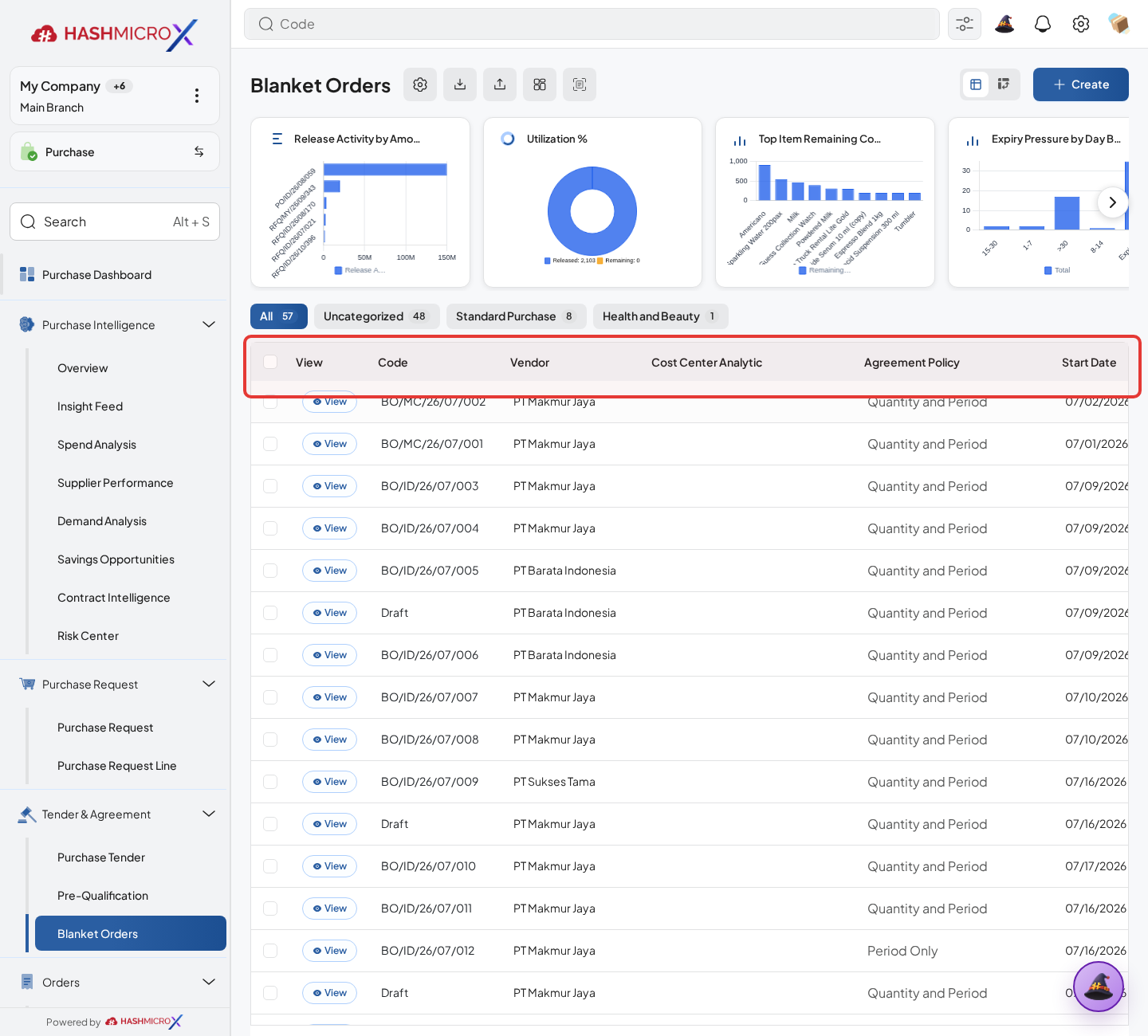
Figure 3.6.1.1 — HMX Main: Blanket Orders agreement directory list table framed in red - Fill vendor, agreement validity, company, currency, and pricelist if used.
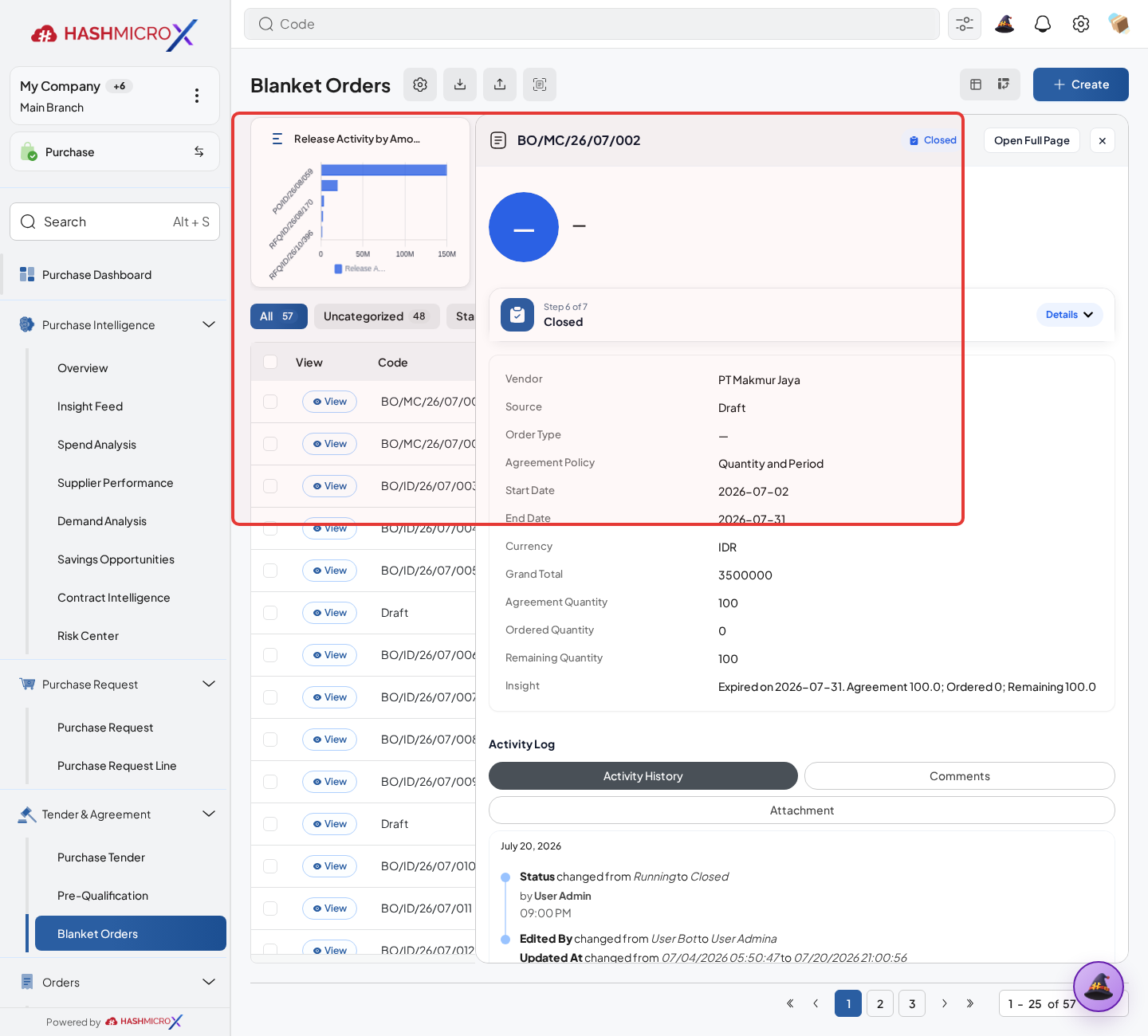
Figure 3.6.1.2 — HMX Main: Blanket Order agreement vendor and validity dates header framed in red - Click Add a Line, then fill Product, Agreed Quantity, UoM, Price, and Schedule Context. These fields define the agreement balance and future RFQ release terms.
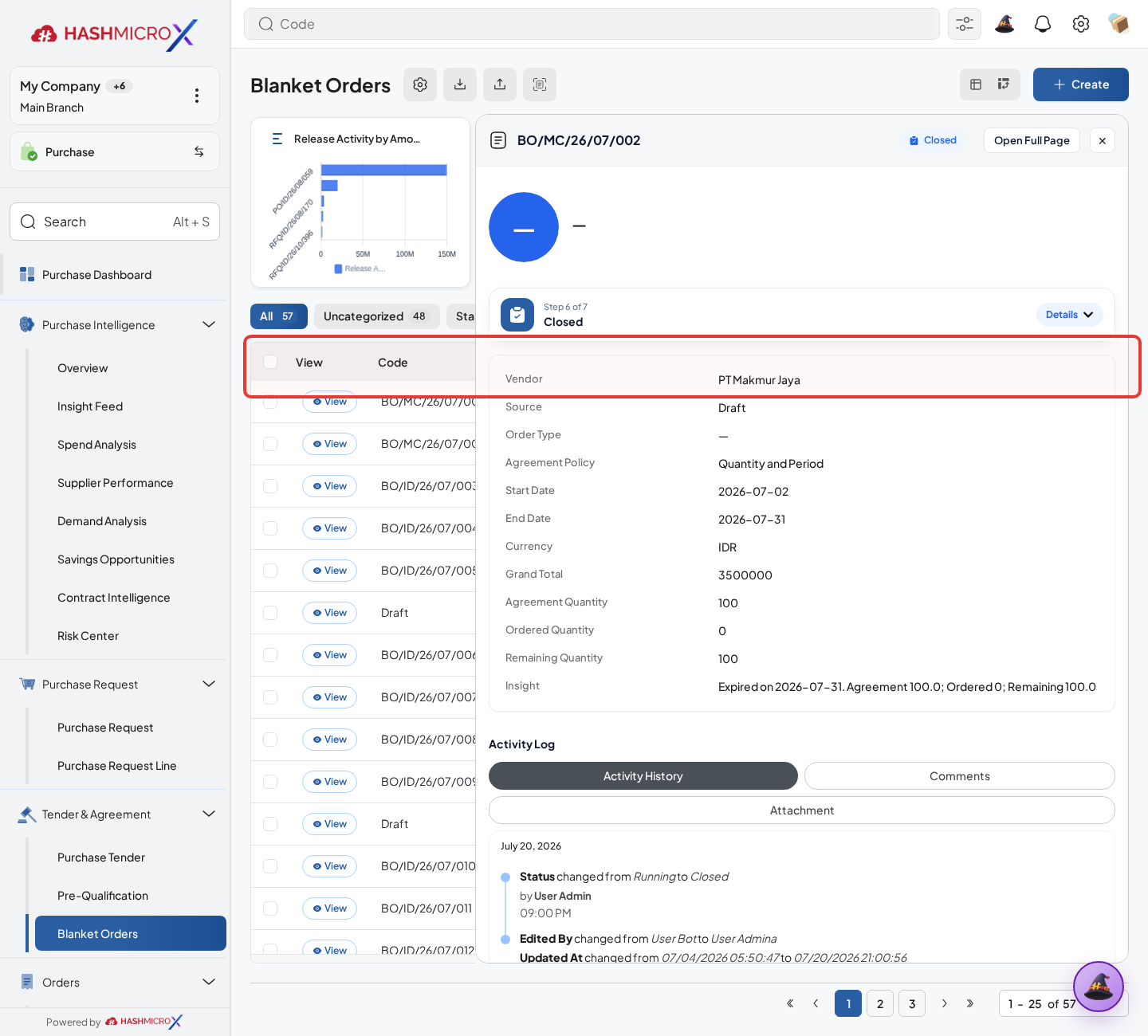
Figure 3.6.1.3 — HMX Main: Blanket Order committed lines, quantities, and agreed prices framed in red - Save and confirm agreement according to approval policy.
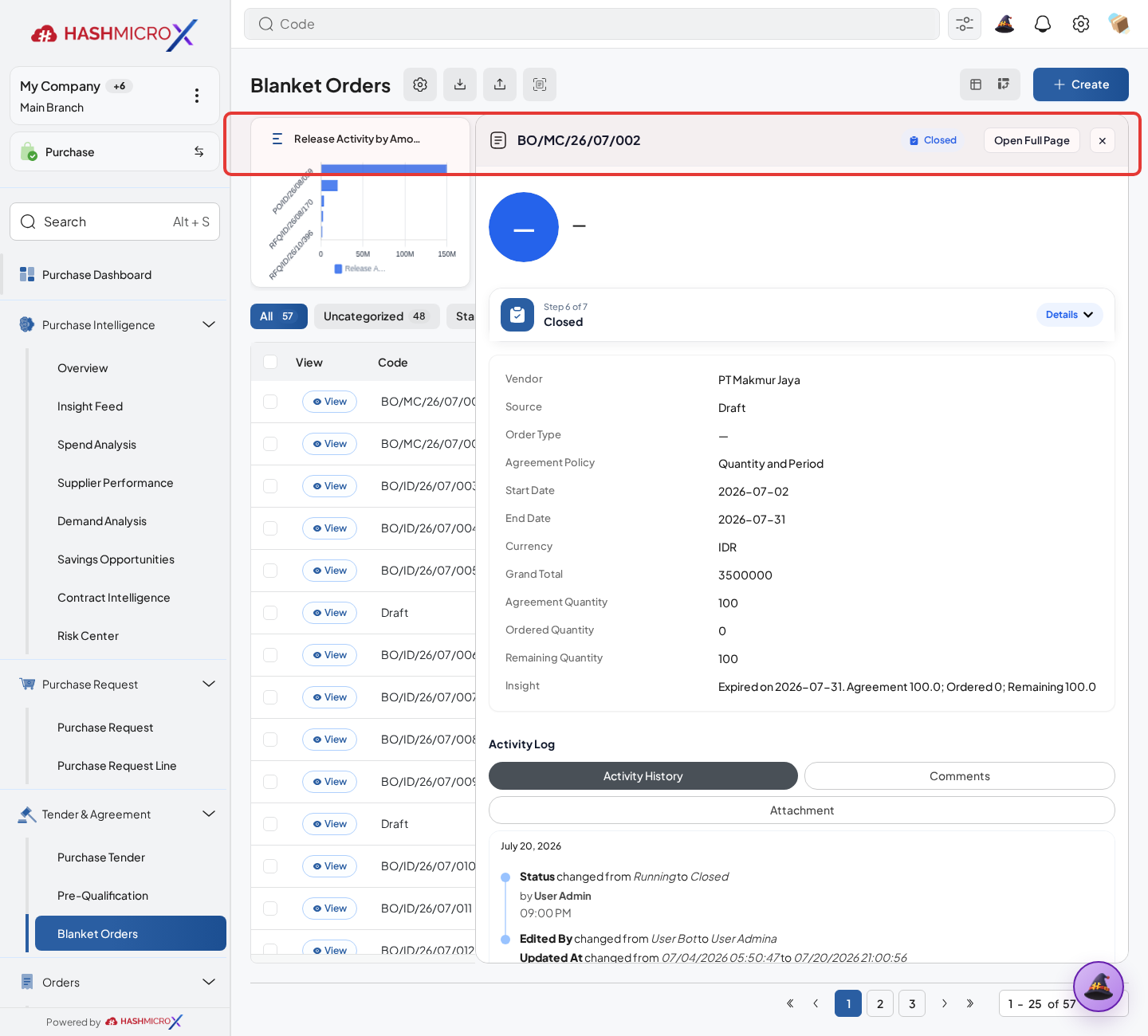
Figure 3.6.1.4 — HMX Main: Blanket Order Confirm Agreement action button framed in red - Monitor remaining quantity as RFQs are released.
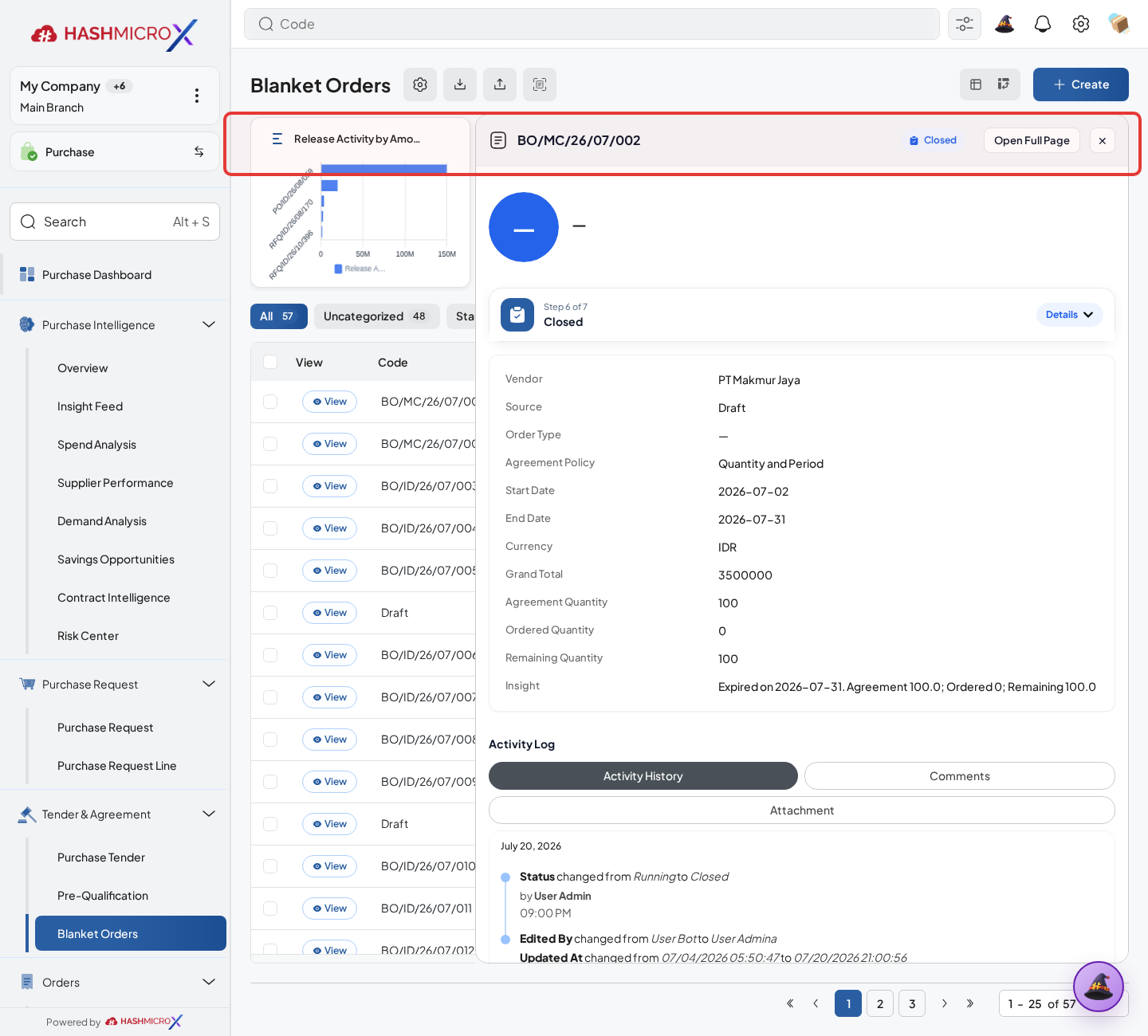
Figure 3.6.1.5 — HMX Main: Blanket Order statusbar and open remaining balance framed in red
Status and Result Guide
| Status / Result | What it means | Trigger | What to do |
|---|---|---|---|
| Draft | The document is being prepared and can still be edited. | User creates the record or resets it before confirmation. | Complete required fields and click the next workflow action. |
| Confirmed / Sent / In Progress | The document has entered the active purchasing workflow. | User clicks Confirm, Send RFQ, Submit, or a related processing action. | Monitor supplier response, approval, receiving, billing, or next action. |
| Approved / Done / Closed | The workflow result is accepted or completed. | Approver accepts the document, PO is confirmed, receipt/bill is processed, or document is closed. | Review linked documents and continue downstream processing. |
| Cancelled / Rejected | The workflow is stopped or not accepted. | User clicks Cancel/Reject or approval fails. | Review reason, correct the record if allowed, or create a replacement document. |
Field Reference
| Field | Required | Description | Example or note |
|---|---|---|---|
| Vendor | Yes | Supplier covered by the agreement. | Data type: Reference. |
| Start / End Date | Yes | Agreement validity period. | Data type: Date. |
| Agreement Lines | Yes | Products, quantity, price, and remaining quantity. | Data type: One2many. |
| Remaining Quantity | No | Open quantity still available for release. | Data type: Number. |
Common Scenarios
| Scenario | When to Use | Key Steps | Expected Result |
|---|---|---|---|
| Process Create Blanket Agreement | Use when a purchasing document needs sourcing, approval, supplier confirmation, receiving, or billing. | Open Purchase > Agreement > Blanket Order, create or open the document, complete required fields and lines, then use the verified workflow action. | The Purchase document moves to the next status and linked records become available when configured. |
| Correct Create Blanket Agreement before completion | Use when document details are incomplete or incorrect before approval, confirmation, receipt, or billing. | Open the document, update editable fields and lines, save, then rerun the required action. | The corrected document continues through the Purchase workflow without duplicate records. |
Troubleshooting
| Issue | Possible Cause | How to fix it |
|---|---|---|
| The menu, button, or action is not visible. | The user role, document status, configuration, approval rule, or related module does not allow the action. | Check user access, document status, Purchase settings, approval setup, and required linked records before retrying. |
| The record cannot be saved, confirmed, approved, sent, received, billed, or closed. | A required field, vendor, product line, quantity, price, warehouse, tax, approval, or source document is missing or invalid. | Review highlighted fields and line tables, complete the missing values, save, then run the workflow action again. |
| The expected linked document is not created. | The source document is not in the required status, the configuration blocks automatic creation, or the related integration is disabled. | Confirm the source document status and configuration, then use the manual Create, Convert, Receiving, Bill, or Release action when available. |
3.6.2 Release RFQ from Blanket Order
Overview
Release RFQ from Blanket Order when a purchase is needed against an active agreement.
Prerequisites
- Vendor, product, purchase team, company, currency, and destination warehouse data are available when required.
- The user has access to create, confirm, approve, send, revise, close, or cancel the related Purchase document.
- Approval, RFQ, blanket, receiving, and billing settings are configured before the workflow is used.
Step-by-Step Instructions
- Open Purchase > Purchase > Request for Quotation. Open active Blanket Order.
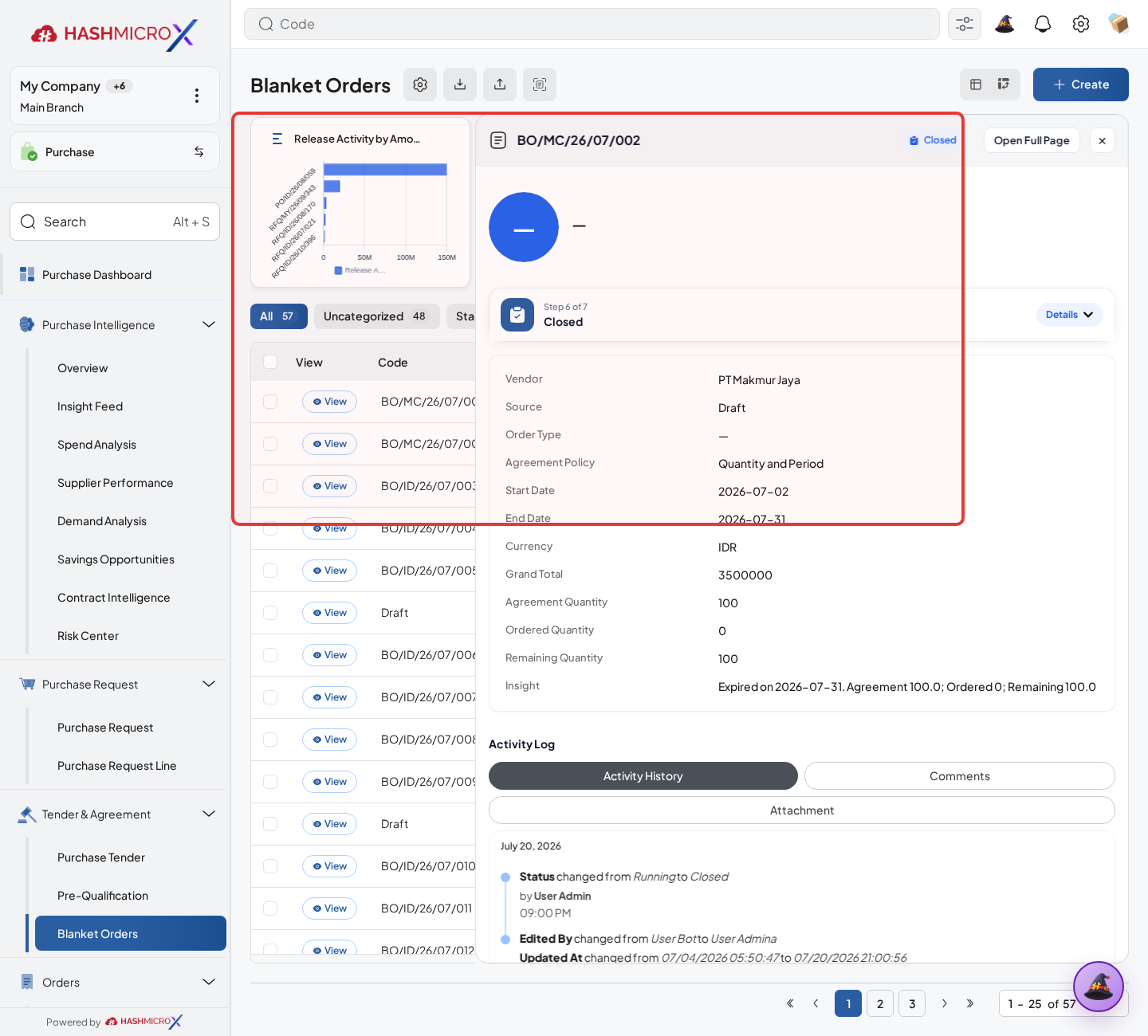
Figure 3.6.2.1 — HMX Main: Blanket Order release RFQ action bar and line details framed in red - Select the agreement line, enter Release Quantity, and review Product, UoM, Price, and Expected Date before creating the RFQ. Release Quantity reduces the remaining blanket agreement balance.
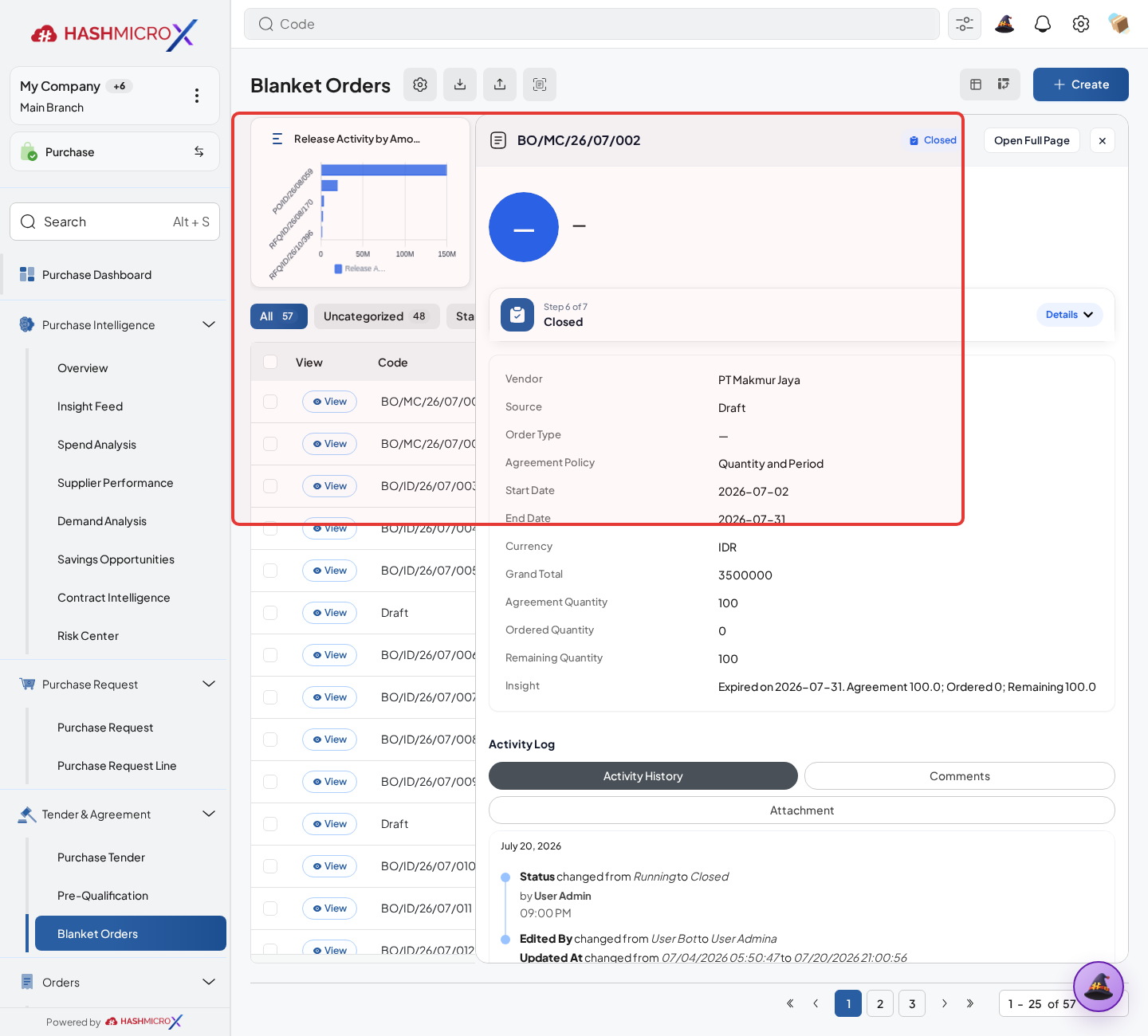
Figure 3.6.2.2 — HMX Main: Blanket Order line release quantity specification framed in red - Click Create RFQ or release action.
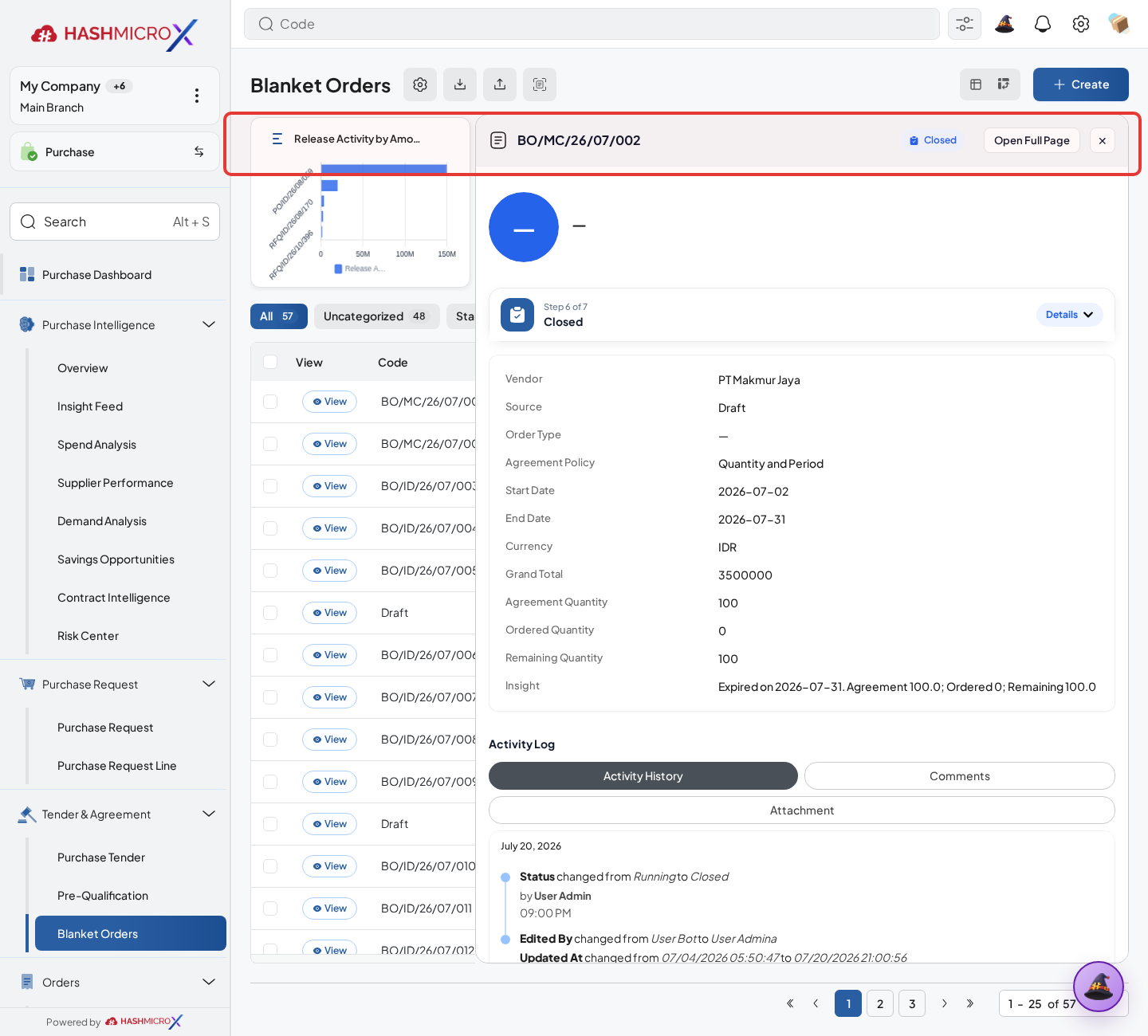
Figure 3.6.2.3 — HMX Main: Create RFQ release action button framed in red - Review generated RFQ vendor, product, price, and expected date.
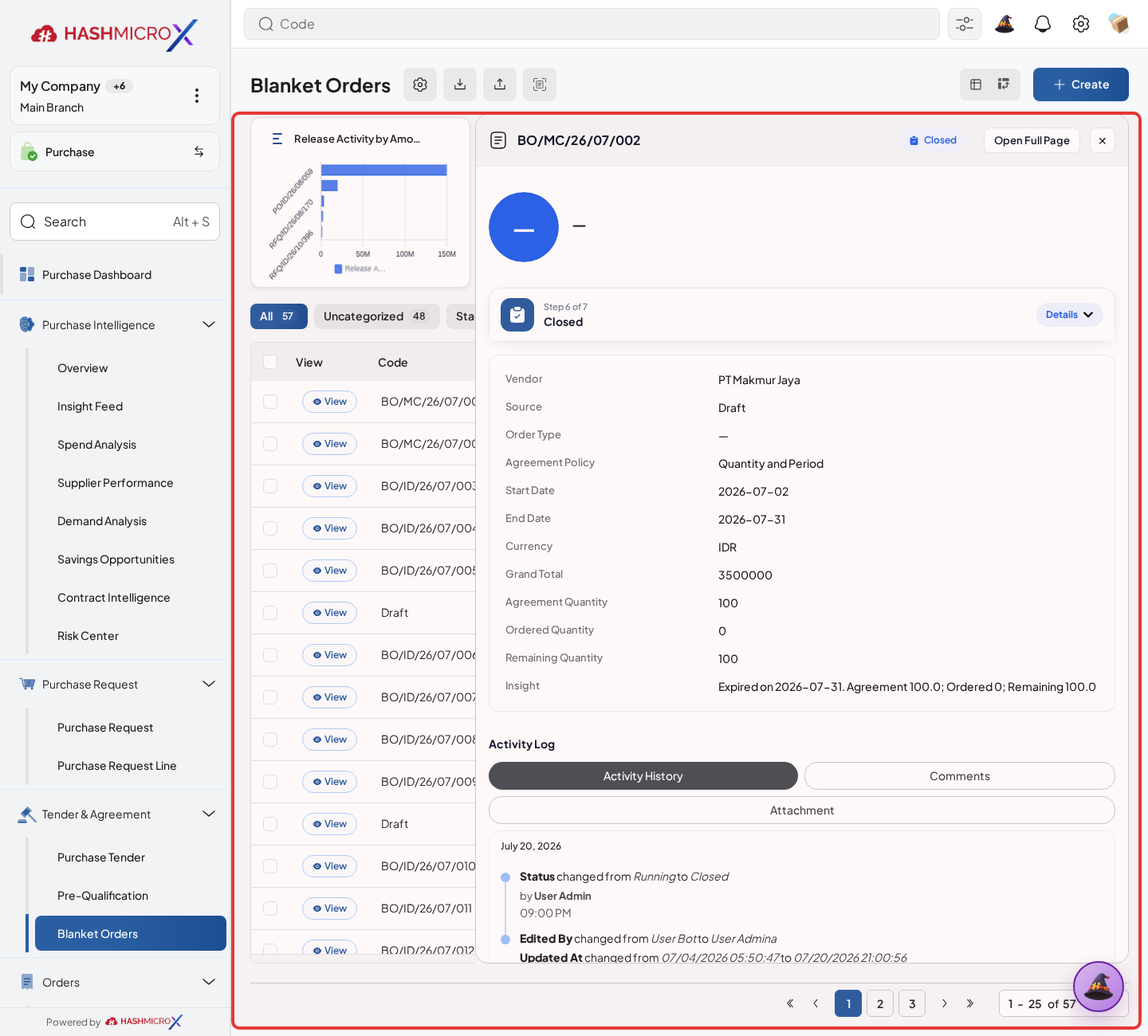
Figure 3.6.2.4 — HMX Main: Released Request for Quotation document view framed in red - Confirm that Blanket remaining quantity is reduced after release.
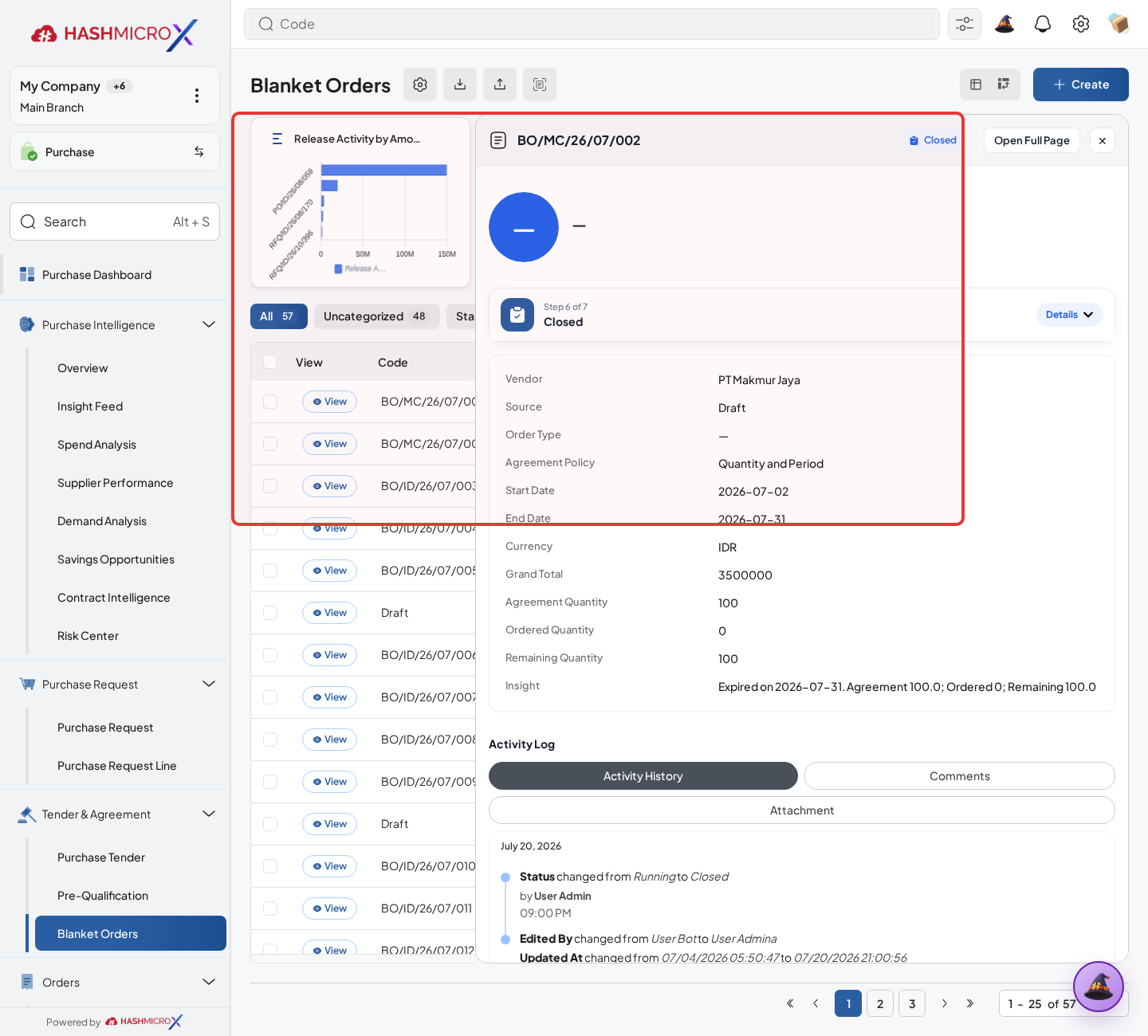
Figure 3.6.2.5 — HMX Main: Blanket Order remaining balance audit after RFQ release framed in red
Status and Result Guide
| Status / Result | What it means | Trigger | What to do |
|---|---|---|---|
| Draft | The document is being prepared and can still be edited. | User creates the record or resets it before confirmation. | Complete required fields and click the next workflow action. |
| Confirmed / Sent / In Progress | The document has entered the active purchasing workflow. | User clicks Confirm, Send RFQ, Submit, or a related processing action. | Monitor supplier response, approval, receiving, billing, or next action. |
| Approved / Done / Closed | The workflow result is accepted or completed. | Approver accepts the document, PO is confirmed, receipt/bill is processed, or document is closed. | Review linked documents and continue downstream processing. |
| Cancelled / Rejected | The workflow is stopped or not accepted. | User clicks Cancel/Reject or approval fails. | Review reason, correct the record if allowed, or create a replacement document. |
Field Reference
| Field | Required | Description | Example or note |
|---|---|---|---|
| Create RFQ | No | Creates RFQ from agreement lines. | Data type: Action. |
| Release Quantity | Yes | Quantity requested from the agreement. | Data type: Number. |
| Generated RFQ | No | RFQ created from Blanket Order. | Data type: Document Link. |
| Remaining Quantity | No | Balance after release. | Data type: Number. |
Common Scenarios
| Scenario | When to Use | Key Steps | Expected Result |
|---|---|---|---|
| Process Release RFQ from Blanket Order | Use when a purchasing document needs sourcing, approval, supplier confirmation, receiving, or billing. | Open Purchase > Purchase > Request for Quotation, create or open the document, complete required fields and lines, then use the verified workflow action. | The Purchase document moves to the next status and linked records become available when configured. |
| Correct Release RFQ from Blanket Order before completion | Use when document details are incomplete or incorrect before approval, confirmation, receipt, or billing. | Open the document, update editable fields and lines, save, then rerun the required action. | The corrected document continues through the Purchase workflow without duplicate records. |
Troubleshooting
| Issue | Possible Cause | How to fix it |
|---|---|---|
| The menu, button, or action is not visible. | The user role, document status, configuration, approval rule, or related module does not allow the action. | Check user access, document status, Purchase settings, approval setup, and required linked records before retrying. |
| The record cannot be saved, confirmed, approved, sent, received, billed, or closed. | A required field, vendor, product line, quantity, price, warehouse, tax, approval, or source document is missing or invalid. | Review highlighted fields and line tables, complete the missing values, save, then run the workflow action again. |
| The expected linked document is not created. | The source document is not in the required status, the configuration blocks automatic creation, or the related integration is disabled. | Confirm the source document status and configuration, then use the manual Create, Convert, Receiving, Bill, or Release action when available. |
3.7 Purchase Tender
Use Purchase Tender for formal competitive sourcing, document submission, bid submission, bid selection, award, and decision approval.
| Field Name | Data Type | Mandatory | Description & Function |
|---|---|---|---|
| Tender Type | Selection | YES | Tender method or classification. |
| Vendor Scope | Selection | YES | Defines eligible supplier scope. |
| Tender Lines | One2many | YES | Products, specifications, quantity, price references, and dates. |
| Apply Award Strategy | Action | Optional | Applies configured allocation strategy. |
| Approve Decision | Action | Optional | Approves tender award decision. |
3.7.1 Submit Bid
Overview
Use tender bid submission to collect supplier offers for formal sourcing.
Prerequisites
- Vendor, product, purchase team, company, currency, and destination warehouse data are available when required.
- The user has access to create, confirm, approve, send, revise, close, or cancel the related Purchase document.
- Approval, RFQ, blanket, receiving, and billing settings are configured before the workflow is used.
Step-by-Step Instructions
- Open Purchase > Tender > Purchase Tender. Open Purchase Tender.
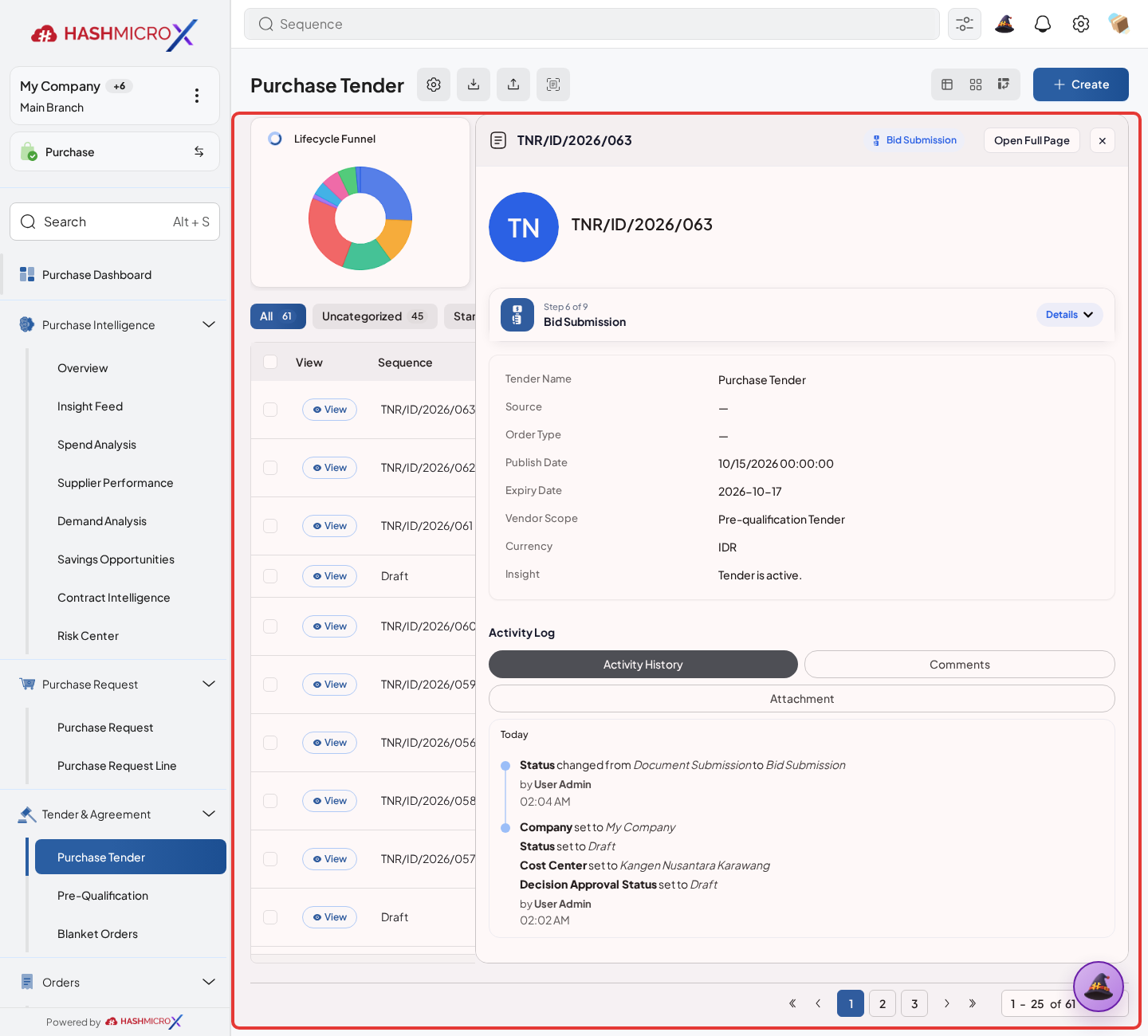
Figure 3.7.1.1 — HMX Main: Purchase Tender vendor bid submission form sheet framed in red - Invite or select eligible vendors according to tender scope.
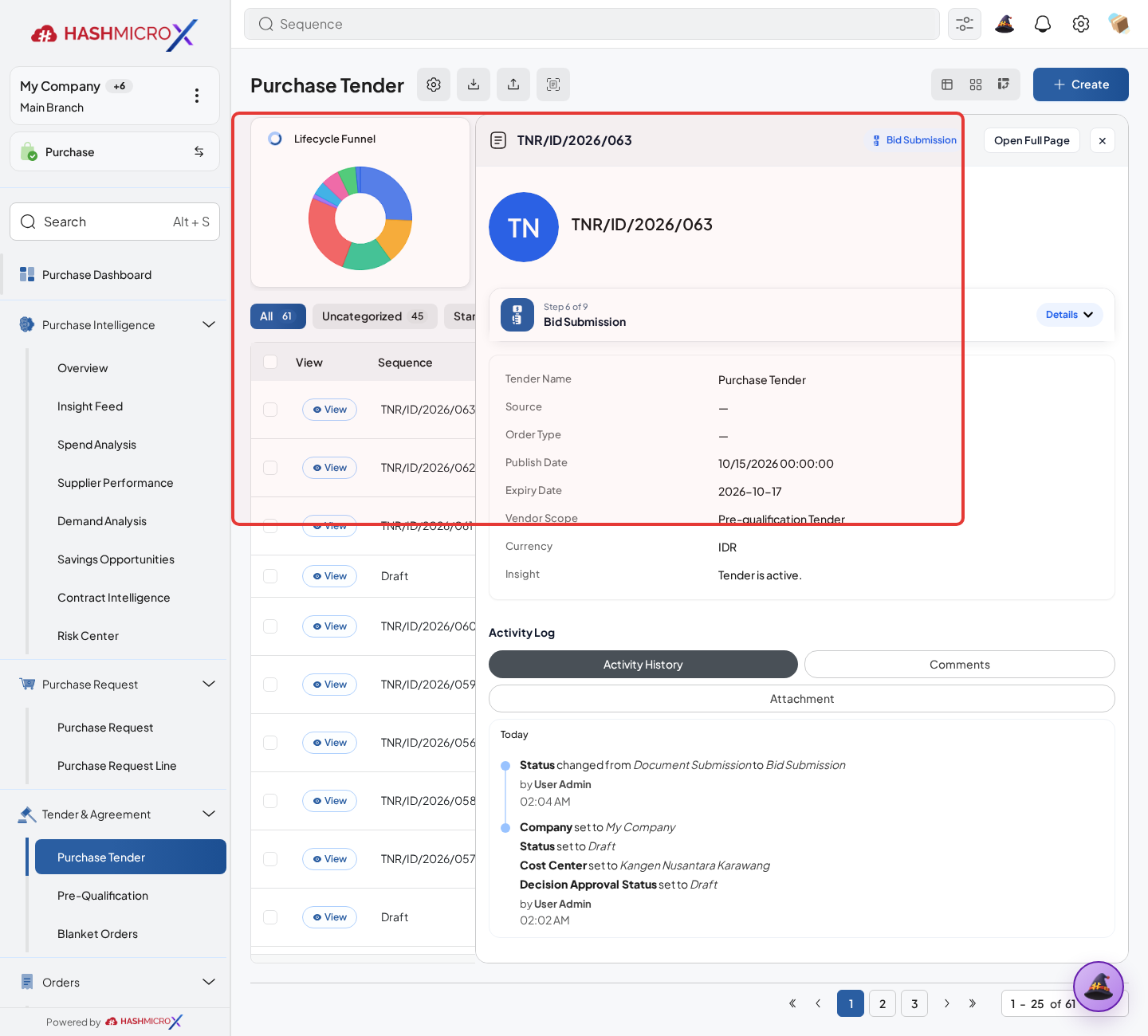
Figure 3.7.1.2 — HMX Main: Purchase Tender vendor invitation and selection panel framed in red - Record bid product, quantity, price, delivery date, and supplier document status.
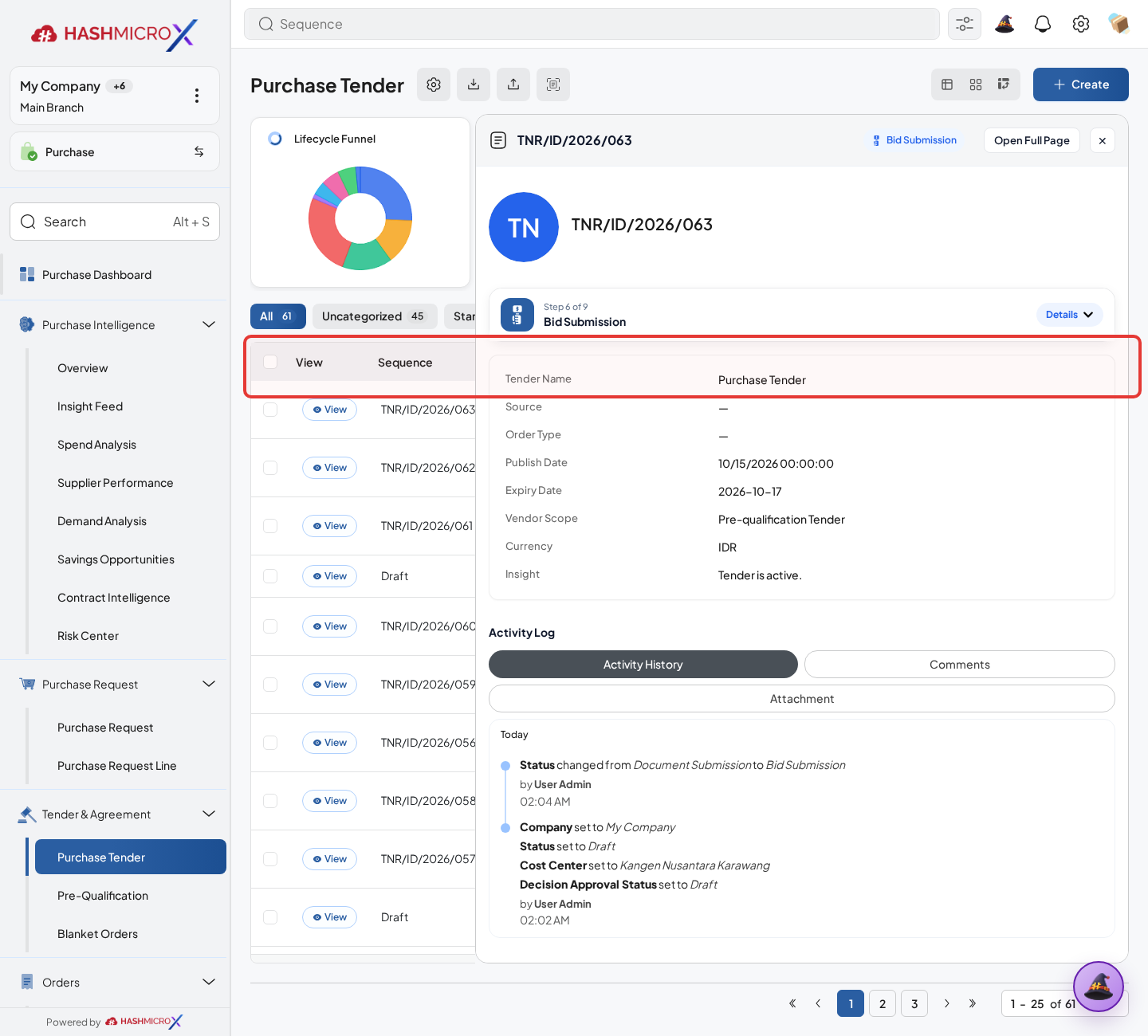
Figure 3.7.1.3 — HMX Main: Purchase Tender supplier bid lines and unit prices framed in red - Submit bid when supplier offer is complete.
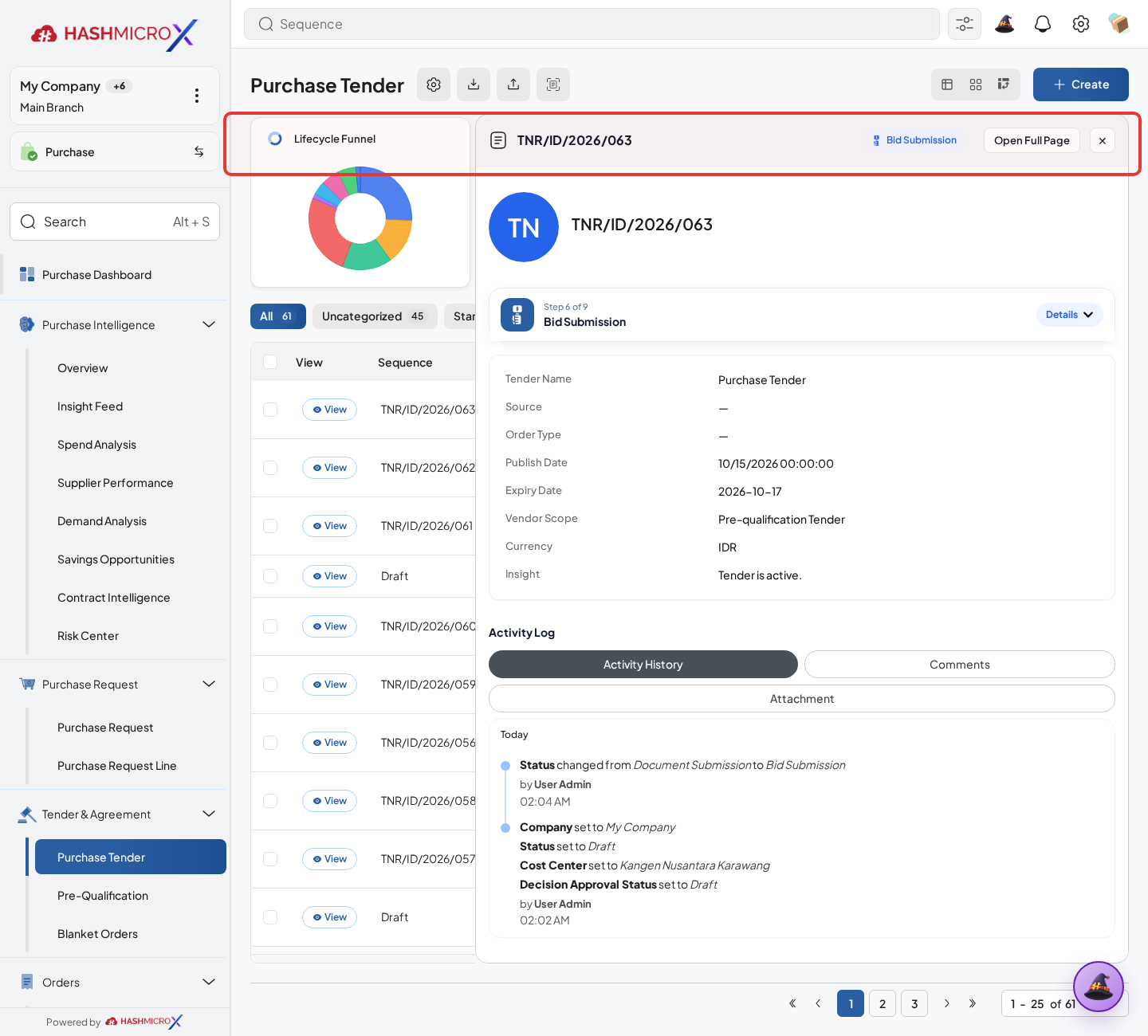
Figure 3.7.1.4 — HMX Main: Tender Bid Submission action button framed in red - Review submitted bids before award strategy is applied.
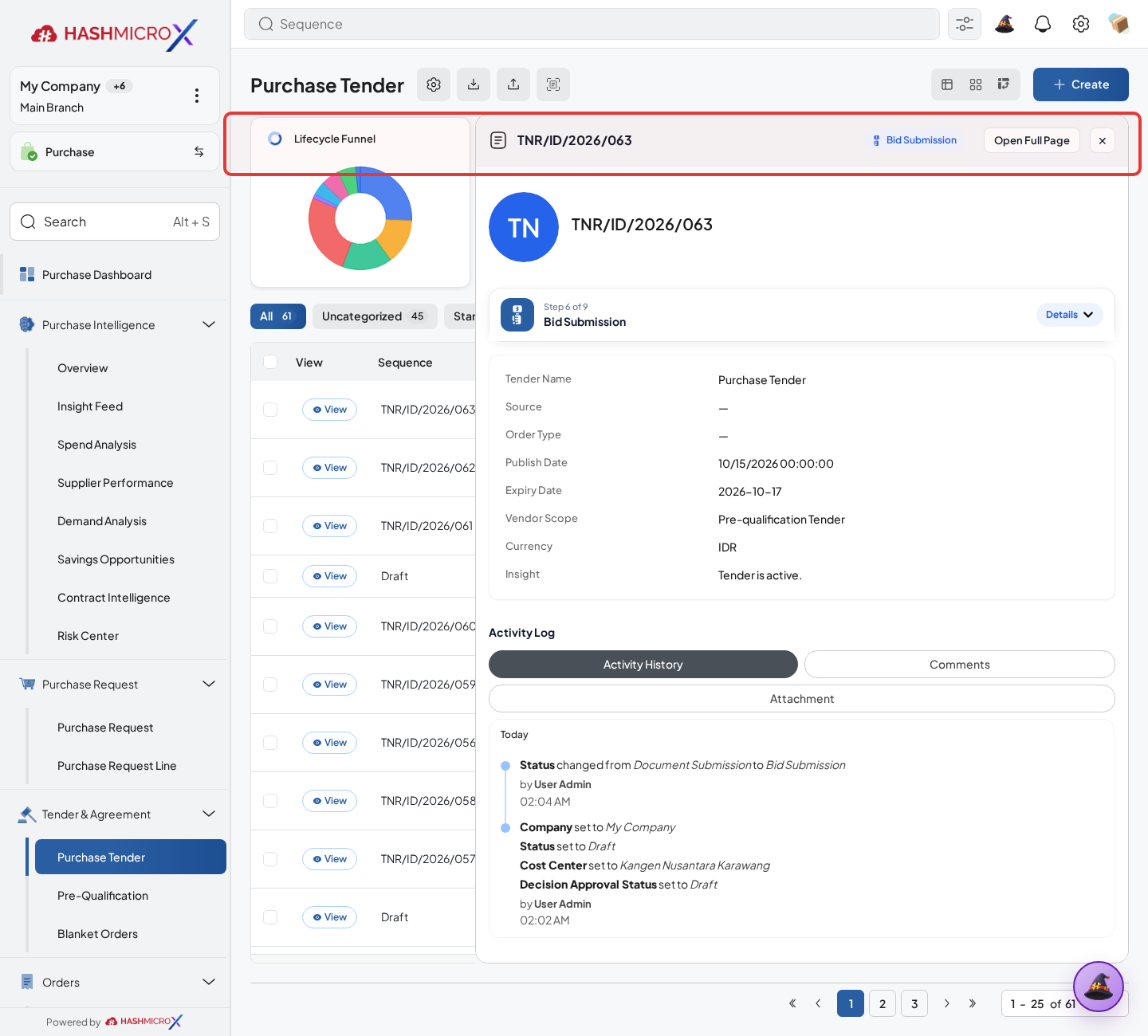
Figure 3.7.1.5 — HMX Main: Tender Bids smart button overview and submitted state framed in red
Status and Result Guide
| Status / Result | What it means | Trigger | What to do |
|---|---|---|---|
| Draft | The document is being prepared and can still be edited. | User creates the record or resets it before confirmation. | Complete required fields and click the next workflow action. |
| Confirmed / Sent / In Progress | The document has entered the active purchasing workflow. | User clicks Confirm, Send RFQ, Submit, or a related processing action. | Monitor supplier response, approval, receiving, billing, or next action. |
| Approved / Done / Closed | The workflow result is accepted or completed. | Approver accepts the document, PO is confirmed, receipt/bill is processed, or document is closed. | Review linked documents and continue downstream processing. |
| Cancelled / Rejected | The workflow is stopped or not accepted. | User clicks Cancel/Reject or approval fails. | Review reason, correct the record if allowed, or create a replacement document. |
Field Reference
| Field | Required | Description | Example or note |
|---|---|---|---|
| Vendor | Yes | Supplier submitting the bid. | Data type: Reference. |
| Bid Lines | Yes | Product, quantity, price, and delivery commitment. | Data type: One2many. |
| Submitted | No | Marks bid as ready for evaluation. | Data type: Status. |
| Document Status | No | Qualification result for supplier documents. | Data type: Status. |
Common Scenarios
| Scenario | When to Use | Key Steps | Expected Result |
|---|---|---|---|
| Process Submit Bid | Use when a purchasing document needs sourcing, approval, supplier confirmation, receiving, or billing. | Open Purchase > Tender > Purchase Tender, create or open the document, complete required fields and lines, then use the verified workflow action. | The Purchase document moves to the next status and linked records become available when configured. |
| Correct Submit Bid before completion | Use when document details are incomplete or incorrect before approval, confirmation, receipt, or billing. | Open the document, update editable fields and lines, save, then rerun the required action. | The corrected document continues through the Purchase workflow without duplicate records. |
Troubleshooting
| Issue | Possible Cause | How to fix it |
|---|---|---|
| The menu, button, or action is not visible. | The user role, document status, configuration, approval rule, or related module does not allow the action. | Check user access, document status, Purchase settings, approval setup, and required linked records before retrying. |
| The record cannot be saved, confirmed, approved, sent, received, billed, or closed. | A required field, vendor, product line, quantity, price, warehouse, tax, approval, or source document is missing or invalid. | Review highlighted fields and line tables, complete the missing values, save, then run the workflow action again. |
| The expected linked document is not created. | The source document is not in the required status, the configuration blocks automatic creation, or the related integration is disabled. | Confirm the source document status and configuration, then use the manual Create, Convert, Receiving, Bill, or Release action when available. |
3.7.2 Apply Award Strategy
Overview
Apply configured award strategy to allocate tender quantity across ranked offers.
Prerequisites
- Vendor, product, purchase team, company, currency, and destination warehouse data are available when required.
- The user has access to create, confirm, approve, send, revise, close, or cancel the related Purchase document.
- Approval, RFQ, blanket, receiving, and billing settings are configured before the workflow is used.
Step-by-Step Instructions
- Open Purchase > Tender > Purchase Tender. Open tender with submitted bids.
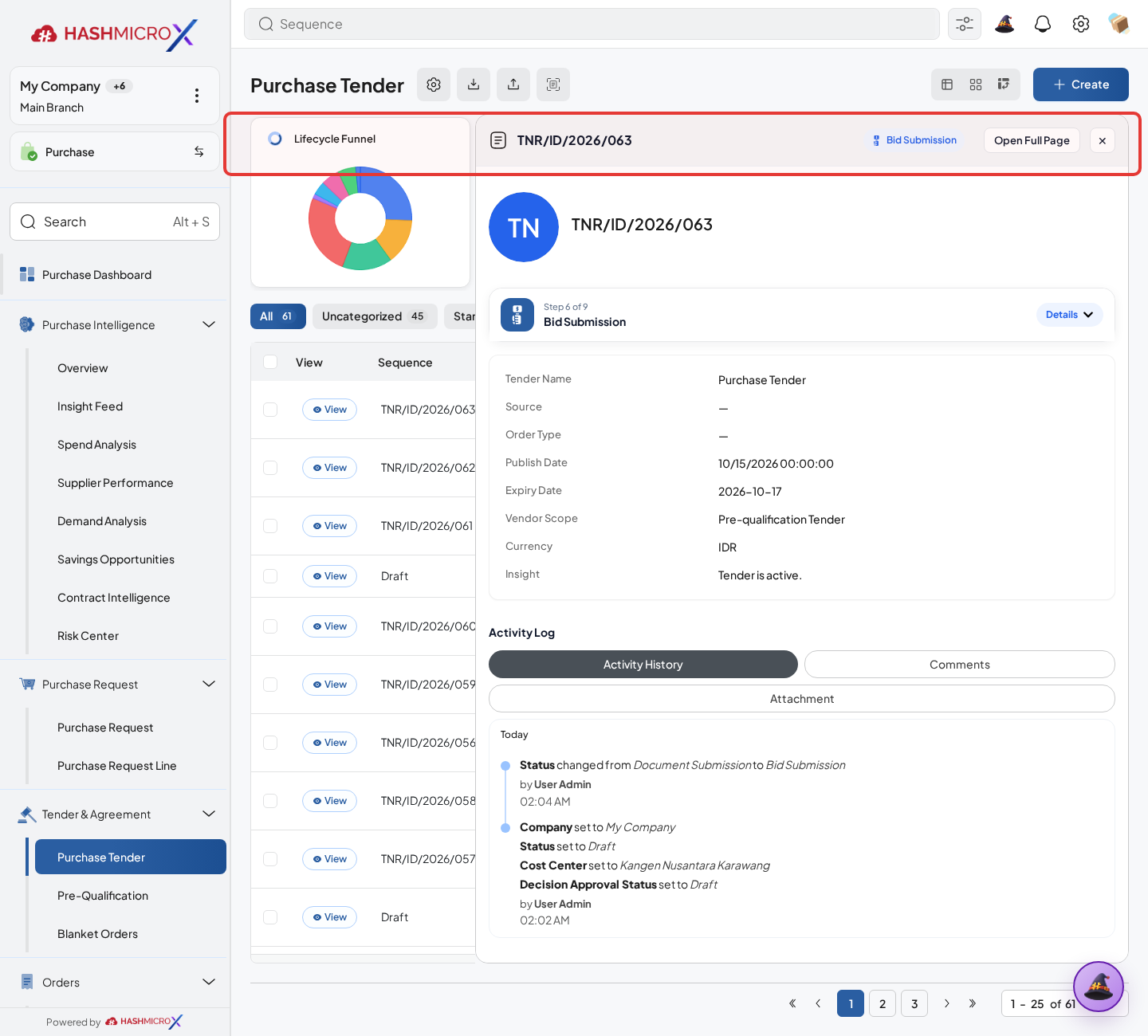
Figure 3.7.2.1 — HMX Main: Tender Apply Award Strategy action button and evaluation panel framed in red - Check award strategy configuration and eligible bid lines.
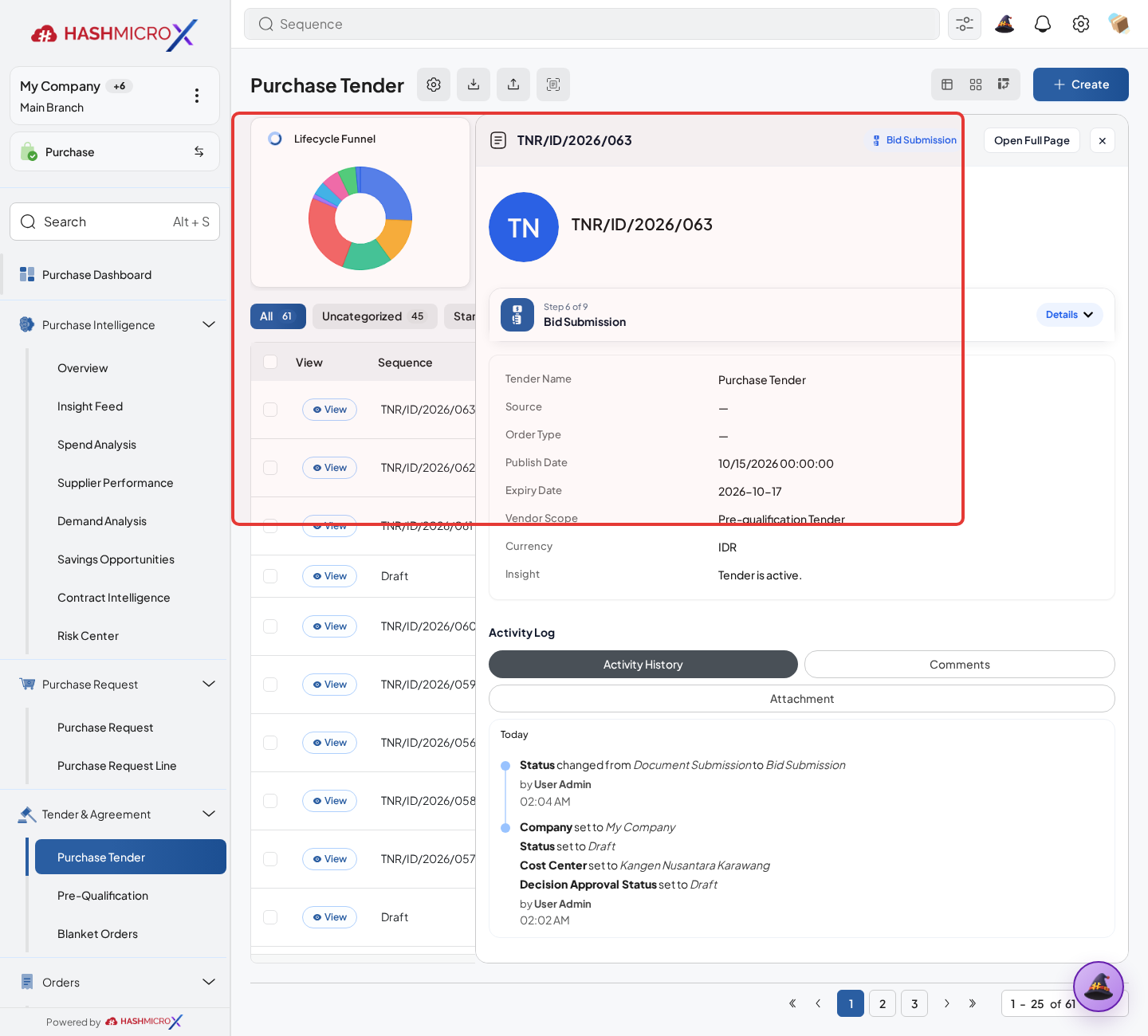
Figure 3.7.2.2 — HMX Main: Tender Award Strategy configuration panel framed in red - Click Apply Award Strategy.
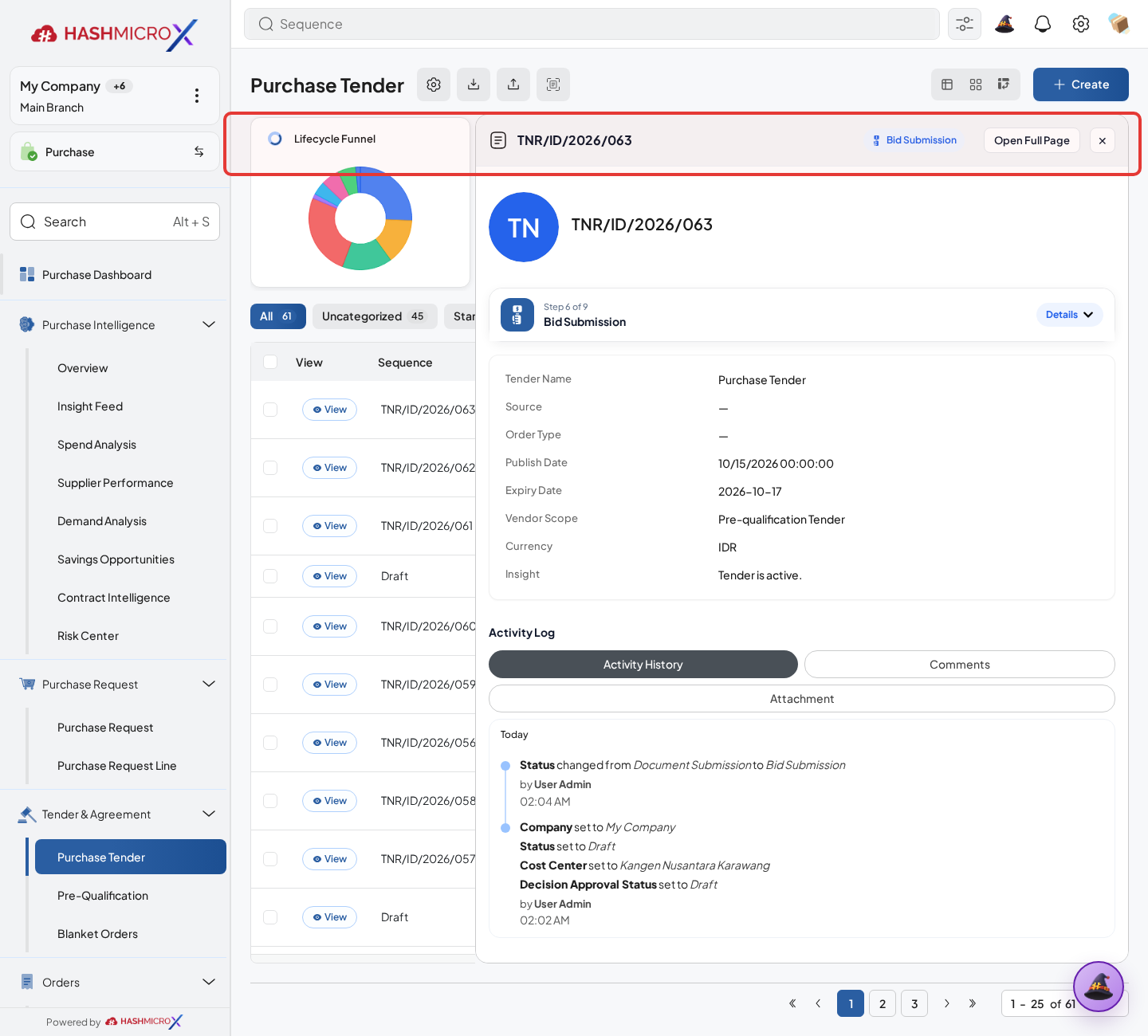
Figure 3.7.2.3 — HMX Main: Apply Award Strategy calculation action button framed in red - Review allocation quantity, score, rank, vendor capacity, and subtotal.
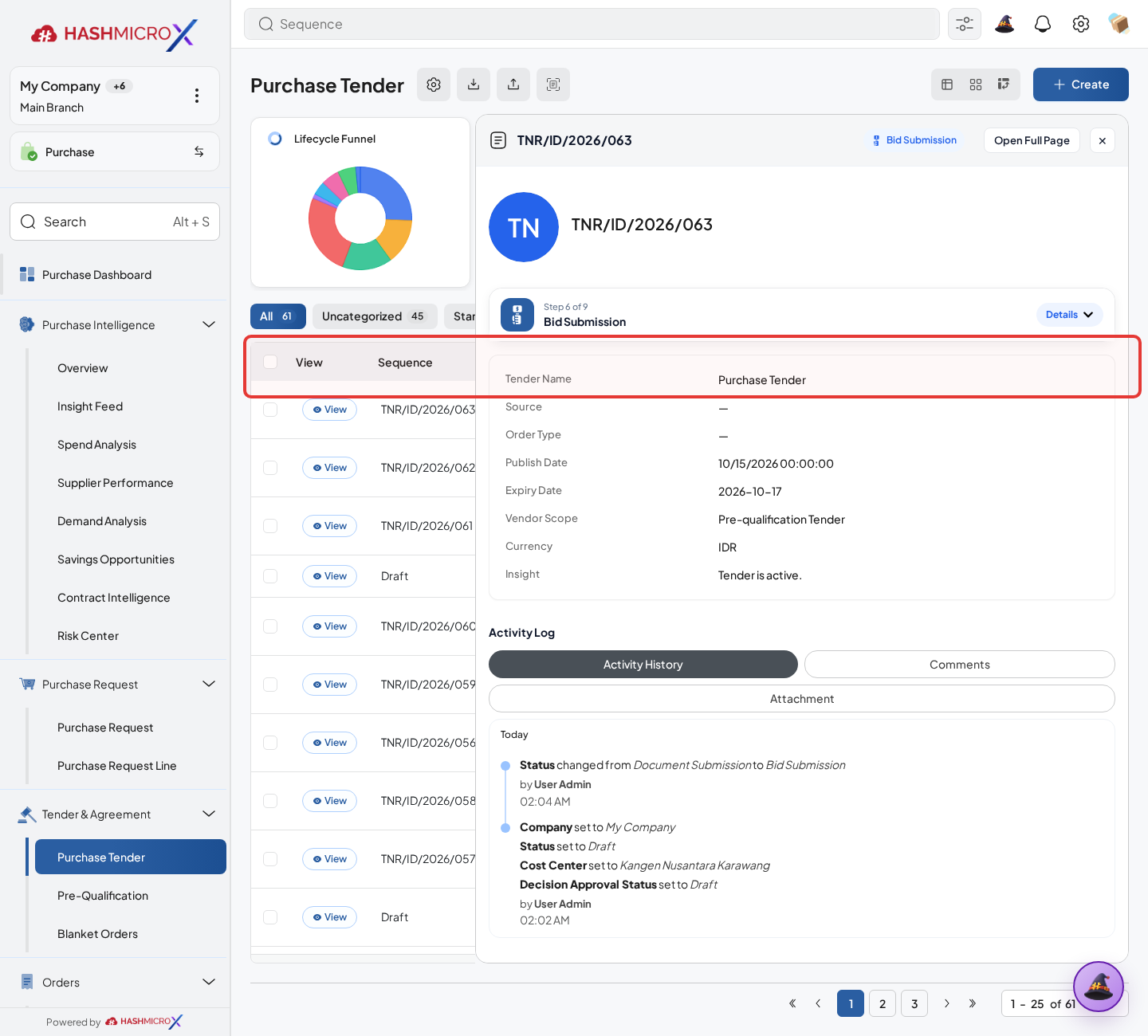
Figure 3.7.2.4 — HMX Main: Tender Award allocation ranking and scoring table framed in red - Adjust allocation only when policy allows manual review.
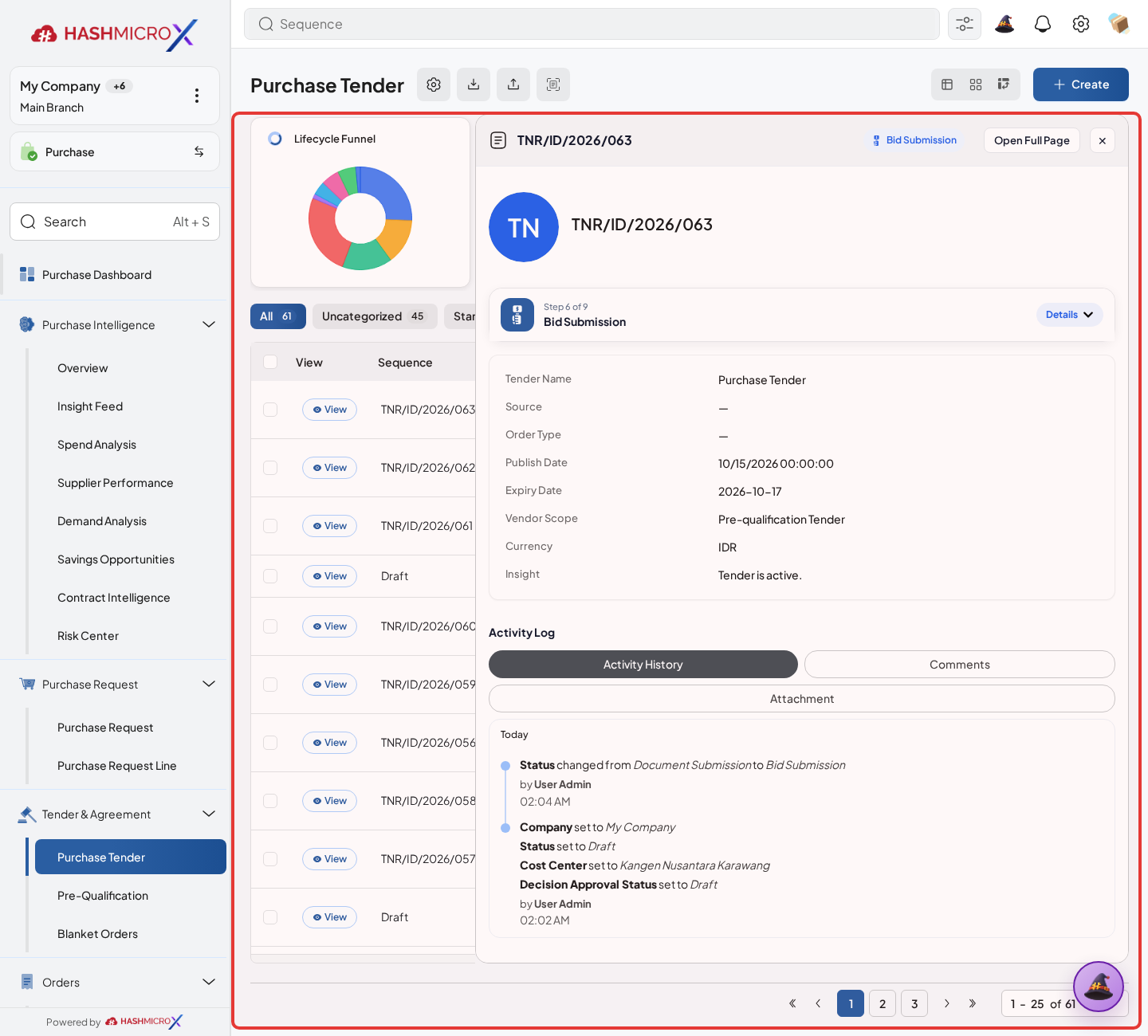
Figure 3.7.2.5 — HMX Main: Tender manual allocation review and fine-tuning controls framed in red
Status and Result Guide
| Status / Result | What it means | Trigger | What to do |
|---|---|---|---|
| Draft | The document is being prepared and can still be edited. | User creates the record or resets it before confirmation. | Complete required fields and click the next workflow action. |
| Confirmed / Sent / In Progress | The document has entered the active purchasing workflow. | User clicks Confirm, Send RFQ, Submit, or a related processing action. | Monitor supplier response, approval, receiving, billing, or next action. |
| Approved / Done / Closed | The workflow result is accepted or completed. | Approver accepts the document, PO is confirmed, receipt/bill is processed, or document is closed. | Review linked documents and continue downstream processing. |
| Cancelled / Rejected | The workflow is stopped or not accepted. | User clicks Cancel/Reject or approval fails. | Review reason, correct the record if allowed, or create a replacement document. |
Field Reference
| Field | Required | Description | Example or note |
|---|---|---|---|
| Award Strategy | No | Configuration used for split ratio and capacity fill. | Data type: Reference. |
| Allocation Quantity | Yes | Quantity awarded to supplier. | Data type: Number. |
| Rank | No | Supplier rank after evaluation. | Data type: Number. |
| Score | No | Evaluation score used for award review. | Data type: Number. |
Common Scenarios
| Scenario | When to Use | Key Steps | Expected Result |
|---|---|---|---|
| Process Apply Award Strategy | Use when a purchasing document needs sourcing, approval, supplier confirmation, receiving, or billing. | Open Purchase > Tender > Purchase Tender, create or open the document, complete required fields and lines, then use the verified workflow action. | The Purchase document moves to the next status and linked records become available when configured. |
| Correct Apply Award Strategy before completion | Use when document details are incomplete or incorrect before approval, confirmation, receipt, or billing. | Open the document, update editable fields and lines, save, then rerun the required action. | The corrected document continues through the Purchase workflow without duplicate records. |
Troubleshooting
| Issue | Possible Cause | How to fix it |
|---|---|---|
| The menu, button, or action is not visible. | The user role, document status, configuration, approval rule, or related module does not allow the action. | Check user access, document status, Purchase settings, approval setup, and required linked records before retrying. |
| The record cannot be saved, confirmed, approved, sent, received, billed, or closed. | A required field, vendor, product line, quantity, price, warehouse, tax, approval, or source document is missing or invalid. | Review highlighted fields and line tables, complete the missing values, save, then run the workflow action again. |
| The expected linked document is not created. | The source document is not in the required status, the configuration blocks automatic creation, or the related integration is disabled. | Confirm the source document status and configuration, then use the manual Create, Convert, Receiving, Bill, or Release action when available. |
3.7.3 Approve Award Decision
Overview
Approve tender award decision before generating or confirming purchase documents.
Prerequisites
- Vendor, product, purchase team, company, currency, and destination warehouse data are available when required.
- The user has access to create, confirm, approve, send, revise, close, or cancel the related Purchase document.
- Approval, RFQ, blanket, receiving, and billing settings are configured before the workflow is used.
Step-by-Step Instructions
- Open Purchase > Tender > Purchase Tender. Open tender award review.
Figure 3.7.3.1 — HMX Main: Tender Approve Award Decision statusbar action framed in red - Check allocated vendors, quantities, prices, and document qualification.
Figure 3.7.3.2 — HMX Main: Winning vendor qualification and document validation review framed in red - Click Approve Decision when evaluation is complete.
Figure 3.7.3.3 — HMX Main: Approve Award Decision statusbar action framed in red - Generate PO or RFQ from the approved award where available.
Figure 3.7.3.4 — HMX Main: Generate PO from Award action button framed in red - Use Tender Audit to trace allocation and approval history.
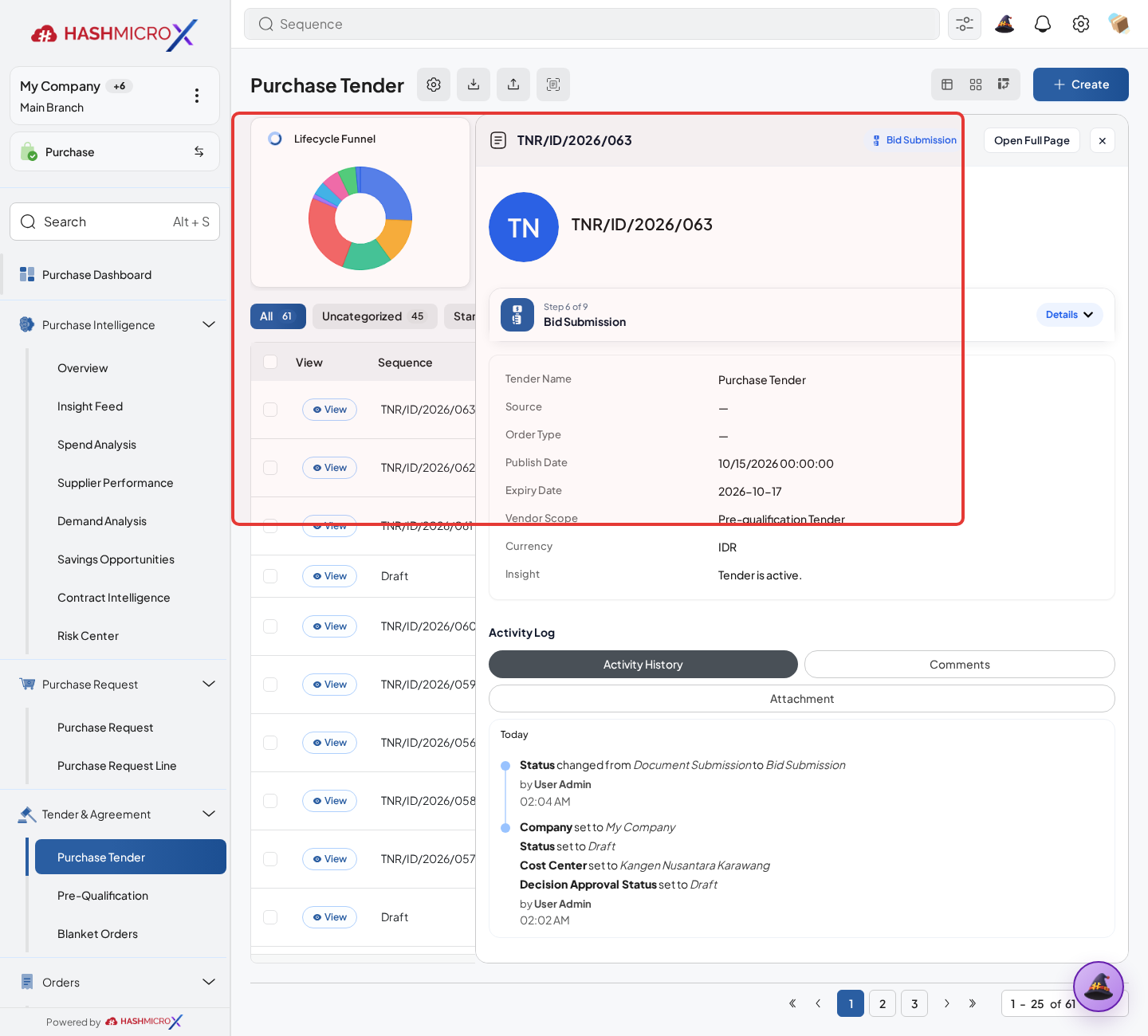
Figure 3.7.3.5 — HMX Main: Tender evaluation and award audit trail chatter log framed in red
Status and Result Guide
| Status / Result | What it means | Trigger | What to do |
|---|---|---|---|
| Draft | The document is being prepared and can still be edited. | User creates the record or resets it before confirmation. | Complete required fields and click the next workflow action. |
| Confirmed / Sent / In Progress | The document has entered the active purchasing workflow. | User clicks Confirm, Send RFQ, Submit, or a related processing action. | Monitor supplier response, approval, receiving, billing, or next action. |
| Approved / Done / Closed | The workflow result is accepted or completed. | Approver accepts the document, PO is confirmed, receipt/bill is processed, or document is closed. | Review linked documents and continue downstream processing. |
| Cancelled / Rejected | The workflow is stopped or not accepted. | User clicks Cancel/Reject or approval fails. | Review reason, correct the record if allowed, or create a replacement document. |
Field Reference
| Field | Required | Description | Example or note |
|---|---|---|---|
| Approve Decision | No | Approves final award decision. | Data type: Action. |
| Generated PO | No | Purchase Order generated from tender award. | Data type: Document Link. |
| Audit Log | No | Tracks allocation and decision changes. | Data type: Record. |
| Decision State | Yes | Shows current award approval status. | Data type: Status. |
Common Scenarios
| Scenario | When to Use | Key Steps | Expected Result |
|---|---|---|---|
| Process Approve Award Decision | Use when a purchasing document needs sourcing, approval, supplier confirmation, receiving, or billing. | Open Purchase > Tender > Purchase Tender, create or open the document, complete required fields and lines, then use the verified workflow action. | The Purchase document moves to the next status and linked records become available when configured. |
| Correct Approve Award Decision before completion | Use when document details are incomplete or incorrect before approval, confirmation, receipt, or billing. | Open the document, update editable fields and lines, save, then rerun the required action. | The corrected document continues through the Purchase workflow without duplicate records. |
Troubleshooting
| Issue | Possible Cause | How to fix it |
|---|---|---|
| The menu, button, or action is not visible. | The user role, document status, configuration, approval rule, or related module does not allow the action. | Check user access, document status, Purchase settings, approval setup, and required linked records before retrying. |
| The record cannot be saved, confirmed, approved, sent, received, billed, or closed. | A required field, vendor, product line, quantity, price, warehouse, tax, approval, or source document is missing or invalid. | Review highlighted fields and line tables, complete the missing values, save, then run the workflow action again. |
| The expected linked document is not created. | The source document is not in the required status, the configuration blocks automatic creation, or the related integration is disabled. | Confirm the source document status and configuration, then use the manual Create, Convert, Receiving, Bill, or Release action when available. |
3.8 Pre-Qualification & Document Reviews
Overview
Use Pre-Qualification and Document Reviews to validate vendor document readiness before tender award.
Prerequisites
- Vendor, product, purchase team, company, currency, and destination warehouse data are available when required.
- The user has access to create, confirm, approve, send, revise, close, or cancel the related Purchase document.
- Approval, RFQ, blanket, receiving, and billing settings are configured before the workflow is used.
Step-by-Step Instructions
Open Purchase > Vendor > Vendors. Open the Tender or vendor qualification record that requires document review.
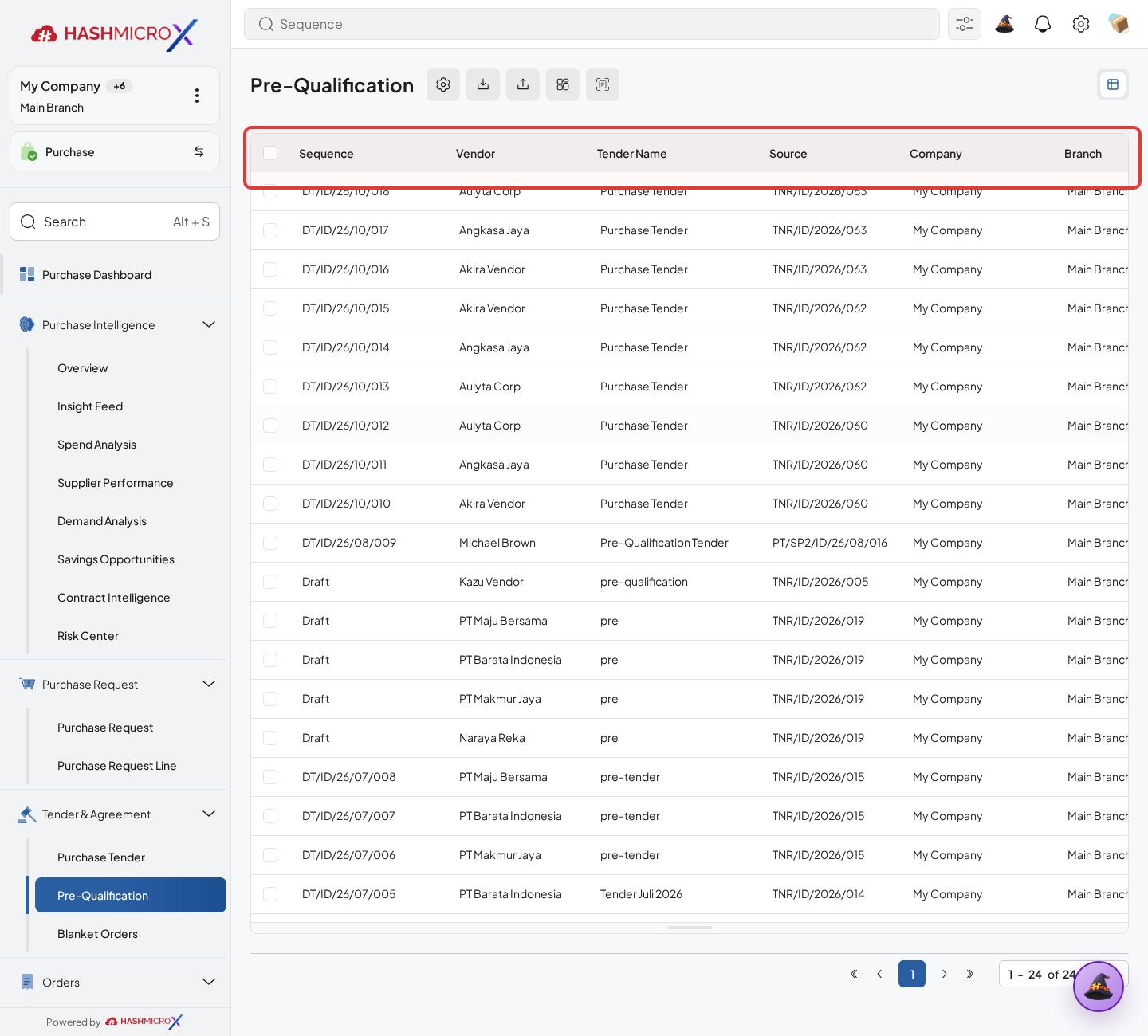
Figure 3.8.1 — HMX Main: Vendor Pre-Qualification and compliance review list table framed in red Select the vendor and confirm the required legal document lines are listed.
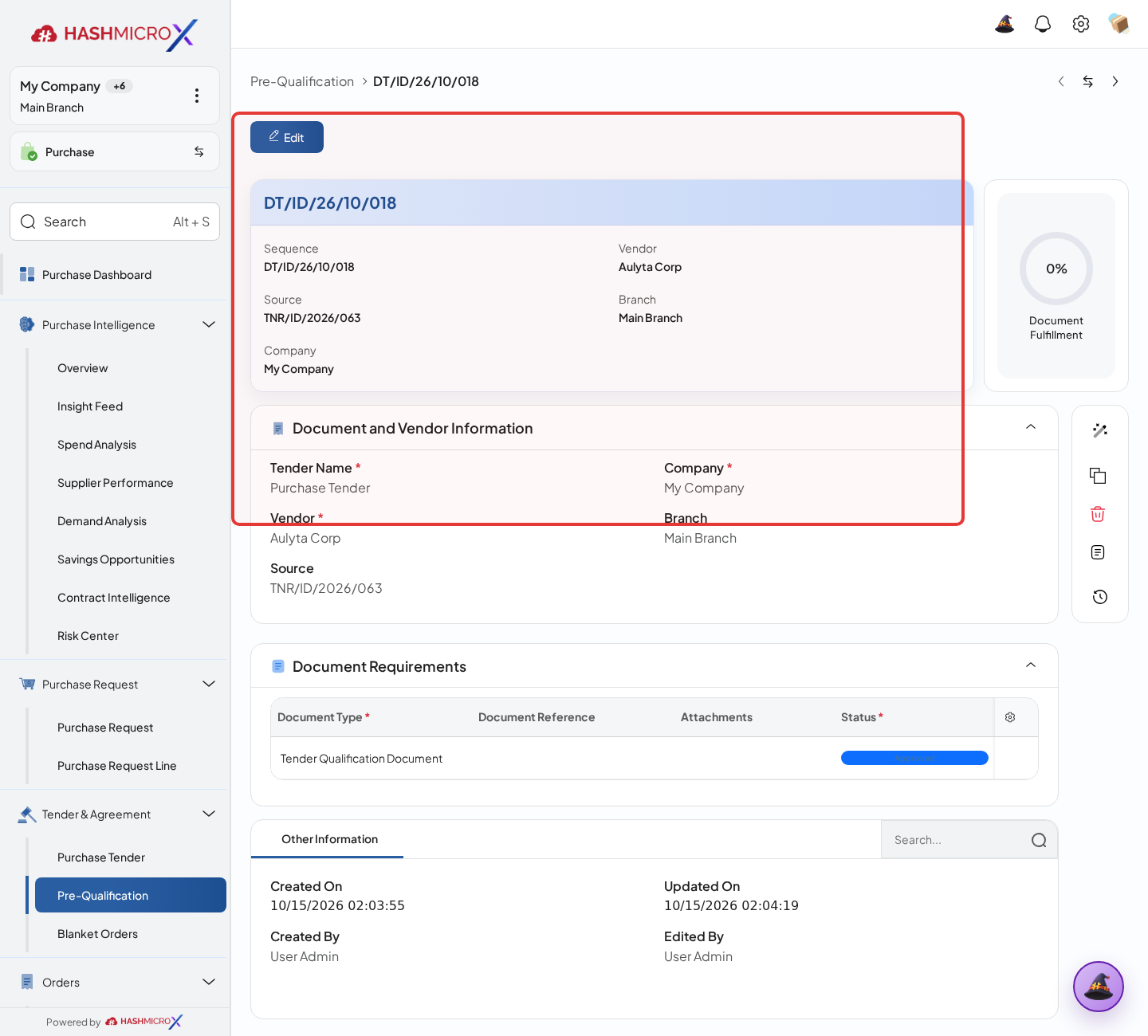
Figure 3.8.1.2 — HMX Main: Vendor pre-qualification required legal document lines framed in red Upload or review each attachment and update the document status.
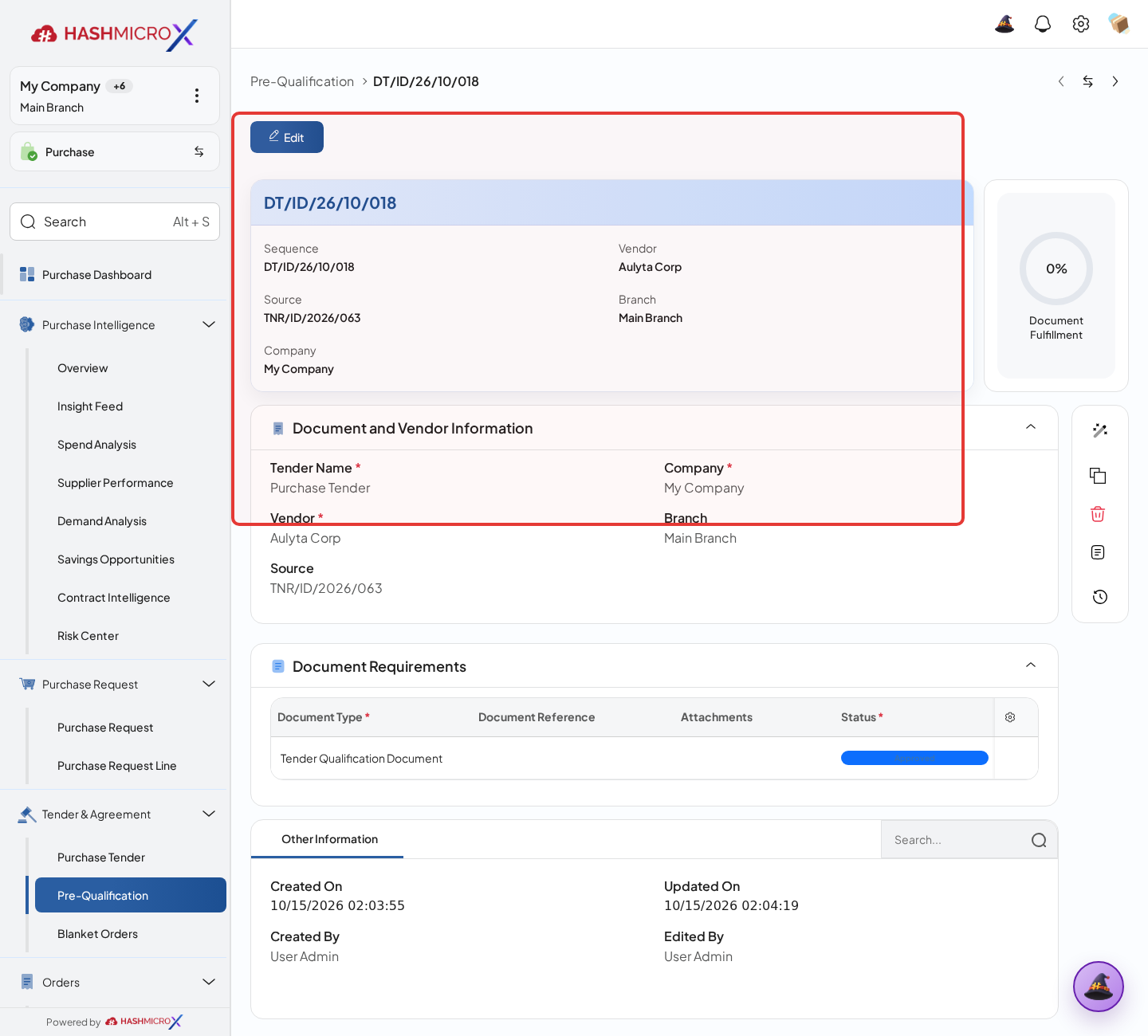
Figure 3.8.1.3 — HMX Main: Vendor compliance attachment verification sheet framed in red Use Document Fulfillment when the vendor must complete missing requirements.
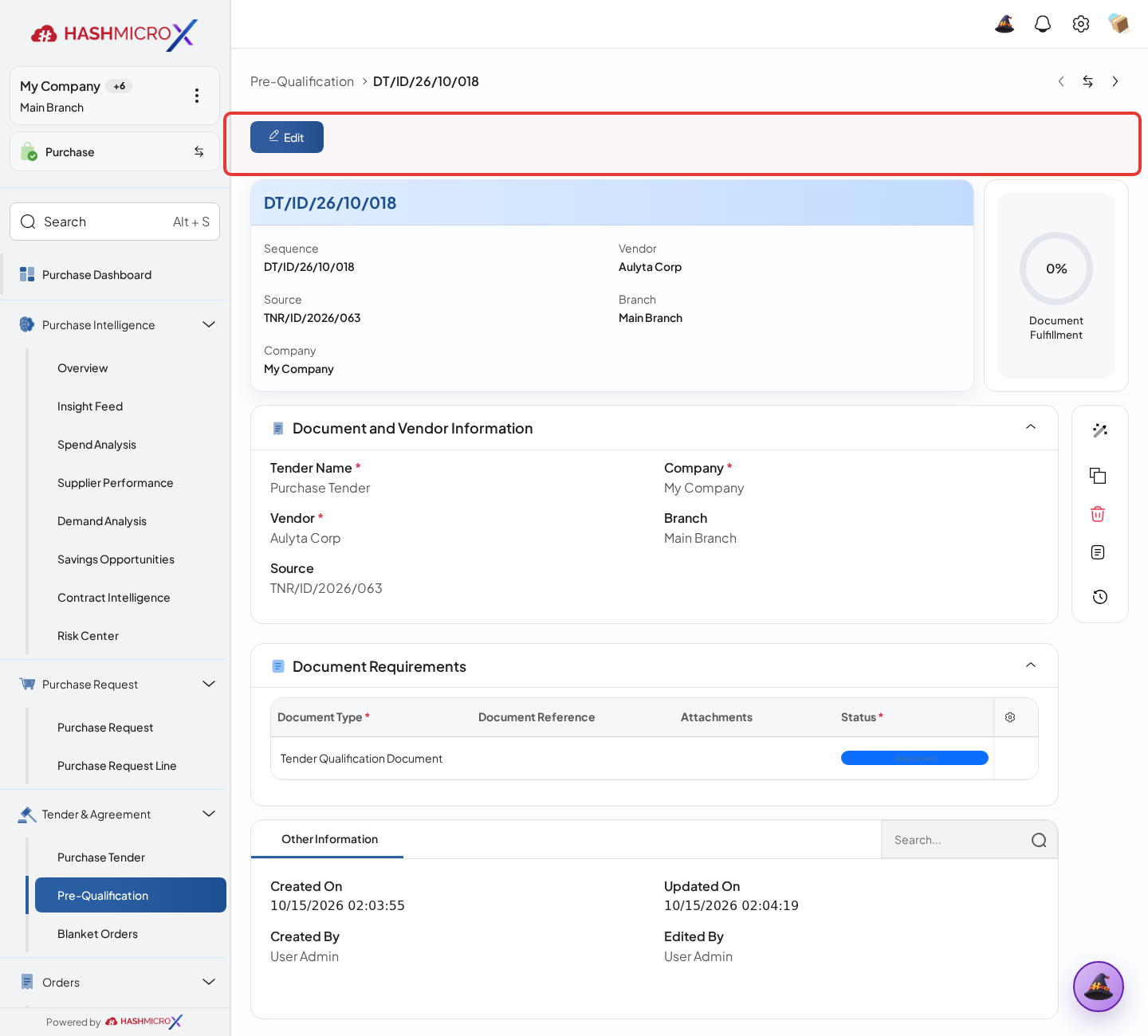
Figure 3.8.1.4 — HMX Main: Request document fulfillment action controls framed in red Check the compliance status before allowing the vendor to continue to award or PO creation.
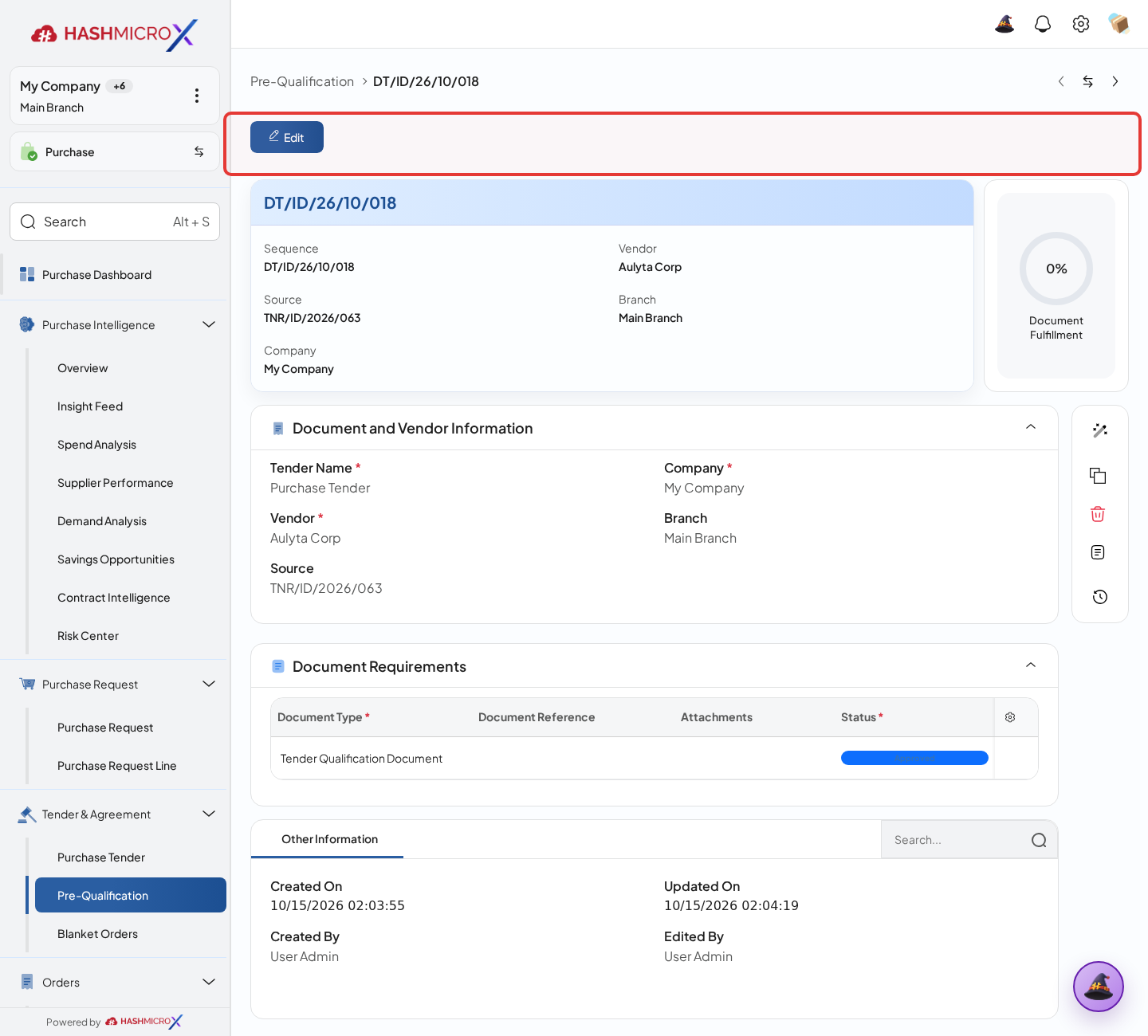
Figure 3.8.1.5 — HMX Main: Vendor legal qualification approved compliance status framed in red
Status and Result Guide
| Status / Result | What it means | Trigger | What to do |
|---|---|---|---|
| Draft | The document is being prepared and can still be edited. | User creates the record or resets it before confirmation. | Complete required fields and click the next workflow action. |
| Confirmed / Sent / In Progress | The document has entered the active purchasing workflow. | User clicks Confirm, Send RFQ, Submit, or a related processing action. | Monitor supplier response, approval, receiving, billing, or next action. |
| Approved / Done / Closed | The workflow result is accepted or completed. | Approver accepts the document, PO is confirmed, receipt/bill is processed, or document is closed. | Review linked documents and continue downstream processing. |
| Cancelled / Rejected | The workflow is stopped or not accepted. | User clicks Cancel/Reject or approval fails. | Review reason, correct the record if allowed, or create a replacement document. |
Field Reference
| Field | Required | Description | Example or note |
|---|---|---|---|
| Tender | Yes | Tender being qualified. | Data type: Reference. |
| Vendor | Yes | Supplier being reviewed. | Data type: Reference. |
| Document Lines | Yes | Required document type, attachment, and status. | Data type: One2many. |
| Compliance Status | Conditional | Summarizes document completion state. | Data type: Status. |
| Document Fulfillment | No | Opens required document fulfillment form. | Data type: Action. |
Common Scenarios
| Scenario | When to Use | Key Steps | Expected Result |
|---|---|---|---|
| Process Pre-Qualification & Document Reviews | Use when a purchasing document needs sourcing, approval, supplier confirmation, receiving, or billing. | Open Purchase > Vendor > Vendors, create or open the document, complete required fields and lines, then use the verified workflow action. | The Purchase document moves to the next status and linked records become available when configured. |
| Correct Pre-Qualification & Document Reviews before completion | Use when document details are incomplete or incorrect before approval, confirmation, receipt, or billing. | Open the document, update editable fields and lines, save, then rerun the required action. | The corrected document continues through the Purchase workflow without duplicate records. |
Troubleshooting
| Issue | Possible Cause | How to fix it |
|---|---|---|
| The menu, button, or action is not visible. | The user role, document status, configuration, approval rule, or related module does not allow the action. | Check user access, document status, Purchase settings, approval setup, and required linked records before retrying. |
| The record cannot be saved, confirmed, approved, sent, received, billed, or closed. | A required field, vendor, product line, quantity, price, warehouse, tax, approval, or source document is missing or invalid. | Review highlighted fields and line tables, complete the missing values, save, then run the workflow action again. |
| The expected linked document is not created. | The source document is not in the required status, the configuration blocks automatic creation, or the related integration is disabled. | Confirm the source document status and configuration, then use the manual Create, Convert, Receiving, Bill, or Release action when available. |
3.9 Receiving Notes
Use Receiving Notes to receive goods from confirmed Purchase Order when Purchase Inventory integration is installed.
| Field Name | Data Type | Mandatory | Description & Function |
|---|---|---|---|
| Receiving Notes | Smart Button | Optional | Opens inbound receiving documents linked to PO. |
| Create RN | Action | Optional | Creates receiving note from remaining PO line quantities. |
| Qty Received | Number | Read-only | Received quantity per PO line. |
| Qty Remaining | Number | Read-only | Quantity still open to receive. |
| Actual Receiving Date | Date | Read-only | Date used for lead-time review. |
3.9.1 Create RN from PO
Overview
Create Goods Receipt (Receiving Note) from PO so warehouse can receive purchased goods.
Prerequisites
- Vendor, product, purchase team, company, currency, and destination warehouse data are available when required.
- The user has access to create, confirm, approve, send, revise, close, or cancel the related Purchase document.
- Approval, RFQ, blanket, receiving, and billing settings are configured before the workflow is used.
Step-by-Step Instructions
- Open confirmed PO with receivable products.
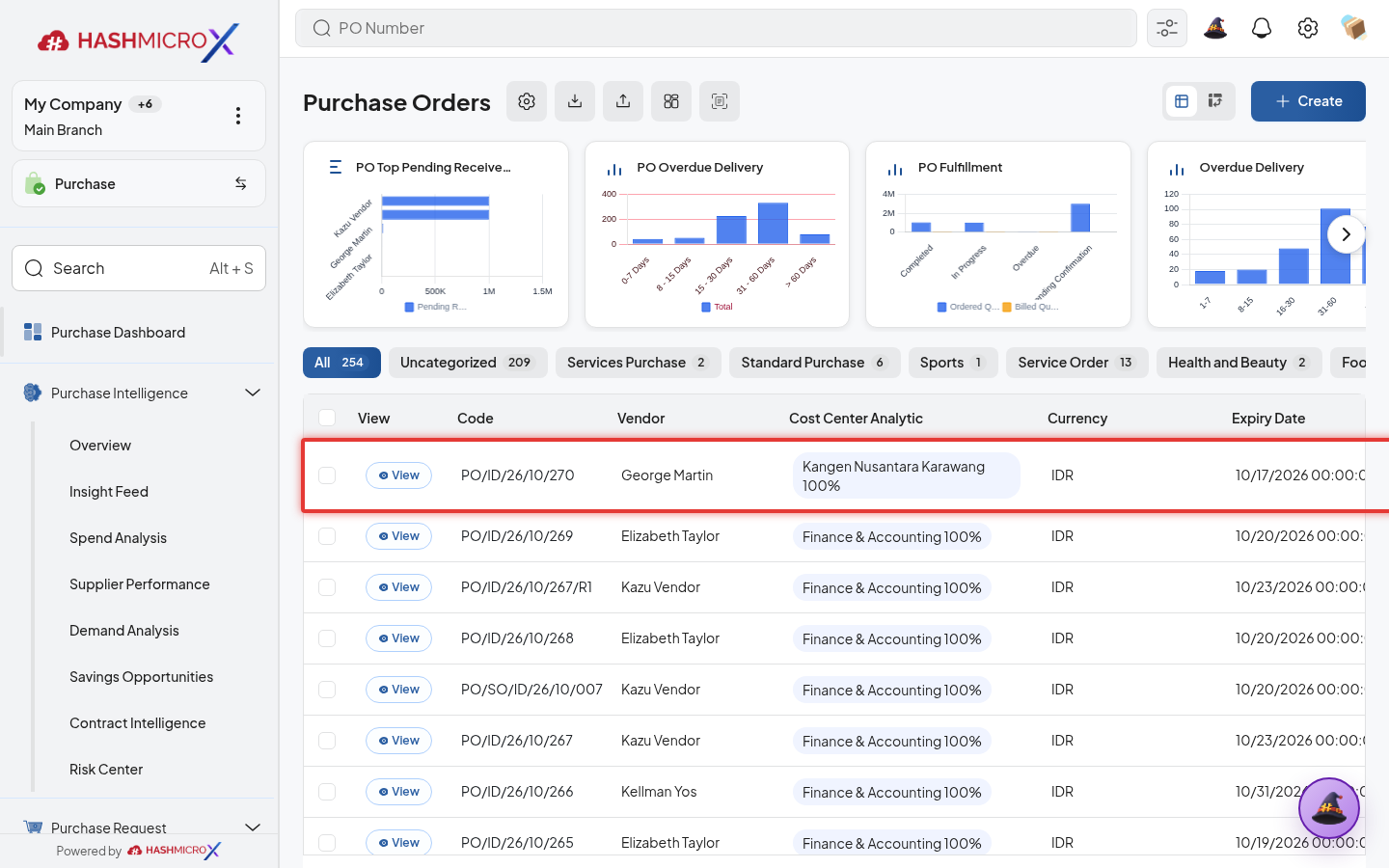
Figure 3.9.1.1 Create RN from PO screen - Click Create RN or open Goods Receipt smart button.
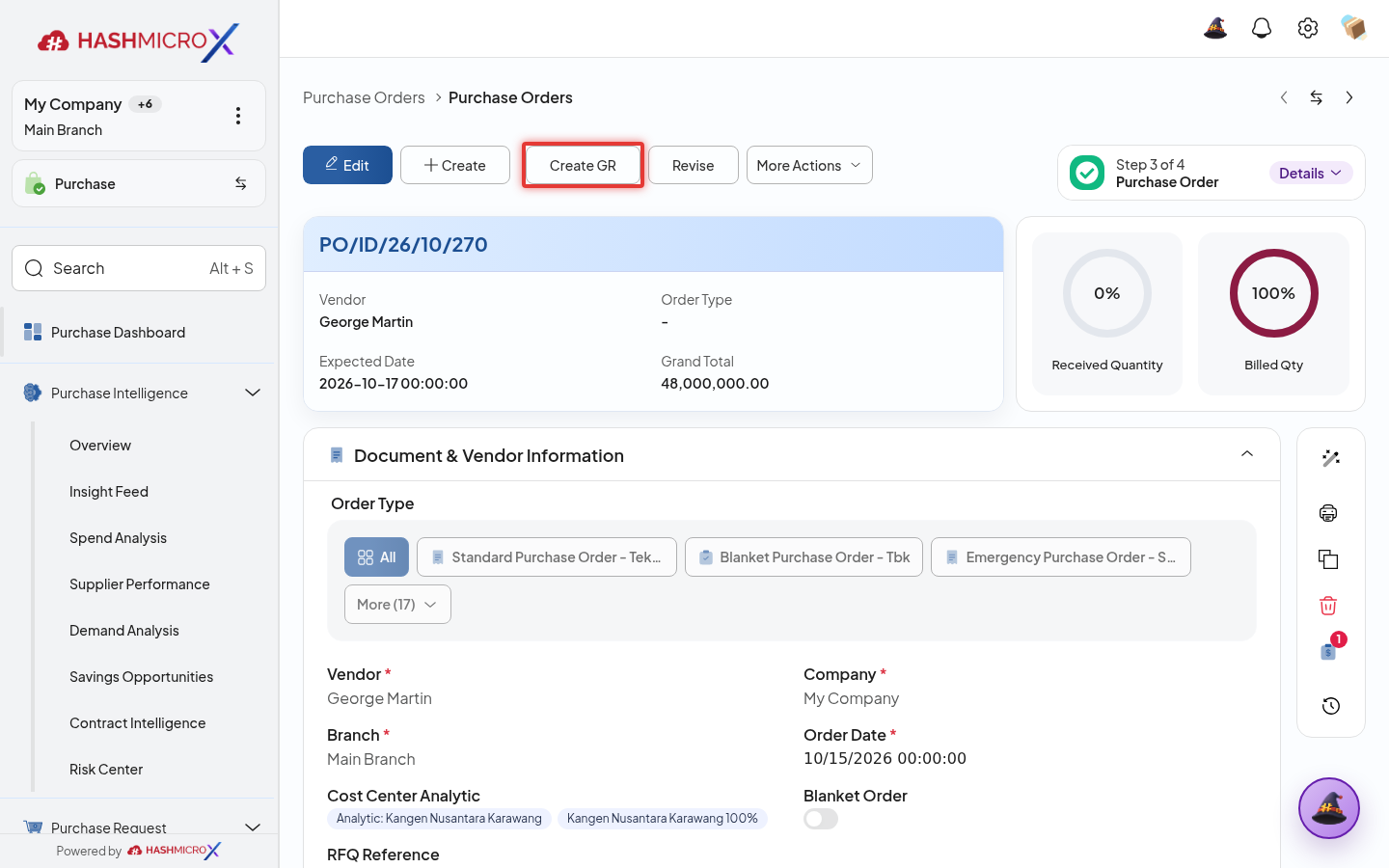
Figure 3.9.1.2 — HMX Main: Purchase Order Goods Receipt smart button action framed in red - Review product lines, source PO, destination warehouse, and remaining quantity.
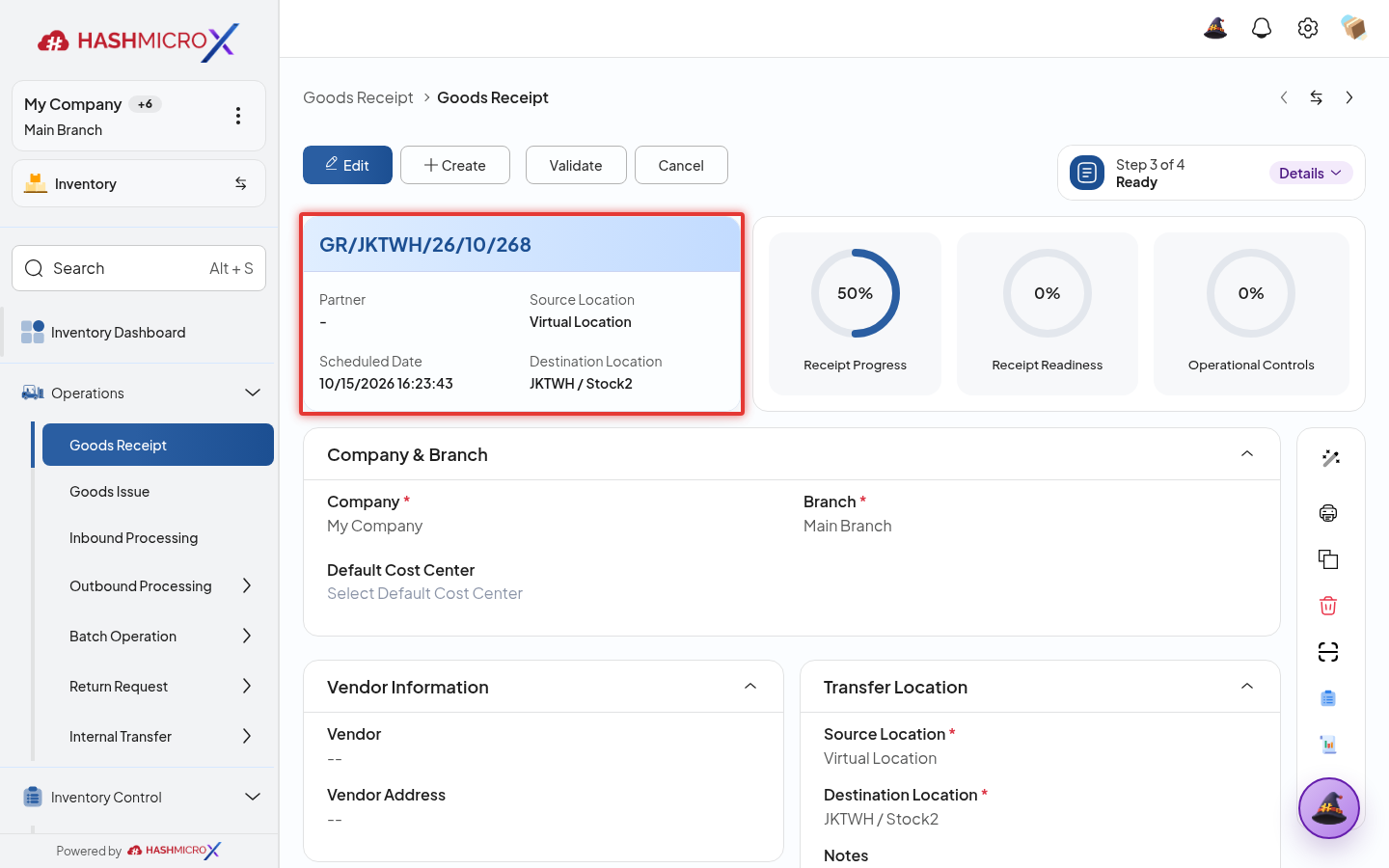
Figure 3.9.1.3 — HMX Main: Goods Receipt document source PO and destination warehouse framed in red - Save receiving note for warehouse execution.
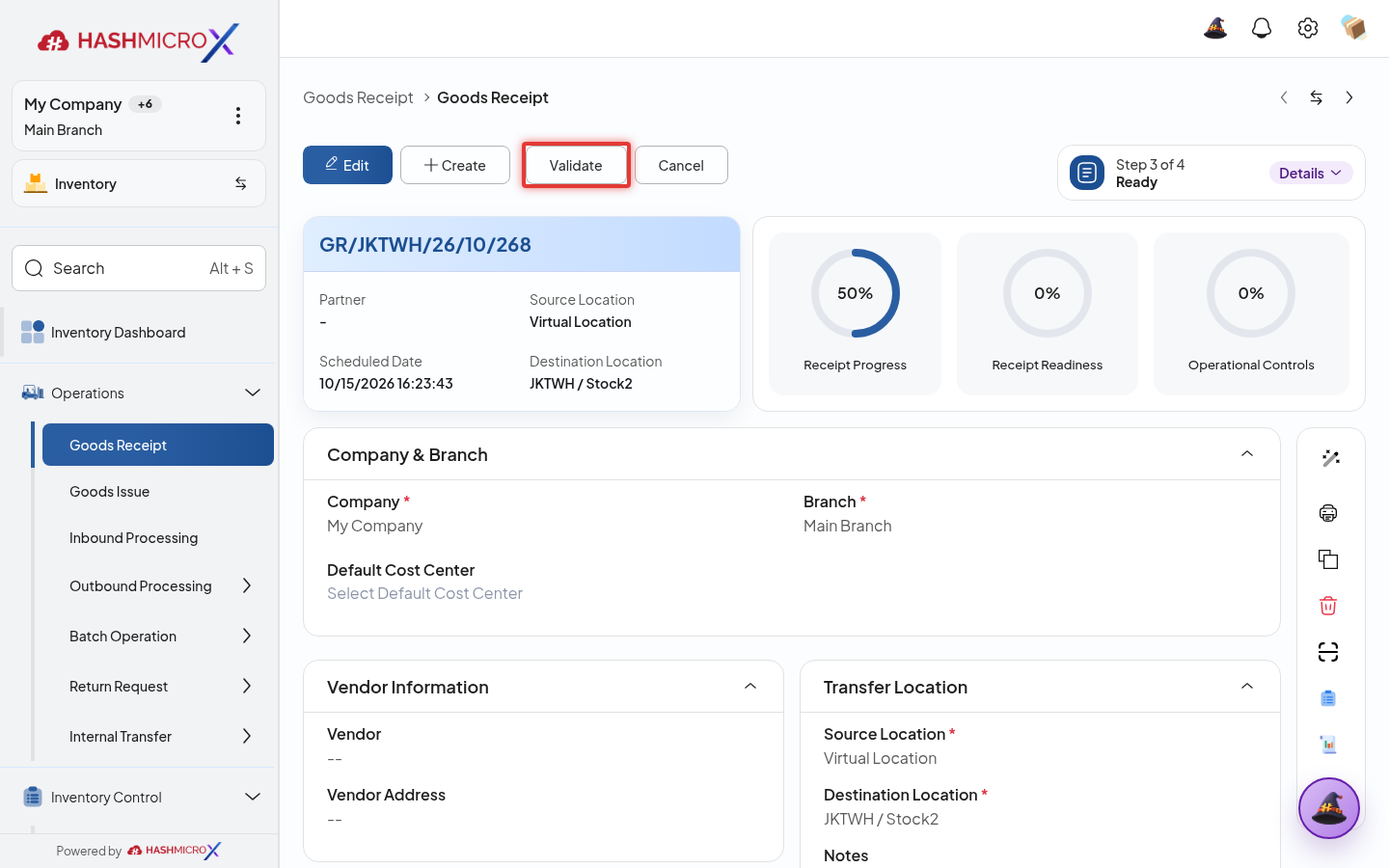
Figure 3.9.1.4 — HMX Main: Goods Receipt document save action control framed in red - Return to PO to verify receiving link is created.
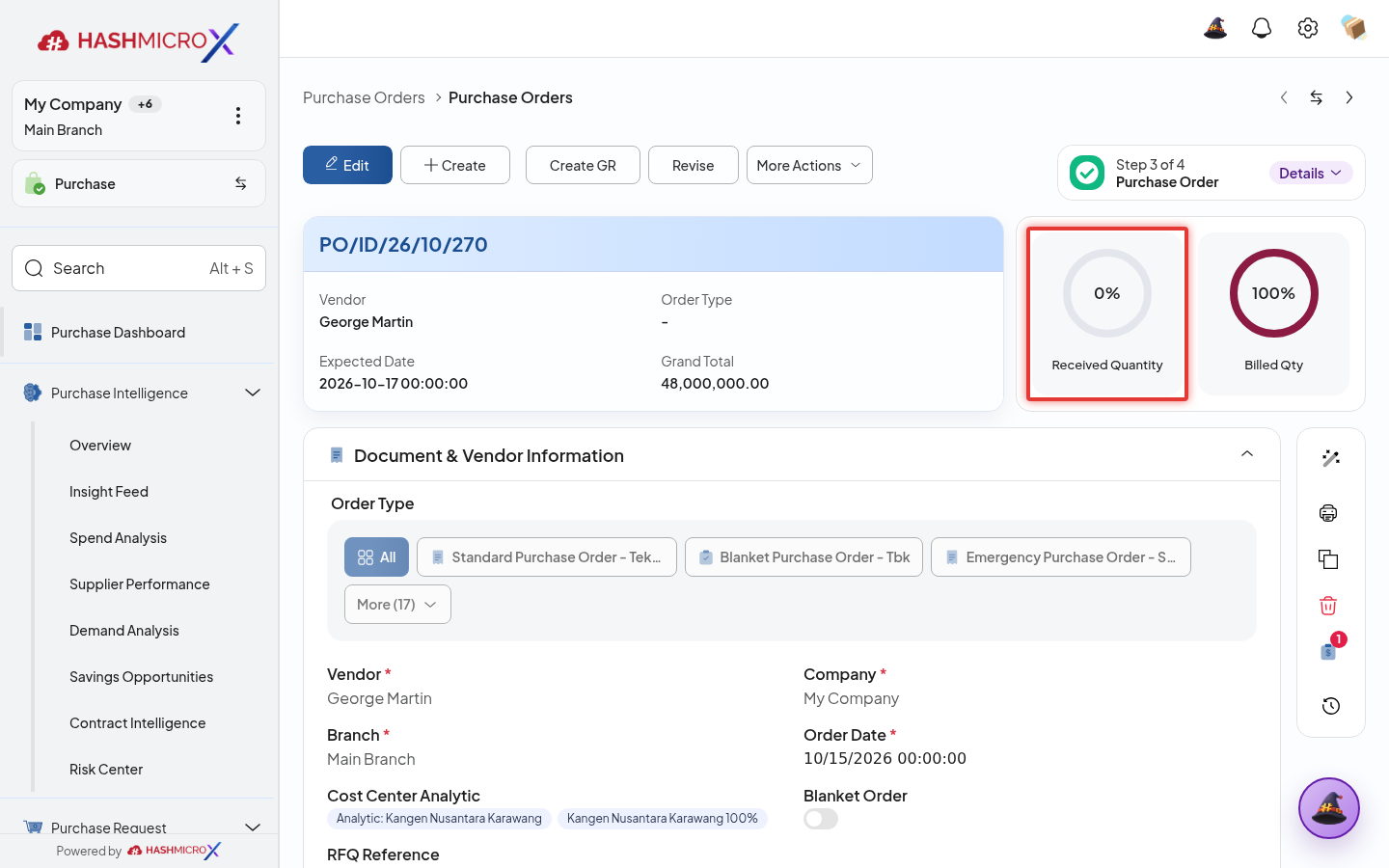
Figure 3.9.1.5 — HMX Main: Goods Receipt linkage trace to originating PO framed in red
Status and Result Guide
| Status / Result | What it means | Trigger | What to do |
|---|---|---|---|
| Draft | The document is being prepared and can still be edited. | User creates the record or resets it before confirmation. | Complete required fields and click the next workflow action. |
| Confirmed / Sent / In Progress | The document has entered the active purchasing workflow. | User clicks Confirm, Send RFQ, Submit, or a related processing action. | Monitor supplier response, approval, receiving, billing, or next action. |
| Approved / Done / Closed | The workflow result is accepted or completed. | Approver accepts the document, PO is confirmed, receipt/bill is processed, or document is closed. | Review linked documents and continue downstream processing. |
| Cancelled / Rejected | The workflow is stopped or not accepted. | User clicks Cancel/Reject or approval fails. | Review reason, correct the record if allowed, or create a replacement document. |
Field Reference
| Field | Required | Description | Example or note |
|---|---|---|---|
| Source PO | Yes | Purchase Order that generated the receiving note. | Data type: Reference. |
| Destination Warehouse | No | Warehouse receiving purchased goods. | Data type: Reference. |
| Create RN | No | Generates receiving note from PO. | Data type: Action. |
| Receiving Notes | No | Opens linked receiving documents. | Data type: Smart Button. |
Common Scenarios
| Scenario | When to Use | Key Steps | Expected Result |
|---|---|---|---|
| Process Create RN from PO | Use when a purchasing document needs sourcing, approval, supplier confirmation, receiving, or billing. | Open Purchase, create or open the document, complete required fields and lines, then use the verified workflow action. | The Purchase document moves to the next status and linked records become available when configured. |
| Correct Create RN from PO before completion | Use when document details are incomplete or incorrect before approval, confirmation, receipt, or billing. | Open the document, update editable fields and lines, save, then rerun the required action. | The corrected document continues through the Purchase workflow without duplicate records. |
Troubleshooting
| Issue | Possible Cause | How to fix it |
|---|---|---|
| The menu, button, or action is not visible. | The user role, document status, configuration, approval rule, or related module does not allow the action. | Check user access, document status, Purchase settings, approval setup, and required linked records before retrying. |
| The record cannot be saved, confirmed, approved, sent, received, billed, or closed. | A required field, vendor, product line, quantity, price, warehouse, tax, approval, or source document is missing or invalid. | Review highlighted fields and line tables, complete the missing values, save, then run the workflow action again. |
| The expected linked document is not created. | The source document is not in the required status, the configuration blocks automatic creation, or the related integration is disabled. | Confirm the source document status and configuration, then use the manual Create, Convert, Receiving, Bill, or Release action when available. |
3.9.2 Validate Receiving
Overview
Validate receiving after warehouse confirms actual quantity delivered by supplier.
Prerequisites
- Vendor, product, purchase team, company, currency, and destination warehouse data are available when required.
- The user has access to create, confirm, approve, send, revise, close, or cancel the related Purchase document.
- Approval, RFQ, blanket, receiving, and billing settings are configured before the workflow is used.
Step-by-Step Instructions
- Open Purchase > Purchase > Purchase Order. Open the receiving document linked from PO.
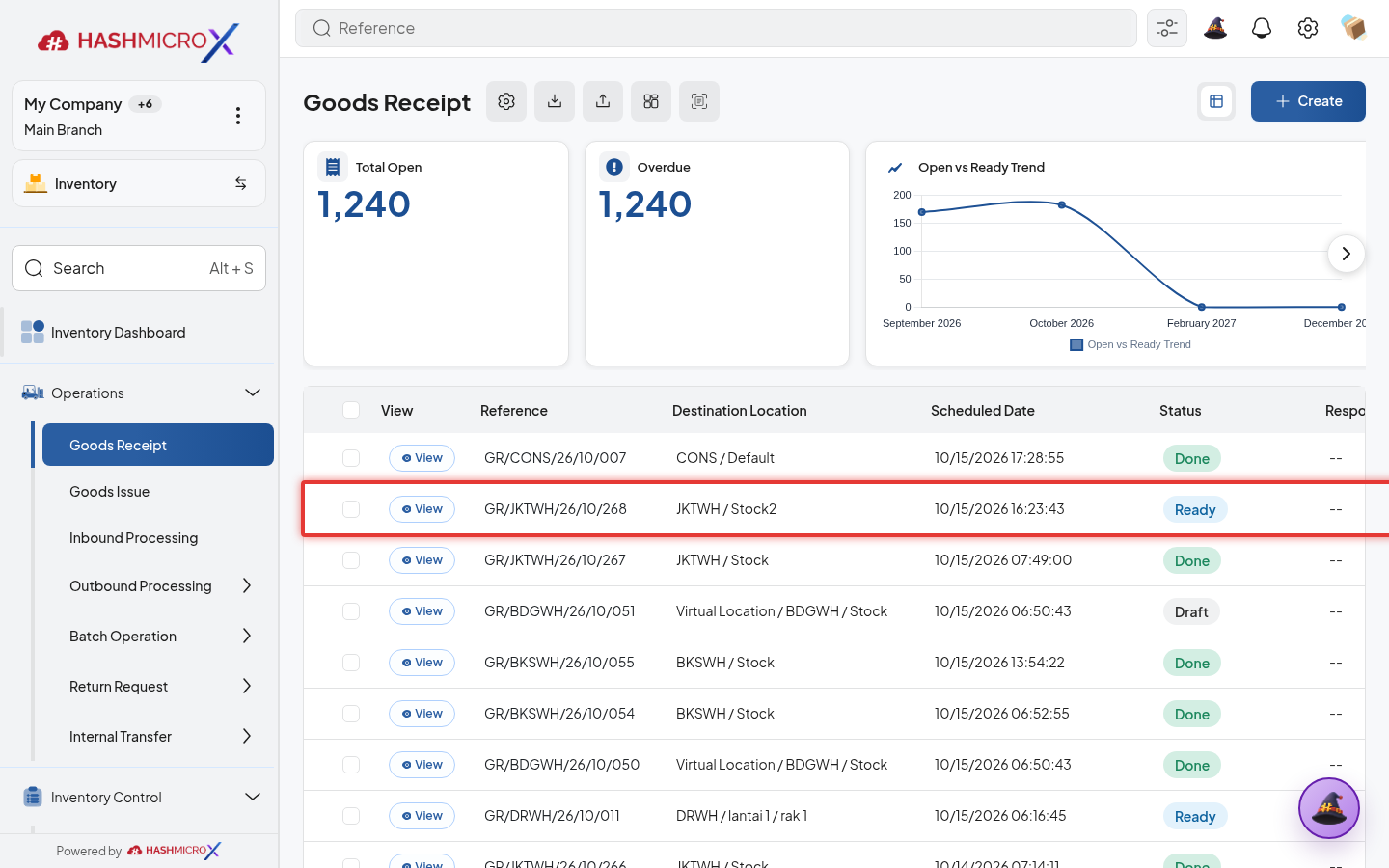
Figure 3.9.2.1 Validate Receiving screen - Check actual received quantity against ordered quantity.
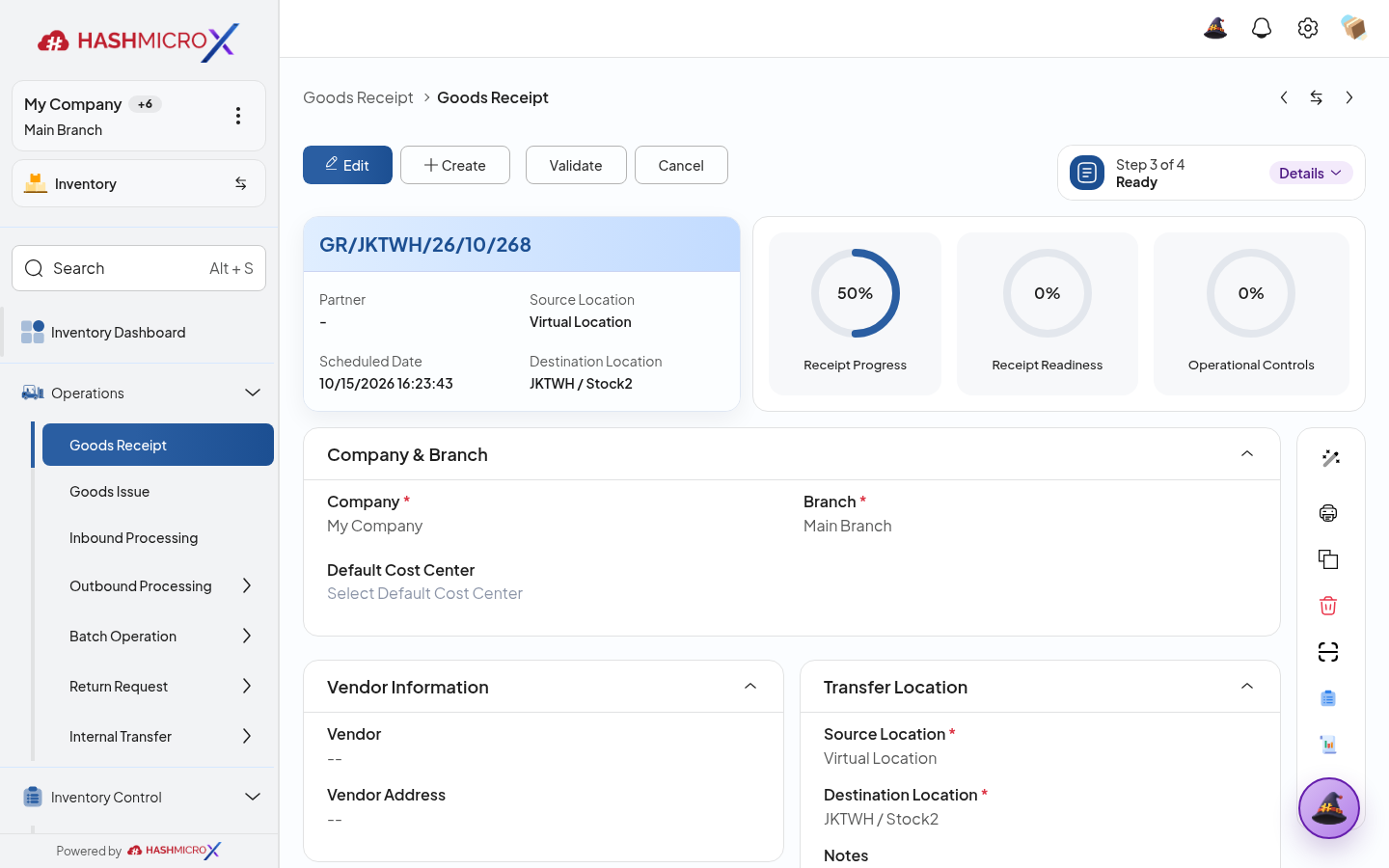
Figure 3.9.2.2 — HMX Main: Goods Receipt operations line comparing Demanded vs Done quantity framed in red - Record lot, serial, package, or location details where required by inventory setup.
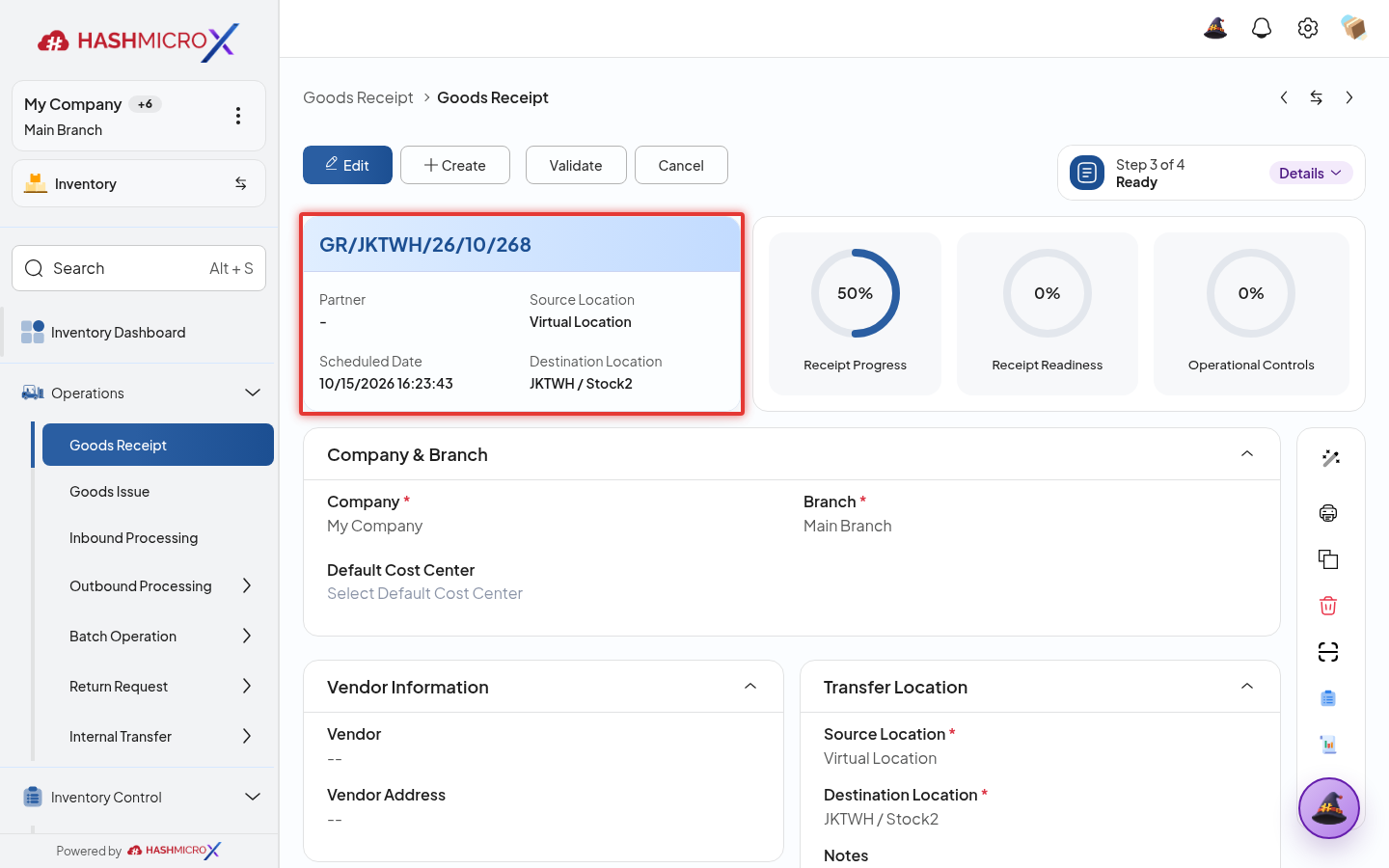
Figure 3.9.2.3 — HMX Main: Goods Receipt destination location and lot tracking parameters framed in red - Validate receiving document.
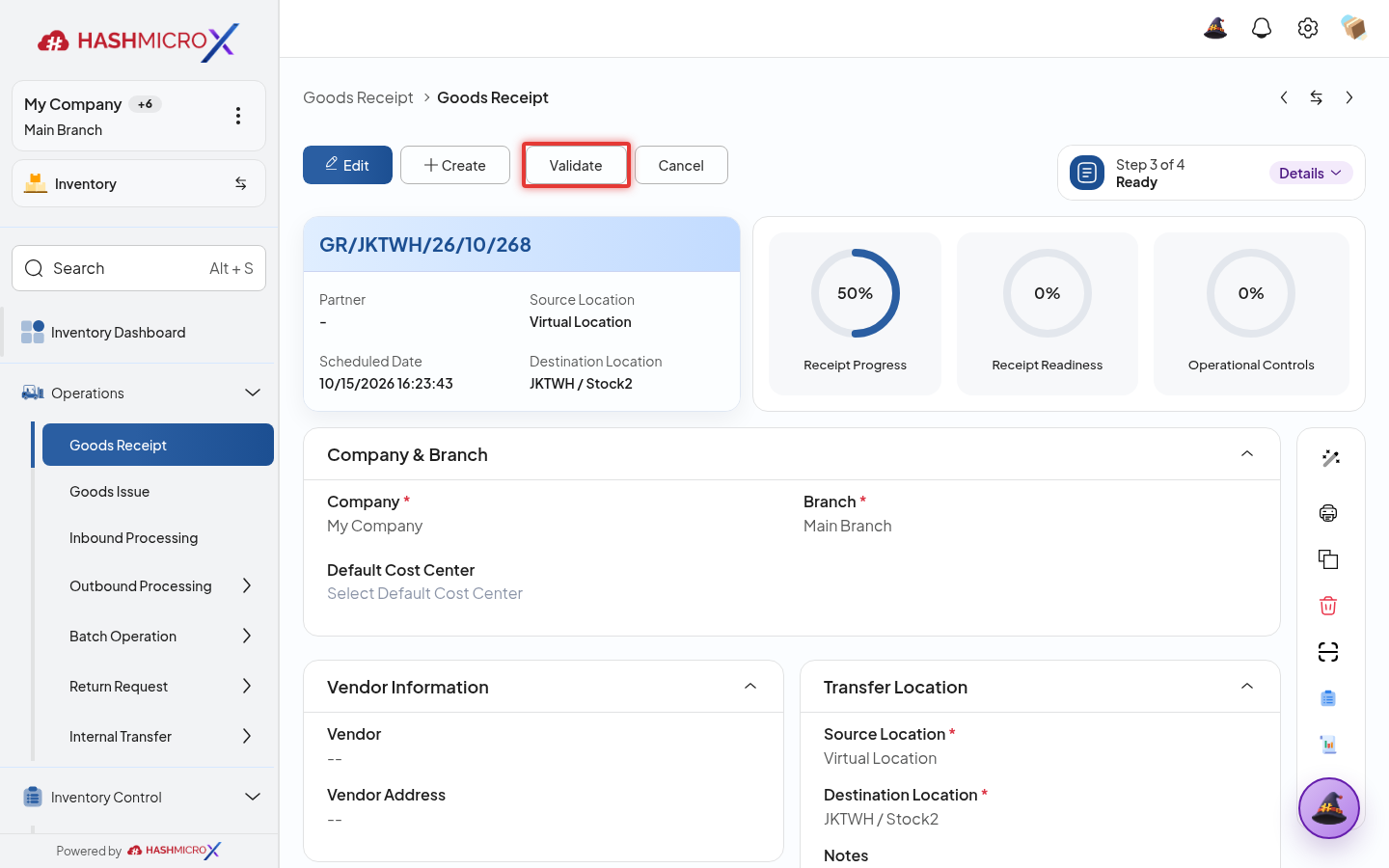
Figure 3.9.2.4 — HMX Main: Goods Receipt Validate action button framed in red - Return to PO and confirm Qty Received updates.
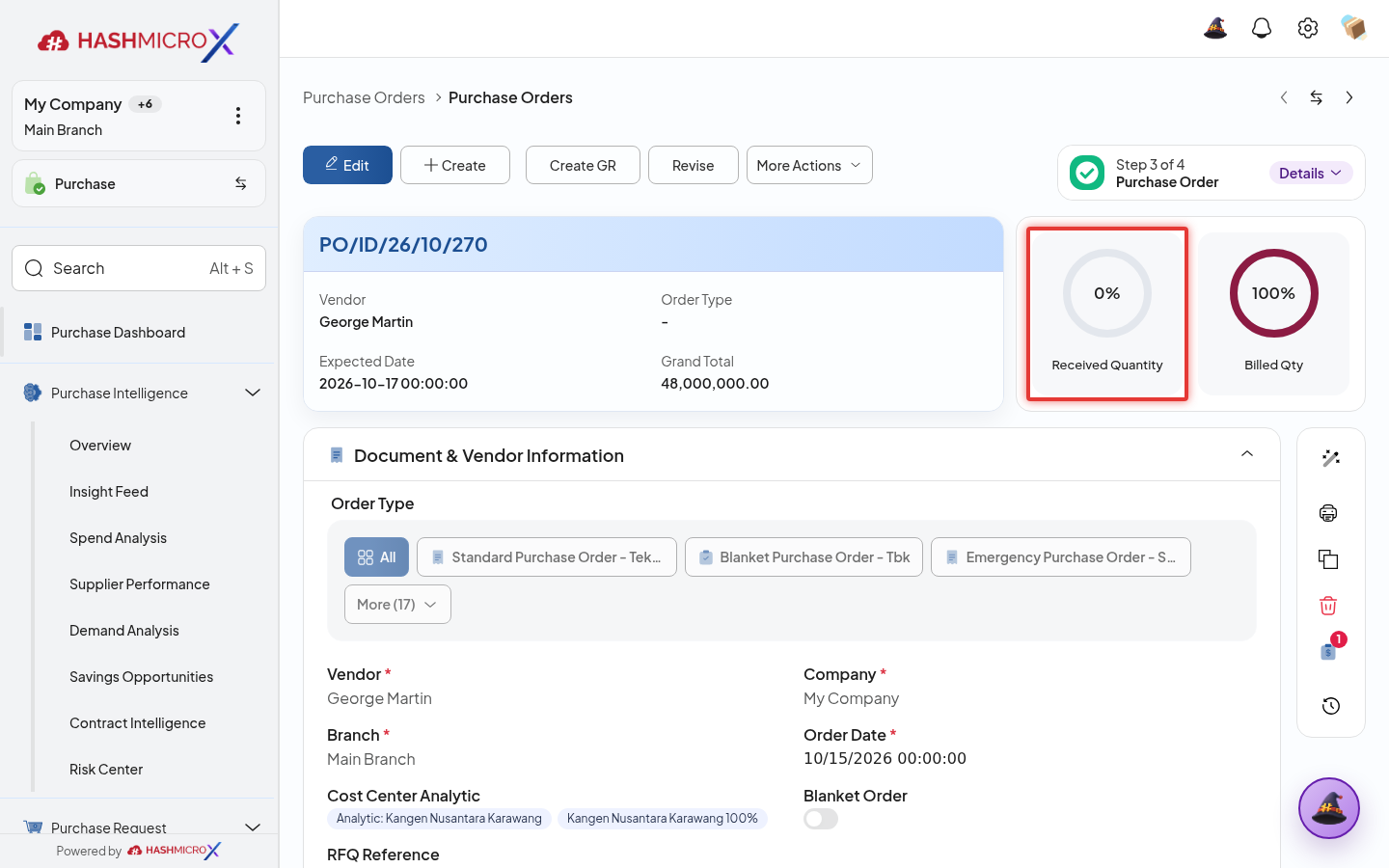
Figure 3.9.2.5 — HMX Main: Purchase Order confirmation of updated Qty Received framed in red
Status and Result Guide
| Status / Result | What it means | Trigger | What to do |
|---|---|---|---|
| Draft | The document is being prepared and can still be edited. | User creates the record or resets it before confirmation. | Complete required fields and click the next workflow action. |
| Confirmed / Sent / In Progress | The document has entered the active purchasing workflow. | User clicks Confirm, Send RFQ, Submit, or a related processing action. | Monitor supplier response, approval, receiving, billing, or next action. |
| Approved / Done / Closed | The workflow result is accepted or completed. | Approver accepts the document, PO is confirmed, receipt/bill is processed, or document is closed. | Review linked documents and continue downstream processing. |
| Cancelled / Rejected | The workflow is stopped or not accepted. | User clicks Cancel/Reject or approval fails. | Review reason, correct the record if allowed, or create a replacement document. |
Field Reference
| Field | Required | Description | Example or note |
|---|---|---|---|
| Actual Quantity | Yes | Quantity physically received. | Data type: Number. |
| Validate | No | Completes warehouse receiving document. | Data type: Action. |
| Lot / Serial | No | Tracking data for controlled products. | Data type: Reference. |
| Actual Receiving Date | No | Date used for lead-time reporting. | Data type: Date. |
Common Scenarios
| Scenario | When to Use | Key Steps | Expected Result |
|---|---|---|---|
| Process Validate Receiving | Use when a purchasing document needs sourcing, approval, supplier confirmation, receiving, or billing. | Open Purchase > Purchase > Purchase Order, create or open the document, complete required fields and lines, then use the verified workflow action. | The Purchase document moves to the next status and linked records become available when configured. |
| Correct Validate Receiving before completion | Use when document details are incomplete or incorrect before approval, confirmation, receipt, or billing. | Open the document, update editable fields and lines, save, then rerun the required action. | The corrected document continues through the Purchase workflow without duplicate records. |
Troubleshooting
| Issue | Possible Cause | How to fix it |
|---|---|---|
| The menu, button, or action is not visible. | The user role, document status, configuration, approval rule, or related module does not allow the action. | Check user access, document status, Purchase settings, approval setup, and required linked records before retrying. |
| The record cannot be saved, confirmed, approved, sent, received, billed, or closed. | A required field, vendor, product line, quantity, price, warehouse, tax, approval, or source document is missing or invalid. | Review highlighted fields and line tables, complete the missing values, save, then run the workflow action again. |
| The expected linked document is not created. | The source document is not in the required status, the configuration blocks automatic creation, or the related integration is disabled. | Confirm the source document status and configuration, then use the manual Create, Convert, Receiving, Bill, or Release action when available. |
3.9.3 Review Remaining Quantity
Overview
Review remaining quantity to understand whether PO lines are fully received or still open.
Prerequisites
- Vendor, product, purchase team, company, currency, and destination warehouse data are available when required.
- The user has access to create, confirm, approve, send, revise, close, or cancel the related Purchase document.
- Approval, RFQ, blanket, receiving, and billing settings are configured before the workflow is used.
Step-by-Step Instructions
- Open PO after partial or full receiving.
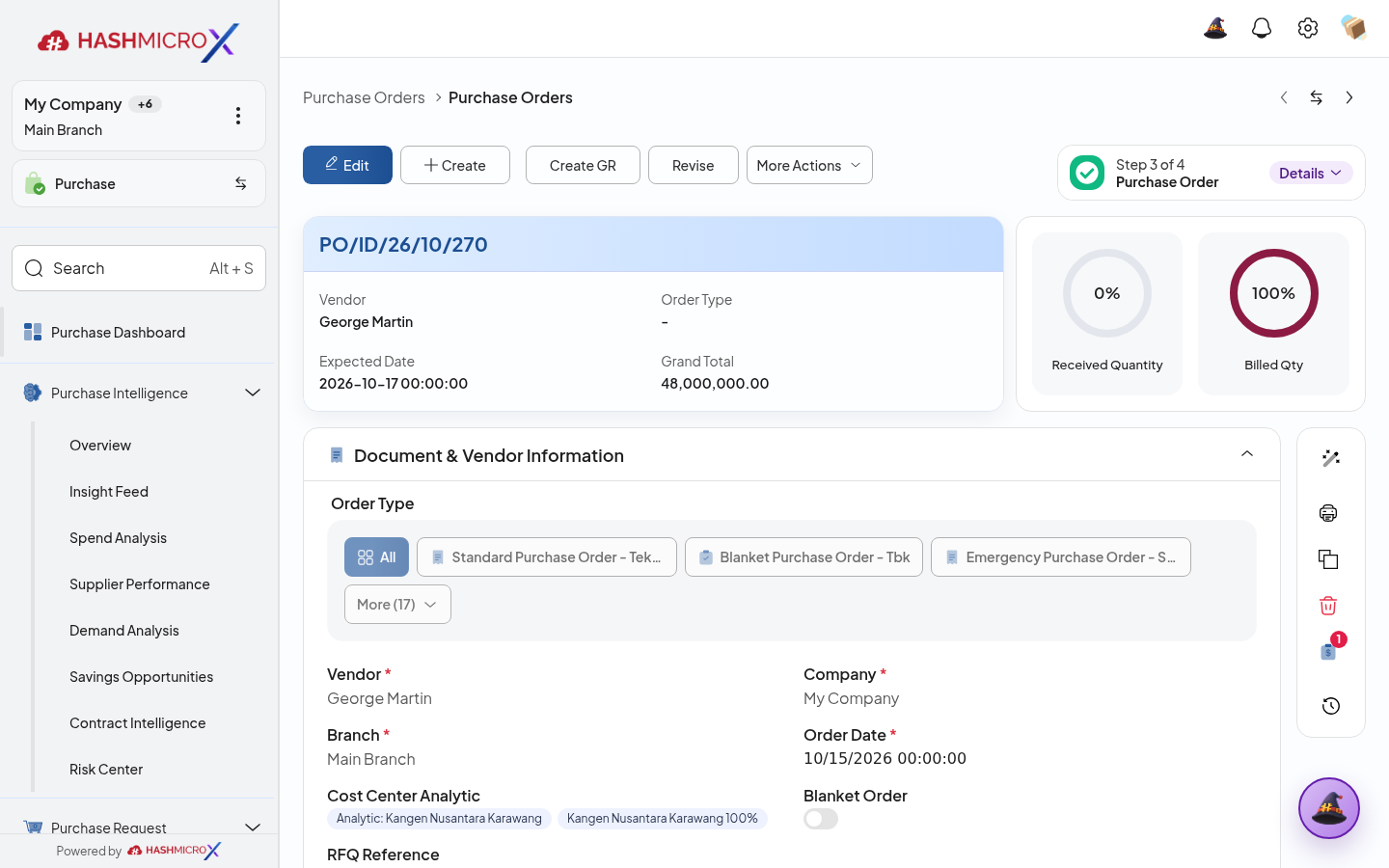
Figure 3.9.3.1 — HMX Main: Purchase Order items line tracking received vs remaining quantity framed in red - Check ordered, received, and remaining quantity per line.
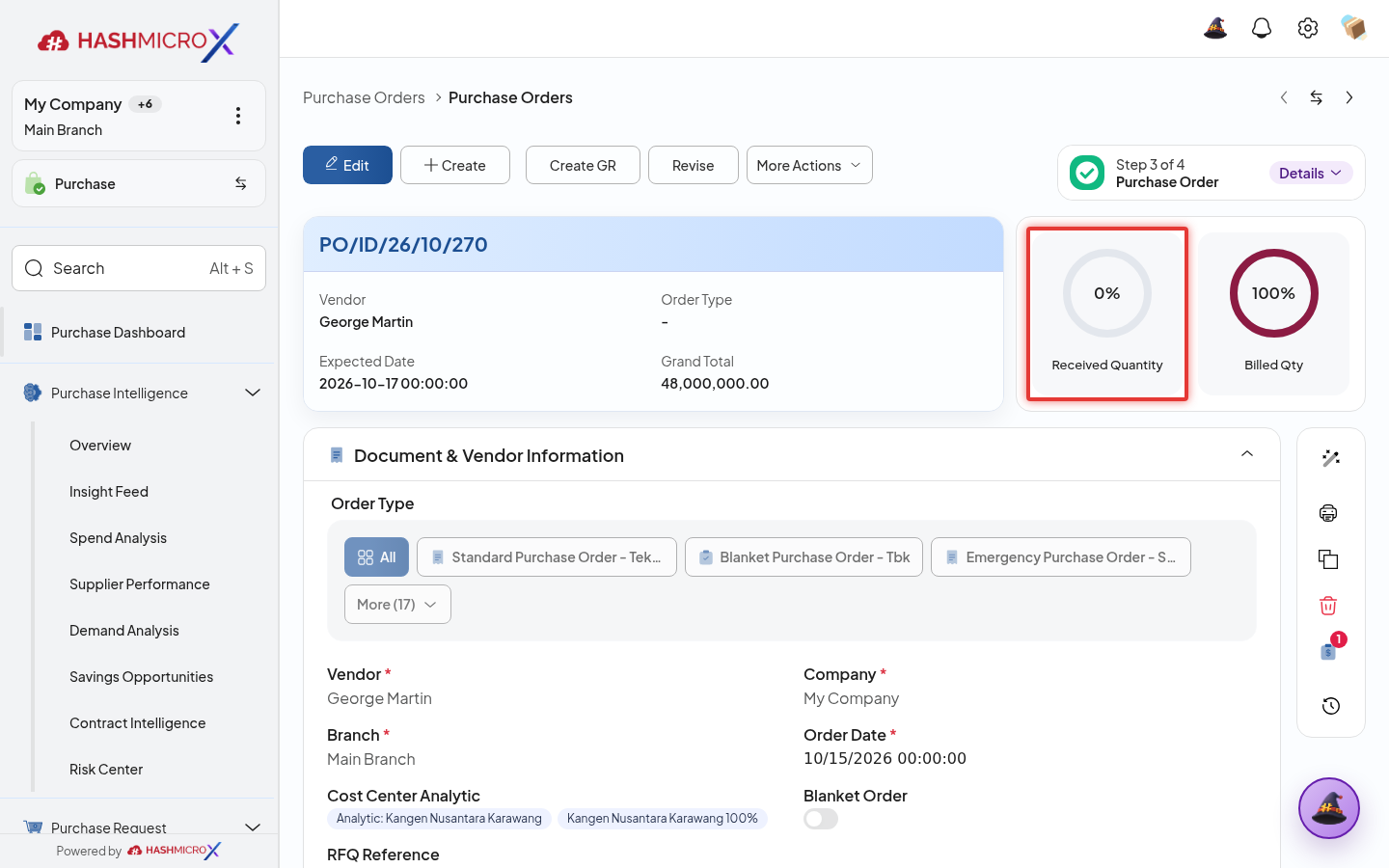
Figure 3.9.3.2 — HMX Main: Purchase Order lines 3-way quantity check (Ordered, Received, Billed) framed in red - Open Receiving Progress report for lead-time and completion review.
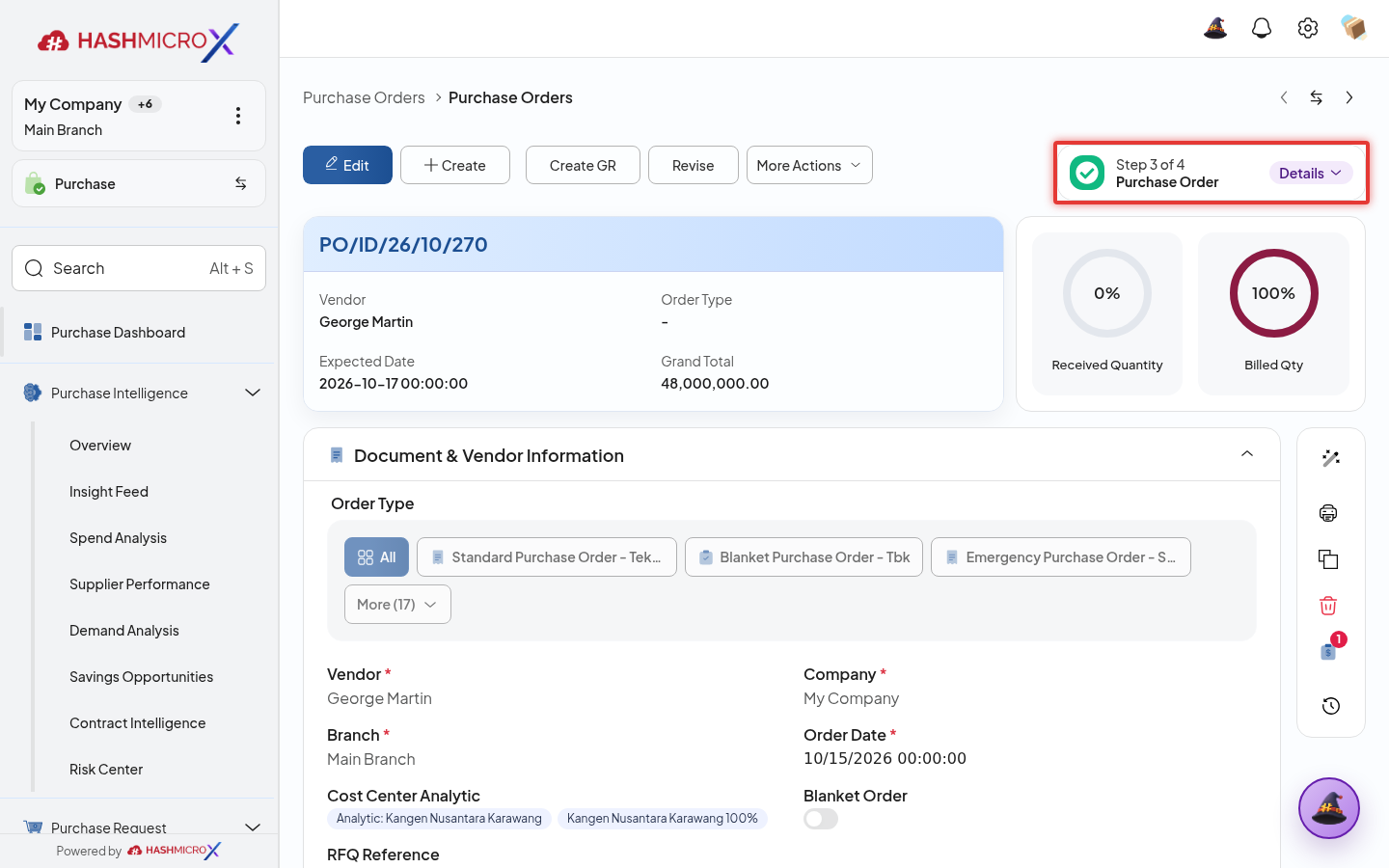
Figure 3.9.3.3 — HMX Main: Purchase Order delivery completion status indicator framed in red - Follow up supplier if remaining quantity is overdue.
Figure 3.9.3.4 — HMX Main: Purchase Order vendor delivery follow-up communication log framed in red - Close order only after open receiving and billing conditions are cleared.
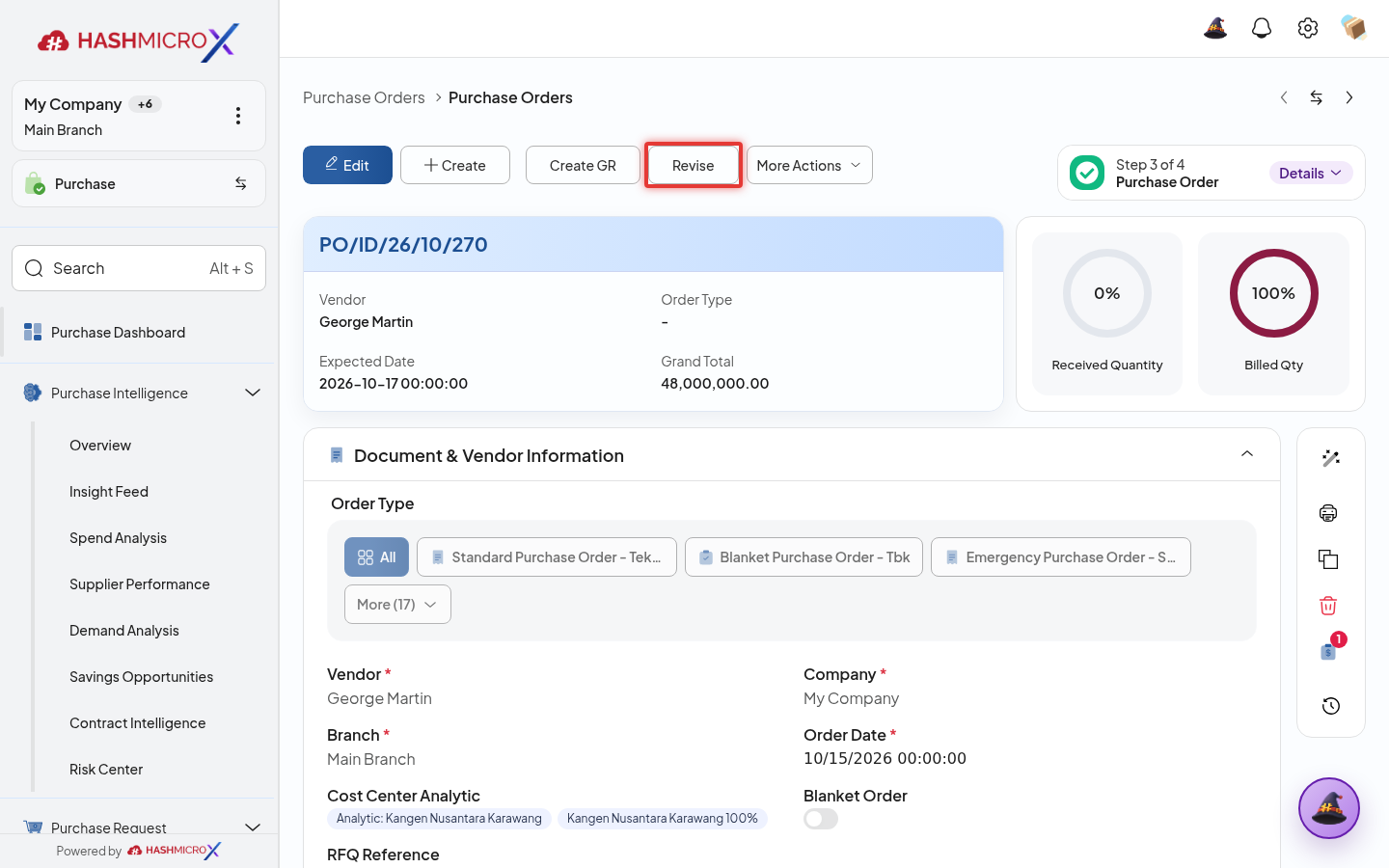
Figure 3.9.3.5 — HMX Main: Purchase Order final Close Order action control framed in red
Status and Result Guide
| Status / Result | What it means | Trigger | What to do |
|---|---|---|---|
| Draft | The document is being prepared and can still be edited. | User creates the record or resets it before confirmation. | Complete required fields and click the next workflow action. |
| Confirmed / Sent / In Progress | The document has entered the active purchasing workflow. | User clicks Confirm, Send RFQ, Submit, or a related processing action. | Monitor supplier response, approval, receiving, billing, or next action. |
| Approved / Done / Closed | The workflow result is accepted or completed. | Approver accepts the document, PO is confirmed, receipt/bill is processed, or document is closed. | Review linked documents and continue downstream processing. |
| Cancelled / Rejected | The workflow is stopped or not accepted. | User clicks Cancel/Reject or approval fails. | Review reason, correct the record if allowed, or create a replacement document. |
Field Reference
| Field | Required | Description | Example or note |
|---|---|---|---|
| Ordered Quantity | Yes | Quantity originally ordered. | Data type: Number. |
| Qty Received | No | Quantity already received. | Data type: Number. |
| Qty Remaining | No | Open quantity still pending. | Data type: Number. |
| Receiving Time Status | No | Indicates receiving timeliness. | Data type: Status. |
Common Scenarios
| Scenario | When to Use | Key Steps | Expected Result |
|---|---|---|---|
| Process Review Remaining Quantity | Use when a purchasing document needs sourcing, approval, supplier confirmation, receiving, or billing. | Open Purchase, create or open the document, complete required fields and lines, then use the verified workflow action. | The Purchase document moves to the next status and linked records become available when configured. |
| Correct Review Remaining Quantity before completion | Use when document details are incomplete or incorrect before approval, confirmation, receipt, or billing. | Open the document, update editable fields and lines, save, then rerun the required action. | The corrected document continues through the Purchase workflow without duplicate records. |
Troubleshooting
| Issue | Possible Cause | How to fix it |
|---|---|---|
| The menu, button, or action is not visible. | The user role, document status, configuration, approval rule, or related module does not allow the action. | Check user access, document status, Purchase settings, approval setup, and required linked records before retrying. |
| The record cannot be saved, confirmed, approved, sent, received, billed, or closed. | A required field, vendor, product line, quantity, price, warehouse, tax, approval, or source document is missing or invalid. | Review highlighted fields and line tables, complete the missing values, save, then run the workflow action again. |
| The expected linked document is not created. | The source document is not in the required status, the configuration blocks automatic creation, or the related integration is disabled. | Confirm the source document status and configuration, then use the manual Create, Convert, Receiving, Bill, or Release action when available. |
3.10 Billing & Settlement
Use billing actions to create vendor bills, full payment invoices, and settlement bills from eligible Purchase Orders.
| Field Name | Data Type | Mandatory | Description & Function |
|---|---|---|---|
| Create Bill | Action | Optional | Creates vendor bill from PO. |
| Full Payment Invoice | Action | Optional | Creates full payment invoice where policy allows. |
| Create Settlement Bill | Action | Optional | Creates settlement bill after down payment or full payment flow. |
| Bills | Smart Button | Read-only | Opens related bill documents. |
| Validate Bill Behavior | Setting | YES | Controls draft/validated bill behavior. |
3.10.1 Create Vendor Bill
Overview
Create vendor bill from eligible PO so payable processing can begin.
Prerequisites
- Vendor, product, purchase team, company, currency, and destination warehouse data are available when required.
- The user has access to create, confirm, approve, send, revise, close, or cancel the related Purchase document.
- Approval, RFQ, blanket, receiving, and billing settings are configured before the workflow is used.
Step-by-Step Instructions
- Open Purchase > Purchase > Purchase Order. Open eligible Purchase Order.
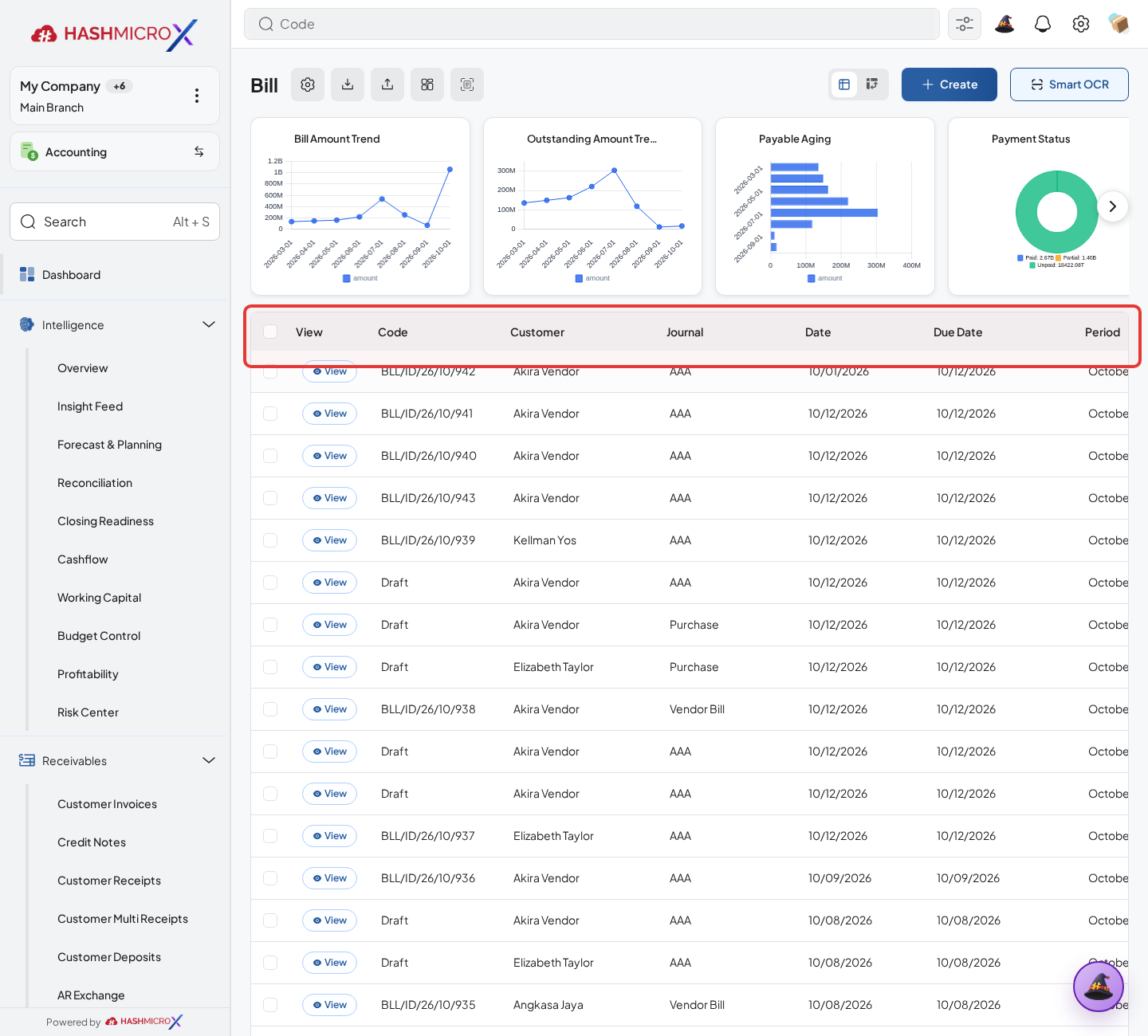
Figure 3.10.1.1 Create Vendor Bill screen - Click Create Bill.
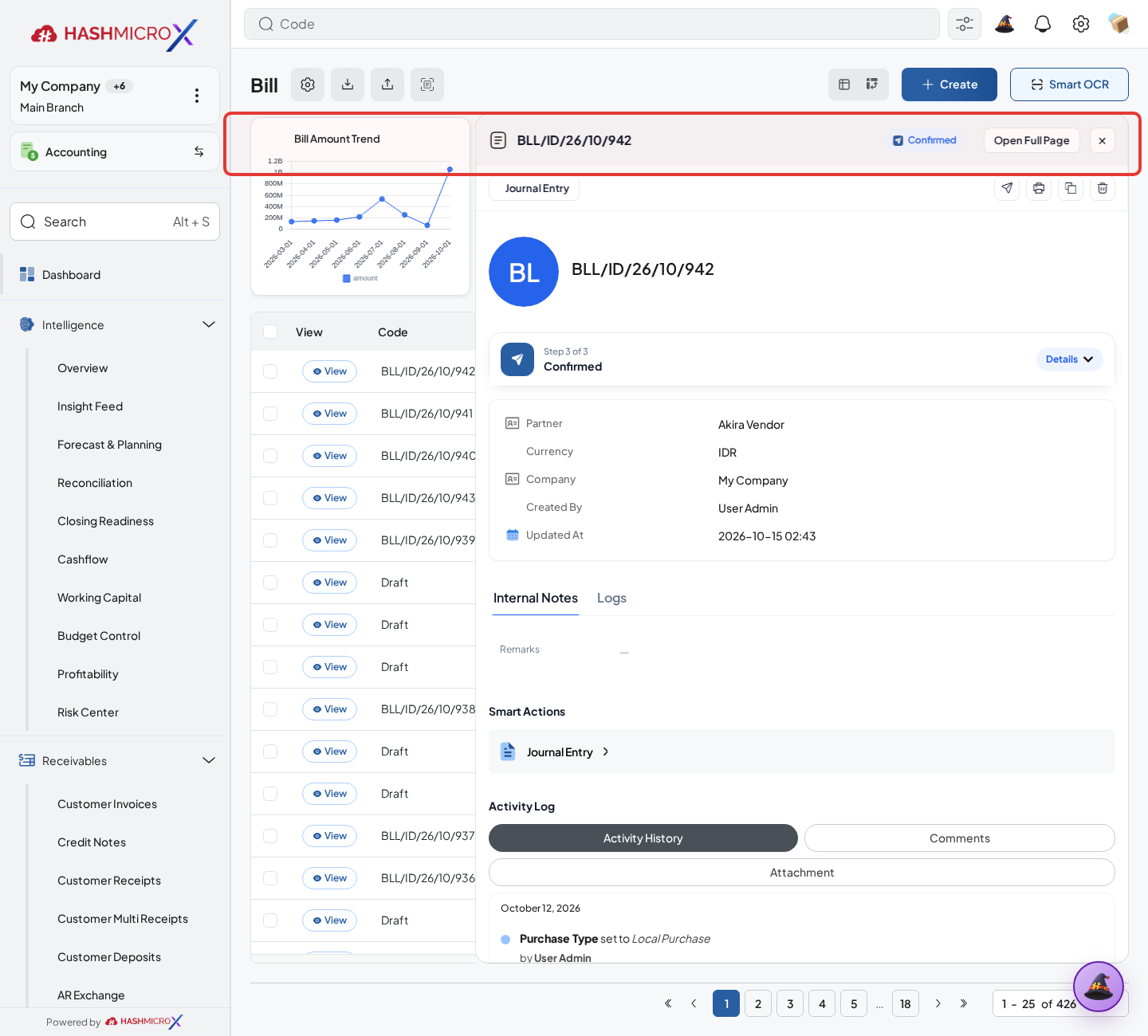
Figure 3.10.1.2 — HMX Main: Purchase Order Create Bill action button framed in red - Review vendor, bill date, product lines, tax, account, and total.
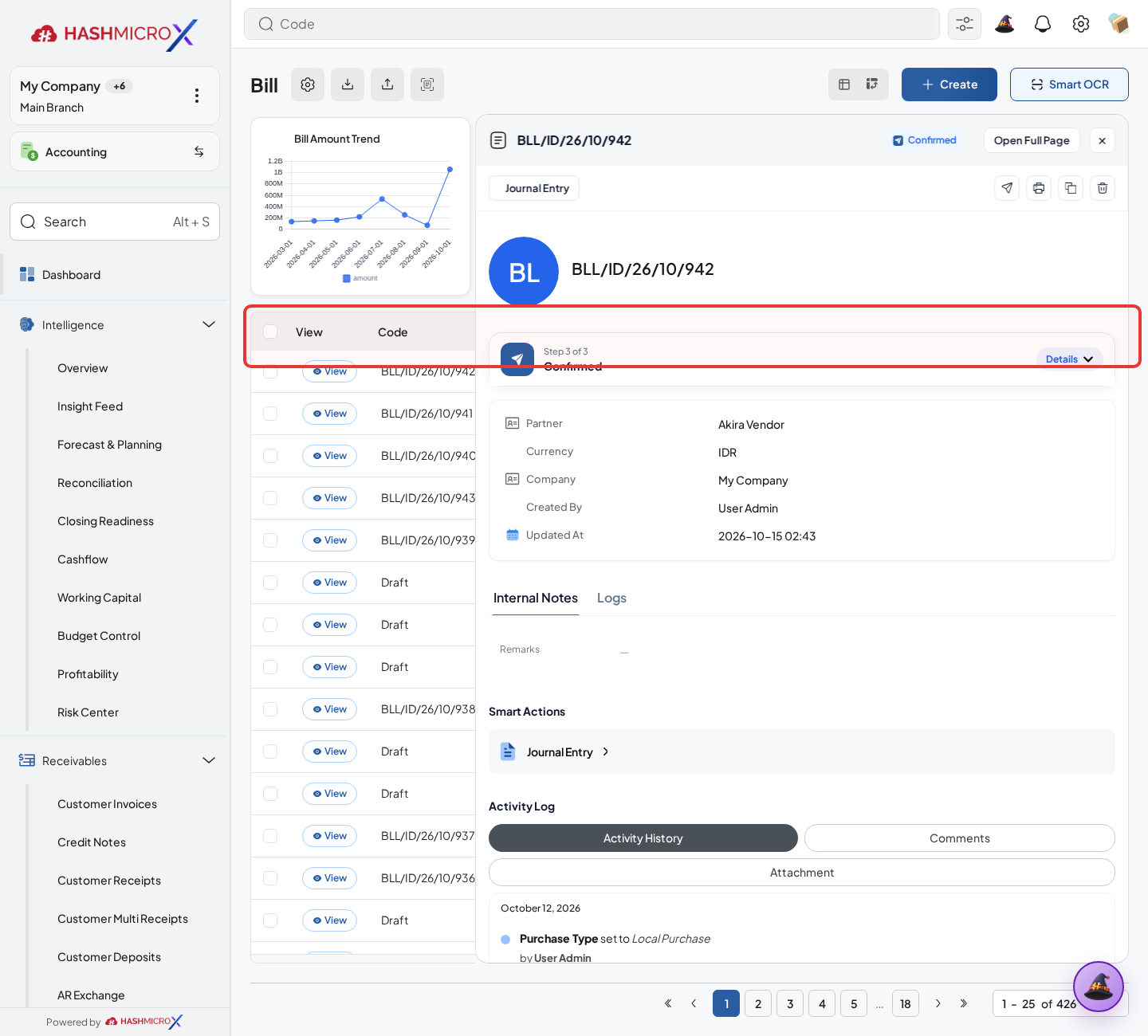
Figure 3.10.1.3 — HMX Main: Vendor Bill invoice lines, tax accounts, and subtotal framed in red - Save or validate the bill based on finance policy.
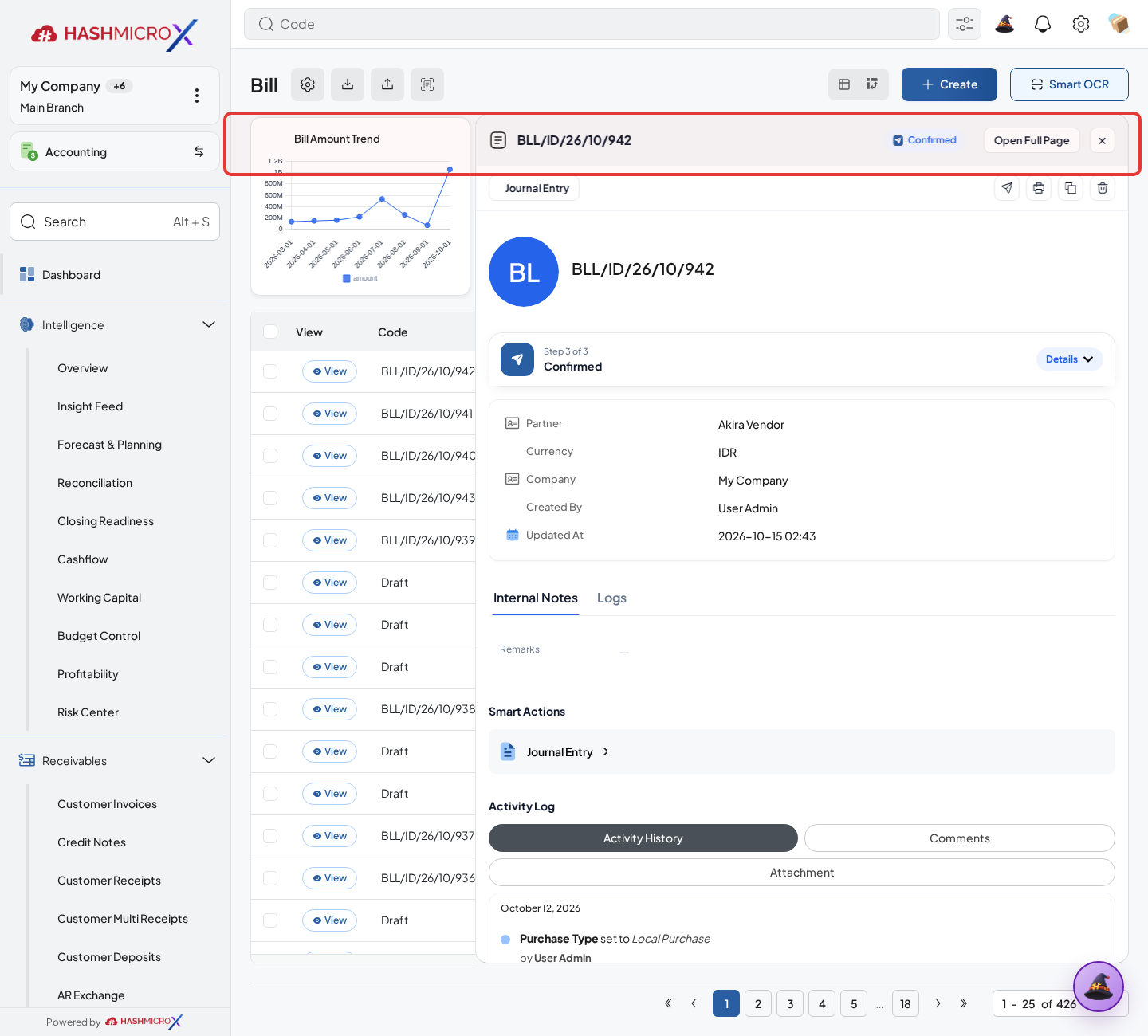
Figure 3.10.1.4 — HMX Main: Vendor Bill Post / Confirm action button framed in red - Open Bills smart button from PO to confirm linkage.
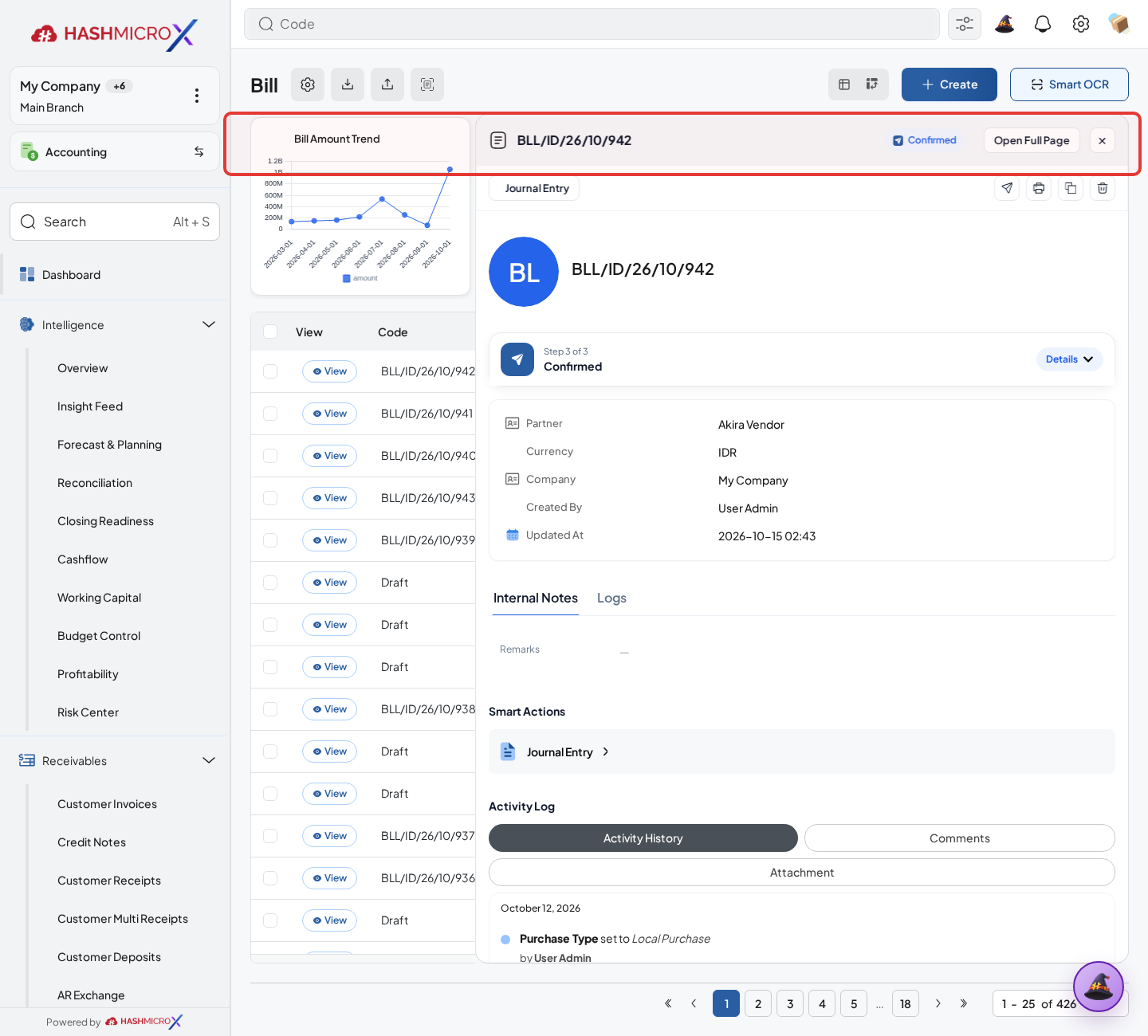
Figure 3.10.1.5 — HMX Main: Purchase Order Bills smart button linkage count framed in red
Status and Result Guide
| Status / Result | What it means | Trigger | What to do |
|---|---|---|---|
| Draft | The document is being prepared and can still be edited. | User creates the record or resets it before confirmation. | Complete required fields and click the next workflow action. |
| Confirmed / Sent / In Progress | The document has entered the active purchasing workflow. | User clicks Confirm, Send RFQ, Submit, or a related processing action. | Monitor supplier response, approval, receiving, billing, or next action. |
| Approved / Done / Closed | The workflow result is accepted or completed. | Approver accepts the document, PO is confirmed, receipt/bill is processed, or document is closed. | Review linked documents and continue downstream processing. |
| Cancelled / Rejected | The workflow is stopped or not accepted. | User clicks Cancel/Reject or approval fails. | Review reason, correct the record if allowed, or create a replacement document. |
Field Reference
| Field | Required | Description | Example or note |
|---|---|---|---|
| Vendor Bill | Yes | Payable document created from PO. | Data type: Document. |
| Bill Date | No | Accounting date for vendor bill. | Data type: Date. |
| Tax | No | Supplier tax applied to bill lines. | Data type: Reference. |
| Amount Due | No | Open payable amount after payment or settlement. | Data type: Amount. |
Common Scenarios
| Scenario | When to Use | Key Steps | Expected Result |
|---|---|---|---|
| Process Create Vendor Bill | Use when a purchasing document needs sourcing, approval, supplier confirmation, receiving, or billing. | Open Purchase > Purchase > Purchase Order, create or open the document, complete required fields and lines, then use the verified workflow action. | The Purchase document moves to the next status and linked records become available when configured. |
| Correct Create Vendor Bill before completion | Use when document details are incomplete or incorrect before approval, confirmation, receipt, or billing. | Open the document, update editable fields and lines, save, then rerun the required action. | The corrected document continues through the Purchase workflow without duplicate records. |
Troubleshooting
| Issue | Possible Cause | How to fix it |
|---|---|---|
| The menu, button, or action is not visible. | The user role, document status, configuration, approval rule, or related module does not allow the action. | Check user access, document status, Purchase settings, approval setup, and required linked records before retrying. |
| The record cannot be saved, confirmed, approved, sent, received, billed, or closed. | A required field, vendor, product line, quantity, price, warehouse, tax, approval, or source document is missing or invalid. | Review highlighted fields and line tables, complete the missing values, save, then run the workflow action again. |
| The expected linked document is not created. | The source document is not in the required status, the configuration blocks automatic creation, or the related integration is disabled. | Confirm the source document status and configuration, then use the manual Create, Convert, Receiving, Bill, or Release action when available. |
3.10.2 Full Payment Invoice
Overview
Use full payment invoice when purchase policy requires billing before or at full payable amount.
Prerequisites
- Vendor, product, purchase team, company, currency, and destination warehouse data are available when required.
- The user has access to create, confirm, approve, send, revise, close, or cancel the related Purchase document.
- Approval, RFQ, blanket, receiving, and billing settings are configured before the workflow is used.
Step-by-Step Instructions
- Open Purchase > Purchase > Purchase Order. Open PO that allows full payment invoice.
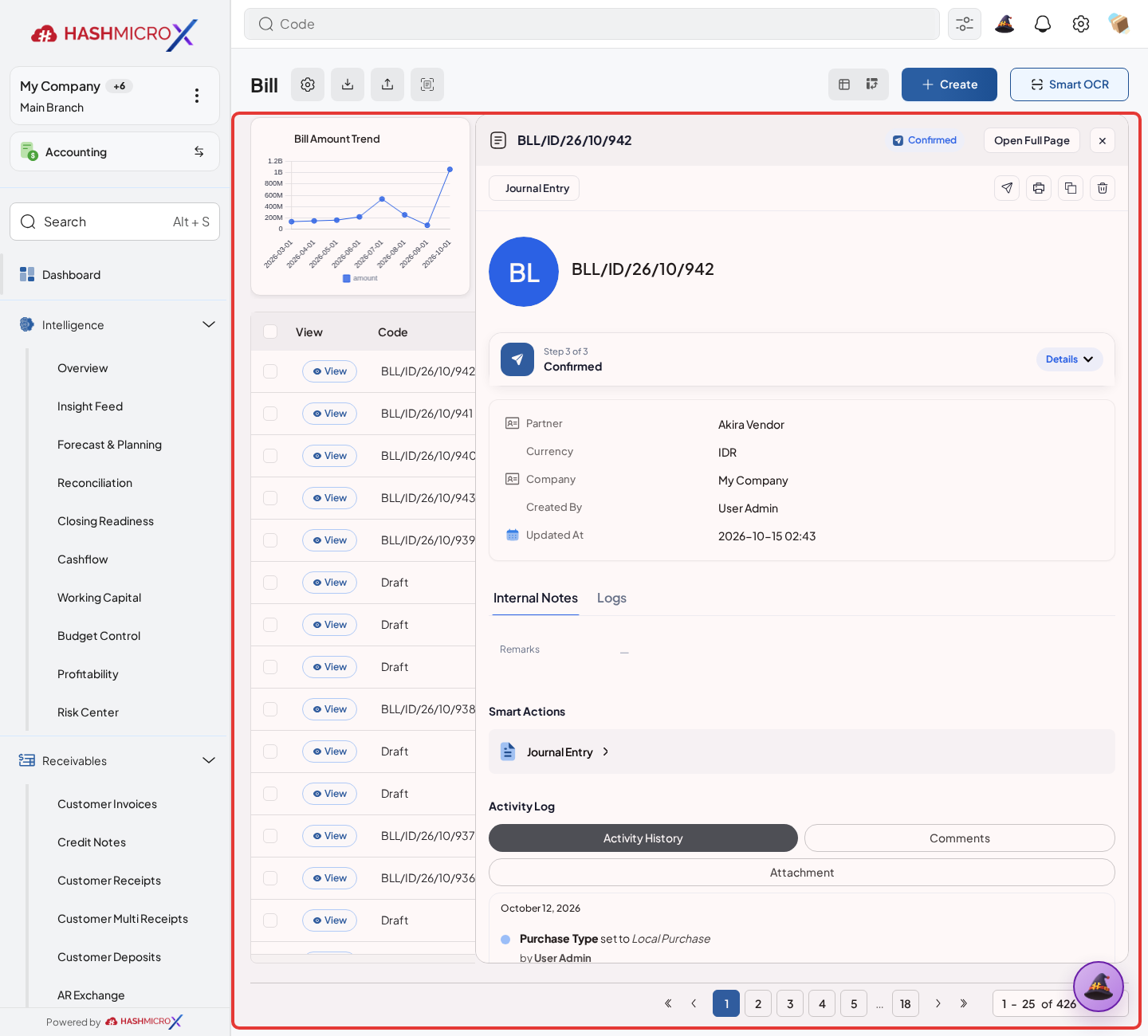
Figure 3.10.2.1 Full Payment Invoice screen - Click Full Payment Invoice action.
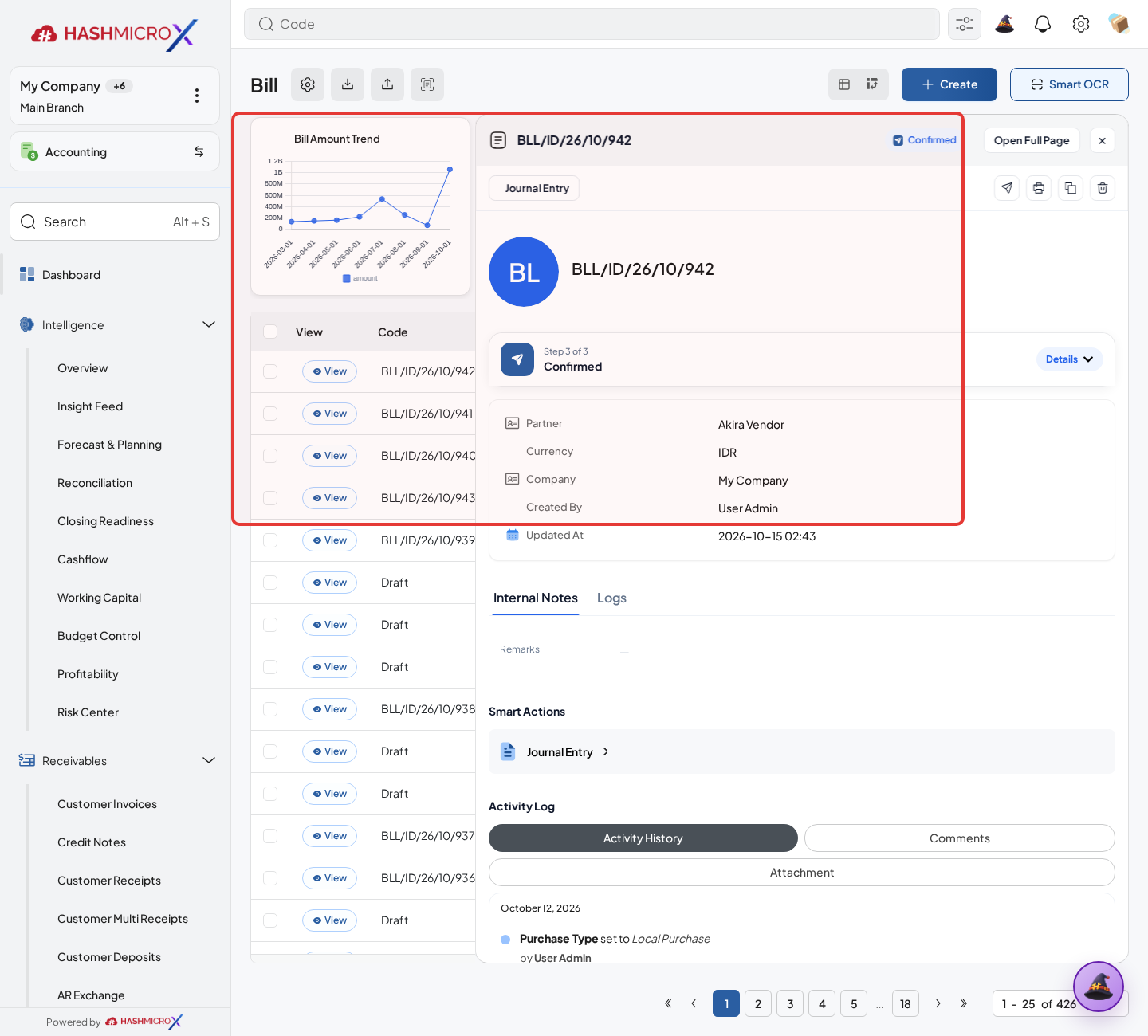
Figure 3.10.2.2 — HMX Main: Create Bill wizard Bill Type = Down Payment selection framed in red - Check bill amount, vendor, payment terms, tax, linked PO reference, and bill lines. Bill lines should match the ordered or received quantity according to the billing policy.
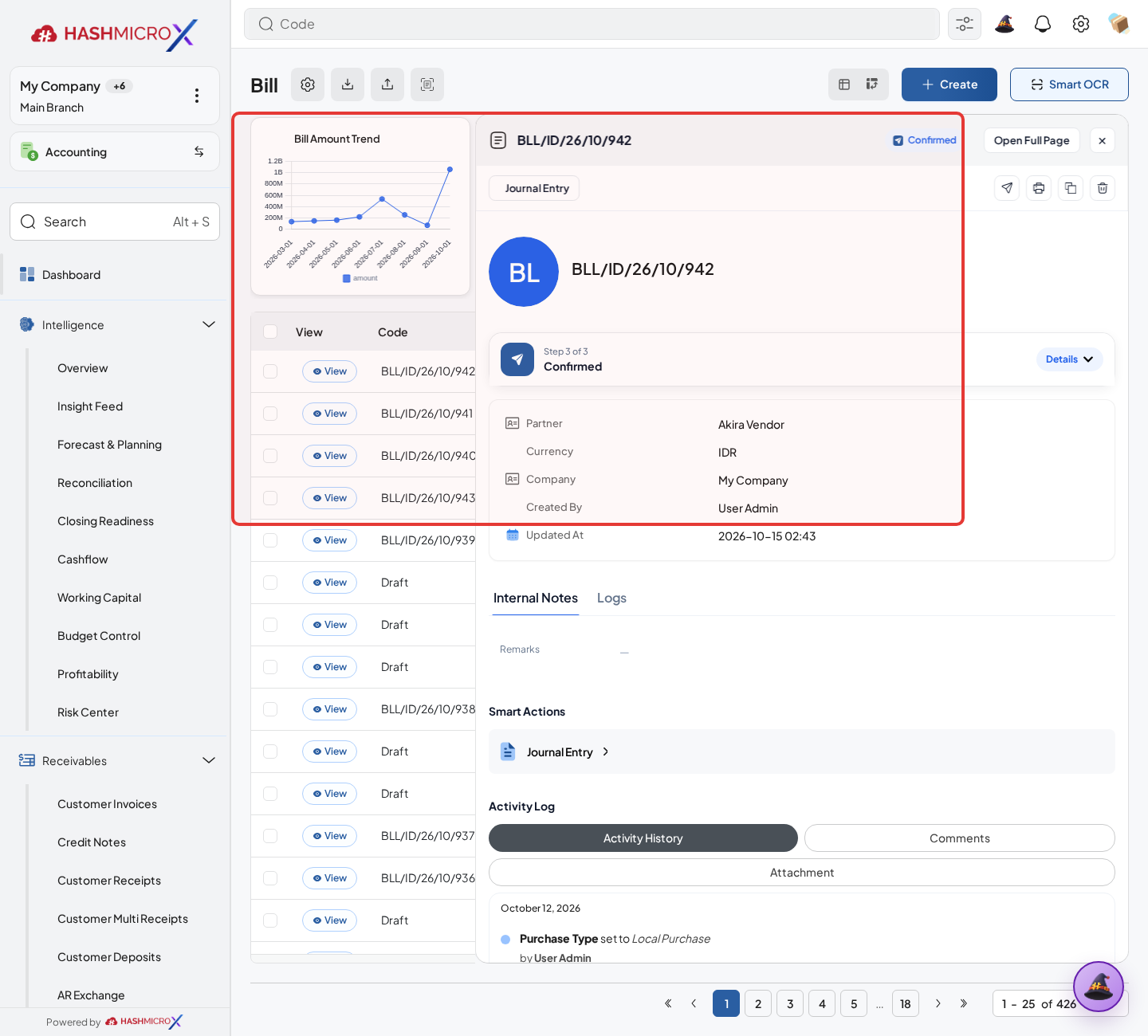
Figure 3.10.2.3 — HMX Main: Down payment percentage and payment term specification framed in red - Validate bill according to finance approval.
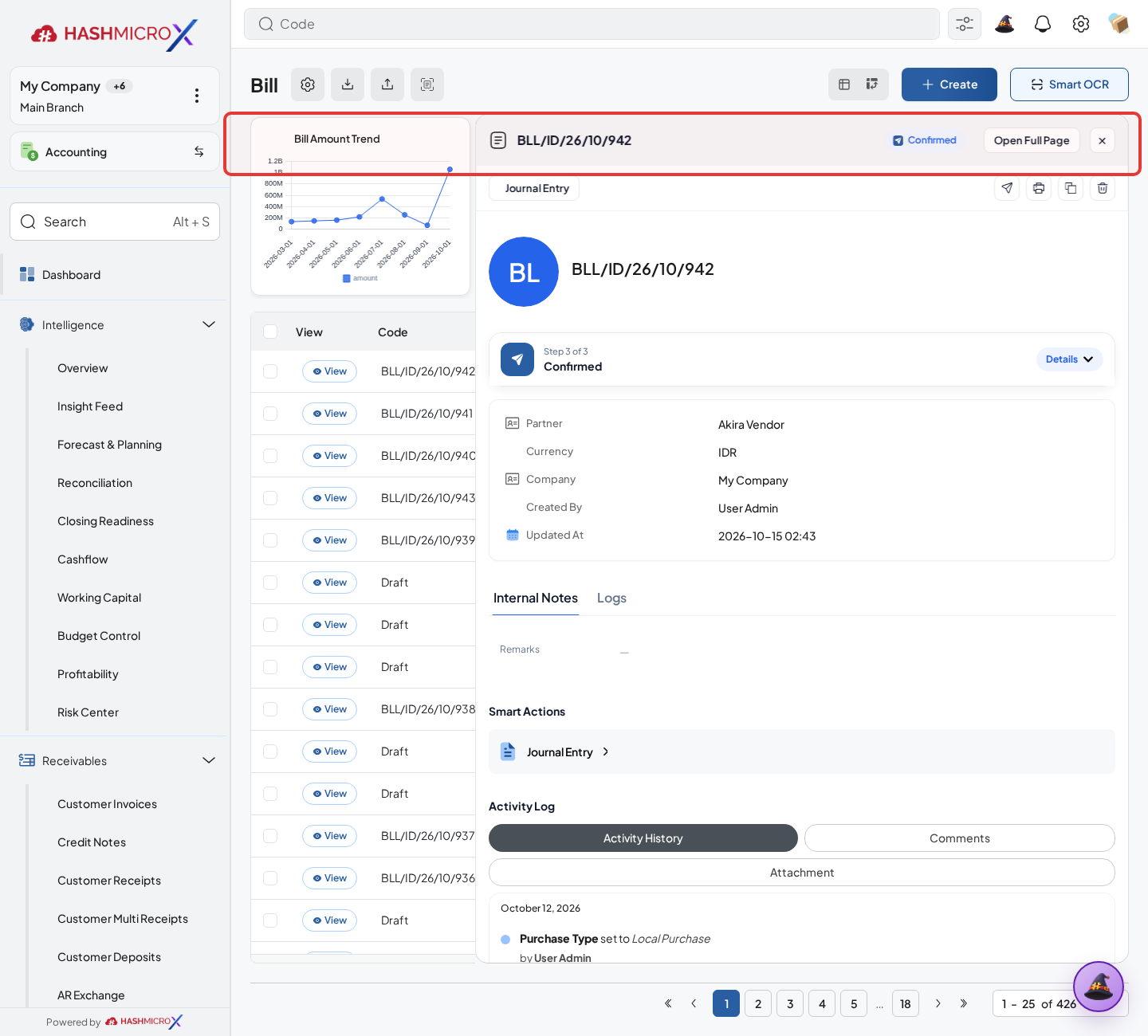
Figure 3.10.2.4 — HMX Main: Down payment Vendor Bill posted status in accounting framed in red - Return to PO and verify invoice count and amount due.
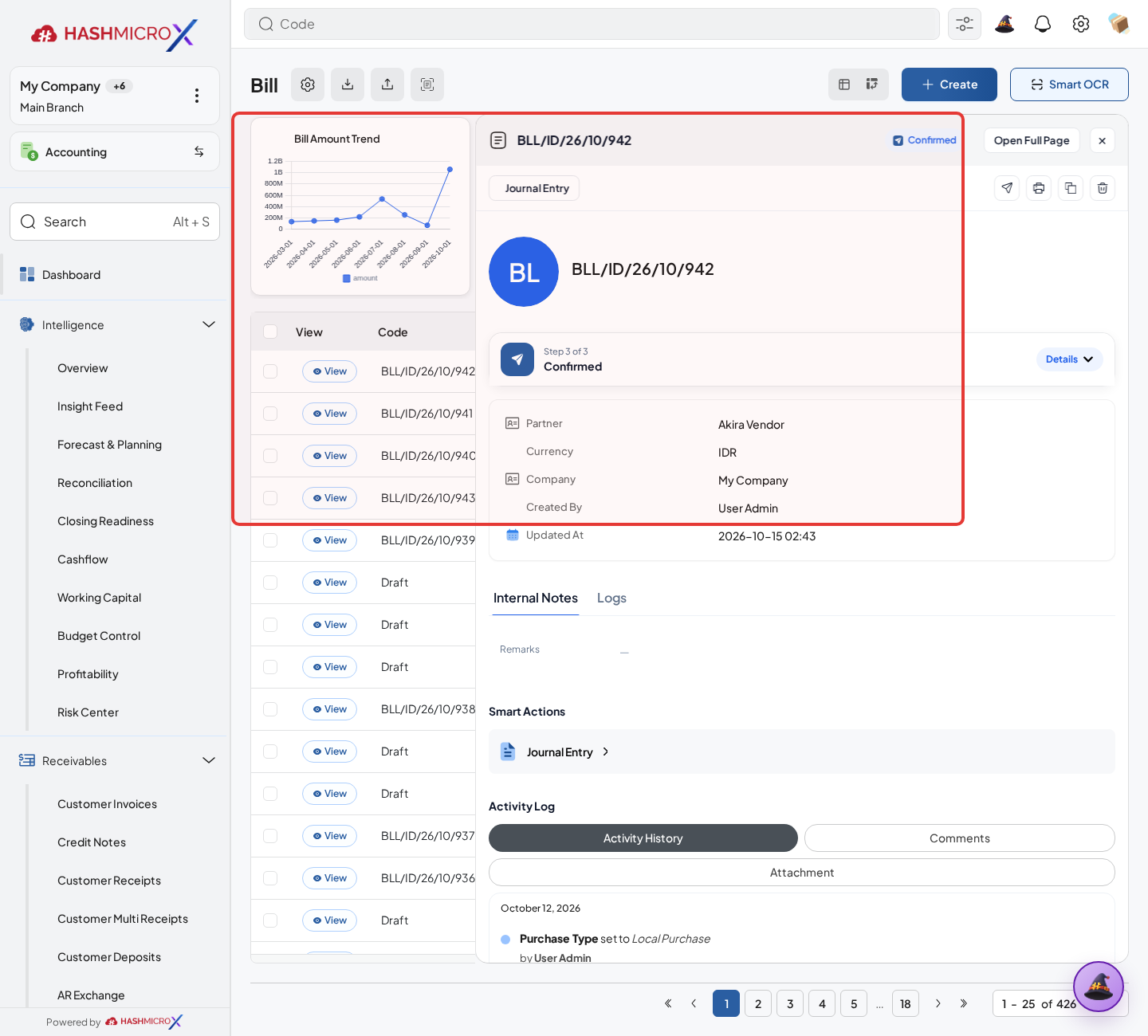
Figure 3.10.2.5 — HMX Main: Purchase Order billed amount update after down payment posting framed in red
Status and Result Guide
| Status / Result | What it means | Trigger | What to do |
|---|---|---|---|
| Draft | The document is being prepared and can still be edited. | User creates the record or resets it before confirmation. | Complete required fields and click the next workflow action. |
| Confirmed / Sent / In Progress | The document has entered the active purchasing workflow. | User clicks Confirm, Send RFQ, Submit, or a related processing action. | Monitor supplier response, approval, receiving, billing, or next action. |
| Approved / Done / Closed | The workflow result is accepted or completed. | Approver accepts the document, PO is confirmed, receipt/bill is processed, or document is closed. | Review linked documents and continue downstream processing. |
| Cancelled / Rejected | The workflow is stopped or not accepted. | User clicks Cancel/Reject or approval fails. | Review reason, correct the record if allowed, or create a replacement document. |
Field Reference
| Field | Required | Description | Example or note |
|---|---|---|---|
| Full Payment Invoice | No | Creates invoice for full payable amount. | Data type: Action. |
| Payment Terms | No | Supplier payment terms copied to bill. | Data type: Reference. |
| Invoice Count | No | Number of linked bills. | Data type: Computed Number. |
| Amount Due | No | Open payable amount after invoice creation. | Data type: Amount. |
Common Scenarios
| Scenario | When to Use | Key Steps | Expected Result |
|---|---|---|---|
| Process Full Payment Invoice | Use when a purchasing document needs sourcing, approval, supplier confirmation, receiving, or billing. | Open Purchase > Purchase > Purchase Order, create or open the document, complete required fields and lines, then use the verified workflow action. | The Purchase document moves to the next status and linked records become available when configured. |
| Correct Full Payment Invoice before completion | Use when document details are incomplete or incorrect before approval, confirmation, receipt, or billing. | Open the document, update editable fields and lines, save, then rerun the required action. | The corrected document continues through the Purchase workflow without duplicate records. |
Troubleshooting
| Issue | Possible Cause | How to fix it |
|---|---|---|
| The menu, button, or action is not visible. | The user role, document status, configuration, approval rule, or related module does not allow the action. | Check user access, document status, Purchase settings, approval setup, and required linked records before retrying. |
| The record cannot be saved, confirmed, approved, sent, received, billed, or closed. | A required field, vendor, product line, quantity, price, warehouse, tax, approval, or source document is missing or invalid. | Review highlighted fields and line tables, complete the missing values, save, then run the workflow action again. |
| The expected linked document is not created. | The source document is not in the required status, the configuration blocks automatic creation, or the related integration is disabled. | Confirm the source document status and configuration, then use the manual Create, Convert, Receiving, Bill, or Release action when available. |
3.10.3 Settlement Bill
Overview
Create settlement bill after down payment or prepaid purchasing flow needs settlement.
Prerequisites
- Vendor, product, purchase team, company, currency, and destination warehouse data are available when required.
- The user has access to create, confirm, approve, send, revise, close, or cancel the related Purchase document.
- Approval, RFQ, blanket, receiving, and billing settings are configured before the workflow is used.
Step-by-Step Instructions
- Open Purchase > Purchase > Purchase Order. Open PO with eligible down payment or settlement condition.
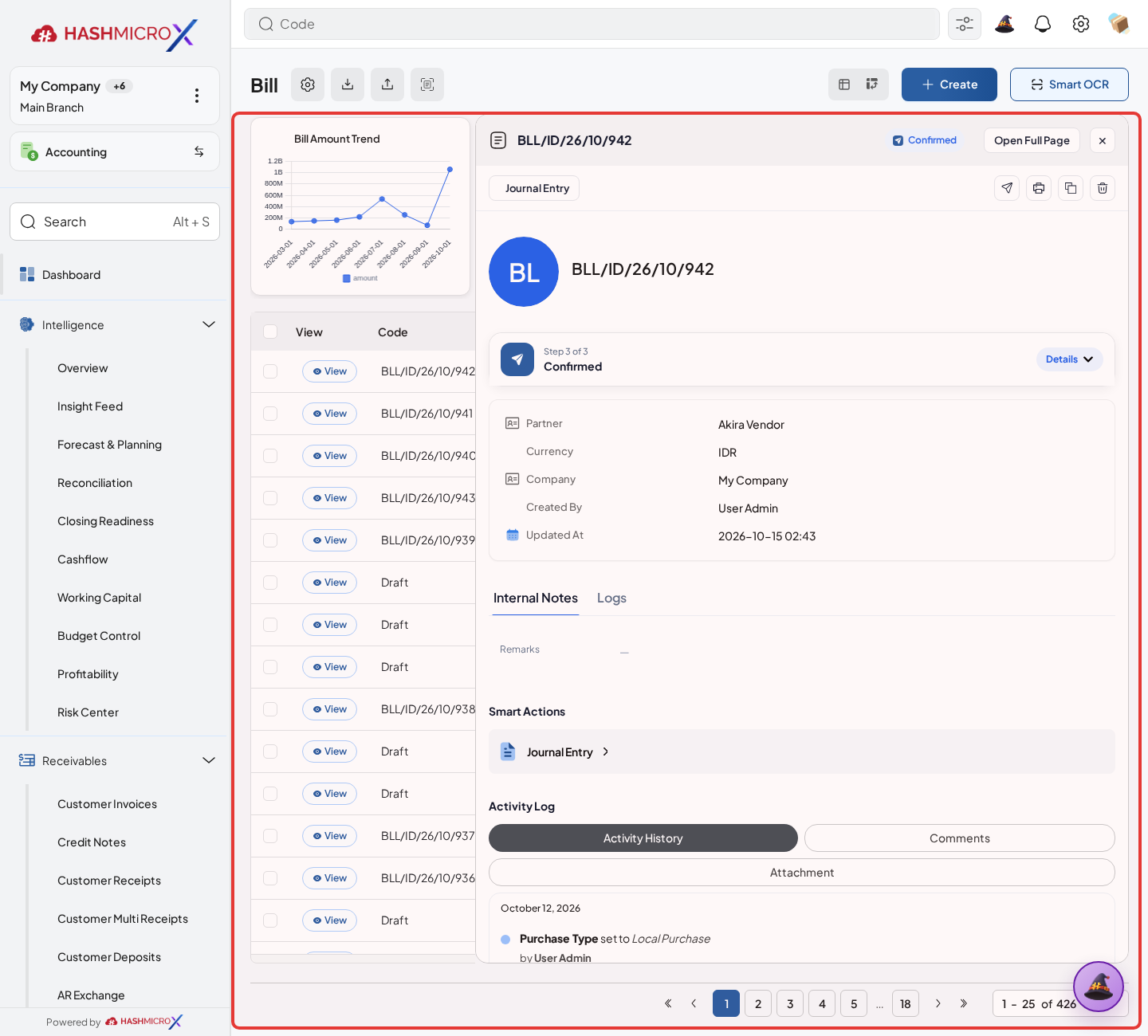
Figure 3.10.3.1 Settlement Bill screen - Click Create Settlement Bill.
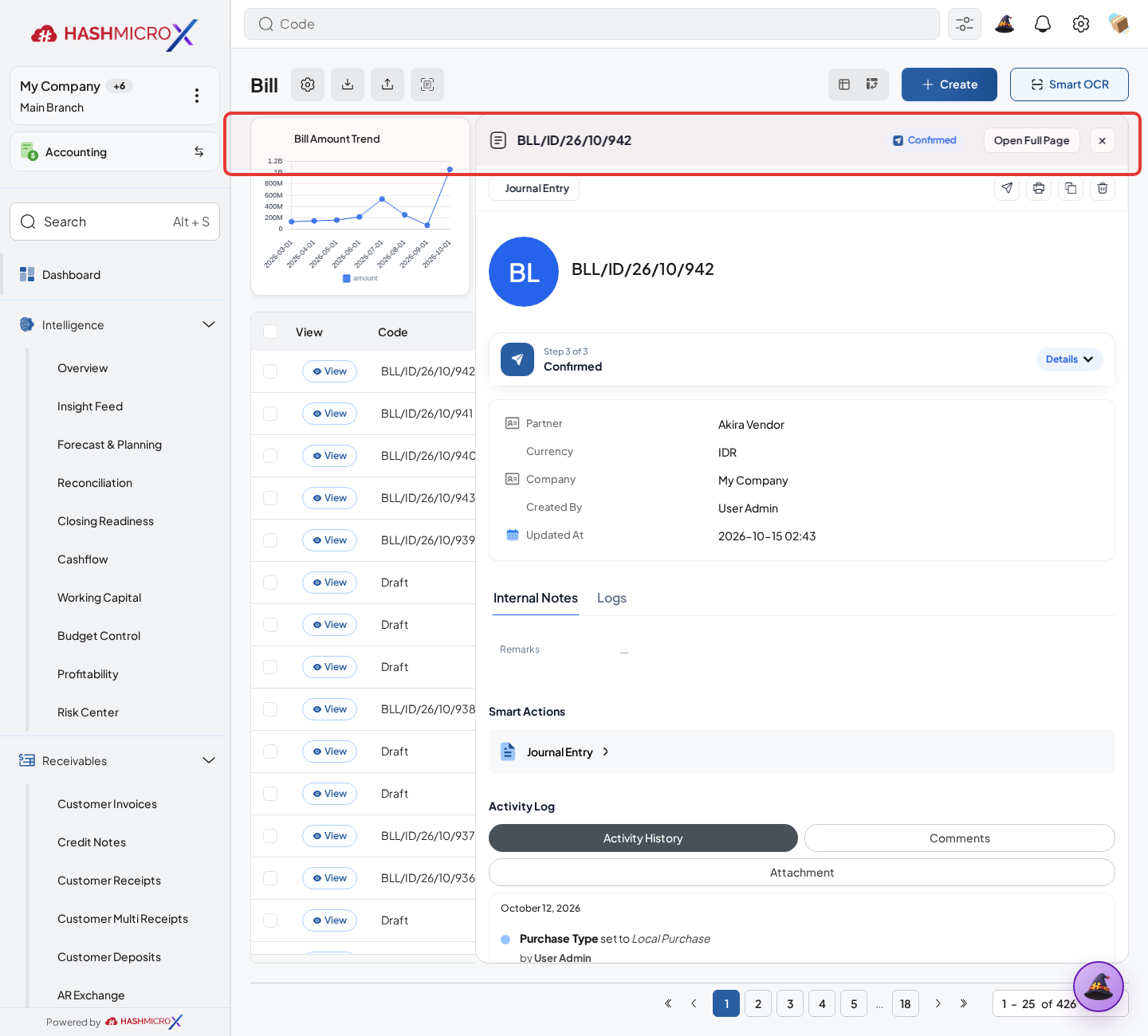
Figure 3.10.3.2 — HMX Main: Create Settlement Bill action button on PO framed in red - Review settlement amount against previous invoice or payment.
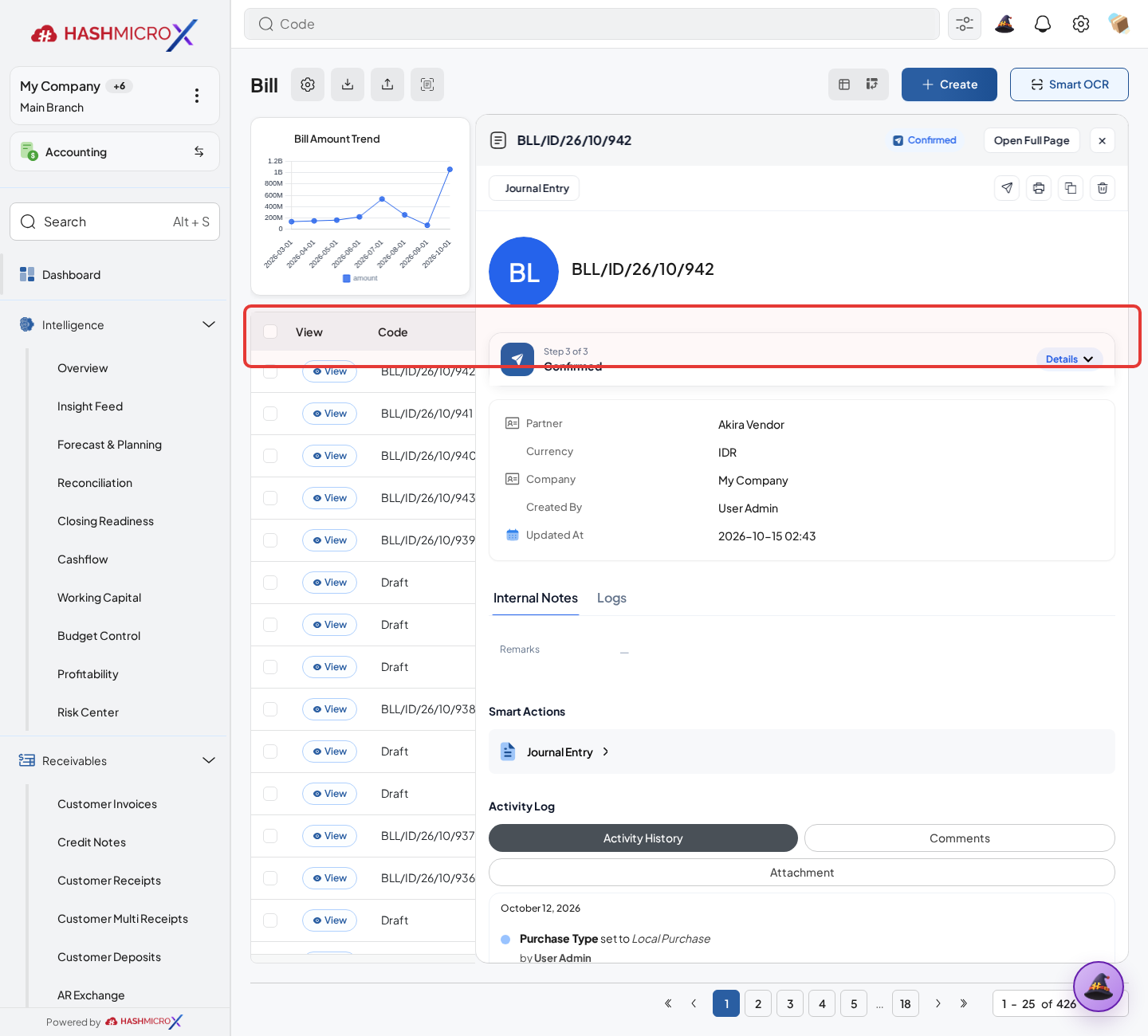
Figure 3.10.3.3 — HMX Main: Settlement Bill line items showing down payment deduction lines framed in red - Save and validate settlement bill based on finance policy.
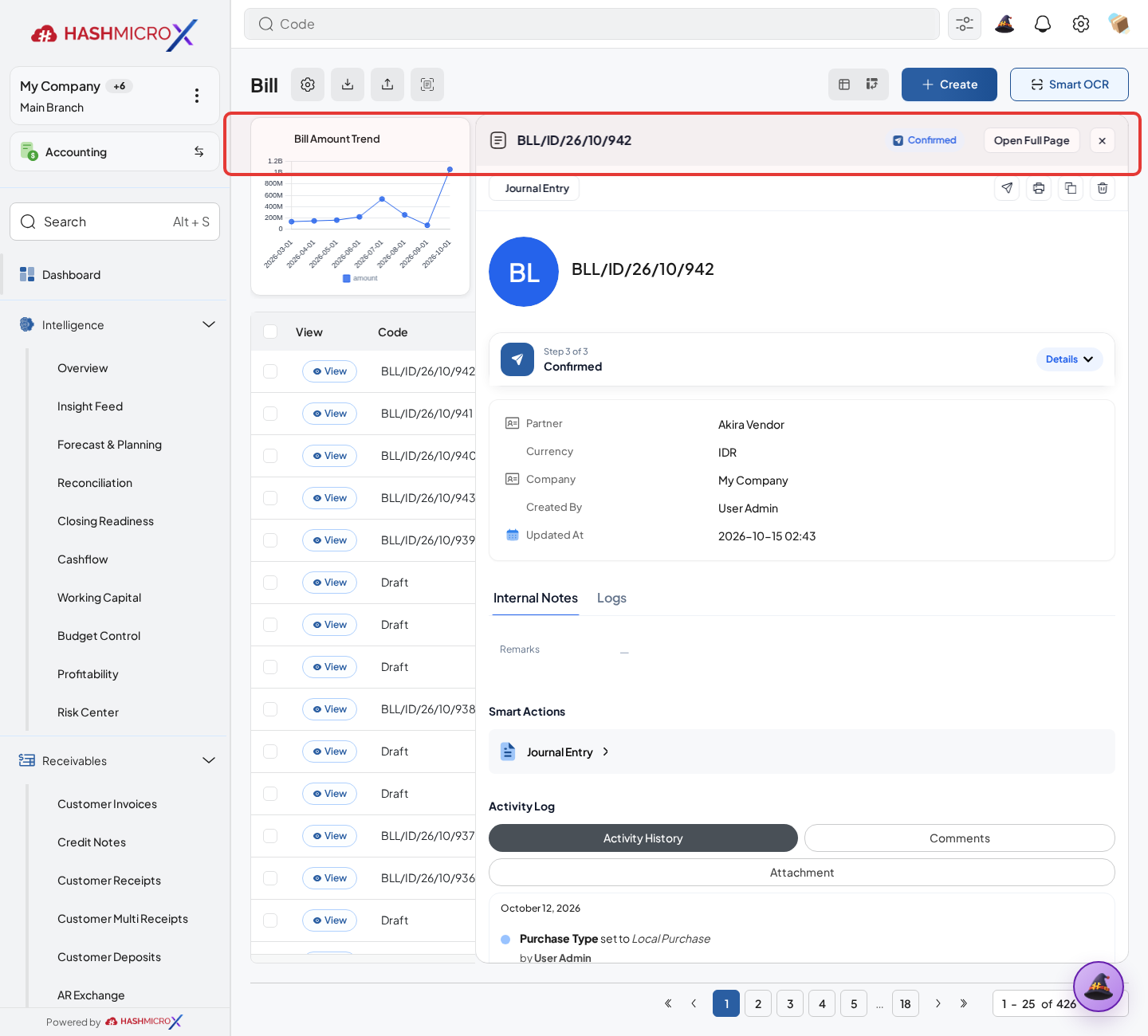
Figure 3.10.3.4 — HMX Main: Post Settlement Bill action button in accounting framed in red - Use Billing Review to confirm remaining payable amount.
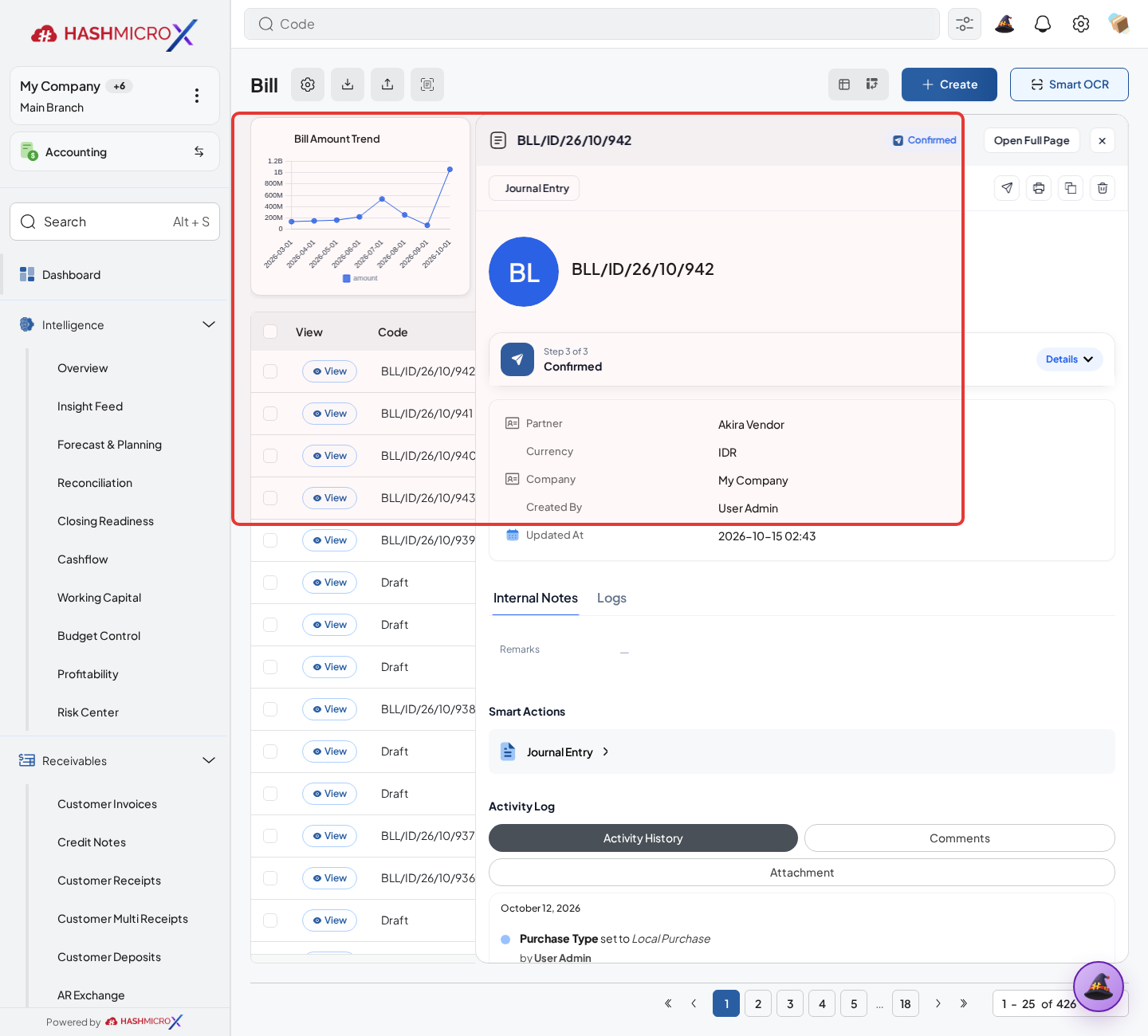
Figure 3.10.3.5 — HMX Main: Purchase Order fully settled and reconciled billing status framed in red
Status and Result Guide
| Status / Result | What it means | Trigger | What to do |
|---|---|---|---|
| Draft | The document is being prepared and can still be edited. | User creates the record or resets it before confirmation. | Complete required fields and click the next workflow action. |
| Confirmed / Sent / In Progress | The document has entered the active purchasing workflow. | User clicks Confirm, Send RFQ, Submit, or a related processing action. | Monitor supplier response, approval, receiving, billing, or next action. |
| Approved / Done / Closed | The workflow result is accepted or completed. | Approver accepts the document, PO is confirmed, receipt/bill is processed, or document is closed. | Review linked documents and continue downstream processing. |
| Cancelled / Rejected | The workflow is stopped or not accepted. | User clicks Cancel/Reject or approval fails. | Review reason, correct the record if allowed, or create a replacement document. |
Field Reference
| Field | Required | Description | Example or note |
|---|---|---|---|
| Create Settlement Bill | No | Creates settlement bill for eligible purchase flow. | Data type: Action. |
| Down Payment | No | Previously billed or paid amount to settle. | Data type: Amount. |
| Settlement Amount | Yes | Amount posted in settlement bill. | Data type: Amount. |
| Settlement Bill | No | Bill created from settlement action. | Data type: Document Link. |
Common Scenarios
| Scenario | When to Use | Key Steps | Expected Result |
|---|---|---|---|
| Process Settlement Bill | Use when a purchasing document needs sourcing, approval, supplier confirmation, receiving, or billing. | Open Purchase > Purchase > Purchase Order, create or open the document, complete required fields and lines, then use the verified workflow action. | The Purchase document moves to the next status and linked records become available when configured. |
| Correct Settlement Bill before completion | Use when document details are incomplete or incorrect before approval, confirmation, receipt, or billing. | Open the document, update editable fields and lines, save, then rerun the required action. | The corrected document continues through the Purchase workflow without duplicate records. |
Troubleshooting
| Issue | Possible Cause | How to fix it |
|---|---|---|
| The menu, button, or action is not visible. | The user role, document status, configuration, approval rule, or related module does not allow the action. | Check user access, document status, Purchase settings, approval setup, and required linked records before retrying. |
| The record cannot be saved, confirmed, approved, sent, received, billed, or closed. | A required field, vendor, product line, quantity, price, warehouse, tax, approval, or source document is missing or invalid. | Review highlighted fields and line tables, complete the missing values, save, then run the workflow action again. |
| The expected linked document is not created. | The source document is not in the required status, the configuration blocks automatic creation, or the related integration is disabled. | Confirm the source document status and configuration, then use the manual Create, Convert, Receiving, Bill, or Release action when available. |
3.11 Manufacturing/Subcontracting Integration
Overview
When Manufacturing Purchase integration is installed, Manufacturing Order and Material Requirement Planning can create Purchase Requests or subcontracting RFQs.
Prerequisites
- Vendor, product, purchase team, company, currency, and destination warehouse data are available when required.
- The user has access to create, confirm, approve, send, revise, close, or cancel the related Purchase document.
- Approval, RFQ, blanket, receiving, and billing settings are configured before the workflow is used.
Step-by-Step Instructions
Open the Manufacturing Order or material planning record that needs purchasing support.
Figure 3.11.1 Manufacturing/Subcontracting Integration screen Use Submit Purchase Request when material shortage must enter the PR approval flow.
Figure 3.11.1.2 — HMX Main: BOM components and subcontracting material requirement framed in red For subcontracting, use Send to Subcontractor or Create RFQ from the vendor wizard.
Figure 3.11.1.3 — HMX Main: Manufacturing Order Send to Subcontractor action button framed in red Review generated RFQ, Delivery Order, and Receiving Note smart buttons to trace the subcontracting chain.
Figure 3.11.1.4 — HMX Main: Subcontracting smart buttons (RFQ, Delivery Order, Receiving Note) on MO framed in red Validate the receiving step when subcontracted goods are returned and confirm the manufacturing procurement cycle is complete.
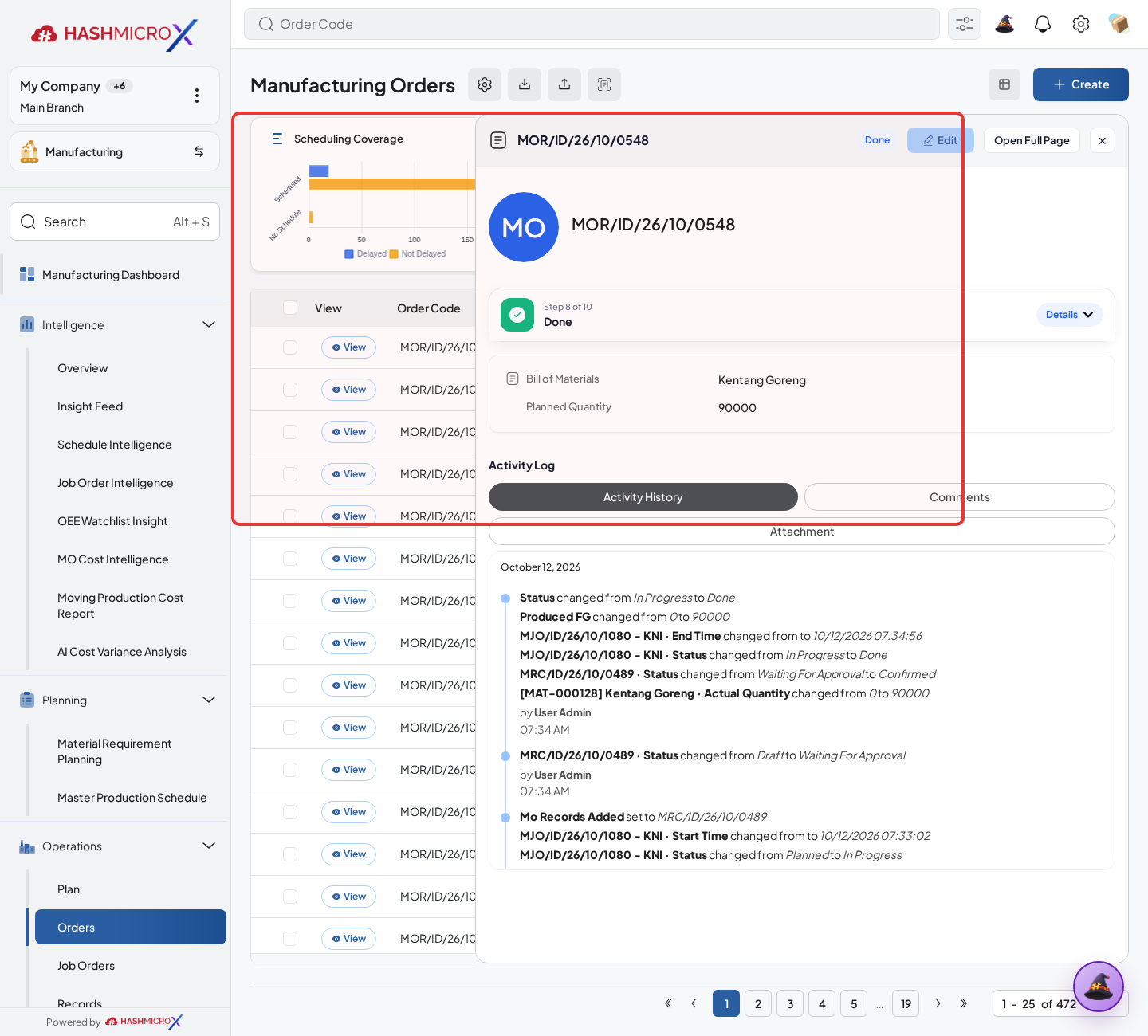
Figure 3.11.1.5 — HMX Main: Subcontracted goods receipt confirmation and production progress framed in red
Status and Result Guide
| Status / Result | What it means | Trigger | What to do |
|---|---|---|---|
| Draft | The document is being prepared and can still be edited. | User creates the record or resets it before confirmation. | Complete required fields and click the next workflow action. |
| Confirmed / Sent / In Progress | The document has entered the active purchasing workflow. | User clicks Confirm, Send RFQ, Submit, or a related processing action. | Monitor supplier response, approval, receiving, billing, or next action. |
| Approved / Done / Closed | The workflow result is accepted or completed. | Approver accepts the document, PO is confirmed, receipt/bill is processed, or document is closed. | Review linked documents and continue downstream processing. |
| Cancelled / Rejected | The workflow is stopped or not accepted. | User clicks Cancel/Reject or approval fails. | Review reason, correct the record if allowed, or create a replacement document. |
Field Reference
| Field | Required | Description | Example or note |
|---|---|---|---|
| Submit Purchase Request | No | Creates PR from Manufacturing Order or planning shortage. | Data type: Action. |
| Send to Subcontractor | No | Starts subcontracting RFQ process. | Data type: Action. |
| Create RFQ | No | Creates subcontracting RFQ from vendor wizard. | Data type: Wizard Action. |
| RFQ / DO / RN | Conditional | Traces subcontracting RFQ, Delivery Order, and Receiving Note. | Data type: Smart Button. |
| Receiving Validation | No | Can complete subcontracting cycle when RN is done. | Data type: Action. |
Common Scenarios
| Scenario | When to Use | Key Steps | Expected Result |
|---|---|---|---|
| Process Manufacturing/Subcontracting Integration | Use when a purchasing document needs sourcing, approval, supplier confirmation, receiving, or billing. | Open Purchase, create or open the document, complete required fields and lines, then use the verified workflow action. | The Purchase document moves to the next status and linked records become available when configured. |
| Correct Manufacturing/Subcontracting Integration before completion | Use when document details are incomplete or incorrect before approval, confirmation, receipt, or billing. | Open the document, update editable fields and lines, save, then rerun the required action. | The corrected document continues through the Purchase workflow without duplicate records. |
Troubleshooting
| Issue | Possible Cause | How to fix it |
|---|---|---|
| The menu, button, or action is not visible. | The user role, document status, configuration, approval rule, or related module does not allow the action. | Check user access, document status, Purchase settings, approval setup, and required linked records before retrying. |
| The record cannot be saved, confirmed, approved, sent, received, billed, or closed. | A required field, vendor, product line, quantity, price, warehouse, tax, approval, or source document is missing or invalid. | Review highlighted fields and line tables, complete the missing values, save, then run the workflow action again. |
| The expected linked document is not created. | The source document is not in the required status, the configuration blocks automatic creation, or the related integration is disabled. | Confirm the source document status and configuration, then use the manual Create, Convert, Receiving, Bill, or Release action when available. |
4 Reporting
Reporting in Purchase is operational review and traceability. Purchase KPI is not listed as an active chapter until runtime menu/action evidence is verified.
| Field Name | Data Type | Mandatory | Description & Function |
|---|---|---|---|
| RFQ Comparison | Review | Optional | Compares suppliers, prices, dates, terms, and history. |
| Document Tracking | Review | YES | Traces generated PR/RFQ/PO/Blanket/Tender records. |
| Receiving Progress | Review | Optional | Reviews received quantity, remaining quantity, and lead-time variance. |
| Billing Review | Review | Optional | Reviews bills, settlement, and amount due behavior. |
4.1 RFQ Comparison
RFQ Comparison reviews supplier alternatives across shared products, price, expected date, payment terms, and supplier history metrics.
| Field Name | Data Type | Mandatory | Description & Function |
|---|---|---|---|
| Shared Products | Computed Data | YES | Products common to selected RFQs. |
| Price Highlight | Computed Data | Read-only | Identifies relative supplier price position. |
| Payment Terms | Reference | Optional | Supplier payment term comparison. |
| Expected Date | Date | Optional | Delivery timing comparison. |
4.1.1 Compare Vendor Offers
Overview
Use RFQ Comparison as the buyer and manager review point before order confirmation.
Prerequisites
- The user has access to maintain Purchase master data.
- Required vendor, product, document, pricelist, and company standards are agreed before setup.
- Duplicate records are reviewed before saving new master data.
Step-by-Step Instructions
- Open RFQ Comparison from Reporting or RFQ action.
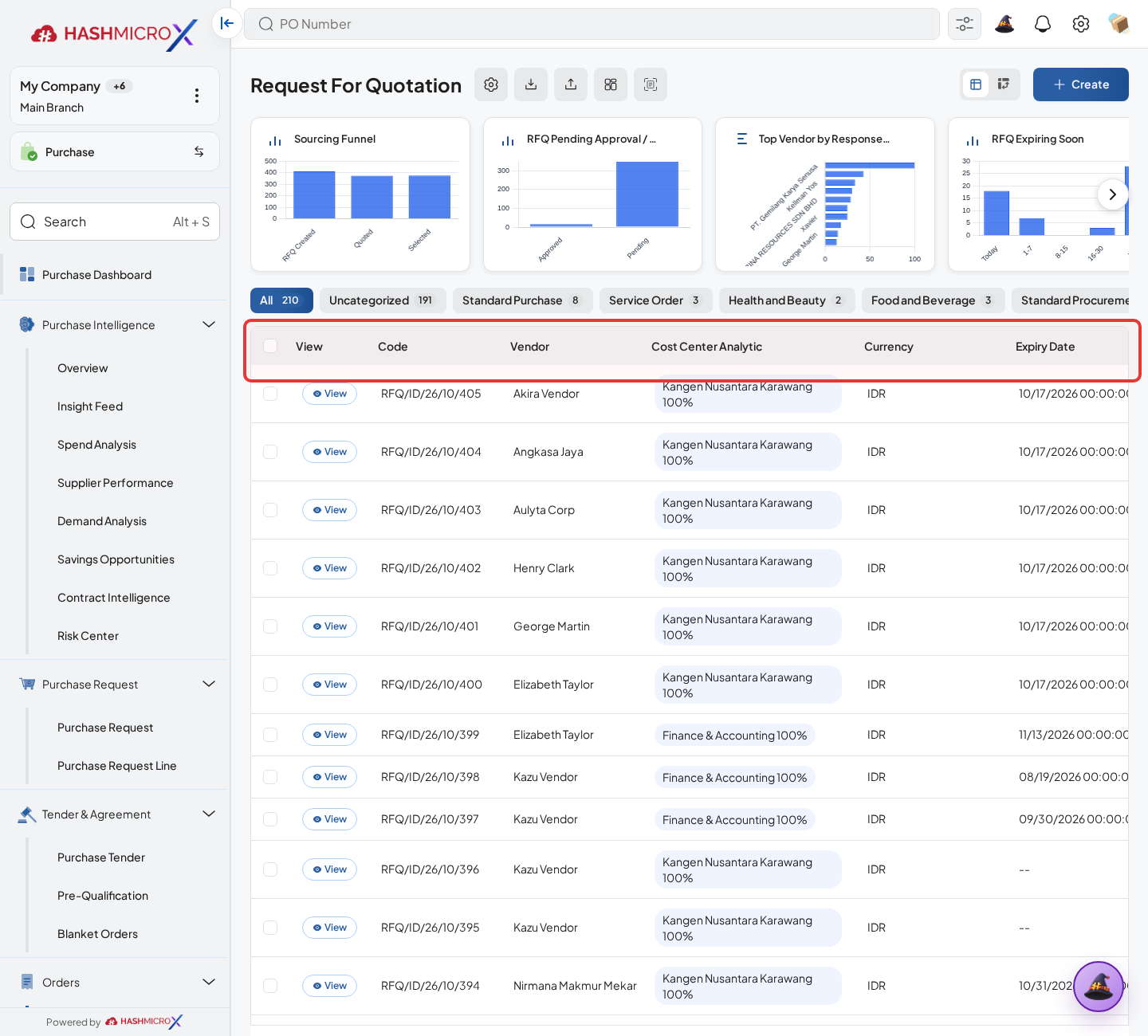
Figure 4.1.1.1 — HMX Main: Request for Quotation comparative bids table framed in red - Select comparable RFQs for the same product demand.
- Review vendor price, lead time, expected date, and payment terms.
- Use highlight indicators to identify best commercial option.
- Open selected RFQ to continue PO conversion.
Status and Result Guide
| Status / Result | What it means | Trigger | What to do |
|---|---|---|---|
| Active | The master data can be selected in Purchase workflows. | User saves or unarchives the record. | Use the record in the relevant Purchase document. |
| Archived / Blacklisted / Inactive | The record is restricted from normal usage. | User archives, blacklists, or disables the record. | Reactivate only when the supplier or master data is valid again. |
Field Reference
| Field | Required | Description | Example or note |
|---|---|---|---|
| Comparable RFQs | Yes | RFQs selected for offer comparison. | Data type: Records. |
| Price Highlight | No | Marks relative price position. | Data type: Computed Data. |
| Lead Time | No | Supplier delivery timing metric. | Data type: Computed Number. |
| Selected Offer | No | RFQ chosen for conversion. | Data type: Reference. |
Common Scenarios
| Scenario | When to Use | Key Steps | Expected Result |
|---|---|---|---|
| Create or update Compare Vendor Offers | Use when supplier, pricelist, document, or master data must be available for purchase transactions. | Open Purchase, click Create or open an existing record, complete required fields, then Save. | The master data becomes available in the related Purchase workflow. |
| Restrict invalid data | Use when a vendor, pricelist, or master record should not be used temporarily. | Open the related Purchase master data record, then click Archive, Blacklist, Reject, or the visible restriction action when that action is available. | Users cannot accidentally select invalid purchasing data. |
Troubleshooting
| Issue | Possible Cause | How to fix it |
|---|---|---|
| The menu, button, or action is not visible. | The user role, document status, configuration, approval rule, or related module does not allow the action. | Check user access, document status, Purchase settings, approval setup, and required linked records before retrying. |
| The record cannot be saved, confirmed, approved, sent, received, billed, or closed. | A required field, vendor, product line, quantity, price, warehouse, tax, approval, or source document is missing or invalid. | Review highlighted fields and line tables, complete the missing values, save, then run the workflow action again. |
| The expected linked document is not created. | The source document is not in the required status, the configuration blocks automatic creation, or the related integration is disabled. | Confirm the source document status and configuration, then use the manual Create, Convert, Receiving, Bill, or Release action when available. |
4.2 Purchase Document Tracking
Overview
Use smart buttons and generated document links to trace downstream records from PR, Blanket Order, Tender, RFQ, and PO.
Prerequisites
- Vendor, product, purchase team, company, currency, and destination warehouse data are available when required.
- The user has access to create, confirm, approve, send, revise, close, or cancel the related Purchase document.
- Approval, RFQ, blanket, receiving, and billing settings are configured before the workflow is used.
Step-by-Step Instructions
Open the source PR, Blanket Order, Tender, RFQ, or PO that needs traceability review.
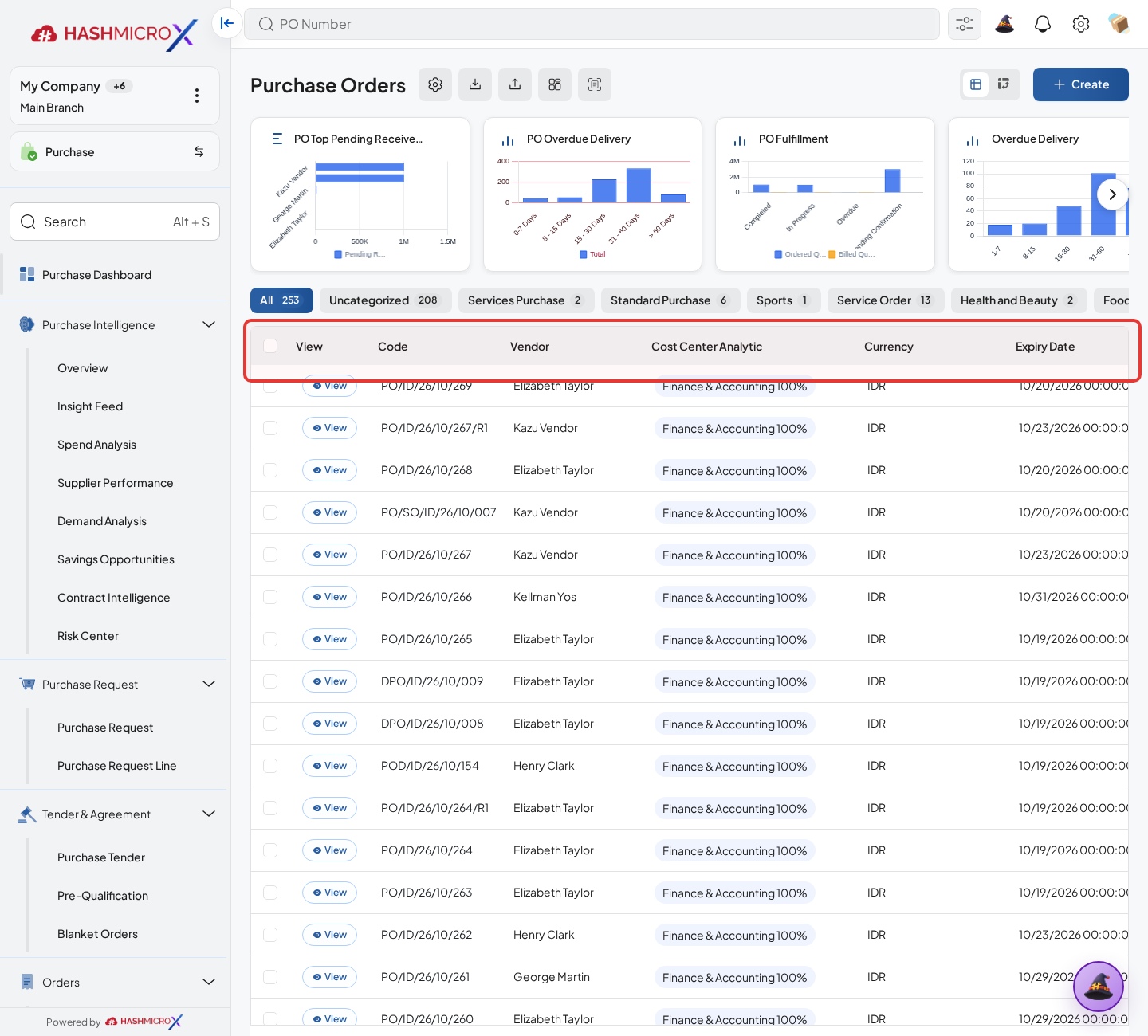
Figure 4.2.1 — HMX Main: Purchase Order lifecycle and document tracking directory framed in red Use smart buttons such as Orders, Blanket Orders, Quotations, and Purchase Orders to inspect generated documents.
Compare quantities, vendors, order dates, and references between the source document and generated records.
Open each linked document and check whether it is draft, confirmed, received, billed, closed, or cancelled.
Record any missing or inconsistent downstream document before closing the review.
Status and Result Guide
| Status / Result | What it means | Trigger | What to do |
|---|---|---|---|
| Draft | The document is being prepared and can still be edited. | User creates the record or resets it before confirmation. | Complete required fields and click the next workflow action. |
| Confirmed / Sent / In Progress | The document has entered the active purchasing workflow. | User clicks Confirm, Send RFQ, Submit, or a related processing action. | Monitor supplier response, approval, receiving, billing, or next action. |
| Approved / Done / Closed | The workflow result is accepted or completed. | Approver accepts the document, PO is confirmed, receipt/bill is processed, or document is closed. | Review linked documents and continue downstream processing. |
| Cancelled / Rejected | The workflow is stopped or not accepted. | User clicks Cancel/Reject or approval fails. | Review reason, correct the record if allowed, or create a replacement document. |
Field Reference
| Field | Required | Description | Example or note |
|---|---|---|---|
| Orders | Conditional | Shows orders generated from PR or Blanket Order. | Data type: Smart Button. |
| Blanket Orders | Conditional | Shows agreements generated from PR. | Data type: Smart Button. |
| Quotations | Conditional | Shows RFQs generated from Tender. | Data type: Smart Button. |
| Purchase Orders | Conditional | Shows POs generated from Tender or sourcing flow. | Data type: Smart Button. |
Common Scenarios
| Scenario | When to Use | Key Steps | Expected Result |
|---|---|---|---|
| Process Purchase Document Tracking | Use when a purchasing document needs sourcing, approval, supplier confirmation, receiving, or billing. | Open Purchase, create or open the document, complete required fields and lines, then use the verified workflow action. | The Purchase document moves to the next status and linked records become available when configured. |
| Correct Purchase Document Tracking before completion | Use when document details are incomplete or incorrect before approval, confirmation, receipt, or billing. | Open the document, update editable fields and lines, save, then rerun the required action. | The corrected document continues through the Purchase workflow without duplicate records. |
Troubleshooting
| Issue | Possible Cause | How to fix it |
|---|---|---|
| The menu, button, or action is not visible. | The user role, document status, configuration, approval rule, or related module does not allow the action. | Check user access, document status, Purchase settings, approval setup, and required linked records before retrying. |
| The record cannot be saved, confirmed, approved, sent, received, billed, or closed. | A required field, vendor, product line, quantity, price, warehouse, tax, approval, or source document is missing or invalid. | Review highlighted fields and line tables, complete the missing values, save, then run the workflow action again. |
| The expected linked document is not created. | The source document is not in the required status, the configuration blocks automatic creation, or the related integration is disabled. | Confirm the source document status and configuration, then use the manual Create, Convert, Receiving, Bill, or Release action when available. |
4.3 Receiving Progress
Overview
Receiving Progress helps users check how much has been received and whether delivery is on time.
Prerequisites
- Vendor, product, purchase team, company, currency, and destination warehouse data are available when required.
- The user has access to create, confirm, approve, send, revise, close, or cancel the related Purchase document.
- Approval, RFQ, blanket, receiving, and billing settings are configured before the workflow is used.
Step-by-Step Instructions
Open Purchase > Purchase > Purchase Order. Open the Purchase Order or Receiving Note being reviewed.
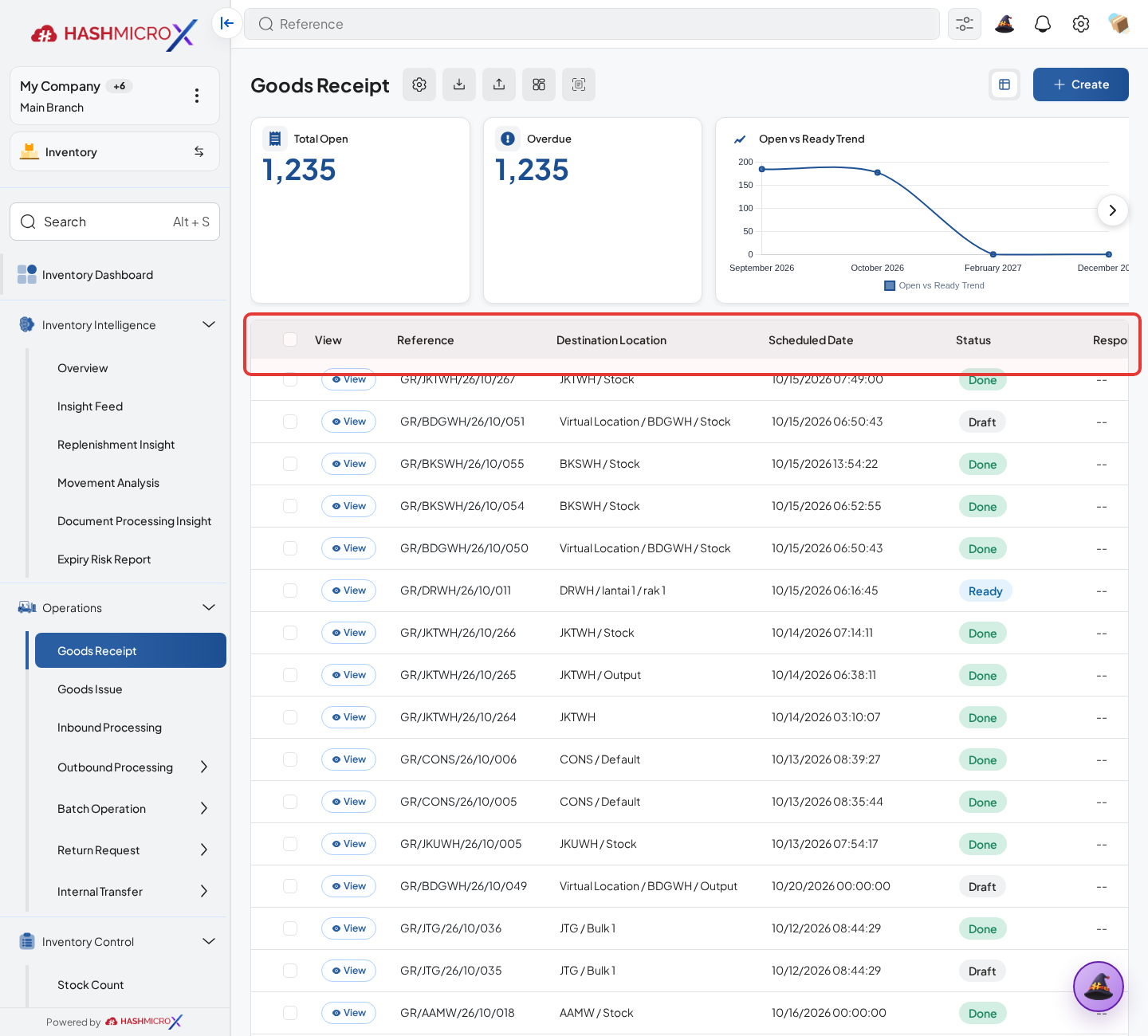
Figure 4.3.1 Receiving Progress screen Check received percentage, Qty Received, Qty Remaining, and lead time variance.
Compare planned receiving date with actual receiving date.
Filter lines with remaining quantity to decide whether follow-up receiving is still needed.
Use the receiving time status to identify late, partial, or completed deliveries.
Status and Result Guide
| Status / Result | What it means | Trigger | What to do |
|---|---|---|---|
| Draft | The document is being prepared and can still be edited. | User creates the record or resets it before confirmation. | Complete required fields and click the next workflow action. |
| Confirmed / Sent / In Progress | The document has entered the active purchasing workflow. | User clicks Confirm, Send RFQ, Submit, or a related processing action. | Monitor supplier response, approval, receiving, billing, or next action. |
| Approved / Done / Closed | The workflow result is accepted or completed. | Approver accepts the document, PO is confirmed, receipt/bill is processed, or document is closed. | Review linked documents and continue downstream processing. |
| Cancelled / Rejected | The workflow is stopped or not accepted. | User clicks Cancel/Reject or approval fails. | Review reason, correct the record if allowed, or create a replacement document. |
Field Reference
| Field | Required | Description | Example or note |
|---|---|---|---|
| Received Percentage | Conditional | Shows receiving completion against ordered quantity. | Data type: Computed Percentage. |
| Qty Received | Conditional | Quantity already received. | Data type: Number. |
| Qty Remaining | Conditional | Quantity still pending receiving. | Data type: Number. |
| Lead Time Variance | Conditional | Difference between expected and actual receiving timing. | Data type: Number. |
| Receiving Time Status | Conditional | Indicates receiving timeliness. | Data type: Status. |
Common Scenarios
| Scenario | When to Use | Key Steps | Expected Result |
|---|---|---|---|
| Process Receiving Progress | Use when a purchasing document needs sourcing, approval, supplier confirmation, receiving, or billing. | Open Purchase > Purchase > Purchase Order, create or open the document, complete required fields and lines, then use the verified workflow action. | The Purchase document moves to the next status and linked records become available when configured. |
| Correct Receiving Progress before completion | Use when document details are incomplete or incorrect before approval, confirmation, receipt, or billing. | Open the document, update editable fields and lines, save, then rerun the required action. | The corrected document continues through the Purchase workflow without duplicate records. |
Troubleshooting
| Issue | Possible Cause | How to fix it |
|---|---|---|
| The menu, button, or action is not visible. | The user role, document status, configuration, approval rule, or related module does not allow the action. | Check user access, document status, Purchase settings, approval setup, and required linked records before retrying. |
| The record cannot be saved, confirmed, approved, sent, received, billed, or closed. | A required field, vendor, product line, quantity, price, warehouse, tax, approval, or source document is missing or invalid. | Review highlighted fields and line tables, complete the missing values, save, then run the workflow action again. |
| The expected linked document is not created. | The source document is not in the required status, the configuration blocks automatic creation, or the related integration is disabled. | Confirm the source document status and configuration, then use the manual Create, Convert, Receiving, Bill, or Release action when available. |
4.4 Billing Review
Overview
Billing Review checks bill creation, down payment, settlement, and open amount behavior for purchase documents.
Prerequisites
- Vendor, product, purchase team, company, currency, and destination warehouse data are available when required.
- The user has access to create, confirm, approve, send, revise, close, or cancel the related Purchase document.
- Approval, RFQ, blanket, receiving, and billing settings are configured before the workflow is used.
Step-by-Step Instructions
Open the Purchase Order or Billing Review source document.
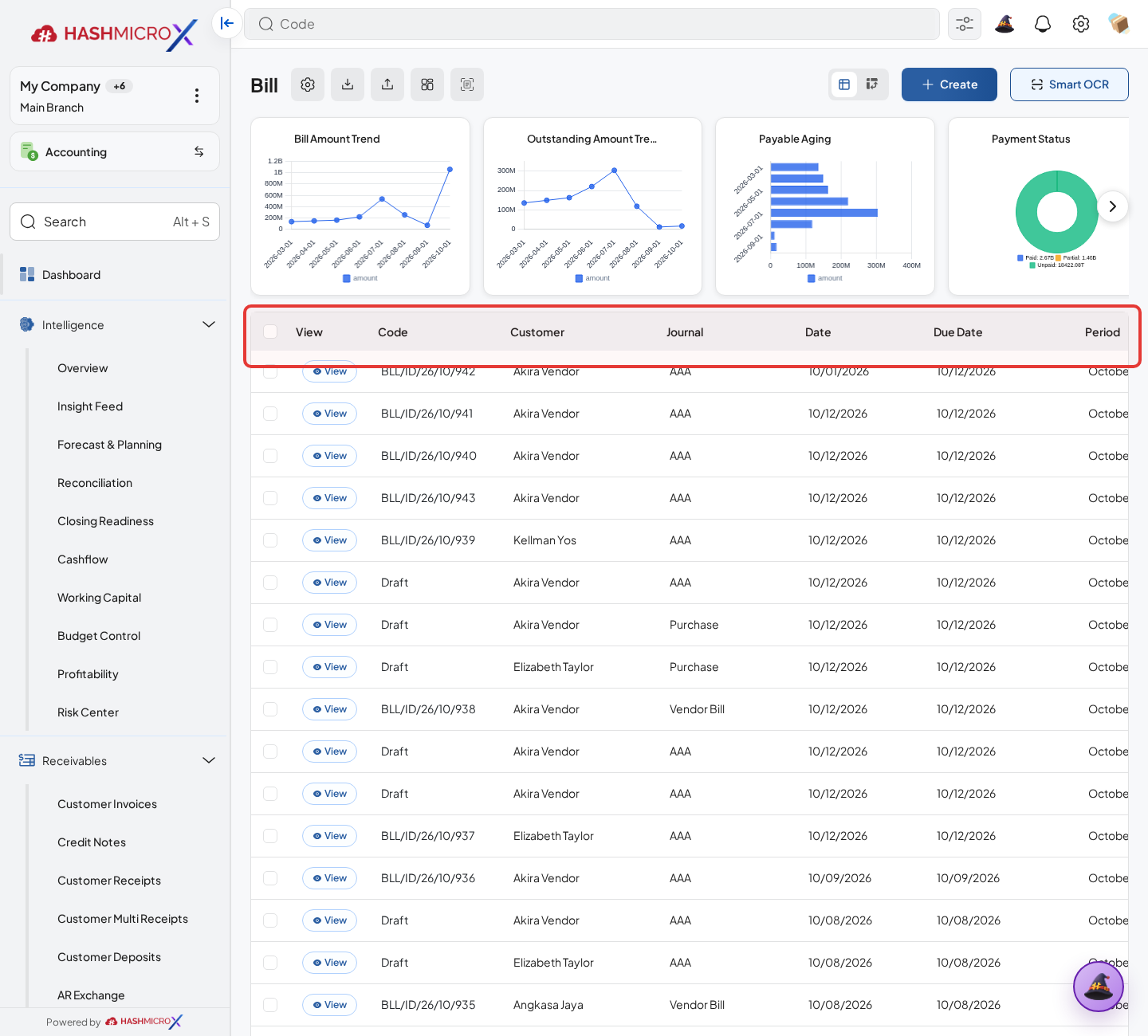
Figure 4.4.1 Billing Review screen Check invoice count, amount due, down payment, and settlement bill links.
Open linked vendor bills and verify bill status, bill date, tax, total, and residual amount.
Compare billed quantity and amount against ordered and received quantity.
Follow up bills with remaining payable amount before marking the purchase flow complete.
Status and Result Guide
| Status / Result | What it means | Trigger | What to do |
|---|---|---|---|
| Draft | The document is being prepared and can still be edited. | User creates the record or resets it before confirmation. | Complete required fields and click the next workflow action. |
| Confirmed / Sent / In Progress | The document has entered the active purchasing workflow. | User clicks Confirm, Send RFQ, Submit, or a related processing action. | Monitor supplier response, approval, receiving, billing, or next action. |
| Approved / Done / Closed | The workflow result is accepted or completed. | Approver accepts the document, PO is confirmed, receipt/bill is processed, or document is closed. | Review linked documents and continue downstream processing. |
| Cancelled / Rejected | The workflow is stopped or not accepted. | User clicks Cancel/Reject or approval fails. | Review reason, correct the record if allowed, or create a replacement document. |
Field Reference
| Field | Required | Description | Example or note |
|---|---|---|---|
| Invoice Count | Conditional | Number of bills linked to PO. | Data type: Computed Number. |
| Amount Due | Conditional | Remaining payable amount. | Data type: Amount. |
| Down Payment | No | Down payment bill portion where used. | Data type: Amount. |
| Settlement Bill | No | Settlement document created after eligible payment flow. | Data type: Document Link. |
Common Scenarios
| Scenario | When to Use | Key Steps | Expected Result |
|---|---|---|---|
| Process Billing Review | Use when a purchasing document needs sourcing, approval, supplier confirmation, receiving, or billing. | Open Purchase, create or open the document, complete required fields and lines, then use the verified workflow action. | The Purchase document moves to the next status and linked records become available when configured. |
| Correct Billing Review before completion | Use when document details are incomplete or incorrect before approval, confirmation, receipt, or billing. | Open the document, update editable fields and lines, save, then rerun the required action. | The corrected document continues through the Purchase workflow without duplicate records. |
Troubleshooting
| Issue | Possible Cause | How to fix it |
|---|---|---|
| The menu, button, or action is not visible. | The user role, document status, configuration, approval rule, or related module does not allow the action. | Check user access, document status, Purchase settings, approval setup, and required linked records before retrying. |
| The record cannot be saved, confirmed, approved, sent, received, billed, or closed. | A required field, vendor, product line, quantity, price, warehouse, tax, approval, or source document is missing or invalid. | Review highlighted fields and line tables, complete the missing values, save, then run the workflow action again. |
| The expected linked document is not created. | The source document is not in the required status, the configuration blocks automatic creation, or the related integration is disabled. | Confirm the source document status and configuration, then use the manual Create, Convert, Receiving, Bill, or Release action when available. |
4.5 Tender Audit & Award Review
Overview
Tender Audit and Award Review help managers validate document review, award allocation, generated PO, and decision approval state.
Prerequisites
- Vendor, product, purchase team, company, currency, and destination warehouse data are available when required.
- The user has access to create, confirm, approve, send, revise, close, or cancel the related Purchase document.
- Approval, RFQ, blanket, receiving, and billing settings are configured before the workflow is used.
Step-by-Step Instructions
Open Purchase > Tender > Purchase Tender. Open the Tender or award review record.
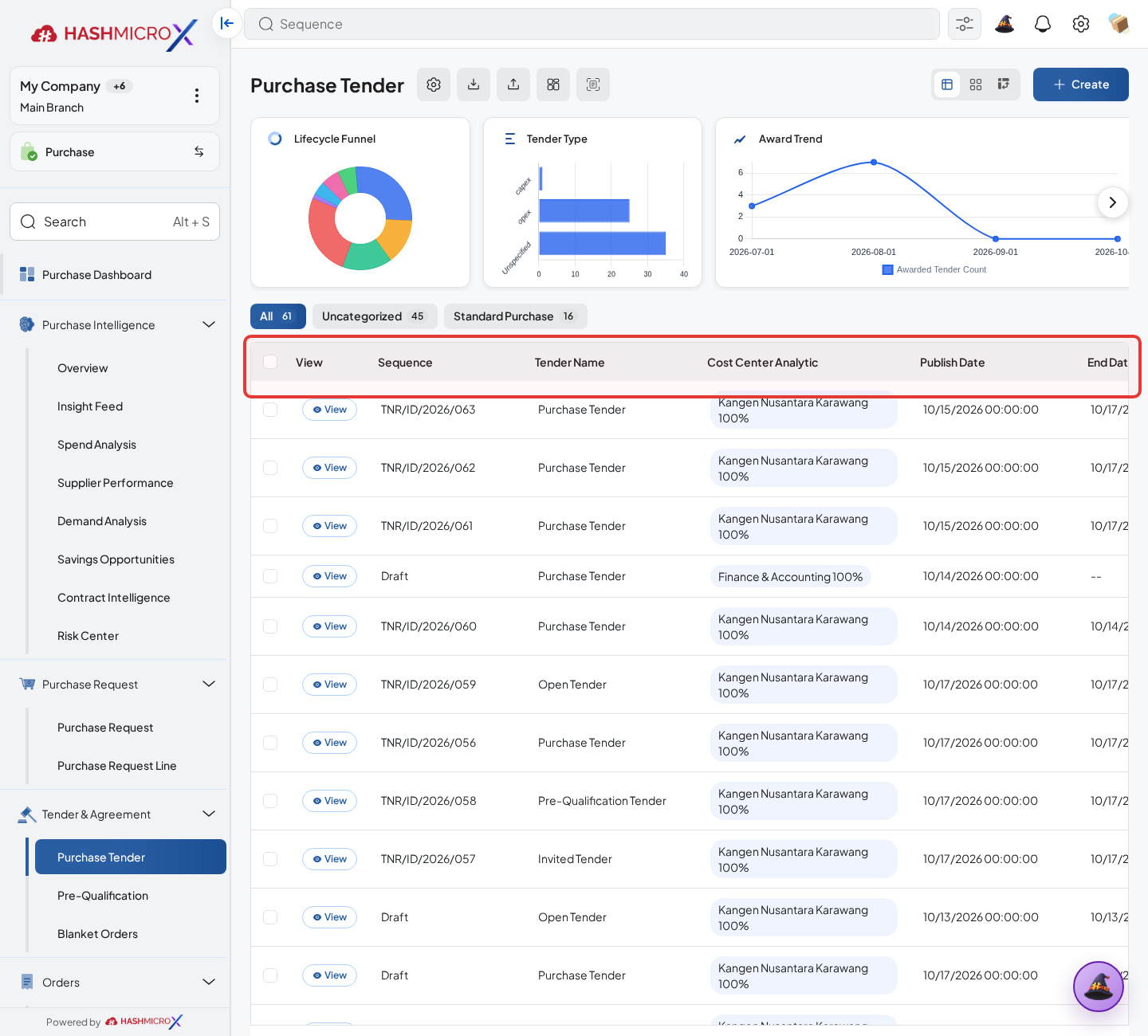
Figure 4.5.1 — HMX Main: Tender Audit, award ranking, and decision trace framed in red Review the tender lines and award allocation rows: Document Qualification, Vendor Score, Rank, Subtotal, Allocation Quantity, and generated award lines explain why a vendor is selected and which quantity will become PO.
Open the audit log to confirm important award allocation changes.
Check generated PO links and compare them with the approved award decision.
Approve or return the decision only after document review, award allocation, and generated purchase documents are consistent.
Status and Result Guide
| Status / Result | What it means | Trigger | What to do |
|---|---|---|---|
| Draft | The document is being prepared and can still be edited. | User creates the record or resets it before confirmation. | Complete required fields and click the next workflow action. |
| Confirmed / Sent / In Progress | The document has entered the active purchasing workflow. | User clicks Confirm, Send RFQ, Submit, or a related processing action. | Monitor supplier response, approval, receiving, billing, or next action. |
| Approved / Done / Closed | The workflow result is accepted or completed. | Approver accepts the document, PO is confirmed, receipt/bill is processed, or document is closed. | Review linked documents and continue downstream processing. |
| Cancelled / Rejected | The workflow is stopped or not accepted. | User clicks Cancel/Reject or approval fails. | Review reason, correct the record if allowed, or create a replacement document. |
Field Reference
| Field | Required | Description | Example or note |
|---|---|---|---|
| Award Allocation | No | Selected vendor, quotation line, allocation quantity, score, rank, and subtotal. | Data type: Record. |
| Audit Log | Conditional | Logs award allocation changes. | Data type: Record. |
| Document Review | No | Reviewer and document qualification status. | Data type: Record. |
| Decision Approval | No | Approval state for tender award decision. | Data type: Status. |
Common Scenarios
| Scenario | When to Use | Key Steps | Expected Result |
|---|---|---|---|
| Process Tender Audit & Award Review | Use when a purchasing document needs sourcing, approval, supplier confirmation, receiving, or billing. | Open Purchase > Tender > Purchase Tender, create or open the document, complete required fields and lines, then use the verified workflow action. | The Purchase document moves to the next status and linked records become available when configured. |
| Correct Tender Audit & Award Review before completion | Use when document details are incomplete or incorrect before approval, confirmation, receipt, or billing. | Open the document, update editable fields and lines, save, then rerun the required action. | The corrected document continues through the Purchase workflow without duplicate records. |
Troubleshooting
| Issue | Possible Cause | How to fix it |
|---|---|---|
| The menu, button, or action is not visible. | The user role, document status, configuration, approval rule, or related module does not allow the action. | Check user access, document status, Purchase settings, approval setup, and required linked records before retrying. |
| The record cannot be saved, confirmed, approved, sent, received, billed, or closed. | A required field, vendor, product line, quantity, price, warehouse, tax, approval, or source document is missing or invalid. | Review highlighted fields and line tables, complete the missing values, save, then run the workflow action again. |
| The expected linked document is not created. | The source document is not in the required status, the configuration blocks automatic creation, or the related integration is disabled. | Confirm the source document status and configuration, then use the manual Create, Convert, Receiving, Bill, or Release action when available. |
4.6 Vendor Performance
Vendor Performance combines vendor history, pricelist, lead time, and receiving signals to support supplier review.
| Field Name | Data Type | Mandatory | Description & Function |
|---|---|---|---|
| Vendor Lead Time | Computed Number | Read-only | Average or tracked supplier delivery lead time. |
| On-Time Receiving | Computed Metric | Read-only | Supplier receiving timeliness signal. |
| Last Purchase Price | Computed Amount | Read-only | Product/vendor price history comparison. |
| Pricelist Validity | Date Range | Optional | Effective and expiry dates for supplier prices. |
4.6.1 Review Vendor Lead Time
Overview
Review vendor lead time from receiving and purchase history to support supplier evaluation.
Prerequisites
- The user has access to maintain Purchase master data.
- Required vendor, product, document, pricelist, and company standards are agreed before setup.
- Duplicate records are reviewed before saving new master data.
Step-by-Step Instructions
- Open Vendor Performance or receiving progress review.
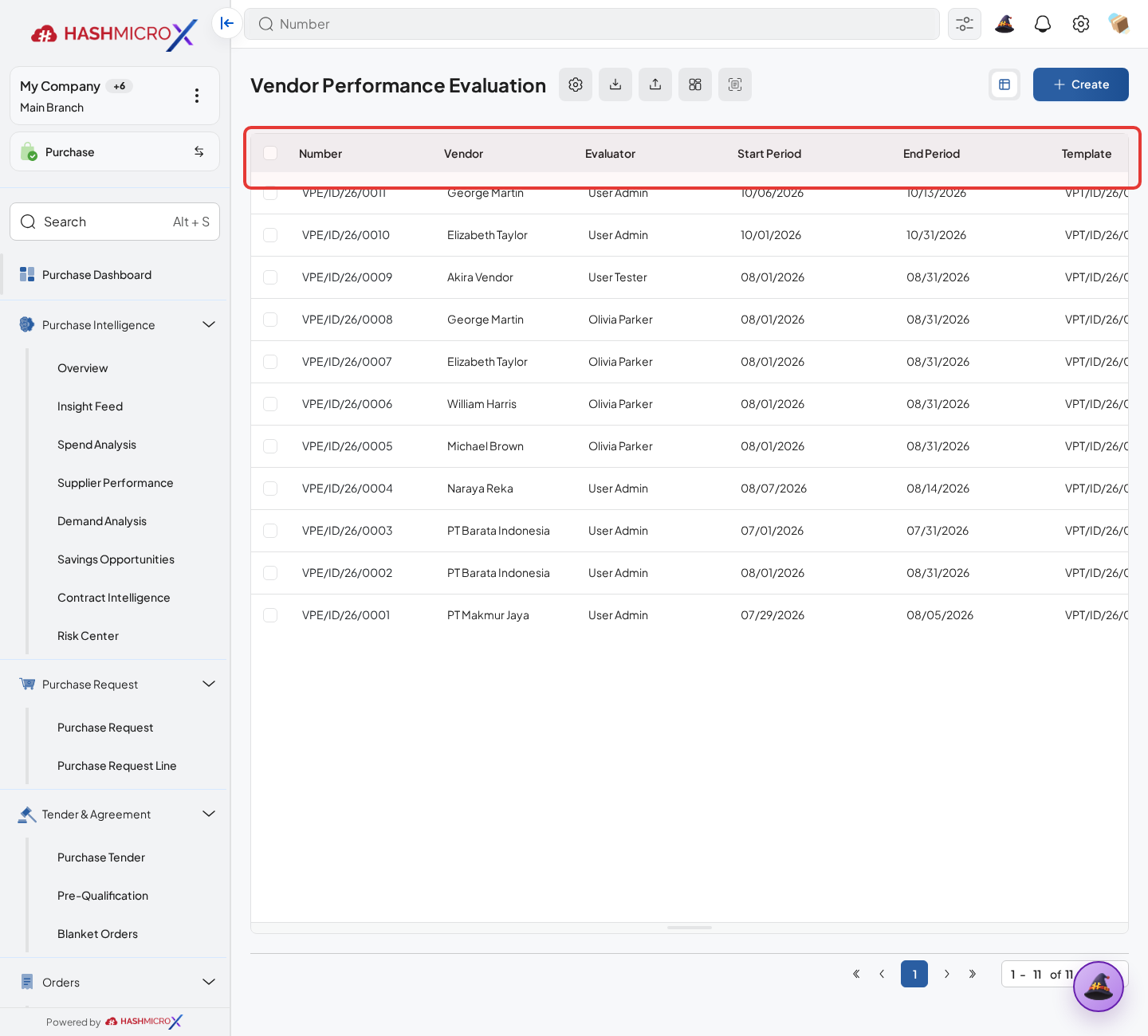
Figure 4.6.1.1 Review Vendor Lead Time screen - Filter by vendor, product, company, or date range.
- Compare expected delivery date with actual receiving date.
- Review on-time signal and last purchase price context.
- Use the result for supplier review, negotiation, or tender scoring.
Status and Result Guide
| Status / Result | What it means | Trigger | What to do |
|---|---|---|---|
| Active | The master data can be selected in Purchase workflows. | User saves or unarchives the record. | Use the record in the relevant Purchase document. |
| Archived / Blacklisted / Inactive | The record is restricted from normal usage. | User archives, blacklists, or disables the record. | Reactivate only when the supplier or master data is valid again. |
Field Reference
| Field | Required | Description | Example or note |
|---|---|---|---|
| Vendor | Yes | Supplier being reviewed. | Data type: Reference. |
| Expected Date | No | Planned delivery date from purchase document. | Data type: Date. |
| Actual Receiving Date | No | Actual date goods were received. | Data type: Date. |
| Lead Time Variance | No | Difference between expected and actual delivery timing. | Data type: Number. |
Common Scenarios
| Scenario | When to Use | Key Steps | Expected Result |
|---|---|---|---|
| Create or update Review Vendor Lead Time | Use when supplier, pricelist, document, or master data must be available for purchase transactions. | Open Purchase, click Create or open an existing record, complete required fields, then Save. | The master data becomes available in the related Purchase workflow. |
| Restrict invalid data | Use when a vendor, pricelist, or master record should not be used temporarily. | Open the related Purchase master data record, then click Archive, Blacklist, Reject, or the visible restriction action when that action is available. | Users cannot accidentally select invalid purchasing data. |
Troubleshooting
| Issue | Possible Cause | How to fix it |
|---|---|---|
| The menu, button, or action is not visible. | The user role, document status, configuration, approval rule, or related module does not allow the action. | Check user access, document status, Purchase settings, approval setup, and required linked records before retrying. |
| The record cannot be saved, confirmed, approved, sent, received, billed, or closed. | A required field, vendor, product line, quantity, price, warehouse, tax, approval, or source document is missing or invalid. | Review highlighted fields and line tables, complete the missing values, save, then run the workflow action again. |
| The expected linked document is not created. | The source document is not in the required status, the configuration blocks automatic creation, or the related integration is disabled. | Confirm the source document status and configuration, then use the manual Create, Convert, Receiving, Bill, or Release action when available. |
4.7 Purchase Intelligence
Purchase Intelligence is the purchasing decision-support workspace for managers and procurement leaders. It consolidates procurement activity into executive dashboards, prioritized insight cards, spend and supplier analytics, demand signals, savings opportunities, contract visibility, budget control, and risk monitoring. The feature is read-only for analysis; users should open the linked source documents before approving, correcting, or following up on a transaction.
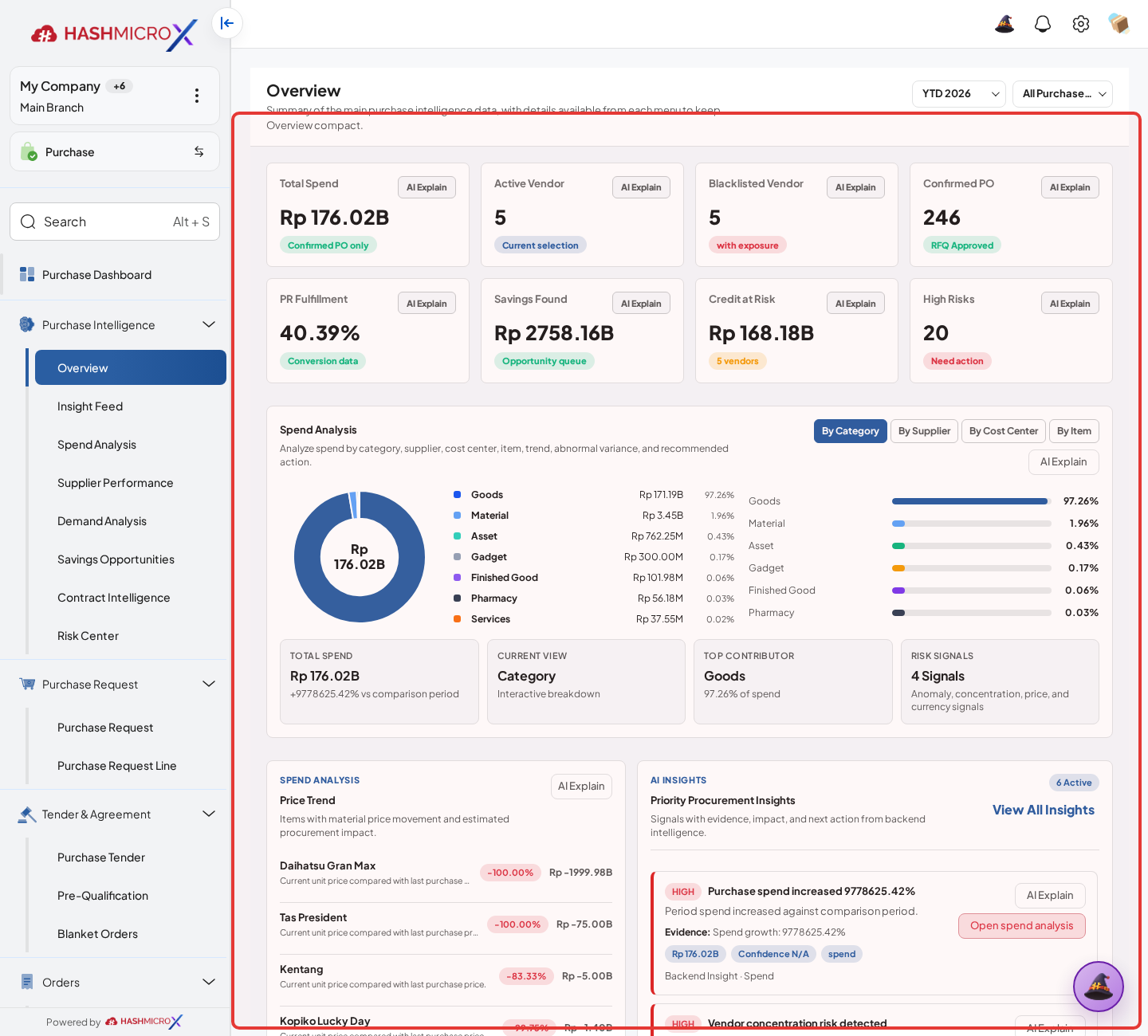
Prerequisites
Purchase transactions and master data must already exist, including Purchase Requests, RFQs, Purchase Orders, vendors, products, expected dates, received quantities, vendor pricelists, blanket orders, tender records, contract-related data, and budget records where those modules are installed. The user must use the Purchase Manager profile or another authorized role that has access to reporting and purchasing source records.
Menu Access
Open Purchase > Purchase Intelligence. The active Purchase Intelligence workspace contains these menu pages: Overview, Insight Feed, Spend Analysis, Supplier Performance, Demand Analysis, Savings Opportunities, Contract Intelligence, Budget vs Actual, and Risk Center.
Step-by-Step Instructions
Open Purchase > Purchase Intelligence > Overview to review the executive summary, KPI cards, trend visuals, top alerts, and procurement condition for the selected period.
Set the available filters such as date range, company, branch, buyer, vendor, product, category, warehouse, or document type depending on the selected page. Keep filters visible when validating totals.
Use Insight Feed to review prioritized procurement observations. Start with high-severity insights, then read the evidence, affected area, and recommended action before opening the related source document.
Use the analysis pages for deeper review: Spend Analysis for purchasing spend, Supplier Performance for vendor behavior, Demand Analysis for requested item trends, Savings Opportunities for pricing or sourcing improvement, Contract Intelligence for supplier agreement visibility, Budget vs Actual for planned versus actual procurement spend, and Risk Center for consolidated procurement risk.
Open the linked PR, RFQ, PO, Blanket Order, Tender, Vendor, Receiving, Billing, Budget, or Pricelist record when the dashboard shows a variance, risk, or recommended action. Correct the source record from its own workflow, not from the intelligence dashboard.
Reopen or refresh Purchase Intelligence after the source record is updated, then confirm the KPI, chart, and insight result reflect the corrected transaction data.
Dashboard and Menu Reference
| Menu Page | Purpose | Main Review Points | Expected Result |
|---|---|---|---|
| Overview | Executive command center for purchasing health and priority issues. | KPI cards, trend panels, current risks, source document links, and recommended follow-up. | Manager understands the current procurement position before drilling down. |
| Insight Feed | Prioritized feed of procurement observations and alerts. | Severity, affected domain, evidence, recommendation, and related source records. | User can focus on procurement issues that need action first. |
| Spend Analysis | Analyze purchasing spend by supplier, category, product, buyer, period, and document scope. | Spend concentration, top spend categories, trend movement, and drill-down records. | User identifies high-spend areas and possible control points. |
| Supplier Performance | Review vendor performance using purchasing and delivery signals. | Lead time, delivery timeliness, price behavior, fulfillment consistency, and vendor comparison. | User can compare suppliers and prioritize vendor follow-up. |
| Demand Analysis | Analyze requested item demand from purchase activity. | Requested products, categories, departments, buyers, quantities, recurring demand, and spikes. | User can identify demand patterns for planning and sourcing. |
| Savings Opportunities | Find potential savings from price, supplier, and sourcing behavior. | Price variance, vendor alternatives, contract opportunities, and repeated purchases. | User can investigate realistic procurement savings opportunities. |
| Contract Intelligence | Monitor supplier agreement coverage and contract-related purchasing risk. | Expiring agreements, off-contract spend, compliance gaps, and renegotiation indicators. | User can keep supplier agreements visible during buying decisions. |
| Budget vs Actual | Compare procurement spending and commitments against budget records. | Budget usage, committed amount, actual spending, remaining budget, and variance. | User can detect budget pressure before approving or continuing spend. |
| Risk Center | Central queue for procurement risks across spend, supplier, demand, contract, budget, and lifecycle activity. | Risk severity, probability, impact, source evidence, and linked action owner. | User can prioritize and route procurement risk follow-up. |
Field and KPI Reference
| Field / KPI | Data Type | Mandatory | Description & Function |
|---|---|---|---|
| Date Range | Filter | YES | Defines the period used by the dashboard, charts, and insight feed. |
| Company / Branch | Filter | Optional | Limits the dataset according to organization scope and user access rights. |
| Vendor | Filter / Dimension | Optional | Used to compare supplier spend, performance, risk, contract, and delivery behavior. |
| Product / Category | Filter / Dimension | Optional | Groups spend, demand, and savings analysis by purchased item or category. |
| Buyer | Filter / Dimension | Optional | Shows purchasing activity or follow-up by responsible procurement user. |
| Total Spend | Computed Amount | Read-only | Total purchasing value within the selected scope. Validate through the included source documents before sharing. |
| Committed / Actual Amount | Computed Amount | Read-only | Budget-related value used by Budget vs Actual where budget modules are installed and records are available. |
| Lead Time | Computed Number | Read-only | Supplier delivery timing signal calculated from purchasing and receiving dates where available. |
| Insight Severity | System Classification | Read-only | Priority level used by Insight Feed and Risk Center to rank follow-up. |
| Recommended Action | System Text | Read-only | Suggested follow-up based on the insight, source evidence, and configured intelligence rule. |
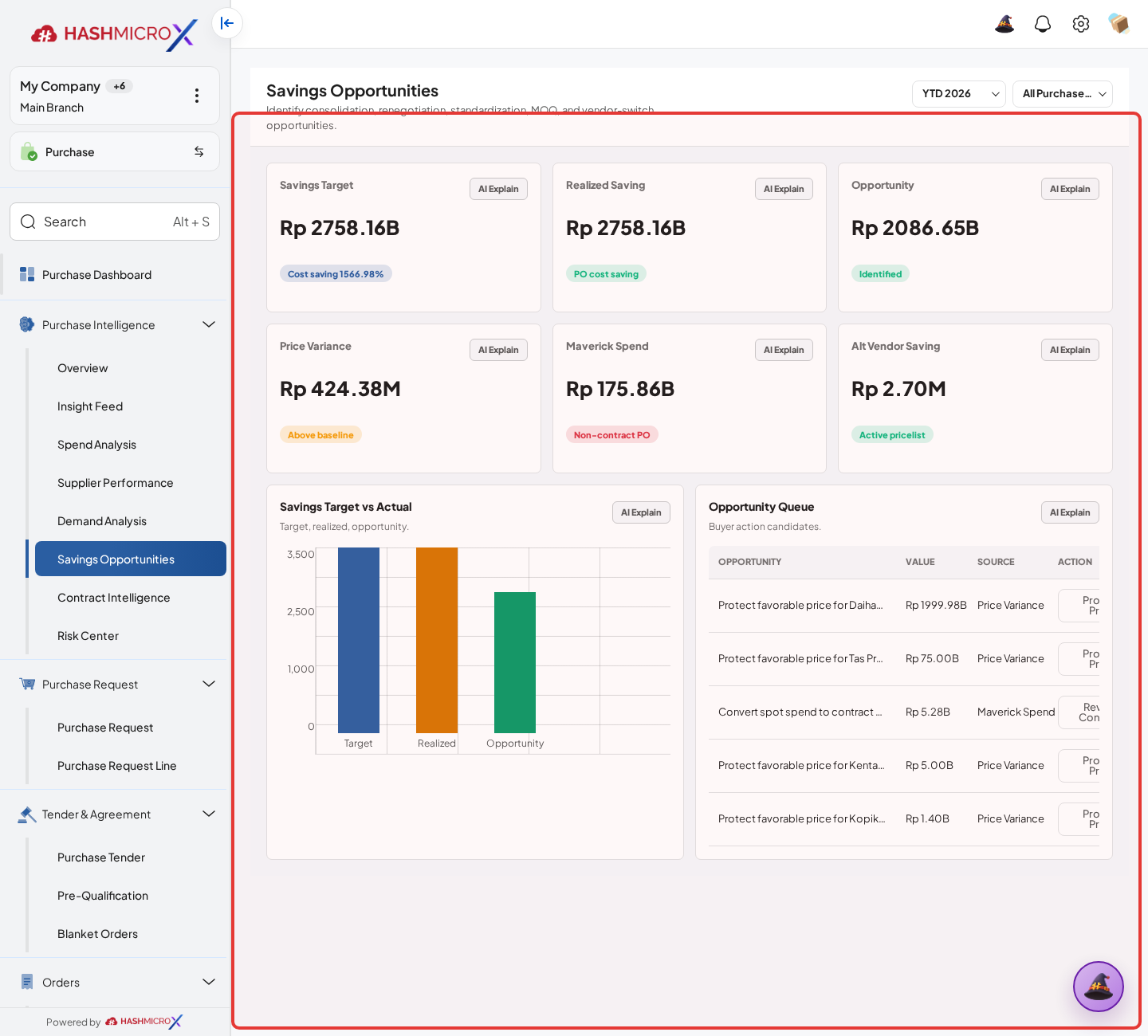
Common Scenarios
| Scenario | When to Use | Key Steps | Expected Result |
|---|---|---|---|
| Review executive purchasing condition | Use before procurement review, management meeting, or approval discussion. | Open Overview, set period and organization filters, review KPIs, top insights, and risks. | Manager has a summarized procurement position and priority issue list. |
| Investigate supplier risk | Use when vendor performance or delivery timeliness needs review. | Open Supplier Performance and Risk Center, filter by vendor or category, then open linked source records. | User can identify vendor risks and follow-up actions with evidence. |
| Find savings opportunity | Use when procurement wants to reduce spend or compare vendor pricing. | Open Savings Opportunities and Spend Analysis, review price variance and supplier alternatives, then validate against pricelist or PO records. | User can shortlist savings candidates without changing source transactions from the dashboard. |
| Check budget pressure | Use before approving spend or reviewing procurement budget utilization. | Open Budget vs Actual, compare committed and actual spend against budget, then drill down to related PR or PO records. | User can detect overspend, under-utilization, or budget risk early. |
Troubleshooting
| Issue | Possible Cause | How to fix it |
|---|---|---|
| Purchase Intelligence menu is not visible | The selected manual profile or application user role does not include manager/reporting access, or the intelligence menu is not enabled in the installed Purchase module. | Use the Purchase Manager profile in this manual and confirm the user has the required Purchase menu access in the application. |
| Dashboard totals look different from source documents | Filters, date range, company, branch, cancelled documents, draft documents, or optional module coverage may differ from the source view. | Keep the same filters visible, open drill-down records, and compare only the records included in the dashboard scope. |
| No value appears in Budget vs Actual | Budget records or budget-related module data may not be configured for the selected scope. | Confirm budget setup, company, period, and linked purchase records before using the page for approval review. |
| Supplier or delivery KPI is incomplete | Receiving records, expected dates, actual delivery dates, or vendor history may be missing. | Review the related PO and Receiving records, then refresh the dashboard after the source data is corrected. |
| Insight appears without enough evidence | The insight may have low confidence or incomplete source coverage. | Validate the source PR, RFQ, PO, vendor, pricelist, contract, budget, or receiving records before acting on the recommendation. |
Notes
Purchase Intelligence supports decision-making and drill-down analysis. It does not replace the original Purchase workflow for creating, confirming, approving, receiving, billing, cancelling, or revising purchasing documents.
A Glossary
Master Configuration
Purchase setup that controls document behavior, approval, sequences, receiving, billing, order type, template, and award strategy.
Master Data
Reusable data selected in transactions, including vendor, legal document, pricelist, team, product, and warehouse references.
Request for Quotation
Supplier quotation request used before Purchase Order confirmation.
Blanket Order
Purchase agreement for repeated procurement under agreed terms.
Award Strategy
Tender allocation configuration used during bid selection.
B Troubleshooting
C FAQ
1 Pendahuluan & Akses Sistem
1.1 Gambaran Umum & Ekosistem E-Procurement
HMX Vendor Portal adalah pintu gerbang pengadaan digital resmi (e-procurement gateway) yang menghubungkan mitra pemasok (vendor/supplier) secara langsung dengan sistem ERP Pembelian (Purchase Module) HashMicro. Portal ini dirancang khusus untuk memfasilitasi partisipasi tender pembelian skala besar (Tender Purchase), penawaran harga cepat (RFQ Quotation), pendaftaran kualifikasi terakreditasi, kepatuhan dokumen legalitas bisnis, serta konfirmasi dan pengunduhan Purchase Order (PO) resmi berstempel digital.
1.2 Akses Portal & Prasyarat Teknis
Vendor dapat mengakses portal pengadaan mandiri secara langsung melalui URL resmi:
- URL Akses Publik:
http://hmx-master-demo.hashmicro.co/vendor-portal(sistem otomatis melakukan proteksi pengalihan aman ke protokol HTTPS). - Peramban yang Didukung: Google Chrome (v100+), Mozilla Firefox (v100+), Microsoft Edge, dan Safari terkini dengan dukungan JavaScript aktif.
- Prasyarat Koneksi: Koneksi internet stabil dengan bandwidth minimal 512 Kbps untuk kelancaran unggah berkas legalitas dan penawaran tender.
Status and Result Guide
| Status Akses | Arti / Kondisi | Pemicu | Tindakan Lanjutan |
|---|---|---|---|
| Public Guest | Pengguna umum dapat melihat landing page, protokol tender, dan FAQ. | Mengakses URL tanpa sesi login. | Klik Register as Vendor untuk mendaftar atau Login to Portal jika sudah memiliki akun. |
| Pending Approval | Aplikasi pendaftaran telah dikirim dan sedang diverifikasi tim Purchasing. | Menyelesaikan 6 langkah wizard registrasi. | Pantau email bisnis atau buka status aplikasi berkala; fitur tender terkunci sementara. |
| Verified Vendor | Akun vendor telah disetujui penuh dengan hak akses bidding tender aktif. | Tim pengadaan Company menyetujui data legal dan bank. | Akses Vendor Workspace, ajukan penawaran harga RFQ, dan ikuti tender pengadaan aktif. |
| Suspended / Blacklist | Akses portal vendor dibekukan sementara karena pelanggaran kepatuhan. | Audit tim pengadaan menemukan inkonsistensi dokumen atau wanprestasi. | Hubungi Help Desk pengadaan untuk klarifikasi audit atau perbaikan dokumen. |
2 Registrasi & Kualifikasi Rekanan
2.1 Pembuatan Akun Kredensial Awal
Proses registrasi vendor di HMX dirancang berbasis kepatuhan pengadaan (procurement compliance) bertahap 6 langkah. Seluruh data identitas badan usaha, nomor izin berusaha (NIB/SIUP), nomor pokok wajib pajak (NPWP), dan rekening perbankan dikumpulkan secara terstruktur agar tim Buyer Company dapat memvalidasi keabsahan vendor sebelum diundang ke tender pengadaan.
Prasyarat Registrasi
- Memiliki alamat email bisnis resmi (bukan domain email sementara atau anonim).
- Menyiapkan dokumen legalitas usaha: Salinan NPWP Badan/Perorangan, NIB/SIUP, dan Akta Pendirian/SK Kemenkumham (TDP/AHU).
- Menyiapkan buku tabungan atau rekening koran atas nama badan usaha untuk verifikasi pencairan pembayaran PO.
- Memahami kategori barang/jasa yang akan disuplai ke perusahaan.
2.2 Wizard 6 Langkah Kepatuhan Legalitas & Perbankan
-
Buka halaman utama portal, lalu klik tombol Register as Vendor untuk memulai pembuatan akun awal.
Isi Nama Lengkap PIC (Full Name), Email Bisnis (Business Email), Nomor Telepon aktif dengan kode negara, Kata Sandi, Konfirmasi Sandi, lalu centang persetujuan Syarat Layanan dan Kebijakan Privasi.
-
Langkah 1: Basic Information — Masukkan Nama Legal Perusahaan (Legal Company Name), Website Resmi Perusahaan, Alamat Domisili Terdaftar, Kota, dan Kode Pos.
Figure 2.2 — HMX Vendor Portal: Wizard Langkah 1 Informasi Dasar Perusahaan ber-border merah -
Langkah 2: Legal Documentation — Masukkan Nomor NPWP (Tax Identity Number), pilih Bentuk Badan Usaha (PT, CV, Perseorangan, Firma), masukkan Nomor Induk Berusaha (NIB/SIUP), dan Nomor Registrasi Kemenkumham (CRN/AHU), lalu unggah berkas pindaian dokumen legalitas berformat PDF/JPG.
Figure 2.3 — HMX Vendor Portal: Wizard Langkah 2 Berkas Legalitas & Pajak ber-border merah -
Langkah 3: Primary Bank Account — Tentukan Nama Bank Rekanan, Nama Pemilik Rekening (wajib sama dengan nama badan usaha terdaftar), Nomor Rekening, Mata Uang Transaksi (IDR, USD, dsb.), Kantor Cabang Bank, serta Kode SWIFT/BIC untuk transaksi valas.
Figure 2.4 — HMX Vendor Portal: Wizard Langkah 3 Data Rekening Bank & Mata Uang ber-border merah -
Langkah 4: Categories & Capabilities — Pilih satu atau lebih kategori pengadaan yang dilayani perusahaan Anda (misal: Teknologi Informasi, Konstruksi, Alat Tulis Kantor, Logistik). Tuliskan ringkasan portofolio kemampuan dan pengalaman proyek perusahaan.
Figure 2.5 — HMX Vendor Portal: Wizard Langkah 4 Pemilihan Kategori Pengadaan & Portofolio ber-border merah -
Langkah 5: Additional Documents — Unggah dokumen sertifikasi spesifik industri (misal: Sertifikat ISO 9001/27001, Surat Kualifikasi SMK3, Sertifikasi Halal, atau Surat Keagenan Tunggal dari Principal).
Figure 2.6 — HMX Vendor Portal: Wizard Langkah 5 Unggah Sertifikasi Tambahan ber-border merah -
Langkah 6: Review & Final Submission — Teliti kembali seluruh data ringkasan yang telah diisi. Centang kotak Deklarasi Kebenaran Dokumen Hukum (Declaration Checkbox), lalu klik tombol Submit Application. Data otomatis tersinkronisasi ke menu Master Vendors di ERP Pembelian Company.
Figure 2.7 — HMX Vendor Portal: Wizard Langkah 6 Tinjauan Akhir & Deklarasi Pengajuan ber-border merah
Field Reference
| Nama Kolom | Wajib | Deskripsi & Fungsi | Contoh / Catatan |
|---|---|---|---|
| Full Name (PIC) | Ya | Nama penanggung jawab operasional akun vendor. | Budi Pratama |
| Business Email | Ya | Email resmi perusahaan untuk login dan notifikasi tender. | procurement@mitrajaya.co.id |
| Phone Number | Ya | Nomor telepon/WhatsApp aktif dilengkapi kode negara. | +62 812 3456 7890 |
| Legal Company Name | Ya | Nama lengkap badan usaha sesuai Akta Pendirian resmi. | PT Mitra Jaya Perkasa |
| Tax Identity (NPWP) | Ya | Nomor Pokok Wajib Pajak badan usaha 15 atau 16 digit. | 01.234.567.8-012.000 |
| NIB / SIUP | Ya | Nomor Induk Berusaha berbasis OSS atau SIUP perdagangan. | 9120001234567 |
| Company Reg. Number | Ya | Nomor SK Kemenkumham atau registrasi perizinan resmi. | AHU-0012345.AH.01.01.2020 |
| Bank Account Number | Ya | Nomor rekening transaksi pencairan dana pembayaran invoice. | 123-00-9876543-2 (Bank Mandiri) |
| SWIFT / BIC | Opsional | Kode pengenal perbankan internasional untuk mata uang asing. | BMRIIDJA |
| Categories | Ya | Grup klasifikasi produk/jasa yang disuplai vendor. | IT & Hardware, Networking |
3 Autentikasi & Keamanan Sesi
3.1 Prosedur Masuk Sistem (Login)
Autentikasi Vendor Portal menggunakan kredensial email bisnis terdaftar dan kata sandi terenkripsi. Sesi pengguna dilindungi dengan mekanisme token berbasis waktu dan opsi penyimpanan perangkat tepercaya selama 30 hari untuk mempermudah partisipasi tender berulang.
Panduan Langkah demi Langkah
Buka
http://hmx-master-demo.hashmicro.co/vendor-portal, lalu klik tombol Login to Portal di pojok kanan atas atau pada banner utama.Ketikkan Business Email yang terdaftar saat registrasi akun vendor.
Ketikkan Password akun Anda. Gunakan ikon mata jika ingin memverifikasi karakter sandi yang diketik.
-
Centang kotak Remember this device for 30 days jika menggunakan perangkat komputer kerja pribadi untuk mencegah logout otomatis.
Figure 3.2 — HMX Vendor Portal: Opsi Remember device 30 days dan tombol submit login ber-border merah Klik tombol Login to Portal. Sistem memvalidasi kredensial ke API server. Jika valid, Anda akan langsung diarahkan ke Vendor Workspace Dashboard.
3.2 Keamanan Sesi & Pemulihan Akses
| Kendala | Penyebab Kemungkinan | Solusi |
|---|---|---|
| Invalid Email or Password | Kombinasi email atau kata sandi tidak cocok di database. | Periksa penulisan huruf besar/kecil (case sensitive) atau gunakan tombol lupa kata sandi. |
| Account Pending Approval | Akun telah terdaftar namun statusnya masih dalam proses review tim purchasing. | Tunggu konfirmasi penerimaan dari tim pengadaan atau cek status aplikasi di portal. |
| Session Expired | Sesi login telah melewati batas waktu keamanan (inactivity timeout). | Muat ulang halaman dan lakukan login ulang menggunakan email dan kata sandi Anda. |
4 Dasbor & Ruang Kerja Vendor
4.1 Navigasi Ruang Kerja (Workspace)
Vendor Workspace adalah pusat kendali operasional terintegrasi bagi mitra pemasok. Pada ruang kerja ini, vendor dapat memantau indikator kinerja utama (KPI), jumlah tender aktif yang siap diikuti, undangan penawaran RFQ yang membutuhkan respons, pesanan pembelian terbit, serta riwayat kemenangan penawaran (Win Rate).
4.2 Pemantauan Metrik Kinerja Pengadaan
- Ringkasan Profil Vendor: Menampilkan Nama Resmi Perusahaan, Kode Akreditasi Vendor, Status Registrasi (Approved), dan Tanggal Mulai Bergabung (Member Since).
- Kartu Metrik KPI:
- Active Tenders: Jumlah tender terbuka yang sesuai dengan bidang kategori usaha vendor.
- Active RFQs: Jumlah permintaan penawaran langsung dari buyer yang menunggu pengisian harga.
- Confirmed Orders: Akumulasi Purchase Order resmi yang telah diterbitkan untuk vendor.
- Win Rate & Performance: Persentase keberhasilan penawaran tender dan skor evaluasi kepatuhan vendor.
- Bilah Aksi Cepat: Tombol New Bid / Submit Quotation untuk merespons lelang pengadaan langsung dari halaman muka.
- Pusat Notifikasi: Ikon lonceng pada bilah atas memberitahukan setiap undangan tender baru, pengumuman pemenang, atau perubahan revisi PO.
5 Partisipasi Tender & Lelang Elektronik
5.1 Pencarian Peluang Tender Terbuka
Fungsi utama HMX Vendor Portal berpusat pada partisipasi lelang pengadaan (Purchase Tender / E-Auction). Melalui modul ini, vendor terakreditasi dapat mengeksplorasi peluang tender terbuka skala besar, menelaah spesifikasi teknis barang, mengunggah persyaratan pra-kualifikasi, mengajukan penawaran harga komersial (Bidding), dan mengonfirmasi penerimaan kontrak pemenang tender yang diterbitkan oleh buyer company.
5.2 Pengajuan Penawaran Harga (Submit Quotation)
-
Eksplorasi Tender: Masuk ke menu Tender di sidebar navigasi. Gunakan tab filter status untuk menyortir lelang:
- All Tenders: Menampilkan seluruh arsip peluang lelang pengadaan.
- Open: Tender pengadaan yang sedang membuka pengajuan penawaran harga.
- Submitted: Tender di mana vendor telah mengajukan penawaran dan sedang menunggu batas penutupan.
- Under Evaluation: Tender yang telah ditutup dan sedang dinilai oleh Tim Komite Pengadaan Company.
- Awarded: Tender yang telah dimenangkan oleh perusahaan Anda.
-
Telaah Dokumen Tender & Pra-Kualifikasi: Klik salah satu kartu tender (misal:
TND/2026/10/001) untuk membuka rincian spesifikasi lelang. Periksa tabel baris barang (Tender Lines), jumlah kebutuhan, satuan (UoM), tenggat waktu pengiriman, serta daftar dokumen wajib pra-kualifikasi yang harus dipenuhi.
Figure 5.2 — HMX Vendor Portal: Lembar detail spesifikasi barang tender dan tombol aksi Submit Quotation ber-border merah -
Pengajuan Penawaran Harga Bid (4-Step Quotation Wizard): Klik tombol Submit Quotation. Isi wizard komersial bertahap:
- Step 1: Quotation Info: Nomor referensi penawaran internal vendor, masa berlaku penawaran, dan catatan pengiriman.
- Step 2: Technical Compliance: Konfirmasi kesesuaian merek, model spesifikasi teknis, dan sertifikat garansi purnajual.
- Step 3: Commercial Pricing: Masukkan harga satuan penawaran per item baris, diskon kuantitas, dan tarif pajak (PPN).
- Step 4: Documents Upload: Unggah dokumen proposal teknis dan surat dukungan keagenan resmi.
Figure 5.3 — HMX Vendor Portal: Wizard 4 langkah pengajuan penawaran harga komersial tender ber-border merah -
Pengumuman & Konfirmasi Pemenang (Award Acceptance): Saat proses evaluasi selesai dan penawaran Anda terpilih sebagai pemenang tender, portal menampilkan spanduk ucapan selamat resmi (Congratulations! You have been awarded the contract) lengkap dengan nomor kontrak referensi, total nilai pengadaan yang disetujui, dan alokasi kuota pesanan.
Figure 5.4 — HMX Vendor Portal: Konfirmasi pengumuman pemenang tender dan rincian alokasi kontrak ber-border merah
5.3 Pengumuman Pemenang & Alokasi Kontrak
| Status Tender | Arti Status | Pemicu Alur | Aksi Vendor |
|---|---|---|---|
| Open for Bidding | Tender terbuka dan menerima pengajuan proposal serta harga. | Buyer Company merilis Purchase Tender (Section 3.7.1). | Buka rincian tender dan klik Submit Quotation sebelum tanggal deadline. |
| Submitted | Proposal dan penawaran harga vendor berhasil terkirim. | Vendor menyelesaikan 4 langkah wizard tender quotation. | Pantau perkembangan evaluasi; data penawaran terkunci dari perubahan. |
| Under Evaluation | Batas waktu lelang ditutup; penawaran sedang diperbandingkan. | Deadline lelang terlampaui atau buyer menutup sesi bid. | Tunggu hasil keputusan komite penilai pengadaan. |
| Awarded | Penawaran vendor resmi ditetapkan sebagai pemenang lelang. | Manager Pembelian menyetujui Award Strategy (Section 3.7.3). | Konfirmasi kesiapan penerbitan Purchase Order resmi. |
| Declined / Unsuccessful | Penawaran harga atau teknis tidak masuk kualifikasi pemenang. | Skor komersial atau teknis vendor berada di bawah penawar lain. | Telaah catatan evaluasi untuk peningkatan peluang tender berikutnya. |
6 Permintaan Penawaran Harga (RFQ)
6.1 Peninjauan Undangan Penawaran Langsung
Selain tender skala besar, vendor juga dapat menerima permintaan penawaran langsung (RFQ) dari tim pembeli untuk kebutuhan operasional rutin. Modul RFQ memfasilitasi pengisian harga secara cepat tanpa proses pra-kualifikasi bertahap.
6.2 Pengiriman Penawaran & Estimasi Pengiriman
Buka menu RFQ di bilah navigasi kiri. Pilih dokumen RFQ dengan status Open yang dikirimkan oleh pembeli.
Periksa rincian item, kuantitas permintaan, dan batas waktu pengiriman yang diharapkan.
Ketikkan harga penawaran satuan (Unit Price), persentase diskon yang diberikan, dan estimasi lama hari pengiriman (Lead Time).
Klik tombol Save & Send Quotation. Penawaran harga otomatis masuk ke layar perbandingan RFQ pembeli di ERP Pembelian Company (Section 3.4.2).
7 Pesanan Pembelian (Purchase Order) & Dokumen
7.1 Pemeriksaan & Konfirmasi Komitmen Pesanan
Setelah penawaran tender atau RFQ disetujui oleh manajemen pembeli, sistem menerbitkan Purchase Order (PO) resmi terikat kontrak. Melalui menu Purchase Orders di portal, vendor dapat mengonfirmasi komitmen kesiapan pengiriman dan mengunduh berkas cetak dokumen PO resmi format PDF berstempel digital.
7.2 Unduh Dokumen Legal Format PDF
Buka menu Purchase Orders di bilah navigasi kiri portal.
Klik nomor dokumen PO yang berstatus Purchase Order (misal:
PO/ID/26/10/270).Periksa kebenaran daftar barang, kuantitas, harga kesepakatan, alamat gudang tujuan penyerahan, dan termin pembayaran.
-
Klik tombol Acknowledge Order untuk menyatakan kesiapan pemrosesan pesanan ke bagian gudang pengirim.
Klik tombol Export Report / Download PDF untuk mengunduh dokumen Purchase Order legal berformat PDF resmi yang dapat disimpan atau dicetak sebagai bukti penyerahan barang.
Figure 7.2 — HMX Vendor Portal: Tombol aksi konfirmasi komitmen pesanan dan unduh PDF resmi ber-border merah
8 Alur Integrasi Sistem (Vendor ↔ Pembeli)
8.1 Siklus Transaksi Terpadu End-to-End
Operasional procurement modern menghubungkan dua entitas bisnis yang berbeda: Company (Internal Purchase ERP) sebagai pihak pembeli, dan Vendor Portal sebagai pihak penyedia barang/jasa. Seluruh pertukaran data berjalan sinkron secara real-time melalui REST API terpusat.
8.2 Matriks Alur Kerja Antar-Entitas
| Tahapan Siklus | Aksi di Vendor Portal (Mitra Pemasok) | Aksi di Company ERP (Tim Pembelian) | Dampak Dokumen |
|---|---|---|---|
| 1. Pendaftaran & Akreditasi | Vendor mengisi 6 langkah wizard registrasi (Data Legal, Pajak, Rekening Bank) di Portal. | Buyer membuka menu Vendors (Section 2.1 & 2.2), memverifikasi NPWP/NIB, dan klik Approve Vendor. | Master Data Vendor berstatus Active di ERP; hak akses tender aktif di portal. |
| 2. Inisiasi Kebutuhan & Tender | Vendor melihat pengumuman lelang baru di tab Tender Opportunities. | Divisi peminta membuat PR (Sec 3.1) -> Dikonversi ke Purchase Tender (Sec 3.7.1) dan dipublikasikan. | Dokumen Tender terbit dengan nomor resmi (misal: TND/2026/10/001). |
| 3. Penawaran Harga (Bidding) | Vendor unggah berkas pra-kualifikasi dan mengirim penawaran harga melalui 4-step wizard di portal. | Buyer memantau daftar penawaran masuk pada tab Quotations di dokumen Tender ERP. | Proposal tersimpan aman dan terkunci hingga batas waktu pembukaan lelang. |
| 4. Evaluasi & Penetapan Pemenang | Vendor menerima notifikasi pengumuman pemenang lelang di Workspace. | Komite lelang membandingkan penawaran (Sec 4.1), menerapkan Award Strategy (Sec 1.4 & 3.7.2), dan Manager menyetujui pemenang (Sec 3.7.3). | Sistem mengalokasikan kuota tender ke pemenang terpilih. |
| 5. Penerbitan Pesanan Pembelian | Vendor membuka menu Purchase Orders, klik Acknowledge Order, dan mengunduh PDF resmi PO. | Buyer mengonversi hasil tender menjadi Purchase Order terkonfirmasi (Sec 3.5.1). | Dokumen PO berstatus Purchase Order terbit dengan nomor unik (misal: PO/ID/26/10/270). |
| 6. Penyerahan Barang & Pembayaran | Vendor mengirimkan fisik barang ke gudang tujuan sesuai tanggal terjadwal pada PO. | Tim Gudang menerima fisik barang dan validasi Goods Receipt (Sec 3.9) -> Tim Finance memproses Vendor Bill (Sec 3.10). | Kuantitas diterima tercatat 100%, invoice terbit, dan pembayaran ditransfer ke rekening bank terdaftar vendor. |
9 Penanganan Kendala Operasional (Troubleshooting)
9.1 Diagnosa Masalah & Langkah Penyelesaian
9.2 Bantuan Teknis & Kontak Pengadaan
Apabila kendala operasional belum terselesaikan melalui panduan di atas, mitra rekanan dapat menghubungi helpdesk resmi pengadaan melalui kanal berikut:
| Kanal Dukungan | Kontak / Tautan | Waktu Operasional | Cakupan Bantuan |
|---|---|---|---|
| Helpdesk Registrasi ERP | procurement-support@hashmicro.co | Senin – Jumat (08:30 – 17:30 WIB) | Kendala login, aktivasi akun, dan verifikasi dokumen legalitas. |
| Unit Layanan Tender & Lelang | tender-desk@hashmicro.co | 24 Jam (SLA Respon < 2 Jam Kerja) | Klarifikasi lelang, upload proposal teknis, dan aanwijzing. |
| Finance & Settlement Desk | vendor-billing@hashmicro.co | Senin – Jumat (09:00 – 16:00 WIB) | Konfirmasi Purchase Order, bukti transfer, dan faktur pajak. |